

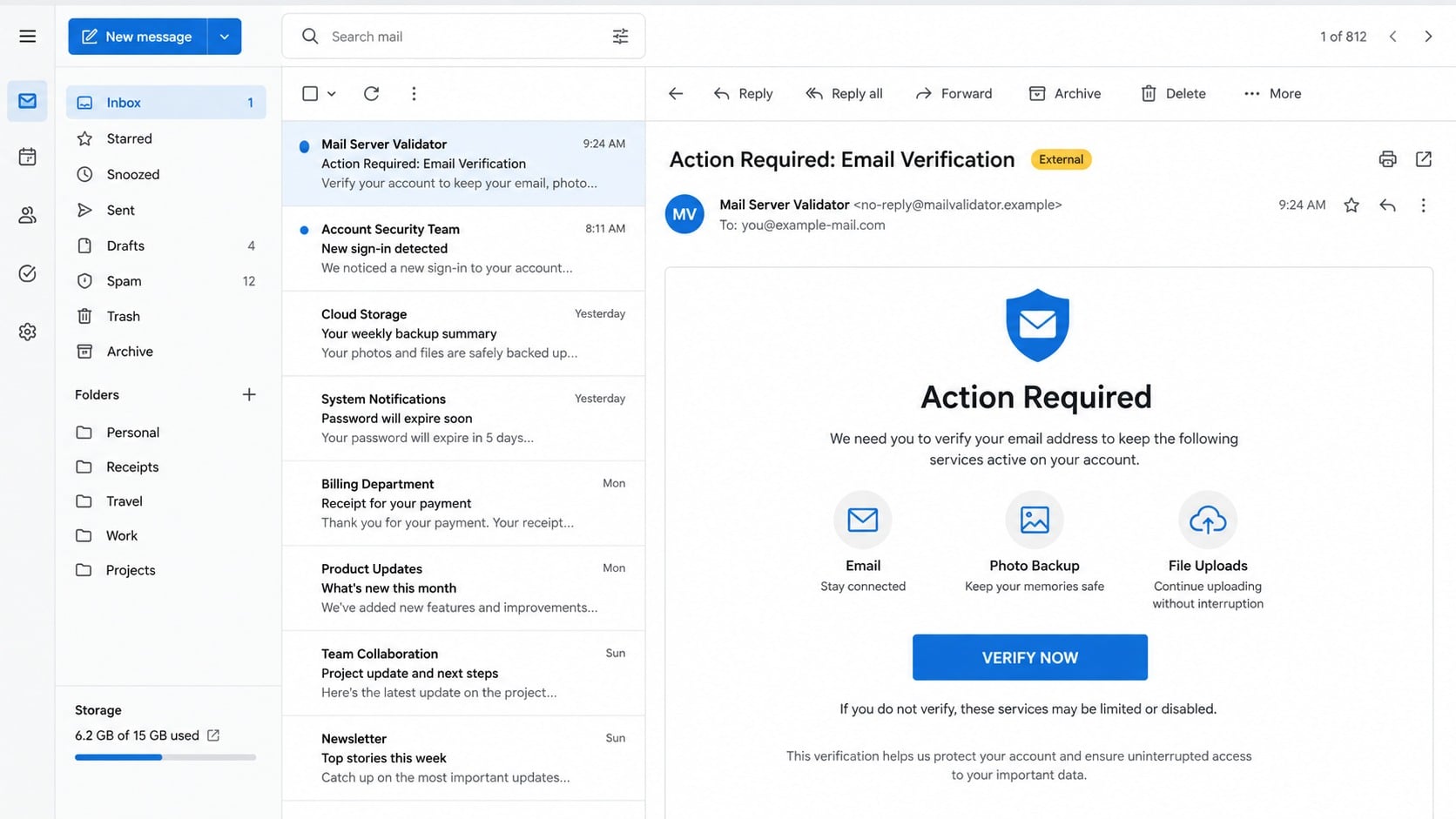
A message from a supposed “Mail Server Validator” asks you to verify an account so email, photo backups, and file uploads remain active.
The service list sounds broad enough to matter to almost anyone. Understanding who sent the notice, and where its button leads, changes the picture completely.
Overview
The services the email says are at risk
The notice claims verification is required to keep sending and receiving email. It also mentions photo backup and file uploads as possible losses.
This combination is deliberately universal. Many accounts offer at least one of those functions, so the warning can feel relevant without identifying a provider.
A button labeled “Verify Now” or similar directs the recipient to a separate website. The sender presents the action as routine activation.
No legitimate organization called “Mail Server Validator” is identified. The label describes a function while avoiding ownership, address, policy, and support details.
The fake activation screen
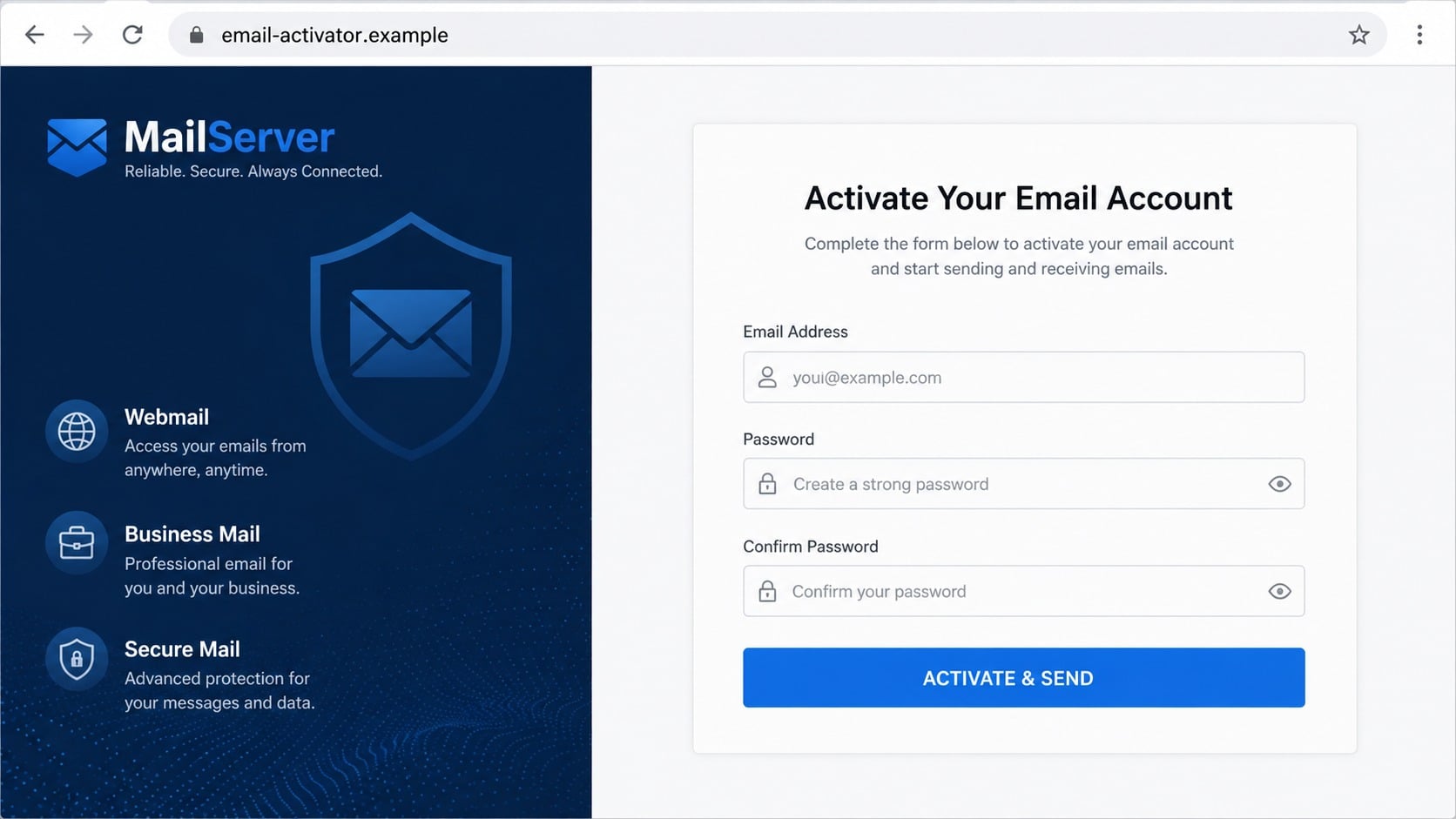
The linked page may call itself “MailServer” and display icons associated with several popular email platforms. That broad branding is another major clue.
It asks for an email address, password, and password confirmation. One observed button read “Activate and Send,” although no clear item was being sent.
The page was hosted through a general website publishing service. Anyone can misuse hosted pages; the hosting company does not endorse the content.
An unrelated hosted address cannot validate accounts across numerous independent providers. Each provider controls authentication within its own established system.
What criminals gain from a universal login lure
A provider-neutral form can collect credentials for many platforms with one campaign. The operator sorts submissions by the address domain afterward.
Asking for password confirmation reduces typing errors. It also makes the page resemble a registration process, even though recipients supposedly already have accounts.
Captured credentials can enable:
- Mailbox access and theft of stored personal information.
- Abuse of cloud files, calendars, and contact lists.
- Password resets for services connected to the address.
- Impersonation through replies inside genuine conversations.
- Further attacks aimed at coworkers or family members.
The campaign is not verifying a server. It is using an invented technical role to collect passwords from people using different services.
How the Verify Your Email Server Account Scam Works
Step 1: An invented validator claims authority over every provider
The sender name sounds technical rather than personal. Words such as server, validator, administrator, and activation imply background infrastructure most users never see.
Yet email systems do not share a single outside validator. A consumer provider, employer, school, and hosting company each manage accounts differently.
The message avoids explaining that distinction. It simply claims the authority to deactivate whichever address received the campaign.
That flexibility is useful for mass phishing. The same email can be delivered to many domains without changing its central story.
Step 2: Unrelated features widen the emotional hook
Email alone may not worry every recipient. Adding photos and file uploads increases the chance that one mentioned service feels valuable.
The list also mimics the language of a modern cloud account. It suggests the warning comes from a larger ecosystem rather than an unknown sender.
Specific account usage is still absent. The email does not name a stored album, storage amount, recent upload, plan, or recognizable administrator.
A genuine notice should connect its requested action to an identifiable service. A generic collection of features does the opposite.
Step 3: A hosted page imitates an independent identity service
The button opens a simple website with a polished mail graphic and a credential form. Its address does not belong to the recipient’s provider.
General hosting platforms let users publish pages quickly. Their domain appearing in the address means the page is hosted there, not officially approved.
Attackers benefit from established hosting because connections often use encryption and the domain may initially appear familiar.
Trust must be based on the complete path and purpose. A hosting platform cannot turn a stranger’s page into your provider’s authentication portal.
Step 4: Password confirmation improves stolen data quality
The form asks visitors to type the same secret twice. If both entries match, the operator receives a credential less likely to contain a mistake.
This is backwards for verification. Existing accounts normally confirm identity by signing in once on the real provider’s domain.
A button mentioning sending may trigger a false success notice. It might also reload the page or direct the browser to a genuine mail homepage.
Whatever appears next, the submitted password has left the trusted environment. The on-screen response cannot retrieve it from the attacker.
Step 5: The operator tests the address against its real provider
The domain after the at sign reveals where many accounts are hosted. Criminals can group submissions and try the correct login pages.
For custom business domains, mail records and public login portals can identify the service. Automated attempts make testing quick.
If multifactor authentication appears, the attacker may send another prompt or call while pretending to assist with activation.
Approval fatigue is part of the danger. Never approve a login you did not initiate, even immediately after an apparent verification.
Step 6: Access spreads across mail and connected cloud data
A mailbox may include links to shared drives, meeting invitations, scanned documents, and password-reset messages. One credential can reveal an entire working context.
Some providers combine mail, storage, photos, and calendars under one account. The lure’s feature list becomes real only after the account is stolen.
An intruder can create rules, obtain contact addresses, and send convincing replies. They may also download files before access is removed.
Later fraud can appear unrelated to the original email. A compromised account may remain useful until every session and token is revoked.
Why the “Universal MailServer” Idea Does Not Make Technical Sense
Email providers do not share one master password database
Each provider stores and validates its own authentication information. An outside page cannot activate accounts across unrelated companies by collecting their passwords.
Custom business domains add another layer because the visible address may use one domain while a contracted platform supplies mail.
A legitimate administrator knows that arrangement. The generic validator does not ask or explain because its purpose is collection.
Federated sign-in does not require revealing a password
Authentic single sign-on sends users to their identity provider, which confirms access and returns a limited authorization result.
The receiving application never needs to display a homemade field asking for the identity provider’s secret.
Users should see a familiar domain, named permissions, and a clear way to cancel. A blank universal form lacks those protections.
Confirmation fields belong to password creation
Typing a new password twice can prevent mistakes during registration or reset. Repeating an existing password offers no legitimate verification benefit.
The scam borrows that familiar interface pattern to make surrendering the same credential twice feel normal.
Read labels carefully. A page that cannot distinguish creating, confirming, and verifying a password is not a credible account portal.
Photo and file features depend on specific products
Some mail accounts include storage, while others do not. A real notice knows which products are attached to the recipient’s subscription.
The lure lists several features without usage, capacity, plan, or product names. Its coverage is broad because its knowledge is shallow.
That mismatch is useful during review. The more universal the warning becomes, the less likely it came from the organization managing your exact account.
Sender, Hosting, and Account Ownership Checks
Identify the actual account authority
Determine whether your account is personal, employer-managed, school-managed, or supplied by a hosting company. Only that authority can require legitimate verification.
Look at earlier authentic notices and the service’s own settings. Compare sender domains, terminology, support routes, and notification style.
A name such as “Mail Server Validator” is descriptive, not identifying. Demand a verifiable organization before considering any instruction.
Separate the host from the page publisher
A phishing page can sit on a respected cloud or code-hosting service. The platform supplies infrastructure, while an individual user supplies the deceptive content.
Do not assume the platform supports the page. Reputable hosts prohibit phishing and provide abuse-reporting channels.
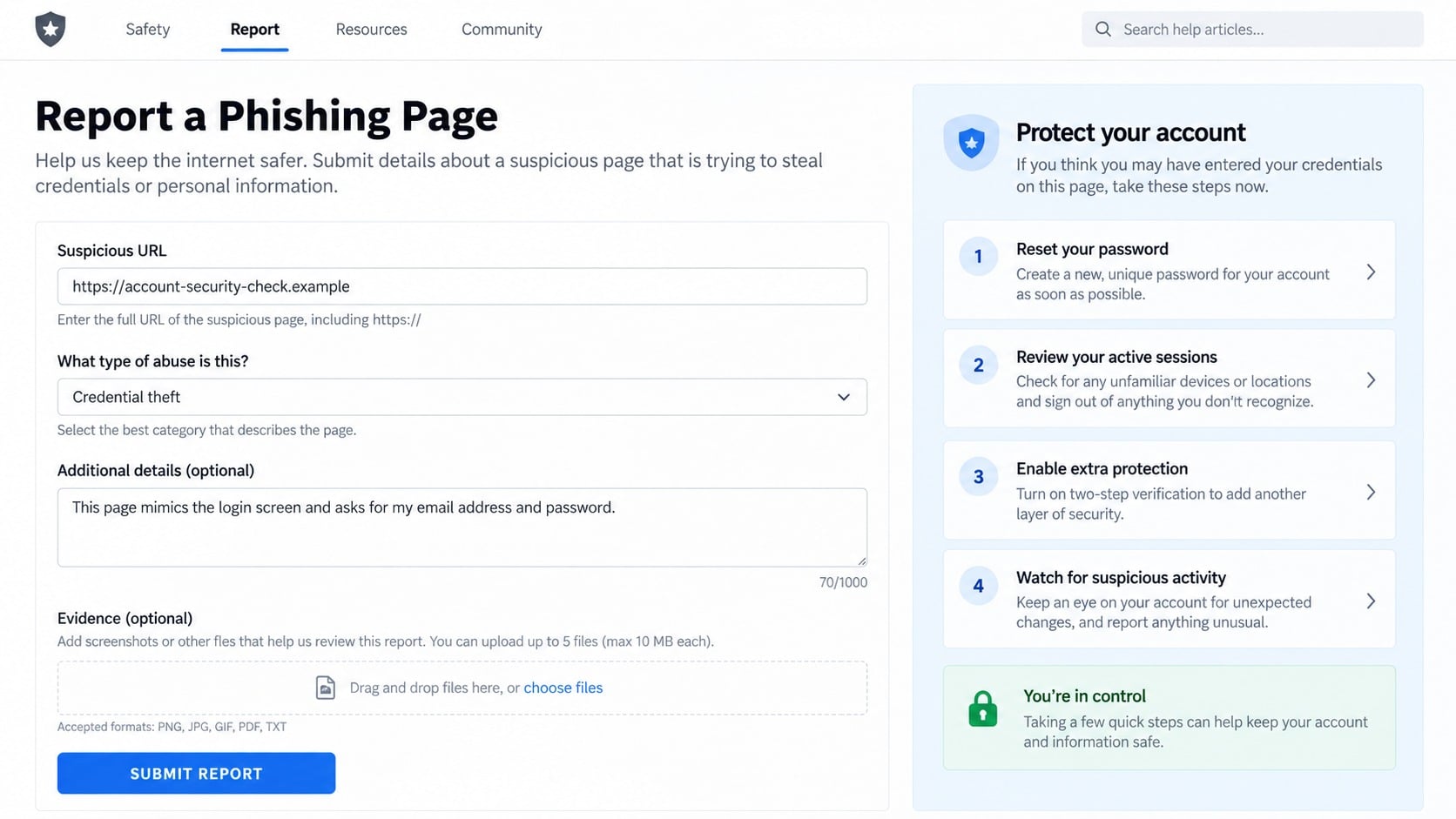
Record the full address and submit it to the host without entering information. Avoid repeatedly loading the page after reporting it.
Check whether one page claims to support competing services
A single form decorated with many provider logos is not a universal authentication gateway. Independent providers do not normally share passwords with it.
Official federated login clearly identifies the identity provider and returns users through documented authorization screens. It does not request confirmation copies of passwords.
If the page asks which provider you use only after collecting credentials, close it. That sequence serves the collector, not the account owner.
Verify the alert inside the real service
Open your normal mail application or enter the known website address manually. Check security notifications and account status there.
Ask an employer’s help desk through the company directory. Do not reply to the suspicious sender for confirmation.
Use a password manager as a warning signal. Refusal to fill on an unfamiliar domain often indicates you are outside the saved login site.
Check certificate details only as supporting evidence. A valid certificate secures traffic to the displayed host but does not establish account authority.
If uncertainty remains, ask the provider what notification was expected. Describe the message without sending credentials, codes, or identity documents.
Organizations can block the sender, landing host, and related indicators. Early reporting may protect people who have not opened their copies yet.
Save the original message before deleting it.
What to Do If You Fell for the Email Server Verification Scam
The response should cover both credentials and any active sessions created with them. Begin from the official provider, not from the suspicious page.
Business and school users should involve their administrator. Central logs can show access that a normal account screen may not display.
- Change the password immediately. Navigate to the provider independently and select a unique replacement. Do not submit the new password anywhere else.
- Revoke sessions and tokens. Sign out unfamiliar devices, remove unknown application passwords, and disconnect third-party apps you did not authorize.
- Inspect security settings. Confirm recovery contacts, multifactor methods, passkeys, delegated access, forwarding addresses, and trusted devices.
- Review mail behavior. Search sent, deleted, archived, and spam folders. Look for hidden rules that redirect messages or suppress security notices.
- Protect other accounts. Replace the exposed password anywhere it was reused. Begin with financial, cloud storage, social, shopping, and workplace services.
- Run a safety scan. Use Malwarebytes if anything downloaded or the site requested software. Examine extensions and remove unfamiliar browser permissions.
- Use layered web protection. AdGuard can block many reported phishing hosts and deceptive redirects. Keep built-in safe browsing active too.
- Report the hosted page. Send the complete address and evidence to the hosting platform and your mail provider’s abuse channel.
- Tell your contacts when necessary. Warn recipients if unusual messages left your account. Ask them not to open links or honor requests.
- Monitor for secondary attacks. Treat unexpected multifactor prompts, recovery notices, support calls, and document requests as possible follow-up activity.
Is Your Device Infected? Run a Free Malware Scan
Slow performance, constant pop-ups, or strange behavior? These are classic signs of a malware infection. The fastest way to find out is to scan your device with Malwarebytes Free — one of the most trusted malware removal tools available.
The free version detects and removes the most common threats, including:
- Adware — the cause of those annoying pop-ups
- Browser hijackers — unwanted redirects and changed homepages
- Trojans and spyware — hidden programs stealing your data
- Potentially unwanted programs (PUPs) — software you never asked for
👉 Select your device below — Windows, Mac, or Android — then follow the simple steps to download Malwarebytes, scan your system, and remove any threats it finds. The scan usually takes 5 to 20 minutes.
Run a Malware Scan with Malwarebytes for Windows
Malwarebytes is one of the most popular and trusted anti-malware tools for Windows — and it’s completely free for removing infections. It catches threats that many antivirus programs miss, including adware, browser hijackers, and trojans. Follow the steps below to scan and clean your PC in just a few minutes.
Download Malwarebytes
Click the button below to download the latest version of Malwarebytes for Windows from the official source. The free version is all you need — it will scan your computer and remove adware, browser hijackers, and other malicious software at no cost.
Download MalwarebytesOfficial installer for Windows 11 and 10. Your download starts right away.Want real-time protection? See Malwarebytes Premium Malwarebytes Free for WindowsScans and removes malware at no cost
-
Install Malwarebytes
When the download finishes, open your Downloads folder and double-click the MBSetup file. If Windows shows a User Account Control pop-up, click “Yes” to allow the installation.

Follow the On-Screen Prompts to Install Malwarebytes
The setup wizard will walk you through a few quick screens:
-
Choose where you’re installing the program — “Personal Computer” or “Work Computer” — then click Next.

-
Malwarebytes will now install on your device. This usually takes under a minute.

-
When installation is complete, the “Welcome to Malwarebytes” screen will open automatically.

-
On the final screen, click Open Malwarebytes to launch the program.

-
Enable “Scan for Rootkits”
Before scanning, turn on rootkit detection so Malwarebytes can find even the most hidden threats. Click the Settings gear icon on the left side of the screen.

In the settings menu, find “Scan for rootkits” and click the toggle so it turns blue.

Done? Click “Dashboard” in the left pane to return to the main screen.
Start the Scan
Click the blue Scan button. Malwarebytes will automatically update its virus database and start checking your computer for malware.

-
Wait for the Scan to Finish
The scan checks your entire system for browser hijackers and other malicious programs, so it can take 5 to 20 minutes depending on your computer. Feel free to do something else — just check back occasionally to see the progress.

-
Quarantine the Detected Threats
When the scan is done, you’ll see a list of everything Malwarebytes found — malware, adware, and potentially unwanted programs. Click the “Quarantine” button to remove all of them at once.

Malwarebytes will now remove the malicious files and registry entries and move them safely into quarantine.

-
Restart Your Computer
Some threats can only be fully removed after a reboot. If Malwarebytes asks you to restart, click Yes. Once you’re logged back in, Malwarebytes has finished removing the threats it found.

That’s it — your Windows PC is now clean of trojans, adware, and other malware, and should be back to running smoothly.
If you are still having problems with your computer after completing these instructions, then please follow one of the steps:
- Run a computer scan with ESET Online Scanner
- Ask for help in our Windows Malware Removal Help & Support forum.
Run a Malware Scan with Malwarebytes for Mac
Malwarebytes for Mac is a free on-demand scanner that removes the malware other security software tends to miss — adware, browser hijackers, and unwanted programs included. Cleaning an infected Mac with Malwarebytes has always been completely free, and it’s our go-to recommendation. Follow the steps below to scan and clean your Mac in just a few minutes.
-
Download Malwarebytes for Mac
Click the button below to download the latest version of Malwarebytes for Mac.
Download MalwarebytesOfficial installer for macOS. Your download starts right away.Want real-time protection? See Malwarebytes PremiumMalwarebytes Free for MacScans and removes malware at no cost -
Open the Malwarebytes setup file
When the download finishes, open your Downloads folder and double-click the setup file to begin the installation.

-
Follow the On-Screen Prompts to Install Malwarebytes
The Malwarebytes for Mac Installer will guide you through a few quick screens. Click “Continue” and keep following the prompts until the installation completes.



When the installation is complete, Malwarebytes opens to the Welcome to Malwarebytes screen. Click “Get started“.
-
Select “Personal Computer” or “Work Computer”
Malwarebytes will ask what type of computer you’re installing it on. Click either Personal Computer or Work Computer, whichever applies.

-
Start the Scan
Click the “Scan” button. Malwarebytes will automatically update its detection database and begin checking your Mac for malware.

-
Wait for the Scan to Finish
Malwarebytes will scan your Mac for adware, browser hijackers, and other malicious programs. This can take a few minutes, so feel free to do something else — just check back occasionally to see the progress.

-
Quarantine the Detected Threats
When the scan is done, you’ll see a list of everything Malwarebytes found. Click the “Quarantine” button to remove all the threats at once.

-
Restart Your Mac
Malwarebytes will now remove all the malicious files it found. Some threats can only be fully removed after a reboot — if Malwarebytes asks you to restart, allow it. Once you’re logged back in, your Mac is clean.

That’s it — your Mac is now free of adware, rogue browser extensions, and other potentially harmful software.
If you are still experiencing problems while trying to remove a malicious program from your computer, please ask for help in our Mac Malware Removal Help & Support forum.
Run a Malware Scan with Malwarebytes for Android
Malwarebytes for Android automatically detects and removes dangerous threats like malware and ransomware so you don’t have to worry about your most-used device being compromised. Aggressive detection of adware and potentially unwanted programs keeps your Android phone or tablet running smooth.
-
Download Malwarebytes for Android.
You can download Malwarebytes for Android by clicking the link below.
Get Malwarebytes for AndroidOpens Google Play in a new tab.Want real-time protection? See Malwarebytes Premium for AndroidMalwarebytes for AndroidScans your phone and removes malware at no cost -
Install Malwarebytes for Android on your phone.
In the Google Play Store, tap “Install” to install Malwarebytes for Android on your device.

When the installation process has finished, tap “Open” to begin using Malwarebytes for Android. You can also open Malwarebytes by tapping on its icon in your phone menu or home screen.

-
Follow the on-screen prompts to complete the setup process
When Malwarebytes will open, you will see the Malwarebytes Setup Wizard which will guide you through a series of permissions and other setup options.
This is the first of two screens that explain the difference between the Premium and Free versions. Swipe this screen to continue.
Tap on “Got it” to proceed to the next step.
Malwarebytes for Android will now ask for a set of permissions that are required to scan your device and protect it from malware. Tap on “Give permission” to continue.
Tap on “Allow” to permit Malwarebytes to access the files on your phone.
-
Update database and run a scan with Malwarebytes for Android
You will now be prompted to update the Malwarebytes database and run a full system scan.

Click on “Update database” to update the Malwarebytes for Android definitions to the latest version, then click on “Run full scan” to perform a system scan.

-
Wait for the Malwarebytes scan to complete.
Malwarebytes will now start scanning your phone for adware and other malicious apps. This process can take a few minutes, so we suggest you do something else and periodically check on the status of the scan to see when it is finished.

-
Click on “Remove Selected”.
When the scan has been completed, you will be presented with a screen showing the malware infections that Malwarebytes for Android has detected. To remove the malicious apps that Malwarebytes has found, tap on the “Remove Selected” button.

-
Restart your phone.
Malwarebytes for Android will now remove all the malicious apps that it has found. To complete the malware removal process, Malwarebytes may ask you to restart your device.
That’s it — your Android phone is now clean — no more malicious apps, adware, or browser redirects.
If you are still having problems with your phone after completing these instructions, then please follow one of the steps:
- Restore your phone to factory settings by going to Settings > General management > Reset > Factory data reset.
- Ask for help in our Mobile Malware Removal Help & Support forum.
Stay Protected: Block Ads and Malicious Sites
Now that your device is clean, keep it that way. Most infections start with a malicious ad or a fake download button — so blocking them at the source is your best defense.
We recommend AdGuard, which blocks malicious ads, phishing pages, and dangerous redirects before they can reach you.
👉 Download AdGuard and browse safely
Frequently Asked Questions
Is Mail Server Validator a real authority?
The investigated message does not identify a legitimate authority by that name. It uses a generic technical label instead of a verifiable service or administrator.
Your actual provider or organization manages account status. Contact it through a known route if you are uncertain.
Why does the page show several email provider logos?
The logos help a generic form feel relevant to more visitors. They do not establish partnerships or permission to collect those providers’ passwords.
Authentication for your account should occur on a domain you recognize. Treat a multi-provider password form as highly suspicious.
Does a hosted page with encryption mean it is safe?
No. Encryption protects the connection to the page, but the page operator may still be collecting information dishonestly.
General hosting services can be abused by users. Evaluate the publisher, destination, and requested data rather than the padlock alone.
Why does the form ask me to confirm my password?
Repeating the password can reduce errors in stolen submissions. It also makes the screen resemble registration, even though the account already exists.
A genuine provider might request a new password twice during a reset. That process must occur inside the authenticated official service.
Can the scam bypass multifactor authentication?
Multifactor protection greatly helps, but attackers may attempt live relays, deceptive approval prompts, or calls requesting temporary codes.
Use phishing-resistant passkeys or security keys when available. Reject every authentication event you did not start.
Should I report the page to its hosting platform?
Yes. Supply the full address and a concise explanation that it requests email credentials while impersonating a verification service.
Also report the original message to your provider or administrator. Multiple reports can help disrupt both delivery and hosting.
The Bottom Line
The fake email server verification campaign invents a universal validator, then uses a hosted MailServer page to gather addresses and repeated password entries.
Real account authority comes from your known provider or administrator. Verify warnings there, and fully secure credentials, sessions, rules, and recovery settings after any disclosure.

Join the discussion
0 commentsShare your experience or ask a question about this article.
Discussion
Start the conversation
Have a question or something useful to share? Add the first comment.