

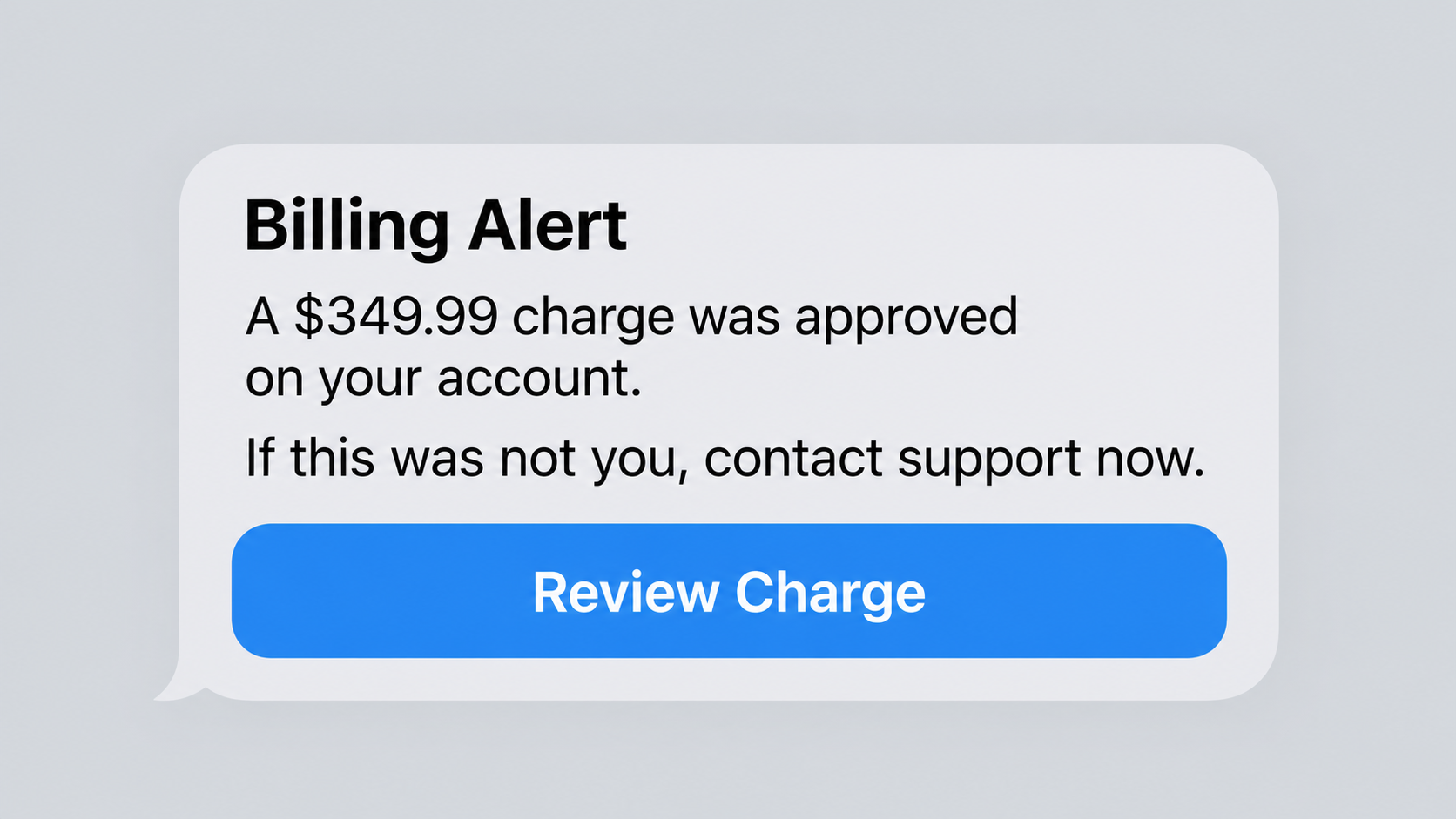
A text says Apple is about to charge $349 for something you never ordered. It offers one reassuring option: call immediately and cancel.
The amount is large enough to frighten, but still believable for electronics or a yearly service. That careful choice is where the trouble begins.
Overview
The $349 message is not a normal Apple receipt
The circulating alert claims that a purchase, renewal, or subscription costing about $349 has been approved through an Apple account.
It tells the recipient to telephone a support number if the transaction was not authorized.
Apple does not require customers to call an unsolicited number inside a random text to dispute a purchase.
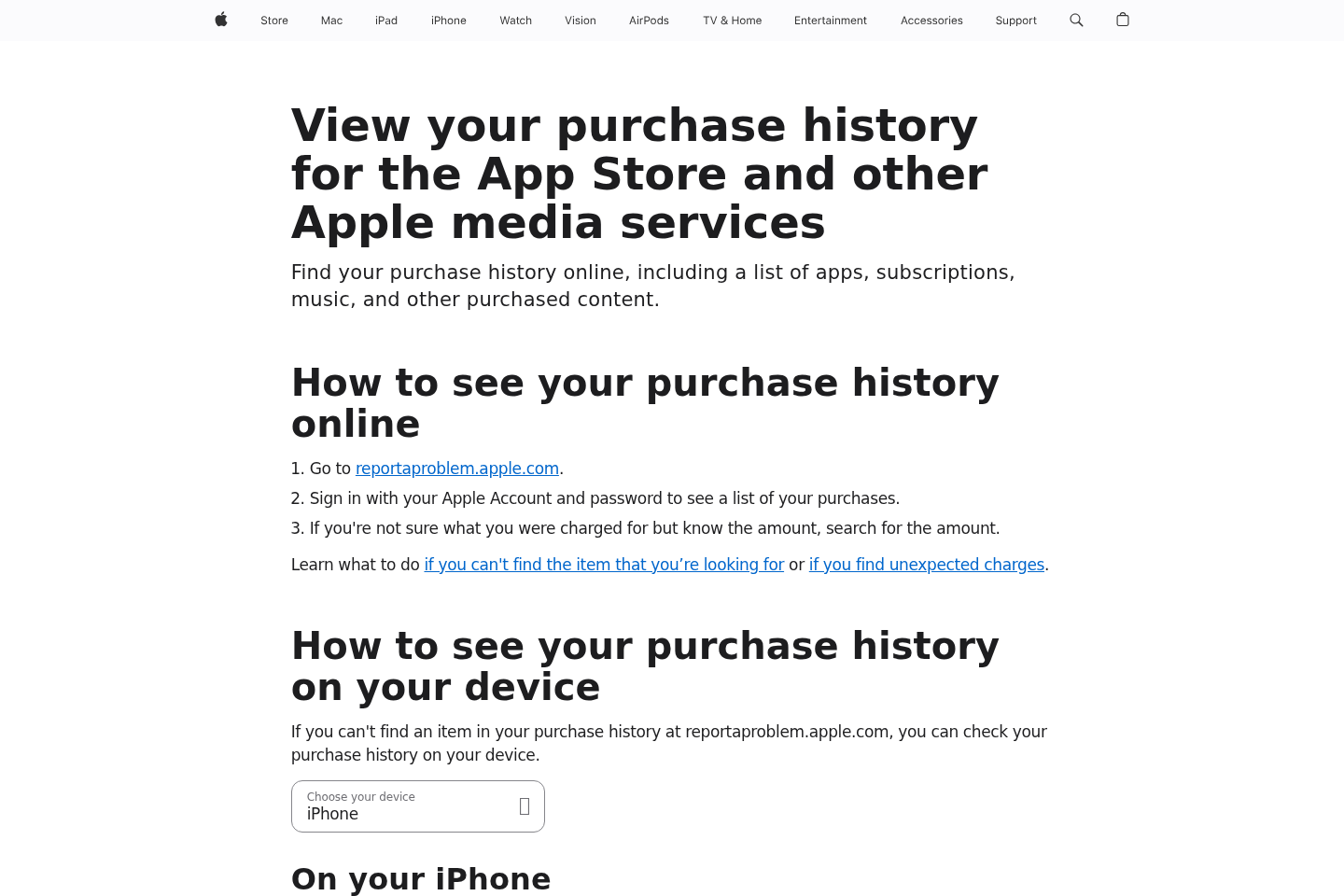
Genuine account activity can be reviewed through Apple’s official settings, purchase history, and billing pages.
A frightening message should never replace what the account itself shows.
The telephone number is the real payload
The text may contain no conventional malicious link.
Instead, it persuades the recipient to initiate the contact by calling.
That detail can make the message feel safer because many people associate scams only with suspicious web addresses.
The person answering is not Apple Support. The call center uses the invented charge to begin a refund or technical-support scheme.
Every later request depends on keeping the caller anxious and cooperative.
The safest verification takes less than a minute
Open Settings or the App Store independently and review the Apple Account purchase history.
Also inspect the payment card or bank account using its official application.
Do not call, reply, or tap anything from the warning while performing those checks.
Common signs of this operation include:
- An unexpected $349 or $349.99 Apple charge appears only inside a text.
- The message threatens immediate billing unless the recipient calls.
- The telephone number does not come from Apple’s official support pages.
- Spelling, spacing, capitalization, or punctuation looks slightly unnatural.
- The sender address is a random mobile number or unrelated email.
- The agent asks to install screen-sharing or remote-control software.
- A supposed refund requires bank access, gift cards, cryptocurrency, or transfers.
- The caller is told not to discuss the case with the bank.
Why $349 Is an Effective Bait Amount
Scammers choose numbers that are painful without appearing impossible.
A $349 transaction could resemble headphones, a device accessory, repair coverage, software, or an annual subscription.
Recipients may assume a child, spouse, or compromised account created it.
The uncertainty makes calling feel faster than logging into several services.
An exact figure such as $349.99 also resembles an automated billing notice.
Specificity creates authority even when the underlying transaction does not exist.
The alert may mention a deadline, pending authorization, or scheduled renewal.
That language suggests the loss remains preventable only during a narrow window.
Once panic begins, the recipient may overlook the missing order number, merchant details, or account-specific information.
Many messages do not use the recipient’s real name.
Some contain a partial number or generic “Apple user” greeting instead.
A legitimate receipt normally identifies the purchased item, transaction date, payment method, and account context.
Even then, a copied receipt can be forged, so independent account review remains necessary.
The scammer only needs a small portion of recipients to call.
Automated texting makes distributing thousands of false alerts inexpensive.
What Happens During the Callback
The call often begins with a calm person using an Apple-related greeting.
Background office noise may imitate a busy support department.
The agent asks the caller to repeat the message, amount, telephone number, or a supposed reference code.
Those details do not authenticate anything because the criminal distributed the original alert.
Next, the agent may ask for the caller’s name, email, address, or device type.
Each answer helps build a profile and makes later statements sound personalized.
The scammer might claim the account was accessed from another state or country.
A second invented transaction can be added to increase pressure.
The caller is then transferred to a supposed fraud, billing, or refund specialist.
This transfer creates the impression of separate departments inside a real company.
The specialist may request remote access to “secure” the device or complete a refund form.
Remote access allows the operator to view screens, steal saved information, or manipulate what the victim sees.
In refund variants, the criminal displays a false credit that appears larger than expected.
The victim is told an employee made an error and must return the excess immediately.
No real overpayment occurred. Screen editing or hidden transfers created the illusion.
How the Apple $349 Charge Text Scam Works
Step 1: A bulk text announces the fake purchase
Thousands of telephone numbers receive nearly identical Apple billing warnings.
The criminal does not need to know which recipients own Apple devices.
Apple’s enormous customer base makes random delivery effective.
The invented charge supplies an urgent reason to engage.
Step 2: The victim calls the number voluntarily
The text frames the telephone line as the only cancellation route.
Calling bypasses many browser warnings and places the victim directly with a trained manipulator.
The scammer can adapt the story in real time.
A person who sounds worried may receive more aggressive pressure.
Step 3: The fake agent collects identifying information
Routine-sounding questions gather names, email addresses, banks, devices, and account habits.
The agent may request a one-time code while falsely calling it a verification number.
Sharing that code can authorize a password reset, login, purchase, or payment action.
Apple representatives do not need customers to disclose account passwords or security codes.
Step 4: Remote access turns conversation into control
The caller is directed to install software and read an access code aloud.
The program itself may be a legitimate remote-support tool abused for criminal access.
Once connected, the operator can watch email, financial accounts, and private documents.
A blank screen or “secure connection” claim may hide activity from the victim.
Step 5: A refund story moves attention to the bank
The agent says the $349 must be reversed through an online form.
The victim is instructed to sign into banking while the remote session remains active.
Screen changes can make an internal transfer look like money sent by Apple.
The scammer then claims the refund was accidentally too large.
Step 6: The victim is pressured to repay imaginary money
Threats about the agent losing a job can create guilt and urgency.
Repayment instructions may involve gift cards, cash through a parcel, cryptocurrency, or a bank transfer.
These methods are selected because reversing them is difficult.
A legitimate company never resolves a refund mistake by demanding secret gift-card codes.
Step 7: Follow-up attacks target the same person
Victims who paid may receive new calls claiming to be banks, police, regulators, or recovery specialists.
The criminals already know the person responds to urgent financial stories.
Additional demands can continue until the victim stops contact or the bank intervenes.
Recovery scammers may later promise to retrieve the loss for another advance fee.
How to Check a Real Apple Charge
On an iPhone or iPad, open Settings and select the Apple Account area without using the message.
Review subscriptions and purchase history through the device’s official menus.
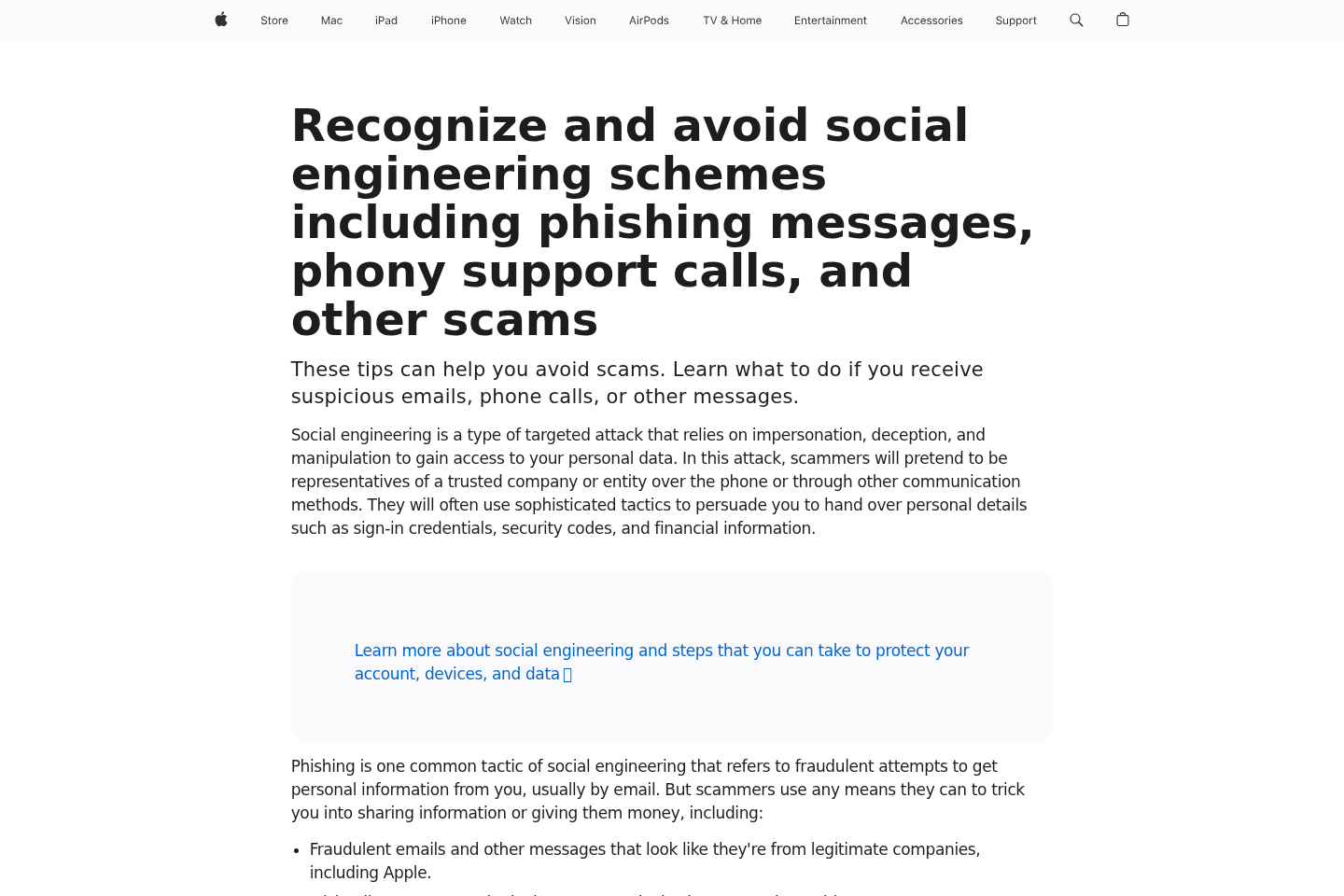
Apple’s website also explains how to view purchases associated with an account.
Type the address yourself or begin from Apple’s official support application.
Family Sharing can place another family member’s purchase on the organizer’s payment method.
Ask household members before assuming the account is compromised.
Some card statements combine several smaller Apple purchases into one charge.
Compare dates and totals in purchase history to the banking entry.
If the charge appears at the bank but not the Apple account, contact the card issuer through the number printed on the card.
Do not use a telephone number supplied by a search advertisement or incoming caller.
Change the Apple Account password if genuine unauthorized activity appears.
Review trusted devices and remove anything unrecognized.
Enable two-factor authentication and protect the device passcode from observation.
Never approve a sign-in prompt that you did not initiate.
A rejected verification request can stop an attacker even when they already know the password.
Company, Address, and Fulfillment Checks
Apple is being impersonated, not exposed
The real Apple company operates established support, billing, and account channels.
The text sender borrows that identity without authorization.
Do not describe the criminal’s conduct as an Apple billing practice.
Verification should begin inside the genuine account or typed official website.
The telephone line may belong to a disposable provider
Internet calling allows a fraud group to obtain numbers from many regions.
Caller identification can also be spoofed, so a familiar area code proves little.
Search results may show recent complaints, yet a newly activated number can have no history.
Blocking one line helps personally but does not dismantle the wider operation.
The call center can operate from India or anywhere else
Some organized refund and support operations have been documented in India.
An accent, name, or background noise cannot establish a caller’s country or criminality.
Judge the requests instead: remote access, secrecy, security codes, and irreversible payments expose the fraud.
Avoid blaming legitimate Indian support workers for conduct carried out by specific criminal groups.
There is no legitimate shipping or refund address
This scheme does not need to fulfill a real Apple order.
Any courier address appears later only when criminals want cash, gift cards, or devices mailed.
Never send money or property to repair an alleged digital refund error.
Real payment corrections remain visible through the original account and regulated payment channel.
Warning Signs During a Supposed Support Call
The agent objects when you say you will contact Apple independently.
You are asked to keep the telephone connected while visiting a bank or store.
The caller says account security prevents speaking with family or bank employees.
A remote program is described as mandatory for cancellation.
The representative wants the screen hidden while they perform “backend work.”
Gift cards are called verification vouchers, security cards, or merchant certificates.
Cash is requested inside a book, box, or wrapped package.
Cryptocurrency is presented as a temporary safe wallet.
A one-time authentication code is requested verbally.
The caller knows only information you just provided or information visible in the original text.
A supervisor uses threats, sympathy, or anger when you pause.
The supposed refund appears only while remote-access software is active.
Bank balances are moved between accounts to imitate an incoming credit.
The call continues for hours to isolate and exhaust the victim.
Any one of these behaviors justifies hanging up and contacting official institutions separately.
What Remote Access Can Expose
A connected operator can see nearly everything displayed on the computer.
That may include email, photographs, tax files, identity documents, saved invoices, and private conversations.
Browser autofill can reveal addresses and make account takeover easier.
Stored passwords may be extracted directly or captured when the victim signs in.
The attacker can search email for bank statements, travel records, and password-reset messages.
Financial websites expose balances, account numbers, recent payees, and available transfer limits.
A scammer can move money between a victim’s own accounts to imitate an incoming refund.
The displayed total increases, although no outside money entered the bank.
Browser developer tools can also alter visible text temporarily without changing the institution’s records.
While one person talks, another operator may attempt logins using information gathered from the screen.
Clipboard contents can expose copied passwords, card numbers, or cryptocurrency addresses.
A remote session may install additional programs that start after the current call ends.
Some tools permit unattended access unless their settings and services are removed completely.
Turning off the visible window does not always terminate every installed component.
That is why changing passwords on the same compromised computer can fail.
Use a clean phone or separate device for urgent banking and email changes.
Tell the bank that remote access occurred, not merely that a suspicious telephone call happened.
That detail helps fraud teams judge whether login credentials, balances, and transfer controls require additional protection.
Review recent account activity from the clean device and preserve unfamiliar login alerts before an attacker can delete or dismiss them.
Keep monitoring for several weeks because stolen identity details may be tested long after the fake $349 emergency ends.
What to Do if You Have Fallen Victim to This Scam
- End the call immediately. Do not debate the agent or warn them about the actions you will take next.
- Disconnect remote access. Turn off network connectivity and remove the software only after preserving its name and relevant evidence.
- Call the bank independently. Use the card or official application, report the incident, freeze transfers, and ask about account protection.
- Secure the Apple Account. Change its password from a clean device, review trusted hardware, and reject unfamiliar sign-in prompts.
- Change exposed credentials. Prioritize email, banking, payment services, and any password visible or typed during the remote session.
- Scan every affected computer. Run Malwarebytes and remove remote-control programs, information stealers, or other detected threats.
- Reduce malicious contact. Use AdGuard to filter dangerous web advertising, then block the sender and silence unknown callers where practical.
- Report gift cards quickly. Contact the issuer with receipts and card numbers before criminals redeem or move the remaining value.
- Document the complete loss. Save texts, telephone numbers, call times, transfers, gift-card receipts, software names, and bank communications.
- File official reports. Notify Apple, the FTC, local police, and relevant financial institutions without paying a recovery service upfront.
Is Your Device Infected? Run a Free Malware Scan
Slow performance, constant pop-ups, or strange behavior? These are classic signs of a malware infection. The fastest way to find out is to scan your device with Malwarebytes Free — one of the most trusted malware removal tools available.
The free version detects and removes the most common threats, including:
- Adware — the cause of those annoying pop-ups
- Browser hijackers — unwanted redirects and changed homepages
- Trojans and spyware — hidden programs stealing your data
- Potentially unwanted programs (PUPs) — software you never asked for
👉 Select your device below — Windows, Mac, or Android — then follow the simple steps to download Malwarebytes, scan your system, and remove any threats it finds. The scan usually takes 5 to 20 minutes.
Run a Malware Scan with Malwarebytes for Windows
Malwarebytes is one of the most popular and trusted anti-malware tools for Windows — and it’s completely free for removing infections. It catches threats that many antivirus programs miss, including adware, browser hijackers, and trojans. Follow the steps below to scan and clean your PC in just a few minutes.
Download Malwarebytes
Click the button below to download the latest version of Malwarebytes for Windows from the official source. The free version is all you need — it will scan your computer and remove adware, browser hijackers, and other malicious software at no cost.
Download MalwarebytesOfficial installer for Windows 11 and 10. Your download starts right away.Want real-time protection? See Malwarebytes Premium Malwarebytes Free for WindowsScans and removes malware at no cost
-
Install Malwarebytes
When the download finishes, open your Downloads folder and double-click the MBSetup file. If Windows shows a User Account Control pop-up, click “Yes” to allow the installation.

Follow the On-Screen Prompts to Install Malwarebytes
The setup wizard will walk you through a few quick screens:
-
Choose where you’re installing the program — “Personal Computer” or “Work Computer” — then click Next.

-
Malwarebytes will now install on your device. This usually takes under a minute.

-
When installation is complete, the “Welcome to Malwarebytes” screen will open automatically.

-
On the final screen, click Open Malwarebytes to launch the program.

-
Enable “Scan for Rootkits”
Before scanning, turn on rootkit detection so Malwarebytes can find even the most hidden threats. Click the Settings gear icon on the left side of the screen.

In the settings menu, find “Scan for rootkits” and click the toggle so it turns blue.

Done? Click “Dashboard” in the left pane to return to the main screen.
Start the Scan
Click the blue Scan button. Malwarebytes will automatically update its virus database and start checking your computer for malware.

-
Wait for the Scan to Finish
The scan checks your entire system for browser hijackers and other malicious programs, so it can take 5 to 20 minutes depending on your computer. Feel free to do something else — just check back occasionally to see the progress.

-
Quarantine the Detected Threats
When the scan is done, you’ll see a list of everything Malwarebytes found — malware, adware, and potentially unwanted programs. Click the “Quarantine” button to remove all of them at once.

Malwarebytes will now remove the malicious files and registry entries and move them safely into quarantine.

-
Restart Your Computer
Some threats can only be fully removed after a reboot. If Malwarebytes asks you to restart, click Yes. Once you’re logged back in, Malwarebytes has finished removing the threats it found.

That’s it — your Windows PC is now clean of trojans, adware, and other malware, and should be back to running smoothly.
If you are still having problems with your computer after completing these instructions, then please follow one of the steps:
- Run a computer scan with ESET Online Scanner
- Ask for help in our Windows Malware Removal Help & Support forum.
Run a Malware Scan with Malwarebytes for Mac
Malwarebytes for Mac is a free on-demand scanner that removes the malware other security software tends to miss — adware, browser hijackers, and unwanted programs included. Cleaning an infected Mac with Malwarebytes has always been completely free, and it’s our go-to recommendation. Follow the steps below to scan and clean your Mac in just a few minutes.
-
Download Malwarebytes for Mac
Click the button below to download the latest version of Malwarebytes for Mac.
Download MalwarebytesOfficial installer for macOS. Your download starts right away.Want real-time protection? See Malwarebytes PremiumMalwarebytes Free for MacScans and removes malware at no cost -
Open the Malwarebytes setup file
When the download finishes, open your Downloads folder and double-click the setup file to begin the installation.

-
Follow the On-Screen Prompts to Install Malwarebytes
The Malwarebytes for Mac Installer will guide you through a few quick screens. Click “Continue” and keep following the prompts until the installation completes.



When the installation is complete, Malwarebytes opens to the Welcome to Malwarebytes screen. Click “Get started“.
-
Select “Personal Computer” or “Work Computer”
Malwarebytes will ask what type of computer you’re installing it on. Click either Personal Computer or Work Computer, whichever applies.

-
Start the Scan
Click the “Scan” button. Malwarebytes will automatically update its detection database and begin checking your Mac for malware.

-
Wait for the Scan to Finish
Malwarebytes will scan your Mac for adware, browser hijackers, and other malicious programs. This can take a few minutes, so feel free to do something else — just check back occasionally to see the progress.

-
Quarantine the Detected Threats
When the scan is done, you’ll see a list of everything Malwarebytes found. Click the “Quarantine” button to remove all the threats at once.

-
Restart Your Mac
Malwarebytes will now remove all the malicious files it found. Some threats can only be fully removed after a reboot — if Malwarebytes asks you to restart, allow it. Once you’re logged back in, your Mac is clean.

That’s it — your Mac is now free of adware, rogue browser extensions, and other potentially harmful software.
If you are still experiencing problems while trying to remove a malicious program from your computer, please ask for help in our Mac Malware Removal Help & Support forum.
Run a Malware Scan with Malwarebytes for Android
Malwarebytes for Android automatically detects and removes dangerous threats like malware and ransomware so you don’t have to worry about your most-used device being compromised. Aggressive detection of adware and potentially unwanted programs keeps your Android phone or tablet running smooth.
-
Download Malwarebytes for Android.
You can download Malwarebytes for Android by clicking the link below.
Get Malwarebytes for AndroidOpens Google Play in a new tab.Want real-time protection? See Malwarebytes Premium for AndroidMalwarebytes for AndroidScans your phone and removes malware at no cost -
Install Malwarebytes for Android on your phone.
In the Google Play Store, tap “Install” to install Malwarebytes for Android on your device.

When the installation process has finished, tap “Open” to begin using Malwarebytes for Android. You can also open Malwarebytes by tapping on its icon in your phone menu or home screen.

-
Follow the on-screen prompts to complete the setup process
When Malwarebytes will open, you will see the Malwarebytes Setup Wizard which will guide you through a series of permissions and other setup options.
This is the first of two screens that explain the difference between the Premium and Free versions. Swipe this screen to continue.
Tap on “Got it” to proceed to the next step.
Malwarebytes for Android will now ask for a set of permissions that are required to scan your device and protect it from malware. Tap on “Give permission” to continue.
Tap on “Allow” to permit Malwarebytes to access the files on your phone.
-
Update database and run a scan with Malwarebytes for Android
You will now be prompted to update the Malwarebytes database and run a full system scan.

Click on “Update database” to update the Malwarebytes for Android definitions to the latest version, then click on “Run full scan” to perform a system scan.

-
Wait for the Malwarebytes scan to complete.
Malwarebytes will now start scanning your phone for adware and other malicious apps. This process can take a few minutes, so we suggest you do something else and periodically check on the status of the scan to see when it is finished.

-
Click on “Remove Selected”.
When the scan has been completed, you will be presented with a screen showing the malware infections that Malwarebytes for Android has detected. To remove the malicious apps that Malwarebytes has found, tap on the “Remove Selected” button.

-
Restart your phone.
Malwarebytes for Android will now remove all the malicious apps that it has found. To complete the malware removal process, Malwarebytes may ask you to restart your device.
That’s it — your Android phone is now clean — no more malicious apps, adware, or browser redirects.
If you are still having problems with your phone after completing these instructions, then please follow one of the steps:
- Restore your phone to factory settings by going to Settings > General management > Reset > Factory data reset.
- Ask for help in our Mobile Malware Removal Help & Support forum.
Stay Protected: Block Ads and Malicious Sites
Now that your device is clean, keep it that way. Most infections start with a malicious ad or a fake download button — so blocking them at the source is your best defense.
We recommend AdGuard, which blocks malicious ads, phishing pages, and dangerous redirects before they can reach you.
👉 Download AdGuard and browse safely
Frequently Asked Questions
Is the Apple $349 text a genuine billing notice?
No. A message directing you to an unsolicited support number is bait. Check purchase history through official Apple tools instead.
Can the scam work without a clickable link?
Yes. The telephone number performs the same role by connecting the recipient directly to a fraudulent call center.
Will Apple ever ask for gift cards during a refund?
No legitimate Apple refund requires gift cards, cryptocurrency, mailed cash, or repayment of a supposed accidental credit.
Can caller identification show the real Apple name?
It can be spoofed. Never authenticate support through the displayed caller name or number alone.
What if no $349 purchase appears in my account?
Do not call the message. Delete it after reporting and continue monitoring the real account and payment card.
Can remote-support software remain dangerous afterward?
Yes. Persistent access, stolen passwords, or additional malware may remain, so remove the tool, scan the device, and secure accounts.
The Bottom Line
The Apple $349 charge message invents a billing emergency to make victims call criminals posing as support or refund specialists.
Do not use the supplied number. Verify purchases independently, refuse remote access and irreversible payments, and act quickly if any information or money was exposed.

Join the discussion
0 commentsShare your experience or ask a question about this article.
Discussion
Start the conversation
Have a question or something useful to share? Add the first comment.