Smart Retire Plan Scam Exposed: Fake Fox News Income System Investigated
Written by: Lapain Epuran
Published on:
A polished news clip promises that retirees have found an overlooked way to earn substantial income from home.
The presentation borrows familiar television cues, but the trail behind its success story leads somewhere much less reassuring.
Overview
The campaign sells borrowed authority
The Smart Retire Plan promotion uses an AI-manipulated presentation that appears to feature television host Laura Ingraham.
Viewers are pushed toward a news-style page that resembles a trusted media report rather than a direct advertisement.
There is no credible evidence that Ingraham or Fox News endorsed, investigated, or participated in the offer.
The success story is not independently verifiable
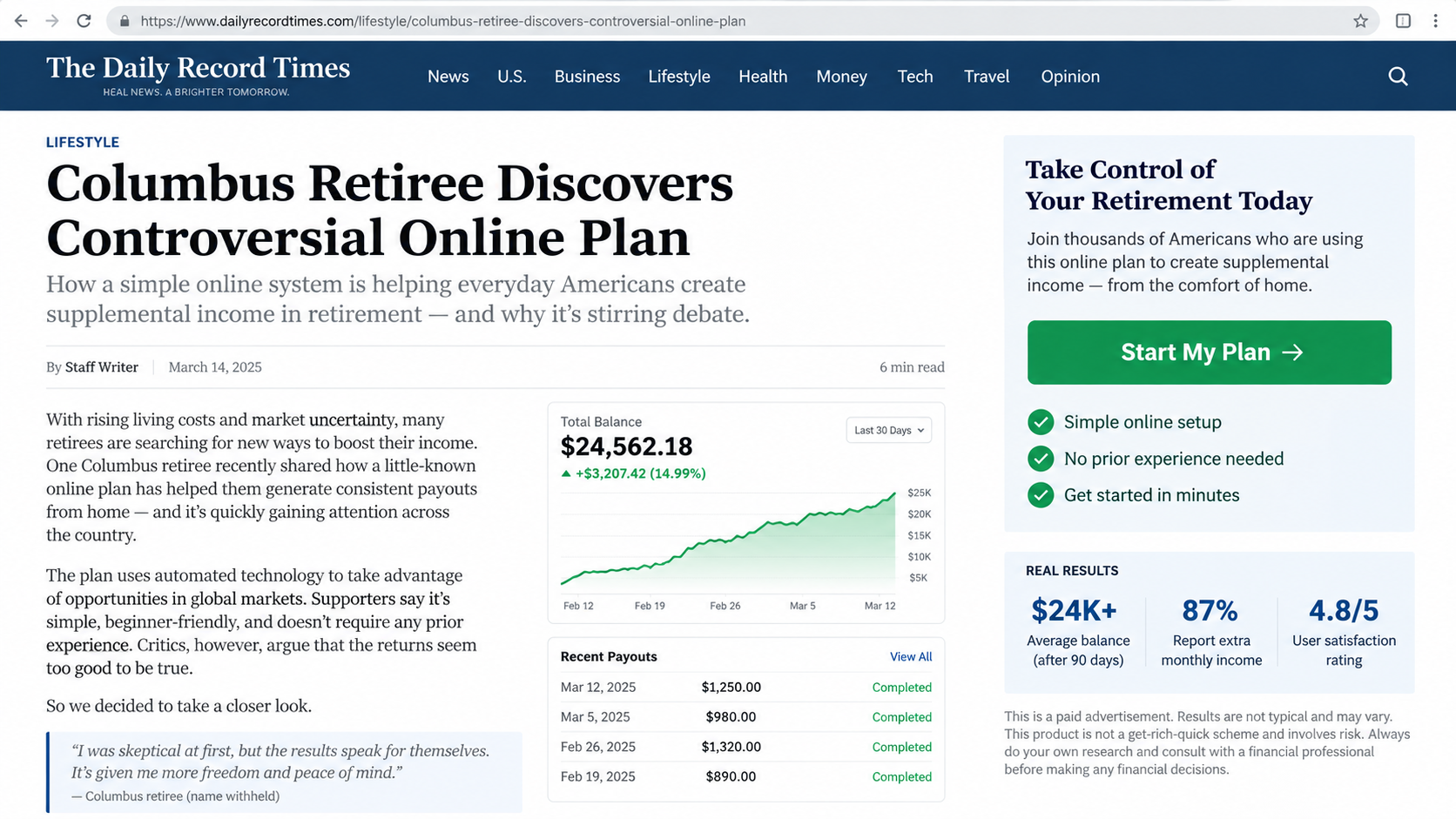
The advertorial introduces a Columbus retiree identified as Richard or Rick Thompson and attributes widespread financial success to his supposed discovery.
The page claims thousands of seniors used the system, yet provides no reliable data, corporate documentation, or verifiable participant record.
Earnings graphics and testimonial numbers appear inside a sales funnel controlled by the promoter.
The destination does not support the promises
The trail has included thenewonlinemethod.com, mysmartretireplan.com, and smartretireplan.online.
One page reportedly advertised a money-back guarantee before sending visitors to another domain that later became unavailable.
The most important conclusions are:
The celebrity-style video is not trustworthy evidence.
The article layout disguises advertising as reporting.
The retiree story lacks independent confirmation.
Guaranteed or effortless income claims are inherently suspect.
Changing domains weaken accountability and refund access.
Payment details should never be entered to discover basic terms.
The Story Used to Sell Smart Retire Plan
The campaign begins with a problem familiar to many older adults: retirement income is not keeping pace with living costs.
A television-style host appears to reveal a controversial online method that established interests supposedly do not want widely known.
The viewer is invited to watch before the video disappears, a familiar scarcity cue designed to interrupt careful research.
A broadcaster’s identity supplies instant trust
AI-generated voice and video can make public figures appear to deliver words they never said.
Compression, quick cuts, subtitles, and music help conceal unnatural lip movement, mismatched emphasis, or visual artifacts.
The familiar face lowers skepticism before the viewer sees any company information.
The retiree becomes the emotional proof
The fabricated story presents an ordinary person who struggled, discovered a simple system, and then helped thousands of peers.
That narrative feels more relatable than a corporate sales pitch. It suggests the opportunity was found by a neighbor, not engineered by marketers.
Without a traceable identity, documented method, and independent records, the story remains promotional fiction.
A fake controversy explains missing mainstream coverage
Questionable offers often claim banks, experts, or powerful institutions oppose the method because it threatens their profits.
That framing turns absence of evidence into supposed proof that the opportunity is being suppressed.
Legitimate financial products do not need a conspiracy narrative to explain who operates them and how revenue is created.
How the Smart Retire Plan Scam Works
Step 1: An AI video interrupts the social feed
A sponsored video resembles a breaking-news segment and appears to show a recognizable presenter discussing a new retirement discovery.
The clip may be assembled from genuine footage, synthetic audio, altered lip movement, or an entirely generated sequence.
Its purpose is not to explain a business. It is to transfer trust from the impersonated person to the link.
Step 2: The click opens a disguised advertorial
The landing page adopts headlines, navigation, colors, and article formatting associated with mainstream news.
It may invent a publication name or imitate a known broadcaster closely enough to fool a hurried reader.
Buttons throughout the article all lead toward the same sales destination, revealing the page’s commercial purpose.
Step 3: A fabricated success story removes doubt
The article introduces Rick Thompson as proof that the method works for an ordinary retiree.
Charts, account balances, testimonials, and payout lists create visual evidence without supplying independently auditable records.
Claims that 14,000 seniors benefited are impressive precisely because most readers cannot verify them.
Step 4: Easy income replaces a clear business model
The pitch emphasizes results while remaining vague about the work, customers, products, risks, costs, and time required.
Terms such as automated system, online plan, or proven method sound technical without explaining where money actually comes from.
If revenue cannot be described plainly before payment, the offer has not earned trust.
Step 5: A low entry price opens the funnel
The visitor may see a modest starter fee framed as less than the potential daily income.
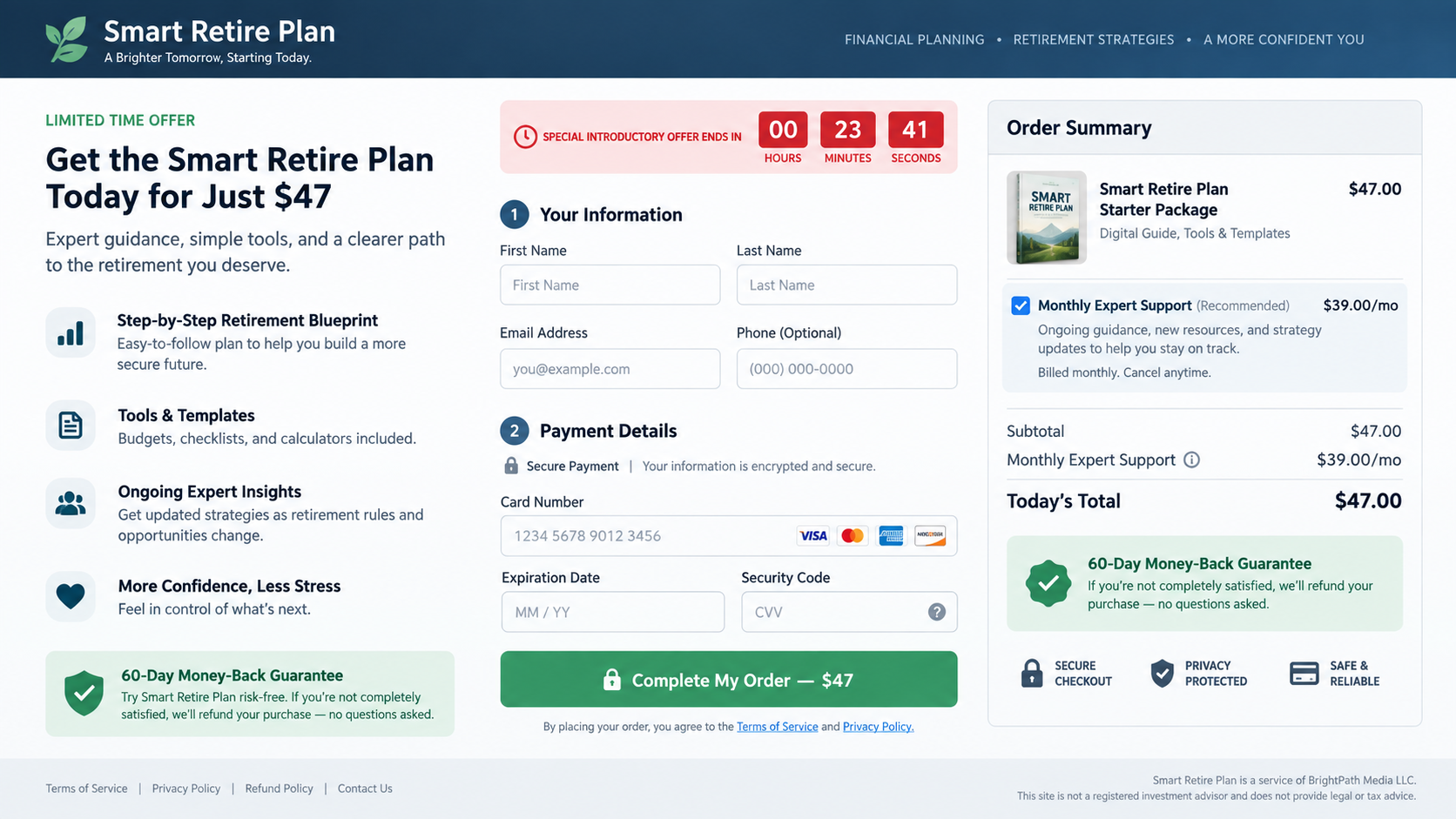
A countdown, limited enrollment, or money-back badge reduces the perceived risk of acting immediately.
Checkout pages can preselect recurring support, coaching, software, or membership options that raise the real cost.
Step 6: Upsells replace the promised simplicity
After the first purchase, buyers may be told they need premium tools, personal coaching, traffic packages, or higher membership levels.
The original system suddenly cannot produce results without additional spending.
Each purchase increases commitment and makes admitting the warning signs emotionally harder.
Step 7: Domains and support routes change
The sales journey can move from an ad domain to an advertorial, checkout, member site, and separate support processor.
When complaints rise, one page may disappear while the same video and story return under another name.
That is why the mechanism matters more than the current product label.
Step 8: Refund friction protects the revenue
A guarantee may require contacting a different company, meeting hidden conditions, proving course completion, or requesting within a narrow window.
Support may delay until dispute deadlines approach or offer another service instead of reimbursement.
A badge saying risk free has little value when the responsible legal entity is unclear.
The AI Celebrity Impersonation
Laura Ingraham’s apparent presence is central because it makes the advertisement feel like journalism rather than a stranger’s financial pitch.
Modern generative tools can reproduce a recognizable voice and synchronize new words with existing video.
Viewers should not rely on a clip alone for any endorsement involving money, health, or urgent action.
Clues can appear in the voice
Synthetic speech may flatten emotion, mispronounce names, shift accent, or place pauses where a natural speaker would not.
Background sound can change abruptly between sentences. Music may be unusually loud to hide vocal artifacts.
High-quality models reduce these clues, so their absence does not prove authenticity.
Visual defects are helpful but not decisive
Lips may lag behind words, teeth may change shape, and facial edges may shimmer during movement.
Subtitles can cover the mouth at important moments. Short clips also prevent viewers from examining continuity.
The strongest test is whether the claimed endorsement appears on the person’s verified channels and reputable reporting.
Context exposes what pixels may conceal
Would a national television host privately direct viewers to an unknown income system through a temporary domain?
Does the broadcaster’s official site carry the same segment, transcript, and destination?
When the answer is no, a flawless-looking clip should not override the missing institutional record.
The Fake News Page
Advertorials can be legitimate when clearly disclosed. The problem arises when advertising deliberately impersonates independent editorial coverage.
A copied masthead, fabricated byline, false publication date, and invented comments create a world in which the offer appears reviewed.
The page may remove external links so every route leads back to checkout.
Navigation that goes nowhere
Real publications connect sections, archives, author pages, contact information, corrections, and ownership disclosures.
Fake news funnels often use menu labels that do not work or return visitors to the same sales page.
Test the site structure before trusting the article’s claims.
Buttons reveal the commercial goal
Repeated Start My Plan or Check Availability buttons turn the story into one long advertisement.
Urgency banners and stock counters may reset when the page reloads.
An independent investigation would not make every image and paragraph point to one purchase screen.
Fine print conflicts with the headline
Small disclosures may say results are not typical, the page is advertising, or actors portray testimonials.
Those qualifications undermine large claims of reliable income and widespread retiree success.
Read the smallest text before entering an email address or card number.
The Checkout and Subscription Risk
A low front-end price can be only the beginning. Direct-response funnels often monetize buyers through recurring services and telephone upsells.
Review every checkbox, order summary, policy link, and statement about future billing before authorizing payment.
Take screenshots because the page may change after the campaign ends.
Preselected extras distort the advertised price
A checkout may show $47 due today while a selected support program adds $39 each month.
The recurring item can appear below the main total or inside fine print that receives little attention.
Consent should be clear and affirmative. An overlooked checkbox is a warning, not a benefit.
Telephone coaching can become the expensive layer
After purchase, a welcome call may assess available credit, savings, goals, and willingness to invest in the opportunity.
The caller can frame larger packages as the missing element separating the buyer from success.
Do not disclose credit limits or retirement balances to a salesperson evaluating how much more to charge.
Refund promises depend on enforceable details
A guarantee should name the responsible entity, period, method, address, exclusions, and process before checkout.
If the seller changes domains or support providers, exercising those rights becomes difficult.
Card dispute rights may have strict deadlines, so repeated delay is costly.
Company, Address, and Fulfillment Checks
The legal operator is difficult to identify
A trustworthy financial education seller should disclose the contracting entity, jurisdiction, ownership, and reliable contact details.
Smart Retire Plan pages did not provide a credible public trail matching the scale of their claims.
A product name alone cannot accept legal responsibility or honor a guarantee.
Changing domains undermine continuity
The campaign has moved visitors among thenewonlinemethod.com, mysmartretireplan.com, and smartretireplan.online.
Multiple domains can serve legitimate technical purposes, but unexplained changes make records, policies, and support harder to follow.
A dead destination after a guarantee was promoted is a major practical risk.
Addresses and support contacts need independent confirmation
Search every listed address. It may be a virtual mailbox, home, registered-agent office, or unrelated business.
Call support before buying and ask for the legal seller, recurring charges, cancellation method, and written refund rules.
An unanswered line or generic mailbox cannot support an income system sold nationwide.
Digital fulfillment may contain little of value
Delivery of a PDF, video library, or login does not prove the advertised earnings method works.
Mass-produced material can be assembled cheaply and used to resist chargebacks by claiming the product was delivered.
Evaluate whether the content explains a lawful, specific business with realistic costs and documented outcomes.
Why the Claims Fail Basic Financial Scrutiny
No legitimate business can guarantee substantial income to every retiree regardless of experience, capital, market conditions, and effort.
Revenue must come from selling a real product, performing a service, earning investment returns, or another understandable economic activity.
Vague automation is not a business model. A dashboard balance is not evidence of withdrawable profit.
Testimonials cannot establish typical results
A testimonial may be invented, paid, selectively chosen, or based on gross revenue rather than profit.
Even a genuine success does not show how the average purchaser performs.
Ask for substantiation showing the number and proportion of buyers who achieved the advertised result.
A guarantee does not remove operational risk
A refund promise matters only when a solvent, identifiable seller can be reached and the conditions are reasonable.
Temporary websites can display impressive badges without reserving funds or providing meaningful support.
Never spend retirement money based on the assumption that reversing the transaction will be easy.
Secrecy and urgency block due diligence
Claims that enrollment closes tonight or the video will be removed discourage discussion with family and financial professionals.
Real opportunities withstand a night of research and a written list of questions.
When a seller needs an immediate emotional decision, leaving is usually the safer choice.
How to Investigate Similar Income Ads
Search a distinctive sentence from the story in quotation marks. Reused copy may reveal the same testimonial attached to different programs.
Check the public figure’s verified website and social accounts. Look for the exact segment, not unrelated comments about retirement.
Search the domain’s registration age and archived versions. A recent site claiming years of success is inconsistent.
Review the checkout before entering personal information. Confirm today’s total and every future charge.
Read terms, privacy, refund, and contact pages. Compare the legal names and addresses across all four.
Search the payment descriptor because it may differ from the product name used in the advertisement.
Ask for the business model in one paragraph. If the seller cannot explain it without earnings promises, the offer lacks substance.
Reject screenshots as proof. Request independently verifiable records and typical-result disclosures.
Speak with a trusted person who did not see the advertisement. Emotional distance helps reveal contradictions.
Never borrow, increase card limits, or withdraw retirement funds because a salesperson says an upgrade is necessary.
What to Do if You Fell Victim to This Scam
Stop further purchases. Decline coaching upgrades, software packages, traffic services, and recovery offers connected to the campaign.
Cancel in writing. Send a dated request to every support address and keep delivery confirmations, replies, and policy screenshots.
Contact the card issuer. Dispute deceptive or unauthorized charges and ask the bank to block future recurring transactions.
Review all statements. Search for unfamiliar descriptors, monthly memberships, trial conversions, and small verification charges.
Secure exposed accounts. Replace reused passwords, protect email with multifactor authentication, and revoke unknown sessions.
Document the sales trail. Save the video, advertorial URL, checkout, receipt, call recordings, domains, promises, and refund attempts.
Report deceptive claims. Notify the FTC, state attorney general, social platform, and impersonated broadcaster or public figure.
Check the device. Run Malwarebytes if downloads, browser extensions, remote tools, or unknown programs were part of the process.
Reduce malicious advertising. AdGuard can block many harmful ad routes while you continue financial and account recovery.
Talk to someone you trust. Shame benefits scammers. Early outside help can stop additional payments and clarify the evidence.
Is Your Device Infected? Run a Free Malware Scan
Slow performance, constant pop-ups, or strange behavior? These are classic signs of a malware infection. The fastest way to find out is to scan your device with Malwarebytes Anti-Malware Free — one of the most trusted malware removal tools available.
The free version detects and removes the most common threats, including:
Adware — the cause of those annoying pop-ups
Browser hijackers — unwanted redirects and changed homepages
Trojans and spyware — hidden programs stealing your data
Potentially unwanted programs (PUPs) — software you never asked for
👉 Select your device below — Windows, Mac, or Android — then follow the simple steps to download Malwarebytes, scan your system, and remove any threats it finds. The whole process takes about 5 minutes.
Malwarebytes for WindowsMalwarebytes for MacMalwarebytes for Android
Run a Malware Scan with Malwarebytes for Windows
Malwarebytes is one of the most popular and trusted anti-malware tools for Windows — and it’s completely free for removing infections. It catches threats that many antivirus programs miss, including adware, browser hijackers, and trojans. Follow the steps below to scan and clean your PC in just a few minutes.
Download Malwarebytes
Click the button below to download the latest version of Malwarebytes for Windows from the official source. The free version is all you need — it will scan your computer and remove adware, browser hijackers, and other malicious software at no cost.
(The link opens in a new page where your download will start)
Install Malwarebytes
When the download finishes, open your Downloads folder and double-click the MBSetup file. If Windows shows a User Account Control pop-up, click “Yes” to allow the installation.
Follow the On-Screen Prompts to Install Malwarebytes
The setup wizard will walk you through a few quick screens:
Choose where you’re installing the program — “Personal Computer” or “Work Computer” — then click Next.
Malwarebytes will now install on your device. This usually takes under a minute.
When installation is complete, the “Welcome to Malwarebytes” screen will open automatically.
On the final screen, click Open Malwarebytes to launch the program.
Enable “Scan for Rootkits”
Before scanning, turn on rootkit detection so Malwarebytes can find even the most hidden threats. Click the Settings gear icon on the left side of the screen.
In the settings menu, find “Scan for rootkits” and click the toggle so it turns blue.
Done? Click “Dashboard” in the left pane to return to the main screen.
Start the Scan
Click the blue Scan button. Malwarebytes will automatically update its virus database and start checking your computer for malware.
Wait for the Scan to Finish
The scan checks your entire system for browser hijackers and other malicious programs, so it can take several minutes. Feel free to do something else — just check back occasionally to see the progress.
Quarantine the Detected Threats
When the scan is done, you’ll see a list of everything Malwarebytes found — malware, adware, and potentially unwanted programs. Click the “Quarantine” button to remove all of them at once.
Malwarebytes will now remove the malicious files and registry entries and move them safely into quarantine.
Restart Your Computer
Some threats can only be fully removed after a reboot. If Malwarebytes asks you to restart, click Yes. Once you’re logged back in, your PC is clean and you can continue with the next steps in this guide.
When the scan finishes, click Quarantine to remove everything Malwarebytes found. That’s it — your Windows PC is now clean of trojans, adware, and other malware, and should be back to running smoothly.
If your current antivirus allowed this malicious program on your computer, you may want to consider purchasing Malwarebytes Premium to protect against these types of threats in the future. If you are still having problems with your computer after completing these instructions, then please follow one of the steps:
Malwarebytes for Mac is a free on-demand scanner that removes the malware other security software tends to miss — adware, browser hijackers, and unwanted programs included. Cleaning an infected Mac with Malwarebytes has always been completely free, and it’s our go-to recommendation. Follow the steps below to scan and clean your Mac in just a few minutes.
Download Malwarebytes for Mac
Click the button below to download the latest version of Malwarebytes for Mac.
When the download finishes, open your Downloads folder and double-click the setup file to begin the installation.
Follow the On-Screen Prompts to Install Malwarebytes
The Malwarebytes for Mac Installer will guide you through a few quick screens. Click “Continue” and keep following the prompts until the installation completes.
When the installation is complete, Malwarebytes opens to the Welcome to Malwarebytes screen. Click “Get started“.
Select “Personal Computer” or “Work Computer”
Malwarebytes will ask what type of computer you’re installing it on. Click either Personal Computer or Work Computer, whichever applies.
Start the Scan
Click the “Scan” button. Malwarebytes will automatically update its detection database and begin checking your Mac for malware.
Wait for the Scan to Finish
Malwarebytes will scan your Mac for adware, browser hijackers, and other malicious programs. This can take a few minutes, so feel free to do something else — just check back occasionally to see the progress.
Quarantine the Detected Threats
When the scan is done, you’ll see a list of everything Malwarebytes found. Click the “Quarantine” button to remove all the threats at once.
Restart Your Mac
Malwarebytes will now remove all the malicious files it found. Some threats can only be fully removed after a reboot — if Malwarebytes asks you to restart, allow it. Once you’re logged back in, your Mac is clean.
Once the scan is done, remove every threat it detected. Your Mac is now free of adware, rogue browser extensions, and other potentially harmful software.
If your current antivirus allowed a malicious program on your computer, you might want to consider purchasing the full-featured version of Malwarebytes Anti-Malware to protect against these types of threats in the future. If you are still experiencing problems while trying to remove a malicious program from your computer, please ask for help in our Mac Malware Removal Help & Support forum.
Run a Malware Scan with Malwarebytes for Android
Malwarebytes for Android automatically detects and removes dangerous threats like malware and ransomware so you don’t have to worry about your most-used device being compromised. Aggressive detection of adware and potentially unwanted programs keeps your Android phone or tablet running smooth.
Download Malwarebytes for Android.
You can download Malwarebytes for Android by clicking the link below.
In the Google Play Store, tap “Install” to install Malwarebytes for Android on your device.
When the installation process has finished, tap “Open” to begin using Malwarebytes for Android. You can also open Malwarebytes by tapping on its icon in your phone menu or home screen.
Follow the on-screen prompts to complete the setup process
When Malwarebytes will open, you will see the Malwarebytes Setup Wizard which will guide you through a series of permissions and other setup options. This is the first of two screens that explain the difference between the Premium and Free versions. Swipe this screen to continue. Tap on “Got it” to proceed to the next step. Malwarebytes for Android will now ask for a set of permissions that are required to scan your device and protect it from malware. Tap on “Give permission” to continue. Tap on “Allow” to permit Malwarebytes to access the files on your phone.
Update database and run a scan with Malwarebytes for Android
You will now be prompted to update the Malwarebytes database and run a full system scan.
Click on “Update database” to update the Malwarebytes for Android definitions to the latest version, then click on “Run full scan” to perform a system scan.
Wait for the Malwarebytes scan to complete.
Malwarebytes will now start scanning your phone for adware and other malicious apps. This process can take a few minutes, so we suggest you do something else and periodically check on the status of the scan to see when it is finished.
Click on “Remove Selected”.
When the scan has been completed, you will be presented with a screen showing the malware infections that Malwarebytes for Android has detected. To remove the malicious apps that Malwarebytes has found, tap on the “Remove Selected” button.
Restart your phone.
Malwarebytes for Android will now remove all the malicious apps that it has found. To complete the malware removal process, Malwarebytes may ask you to restart your device.
After the scan, tap Remove Selected to delete all detected threats. Your Android phone is now clean — no more malicious apps, adware, or browser redirects.
If your current antivirus allowed a malicious app on your phone, you may want to consider purchasing the full-featured version of Malwarebytes to protect against these types of threats in the future. If you are still having problems with your phone after completing these instructions, then please follow one of the steps:
Restore your phone to factory settings by going to Settings > General management > Reset > Factory data reset.
Now that your device is clean, keep it that way. Most infections start with a malicious ad or a fake download button — so blocking them at the source is your best defense.
We recommend AdGuard, which blocks malicious ads, phishing pages, and dangerous redirects before they can reach you.
No credible evidence supports that claim. The campaign appears to use AI manipulation and borrowed television imagery to create false endorsement.
Verified broadcaster channels do not validate the pitch.
Is the Columbus retiree Rick Thompson real?
The sales story provides no independently verifiable record connecting that identity to the claimed system or results.
Treat the character and earnings as unsubstantiated advertising.
What does Smart Retire Plan actually sell?
The funnel promotes a vaguely described online income system, but clear public information about its method, operator, and typical outcomes is missing.
That opacity is itself a warning.
Does a money-back guarantee make the purchase safe?
No. A guarantee is useful only when the seller is identifiable, reachable, solvent, and willing to honor clear terms.
Changing or dead domains weaken enforcement.
Why do these campaigns keep changing names?
New product names and domains let promoters reuse the same emotional story after older pages attract warnings or complaints.
Recognize the funnel, not only its label.
Can an AI video look completely real?
Yes. Technical defects are becoming harder to see. Verify the endorsement through official channels and examine the destination independently.
Context is more reliable than appearance.
The Bottom Line
Smart Retire Plan is promoted through a false-news funnel built on AI impersonation, an unverifiable retiree story, vague income promises, and unstable domains.
Do not trust the familiar face. Follow the company record, written terms, real business model, and checkout details before risking money or personal data.
10 Rules to Avoid Online Scams
Here are 10 practical safety rules to help you avoid malware, online shopping scams, crypto scams, and other online fraud. Each tip includes a quick “if you already got hit” action.
Stop and verify before you click, log in, download, or pay.
Most scams win by creating urgency. Verify using a trusted method: type the website address yourself, use the official app, or call a known number (not the one in the message).
If you already clicked: close the page, do not enter passwords, and run a malware scan.
Keep your operating system, browser, and apps updated.
Updates patch security holes used by malware and malicious ads. Turn on automatic updates where possible.
If you saw a scary “update now” pop-up: close it and update only through your device settings or the official app store.
Use layered protection: antivirus plus an ad blocker.
Antivirus helps block malware. An ad blocker reduces scam redirects, phishing pages, and malvertising.
If your browser is acting weird: remove unknown extensions, reset the browser, then run a full scan.
Install apps, software, and extensions only from official sources.
Avoid cracked software, “keygens,” and random downloads. During installs, choose Custom/Advanced and decline bundled offers you do not recognize.
If you already installed something suspicious: uninstall it, restart, and scan again.
Treat links and attachments as untrusted by default.
Phishing often impersonates delivery services, banks, and popular brands. If it is unexpected, do not open attachments or log in through the message.
If you entered credentials: change the password immediately and enable 2FA.
Shop safely: research the store, then pay with protection.
Be cautious with brand-new stores, “closing sale” stories, and prices that make no sense. Prefer credit cards or PayPal for dispute options. Avoid wire transfers, gift cards, and crypto payments.
If you already paid: contact your card issuer or PayPal quickly to dispute the transaction.
Crypto rule: never pay a “fee” to withdraw or recover money.
Common patterns include fake profits, then “tax,” “gas,” or “verification” fees. Another is a “recovery agent” who demands upfront crypto.
If you already sent crypto: stop paying, save evidence (wallet addresses, TXIDs, chats), and report the scam to the platform used.
Secure your accounts with unique passwords and 2FA (start with email).
Use a password manager and unique passwords for every account. Enable 2FA using an authenticator app when possible.
If you suspect an account takeover: change passwords, sign out of all devices, and review recent logins and recovery settings.
Back up important files and keep one backup offline.
Backups protect you from ransomware and device failure. Keep at least one backup on an external drive that is not always connected.
If you suspect infection: do not connect backup drives until the system is clean.
If you think you are a victim: stop losses, document evidence, and escalate fast.
Move quickly. Speed matters for disputes, account recovery, and limiting damage.
Stop payments and contact: do not send more money or respond to the scammer.
Call your bank or card issuer: block transactions, replace the card if needed, and start a dispute or chargeback.
Secure your email first: change the email password, enable 2FA, and remove unfamiliar recovery options.
Secure other accounts: change passwords, enable 2FA, and log out of all sessions.
Scan your device: remove suspicious apps or extensions, then run a full malware scan.
Save evidence: screenshots, emails, order pages, tracking pages, wallet addresses, TXIDs, and chat logs.
Report it: to the payment provider, marketplace, social platform, exchange, or wallet service involved.
These rules are intentionally simple. Most online losses happen when decisions are rushed. Slow down, verify independently, and use payment methods and account controls that give you recourse.
Hello! I'm Lapain Epuran, your go-to source for detailed and honest product reviews. From tech gadgets to miracle cures, I provide insights to help you make informed choices. Join me as we discover what's truly worth your time and money.