

A website asks you to prove you are human. The box looks familiar, the page behind it is one you intended to visit, and the instructions claim that one quick Windows step will finish the check.
During the Brevo ClickFix scam, that trust was weaponized. Malicious code reached genuine Brevo pages and scripts used by customer sites, turning a routine-looking verification prompt into a path toward malware.
Overview
Brevo confirmed and resolved the security incident
Brevo’s official status history records a “Security Incident – ClickFix” on September 14, 2026. The company marked the issue resolved, said systems were safe, and linked a post-mortem.
The Brevo post-mortem describes malicious ClickFix script served through its Cloudflare account. The company traced the incident to a compromised Cloudflare API key and documented remediation.
This means the incident was real and provider-confirmed. It also means readers should not describe every current Brevo page as infected. The malicious delivery window was time-limited and Brevo says it has been resolved.
The lure appeared on real sites, not only fake domains
Independent researchers at Sansec documented malicious code in Brevo pages and embedded assets. Those assets included scripts that customer websites used for forms, tracking, or conversations.
That supply-chain path makes the attack unusually persuasive. A visitor did not necessarily mistype a domain or click an obvious phishing link. A legitimate page could load altered content during the incident window.
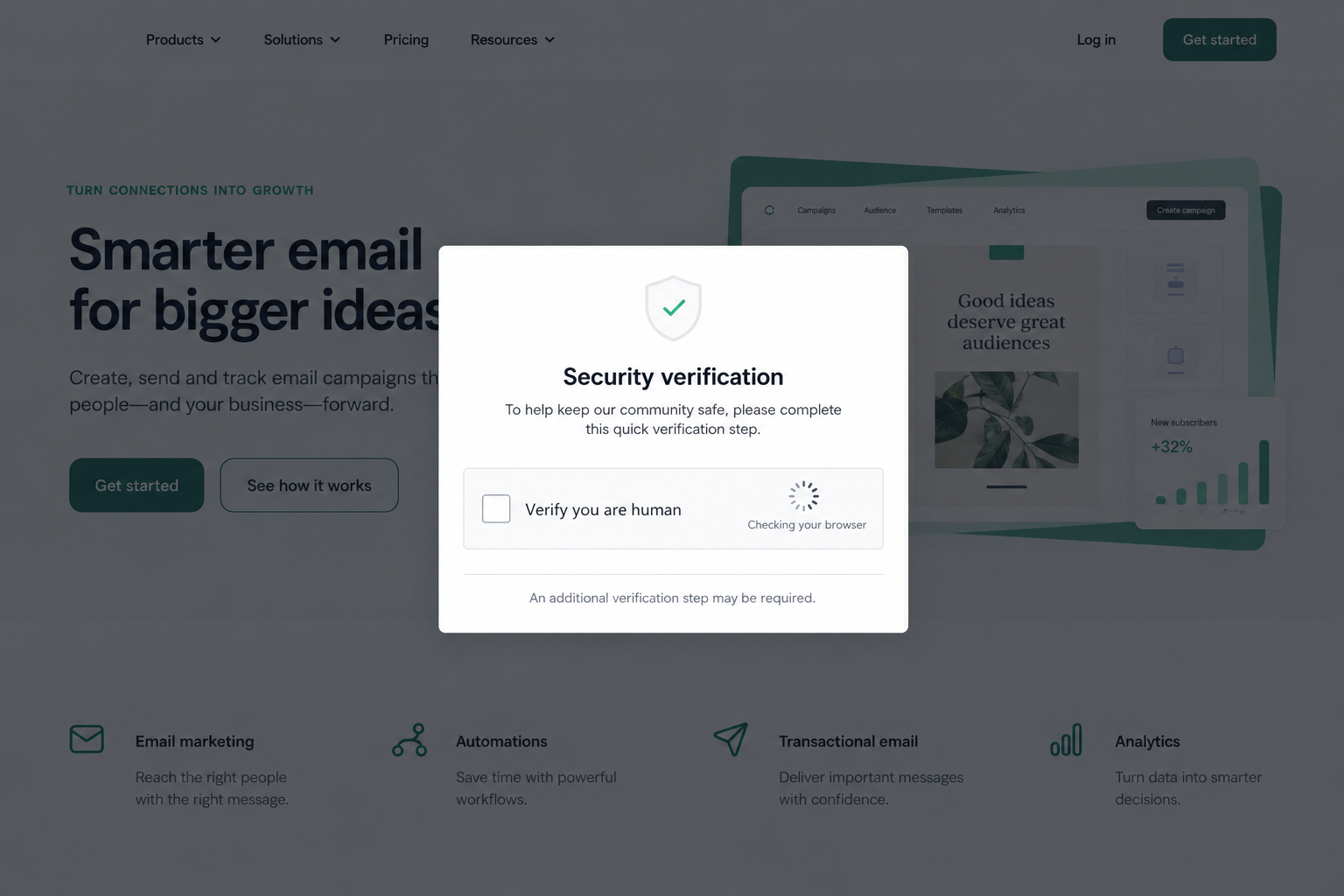
The visible lure resembled a human-verification check. It then used ClickFix instructions to make the visitor run a command locally.
Two different risks affected visitors and site administrators
Ordinary visitors could be shown a fake verification flow that tried to persuade them to open the Windows Run dialog and execute clipboard content. The command was the malware delivery step.
Sansec also reported a WordPress-specific path. When the script detected a logged-in administrator visiting an affected site, it attempted to install a malicious plugin presented as “Web Media Optimizer.”
- A familiar site suddenly displays a full-page verification prompt.
- The prompt asks you to press Windows key + R.
- It tells you to paste clipboard content you cannot inspect.
- A website asks you to execute a command to prove you are human.
- A WordPress site shows a new or hidden plugin after the incident window.
Why This Attack Was More Convincing Than Ordinary Phishing
Most anti-phishing advice starts with checking the domain. That remains useful, but it was not sufficient here. The malicious content could appear through Brevo infrastructure or customer pages loading Brevo assets.
The prompt also borrowed a behavior users see every day. Real anti-bot checks use checkboxes, progress indicators, and browser-verification language. The fake version began with the same visual vocabulary.
The decisive change came when the page left the browser. A legitimate human-verification challenge does not need you to open the Windows Run dialog, paste an unseen command, and execute it.
That behavior is the red line even when the page itself is trusted. A legitimate domain can be compromised, a third-party script can be altered, and a familiar brand can suffer an incident.
Security decisions must therefore consider the requested action, not only the site address.
What ClickFix Actually Asks the Victim to Do
ClickFix is social engineering disguised as technical troubleshooting or verification. The page places a command in the clipboard and then gives keyboard instructions that cause the victim to run it.
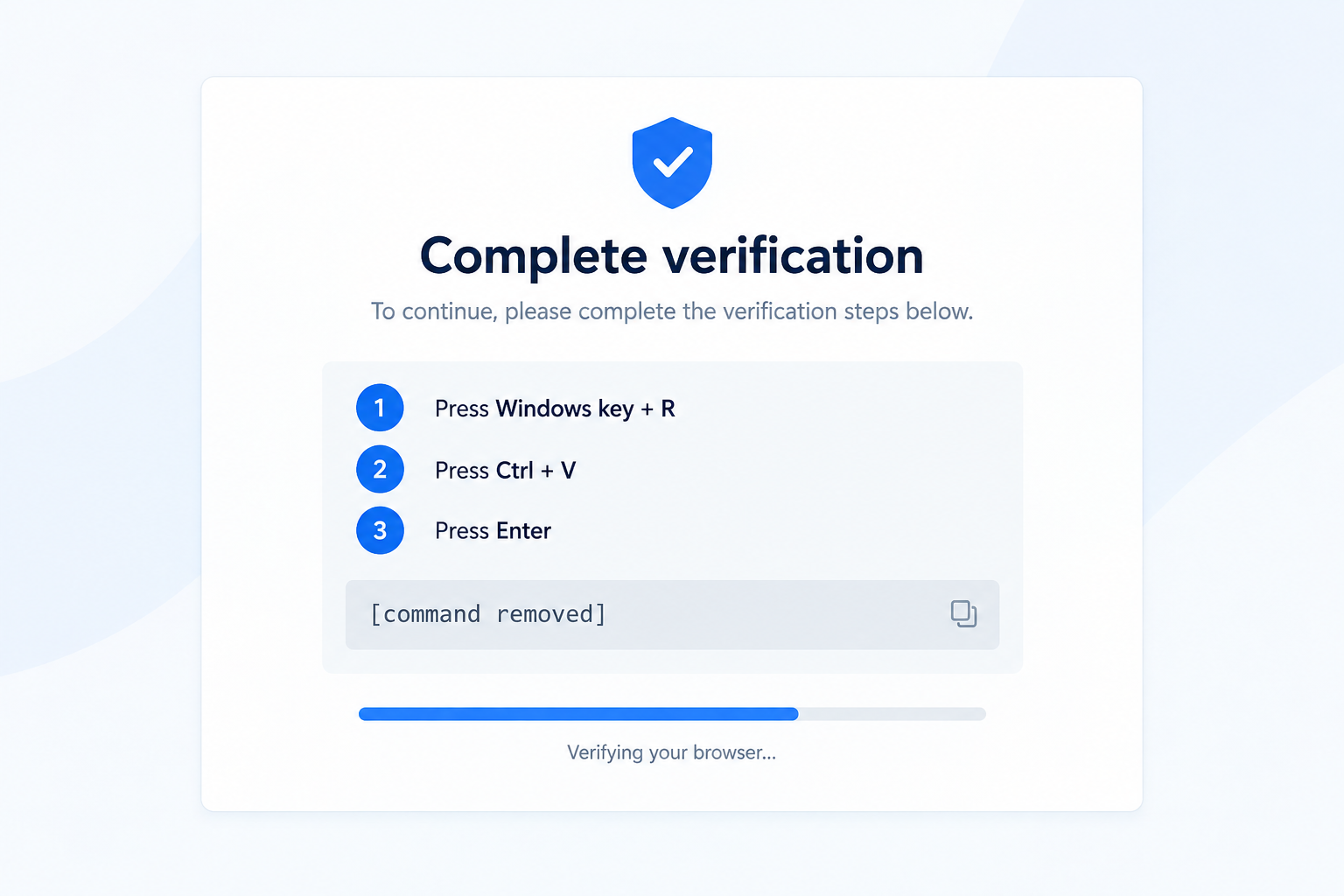
The user may never see the full command clearly. “Press Ctrl + V” sounds like a harmless paste step, but the destination is the Windows Run dialog, where pasted text can launch programs and downloads.
No exploit is needed if the victim executes the command. The browser prompt provides the story, the clipboard carries the instruction, and Windows performs what the user approved.
Our reconstruction below replaces the dangerous command with “[command removed].” It demonstrates the manipulation without publishing a usable payload.
How the Brevo ClickFix Scam Works
Step 1: An attacker gains control of a trusted delivery layer
According to Brevo’s post-mortem, the attacker used a compromised Cloudflare API key. A key with broad permissions can affect traffic at the edge without requiring every customer site to be hacked separately.
That is why the event is described as a supply-chain incident. One trusted component amplified the attack across multiple properties and integrations.
Site owners may have seen no changed file in their own theme or application even while visitors received altered content.
Step 2: Malicious script is injected into pages and embeds
Researchers observed modified responses on Brevo properties and JavaScript assets embedded by customers. The injected loader could fetch the next stage from attacker-controlled infrastructure.
The behavior could be selective. Not every visitor, location, or repeat view had to receive the same result, which makes reproduction and diagnosis harder.
A clean page seen later does not prove that no visitor was exposed during the confirmed window.
Step 3: Visitors see a fake security check
The page dims the legitimate content and places a familiar verification panel in front. A checkbox or loading spinner creates the impression that the browser is completing an automated safety check.
The interface may resemble a real cloud-security challenge without being one. The background page can remain genuine because the malicious script controls only what is layered over it.
If the prompt asks for operating-system actions, stop. Browser verification should remain inside the browser.
Step 4: The prompt turns the victim into the installer
The ClickFix instructions tell the visitor to press Windows key + R, paste, and press Enter. Those steps can execute whatever command the page placed on the clipboard.
The wording may claim the command is a verification token, update, or fix. A label cannot make an unseen command safe.
Do not paste the content into another tool to experiment on a work device. Security staff can collect it in an isolated environment.
Step 5: WordPress administrators face a separate plugin path
Sansec reported that the script checked for logged-in WordPress administrators and attempted to upload a malicious plugin. The plugin used the innocent-sounding name “Web Media Optimizer.”
A plugin name and icon are not evidence of origin. Administrators should compare filesystem, installation times, and expected plugin inventory.
Do not activate, deactivate, or delete a suspicious plugin before preserving evidence when the site is part of an incident investigation.
Step 6: The provider removes the malicious delivery path
Brevo marked the incident resolved and reported remediation around the compromised credential and Cloudflare configuration. Researchers later found the malicious hosts no longer resolving.
That stops new delivery through the known path, but it does not clean devices where victims executed the command or sites where a plugin was installed.
Exposure assessment must therefore separate current provider status from past endpoint and website compromise.
Company and Incident Checks for Brevo Customers
Use Brevo’s status page for provider confirmation
The official status history confirms the incident and resolution. Check that page for updates rather than relying on screenshots or messages claiming a new breach.
A later email asking you to “secure Brevo” may itself be phishing. Navigate to the service directly and review the official notice.
Identify which Brevo assets your site used
Review whether the site loaded Brevo forms, tracking, conversation widgets, hosted subscription pages, or related SDK assets during the incident window.
Absence from the WordPress plugin list does not rule out an embed added through a tag manager, theme, custom script, or another service.
Separate exposure from confirmed compromise
Loading an affected asset created a possible exposure path. A visitor seeing the prompt is stronger evidence. Executing the command or finding the malicious plugin indicates a deeper incident.
Document which level applies. Do not tell every visitor that malware was installed when you have only confirmed the integration existed.
Preserve logs and plugin evidence
Site owners should retain access logs, WordPress audit records, plugin directories, and security alerts covering September 14 and the following days.
Look for unexpected plugin uploads, administrator actions, and outbound requests identified in the official post-mortem or trusted research. Coordinate with a qualified responder before cleaning.
What Visitors and Site Owners Should Check Now
Visitors who saw only a checkbox and closed the page have a different risk from people who opened Run and executed the clipboard. Write down exactly which steps occurred.
People who ran the command should disconnect the affected device from sensitive accounts and networks, then seek endpoint investigation. Changing passwords on a possibly compromised machine can expose the new credentials too.
Website owners should inspect both the site and administrator devices. A compromised admin workstation can remain dangerous even if the website files are clean.
Organizations should also notify users carefully. Include the date and behaviors that matter, especially the Run-dialog instructions, without reproducing the command.
Check browser download records and Windows event data around the moment the prompt appeared. A visitor may remember closing the page but forget that a paste-and-run sequence completed first.
Review endpoint-detection alerts for script interpreters, unusual child processes, and downloads launched from temporary directories. Compare findings with the indicators in Brevo’s post-mortem and the Sansec report.
For customer websites, retrieve known-good copies of embedded scripts and configuration from before the incident. A later clean response cannot show what a visitor received during the confirmed window.
If a site used a content-security policy, preserve violation reports. Sansec said those reports helped document the injected resources across affected sites.
Administrators should also check whether unfamiliar users, application passwords, scheduled tasks, or API keys appeared after September 14. A backdoor can create additional access that survives removal of the original plugin.
Keep public communication factual. State what the site loaded, what logs show, and what users were asked to do. Avoid claiming every visitor was infected when execution has not been confirmed.
Record the time zone in every incident timeline. Brevo, researchers, website logs, and local users may report different clock values for the same event.
What to Do if You Have Fallen Victim to This Scam
-
Stop the process and disconnect if you ran the command. Do not repeat the verification. Disconnect the affected Windows device from network access when doing so will not create a safety issue.
Record the time, website, browser, and instructions you followed. Do not copy the command into chat or email where someone else might run it.
-
Contact your security team from another device. A work computer needs organizational incident response. Explain whether you only saw the prompt, copied content, opened Run, or pressed Enter.
Those distinctions help responders prioritize. Do not minimize the event because the page later returned to normal.
-
Investigate the endpoint before trusting it again. Review processes, persistence, downloads, browser history, and security detections. Reimaging may be appropriate when compromise cannot be confidently removed.
Change important passwords from a separate trusted device and revoke sessions. Prioritize email, password managers, financial accounts, and administrative services.
-
Inspect affected WordPress sites. Check plugin files and records for unexpected installations, including anything presented as “Web Media Optimizer.” Preserve copies and logs before removal.
Rotate WordPress administrator credentials and security keys after establishing a clean administrative device. Review newly created users and changed scheduled tasks.
-
Use the official incident record. Compare your timeline with Brevo’s post-mortem and trusted technical indicators. Report relevant findings to Brevo and the appropriate cybercrime or national incident-response channel.
Avoid downloading “cleanup tools” from replies, advertisements, or unsolicited emails that reference the incident.
-
Use security products as part of response, not proof of safety. Malwarebytes can help scan a supported endpoint for known malicious components. AdGuard may block some known malicious domains and deceptive scripts.
A clean scan does not prove that an executed command caused no compromise. High-risk systems still need professional review, credential rotation, and session revocation.
Frequently Asked Questions
Was the Brevo ClickFix incident confirmed?
Yes. Brevo recorded the September 14 incident on its official status page, marked it resolved, and published a post-mortem.
Is Brevo still serving the malicious script?
Brevo says the issue was resolved and systems were safe. The article describes a past delivery window, not a claim that every current Brevo page is infected.
Why was checking the domain not enough?
The malicious content could be delivered through legitimate Brevo properties and scripts embedded on customer sites. The unsafe operating-system instructions were the stronger warning.
What is the clearest sign of ClickFix?
A webpage tells you to open the Windows Run dialog, paste clipboard content, and execute it. A real browser verification should not require that.
Did every visitor get malware?
No. Exposure, seeing the prompt, and executing the command are different states. Researchers also described a separate attempted plugin path for logged-in WordPress administrators.
Does deleting a suspicious plugin finish the cleanup?
Not necessarily. Preserve evidence, investigate administrator devices and accounts, rotate credentials from a clean system, and check for other persistence.
The Bottom Line
The Brevo ClickFix scam shows why a familiar domain cannot make an unsafe instruction legitimate. A human-verification prompt crossed the line when it asked visitors to execute clipboard content through Windows.
Brevo has marked the delivery incident resolved, but anyone who ran the command or found the reported WordPress plugin should treat that system as potentially compromised and investigate it fully.








