Pocket Wi-Fi Without Monthly Fees Scam Exposed: The TikTok Hotspot Lie
Written by: Lapain Epuran
Published on:
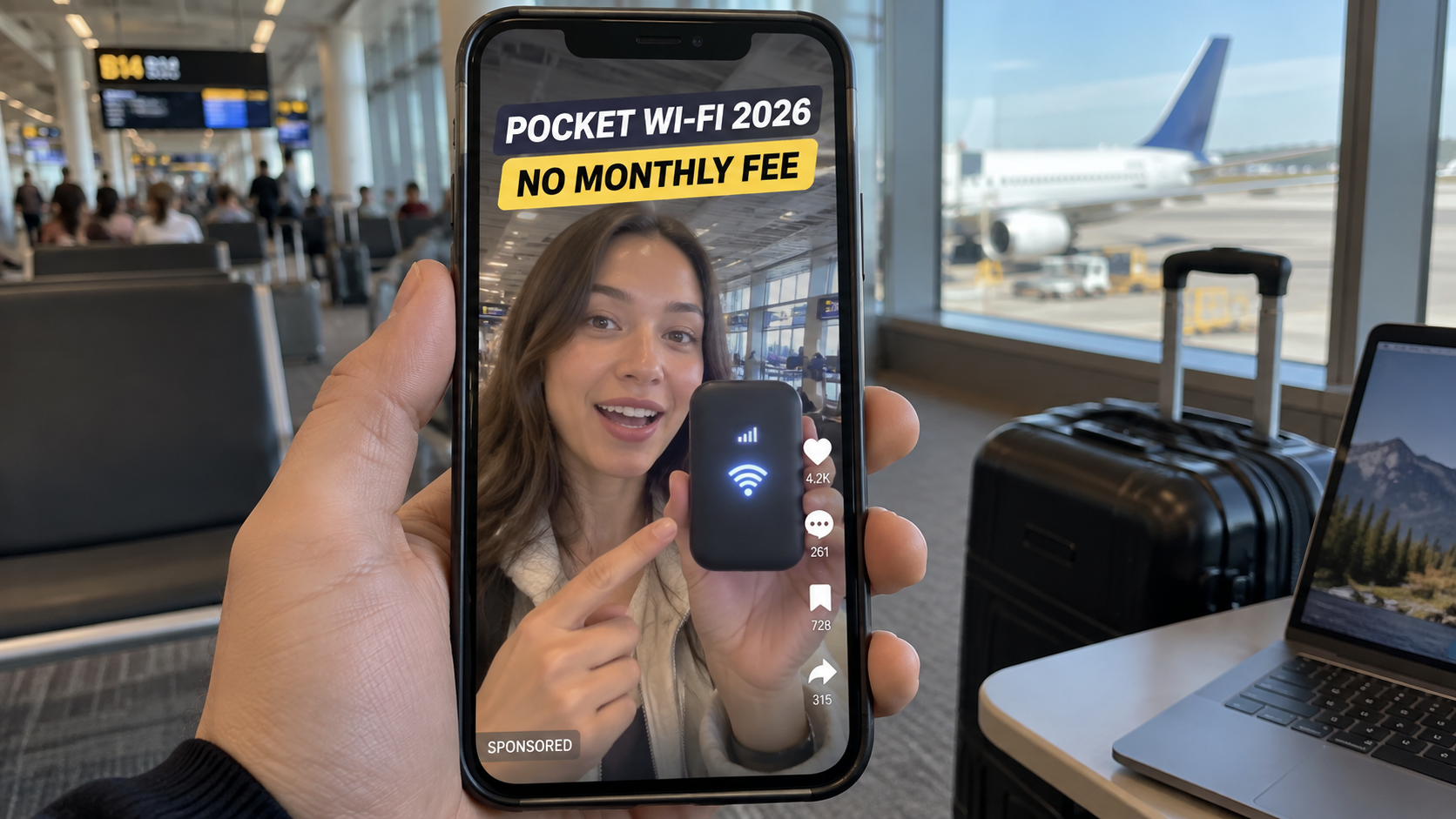
A traveler holds a tiny black box and claims it creates fast internet almost anywhere. The strongest promise is printed in four words: no monthly fee.
For families tired of roaming charges and hotel Wi-Fi, the offer feels wonderfully simple. The missing technical details tell a less convenient story.
Overview
The advertisement confuses a hotspot with internet service
A mobile hotspot can share a cellular connection with phones, tablets, and laptops. It does not create internet access from empty air.
Usable service normally requires a compatible SIM, eSIM, carrier account, or purchased data package. Coverage, speed, roaming, and limits depend on that service.
The phrase no monthly fee may mean no mandatory subscription from the gadget seller. It does not prove that cellular data is permanently free.
The same device appears under rotating labels
Advertisements have used names such as YAGOO, TI World, Ecovox, and generic Pocket Wi-Fi 2026 branding for visually similar units.
The storefront can describe the product as designed in Los Angeles while shipping a commonplace router available through wholesale marketplaces.
A new domain and sticker can refresh the campaign without changing the hardware, instructions, connectivity requirements, or limitations.
The risk continues beyond disappointing performance
Some shoppers may receive a basic hotspot that works only after buying separate service. Others report missing orders, difficult refunds, or different specifications.
Checkout pages can emphasize bundles, shipping protection, or membership benefits. Any recurring charge must be disclosed clearly before payment authorization.
A hotspot is not a carrier network.
Cellular internet requires compatible coverage and active data.
The advertised brand may be temporary.
Review scores on the sales page may be unverifiable.
Return costs can exceed the value of a cheap device.
The central deception is omission. The ad celebrates the router while avoiding the separate service that gives the router something useful to share.
What the Pocket Wi-Fi 2026 Ads Promise
Short videos show remote beaches, airports, campsites, highways, and home offices. One small device appears to keep every laptop and phone connected.
The narrator may promise fast 4G or 5G access in more than 100 countries without contracts, roaming bills, technicians, or recurring payments.
A supposed former telecommunications engineer explains that carriers overcharge customers. The new invention allegedly bypasses their towers or accesses unused signals.
That explanation collapses under basic scrutiny. A cellular hotspot still communicates through licensed networks whose operators charge for data access.
Some pages say the unit finds public Wi-Fi securely. Others describe a preloaded global data reserve without naming a network partner or allowance.
Those are different technologies and business models. Mixing them lets marketers imply every benefit while committing to none clearly.
Review panels display near-perfect ratings and enthusiastic traveler photographs. Searching the quoted comments often finds no independent account behind them.
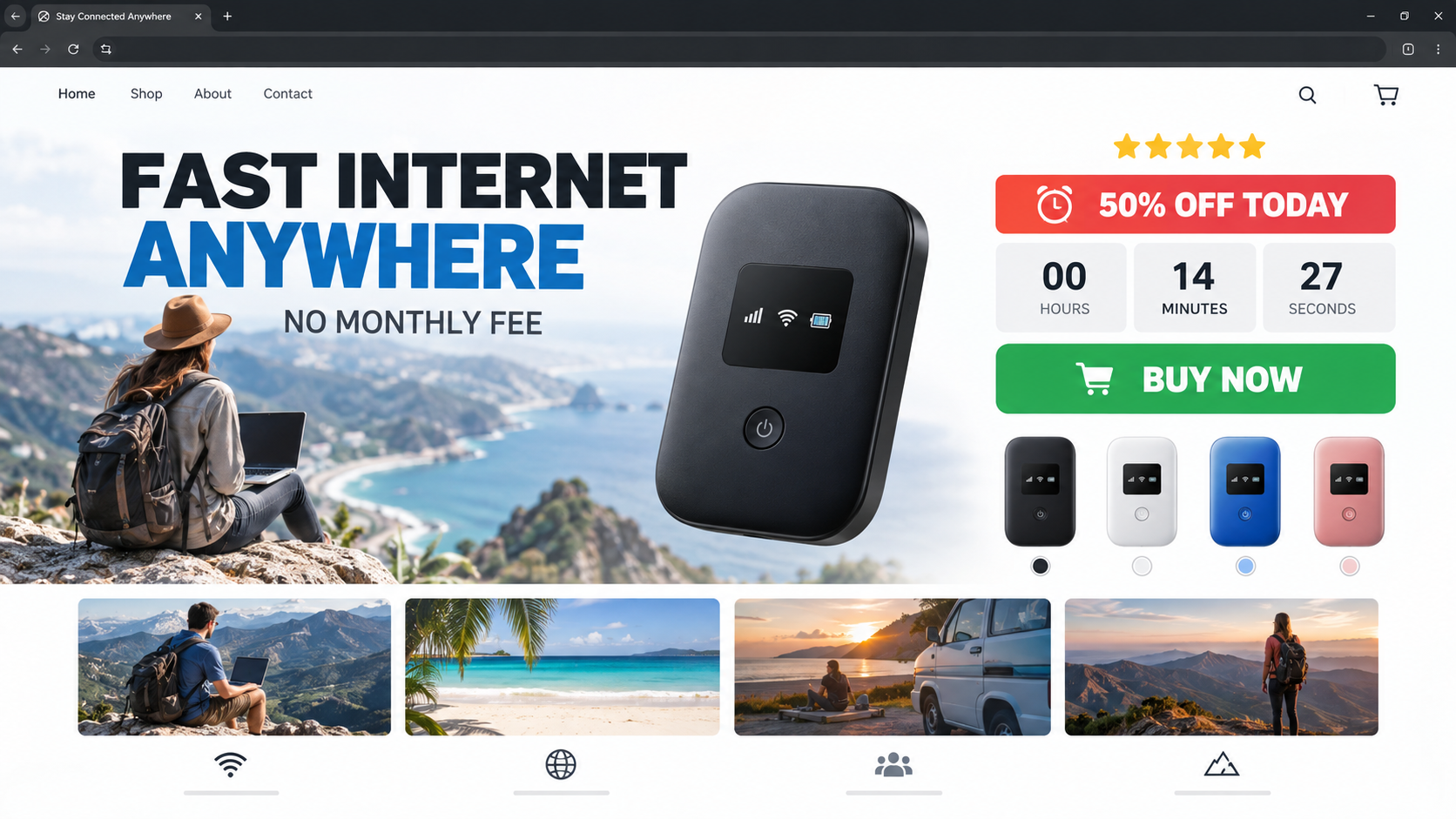
The discount commonly expires within minutes, yet returning later restores the sale. A permanent countdown is a pressure tool, not genuine inventory information.
How Pocket Wi-Fi Actually Works
A mobile router needs an upstream connection
The device creates a local Wi-Fi network. Nearby equipment connects to that network, and the router forwards traffic through its cellular modem.
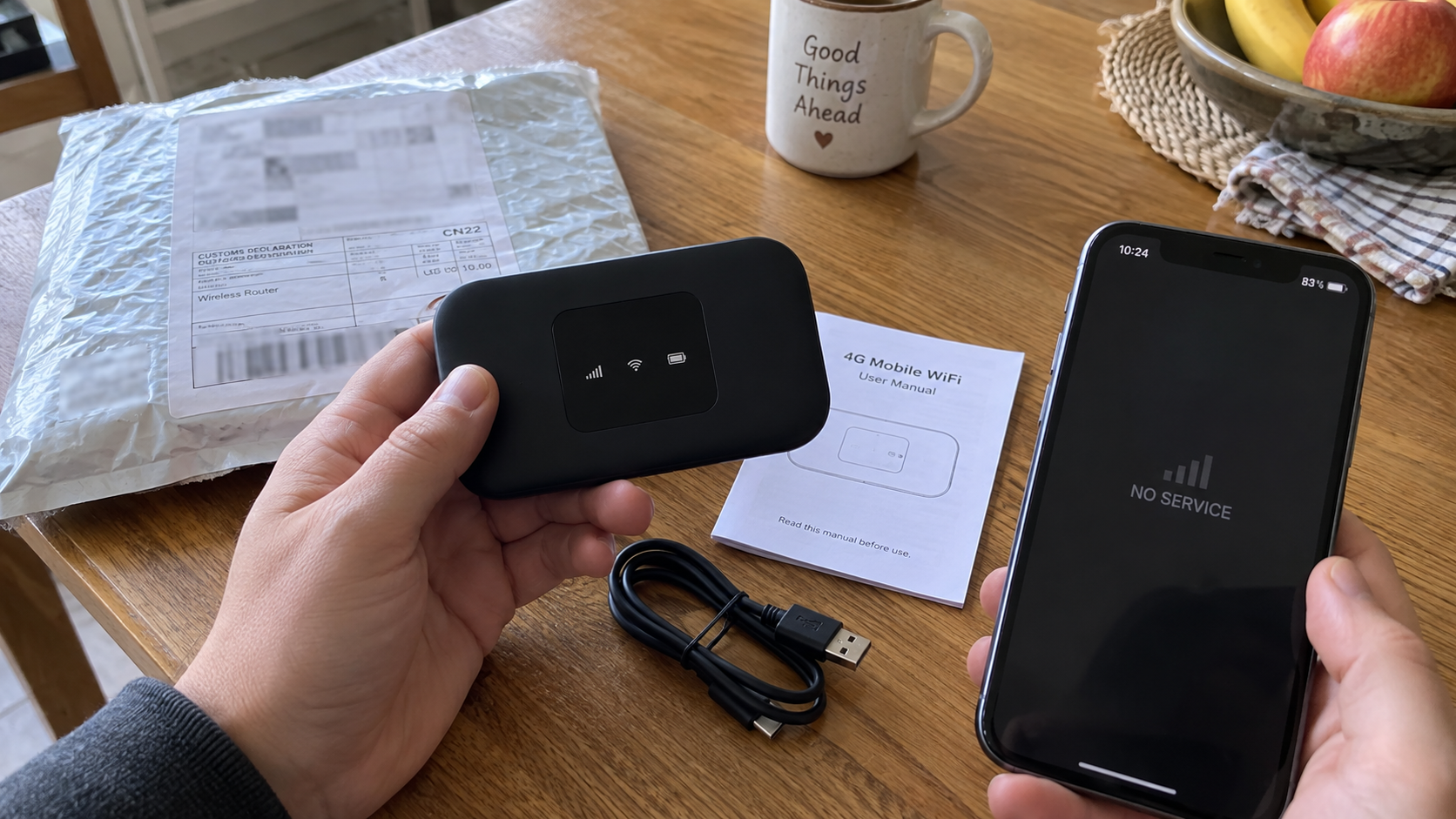
Without active cellular service, it may still broadcast a Wi-Fi name. Connected devices will show a local link but no working internet.
This distinction explains why an indicator can glow while websites fail. The router is powered, yet it has no usable path to the wider network.
Compatibility involves more than inserting any SIM
Carriers operate on specific frequency bands and technologies. A hotspot must support the appropriate bands, provisioning, account type, and access-point settings.
An imported model may omit important North American or European bands. Coverage can be weak even when the product accepts a SIM physically.
Locked firmware can create another barrier. Sellers should disclose supported networks, bands, SIM format, roaming capability, and configuration steps.
Unlimited claims usually contain limits
Legitimate unlimited plans may slow hotspot traffic after a threshold, restrict video quality, or deprioritize heavy users during congestion.
A seller promising unrestricted global data forever must explain who pays carriers, what fair-use policy applies, and how the service remains financially sustainable.
When none of those answers appears, the promise should be treated as advertising fiction until independently verified.
Public Wi-Fi is not a private global network
A travel router can repeat an existing hotel or café connection. That feature still depends on finding and joining available Wi-Fi.
Repeating a network does not make the connection free, faster, or safe. Login portals, local restrictions, and shared-network risks continue to apply.
The device cannot legally unlock protected networks. Any advertisement implying otherwise is describing unauthorized access, not an ordinary consumer feature.
How the Pocket Wi-Fi Without Monthly Fees Scam Works
Step 1: A travel video removes the complicated parts
The ad shows a cheerful user pressing one button. No SIM tray, carrier account, activation screen, coverage map, or data purchase interrupts the demonstration.
Airport and mountain scenes suggest universal reach. Viewers naturally assume the depicted connection belongs to the device rather than a separate plan.
The phrase no monthly fee is repeated because it answers the buyer’s largest objection before the product has been explained.
Step 2: A fictional inventor attacks the telecom industry
The landing page may introduce an engineer frustrated by contracts and roaming charges. Personal rebellion turns an ordinary reseller product into a breakthrough.
Promoters imply carriers want the invention removed. This makes missing mainstream coverage seem like evidence of suppression rather than evidence against the claim.
No patent, engineering team, network agreement, or verifiable company timeline is needed when the biography itself exists only on the sales page.
Studio renders enlarge the screen, polish the casing, and place signal graphics around the router. Lifestyle scenes hide its actual build quality.
The identical shell may appear on marketplace listings for much less. Those listings often describe a conventional 4G modem requiring a customer-supplied SIM.
Markups are not automatically fraudulent. The problem is pairing an ordinary router with claims that remove its essential service requirement.
Step 4: The store invents urgency and social proof
A visitor sees thousands of recent orders, a nearly empty stock meter, five-star reviews, and a discount that supposedly ends today.
These elements are controlled by the seller. They do not establish independent ownership, performance testing, or authentic customer experience.
Search for reviews on unrelated platforms and examine their dates. A sudden cluster of vague praise can be part of coordinated promotion.
Step 5: Bundle pricing expands a simple experiment
The checkout may recommend devices for every traveler, vehicle, or household member. A buyer wanting one unit can be nudged toward three or five.
Quantity selectors sometimes default to a larger package. Confirm the item count and final total immediately before authorizing the charge.
Upsells can add antennas, cases, adapters, warranties, or priority processing. Each extra makes a refund more complicated.
Step 6: The delivered device exposes the missing service
The parcel may contain a router, short cable, and thin manual. Instructions then mention a SIM card that never appeared prominently in the advertisement.
Buyers discover that activating data costs extra, their preferred carrier is incompatible, or the unit supports slower bands than expected.
Some devices can work within limited conditions. That does not validate the universal, free-internet presentation used to obtain the sale.
Step 7: The refund promise becomes expensive to use
Support may require photographs, troubleshooting videos, unopened packaging, or a return to an overseas warehouse before considering reimbursement.
Tracked international postage can approach the device’s value. Sellers may offer a small partial refund if the customer keeps the unit.
A vanished domain or unanswered mailbox leaves the payment provider as the most practical dispute route.
Questions to Ask Before Buying Any Travel Hotspot
Which exact cellular bands does the model support? A statement such as works worldwide is not a substitute for a complete technical list.
Is the modem carrier-unlocked? Ask for written confirmation and name the carrier you intend to use.
Does the advertised price include data? If yes, demand the allowance, duration, countries, speed policy, network partners, and renewal cost.
Can the device operate as a repeater only, a cellular modem only, or both? Product pages frequently blend these functions.
How many devices can connect simultaneously, and what battery capacity is installed? Marketing phrases such as all-day power need measurable specifications.
Where does a return go, who pays postage, and can the package be opened for testing? Save the policy before purchase.
What merchant name will appear on the card? Knowing the descriptor helps recognize billing and challenge an unexpected amount quickly.
Would phone tethering satisfy the same need? Many travelers already own the required hotspot hardware inside their phone.
Safer Ways to Stay Connected While Traveling
Start with the service, then choose compatible hardware
Identify destinations, trip length, expected data use, and required devices before shopping for a router. Those facts determine the appropriate plan.
Check carrier coverage maps, but remember they show estimates. Buildings, terrain, congestion, and supported bands affect actual performance.
Ask whether hotspot traffic is included and how much high-speed data is available. Some phone plans treat tethering differently from handset use.
Once the plan is clear, choose unlocked hardware supporting its bands. This reverses the scam funnel’s approach of selling hardware before explaining connectivity.
Prepaid options can avoid unwanted renewals
A local prepaid SIM may provide transparent data for one country. Airport pricing can be higher, so compare official carrier shops.
Regional eSIMs offer another option for compatible phones and routers. Review the network, activation date, hotspot permission, and fair-use limits.
Prepaid service is not the same as free service. Its advantage is knowing the allowance and expiration before committing.
Disable automatic renewal if it is not needed. Save the cancellation confirmation and remove stored payment details where appropriate.
Phone tethering may remove the extra gadget
Modern phones can share cellular data over Wi-Fi, USB, or Bluetooth. This can be simpler for occasional laptop access.
Tethering consumes battery quickly and may incur plan limits. Use a trusted charger and monitor data through the carrier’s official application.
A separate hotspot remains useful for groups, longer sessions, or preserving phone battery. It still needs a legitimate service plan.
Public networks require security habits
Confirm the network name with staff before connecting. Attackers can create look-alike access points near hotels, cafés, and airports.
Prefer encrypted websites, keep software updated, and avoid sensitive account changes on untrusted Wi-Fi. A VPN can protect traffic but not fraudulent websites.
Disable automatic network joining and file sharing. Forget the connection after leaving so the device does not reconnect to an impersonator later.
For critical work, a known cellular connection is usually preferable to an unknown open network, even when it costs more.
Download maps, tickets, authentication codes, and essential documents before departure. Offline preparation reduces dependence on any single connection.
Carry a compatible power bank because searching for weak cellular service drains batteries faster than ordinary standby use.
Test the chosen plan near home before traveling. Resolve activation and access-point problems while reliable support remains available.
Company, Address, and Fulfillment Checks
A brand sticker is not a manufacturer identity
Names like YAGOO or Ecovox can disappear while identical hardware continues elsewhere. Find the legal importer, responsible seller, and actual model number.
Missing manufacturer details make firmware updates, safety notices, battery support, and regulatory compliance difficult to verify.
Designed locally may mean marketed locally
A Los Angeles design claim requires more than a skyline photograph. Search corporate filings, staff profiles, patents, and a genuine operating address.
Goods can be mass-produced in China, relabeled, and fulfilled through another country. That supply chain is not disclosed by a polished lifestyle page.
Support should answer technical questions before purchase
Ask about bands, carriers, SIM requirements, data pricing, returns, and warranty service. A sales agent who avoids specifics is not equipped to support the product.
Test the published telephone and email channels. Silence before payment usually becomes a larger problem afterward.
A warehouse cannot resolve a connectivity dispute
The return address may belong to a third-party logistics center that receives packages for many merchants. Staff there may not identify your order.
Record tracking and written authorization. Sending hardware to an unconfirmed address can eliminate both the item and the evidence needed for a dispute.
What to Do if You Have Fallen Victim to This Scam
Do not enter more personal data. Avoid unknown activation pages requesting identity documents, banking credentials, or payment for an unexplained service.
Photograph the package and contents. Capture the shipping label, device model, IMEI if present, manual, accessories, and every mismatch with the advertisement.
Save the offer. Keep screenshots of no-monthly-fee wording, compatibility promises, checkout quantity, refund terms, and the complete final charge.
Request cancellation promptly. Explain that the router requires undisclosed service or lacks advertised compatibility, then ask for written return authorization.
Contact your card issuer. Dispute unauthorized quantities, hidden recurring billing, missing goods, or material differences between the offer and delivery.
Monitor future statements. Look for unfamiliar descriptors, memberships, warranty billing, and small test charges connected with the order.
Reset exposed credentials. If an activation portal collected a password, change it everywhere reused and enable multi-factor authentication.
Scan the device used to order. Malwarebytes can identify malicious downloads or browser changes encountered through deceptive redirects.
Limit malicious advertising. AdGuard can reduce scam ads and tracking requests, although careful seller verification remains essential.
Report the campaign. Notify the ad platform, FTC, IC3, consumer-protection authority, and your carrier if its name was used misleadingly.
Is Your Device Infected? Run a Free Malware Scan
Slow performance, constant pop-ups, or strange behavior? These are classic signs of a malware infection. The fastest way to find out is to scan your device with Malwarebytes Anti-Malware Free — one of the most trusted malware removal tools available.
The free version detects and removes the most common threats, including:
Adware — the cause of those annoying pop-ups
Browser hijackers — unwanted redirects and changed homepages
Trojans and spyware — hidden programs stealing your data
Potentially unwanted programs (PUPs) — software you never asked for
👉 Select your device below — Windows, Mac, or Android — then follow the simple steps to download Malwarebytes, scan your system, and remove any threats it finds. The whole process takes about 5 minutes.
Malwarebytes for WindowsMalwarebytes for MacMalwarebytes for Android
Run a Malware Scan with Malwarebytes for Windows
Malwarebytes is one of the most popular and trusted anti-malware tools for Windows — and it’s completely free for removing infections. It catches threats that many antivirus programs miss, including adware, browser hijackers, and trojans. Follow the steps below to scan and clean your PC in just a few minutes.
Download Malwarebytes
Click the button below to download the latest version of Malwarebytes for Windows from the official source. The free version is all you need — it will scan your computer and remove adware, browser hijackers, and other malicious software at no cost.
(The link opens in a new page where your download will start)
Install Malwarebytes
When the download finishes, open your Downloads folder and double-click the MBSetup file. If Windows shows a User Account Control pop-up, click “Yes” to allow the installation.
Follow the On-Screen Prompts to Install Malwarebytes
The setup wizard will walk you through a few quick screens:
Choose where you’re installing the program — “Personal Computer” or “Work Computer” — then click Next.
Malwarebytes will now install on your device. This usually takes under a minute.
When installation is complete, the “Welcome to Malwarebytes” screen will open automatically.
On the final screen, click Open Malwarebytes to launch the program.
Enable “Scan for Rootkits”
Before scanning, turn on rootkit detection so Malwarebytes can find even the most hidden threats. Click the Settings gear icon on the left side of the screen.
In the settings menu, find “Scan for rootkits” and click the toggle so it turns blue.
Done? Click “Dashboard” in the left pane to return to the main screen.
Start the Scan
Click the blue Scan button. Malwarebytes will automatically update its virus database and start checking your computer for malware.
Wait for the Scan to Finish
The scan checks your entire system for browser hijackers and other malicious programs, so it can take several minutes. Feel free to do something else — just check back occasionally to see the progress.
Quarantine the Detected Threats
When the scan is done, you’ll see a list of everything Malwarebytes found — malware, adware, and potentially unwanted programs. Click the “Quarantine” button to remove all of them at once.
Malwarebytes will now remove the malicious files and registry entries and move them safely into quarantine.
Restart Your Computer
Some threats can only be fully removed after a reboot. If Malwarebytes asks you to restart, click Yes. Once you’re logged back in, your PC is clean and you can continue with the next steps in this guide.
When the scan finishes, click Quarantine to remove everything Malwarebytes found. That’s it — your Windows PC is now clean of trojans, adware, and other malware, and should be back to running smoothly.
If your current antivirus allowed this malicious program on your computer, you may want to consider purchasing Malwarebytes Premium to protect against these types of threats in the future. If you are still having problems with your computer after completing these instructions, then please follow one of the steps:
Malwarebytes for Mac is a free on-demand scanner that removes the malware other security software tends to miss — adware, browser hijackers, and unwanted programs included. Cleaning an infected Mac with Malwarebytes has always been completely free, and it’s our go-to recommendation. Follow the steps below to scan and clean your Mac in just a few minutes.
Download Malwarebytes for Mac
Click the button below to download the latest version of Malwarebytes for Mac.
When the download finishes, open your Downloads folder and double-click the setup file to begin the installation.
Follow the On-Screen Prompts to Install Malwarebytes
The Malwarebytes for Mac Installer will guide you through a few quick screens. Click “Continue” and keep following the prompts until the installation completes.
When the installation is complete, Malwarebytes opens to the Welcome to Malwarebytes screen. Click “Get started“.
Select “Personal Computer” or “Work Computer”
Malwarebytes will ask what type of computer you’re installing it on. Click either Personal Computer or Work Computer, whichever applies.
Start the Scan
Click the “Scan” button. Malwarebytes will automatically update its detection database and begin checking your Mac for malware.
Wait for the Scan to Finish
Malwarebytes will scan your Mac for adware, browser hijackers, and other malicious programs. This can take a few minutes, so feel free to do something else — just check back occasionally to see the progress.
Quarantine the Detected Threats
When the scan is done, you’ll see a list of everything Malwarebytes found. Click the “Quarantine” button to remove all the threats at once.
Restart Your Mac
Malwarebytes will now remove all the malicious files it found. Some threats can only be fully removed after a reboot — if Malwarebytes asks you to restart, allow it. Once you’re logged back in, your Mac is clean.
Once the scan is done, remove every threat it detected. Your Mac is now free of adware, rogue browser extensions, and other potentially harmful software.
If your current antivirus allowed a malicious program on your computer, you might want to consider purchasing the full-featured version of Malwarebytes Anti-Malware to protect against these types of threats in the future. If you are still experiencing problems while trying to remove a malicious program from your computer, please ask for help in our Mac Malware Removal Help & Support forum.
Run a Malware Scan with Malwarebytes for Android
Malwarebytes for Android automatically detects and removes dangerous threats like malware and ransomware so you don’t have to worry about your most-used device being compromised. Aggressive detection of adware and potentially unwanted programs keeps your Android phone or tablet running smooth.
Download Malwarebytes for Android.
You can download Malwarebytes for Android by clicking the link below.
In the Google Play Store, tap “Install” to install Malwarebytes for Android on your device.
When the installation process has finished, tap “Open” to begin using Malwarebytes for Android. You can also open Malwarebytes by tapping on its icon in your phone menu or home screen.
Follow the on-screen prompts to complete the setup process
When Malwarebytes will open, you will see the Malwarebytes Setup Wizard which will guide you through a series of permissions and other setup options. This is the first of two screens that explain the difference between the Premium and Free versions. Swipe this screen to continue. Tap on “Got it” to proceed to the next step. Malwarebytes for Android will now ask for a set of permissions that are required to scan your device and protect it from malware. Tap on “Give permission” to continue. Tap on “Allow” to permit Malwarebytes to access the files on your phone.
Update database and run a scan with Malwarebytes for Android
You will now be prompted to update the Malwarebytes database and run a full system scan.
Click on “Update database” to update the Malwarebytes for Android definitions to the latest version, then click on “Run full scan” to perform a system scan.
Wait for the Malwarebytes scan to complete.
Malwarebytes will now start scanning your phone for adware and other malicious apps. This process can take a few minutes, so we suggest you do something else and periodically check on the status of the scan to see when it is finished.
Click on “Remove Selected”.
When the scan has been completed, you will be presented with a screen showing the malware infections that Malwarebytes for Android has detected. To remove the malicious apps that Malwarebytes has found, tap on the “Remove Selected” button.
Restart your phone.
Malwarebytes for Android will now remove all the malicious apps that it has found. To complete the malware removal process, Malwarebytes may ask you to restart your device.
After the scan, tap Remove Selected to delete all detected threats. Your Android phone is now clean — no more malicious apps, adware, or browser redirects.
If your current antivirus allowed a malicious app on your phone, you may want to consider purchasing the full-featured version of Malwarebytes to protect against these types of threats in the future. If you are still having problems with your phone after completing these instructions, then please follow one of the steps:
Restore your phone to factory settings by going to Settings > General management > Reset > Factory data reset.
Now that your device is clean, keep it that way. Most infections start with a malicious ad or a fake download button — so blocking them at the source is your best defense.
We recommend AdGuard, which blocks malicious ads, phishing pages, and dangerous redirects before they can reach you.
Can pocket Wi-Fi work without a monthly subscription?
Hardware can be owned without a subscription, but cellular internet still requires active data purchased monthly, prepaid, bundled, or otherwise funded.
Does the device provide free internet worldwide?
No ordinary hotspot can make that promise independently. Worldwide access depends on partner networks, roaming agreements, coverage, and a paid data allowance.
Can I use my existing phone SIM?
Possibly, but only if the carrier permits hotspot use and the router supports its bands, provisioning, SIM format, and access settings.
Why does the router show Wi-Fi but no internet?
The local wireless network can operate while the cellular connection remains inactive, incompatible, unprovisioned, or outside coverage.
Are all generic travel hotspots scams?
No. Basic hotspots can be useful when specifications are accurate and service requirements are clear. The deceptive no-fee promise is the issue.
Should I buy data through an unknown activation page?
Avoid it until you verify the operator, privacy practices, pricing, renewal terms, and whether your carrier recognizes that service.
The Bottom Line
The Pocket Wi-Fi without monthly fees campaign sells an ordinary router as though it creates free global connectivity, then leaves crucial carrier costs unexplained.
Buy connectivity and hardware as two separate decisions. Confirm bands, network access, data pricing, seller identity, and return conditions before ordering.
10 Rules to Avoid Online Scams
Here are 10 practical safety rules to help you avoid malware, online shopping scams, crypto scams, and other online fraud. Each tip includes a quick “if you already got hit” action.
Stop and verify before you click, log in, download, or pay.
Most scams win by creating urgency. Verify using a trusted method: type the website address yourself, use the official app, or call a known number (not the one in the message).
If you already clicked: close the page, do not enter passwords, and run a malware scan.
Keep your operating system, browser, and apps updated.
Updates patch security holes used by malware and malicious ads. Turn on automatic updates where possible.
If you saw a scary “update now” pop-up: close it and update only through your device settings or the official app store.
Use layered protection: antivirus plus an ad blocker.
Antivirus helps block malware. An ad blocker reduces scam redirects, phishing pages, and malvertising.
If your browser is acting weird: remove unknown extensions, reset the browser, then run a full scan.
Install apps, software, and extensions only from official sources.
Avoid cracked software, “keygens,” and random downloads. During installs, choose Custom/Advanced and decline bundled offers you do not recognize.
If you already installed something suspicious: uninstall it, restart, and scan again.
Treat links and attachments as untrusted by default.
Phishing often impersonates delivery services, banks, and popular brands. If it is unexpected, do not open attachments or log in through the message.
If you entered credentials: change the password immediately and enable 2FA.
Shop safely: research the store, then pay with protection.
Be cautious with brand-new stores, “closing sale” stories, and prices that make no sense. Prefer credit cards or PayPal for dispute options. Avoid wire transfers, gift cards, and crypto payments.
If you already paid: contact your card issuer or PayPal quickly to dispute the transaction.
Crypto rule: never pay a “fee” to withdraw or recover money.
Common patterns include fake profits, then “tax,” “gas,” or “verification” fees. Another is a “recovery agent” who demands upfront crypto.
If you already sent crypto: stop paying, save evidence (wallet addresses, TXIDs, chats), and report the scam to the platform used.
Secure your accounts with unique passwords and 2FA (start with email).
Use a password manager and unique passwords for every account. Enable 2FA using an authenticator app when possible.
If you suspect an account takeover: change passwords, sign out of all devices, and review recent logins and recovery settings.
Back up important files and keep one backup offline.
Backups protect you from ransomware and device failure. Keep at least one backup on an external drive that is not always connected.
If you suspect infection: do not connect backup drives until the system is clean.
If you think you are a victim: stop losses, document evidence, and escalate fast.
Move quickly. Speed matters for disputes, account recovery, and limiting damage.
Stop payments and contact: do not send more money or respond to the scammer.
Call your bank or card issuer: block transactions, replace the card if needed, and start a dispute or chargeback.
Secure your email first: change the email password, enable 2FA, and remove unfamiliar recovery options.
Secure other accounts: change passwords, enable 2FA, and log out of all sessions.
Scan your device: remove suspicious apps or extensions, then run a full malware scan.
Save evidence: screenshots, emails, order pages, tracking pages, wallet addresses, TXIDs, and chat logs.
Report it: to the payment provider, marketplace, social platform, exchange, or wallet service involved.
These rules are intentionally simple. Most online losses happen when decisions are rushed. Slow down, verify independently, and use payment methods and account controls that give you recourse.
Hello! I'm Lapain Epuran, your go-to source for detailed and honest product reviews. From tech gadgets to miracle cures, I provide insights to help you make informed choices. Join me as we discover what's truly worth your time and money.