

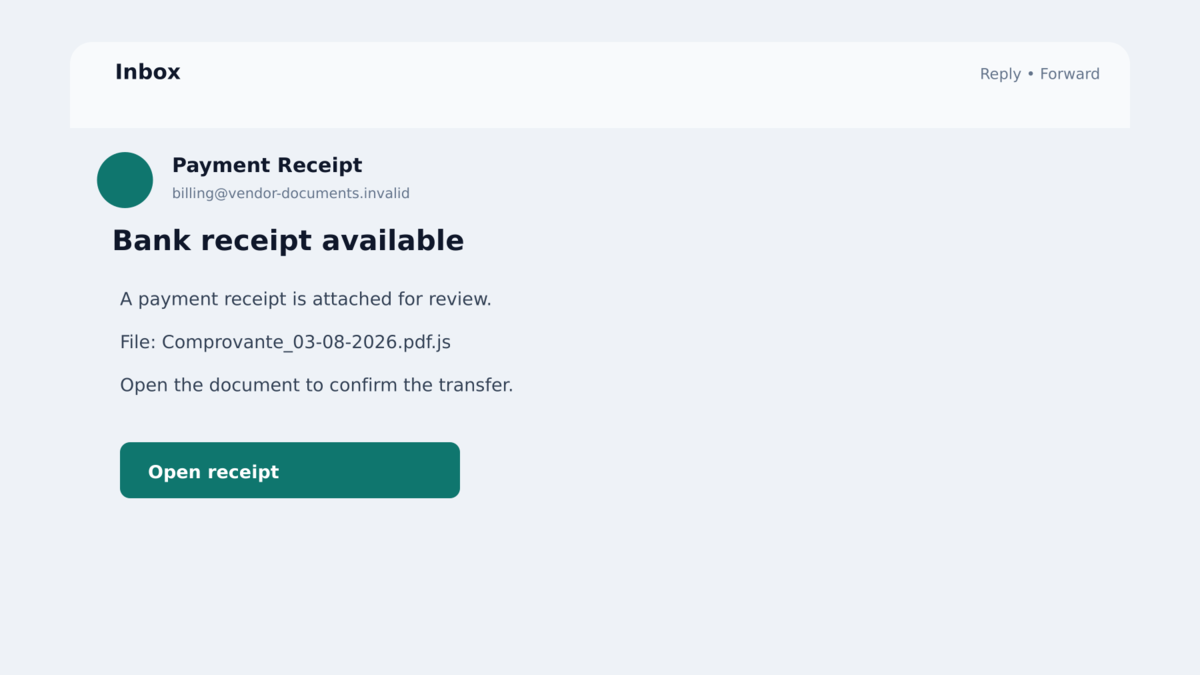
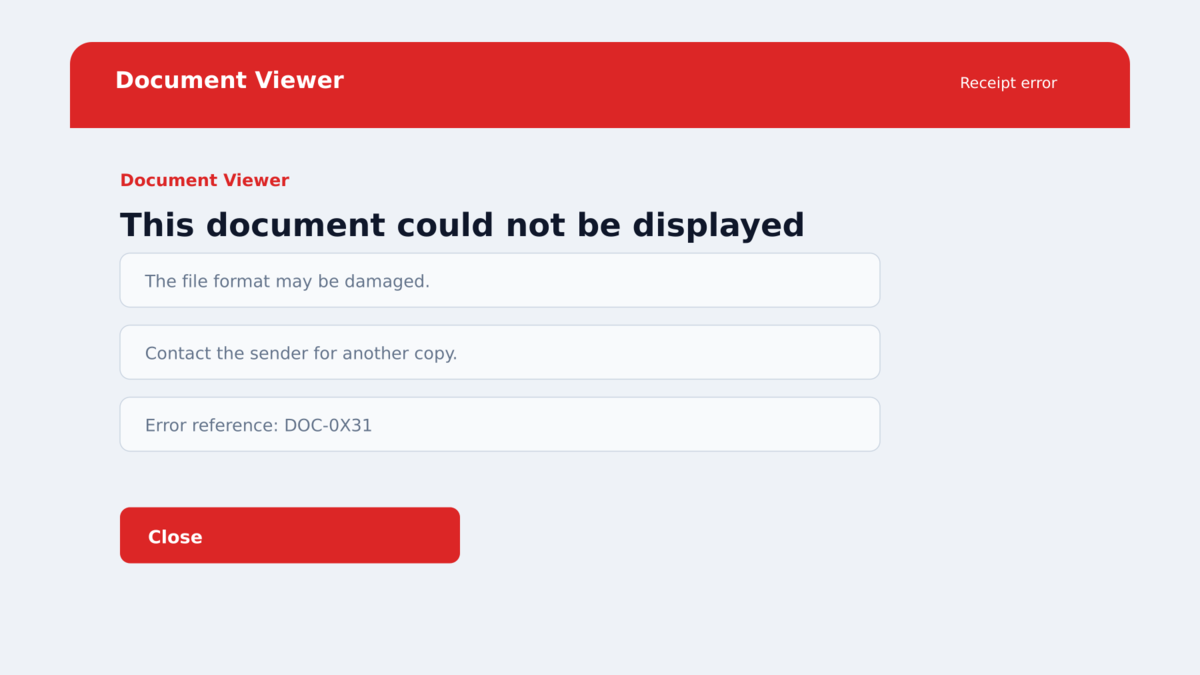
A bank receipt, invoice, or company document arrives as a JavaScript file. When it is opened, Windows shows an error that makes the document look broken.
That failure can feel like the end of the story. The recipient may close the message, blame the sender, and continue using the computer as normal.
Behind the error, a Brazilian banking malware operation can install a browser extension the user never approved. The extension is designed to watch banking sessions from inside Chrome or Edge.
Overview
The infection begins with a fake financial document
KREMLIN browser malware reaches victims through files disguised as banking receipts, invoices, or company documents. The file ends in .js, which means Windows can execute it as a script rather than open it as an ordinary statement.
The victim must run the file. KREMLIN then displays a fake error while the loader checks the computer and quietly downloads additional stages.
The malware forces an extension into Chrome and Edge
Instead of asking the user to approve an extension through the Chrome Web Store, KREMLIN modifies browser profile files directly. It recreates Chromium’s integrity values so the browser loads the extension as though the installation were valid.
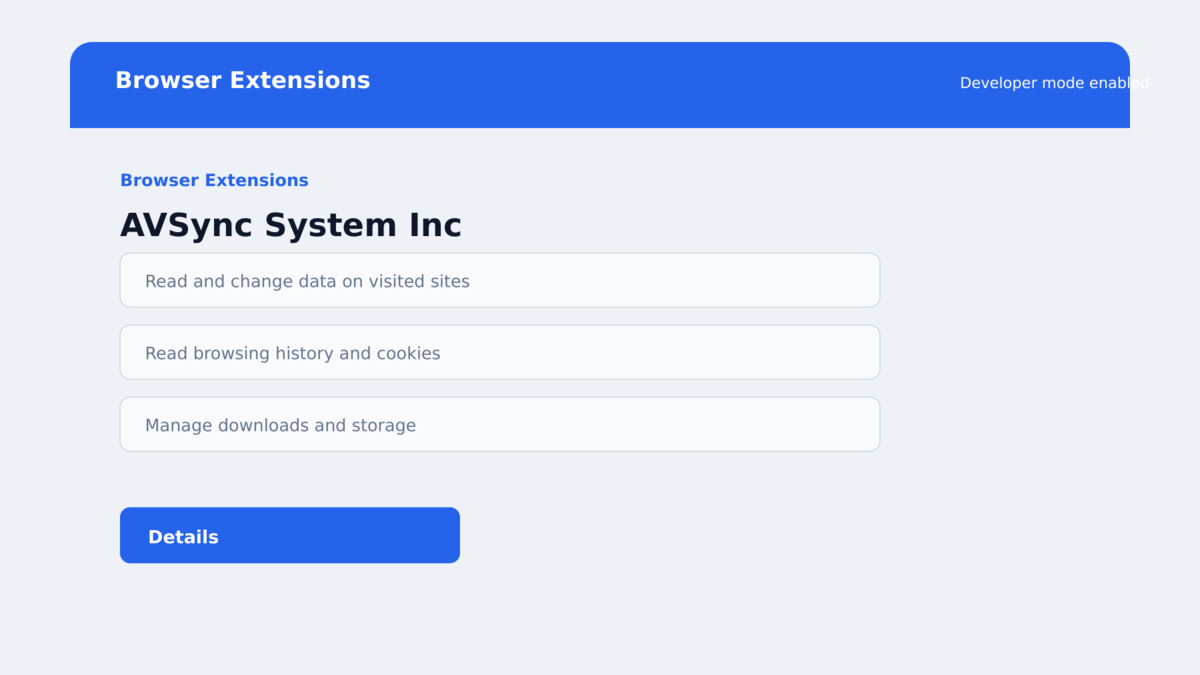
The malicious extension may appear under the harmless-sounding name “AVSync.” It requests access to tabs, cookies, storage, and web requests, giving it a powerful position inside the victim’s browsing sessions.
Bank credentials and active sessions become visible to attackers
The extension can capture screenshots, cookies, stored browser data, page content, form submissions, and keystrokes on targeted domains. It can also inject attacker-controlled HTML into pages and redirect the browser.
Elastic Security Labs traced seven campaigns over 15 months, with a focus on Brazilian banking users and lures impersonating 12 Brazilian banks. Researchers temporarily disrupted more than 1,500 infections through a network canary domain.
- The lure poses as a banking receipt, invoice, or business document.
- The downloaded document is an executable JavaScript file.
- A fake error hides the activity that follows.
- The loader installs persistence and additional malware components.
- Ethereum smart contracts help the operation rotate download and control addresses.
- KREMLIN modifies Chrome and Edge profile integrity data.
- The extension masquerades as AVSync and monitors browser activity.
- Credentials, cookies, session tokens, screenshots, and banking data may be stolen.
Why the Fake Document Can Lower Your Guard
Invoices and payment receipts already carry urgency. A business owner may worry that money left an account, an employee may think a supplier is waiting, and a consumer may want to confirm an unfamiliar charge.
Windows can also hide known file extensions by default. A filename that ends in “receipt.pdf.js” may appear shorter in some views, making an executable script resemble a harmless document.
The fake error is another important piece of the deception. People associate an error with a file that failed to work. In this case, the visible failure gives the malware time and discourages the victim from looking for a successful installation.
KREMLIN also tries to avoid automated analysis. Elastic found checks for the number of desktop files and running processes. A sparse test environment can cause the loader to stop, while a normal user computer allows the next stages to continue.
The later extension looks like part of browser software rather than a loud ransomware screen. It can wait for valuable pages and collect information during ordinary browsing, so the victim may not connect a banking problem with the earlier document.
This campaign focuses on Brazil, but the protective lesson is broader. A receipt or invoice should be read as a document, not executed as a script. No legitimate bank statement needs Node.js, a scheduled task, or permission to rewrite browser profiles.
Company, Address, and Fulfillment Checks
The filename reveals executable content
Turn on “File name extensions” in Windows File Explorer and inspect the final suffix. PDF, DOCX, XLSX, and image formats are different from JS, JSE, VBS, BAT, CMD, SCR, or EXE files.
A financial sender should not tell you to bypass a warning or run a script to see a receipt. Confirm the transaction through the bank’s official app or website instead.
The AVSync extension is not proof of a legitimate publisher
A name and icon inside the extensions page can be chosen by malware. KREMLIN’s extension uses the AVSync identity while requesting broad access to tabs, cookies, storage, and network requests.
Look for extensions installed outside your normal process, developer mode being enabled unexpectedly, browsers closing and reopening, or an entry you cannot remove. These clues deserve immediate investigation.
Blockchain use does not make the operation trustworthy
KREMLIN uses Ethereum smart contracts as a dead-drop resolver. The contract stores changing locations for payloads and command infrastructure, helping the attackers replace domains without rebuilding every infected loader.
This is an infrastructure technique, not a cryptocurrency investment element. Victims are not being asked to buy Ethereum, and the malware name does not indicate a Russian government connection.
Independent analysis confirms the complete infection chain
Elastic Security Labs documented KREMLIN’s loaders, persistence, forged Chromium integrity checks, extension behavior, infrastructure, and victim telemetry. The researchers have tracked the activity as REF9334 since May 2025.
The findings confirm a malware campaign, not a complaint about a real bank. The banks, Chrome, Edge, Node.js, Ethereum, and any security products copied or abused in the chain are not the operators.
How the KREMLIN Browser Malware Scam Works
Step 1: A fake document persuades the victim to run JavaScript
The attacker distributes a script with a banking, invoice, receipt, or company-themed name. One analyzed example imitated a Banco Safra receipt.
The recipient opens the file expecting a record. Windows instead executes the script under the victim’s account.
Step 2: A false error covers the first-stage loader
The script displays an error message, then checks whether it appears to be running in a sandbox. It counts desktop files and active processes before continuing.
On a normal system, it extracts another stage, downloads a Node.js runtime, and contacts attacker infrastructure. The victim sees only the failed-document story.
Step 3: The loader creates persistence and downloads components
KREMLIN registers a scheduled task with a name that resembles a Microsoft Node runtime updater. The task can launch the malicious Node.js stage after the user signs in.
The loader queries an Ethereum smart contract for current download locations, retrieves binaries, and advances through custom installers and sideloaded components.
Step 4: The installer forges browser approval
KREMLIN waits until Chrome or Edge is closed or the user has been idle. It copies the extension into browser profile folders and edits the Secure Preferences file.
Chromium protects those settings with cryptographic checks. The malware recovers needed keys and regenerates the HMACs and encrypted hashes, allowing the browser to accept the tampered profile.
Step 5: The extension steals browser and banking data
Once active, the extension collects login databases, cookies, storage, tabs, and session material. It can capture screenshots, inspect page source, record inputs, and intercept selected requests.
Targeting rules let the operator focus on banking domains. Stolen cookies and session tokens may help bypass the need to enter a password again.
Step 6: The operator controls what appears in the browser
KREMLIN can inject HTML into a page, redirect selected visits, and update its targeting configuration from command servers. A victim may see a fake verification form placed inside a banking session they expected to trust.
The infrastructure can move because the extension resolves new addresses dynamically. Blocking one visible domain may not remove the extension or invalidate data already stolen.
What KREMLIN Can See Inside the Browser
Modern browsers hold far more than bookmarks. They keep login databases, cookies, local storage, autofill data, active tabs, and tokens that allow a signed-in session to continue. KREMLIN collects several of those profile files and the keys needed to decrypt protected fields later.
The extension can ask for a list of open tabs, capture the active page, retrieve cookies and storage, and upload page source. Those capabilities help an operator understand which bank or service the victim is using before choosing the next command.
Targeting rules can enable keylogging or request interception only on selected domains. That selective behavior reduces obvious symptoms. The extension does not need to break every website when it can wait for a bank login, transfer form, or verification page.
Injected HTML is particularly dangerous because it can appear inside a browser session the victim opened normally. A false “security check” may ask for a code, password, card number, or transaction confirmation while the address bar still shows a familiar bank domain.
Cookies and session storage also matter after a password change. If an active session remains valid, an attacker may continue using it until the bank or service revokes the token. That is why victims should call the bank, terminate sessions, and review transfers rather than only replacing a password.
Browser history and screenshots can reveal other accounts, email addresses, financial providers, and personal details. Those clues support follow-up phishing that looks more personal than the original generic receipt.
Business users should also assume that browser-based company portals were visible. Notify the employer quickly so access tokens, shared credentials, and affected customer records can be reviewed.
Warning Signs of a Malicious Financial Document
- The invoice or receipt ends in .js or another executable extension.
- The sender asks you to run a script rather than open a PDF or portal.
- The filename uses two extensions, such as document.pdf.js.
- Windows displays a script, SmartScreen, or unknown-publisher warning.
- The supposed document produces an error and no readable content.
- Chrome or Edge closes unexpectedly and later reopens.
- Browser developer mode appears enabled without your action.
- An unfamiliar extension called AVSync appears.
- Banking pages show unexpected overlays, prompts, or redirects.
- New scheduled tasks or Node.js files appear on a system that did not use them.
Do not rerun a failed document to “try again.” A second execution can repeat the infection steps or confirm the machine to attacker infrastructure.
What to Do if You Have Fallen Victim to This Scam
- Disconnect the Windows computer from the network. Turn off Wi-Fi and remove the network cable. Do not use the suspected machine to check balances or change passwords.
- Contact the bank from a separate trusted device. Use the official app or the number on the card. Explain that banking malware may have captured credentials, cookies, and an active session.
- Change critical passwords elsewhere. Secure primary email, banking, payment, workplace, and password-manager accounts. Use unique passwords and revoke every active session you do not need.
- Check multi-factor and recovery settings. Remove unknown devices, phone numbers, app passwords, passkeys, and recovery addresses. A stolen session may have allowed changes without another password prompt.
- Preserve the original lure. Save the email, script filename, sender, timestamps, and transaction evidence without executing the file again. An organization’s security team may need the sample.
- Have the computer professionally investigated. KREMLIN uses loaders, scheduled tasks, native binaries, and browser-profile tampering. Deleting the extension or script alone cannot prove every component is gone.
- Consider rebuilding the system. For a confirmed infection, a clean Windows reinstall and careful restoration of known-safe documents offers stronger assurance than manual removal.
- Scan before and after recovery. Malwarebytes can detect malicious scripts, loaders, and related components. AdGuard can block known malicious pages and advertising routes, but it cannot repair forged browser settings or cancel stolen sessions.
- Report the attack. Notify the impersonated bank, your employer if applicable, and Brazil’s appropriate cybercrime or banking channels. Warn contacts if your email account may have been accessed.
Frequently Asked Questions
What is KREMLIN browser malware?
KREMLIN is a banking malware toolkit tracked by Elastic as REF9334. It installs a malicious Chrome or Edge extension to steal credentials, sessions, and other browser data.
Is KREMLIN connected to Russia?
Elastic says nothing about the operation is Russian. The activity, language, bank impersonation, and transaction timing point to a Brazilian focus.
Can a JavaScript file really infect Windows?
Yes. Windows can execute .js files through its scripting components. A .js receipt is a program, not a normal view-only banking document.
Does the extension come from the Chrome Web Store?
No. KREMLIN copies the extension into profiles and alters protected preferences so Chrome or Edge loads it without normal store approval.
Will removing AVSync clean the computer?
Not necessarily. The infection also uses loaders, persistence, and native components. A full investigation or clean rebuild is safer after confirmed execution.
Why does the malware use Ethereum?
It reads smart contracts to discover changing payload and command locations. This helps the operation rotate infrastructure; it is not evidence of a legitimate crypto service.
The Bottom Line
Fake financial documents carrying KREMLIN are not merely suspicious invoices. They are executable lures for a confirmed Brazilian banking malware operation that can place an attacker-controlled extension inside Chrome or Edge.
The safest decision happens before the loader starts: reveal the full filename and never run a .js file to view a receipt, invoice, or bank statement.
If the script ran, assume browser sessions and banking data may be exposed. Disconnect the computer, call the bank from another device, and investigate the whole system rather than deleting one extension.








