

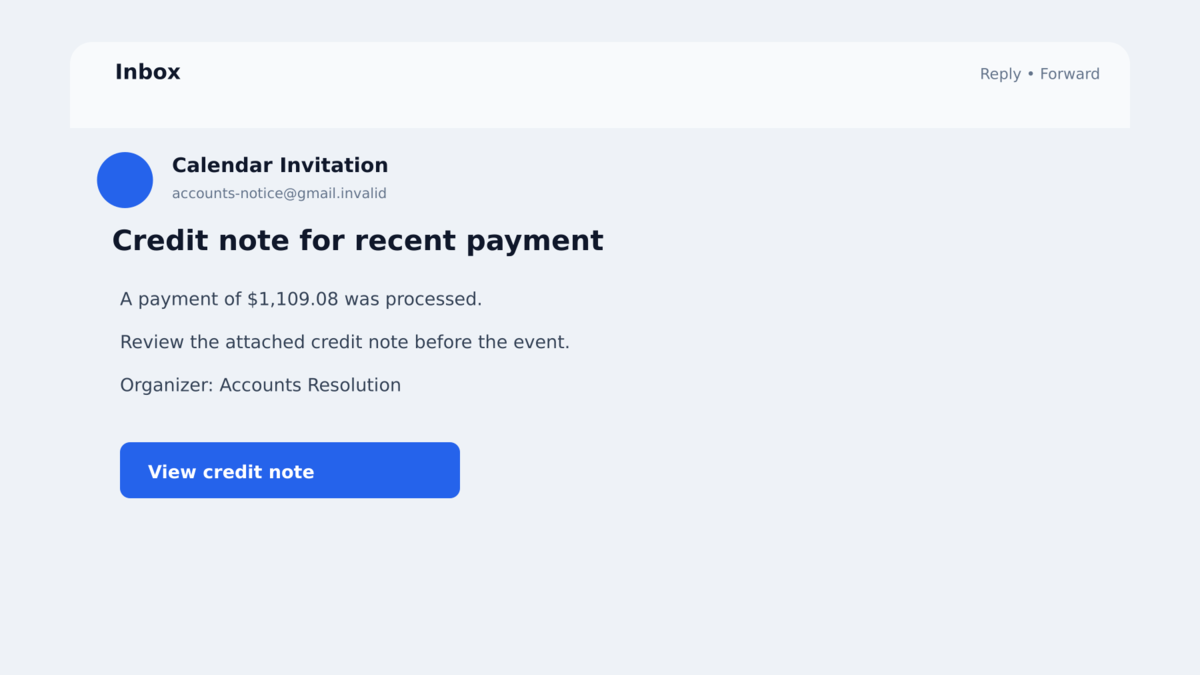
A meeting invitation appears in your inbox and on your calendar. It says a payment of $1,109.08 needs attention and offers a link to view a credit note.
The sender uses Gmail, the invitation travels through Google Calendar, and the link may briefly show a Google address. Those familiar pieces can make the event feel safer than an ordinary unsolicited attachment.
The calendar entry is the beginning of the attack, not the document it promises. Following the trail can install a legitimate remote-support program that has been configured for someone else’s control.
Overview
The attack arrives as both email and a calendar event
The calendar credit note scam uses an invitation file, often called an ICS invitation, to put the same lure in two places. The recipient may see it as an email and as an event added to the calendar.
This dual delivery matters. An email security filter might remove the message while the calendar entry remains visible, complete with a notification and a clickable link.
A fake payment creates business urgency
In the campaign documented by Sublime Security, the invitation referenced a recent $1,109.08 payment and directed the recipient to a supposed credit note. The financial language makes the event resemble a vendor, refund, or accounting issue that cannot be ignored.
The sender is a first-time Gmail contact despite the business-themed request. The link leads through Google’s automatic redirect to a page hosted on Framer’s free website service.
The download installs remote access instead of a document
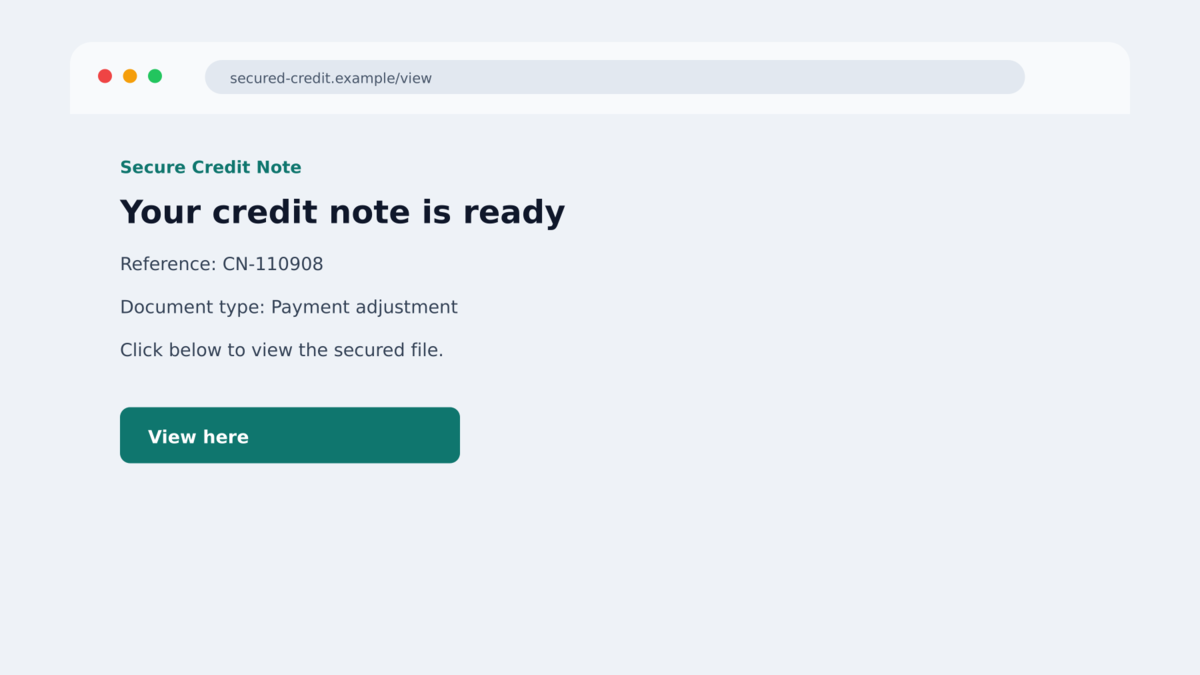
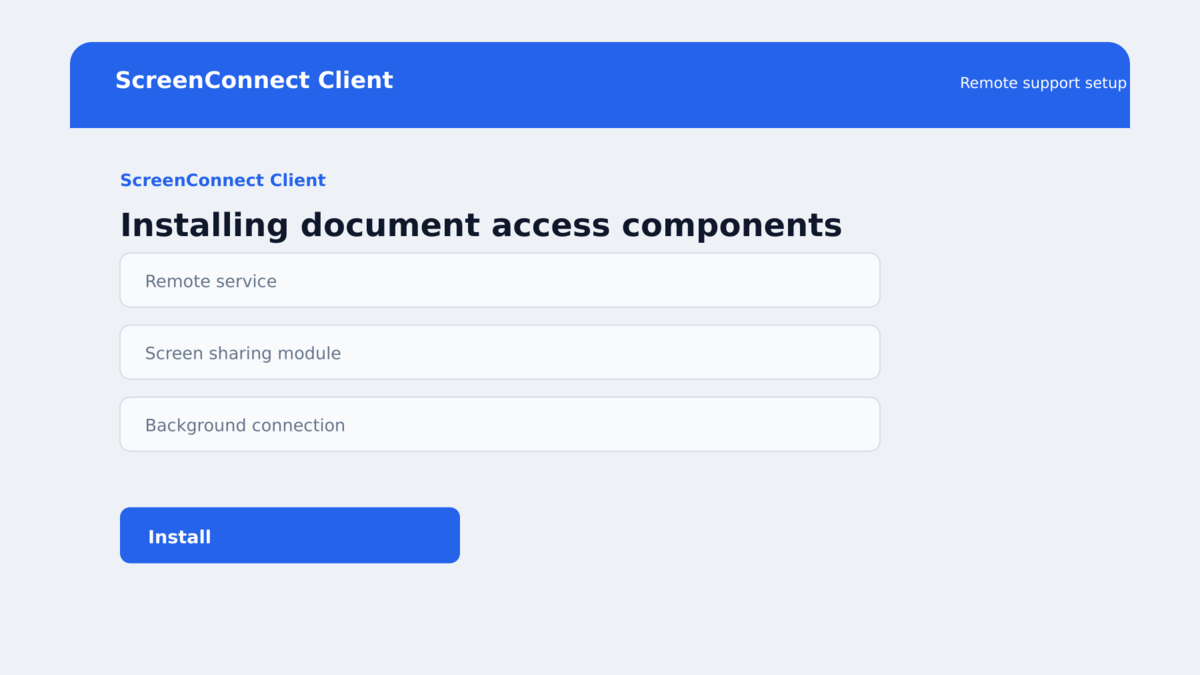
The landing page tells the visitor to click “VIEW HERE” for the credit note. Rather than opening a PDF or accounting record, it delivers a roughly 10 MB installer named ScreenConnect.ClientSetup.msi.
ScreenConnect is a legitimate remote monitoring and management product. The malicious installer includes configuration that connects the victim’s computer to the attacker’s remote-control infrastructure.
- The lure is delivered through a calendar invitation and email.
- The event claims a $1,109.08 payment requires attention.
- A Gmail sender makes the message inexpensive and easy to distribute.
- The invitation link is rewritten through a Google redirect.
- The landing page uses a free Framer website.
- The promised credit note is actually an MSI installer.
- The installer deploys a configured ScreenConnect remote-access client.
- Google, Framer, and ScreenConnect are being abused, not accused of running the attack.
Why Calendar Invitations Create a Security Blind Spot
People are used to clicking invitations from coworkers, vendors, clinics, and delivery services. Calendar software tries to be helpful by recognizing dates, creating reminders, and placing meeting details where they will be seen later.
Attackers exploit that helpful behavior. The invitation can arrive through a trusted provider and still contain untrusted text and links supplied by the person who created the event.
Email and calendar data may also travel through different protocols and security paths. Sublime found that an organization could block the email copy while the corresponding event still reached the target’s calendar.
The event may generate another notification shortly before its scheduled time. That reminder can revive the lure hours or days after the original email was ignored. A recipient then sees a business-sounding alert without remembering how it arrived.
Trusted infrastructure adds another layer of cover. Gmail, Google Calendar, Google’s link rewriting, Framer, and a ScreenConnect trial all reduce the attacker’s cost and make parts of the chain look familiar.
None of those services validates the business claim in the invitation. A Google-hosted event can be fraudulent, just as an envelope delivered by a legitimate postal service can contain a fraudulent invoice.
Company, Address, and Fulfillment Checks
The first-time Gmail sender does not fit the business story
A genuine credit note should come from a company you recognize and normally do business with. The message should identify an invoice, order, supplier, or account that can be confirmed through existing records.
An unexpected Gmail address discussing a four-figure payment is a strong warning. Contact the vendor using the phone number or portal already stored in your accounting system, not the details supplied in the invitation.
The visible Google link only redirects elsewhere
Google Calendar rewrites links in invitation emails through a Google URL. That intermediate address does not mean Google owns or reviewed the final page. In this campaign, the redirect resolved to a Framer subdomain named to sound secure.
Pause after the final page loads and read the complete domain. Words such as “secured,” “billing,” or “credit-note” in a subdomain can be chosen by an attacker and do not create authority.
A credit note should not require an MSI installer
Credit notes are normally documents or records inside an established business portal. An MSI file is a Windows software installer. That mismatch is enough to stop, even if the download uses a familiar product name.
A remote-support program may be completely legitimate in another context. It becomes dangerous when an unknown sender preconfigures it to grant access and disguises the installer as a financial document.
Independent telemetry confirms the malicious campaign
Sublime Security documented the calendar lure, Framer page, ScreenConnect download, and malicious configuration. Its researchers also reported a sharp rise in calendar-based attacks during August and September 2026.
The evidence supports treating this as a confirmed malware-delivery campaign. It does not make every unsolicited calendar invitation malicious, but it shows why the event content must be verified separately.
How the Calendar Credit Note Scam Works
Step 1: The attacker creates a financial calendar event
The attacker uses a free Gmail account to send an invitation. The event mentions a recent payment and frames the attached link as the place to review a credit note or resolve the transaction.
A precise amount such as $1,109.08 gives the story the texture of a real accounting entry. The recipient may worry that a payment was made without authorization or that a refund is waiting.
Step 2: The invitation appears in two locations
The recipient sees the event in the inbox, and calendar settings may add it automatically. Even if one copy is removed, another may remain in the calendar and produce reminders.
This repeated visibility is not proof of legitimacy. It is a side effect of how invitations are designed to help people coordinate meetings.
Step 3: A Google redirect leads to a free website
Clicking from the invitation passes through a google.com redirect created by Calendar’s link handling. The browser then opens an attacker-made page on a Framer website.
The landing page uses security-flavored wording and a “VIEW HERE” button. The free site builder provides polished hosting without proving who created the page.
Step 4: The victim downloads an installer instead of a credit note
The button downloads ScreenConnect.ClientSetup.msi. Windows environments with appropriate controls may block it, but a victim can still be prompted to keep or run the file.
The filename contains the name of a real support product, which can make the installer appear administrative. The invitation never had a valid reason to install remote-control software.
Step 5: ScreenConnect connects to the attacker
The MSI contains the server and configuration information needed to repurpose ScreenConnect as a command channel. Once installed, it can give the remote operator access to the computer.
The exact capabilities depend on configuration and privileges, but remote management tools can allow screen viewing, keyboard and mouse control, file transfer, command execution, and additional software installation.
Step 6: Remote access enables the next fraud
The operator may search for stored passwords, email sessions, financial documents, browser cookies, or accounting access. They can also install additional malware or use the compromised mailbox to send believable messages to coworkers and vendors.
A victim may focus on the missing credit note and not notice a background service maintaining access. That is why simply deleting the calendar event does not clean a computer after the installer has run.
How to Remove a Malicious Calendar Invitation Safely
Do not click the event link to identify the organizer or discover what the payment means. Open the calendar provider’s event controls, report the invitation as spam or phishing, and remove it without sending a response when that option is available.
Declining an event can notify its organizer that the mailbox is monitored. Provider behavior varies, so workplace users should follow the organization’s approved reporting path rather than replying to the sender.
Search the calendar for related events from the same address, repeated subject, or similar payment wording. Then check the inbox, trash, spam folder, and mail rules for matching messages. A campaign may schedule multiple reminders or send variants to several employees.
Administrators should review automatic invitation settings. Restricting which invitations appear on a calendar, monitoring external organizers, and removing both the message and event can reduce the gap this technique exploits.
Also warn accounting staff about the exact amount and credit-note story. If the lure reached one employee, another recipient may call a fake number, run the file, or forward it internally believing it is a real supplier issue.
Keep the reported event until administrators have the organizer address and link, then remove it through the provider’s controls. That preserves useful evidence without opening the payload.
Warning Signs in Calendar and Credit Note Messages
- The invitation comes from a first-time Gmail sender.
- You do not recognize the company, payment, or event organizer.
- A precise amount creates urgency without an invoice or account reference.
- The same lure appears in both email and the calendar.
- The link ultimately loads a free site-builder subdomain.
- The page uses authority words in the subdomain instead of a real company domain.
- A document request downloads an MSI, EXE, ZIP, or other program.
- The installer is a remote support or monitoring tool.
- The sender asks you to override a Windows or browser warning.
- Your vendor portal and accounting records show no matching transaction.
Do not accept, decline, or click solely to make the event disappear. Report it as spam or phishing and remove the calendar entry through the provider’s controls.
What to Do if You Have Fallen Victim to This Scam
- If you only opened the invitation, do not follow the link. Report the message and remove the event from the calendar. Check whether it was shared with other people in your organization.
- If you downloaded the MSI but did not run it, delete it. Empty the recycle bin and scan the file’s former location. Do not open it again to see what it does.
- If you ran the installer, disconnect the computer from the network. Turn off Wi-Fi or remove the network cable to interrupt remote access. Do not continue using the device for email or banking.
- Tell your IT or security team immediately. Provide the invitation, sender, URLs, downloaded filename, time of execution, and any ScreenConnect prompts. Quick containment can protect other accounts and devices.
- Remove unauthorized remote-management software. A professional should identify services, startup entries, configuration, and any additional payloads before declaring the system clean. Uninstalling the visible client alone may miss follow-on changes.
- Change passwords from a separate trusted device. Prioritize email, workplace single sign-on, banking, password managers, and any account used while remote access was active. Revoke sessions and check MFA methods.
- Review mail and financial activity. Look for forwarding rules, sent messages, changed payment instructions, new vendors, card charges, and bank transfers. Warn contacts if the mailbox may have sent messages in your name.
- Run security checks after containment. Malwarebytes can detect many malicious installers and follow-on payloads. AdGuard can reduce exposure to known phishing pages, but neither substitutes for incident response after remote access was granted.
- Report the abused services. Notify the calendar provider, website host, remote-access vendor, and relevant fraud authority. Use official reporting pages found independently.
Frequently Asked Questions
What is an ICS calendar invitation?
ICS is a common calendar data format used to share events. The format is legitimate, but an attacker can place deceptive text and malicious links inside an event.
Can an event remain after the email is blocked?
Yes. Email and calendar systems can process the invitation separately. Depending on settings, the event may remain visible even when the inbox message is removed.
Is ScreenConnect malware?
ScreenConnect is legitimate remote-support software. In this campaign, attackers abused a configured client to gain unauthorized remote access.
Why does the link begin with google.com?
Google Calendar can rewrite event links through a Google redirect. That first address forwards to the real destination and does not certify it as safe.
What if I downloaded the file but never opened it?
The documented remote-access installation requires the MSI to run. Delete the file, scan the device, and stay alert, but the risk is much lower than after execution.
Does deleting the calendar event remove the program?
No. Removing the event only removes the lure. If the installer ran, the computer needs separate containment, investigation, and cleanup.
The Bottom Line
The calendar credit note scam hides a remote-access installer behind a normal-looking business invitation. Trusted delivery services make the route familiar, but they do not validate the sender’s payment story.
A credit note should never require ScreenConnect or any other remote-management installer. Close the page the moment a supposed document becomes software.
If the MSI ran, treat the computer as remotely accessible. Disconnect it, alert IT, secure accounts from another device, and investigate beyond the calendar entry.

Join the discussion
0 commentsShare your experience or ask a question about this article.
Discussion
Start the conversation
Have a question or something useful to share? Add the first comment.