

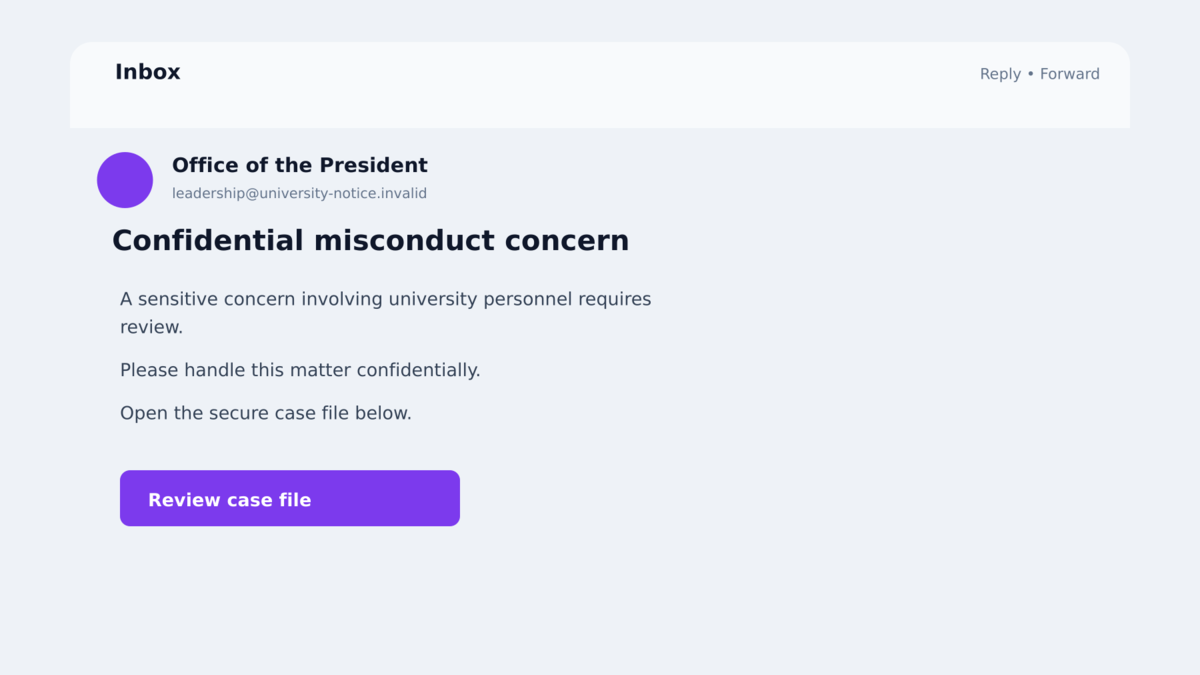
An email that appears to come from a university president or dean says a sexual misconduct concern involves a student or staff member. The subject is serious, private, and difficult to ignore.
The message includes official-looking letterhead and a familiar leadership signature. It directs the recipient to a file on Google Drive, supposedly so the allegation can be reviewed confidentially.
The case is fabricated. The instructions lead away from any report and toward a remote-access installation that can give an outsider control of the recipient’s computer.
Overview
The email weaponizes a sensitive allegation
The misconduct phishing emails impersonate presidents, deans, and other leaders at real universities. They claim a student or staff member is connected to a sexual misconduct or Title IX concern that requires the recipient’s attention.
That subject creates fear and responsibility at the same time. A recipient may worry about legal duties, student safety, reputation, or appearing unresponsive to senior leadership.
A Google Drive file adds a layer of trust
The link first opens a customized file on Google Drive. It does not contain the promised allegation details. Instead, it provides another link and instructions for accessing the supposed material.
Using Google Drive places a legitimate cloud service between the email and the final payload. The university-themed document can repeat copied names, letterhead, and branding from the original message.
The final download installs Zoho Assist
The second link downloads a configured instance of Zoho Assist, a legitimate remote-support product. Cofense observed this tool in all instances of the campaign it analyzed.
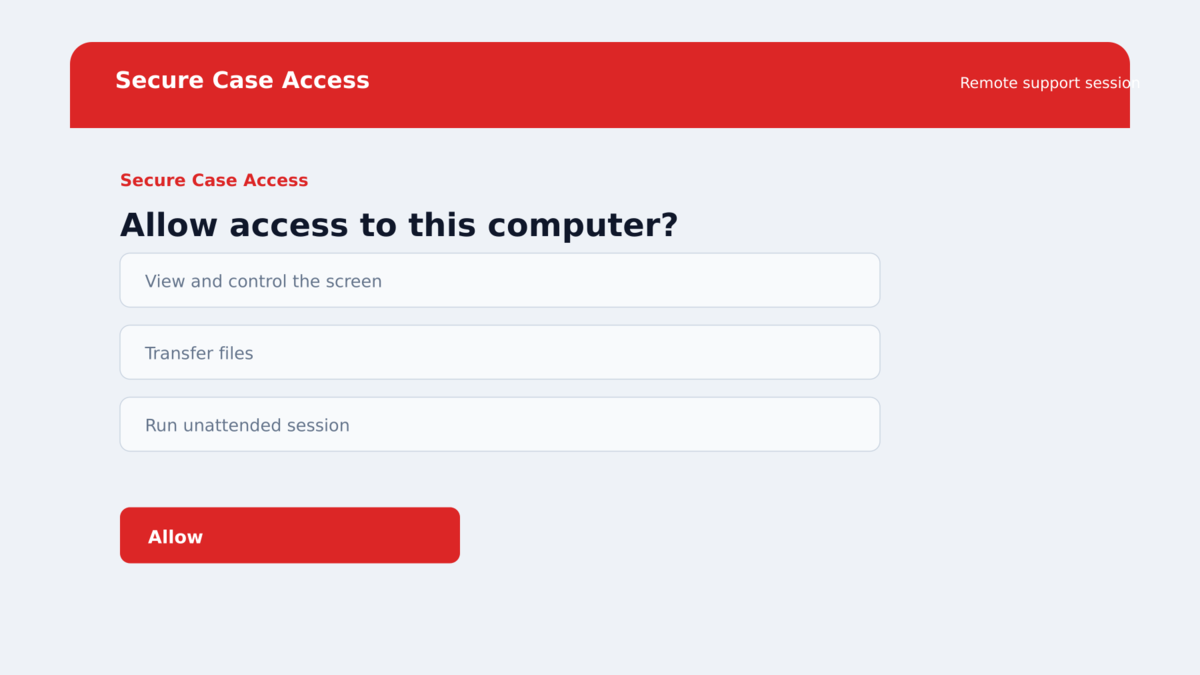
Once the remote session is established, an attacker may view or control the screen, transfer files, access documents, and deliver additional software. The real Zoho Assist service is being abused as a tool, not identified as the author of the emails.
- The allegation and misconduct case are entirely fabricated.
- The email impersonates a university president, dean, or other leader.
- Letterhead, signature blocks, and sender details may copy real institutions.
- The first link opens a customized Google Drive file.
- The Drive file sends the recipient to another download location.
- The download installs Zoho Assist instead of opening a case document.
- The campaign heavily targeted health care-affiliated universities.
- The attacker can use remote access for data theft or additional malware delivery.
Why the Allegation Can Override Normal Caution
A fake invoice creates financial pressure. A fake misconduct allegation adds moral, legal, and reputational pressure. The recipient may believe that delaying could harm someone or violate institutional policy.
The message is also designed for a professional setting. It may name a real university leader, reproduce an authentic signature, and spoof a domain. Those details can feel personally relevant even when the underlying case does not exist.
Cofense found that the messages followed a shared template, with the leader’s name and university branding changed for each target. That balance lets attackers send the campaign repeatedly while preserving enough customization to look deliberate.
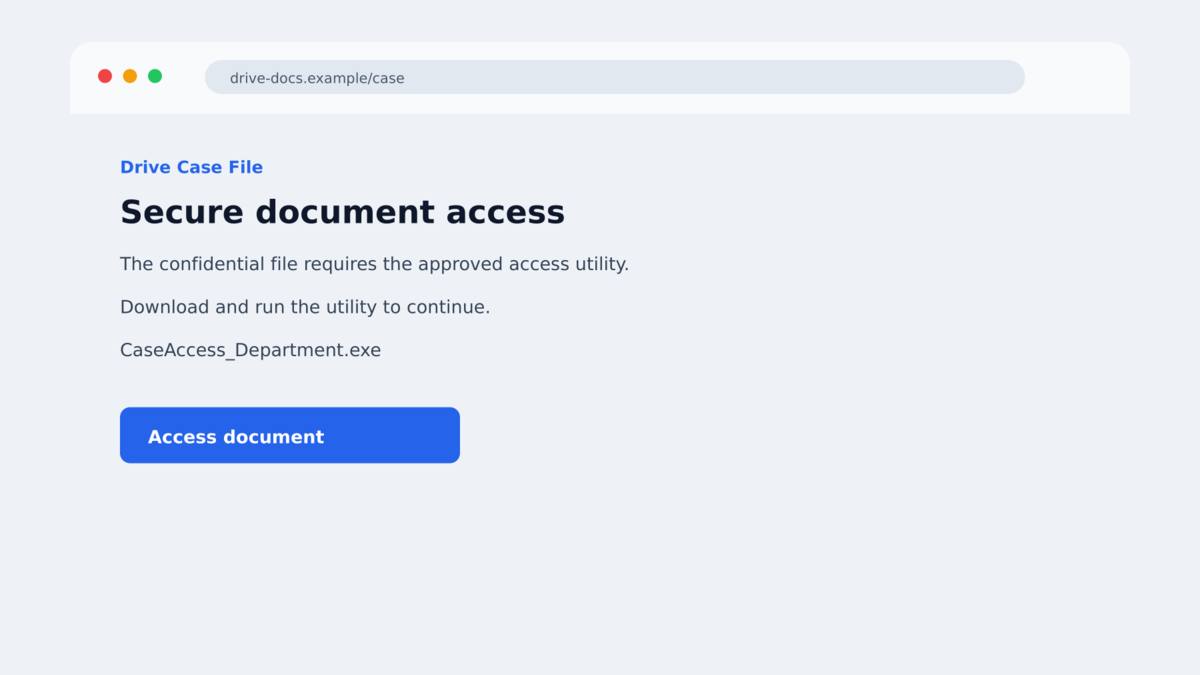
The campaign is unusually direct about software installation. The email or document may say that Zoho Assist will be downloaded and even explain how to install it. Technical instructions can make the process feel like a secure document viewer.
A genuine misconduct notification should follow established legal, human resources, compliance, or Title IX procedures. It should not require the recipient to install a general-purpose remote-control application from an outside link.
Over 80% of the targets identified by Cofense were affiliated with health care universities. That focus increases the potential consequences because affected systems may contain employee, student, research, or patient-related information.
Company, Address, and Fulfillment Checks
Copied leadership details do not authenticate the sender
Names, job titles, portraits, letterhead, and signature blocks are public information. Attackers can copy them from an institution’s website or a previous email.
Check the full sender address and message headers, but do not rely on them alone because domains can be spoofed or accounts compromised. Confirm the request through a known internal phone number or directory.
Google Drive is only hosting the first-stage file
A document being on Google Drive does not mean Google verified its contents or sender. The Drive file in this campaign acts as a bridge to the next link, helping the email bypass defenses and lowering suspicion.
Be cautious when a cloud document refuses to show the promised information and instead instructs you to download software from another site.
The requested software does not match the stated task
Reviewing a letter, complaint, or case summary should require a document viewer or an approved internal portal. Zoho Assist is remote-support software capable of connecting another person to the computer.
Never install remote access because an unexpected email tells you it is needed for confidentiality. Ask IT and the legal or Title IX office to validate the procedure first.
Independent research confirms the campaign
Cofense documented the fabricated allegations, university impersonation, Google Drive stage, Zoho Assist delivery, and targeting pattern. Its analysts tied multiple observed emails to the same campaign structure.
The report supports classifying these messages as a confirmed phishing and remote-access campaign. It does not suggest that the named universities, leaders, Google, or Zoho created the attack.
How the Misconduct Phishing Email Scam Works
Step 1: The attacker researches a university relationship
The attacker selects a target connected to higher education, often a medical college, teaching hospital, or health care-affiliated university. Public pages reveal leadership names, titles, logos, and partner institutions.
That information is used to make a broad template look specific. The apparent sender may be the president or dean of an institution the recipient recognizes.
Step 2: A fabricated allegation creates immediate concern
The email says a sexual misconduct matter involves a student or staff member. It frames the communication as sensitive and official, encouraging discretion and rapid review.
The seriousness of the claim can discourage the recipient from forwarding it to a colleague for a second opinion. Isolation benefits the attacker.
Step 3: The first link opens a customized Drive file
The recipient clicks expecting case details. Google Drive loads a file that repeats the university branding but provides no substantive allegation.
The file directs the user to another link to “access” the material. This extra step separates the email from the final download and uses a trusted cloud domain as cover.
Step 4: The recipient is guided through installing Zoho Assist
The next page or download delivers a Zoho Assist instance from an abused cloud service or a newly registered attacker-controlled domain. Instructions tell the victim how to run it.
The program is real remote-support software. The deception lies in why it is being installed and who will control the session.
Step 5: The attacker receives remote computer access
After the victim completes the setup and approves the connection, the operator may see the screen, control input, transfer files, and interact with logged-in applications.
Access can expose email, institutional portals, documents, browser sessions, and local or shared files. The attacker may also install another payload such as an information stealer or ransomware.
Step 6: The compromised identity enables further attacks
An accessed mailbox can provide real conversations, contact lists, and signature blocks. The attacker can use that information to send more persuasive requests inside the organization or to external partners.
Health care and university environments hold valuable personal and research data. A single remote session can therefore become a starting point for fraud, extortion, regulatory exposure, or a wider network intrusion.
Why Remote-Support Software Changes the Incident
A phishing page that only collects a password creates one kind of exposure. An approved remote-support session lets the operator work through the victim’s computer, where trusted applications may already be signed in and network access may already be allowed.
The attacker can observe which systems are available, read the names of shared drives, and watch how the employee handles sensitive records. They may copy files through the remote tool or use the browser to upload information elsewhere.
Remote control can also make later activity appear to come from the employee’s normal device and network. Security logs may initially show a familiar endpoint, even though an outsider is controlling it through the approved session.
If the operator opens email, they can read real conversations and answer in the victim’s established tone. A fraudulent request sent inside an existing thread is harder for colleagues or vendors to recognize than an unsolicited message.
The session may be only the first stage. Remote tools can transfer executables, scripts, password stealers, or ransomware. Investigators therefore need to check what was downloaded and executed, not just whether Zoho Assist is still installed.
For regulated organizations, uncertainty about what the operator viewed can require a formal privacy and legal assessment. Prompt reporting preserves logs and reduces the chance that an embarrassed employee quietly removes the tool while valuable evidence disappears.
The institution should compare remote-session timing with endpoint, identity, cloud, and file-access logs. A short connection can still expose an already-open mailbox or transfer a small credential-stealing program.
Employees should not be blamed for escalating a sensitive message. A culture that encourages fast reporting gives the security and legal teams time to contain the machine and warn other targets.
Warning Signs in a Sensitive University Email
- An unexpected leader contacts you about a misconduct allegation.
- The message pressures you to keep the request private.
- The sender’s identity cannot be confirmed through internal channels.
- The email uses copied letterhead or a signature as its main proof.
- A Google Drive file contains only another link.
- The second domain was newly registered or does not belong to the institution.
- The instructions require Zoho Assist or another remote-access tool.
- The download is an executable program rather than a document.
- You are told to bypass security warnings or installation restrictions.
- The legal, HR, compliance, or Title IX office has no record of the case.
Do not contact the apparent sender by replying to the message. Start a new call or email using information from the official directory so the attacker cannot control the verification.
What to Do if You Have Fallen Victim to This Scam
- Stop before installing anything else. Close the links and preserve the email. If you only viewed the Drive file, report it and let your security team examine the URLs.
- Disconnect the computer if Zoho Assist ran. Remove network access to interrupt the remote session. Do not use the affected computer to change passwords or discuss the incident.
- Call internal security and the appropriate office. Notify IT, legal, privacy, compliance, and the Title IX or HR team according to your organization’s procedure. Explain that the allegation itself may be fabricated.
- Provide complete evidence. Share the original email, headers, Drive link, downloaded file, domains, installation time, session code, and anything the remote operator did.
- Terminate unauthorized remote access. IT should remove or disable the Zoho Assist instance, check running services, persistence, transferred files, and any additional tools installed during the session.
- Change credentials from a clean device. Prioritize email, single sign-on, VPN, cloud storage, clinical or student systems, and password managers. Revoke active sessions and inspect MFA enrollment.
- Assess possible data exposure. Determine what was visible or accessible while control was active. Follow breach-notification and regulatory procedures rather than assuming no files were copied.
- Scan and rebuild when appropriate. Malwarebytes can help detect follow-on malware and unauthorized tools. AdGuard can block known phishing destinations, but neither proves that a remotely controlled workstation is clean. A rebuild may be required.
- Warn likely targets. Notify partner institutions and staff through verified channels so they do not trust follow-up emails sent from a compromised account.
Frequently Asked Questions
Is the misconduct allegation real?
In the campaign documented by Cofense, the allegation was entirely fabricated. Verify any separate message through your institution’s established legal or Title IX process.
Why are universities and health care organizations targeted?
They manage sensitive data, complex partnerships, and urgent compliance matters. Cofense found that more than 80% of observed targets were health care-affiliated universities.
Is Google Drive unsafe?
No. It is a legitimate service that attackers can abuse to host a convincing first-stage file. The content and sender still need independent verification.
Is Zoho Assist malware?
Zoho Assist is legitimate remote-support software. It becomes dangerous when a scammer deceives someone into installing or approving it for unauthorized control.
What if I opened the Drive file but installed nothing?
That is lower risk than running the remote-access tool. Report the email, close the page, and follow your organization’s instructions, especially if you entered credentials.
Can I remove Zoho Assist myself?
Removing it may end one access path, but it cannot show what the operator viewed, copied, or installed. In a workplace, disconnect and let the security team investigate.
The Bottom Line
These misconduct phishing emails use a painful subject to make recipients act before checking procedure. The official-looking university identity is copied, and the allegation is only a path to remote access.
A real case review does not require an unexpected Zoho Assist installation. Verify the request with legal, HR, or the Title IX office through contact details you already trust.
If the remote tool ran, disconnect the computer and escalate immediately. The urgent issue is no longer the fabricated allegation but what the attacker could reach during the session.








