

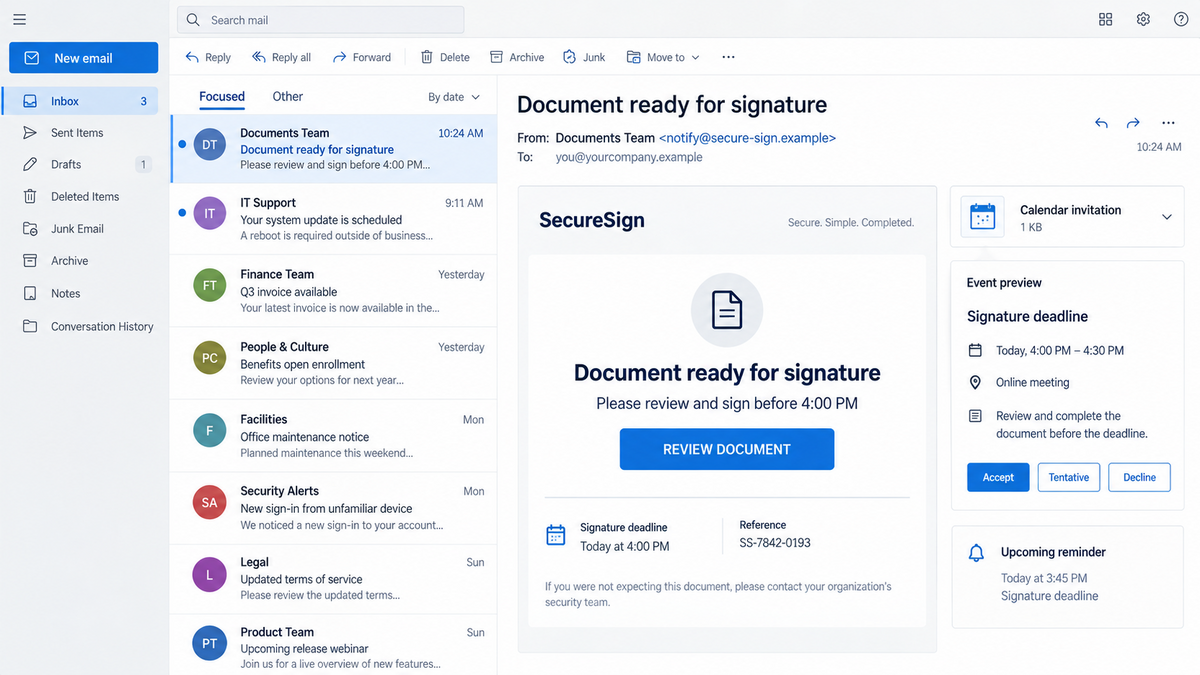
The email says a document is ready for signature. A calendar invitation is attached, the button opens a Microsoft address, and familiar DocuSign and Adobe branding appears along the way.
Each screen seems to confirm the one before it. By the time a login form appears, the browser has already passed through services most workers recognize.
The trust is real. The document and the sign-in page are not.
Overview
The phishing email arrives with a calendar invitation
Barracuda researchers analyzed a multi-layered credential-phishing campaign that begins with a DocuSign-themed email. The message says a document needs review or signature and includes a calendar invitation to make the request look scheduled and businesslike.
A calendar file can place the event beside real meetings and generate reminders after the original email has left the inbox. That persistence gives the lure more than one chance to be clicked.
The invitation is not proof that a DocuSign envelope exists. It is another message format that the sender can create and attach.
Legitimate Microsoft services are used as stepping stones
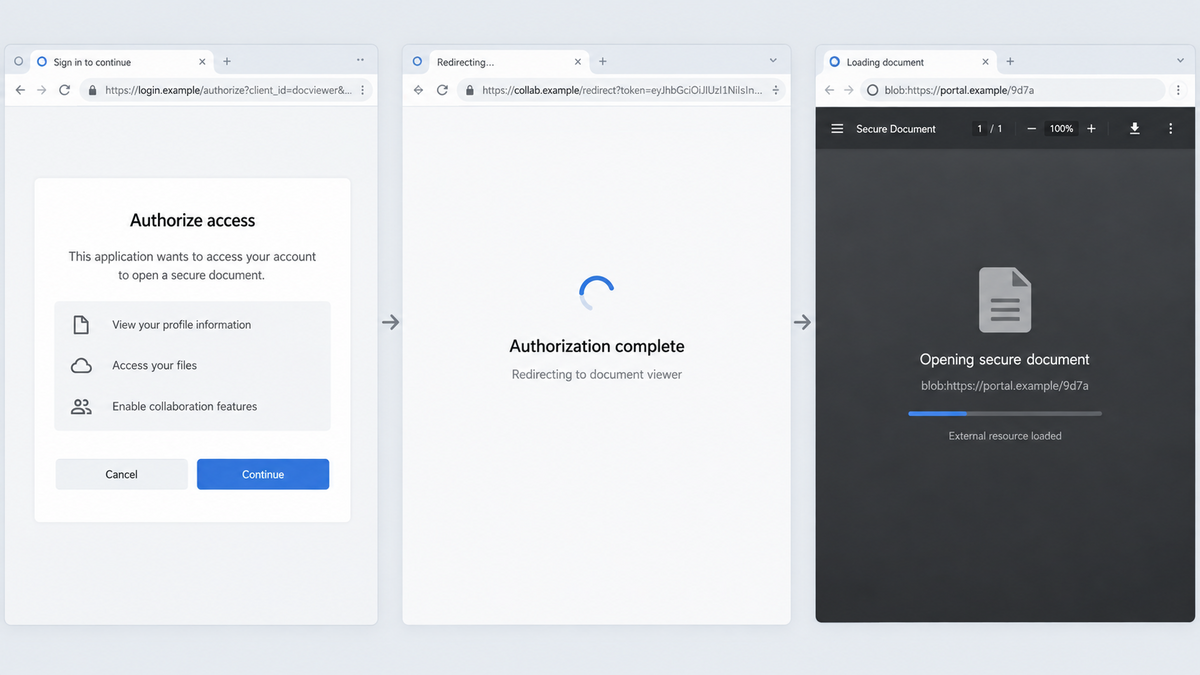
Barracuda’s campaign analysis found that the link first pointed to a legitimate Microsoft OAuth endpoint. A crafted redirect then moved the browser through Microsoft Teams before loading an external resource from attacker-controlled infrastructure.
Seeing microsoft.com in the early address can reassure a cautious recipient. The campaign exploits that moment of recognition, but a legitimate redirect service does not approve the final destination.
The chain also mixes DocuSign, Adobe, and Microsoft visual cues. Instead of impersonating one company consistently, it borrows trust from several brands at different steps.
The final phishing page is assembled inside the browser
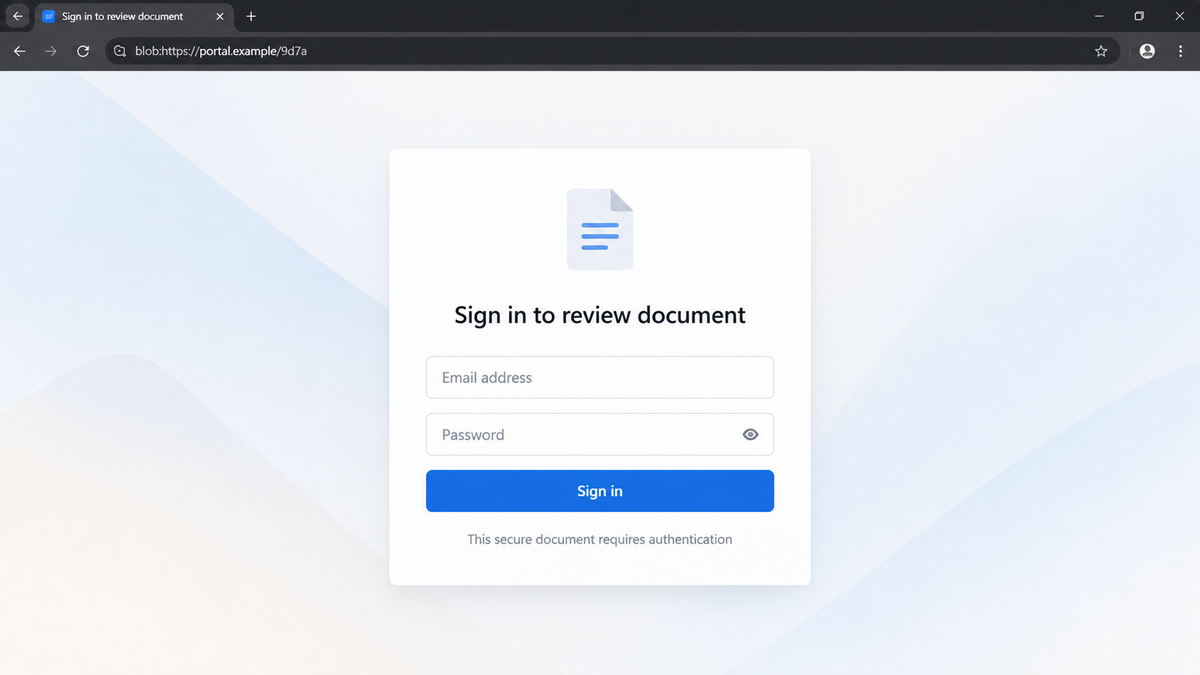
The external resource uses browser features, including a blob URL, service workers, and an embedded frame, to construct the fake login experience. A blob address begins with blob: and represents data created locally for that browser session rather than a conventional public webpage.
That does not make blob URLs malicious by themselves. Legitimate websites use them for files and media. In this campaign, the technique helped separate the visible phishing page from the ordinary domain trail and supported a workflow controlled by the attacker’s infrastructure.
- The message imitates a DocuSign signature request.
- An attached calendar invite adds urgency and reminders.
- The first click uses a real Microsoft OAuth address.
- A crafted redirect moves the browser through Microsoft Teams.
- Attacker-controlled content is loaded from an external delivery network.
- The browser creates a blob URL for the final phishing interface.
- DocuSign, Adobe, and Microsoft branding are combined to reinforce trust.
- The final form collects credentials rather than opening a real document.
Why the Redirect Chain Feels Safe
Every brand is plausible in a document workflow
A contract may genuinely be sent through DocuSign, previewed as a PDF, and opened by someone using Microsoft 365. The presence of multiple familiar brands therefore does not look unusual at first.
The scam uses that familiarity as a relay. The recipient recognizes one logo, then another, and assumes the companies are validating each other. They are not.
The first domain is not the final destination
Security advice often tells people to inspect a link before clicking. That remains useful, but redirect abuse shows why the check must continue after the browser opens. A real Microsoft endpoint can accept parameters that send a user elsewhere.
The important question is where the login credentials will actually be submitted. If the address changes unexpectedly or the page appears under a blob URL, stop and reopen the service from a known bookmark.
The page exists only for that browser session
A conventional phishing site can be scanned by following its URL. A page assembled inside the browser is more difficult to investigate in the same way because the visible blob address is local and temporary.
That temporary nature can also confuse victims. Copying the address into another browser may not reproduce the page, which can make the incident feel like a harmless glitch rather than a credential theft attempt.
Company and Checkout Checks
The sender name is not the signing company
An email can display “DocuSign,” a colleague’s name, or a vendor name while originating from an unrelated account. Expand the full sender address and compare the supposed document with a transaction you actually expect.
Real signature requests should identify the sending organization and document context. A vague “confidential document” with no verifiable business reference deserves an independent call to the sender.
The calendar address is not a contract record
Anyone can create a calendar event and attach an invitation. Check the organizer, attendees, event description, and links. An unexpected event should not be accepted merely because it appears in the calendar application.
Rejecting or deleting the event may not remove a related email rule or account compromise, so investigate how it arrived if the sender appears to be an internal account.
Real support will not ask for the captured password
DocuSign, Adobe, and Microsoft do not need a user’s Microsoft password typed into a page assembled by an unrelated external resource. If a login is required, open the official service directly and check for the document there.
Support contacts listed inside the suspicious message are part of the same unverified chain. Use known company directories or official websites instead.
The credential form is the checkout
No money needs to change hands on the phishing page. The valuable item is the username, password, session approval, or multifactor code. Submitting the form completes the attacker’s transaction.
Once captured, a work account can expose email, documents, contacts, cloud applications, and trusted relationships. The attacker may then send convincing signature requests from the real mailbox.
How the DocuSign Blob Phishing Scam Works
Step 1: A fake signature request enters the inbox
The recipient receives an email styled as a DocuSign notification. It claims that a contract, invoice, or confidential document needs attention and presents a clear review button.
The subject and wording are designed for workplaces where digital signatures are routine. The victim is encouraged to act as part of normal business rather than evaluate an unusual opportunity.
Step 2: A calendar invite creates another prompt
The attached invitation can add the supposed signing deadline to the calendar. A reminder may appear later, even if the recipient ignored the original email.
This creates persistence without sending repeated messages. It also makes the request look connected to a scheduled event.
Step 3: The click opens a legitimate Microsoft OAuth endpoint
The link begins on real Microsoft infrastructure. A user who checks only the first hostname may believe the destination has been validated.
OAuth endpoints legitimately handle authorization and redirection. The attacker abuses that expected behavior by supplying a crafted destination in the chain.
Step 4: Microsoft Teams loads an external resource
The browser is moved through a Teams-related path that reaches content controlled by the attacker. Each legitimate service acts as a visual trust marker, even though it does not own the final form.
Redirects can happen quickly. A person watching the page rather than the address bar may never notice the transition.
Step 5: Browser code builds the phishing page
Code from the external source creates the final experience inside the browser. Service-worker behavior and an embedded frame help manage the page, while a blob URL becomes visible as the local address.
The page can display copied Microsoft, Adobe, or DocuSign design elements without being hosted on any of those companies’ normal sign-in domains.
The address bar may now be difficult to interpret. A long temporary identifier can distract from the missing official domain, while the page itself stays visually simple and familiar. The user sees a logo, an email field, and a blue button, so the browser machinery behind it fades into the background.
Step 6: The form asks for Microsoft credentials
The victim sees a login prompt that appears to stand between them and the document. The form may ask for an email first, then a password, and possibly a verification code.
Entered information goes to the attacker’s workflow. An error or loading screen may then appear to make the failed document preview seem ordinary.
Step 7: The stolen account becomes the next delivery channel
If the credentials and authentication controls are enough, the attacker can enter the mailbox, search for valuable conversations, and send new lures to coworkers or customers.
A message from a genuinely compromised account is harder to dismiss than the first external email. The scam can grow through existing business relationships.
The attacker can also read recent conversations before replying. That context may reveal project names, invoices, or colleagues who routinely exchange documents, allowing the next lure to sound far more specific than the original campaign email.
How to Verify a Real Document Request
Do not verify the document by replying to the suspicious email. Contact the supposed sender through a known phone number, existing conversation, or company directory. Ask for the document title and why it was sent.
Then open DocuSign, Adobe Acrobat Sign, or Microsoft 365 from a saved bookmark or by typing the official address yourself. A genuine request tied to your account should be visible through the service’s own dashboard or notification history.
- Check the full sender and calendar-organizer addresses.
- Compare the request with work you are actually expecting.
- Hover over or inspect links before opening them.
- Watch every address change, not just the first domain.
- Stop if a sign-in page appears under a
blob:address. - Open the signing service independently in a new browser window.
- Do not enter a password after a chain of unexplained redirects.
- Report suspicious invitations so other recipients can be warned.
A blob URL alone is not proof of fraud, because legitimate applications use this browser feature. In the context of an unexpected signing request and a Microsoft credential form, it is a strong reason to stop and verify the workflow independently.
Organizations can make that verification easier by giving staff one clear way to report signing requests. Mail filters should preserve the original message and calendar attachment for analysis, while security teams review redirects, OAuth activity, and sign-ins that follow the click.
What to Do if You Have Fallen Victim to This Scam
- Use a clean device for recovery. Close the phishing page and switch to a device you trust, especially if you downloaded anything or approved browser permissions.
- Change the Microsoft password immediately. Go directly to the official account portal. Use a new, unique password that has not been used on another service.
- Revoke active sessions. Sign out other sessions and review recent sign-ins, locations, devices, and applications. Report unfamiliar activity.
- Inspect authentication methods. Remove unknown phone numbers, authenticator registrations, passkeys, recovery addresses, app passwords, and trusted devices.
- Check the mailbox for persistence. Look for forwarding rules, hidden inbox rules, deleted warnings, changed signatures, and messages sent without your knowledge.
- Notify the real security team. For a work account, report the email, calendar file, URLs, time of submission, and any multifactor approval. Fast reporting can protect coworkers.
- Run a Malwarebytes scan. Credential phishing can occur without malware, but a scan can detect malicious downloads or extensions added during the chain. Keep the browser and operating system updated.
- Use AdGuard to block known malicious pages. Filtering can stop many phishing and ad-driven domains from loading. It is an additional layer, not a substitute for checking the final login domain.
- Contact affected services. If the stolen password was reused, change it everywhere. Alert banks or payment services if financial documents or sessions were accessible.
- Preserve evidence. Save the original message as a file if company policy allows, along with the calendar invite, sender headers, screenshots, and browser history. Do not forward the live lure to coworkers.
Be suspicious of follow-up calls claiming to be Microsoft, DocuSign, or the company’s fraud team. Attackers can use the submitted email address and incident details to make a second request sound informed.
Frequently Asked Questions
Is this DocuSign calendar phishing campaign confirmed?
Yes. Barracuda Research analyzed the email, calendar invitation, redirect chain, browser behavior, and final credential-phishing workflow.
Does the campaign mean DocuSign was breached?
No such conclusion follows from the report. The attackers impersonated DocuSign and abused trust in several brands; that is different from proving those companies were compromised.
Why does the link begin with a real Microsoft domain?
The campaign abuses legitimate redirect behavior. A trustworthy first hop does not guarantee that the final destination or credential form is trustworthy.
Are all blob URLs dangerous?
No. Blob URLs are a normal browser feature used by legitimate sites. The danger here comes from how the phishing chain uses one to display an unexpected login page.
Can a calendar invitation steal my password by itself?
The invitation mainly delivers and repeats the lure. Credential theft occurs when the user follows the link and submits information to the fake page.
How can I safely open a genuine DocuSign request?
Verify the sender separately, then open the official DocuSign site or app directly and check the account’s envelope history instead of following the email chain.
The Bottom Line
This DocuSign blob phishing campaign is a confirmed, carefully layered credential trap. It uses a calendar invite and legitimate Microsoft services as stepping stones, then builds the fake login inside the browser.
Familiar logos and a real first domain do not validate the final form. When a document request takes an unexpected route, open the signing service directly and confirm the request with the sender before entering a password.








