

An inbox notice says nine messages are waiting somewhere outside your inbox, close enough to reach but blocked by one missing confirmation.
The wording feels administrative and harmless, which is precisely why the Pending Messages Awaiting Transfer email deserves a closer look.
Overview
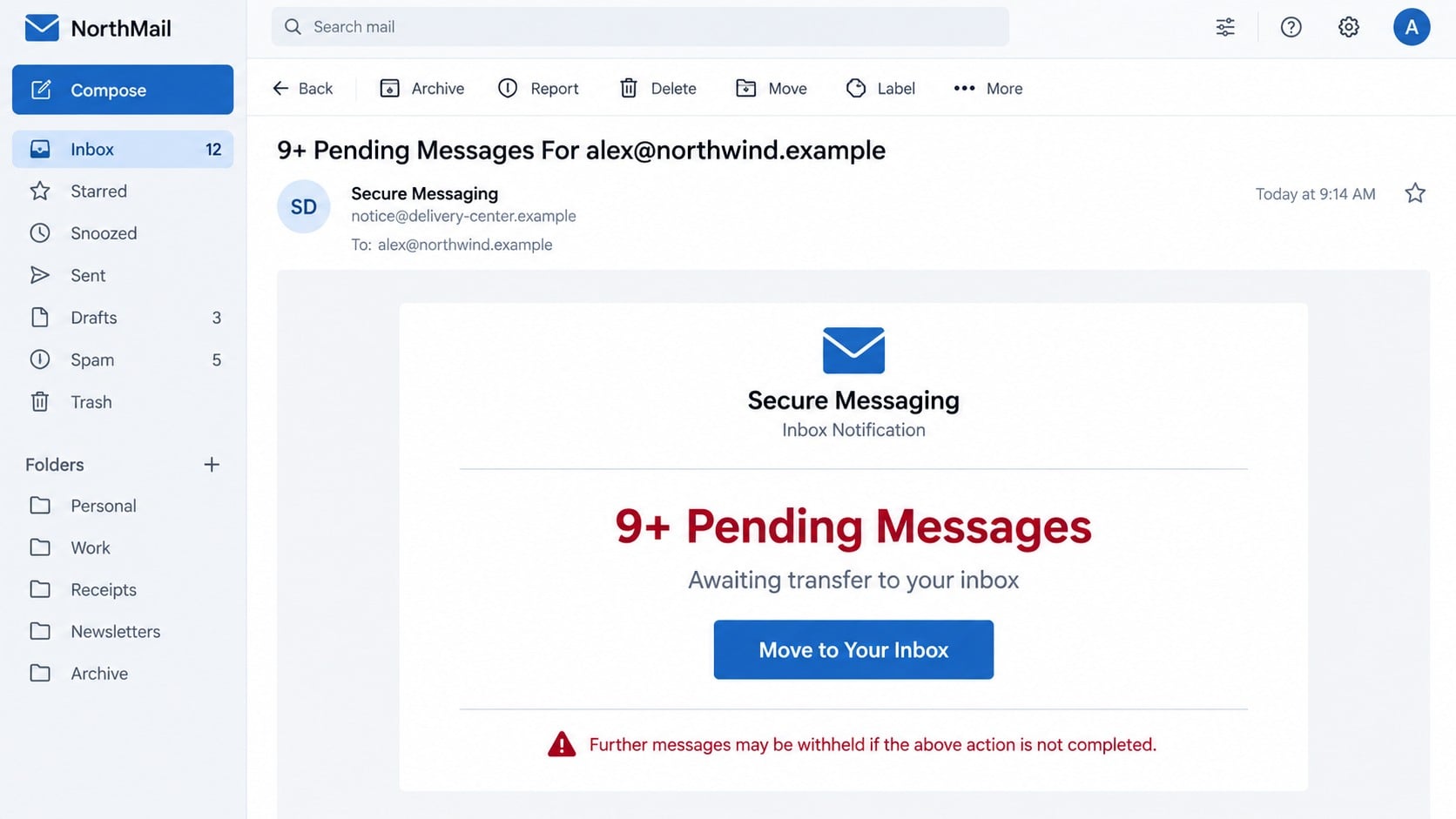
The alert invents a delivery problem
The email claims more than nine messages are linked to the recipient but have not reached the inbox.
It labels them as pending and says they are awaiting transfer, borrowing language from mail-server queues.
A large button promises to move the missing messages into place with one click.
The notification does not identify the supposed senders, subjects, timestamps, or legitimate server error.
The button leads away from real account controls
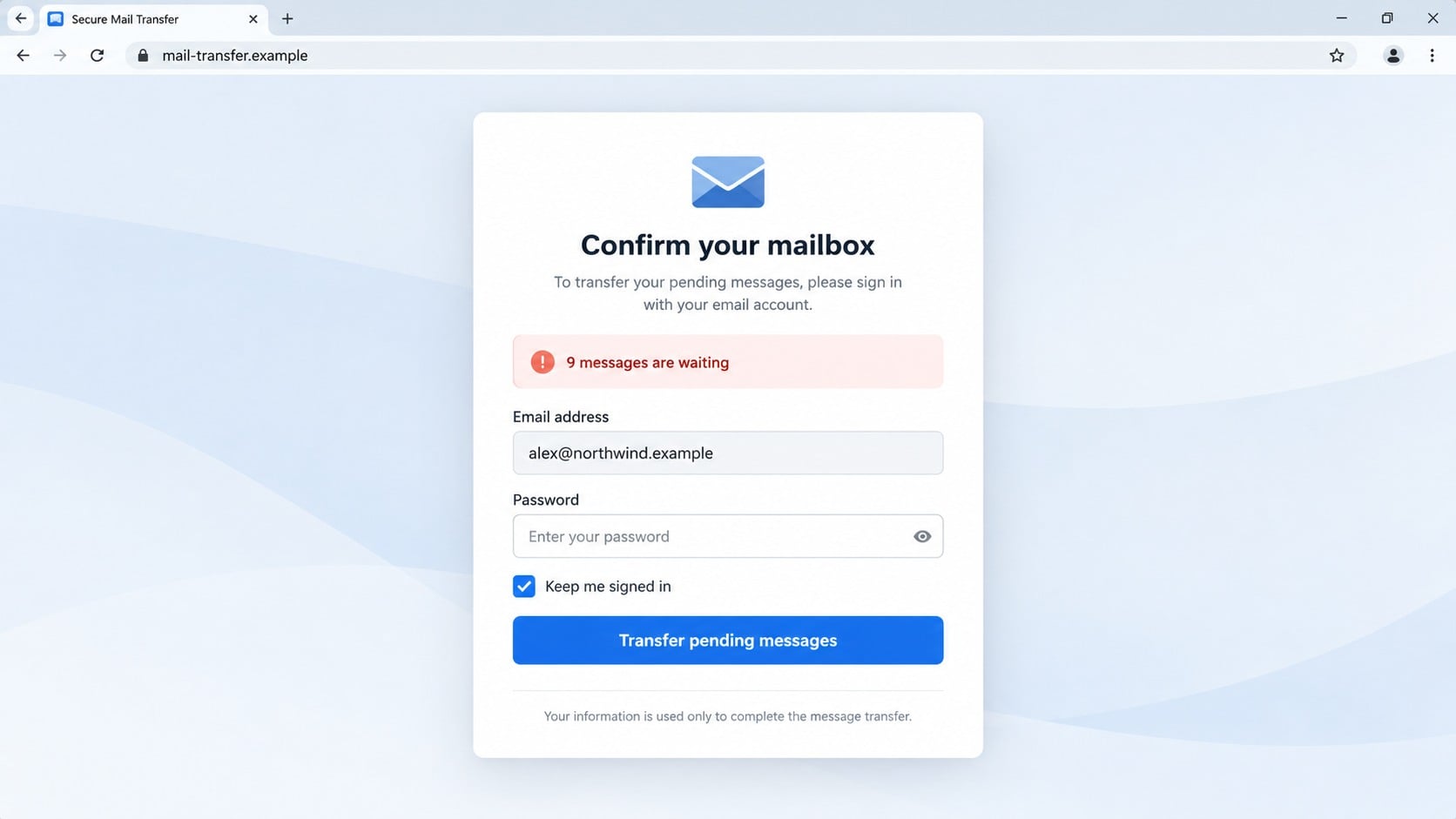
The destination is a phishing page made to resemble a familiar email login.
Some campaigns adapt the design according to the email address or domain entered by the recipient.
A Gmail user may see one style, while a corporate or Yahoo mailbox may trigger another imitation.
Whatever theme appears, the password is submitted to the scammers rather than the genuine provider.
A stolen mailbox unlocks many other accounts
Email often serves as the recovery channel for banking, social media, shopping, cloud storage, and workplace services.
Someone controlling the inbox can request password resets, intercept verification links, and hide warning messages.
The compromised account can also send believable phishing to colleagues, customers, relatives, and existing conversation partners.
Common clues in this campaign include:
- The subject announces “9+ Pending Messages” without naming any sender.
- The message uses a generic “Secure Messaging” or “Mail Center” identity.
- A button promises to transfer mail after another login.
- The email threatens that further messages may be withheld.
- The sender domain does not belong to the recipient’s provider.
- The linked page requests the complete mailbox password.
- No matching warning appears after signing in through the official website.
- The greeting and footer contain little verifiable account information.
Why the Message Feels More Believable Than It Should
Most people have experienced a full inbox, delayed email, spam filtering, or a temporary service interruption.
The scam uses that everyday uncertainty without making a claim that sounds technically impossible.
A precise count such as nine messages creates the impression that a mail system measured a real queue.
The number is theater. The message provides no server name, queue identifier, error code, or delivery log.
The call to action offers instant relief
“Move to Your Inbox” sounds like a practical repair button instead of a security decision.
That phrasing keeps attention on missing messages and away from the destination address.
The user expects to see mail next, so a login request can appear to be a routine checkpoint.
Scammers benefit when the victim acts inside that narrow expectation.
The warning creates social pressure
Some recipients worry the missing email contains a bill, interview, purchase order, family message, or urgent request.
The threat of additional withheld mail makes waiting feel risky.
That emotional pressure matters more than perfect grammar or sophisticated design.
A cautious pause breaks the story and gives the recipient time to verify independently.
Generic branding lets the scam target anyone
The message avoids committing to one real provider before it knows the recipient’s account.
Generic words like secure, mail, center, operations, and messaging sound official across many environments.
The phishing page can choose its costume later, based on the address supplied in the URL or form.
This flexibility allows one campaign to target personal and business inboxes.
How the Pending Messages Awaiting Transfer Scam Works
Step 1: The campaign sends a generic queue warning
Large address lists receive the same notification with the recipient field automatically inserted.
The visible display name may say Secure Messaging, Inbox Notification, Mail Center, or another administrative phrase.
Sender authentication and domain reputation matter more than that chosen display name.
The message does not need prior knowledge of the victim’s actual mail activity.
Step 2: Missing messages create curiosity and urgency
The email says multiple messages cannot arrive until the user completes an action.
No individual sender or subject is shown because the queue does not exist.
The final warning suggests more mail could be withheld, turning hesitation into a possible business or personal loss.
This pressure encourages clicking before contacting an administrator.
Step 3: The button redirects to an unrelated domain
The call-to-action link leaves the mailbox provider and opens infrastructure controlled or abused by the phisher.
The first page may redirect again, collect tracking information, or select a design for the target.
Shortened links and compromised websites can conceal the final destination during a casual inspection.
The visible button label reveals nothing about the actual address underneath.
Step 4: A customized login page captures credentials
The page may prefill the recipient’s email address to create a sense of continuity.
It then requests the password supposedly needed to release or transfer the waiting messages.
Submitting the form sends the credentials to the attacker.
A fake loading animation or incorrect-password error may request the password twice, improving the attacker’s confidence.
Step 5: The attacker tests the mailbox quickly
Stolen credentials can be tested automatically against the real provider within minutes.
If multifactor authentication appears, the campaign may request a code, send repeated approval prompts, or wait for another opportunity.
Accounts without additional protection are easier to enter immediately.
Password reuse can expose unrelated services even when the mailbox login fails.
Step 6: Mail access supports deeper fraud
Inside the account, an intruder can search for invoices, payroll messages, identity documents, password resets, and financial relationships.
Hidden forwarding rules can copy future mail to an external address.
Inbox rules may archive or delete security alerts so the owner remains unaware.
Business accounts can be used to alter payment instructions inside genuine conversations.
Step 7: The compromised identity targets trusted contacts
A message sent from a real colleague’s account is harder to dismiss than random spam.
The attacker can reply inside existing threads, reference earlier discussions, and attach another phishing link.
Recipients may trust the history even when the newest request is unusual.
One stolen mailbox can therefore create a chain of secondary victims.
Sender, Link, and Mail Service Verification Checks
The display name is not the sender
Expand the From details and compare the complete address with the provider’s real domain.
A professional label beside an unrelated domain is a presentation choice, not authentication.
Also inspect Reply-To because it may direct responses somewhere different from the visible sender.
The destination must belong to the actual provider
Hover over the button on desktop or preview the link carefully without opening it.
Look for misspellings, added words, unfamiliar country domains, raw IP addresses, and unrelated redirect services.
Even a padlock only means the connection is encrypted. It does not identify the page as honest.
Real delivery problems appear inside real settings
Open a new browser window and sign in by typing your provider’s address yourself.
Check storage, service health, quarantine, spam, forwarding, and administrator notices from that trusted session.
If nothing mentions pending messages, the unsolicited email has no independent support.
Support should confirm the issue without the email
Business users should contact their internal help desk through an established channel.
Personal users can reach official support from the provider’s verified application or website.
Do not use a number or chat link embedded in the questionable message.
What Criminals Can Do With a Mailbox Password
The immediate concern is unauthorized access, but the real damage depends on what the inbox connects to.
Archived messages can reveal addresses, phone numbers, travel plans, invoices, tax records, and account relationships.
Search terms such as password, statement, transfer, payroll, verification, and recovery can locate sensitive conversations quickly.
Reset links allow the intruder to approach other services while impersonating the account owner.
Cloud storage invitations and document links may expose files without another password prompt.
Corporate mailboxes can reveal internal directories, signatures, suppliers, and executive schedules.
An attacker may register an app password or connected application to keep access after the main password changes.
Forwarding, delegation, recovery addresses, filters, and mailbox rules provide additional persistence options.
Sent messages can damage the victim’s reputation because recipients believe the real owner contacted them.
Fast recovery limits the window available for these follow-on actions.
How to Check Whether Your Inbox Was Altered
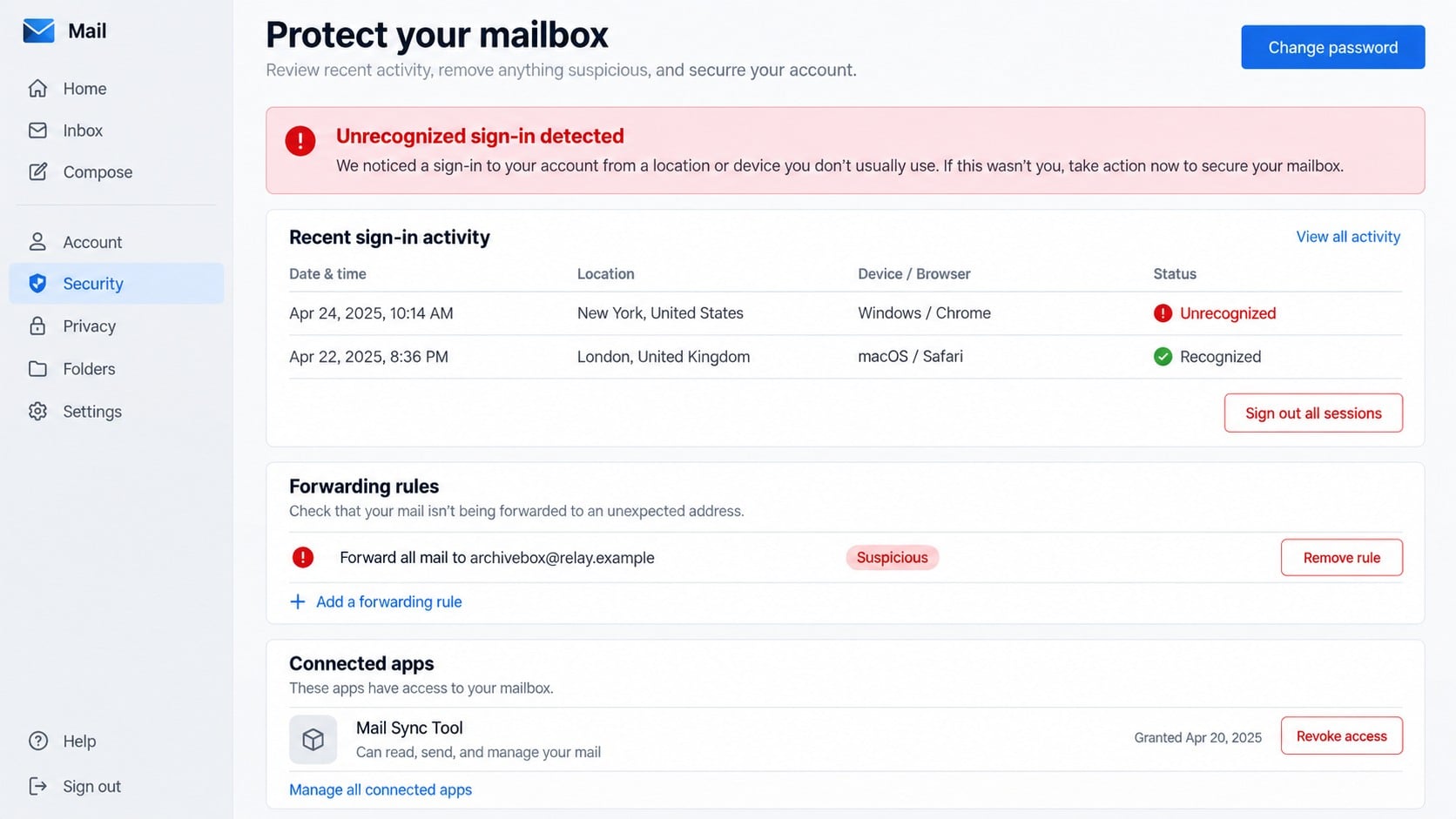
Start with recent sign-in history and note locations, devices, browsers, and times you do not recognize.
Do not assume a familiar city proves legitimacy because network routing can affect location estimates.
Review sent mail, deleted items, archive folders, and trash for activity you did not perform.
Search settings for automatic forwarding, mailbox delegation, POP access, IMAP access, and unfamiliar application passwords.
Inspect rules that hide words such as security, invoice, password, payment, fraud, or verification.
Check connected applications and OAuth grants for tools added around the phishing event.
Verify recovery email addresses, phone numbers, security questions, and trusted devices.
Ask important contacts whether they received unusual messages from your account.
Business administrators should review audit logs and message traces, preserving evidence before deleting malicious rules.
Continue monitoring after cleanup because reset attempts may arrive later.
What to Do if You Have Fallen Victim to This Scam
- Change the mailbox password immediately. Use the official provider page on a trusted device and choose a unique password never used elsewhere.
- Sign out every active session. This removes many existing logins that may remain valid after the password itself changes.
- Enable strong multifactor authentication. Prefer a security key or authenticator application over SMS when your provider supports it.
- Remove persistence. Delete unknown forwarding addresses, inbox rules, delegates, application passwords, recovery options, and connected apps.
- Protect reused accounts. Replace the same or similar password anywhere else, beginning with banking, cloud storage, and workplace systems.
- Scan the device with Malwarebytes. A phishing page usually steals data, but Malwarebytes can find unwanted downloads or malware introduced during the visit.
- Notify administrators and contacts. Business security teams can review logs, while contacts should ignore suspicious messages sent from the compromised account.
- Review financial exposure. Check password-reset emails, purchases, transfers, and saved payment services for actions you did not authorize.
- Block repeat phishing attempts. AdGuard can filter many malicious advertising links, tracking redirects, and known scam pages before they open.
- Report the original email. Use the provider’s phishing-report function, preserve headers, then remove the message from the inbox.
Is Your Device Infected? Run a Free Malware Scan
Slow performance, constant pop-ups, or strange behavior? These are classic signs of a malware infection. The fastest way to find out is to scan your device with Malwarebytes Free — one of the most trusted malware removal tools available.
The free version detects and removes the most common threats, including:
- Adware — the cause of those annoying pop-ups
- Browser hijackers — unwanted redirects and changed homepages
- Trojans and spyware — hidden programs stealing your data
- Potentially unwanted programs (PUPs) — software you never asked for
👉 Select your device below — Windows, Mac, or Android — then follow the simple steps to download Malwarebytes, scan your system, and remove any threats it finds. The scan usually takes 5 to 20 minutes.
Run a Malware Scan with Malwarebytes for Windows
Malwarebytes is one of the most popular and trusted anti-malware tools for Windows — and it’s completely free for removing infections. It catches threats that many antivirus programs miss, including adware, browser hijackers, and trojans. Follow the steps below to scan and clean your PC in just a few minutes.
Download Malwarebytes
Click the button below to download the latest version of Malwarebytes for Windows from the official source. The free version is all you need — it will scan your computer and remove adware, browser hijackers, and other malicious software at no cost.
Download MalwarebytesOfficial installer for Windows 11 and 10. Your download starts right away.Want real-time protection? See Malwarebytes Premium Malwarebytes Free for WindowsScans and removes malware at no cost
-
Install Malwarebytes
When the download finishes, open your Downloads folder and double-click the MBSetup file. If Windows shows a User Account Control pop-up, click “Yes” to allow the installation.

Follow the On-Screen Prompts to Install Malwarebytes
The setup wizard will walk you through a few quick screens:
-
Choose where you’re installing the program — “Personal Computer” or “Work Computer” — then click Next.

-
Malwarebytes will now install on your device. This usually takes under a minute.

-
When installation is complete, the “Welcome to Malwarebytes” screen will open automatically.

-
On the final screen, click Open Malwarebytes to launch the program.

-
Enable “Scan for Rootkits”
Before scanning, turn on rootkit detection so Malwarebytes can find even the most hidden threats. Click the Settings gear icon on the left side of the screen.

In the settings menu, find “Scan for rootkits” and click the toggle so it turns blue.

Done? Click “Dashboard” in the left pane to return to the main screen.
Start the Scan
Click the blue Scan button. Malwarebytes will automatically update its virus database and start checking your computer for malware.

-
Wait for the Scan to Finish
The scan checks your entire system for browser hijackers and other malicious programs, so it can take 5 to 20 minutes depending on your computer. Feel free to do something else — just check back occasionally to see the progress.

-
Quarantine the Detected Threats
When the scan is done, you’ll see a list of everything Malwarebytes found — malware, adware, and potentially unwanted programs. Click the “Quarantine” button to remove all of them at once.

Malwarebytes will now remove the malicious files and registry entries and move them safely into quarantine.

-
Restart Your Computer
Some threats can only be fully removed after a reboot. If Malwarebytes asks you to restart, click Yes. Once you’re logged back in, Malwarebytes has finished removing the threats it found.

That’s it — your Windows PC is now clean of trojans, adware, and other malware, and should be back to running smoothly.
If you are still having problems with your computer after completing these instructions, then please follow one of the steps:
- Run a computer scan with ESET Online Scanner
- Ask for help in our Windows Malware Removal Help & Support forum.
Run a Malware Scan with Malwarebytes for Mac
Malwarebytes for Mac is a free on-demand scanner that removes the malware other security software tends to miss — adware, browser hijackers, and unwanted programs included. Cleaning an infected Mac with Malwarebytes has always been completely free, and it’s our go-to recommendation. Follow the steps below to scan and clean your Mac in just a few minutes.
-
Download Malwarebytes for Mac
Click the button below to download the latest version of Malwarebytes for Mac.
Download MalwarebytesOfficial installer for macOS. Your download starts right away.Want real-time protection? See Malwarebytes PremiumMalwarebytes Free for MacScans and removes malware at no cost -
Open the Malwarebytes setup file
When the download finishes, open your Downloads folder and double-click the setup file to begin the installation.

-
Follow the On-Screen Prompts to Install Malwarebytes
The Malwarebytes for Mac Installer will guide you through a few quick screens. Click “Continue” and keep following the prompts until the installation completes.



When the installation is complete, Malwarebytes opens to the Welcome to Malwarebytes screen. Click “Get started“.
-
Select “Personal Computer” or “Work Computer”
Malwarebytes will ask what type of computer you’re installing it on. Click either Personal Computer or Work Computer, whichever applies.

-
Start the Scan
Click the “Scan” button. Malwarebytes will automatically update its detection database and begin checking your Mac for malware.

-
Wait for the Scan to Finish
Malwarebytes will scan your Mac for adware, browser hijackers, and other malicious programs. This can take a few minutes, so feel free to do something else — just check back occasionally to see the progress.

-
Quarantine the Detected Threats
When the scan is done, you’ll see a list of everything Malwarebytes found. Click the “Quarantine” button to remove all the threats at once.

-
Restart Your Mac
Malwarebytes will now remove all the malicious files it found. Some threats can only be fully removed after a reboot — if Malwarebytes asks you to restart, allow it. Once you’re logged back in, your Mac is clean.

That’s it — your Mac is now free of adware, rogue browser extensions, and other potentially harmful software.
If you are still experiencing problems while trying to remove a malicious program from your computer, please ask for help in our Mac Malware Removal Help & Support forum.
Run a Malware Scan with Malwarebytes for Android
Malwarebytes for Android automatically detects and removes dangerous threats like malware and ransomware so you don’t have to worry about your most-used device being compromised. Aggressive detection of adware and potentially unwanted programs keeps your Android phone or tablet running smooth.
-
Download Malwarebytes for Android.
You can download Malwarebytes for Android by clicking the link below.
Get Malwarebytes for AndroidOpens Google Play in a new tab.Want real-time protection? See Malwarebytes Premium for AndroidMalwarebytes for AndroidScans your phone and removes malware at no cost -
Install Malwarebytes for Android on your phone.
In the Google Play Store, tap “Install” to install Malwarebytes for Android on your device.

When the installation process has finished, tap “Open” to begin using Malwarebytes for Android. You can also open Malwarebytes by tapping on its icon in your phone menu or home screen.

-
Follow the on-screen prompts to complete the setup process
When Malwarebytes will open, you will see the Malwarebytes Setup Wizard which will guide you through a series of permissions and other setup options.
This is the first of two screens that explain the difference between the Premium and Free versions. Swipe this screen to continue.
Tap on “Got it” to proceed to the next step.
Malwarebytes for Android will now ask for a set of permissions that are required to scan your device and protect it from malware. Tap on “Give permission” to continue.
Tap on “Allow” to permit Malwarebytes to access the files on your phone.
-
Update database and run a scan with Malwarebytes for Android
You will now be prompted to update the Malwarebytes database and run a full system scan.

Click on “Update database” to update the Malwarebytes for Android definitions to the latest version, then click on “Run full scan” to perform a system scan.

-
Wait for the Malwarebytes scan to complete.
Malwarebytes will now start scanning your phone for adware and other malicious apps. This process can take a few minutes, so we suggest you do something else and periodically check on the status of the scan to see when it is finished.

-
Click on “Remove Selected”.
When the scan has been completed, you will be presented with a screen showing the malware infections that Malwarebytes for Android has detected. To remove the malicious apps that Malwarebytes has found, tap on the “Remove Selected” button.

-
Restart your phone.
Malwarebytes for Android will now remove all the malicious apps that it has found. To complete the malware removal process, Malwarebytes may ask you to restart your device.
That’s it — your Android phone is now clean — no more malicious apps, adware, or browser redirects.
If you are still having problems with your phone after completing these instructions, then please follow one of the steps:
- Restore your phone to factory settings by going to Settings > General management > Reset > Factory data reset.
- Ask for help in our Mobile Malware Removal Help & Support forum.
Stay Protected: Block Ads and Malicious Sites
Now that your device is clean, keep it that way. Most infections start with a malicious ad or a fake download button — so blocking them at the source is your best defense.
We recommend AdGuard, which blocks malicious ads, phishing pages, and dangerous redirects before they can reach you.
👉 Download AdGuard and browse safely
How to Handle Real Mail Delivery Problems Safely
When expected mail is missing, contact the sender through a known phone number or separate conversation.
Ask whether the message bounced and request the exact error returned by their mail system.
Check spam, quarantine, blocked-sender lists, storage usage, and filtering rules from the genuine mailbox settings.
Business users can ask administrators to trace the message identifier through server logs.
Real providers do not need your password again through a link to release individual incoming messages.
A service can ask you to sign in, but you should navigate there independently rather than following unsolicited email controls.
Read the address bar before entering credentials, including every character before the first slash.
Password managers provide a useful warning because they generally refuse to autofill credentials on an unrelated domain.
Pause when a message withholds essential details while demanding urgent action.
Legitimate operations can survive an independent verification call. Phishing depends on preventing one.
If the Stolen Password Was Reused Elsewhere
Assume every account using the same password is exposed, even when no suspicious activity has appeared yet.
Begin with the recovery email, financial services, cloud storage, shopping accounts, social networks, and employer systems.
Create a different replacement for each service instead of making one new password and repeating the mistake.
A password manager can generate and store long unique credentials without relying on memorable patterns.
Check breach notifications and login histories for automated attempts that began shortly after the phishing submission.
Remove unknown devices and refresh backup codes wherever an account supports multifactor protection.
Continue watching for reset messages because criminals sometimes return days later after testing a stolen credential list.
Tell your workplace security team if any reused password belonged to a company system or remote-access service.
Frequently Asked Questions
Are nine messages actually waiting for transfer?
No evidence supports that claim. The count is part of the lure and does not come from the recipient’s real mail server.
Can opening the email alone steal my password?
Normally, the dangerous step is clicking and submitting information. Remote images may still confirm that an address is active.
What if the login page showed my email address already?
Phishing links can include the address as a parameter. Prefilled information does not prove that the page belongs to your provider.
Does a padlock make the transfer page safe?
No. Encryption protects data traveling to the site, including data sent securely to a criminal-controlled server.
Why would scammers want an ordinary email account?
Mailboxes support password resets, identity research, contact impersonation, invoice fraud, and access to linked cloud services.
Should I scan if I only typed my password?
Secure the account first. A scan remains sensible if the page downloaded anything, requested permissions, or behaved unexpectedly.
The Bottom Line
The Pending Messages Awaiting Transfer email invents an invisible queue so a fake delivery button can lead recipients into credential theft.
Verify mail problems inside the official account, never through the alert, and act quickly if any password was entered.

Join the discussion
0 commentsShare your experience or ask a question about this article.
Discussion
Start the conversation
Have a question or something useful to share? Add the first comment.