

Four business emails are supposedly waiting just beyond your inbox. A neat review table makes it easy to imagine the quote or payment you missed.
The Message Review Center email scam begins with that ordinary worry. Before following its button, look closely at the route it asks you to take.
Overview
A security notice builds a believable business problem
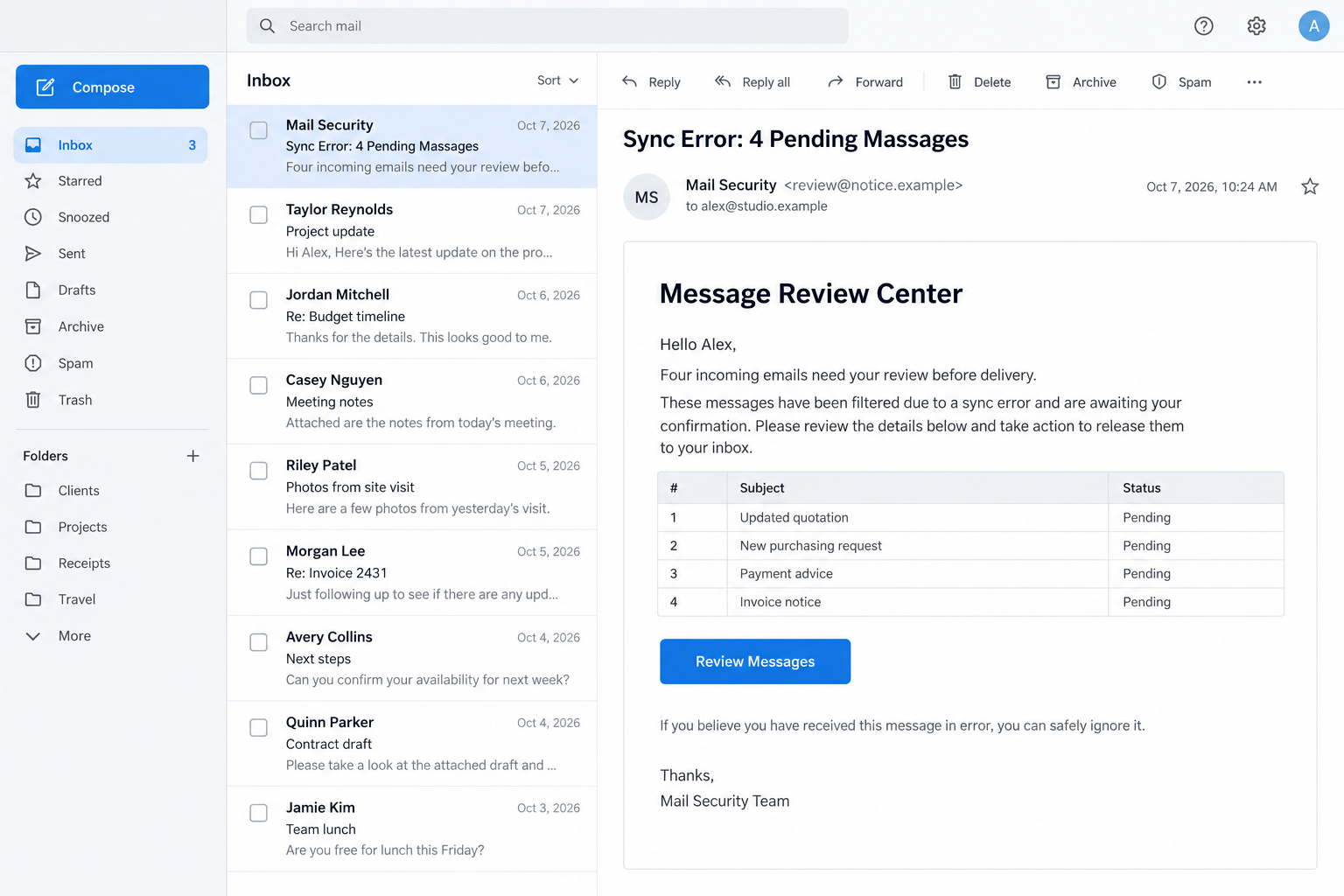
This is a credential-phishing message disguised as a mail-security notification. Its review request leads toward an imitation sign-in page rather than a verified quarantine service.
The email describes four incoming items and gives them routine commercial subjects. That makes the alert relevant to people handling orders, accounts, or customer inquiries.
It does not establish that those messages exist. A list inside an email is simply information supplied by whoever composed the email.
The documented subject includes the typo Pending Massages. It is a useful recognition clue, although a corrected version would still require the same checks.
The request is especially persuasive when you are expecting a reply. You supply the missing context by connecting an invented queue to your real working day.
- A generic security identity announces withheld correspondence.
- Four business-related entries create a reason to investigate.
- A review button supplies the only apparent route.
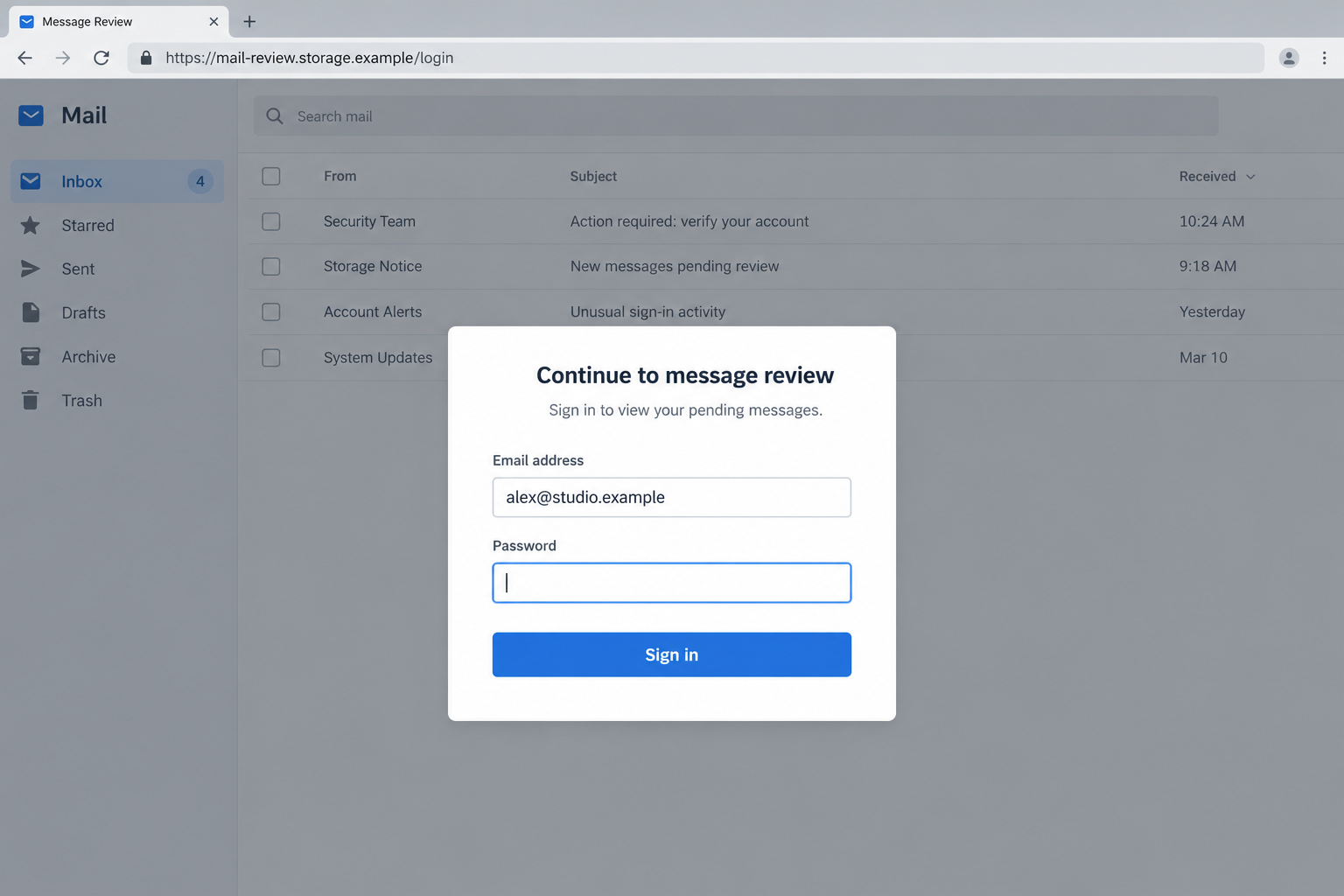
- The next screen requests existing mailbox credentials.
- A recognizable hosting service lends the destination borrowed credibility.
The important boundary is where authentication happens
The reported destination displayed a provider-style login on cloud-hosted infrastructure. Hosting a page on a legitimate service does not make that page an approved authentication endpoint.
A storage service can deliver files created by customers. The trusted company operating the infrastructure does not thereby endorse every form within those files.
A displayed email address also proves very little. The link or page can carry that address without the operator having access to your mailbox.
The risk arises when you give the page a password or other authentication information. Those details may allow an attempt against your actual account.
Real quarantine reports exist, so verify the actual queue
Corporate email systems can hold messages and send quarantine notifications. The existence of that legitimate process is precisely what makes this imitation plausible.
Do not decide that every held-message notice is fraudulent. Instead, use your organization’s established mail-security portal or ask its known administrator about the alleged items.
If the approved service shows no matching entries, the email’s table has supplied no independent evidence. Avoid its login route and report the message.
Receiving this notice does not establish an infection, a blocked payment, or an account takeover. Your response should reflect what you actually clicked, entered, or installed.
Why Four Missing Emails Can Feel More Urgent Than a Security Warning
A message about an abstract account problem is easy to postpone. A suggestion that someone has already sent you money or a purchase request feels more immediate.
Imagine finishing a quotation and waiting for approval. Seeing a pending quote entry may feel like an explanation for the silence, even without a customer name.
That association happens in your head. It does not mean the sender read the quotation or intercepted the customer’s reply.
The table turns uncertainty into a task: review the queue. Its tidy rows make the claim seem generated by software rather than written by a stranger.
Numbers, status labels, and timestamps are inexpensive to invent. Their precision is useful only when they can be compared with records from the genuine system.
Some readers will immediately notice the spelling error. Others will overlook it because the button promises to restore the work they think is being delayed.
You do not need to win a grammar contest to avoid this trap. An independent check of the queue is stronger than analyzing the sender’s spelling.
The images here use fictional accounts and shortened wording to illustrate the two stages. They show what to examine without providing an operative attack link.
How the Message Review Center Scam Works
Step 1: The sender introduces a problem you cannot see
The email says correspondence is waiting outside your inbox. Since the alleged items are missing, you cannot inspect them directly where you normally read mail.
That creates a convenient gap in evidence. The sender explains the absence with its own security story and offers its own review procedure.
The message need not know which invoices or orders matter to you. Broad business labels let different recipients attach their own concerns to the same lure.
Check whether the alert identifies your actual filtering product, organization, and approved process. A familiar display name alone cannot answer those questions.
Step 2: The table makes clicking feel like routine housekeeping
Instead of asking directly for a password, the message offers access to the missing correspondence. Authentication is introduced later as a supposedly necessary preliminary step.
This changes the reader’s goal. You are thinking about releasing an invoice, not about granting a new website knowledge of your account credentials.
A single action covering several entries also seems efficient. Busy staff may prefer one review button over asking colleagues whether each message was actually sent.
Pause before using that shortcut. A genuine operational problem should be confirmable through a route your workplace established before this email arrived.
Step 3: The link borrows the reputation of cloud infrastructure
The review action can lead to a customer-controlled page hosted by a well-known service. A recognized name in the address may lower suspicion.
Read the address as a destination, not a certificate of good intentions. A public file host is different from your organization’s approved sign-in service.
Encryption in transit, including HTTPS, does not determine whether the page owner is entitled to collect your password. Fraudulent sites can also use encrypted connections.
Do not submit a dummy password to investigate. You gain little from interacting with an untrusted form, and it may collect information before final submission.
Step 4: Familiar account cues make the password request seem reasonable
The next screen imitates a webmail provider. A prefilled address and recognizable arrangement of fields can create the impression that your session merely needs renewal.
Those visual details do not connect the form to a real session. A webpage can reproduce them without authenticating anything.
A request for your current mailbox password is the decisive point to stop. Open the genuine service independently instead of completing the prompt.
Unexpected verification codes or approval requests deserve the same caution. An attacker might use stolen information immediately, although that additional stage is not proven for every version.
Step 5: Stolen access can turn a missing-mail story into a real incident
If a password works against the actual mailbox, an intruder may read conversations, impersonate the owner, or initiate resets for connected services.
A business account can also reveal customers and payment discussions. That information could support later targeted messages that appear much more convincing.
These are possible consequences of unauthorized access, not proof that everyone who receives this email has experienced them. Successful takeover depends on the account’s protections.
Act promptly after sharing credentials. Check the genuine account and involve workplace IT rather than waiting for a suspicious transaction to confirm the risk.
Checks That Matter More Than the Email’s Appearance
Use the established quarantine route
Find the bookmarked portal, company help page, or administrator contact you normally use. Do not create a new trusted route from details in the suspicious alert.
Ask whether four messages were held for your address and whether the notification format matches the organization’s actual system.
A clear answer can resolve both issues: the possible missed correspondence and the authenticity of the notice. You do not need the questionable button for either.
Compare sender details without treating them as a verdict
Expand the sender information and examine the full address and reply destination. A mismatch can be revealing, but a plausible address is not sufficient approval.
Addresses can be spoofed, and legitimate accounts can be compromised. The requested action and its destination must make sense alongside the apparent sender.
Administrators can examine complete headers and authentication results. Ordinary readers should preserve the message rather than attempting to diagnose every technical field themselves.
Do not infer access from personalization
Your name, domain, or address may be available through public websites or earlier data exposure. Their presence does not prove the sender operates your mail server.
A page that changes its branding after receiving an address has demonstrated presentation logic. It has not demonstrated permission to authenticate your account.
That distinction helps avoid unnecessary panic. Personalization warrants scrutiny, but only account evidence can establish whether someone actually signed in.
If You Were Expecting a Payment or Purchase Order
Keep the original business task separate from the warning. Ask the known customer or supplier whether they actually sent the missing correspondence.
Use the telephone number or conversation you already had, rather than a new contact supplied by the alert. This can resolve a delay without exposing credentials.
If a document genuinely failed to arrive, agree on another approved delivery method. Your organization may provide a secure file-sharing service for that purpose.
Do not ask the other party to send confidential material to a replacement address introduced by an unfamiliar message. Verify address changes through your usual process.
A phishing email can accidentally coincide with a real delivery issue. Fixing the real issue does not make the unrelated review center trustworthy.
For an accounting team, unexpected instructions about invoices deserve extra scrutiny. Confirm any new payment destination independently before a transfer is approved.
These checks protect the business transaction as well as the mailbox. They also give you a concrete answer instead of leaving the invented queue unresolved.
What to Do if You Have Fallen Victim to This Scam
-
Record your actual interaction. Write down whether you received the email, opened the page, typed a password, approved a prompt, or downloaded anything.
These are different exposure levels. If you simply received the message, report it through your mail application’s phishing control and remove it after preserving needed evidence.
Do not purchase emergency cleanup merely because four messages were listed. The email has not demonstrated a device infection.
-
Replace any exposed mailbox password. Reach the provider through its usual app or a known address, preferably from a trusted device if software was installed.
Choose a new password that is unique to that account. Change another service’s password as well if you reused the exposed one there.
Do not rely on an error displayed by the fake page. It may have retained what you entered even if it claimed the login failed.
-
Inspect access and recovery settings. Review recent security events, devices, recovery contacts, authentication methods, and third-party application permissions.
Use the provider’s available session controls to remove unfamiliar access. Ask an administrator to assist when organizational settings prevent you from seeing or changing these details.
Google’s compromised-account guidance provides a route for Gmail users; other providers have their own recovery procedures.
-
Look for mailbox changes that could hide further abuse. Examine forwarding, filters, delegated access, sent messages, and deleted correspondence.
A rule moving security alerts out of sight can matter even if you can still read ordinary mail. Preserve unusual entries before removing them.
Tell relevant contacts about unauthorized messages using a verified channel. Avoid sending a blanket alarm that unnecessarily exposes private incident details.
-
Escalate a work-account exposure promptly. Give IT the original email, the approximate interaction time, and the address displayed by the page.
The team may need to inspect sign-in logs and contain related access. Reporting promptly is more useful than silently hoping the password was rejected.
If financial conversations were accessible, have the appropriate staff verify unexpected payment changes independently.
-
Check the device when your actions justify it. An unexpected download, installed extension, or new redirects calls for a trusted malware scan.
Malwarebytes can help investigate malicious software. It cannot remove an attacker’s mailbox sessions, so complete the account checks separately.
AdGuard may reduce some malicious advertising and web exposure during later browsing. It does not verify the authenticity of a quarantine notice.
-
Monitor the accounts that depend on this inbox. Watch for password resets, changed recovery information, unfamiliar purchases, and messages you did not send.
Prioritize services whose recovery emails were stored in the mailbox. Check them through their genuine applications, not through newly arriving security links.
If access is lost, begin official recovery immediately. Unsolicited helpers offering special access can create another problem.
Frequently Asked Questions
Are the four pending messages genuine?
The table does not prove that. Check your approved quarantine service or ask the real sender of an expected message through an existing contact route.
Does a cloud-storage address make the login safe?
No. A legitimate hosting platform can serve customer-created pages. The password request must belong to your approved authentication process.
Can a genuine company send quarantine digests?
Yes. Real filtering systems can provide held-message notices. Confirm the service, destination, and matching queue rather than rejecting all notifications of that type.
Does the typo identify every version?
No. It helps recognize this specimen, but operators can correct wording. The unverified review route remains the more durable warning sign.
Am I infected because I read the email?
Reading the message alone does not establish infection. Investigate additional actions, downloads, and device behavior before assuming malware was installed.
What if I entered a password but saw an error?
Treat the password as exposed. A fraudulent page can collect input while displaying failure, so secure the actual account promptly.
The Bottom Line
The Message Review Center email scam uses the fear of missed business mail to introduce an unverified sign-in request. Check the actual queue independently.
If you shared account information, secure the mailbox and inspect its settings now. The review table should never decide where you authenticate.

Join the discussion
0 commentsShare your experience or ask a question about this article.
Discussion
Start the conversation
Have a question or something useful to share? Add the first comment.