

An email says your cloud storage is full and years of photos are scheduled for deletion. Another says a coworker shared a confidential document or that your monthly payment failed. The button looks like the fastest way to fix the problem.
That urgency is exactly what cloud services scam emails are built to create. The message does not need to imitate every detail perfectly. It only needs to make the possibility of lost files feel more important than checking where the button really leads.
Overview
The email borrows a familiar cloud problem
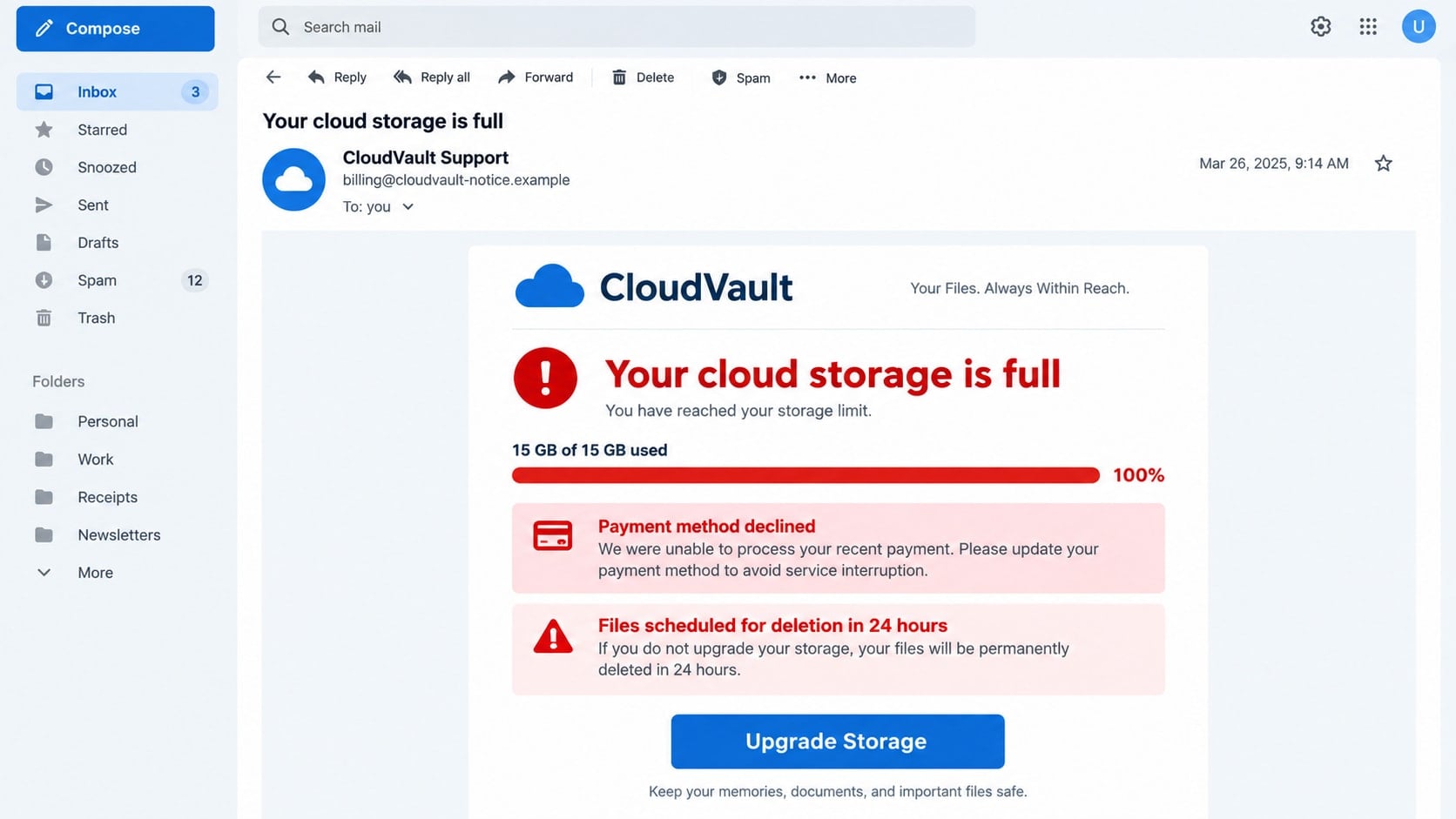
Cloud services scam emails impersonate storage, email, file-sharing, backup, and productivity providers. They claim that storage is full, a subscription has expired, a payment failed, an account is being closed, or someone shared an important file.
These situations sound ordinary because real cloud services send account notices. The scam works by copying that familiar context and attaching a false deadline to it.
The button opens a phishing or payment page
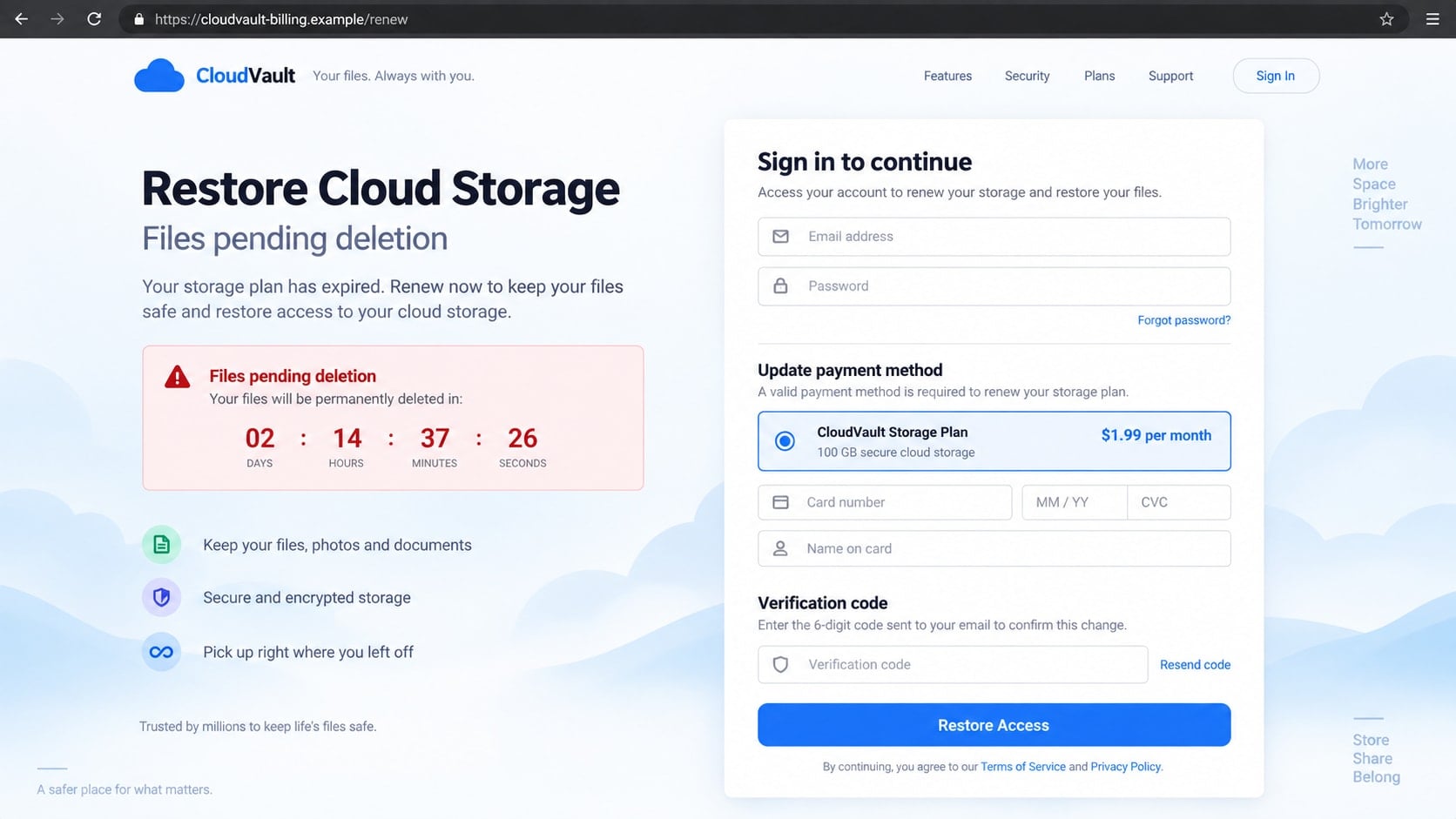
Instead of taking the recipient to the provider’s real website, the link opens a lookalike sign-in page. It may collect an email address and password, then request card details for a small storage upgrade or verification charge.
Some pages also request a recovery phone number, one-time code, backup email, or identity information. Each extra field gives the criminals more ways to take over accounts and impersonate the victim.
A stolen cloud account can expose far more than files
Cloud credentials may unlock email, photos, documents, saved contacts, password-reset messages, shared business files, and synchronized backups. If the same password is reused, the damage can spread to unrelated services.
- The message arrives unexpectedly and announces an urgent storage problem.
- A short deadline threatens deletion, suspension, or loss of access.
- The sender name resembles a known cloud brand while the address does not.
- The button leads to an unrelated, misspelled, or newly registered domain.
- The page asks for credentials, card details, or a one-time security code.
- A low price or free upgrade is used to make immediate action feel harmless.
The Most Common Stories Used in These Emails
A storage-full warning is especially effective because many people have seen a genuine version. The fake message may claim that syncing has stopped and photos will be permanently deleted within 24 or 48 hours unless the recipient confirms an upgrade.
Payment-failure emails create a different concern. They say a card expired, a renewal could not be processed, or an invoice remains unpaid. The page may offer a deeply discounted plan if the recipient updates billing details immediately.
Shared-file messages appeal to curiosity and workplace routine. A recipient is told that a colleague, client, scanner, or voicemail system uploaded a document. The filename may contain terms such as payroll, contract, invoice, tax, or termination notice.
Security-alert versions claim that the account was accessed from a new location or will be disabled because of unusual activity. Although the wording changes, the message always tries to move account recovery away from the real provider and onto a page controlled by the attacker.
How Cloud Services Scam Emails Work
Step 1: A broad campaign reaches users of popular cloud platforms
Criminals send large batches of email that imitate widely used storage and productivity services. They do not need to know which provider every recipient uses. Enough people will recognize the branding or worry that an old account may still exist.
More targeted campaigns can use breached marketing lists, workplace addresses, or information from social profiles. A business recipient may receive a message styled as a document share from a real colleague whose account was previously compromised.
Step 2: The subject line creates a loss that feels imminent
Subjects such as “Storage Full,” “Final Warning,” “Payment Declined,” or “Files Scheduled for Deletion” are designed for fast reading on a phone. The message emphasizes what might disappear rather than explaining the account accurately.
Dates, red banners, progress bars, and nearly full storage meters add visual urgency. A timer inside an email is not connected to your real account and should never determine how quickly you respond.
Step 3: A disguised link separates the button from its true destination
The visible button may say “Manage Storage,” “View File,” or “Restore Access.” The underlying link can pass through a tracking service, compromised website, URL shortener, or redirect chain before reaching the phishing page.
On a desktop, hovering over the button may reveal the destination. On a phone, pressing and holding may show a preview. If the domain does not belong to the provider, do not open it.
Step 4: The fake page captures a valid password
The landing page copies a logo, sign-in box, background, and privacy links. It may prefill the email address from the phishing URL so the page appears personalized.
After the password is entered, the page can display an error and request it again. This technique helps the attacker collect more than one password variation and makes the failed sign-in appear routine.
Step 5: Payment and security details increase the value of the theft
A supposed upgrade may cost only $1.99 or $2.99, an amount small enough to reduce hesitation. The real objective can be the card number, expiration date, security code, billing address, and phone number.
If the victim uses multi-factor authentication, the fake page may immediately request the one-time code sent by the real provider. The attacker enters the stolen credentials on the genuine site and uses the current code before it expires.
Step 6: The compromised account becomes a platform for more scams
Attackers can search email and cloud files for invoices, tax records, identity documents, cryptocurrency information, or private photographs. They may create forwarding rules, change recovery options, and send convincing file-share messages to the victim’s contacts.
A final redirect to the real provider or a harmless error page can make the victim assume the problem was fixed. The criminal may continue accessing the account quietly until a valuable opportunity appears.
Identity, Contact, and Payment Checks
Open the cloud service independently
Close the email and use the provider’s official app, a saved bookmark, or an address you type yourself. Genuine storage usage, billing status, and security alerts should be visible inside the account.
Inspect the complete sender and destination domains
A familiar display name is not enough. Expand the sender address and check the domain immediately before the final suffix. Treat extra words, substitutions, unusual country domains, and unrelated tracking hosts as warnings.
Compare the request with the real subscription
Check the plan name, renewal date, payment method, and amount inside the official service. A message about an account you do not have or a price that does not match the provider’s plans is not a bill you need to pay.
Use known support channels
If the account page does not explain the warning, contact support from the provider’s official site. Do not call a phone number in the email or send account information to its reply address.
How to Tell a Real Storage Notice From a Phishing Message
The FTC has warned about messages that falsely say a user is out of cloud storage. Its cloud storage scam guidance recommends avoiding links in unexpected messages and checking the account directly through a known app or website.
A real notification can still contain a button, so no single formatting detail provides certainty. The strongest test is whether the same condition appears after you independently open the official service.
- Check the storage meter inside the provider’s official account dashboard.
- Review billing history and the saved payment method independently.
- Look for the same security event in recent account activity.
- Read the full sender address instead of trusting the display name.
- Preview links and identify the registered domain before clicking.
- Be suspicious of deletion threats that allow only a few hours to act.
- Do not enter a security code on a page reached from an email.
- Ask the supposed sender through a separate channel about shared files.
Language mistakes can be a clue, but polished writing does not prove legitimacy. Modern phishing pages often reproduce authentic design and error-free text. Verification should depend on the destination and the account’s real status, not only on appearance.
Likewise, HTTPS and a padlock only show that traffic to the site is encrypted. Scam domains can obtain certificates, so the padlock cannot tell you who operates the page.
Risks Beyond a Stolen Password
A cloud account often acts as a recovery hub. If attackers control the associated email, they can request password resets for shopping, financial, social, and workplace services. Stored contacts also provide an audience for believable impersonation messages.
Private files can be used for extortion or identity theft. Tax documents, scans of identification, medical records, contracts, and family photographs are valuable even when the cloud subscription itself has no financial balance.
Business accounts introduce additional risks. A compromised mailbox can be monitored for invoices and payment discussions, allowing criminals to replace banking details at the right moment. Shared drives may expose customer or employee information.
Card details collected through a fake upgrade can be charged directly or sold. Some pages also hide recurring billing in fine print, turning a small verification charge into repeated withdrawals.
Shared File Alerts Need a Separate Confirmation
A file-share notification can be believable even when the storage warning would not be. The message may use a real coworker’s name, describe a current project, or arrive inside an existing conversation after an email account has been compromised.
Confirm the share through a channel that does not depend on the message. Ask the sender in a new chat or call, then open the cloud service independently and look for the file in its shared-items area. A genuine share should not require a surprise login on an unrelated domain.
Be especially cautious when the filename creates emotional pressure. Payroll changes, legal notices, invoices, tax forms, and termination documents are chosen because curiosity and concern can overpower routine checks.
Workplace recipients should report the message rather than forwarding it widely. Security teams can inspect headers and destinations without encouraging more people to click. If a colleague’s account sent the lure, that account may need immediate containment.
What to Do if You Have Fallen Victim to This Scam
- Change the cloud password immediately. Use the provider’s official app or type its address yourself. Choose a new, unique password that has never been used on another service.
- Sign out unknown sessions. Review recent devices, locations, connected apps, recovery addresses, phone numbers, forwarding rules, and app passwords. Remove anything you do not recognize.
- Secure every account that reused the password. Begin with email, banking, password managers, social accounts, and workplace services. Reuse allows one stolen password to become several account takeovers.
- Enable strong multi-factor authentication. Prefer a security key or authenticator app where available. Never approve an unexpected prompt or give a current code to someone who contacted you.
- Contact the card issuer. If you entered payment details, report that they were submitted to a phishing page. Ask whether the card should be replaced, dispute unauthorized charges, and monitor for small test transactions.
- Warn contacts if messages were sent from your account. Tell recipients not to open recent file shares, invoices, or security notices. Delete malicious messages from shared workspaces when you have permission.
- Scan the affected device. Run Malwarebytes if you downloaded an attachment, browser extension, synchronization client, or supposed security update. A password change does not remove malicious software that can capture the new credentials.
- Reduce repeat exposure. AdGuard can block many known phishing and advertising domains, but it should supplement careful verification. Report the malicious address to the cloud provider and your email service.
- Report financial or identity misuse. Use ReportFraud.ftc.gov for the scam and IdentityTheft.gov if personal documents or identity data were exposed. Business victims should notify their security team promptly.
Frequently Asked Questions
Are all cloud storage full emails fake?
No. Providers send genuine storage notices, but you should verify them inside the official app or account dashboard. Do not use an unexpected email button to reach that dashboard.
What if the email includes my real name and email address?
Those details can come from marketing lists or data breaches. Personalization makes a message more persuasive, but it does not prove that the sender controls your cloud account.
Can opening the email alone compromise my account?
Usually the main risk comes from clicking, entering information, or opening a malicious attachment. Still, remote images can confirm that an address is active, so avoid interacting and keep software updated.
I entered my password but not a security code. Am I safe?
No. Change the password immediately, review active sessions, and secure reused passwords. Attackers may use the credential later or attempt to trick you into approving a sign-in.
Does the browser padlock mean the cloud login page is genuine?
No. The padlock means the connection is encrypted, not that the operator is honest. Verify the exact domain and reach the service independently.
Why did the phishing page send me to the real cloud site afterward?
The redirect is designed to hide the theft. After collecting credentials, the fake page may send you to a genuine sign-in screen so the interruption looks like a normal error.
The Bottom Line
Cloud services scam emails turn ordinary concerns about storage, billing, shared files, and security into urgent phishing traps. A realistic logo or personalized address cannot verify the sender, and a small upgrade price can hide a much larger theft.
Open the provider independently and let the real account dashboard settle the question. If the warning exists only inside the email, the safest response is to delete it, report it, and keep your credentials off the linked page.








