An impressive procurement invitation arrives without warning. It says a global project needs new vendors, and your company appears perfectly positioned to participate.
The message feels like opportunity rather than danger. That difference is exactly why a careful review matters before anyone replies with company information.
Overview
The email presents an unsolicited business opportunity
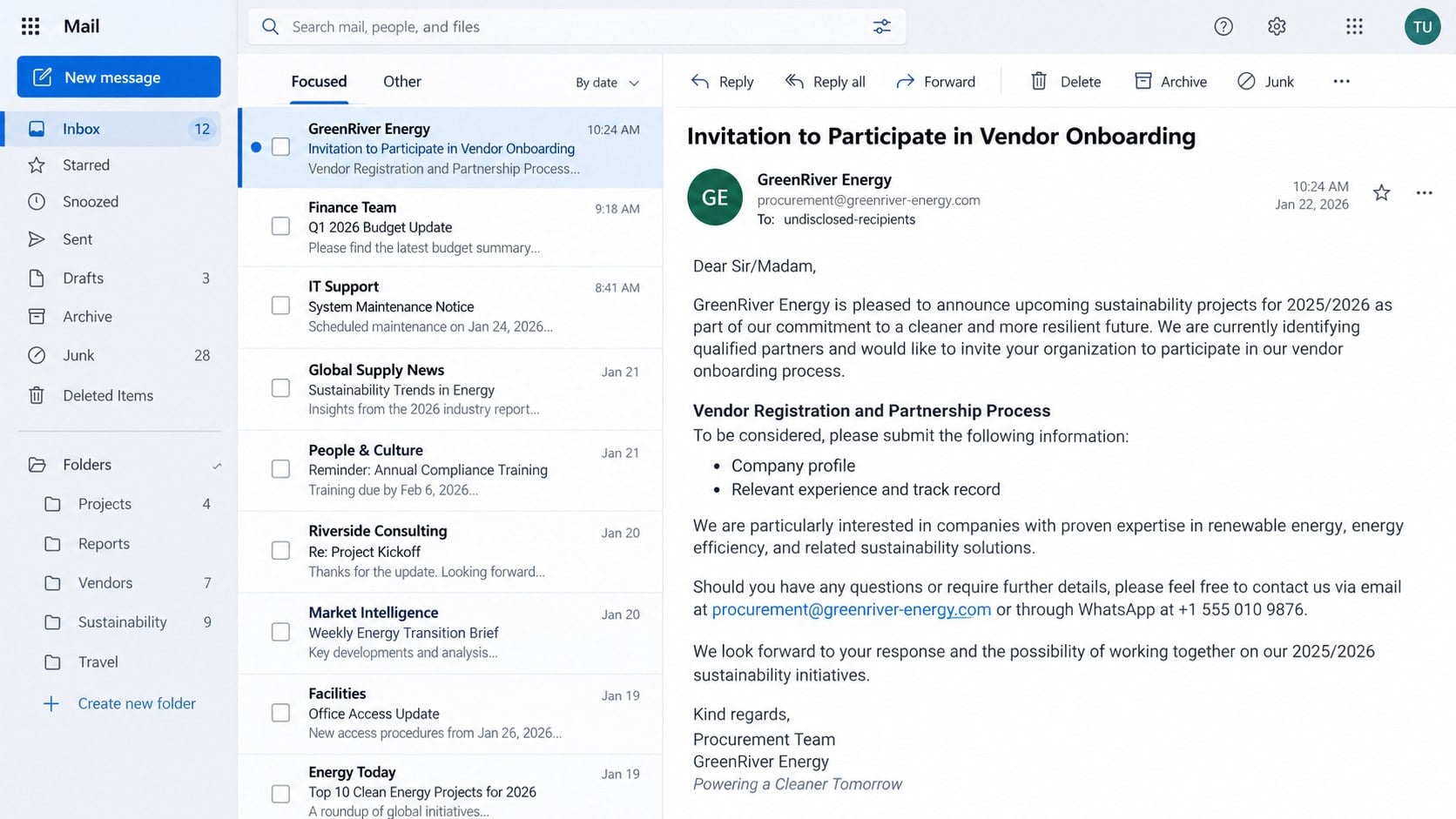
The Vendor Registration and Partnership Process email claims a large energy company is selecting contractors for sustainability projects scheduled across 2025 and 2026.
It invites organizations worldwide to join a pre-qualification exercise and asks for a company profile, experience history, and evidence of technical capability.
The language borrows procurement terms such as Invitation to Tender, Request for Quotation, vendor onboarding, project packages, and financial stability assessment.
The recognizable company details create borrowed credibility
Some versions impersonate ExxonMobil and copy a genuine corporate name, physical address, procurement language, and professional job titles into the signature.
Those accurate fragments do not authenticate the sender. Public details can be copied from corporate websites, directories, press releases, and professional profiles.
The critical evidence sits elsewhere: the real sender address, Reply-To domain, requested communication channel, official portal record, and independently confirmed company representative.
The first request is designed to begin a longer fraud
The opening email may not demand money. It seeks a reply, basic company documents, or a conversation with a supposed vendor coordinator.
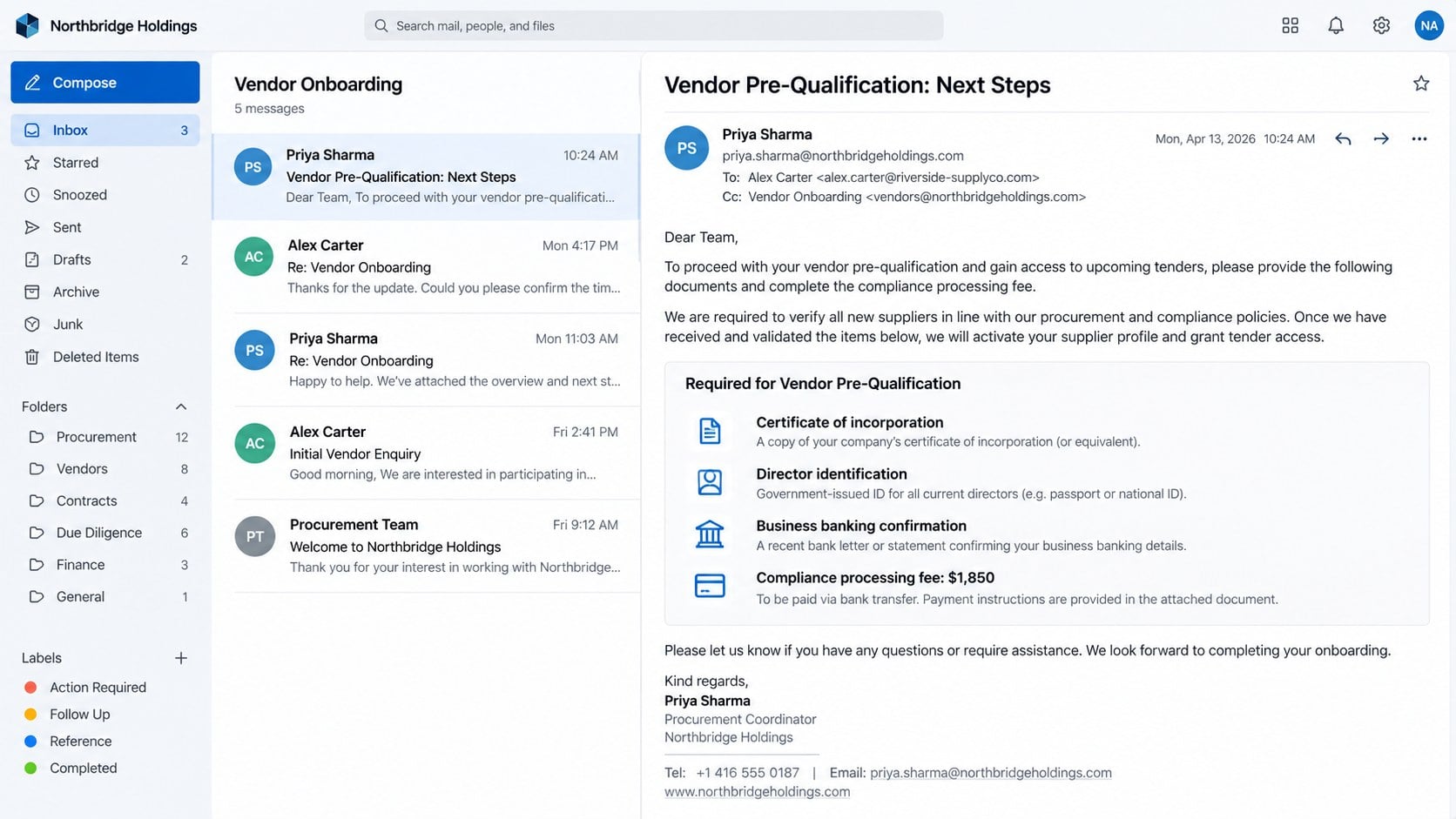
After contact begins, later messages can request sensitive records, banking details, compliance certificates, registration payments, or fabricated tender-processing fees.
Warning signs commonly include:
An opportunity your company never applied for or discussed.
A sender or Reply-To domain unrelated to the named corporation.
Requests to continue through WhatsApp or a personal mailbox.
Broad praise that never identifies your actual products or projects.
Early requests for ownership, tax, banking, or identity documents.
Fees described as registration, compliance, certification, insurance, or tender access.
No matching invitation inside the corporation’s verified supplier portal.
Why the Invitation Can Feel Convincing
Supplier outreach is normal in many industries. Procurement teams genuinely evaluate capacity, safety records, financial strength, geographic reach, and previous performance.
Real onboarding can also involve portals, questionnaires, tax forms, certificates, and detailed corporate documents. The scam hides inside that familiar administrative workflow.
The message may reach a public sales address, director, tender manager, or small-business owner who regularly receives genuine requests from unfamiliar organizations.
Its authors avoid lottery language and obvious threats. They offer a plausible contract, use measured wording, and allow the recipient to imagine substantial future revenue.
That imagined value makes a later $850 or $1,850 fee appear small compared with the promised project. It also encourages staff to overlook verification gaps.
How the Vendor Registration Partnership Scam Works
Step 1: The scammers identify businesses likely to pursue contracts
Targets may come from trade directories, exhibition lists, company websites, procurement databases, social networks, or scraped contact pages.
Public descriptions reveal each organization’s industry, services, locations, staff names, and likely decision-makers. That information helps the invitation feel deliberately selected.
Some campaigns remain broad and generic. Others mention a relevant sector, country, or project theme after researching the recipient’s public profile.
Step 2: A famous corporation is used as the trust anchor
The email adopts the name of a real organization with major purchasing power. Energy, construction, government, aviation, and development brands are attractive disguises.
Scammers may copy a real headquarters address and department title. They can also register a lookalike domain containing the brand, procurement, suppliers, or projects.
Display names are easy to falsify. A message labeled “Group Procurement” can originate from an unrelated mailbox controlled by anyone.
Step 3: The recipient is asked to demonstrate interest
The first response may request only a company profile and relevant experience. This modest opening reduces resistance and confirms the mailbox is actively monitored.
A reply also supplies the sender with names, titles, signatures, telephone numbers, and conversational details that can strengthen the next message.
The fraudster may answer questions promptly and professionally. Responsiveness proves control of the scam mailbox, not employment by the impersonated organization.
Step 4: The supposed onboarding process becomes increasingly formal
Follow-up documents can include registration forms, nondisclosure agreements, tender schedules, project summaries, compliance questionnaires, and branded approval letters.
Each completed stage creates commitment. Staff become less willing to abandon the opportunity after investing hours gathering records and discussing internal capabilities.
Requests may expand to certificates of incorporation, tax identifiers, director passports, ownership information, signatures, bank letters, and supplier references.
Step 5: A fabricated obstacle introduces the payment demand
The victim may be told an external consultant, ministry, insurer, or accreditation office must approve the application before tender access.
A payment is then framed as a refundable deposit, mandatory registration charge, compliance review, anti-money-laundering certificate, or document legalization expense.
Bank instructions may name a different company or individual. The explanation often claims that a local agent processes fees for international vendors.
Step 6: Additional fees appear after the first payment
Paying does not unlock a genuine contract. Instead, another believable requirement can emerge, such as insurance, tax clearance, courier costs, or performance security.
The promised award remains one step away. New deadlines and official-looking letters are used to keep the victim sending smaller amounts.
When challenged, the operator may threaten disqualification or claim previous payments will be lost unless the final requirement is completed.
Step 7: Stolen business information supports further fraud
Even without payment, submitted records can expose director identities, signatures, tax data, banking relationships, customers, suppliers, and internal approval procedures.
Those details may support invoice redirection, account impersonation, fraudulent applications, targeted phishing, or convincing approaches to the victim’s commercial partners.
A compromised conversation can also be reused. Scammers may contact employees or suppliers while pretending the fake project has already passed internal review.
Sender, Project, Portal, and Payment Verification Checks
The sender must belong to the real procurement organization
Expand the complete From and Reply-To addresses. Compare their registered domains with addresses published on the corporation’s official supplier pages.
Lookalike domains may add procurement words, hyphens, country abbreviations, or extra letters. Free email and unrelated business domains require immediate skepticism.
Call the corporation through a telephone number obtained independently. Ask procurement whether the named coordinator, project, and invitation reference actually exist.
The project should survive independent verification
A genuine tender should connect to a traceable business process. Search the verified corporate portal, procurement notices, and your organization’s earlier correspondence.
Do not rely on documents supplied by the sender as confirmation. A professional PDF can be created without authority from the company shown inside it.
Ask why your business was selected, which specific service is required, and which employee or application generated the invitation. Vague answers expose weak targeting.
The onboarding route should match official supplier instructions
ExxonMobil’s official supplier information describes established portals and says new profile setup begins through an ExxonMobil representative in its Vendor Master process.
An unexpected email that moves directly toward WhatsApp, private attachments, or an unrelated portal does not match that controlled registration path.
Open the supplier website through a typed address or trusted bookmark. Never reach a vendor portal through a link supplied by the questionable coordinator.
The payment destination reveals who would receive the money
Compare the beneficiary with the corporation named in the opportunity. A personal account, unfamiliar consultant, cryptocurrency wallet, or unrelated company is a severe warning.
Confirm every new bank instruction through known contacts and a second communication channel. Telephone numbers inside the suspicious thread cannot provide independent verification.
Legitimate fees, when applicable, should be documented through official terms, invoices, and accounting channels that procurement staff can confirm separately.
The Documents Create Risk Before Any Fee Is Paid
A company profile can reveal client names, revenue bands, staffing, equipment, office locations, and the commercial areas management wants to pursue.
Incorporation records expose legal names and registration identifiers. Director documents can contain birth dates, signatures, passport numbers, photographs, and residential details.
Bank letters show account ownership, institution details, and trusted contacts. Tax documents can add identifiers useful for impersonation and fraudulent onboarding elsewhere.
Treat the disclosure as a business incident, not merely an annoying email. Record exactly which files were sent and who could access them.
Legal, privacy, finance, security, and executive teams may need to evaluate notification duties, account monitoring, and fraud-prevention measures.
What Legitimate Vendor Onboarding Usually Looks Like
Real processes differ, but accountability remains visible. A known business sponsor usually initiates the relationship and can confirm why the supplier is being considered.
Registration occurs inside a documented portal or through contacts published by the organization. The legal entity collecting information is clearly identified.
Privacy notices explain how supplier data will be used. Access controls limit sensitive documents to appropriate procurement, finance, compliance, and legal personnel.
Questions about fees, documents, and bank details can be verified outside the invitation. Staff do not pressure a supplier to bypass normal controls.
A legitimate logo does not establish any of these protections. The process, domain ownership, verified contacts, and payment controls supply the meaningful evidence.
What to Do if You Have Fallen Victim to This Scam
Stop communicating through the suspicious thread. Do not send additional documents, fees, explanations, or verification codes while the request is investigated.
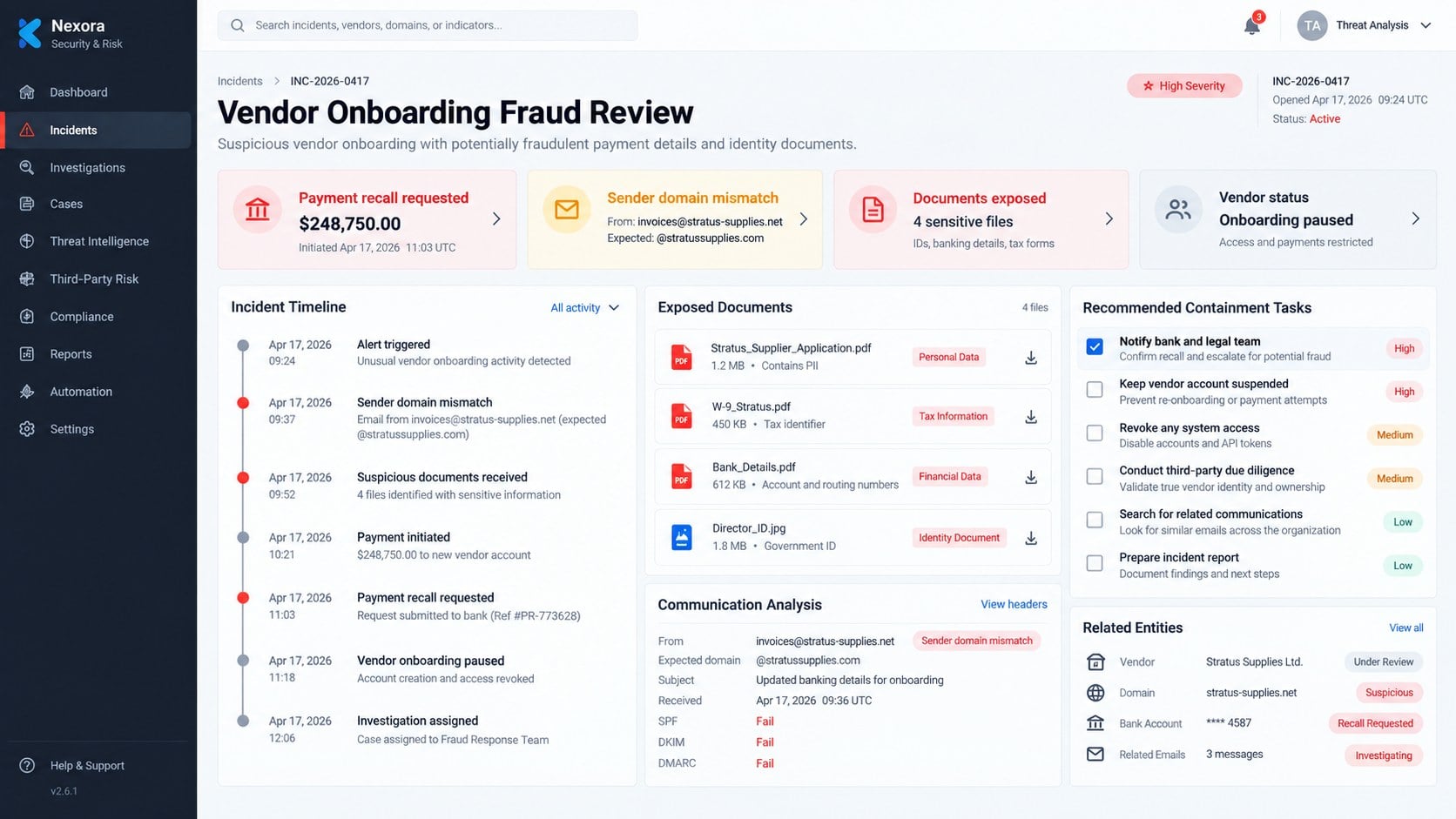
Contact the bank immediately. Request a wire recall or payment hold, identify the beneficiary, and ask the fraud team to monitor connected accounts.
Preserve the complete evidence. Save original emails with headers, attachments, forms, chat histories, telephone numbers, invoices, beneficiary details, and transfer confirmations.
Notify internal decision-makers. Inform finance, legal, privacy, security, procurement, and senior management so every exposed asset receives appropriate protection.
Inventory the documents disclosed. Record which identities, tax numbers, signatures, customer names, bank details, and credentials were shared.
Secure any exposed accounts. Change passwords, revoke sessions, replace reused credentials, review forwarding, and enable phishing-resistant multi-factor authentication.
Warn affected partners carefully. Tell suppliers or customers if their details could support impersonation, using verified channels rather than forwarding active scam links.
Report the impersonation. Contact the real corporation, relevant national fraud service, local police, and your email provider with preserved evidence.
Run Malwarebytes when files were opened. A full scan can detect malicious attachments or downloaded payloads that accompanied the correspondence.
Use AdGuard to reduce repeat exposure. Its filtering can block many known phishing destinations and malicious advertising routes during later browsing.
Reject recovery approaches. Anyone demanding an upfront payment to recover the transfer or erase stolen documents may be attempting another fraud.
Is Your Device Infected? Run a Free Malware Scan
Slow performance, constant pop-ups, or strange behavior? These are classic signs of a malware infection. The fastest way to find out is to scan your device with Malwarebytes Anti-Malware Free — one of the most trusted malware removal tools available.
The free version detects and removes the most common threats, including:
Adware — the cause of those annoying pop-ups
Browser hijackers — unwanted redirects and changed homepages
Trojans and spyware — hidden programs stealing your data
Potentially unwanted programs (PUPs) — software you never asked for
👉 Select your device below — Windows, Mac, or Android — then follow the simple steps to download Malwarebytes, scan your system, and remove any threats it finds. The whole process takes about 5 minutes.
Malwarebytes for WindowsMalwarebytes for MacMalwarebytes for Android
Run a Malware Scan with Malwarebytes for Windows
Malwarebytes is one of the most popular and trusted anti-malware tools for Windows — and it’s completely free for removing infections. It catches threats that many antivirus programs miss, including adware, browser hijackers, and trojans. Follow the steps below to scan and clean your PC in just a few minutes.
Download Malwarebytes
Click the button below to download the latest version of Malwarebytes for Windows from the official source. The free version is all you need — it will scan your computer and remove adware, browser hijackers, and other malicious software at no cost.
(The link opens in a new page where your download will start)
Install Malwarebytes
When the download finishes, open your Downloads folder and double-click the MBSetup file. If Windows shows a User Account Control pop-up, click “Yes” to allow the installation.
Follow the On-Screen Prompts to Install Malwarebytes
The setup wizard will walk you through a few quick screens:
Choose where you’re installing the program — “Personal Computer” or “Work Computer” — then click Next.
Malwarebytes will now install on your device. This usually takes under a minute.
When installation is complete, the “Welcome to Malwarebytes” screen will open automatically.
On the final screen, click Open Malwarebytes to launch the program.
Enable “Scan for Rootkits”
Before scanning, turn on rootkit detection so Malwarebytes can find even the most hidden threats. Click the Settings gear icon on the left side of the screen.
In the settings menu, find “Scan for rootkits” and click the toggle so it turns blue.
Done? Click “Dashboard” in the left pane to return to the main screen.
Start the Scan
Click the blue Scan button. Malwarebytes will automatically update its virus database and start checking your computer for malware.
Wait for the Scan to Finish
The scan checks your entire system for browser hijackers and other malicious programs, so it can take several minutes. Feel free to do something else — just check back occasionally to see the progress.
Quarantine the Detected Threats
When the scan is done, you’ll see a list of everything Malwarebytes found — malware, adware, and potentially unwanted programs. Click the “Quarantine” button to remove all of them at once.
Malwarebytes will now remove the malicious files and registry entries and move them safely into quarantine.
Restart Your Computer
Some threats can only be fully removed after a reboot. If Malwarebytes asks you to restart, click Yes. Once you’re logged back in, your PC is clean and you can continue with the next steps in this guide.
When the scan finishes, click Quarantine to remove everything Malwarebytes found. That’s it — your Windows PC is now clean of trojans, adware, and other malware, and should be back to running smoothly.
If your current antivirus allowed this malicious program on your computer, you may want to consider purchasing Malwarebytes Premium to protect against these types of threats in the future. If you are still having problems with your computer after completing these instructions, then please follow one of the steps:
Malwarebytes for Mac is a free on-demand scanner that removes the malware other security software tends to miss — adware, browser hijackers, and unwanted programs included. Cleaning an infected Mac with Malwarebytes has always been completely free, and it’s our go-to recommendation. Follow the steps below to scan and clean your Mac in just a few minutes.
Download Malwarebytes for Mac
Click the button below to download the latest version of Malwarebytes for Mac.
When the download finishes, open your Downloads folder and double-click the setup file to begin the installation.
Follow the On-Screen Prompts to Install Malwarebytes
The Malwarebytes for Mac Installer will guide you through a few quick screens. Click “Continue” and keep following the prompts until the installation completes.
When the installation is complete, Malwarebytes opens to the Welcome to Malwarebytes screen. Click “Get started“.
Select “Personal Computer” or “Work Computer”
Malwarebytes will ask what type of computer you’re installing it on. Click either Personal Computer or Work Computer, whichever applies.
Start the Scan
Click the “Scan” button. Malwarebytes will automatically update its detection database and begin checking your Mac for malware.
Wait for the Scan to Finish
Malwarebytes will scan your Mac for adware, browser hijackers, and other malicious programs. This can take a few minutes, so feel free to do something else — just check back occasionally to see the progress.
Quarantine the Detected Threats
When the scan is done, you’ll see a list of everything Malwarebytes found. Click the “Quarantine” button to remove all the threats at once.
Restart Your Mac
Malwarebytes will now remove all the malicious files it found. Some threats can only be fully removed after a reboot — if Malwarebytes asks you to restart, allow it. Once you’re logged back in, your Mac is clean.
Once the scan is done, remove every threat it detected. Your Mac is now free of adware, rogue browser extensions, and other potentially harmful software.
If your current antivirus allowed a malicious program on your computer, you might want to consider purchasing the full-featured version of Malwarebytes Anti-Malware to protect against these types of threats in the future. If you are still experiencing problems while trying to remove a malicious program from your computer, please ask for help in our Mac Malware Removal Help & Support forum.
Run a Malware Scan with Malwarebytes for Android
Malwarebytes for Android automatically detects and removes dangerous threats like malware and ransomware so you don’t have to worry about your most-used device being compromised. Aggressive detection of adware and potentially unwanted programs keeps your Android phone or tablet running smooth.
Download Malwarebytes for Android.
You can download Malwarebytes for Android by clicking the link below.
In the Google Play Store, tap “Install” to install Malwarebytes for Android on your device.
When the installation process has finished, tap “Open” to begin using Malwarebytes for Android. You can also open Malwarebytes by tapping on its icon in your phone menu or home screen.
Follow the on-screen prompts to complete the setup process
When Malwarebytes will open, you will see the Malwarebytes Setup Wizard which will guide you through a series of permissions and other setup options. This is the first of two screens that explain the difference between the Premium and Free versions. Swipe this screen to continue. Tap on “Got it” to proceed to the next step. Malwarebytes for Android will now ask for a set of permissions that are required to scan your device and protect it from malware. Tap on “Give permission” to continue. Tap on “Allow” to permit Malwarebytes to access the files on your phone.
Update database and run a scan with Malwarebytes for Android
You will now be prompted to update the Malwarebytes database and run a full system scan.
Click on “Update database” to update the Malwarebytes for Android definitions to the latest version, then click on “Run full scan” to perform a system scan.
Wait for the Malwarebytes scan to complete.
Malwarebytes will now start scanning your phone for adware and other malicious apps. This process can take a few minutes, so we suggest you do something else and periodically check on the status of the scan to see when it is finished.
Click on “Remove Selected”.
When the scan has been completed, you will be presented with a screen showing the malware infections that Malwarebytes for Android has detected. To remove the malicious apps that Malwarebytes has found, tap on the “Remove Selected” button.
Restart your phone.
Malwarebytes for Android will now remove all the malicious apps that it has found. To complete the malware removal process, Malwarebytes may ask you to restart your device.
After the scan, tap Remove Selected to delete all detected threats. Your Android phone is now clean — no more malicious apps, adware, or browser redirects.
If your current antivirus allowed a malicious app on your phone, you may want to consider purchasing the full-featured version of Malwarebytes to protect against these types of threats in the future. If you are still having problems with your phone after completing these instructions, then please follow one of the steps:
Restore your phone to factory settings by going to Settings > General management > Reset > Factory data reset.
Now that your device is clean, keep it that way. Most infections start with a malicious ad or a fake download button — so blocking them at the source is your best defense.
We recommend AdGuard, which blocks malicious ads, phishing pages, and dangerous redirects before they can reach you.
Require independent confirmation for every unsolicited tender, supplier registration, bank-account change, and payment involving a newly introduced third party.
Use dual approval for wires and vendor-master changes. The verifier should obtain contact details from existing records, not the request being approved.
Maintain a trusted directory of supplier portals and procurement contacts. Staff should know where genuine invitations appear and who can validate them.
Limit access to incorporation, banking, director, and tax files. Apply watermarks or controlled data-room access when legitimate counterparties require review.
Train sales teams as well as finance. Opportunity-driven scams often reach commercial staff who are prepared to respond quickly to potential customers.
Questions a Real Procurement Team Should Be Able to Answer
Ask which legal entity is purchasing, which business unit owns the work, and where the tender appears inside the verified supplier portal.
Request the project reference, scope summary, expected procurement timetable, and name of the internal sponsor who identified your organization.
Confirm whether the corporation approached your company after research, referral, earlier registration, or response to a published expression of interest.
A genuine coordinator should explain document handling, privacy, retention, and who can review sensitive director or banking material.
Any mandatory payment should have published authority, formal invoicing, a traceable beneficiary, and confirmation from official finance or procurement staff.
Pressure, evasive answers, secrecy, and last-minute beneficiary changes are not administrative inconveniences. They are reasons to pause the entire process.
Record every verification call and decision. Clear notes help another employee avoid restarting the same fraudulent onboarding conversation later.
Frequently Asked Questions
Is the corporation named in the email involved?
No evidence connects the impersonated corporation with the fraudulent invitation. Scammers copy recognizable names and public details to borrow trust.
Can a genuine company invite new vendors by email?
Yes, but the sender, project, portal, and representative must be independently verifiable through the company’s official procurement channels.
Why does the first message ask for only basic information?
A modest request encourages engagement. Later messages can demand sensitive documents or fees after the recipient feels invested in the opportunity.
Does a real headquarters address prove the email is genuine?
No. Addresses, executive names, and department titles are public information. Verify the sending domain and process rather than the signature block.
What if no money was sent but documents were shared?
Treat the disclosure seriously. Inventory the exposed information, notify internal teams, monitor for impersonation, and warn affected partners when appropriate.
Can a transfer to the scammers be recovered?
Sometimes a bank can stop or recall a recent transfer. Contact its fraud department immediately because recovery chances usually decline quickly.
The Bottom Line
The Vendor Registration Partnership scam turns a desirable contract opportunity into a gradual request for documents, trust, and potentially repeated advance fees.
Verify the representative, project, portal, and beneficiary outside the email. A real procurement opportunity will withstand those checks without pressure or secrecy.
10 Rules to Avoid Online Scams
Here are 10 practical safety rules to help you avoid malware, online shopping scams, crypto scams, and other online fraud. Each tip includes a quick “if you already got hit” action.
Stop and verify before you click, log in, download, or pay.
Most scams win by creating urgency. Verify using a trusted method: type the website address yourself, use the official app, or call a known number (not the one in the message).
If you already clicked: close the page, do not enter passwords, and run a malware scan.
Keep your operating system, browser, and apps updated.
Updates patch security holes used by malware and malicious ads. Turn on automatic updates where possible.
If you saw a scary “update now” pop-up: close it and update only through your device settings or the official app store.
Use layered protection: antivirus plus an ad blocker.
Antivirus helps block malware. An ad blocker reduces scam redirects, phishing pages, and malvertising.
If your browser is acting weird: remove unknown extensions, reset the browser, then run a full scan.
Install apps, software, and extensions only from official sources.
Avoid cracked software, “keygens,” and random downloads. During installs, choose Custom/Advanced and decline bundled offers you do not recognize.
If you already installed something suspicious: uninstall it, restart, and scan again.
Treat links and attachments as untrusted by default.
Phishing often impersonates delivery services, banks, and popular brands. If it is unexpected, do not open attachments or log in through the message.
If you entered credentials: change the password immediately and enable 2FA.
Shop safely: research the store, then pay with protection.
Be cautious with brand-new stores, “closing sale” stories, and prices that make no sense. Prefer credit cards or PayPal for dispute options. Avoid wire transfers, gift cards, and crypto payments.
If you already paid: contact your card issuer or PayPal quickly to dispute the transaction.
Crypto rule: never pay a “fee” to withdraw or recover money.
Common patterns include fake profits, then “tax,” “gas,” or “verification” fees. Another is a “recovery agent” who demands upfront crypto.
If you already sent crypto: stop paying, save evidence (wallet addresses, TXIDs, chats), and report the scam to the platform used.
Secure your accounts with unique passwords and 2FA (start with email).
Use a password manager and unique passwords for every account. Enable 2FA using an authenticator app when possible.
If you suspect an account takeover: change passwords, sign out of all devices, and review recent logins and recovery settings.
Back up important files and keep one backup offline.
Backups protect you from ransomware and device failure. Keep at least one backup on an external drive that is not always connected.
If you suspect infection: do not connect backup drives until the system is clean.
If you think you are a victim: stop losses, document evidence, and escalate fast.
Move quickly. Speed matters for disputes, account recovery, and limiting damage.
Stop payments and contact: do not send more money or respond to the scammer.
Call your bank or card issuer: block transactions, replace the card if needed, and start a dispute or chargeback.
Secure your email first: change the email password, enable 2FA, and remove unfamiliar recovery options.
Secure other accounts: change passwords, enable 2FA, and log out of all sessions.
Scan your device: remove suspicious apps or extensions, then run a full malware scan.
Save evidence: screenshots, emails, order pages, tracking pages, wallet addresses, TXIDs, and chat logs.
Report it: to the payment provider, marketplace, social platform, exchange, or wallet service involved.
These rules are intentionally simple. Most online losses happen when decisions are rushed. Slow down, verify independently, and use payment methods and account controls that give you recourse.
Hello! I'm Lapain Epuran, your go-to source for detailed and honest product reviews. From tech gadgets to miracle cures, I provide insights to help you make informed choices. Join me as we discover what's truly worth your time and money.