

A page suddenly warns that your BIOS is unsafe and offers an urgent “update.” The words sound technical enough to be intimidating, especially when the screen insists that closing it could leave your computer exposed.
A fake BIOS update scam can borrow the language of a real security fix. The important question is who is asking you to install the file, and why now.
Overview
What the fake BIOS update warning claims
A fake BIOS update scam presents an alarming notice that your firmware is outdated, infected, or about to fail. It may appear in a browser popup, a search result, an email, or a message from someone posing as technical support. The proposed fix is a download, a phone call, or a command to run.
“BIOS” and “UEFI” refer to firmware involved in starting the computer and managing hardware before the operating system loads. The terminology makes the warning sound more serious than a routine software prompt. Scammers exploit that unfamiliarity to move the user off a trusted update path.
What the page may actually deliver
The file offered as a firmware updater may be unrelated software, unwanted programs, or malware. A phone number on the page may lead to a support impostor seeking payment or remote access. A “paste this command” instruction can run code before the user understands what it does.
The exact outcome depends on the specific page and file. It would be inaccurate to say every fake BIOS notice installs ransomware or permanently damages the machine. The established warning sign is the unsolicited route and the request to trust an unverified source, not a proven identical payload across all examples.
How genuine updates are different
Firmware updates can arrive through a device maker’s official support tool or website, and some supported devices receive them through Windows Update. Dell’s BIOS and UEFI guide describes model-specific update methods and precautions. A random webpage does not know your exact hardware, current firmware, and approved package merely by flashing a warning.
Keep these contrasts in mind:
- A real update is tied to a specific device model and version.
- A browser alert is not a hardware diagnostic.
- A legitimate update should be obtained through a trusted maker or operating-system channel.
- A phone number inside an alarming popup is not independent support.
- Copying a command from a webpage can be riskier than downloading a file.
Why Firmware Language Makes This Scam Persuasive
Most people know how to update an app, but firmware feels different. It sits deeper in the computer and often requires a restart. That makes it easier for a scammer to claim that normal rules do not apply and that you must act before the machine becomes unusable.
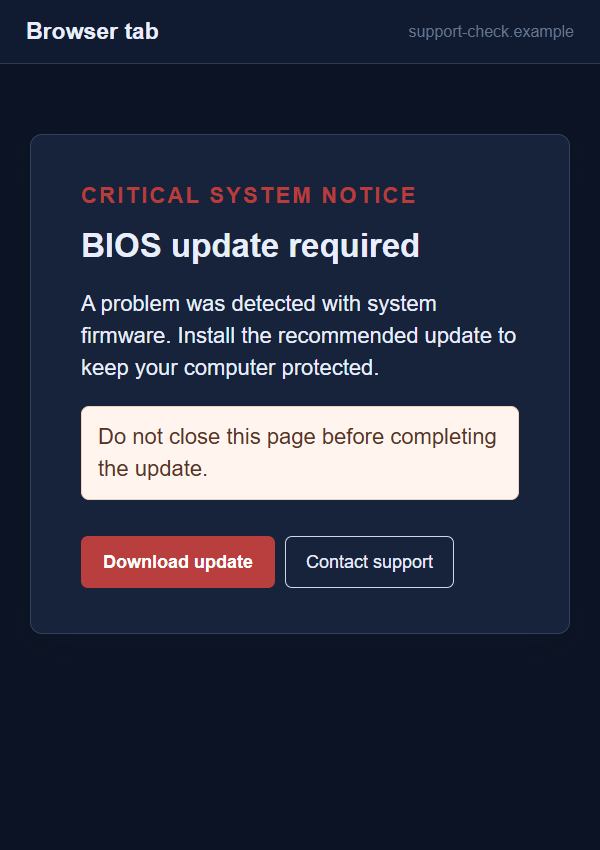
The warning may borrow the style of a security center: dark colors, a red badge, a progress indicator, and a “critical” label. Those are design choices, not evidence. A webpage can display any error code or device name its author chooses.
Sometimes the page is reached through an ad or compromised website rather than a deliberate search. The surprise adds pressure. If a site claims to have scanned your BIOS during browsing, ask how it verified your firmware version without a trusted local tool. Usually, it could not.
Other versions impersonate a support agent. Microsoft notes in its tech-support scam guidance that scammers use warnings and urgent contact requests to draw people into calls. The caller may then request payment or remote control while pretending to repair a nonexistent problem.
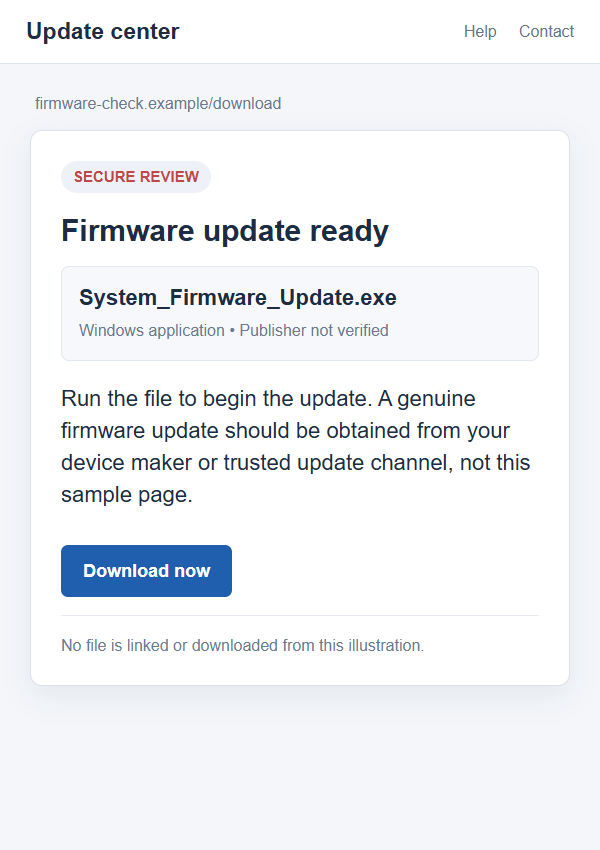
The images here are nonfunctional reconstructions. They show a possible browser warning and download screen, not an authentic capture of a specific campaign. The example-only addresses do not host software, and the buttons do not download anything.
How the Fake BIOS Update Scam Works
Step 1: The user encounters an unsolicited warning
The entry point might be a browser redirect, search ad, email, or phone call. The message says the computer has an urgent BIOS or UEFI problem. It may claim a security patch is required immediately or that files are at risk if the screen is closed.
That warning is not evidence of a firmware fault. A normal website cannot perform a trusted hardware inspection just because it is open. The attacker is counting on the reader to treat technical wording as diagnostic authority.
Step 2: The page offers a simple but unsafe fix
The visitor is told to download a named updater, call a “certified” support number, or follow a set of manual instructions. The solution is intentionally easy compared with the unfamiliar task of checking a manufacturer’s documentation.
Some fake support pages use the exact model name as decoration. That detail can be copied from a browser user-agent string, a search query, or a generic template. It does not prove the file is approved for the device. A real firmware package must match the product and supported update path.
Step 3: A file or command crosses the trust boundary
Running an executable from the page gives that program the chance to change the computer. A name like System_Firmware_Update.exe proves nothing about its publisher or purpose. A file can masquerade as an updater while installing another program.
A different version may ask you to open Windows Run or PowerShell and paste a command. This resembles the broader ClickFix family of social-engineering attacks. The command, not the page’s reassuring words, determines what happens next. Never run one from an unexpected security warning.
Step 4: A support impersonator may ask for control
If the page supplies a phone number, the next step can be a conversation with someone claiming to be from Microsoft or your device maker. The caller may request remote-access software so they can “verify” the BIOS. Once connected, they may see files, change settings, or manufacture additional errors.
They may also charge for a repair, warranty extension, or “security certificate.” A payment request and a screen-sharing session are not normal proof that the initial warning was genuine. End the call and find the maker’s support contact independently.
Step 5: The victim is pushed to keep following instructions
If the download fails, the page may offer another file. If a card is declined, the caller may ask for a different one. If the computer restarts, the scammer may say a new issue appeared and more work is necessary. Each stage is designed to keep control of the conversation.
Stopping early matters. Closing the browser tab and refusing the next instruction can prevent a warning from becoming a malware or payment incident. If software was already run, switch to a careful recovery process rather than trusting the same source to undo its own changes.
Four Checks Before You Install a BIOS Update
Check the update source
Start from the computer maker’s support page or official update utility, or from Windows Update where your device receives firmware through that channel. Type the maker’s address yourself. Avoid search ads and popups that lead to unrelated domains.
Official pages should let you identify your exact model and show the firmware version, release notes, supported operating systems, and installation instructions. If those details are missing, do not guess that the package is compatible.
Check the exact model and version
Look up the model or service tag in the maker’s instructions. Compare the update offered with the currently installed firmware and the maker’s listed release. A mismatch can cause trouble even when the file is not malicious.
Do not apply a firmware package because a page says “all Windows PCs” need it. BIOS and UEFI updates are usually hardware-specific. The safe sequence depends on the manufacturer, the model, power requirements, and sometimes encryption or recovery-key precautions.
Check whether the warning came from a browser
A browser tab can display a fake system alert, play sounds, or prevent easy navigation. Those behaviors are designed to look like a locked computer, but they do not make the page part of Windows or the BIOS.
Close the tab or browser using normal controls. If it resists, use the system’s task manager or force-quit function. Do not call the number or click “Download update” simply to make the page disappear.
Check the requested action, not just the logo
A real-looking logo can be copied. A demand to paste a command from a web page, install remote-control software for an unsolicited caller, or pay for immediate “BIOS protection” is a stronger indicator of danger than imperfect branding.
If an update is truly necessary, you can verify it later through a known support channel. A legitimate firmware release will not vanish because you spent time checking it. The scam depends on making that pause seem unacceptable.
Real Firmware Updates Can Look Strange Too
A legitimate BIOS update can restart the computer, show a full-screen progress display, and temporarily prevent ordinary input. Some users understandably mistake that experience for malware. The difference is the origin and documented process, not whether the screen looks unfamiliar.
If Windows Update or a trusted manufacturer tool initiated the update, check its history and the maker’s documentation before interrupting it. Powering off in the middle of a genuine firmware flash can cause problems. Do not treat all unexpected-looking update screens as scams.
Conversely, if the process began with a random webpage or inbound call, do not give it trust because it imitates a real update screen. Verify the download source and digital signature if you have the skills, but a signature alone should not override a suspicious origin or mismatched device model.
When uncertain, stop before running the file and ask the device maker through its published support channel. Describe exactly where the warning appeared. That small detail often resolves the question quickly: “inside a website” and “inside the official updater” are very different starting points.
What to Do if You Have Fallen Victim to This Scam
- Stop following the page or caller. Close the suspicious tab and end the call. Do not run a second “repair” file supplied by the same source. Note the address, filename, phone number, and time so you can explain what happened without reopening the page.
- If you only saw the popup, assess calmly. Viewing a page does not by itself prove infection. Clear browser notifications from unfamiliar sites, update your browser through its normal settings, and watch for repeated redirects. Do not pay for a scan because the popup told you to.
- If you ran a file or command, disconnect and investigate. Disconnect the device from the internet if you suspect active compromise, then run a reputable scanner such as Malwarebytes and seek qualified help if warnings persist. Malwarebytes can detect many malicious programs, but it cannot guarantee every firmware or account issue is resolved.
- Remove remote access you granted. If a caller controlled the device, disconnect the session, uninstall the remote tool through the operating system, and review accounts from a separate trusted device. Consider professional assistance if the scammer had administrator access or altered security settings.
- Protect passwords and payments. Change passwords that may have been visible or typed during the session, starting with email and banking. Turn on multifactor authentication. If you paid a “support” fee or entered a card, contact the issuer promptly to discuss a dispute and replacement.
- Check the real firmware state separately. Use the manufacturer’s official support page or trusted utility to see whether an update is actually recommended for your exact model. Do not install a BIOS file until you have read its instructions and prepared any recovery information it requires.
- Reduce the chance of another redirect. Remove suspicious browser extensions and notification permissions. AdGuard may block some malicious ads and sites, but it is an extra layer, not a substitute for checking an update’s origin. Report the fraudulent page to your browser or relevant authority, and ignore paid “recovery” offers from strangers.
Frequently Asked Questions
Can a website really detect my BIOS version?
An ordinary webpage is not a trusted firmware diagnostic. Be skeptical when a random site declares your BIOS “infected” or outdated without a manufacturer tool, model check, or authenticated update process.
Are BIOS updates ever delivered through Windows Update?
Yes, some supported devices receive firmware updates through Windows Update. Others use a manufacturer utility or support site. Check the update history and maker’s documentation rather than following a blanket rule that only one route is valid.
Does clicking the popup automatically install malware?
Not necessarily. The larger risk often begins when you download and run a file, paste a command, or grant remote access. If you clicked but did not proceed, close the page and review the browser for unwanted notifications or downloads.
What if I already opened the downloaded file?
Stop using the file, disconnect if compromise seems active, and run a reputable scan. If the program requested administrator rights or remote access, treat the incident seriously and consider qualified technical help. Secure important accounts from a trusted device.
Can a fake update actually change firmware?
That depends on the specific program and device. Do not assume every fake update does so, or that a normal antivirus scan proves firmware is unaffected. The immediate concern is the unverified software you ran and any access it gained.
How do I verify a real update safely?
Identify the exact device model, visit its maker’s official support channel, and compare the offered version and instructions. If the update came through Windows Update, check the update record. Ask the manufacturer if the package or prompt remains unclear.
The Bottom Line
A fake BIOS update warning turns a real technical topic into a shortcut for untrusted downloads, commands, support calls, or payments. A browser page that suddenly demands a firmware fix has not earned the authority it claims.
Verify the update through your device maker or trusted operating-system channel. If you ran the offered software or gave someone control, stop the session and respond to that specific exposure. The right update path can wait long enough for you to check it.








