

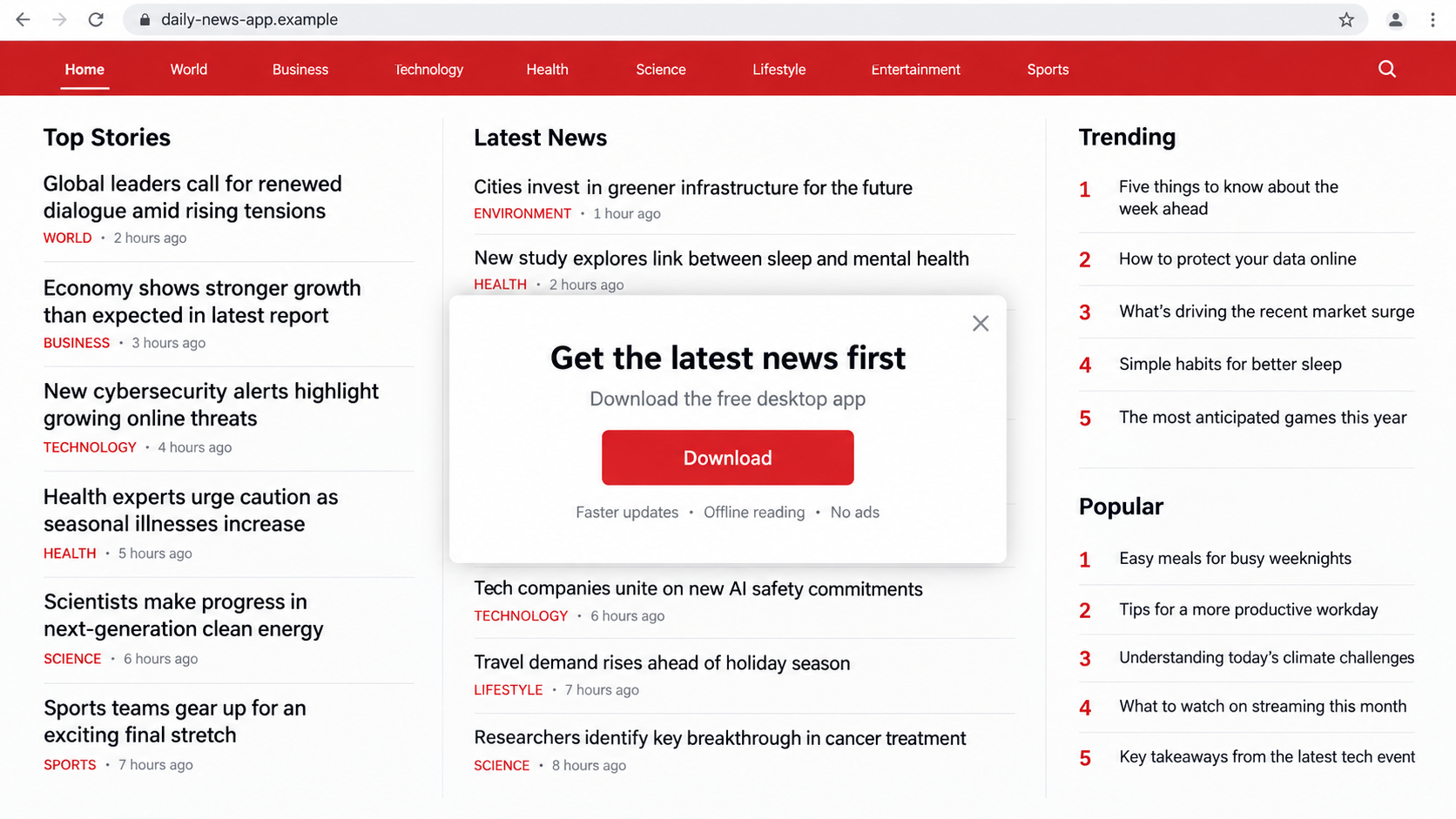
A news site asks you to install its free desktop app before you continue reading. The pop-up looks routine, right down to the familiar blue button.
What lands in Downloads deserves a closer look. In this campaign, the site’s appearance and the software’s real purpose told very different stories.
Overview
A familiar site can be only a costume
Researchers documented pages that imitated popular brands, including a news outlet, a security vendor, and an entertainment app. Each promoted a supposedly useful download.
One of the news-themed pages looked enough like CNN to make the app offer feel plausible. But the page was a lookalike, not CNN’s website.
The image above illustrates the visual trick without reproducing an active malicious page. Its address and controls are fictional.
The important point is not whether every pixel matches the real brand. The attack works when the visitor treats the name and logo as proof.
The downloaded program was a real remote tool
The offered file was a signed installer for O&O Syspectr, a legitimate remote-management product. That makes this campaign different from a crude fake-virus executable.
A digital signature can confirm that software came from its listed publisher. It does not confirm that the person urging you to install it has good intentions.
Investigators found installers configured to connect a device with an account controlled by the campaign operator. The legitimate tool became the attacker’s access route.
O&O was not described as a scam company. The abuse depended on misuse of its product and accounts, not on the product itself being malicious.
Why the pop-up was dangerous
A visitor expecting a news app could accidentally grant someone remote-management capability. Once installed and enrolled, such software may give another party visibility and control.
Before treating any app offer as routine, ask these questions:
- Does the address bar show the publisher’s exact official domain?
- Did you come to the page through an ad or unfamiliar link?
- Is the installer actually named for the advertised app?
- Why would reading a story require device-management software?
How the Fake CNN App Pop-Up Scam Works
Step 1: The visitor lands on a brand lookalike
A search result, ad, shared link, or mistyped address can send someone to a site that resembles a familiar news page. The original entry route varies.
On the observed pages, the brand styling did much of the persuasion. A visitor might recognize the masthead before noticing that the domain is unrelated.
That small sequence matters. People often decide whether a site feels safe in a second, then spend longer reading the download offer.
Lookalike domains can use extra words, unusual endings, or subtle spelling changes. A logo inside the page cannot authenticate the address outside it.
Step 2: A free-app offer interrupts the visit
The pop-up frames the installation as a convenient way to continue, get updates, or improve the experience. It asks for a click before the visitor reflects.
Nothing about a news article requires installing a Windows remote administration tool. This mismatch is the strongest warning sign in the campaign.
Some versions of the wider campaign used other brand costumes. The claimed purpose changed, while the installer-based route stayed recognizable.
It is easy to mistake the pop-up for an official site feature if the surrounding page looks polished. That is the exact trust transfer the attackers seek.
Step 3: The file appears to pass a basic legitimacy check
Windows may display a legitimate publisher on a signed installer. A familiar vendor name can make the download feel safer than an unsigned file.
But the publisher’s signature speaks to file origin, not to the context in which the file was offered. The fake page has no authority to enroll your computer.
Some users may search the product name and discover that O&O Syspectr genuinely exists. That finding is true but incomplete.
The question is who prepared this copy and what account it contacts after setup. Those details determine whether a valid tool is being abused.
Step 4: Installation links the machine to someone else’s account
Malwarebytes researchers found installers associated with attacker-controlled Syspectr accounts. After installation, the device could appear within that remote-management environment.
The exact capabilities available depend on the tool’s configuration and permissions. Do not assume every click automatically gave full control.
Still, the user was being guided to install software that did not match the promised news app. That is enough to treat the event seriously.
A quiet installation can be especially confusing. There may be no dramatic ransom note, only a service running in the background.
Step 5: The attacker may use access for follow-on activity
Remote access can support file viewing, settings changes, or further downloads, depending on privileges. The observed campaign created that opportunity.
Researchers also saw related brand lookalikes in the same operation. That breadth suggests a reusable distribution pattern, not a single isolated CNN-themed page.
O&O reportedly suspended identified abusive accounts and restricted remote capabilities for the free tier. That response helps, but new accounts or methods can appear.
There is no reliable public count of infected readers or proven financial loss for this specific pop-up. Avoid assuming a worst-case outcome without device evidence.
What to Check Before Opening Any Downloaded App
Read the address and the filename separately
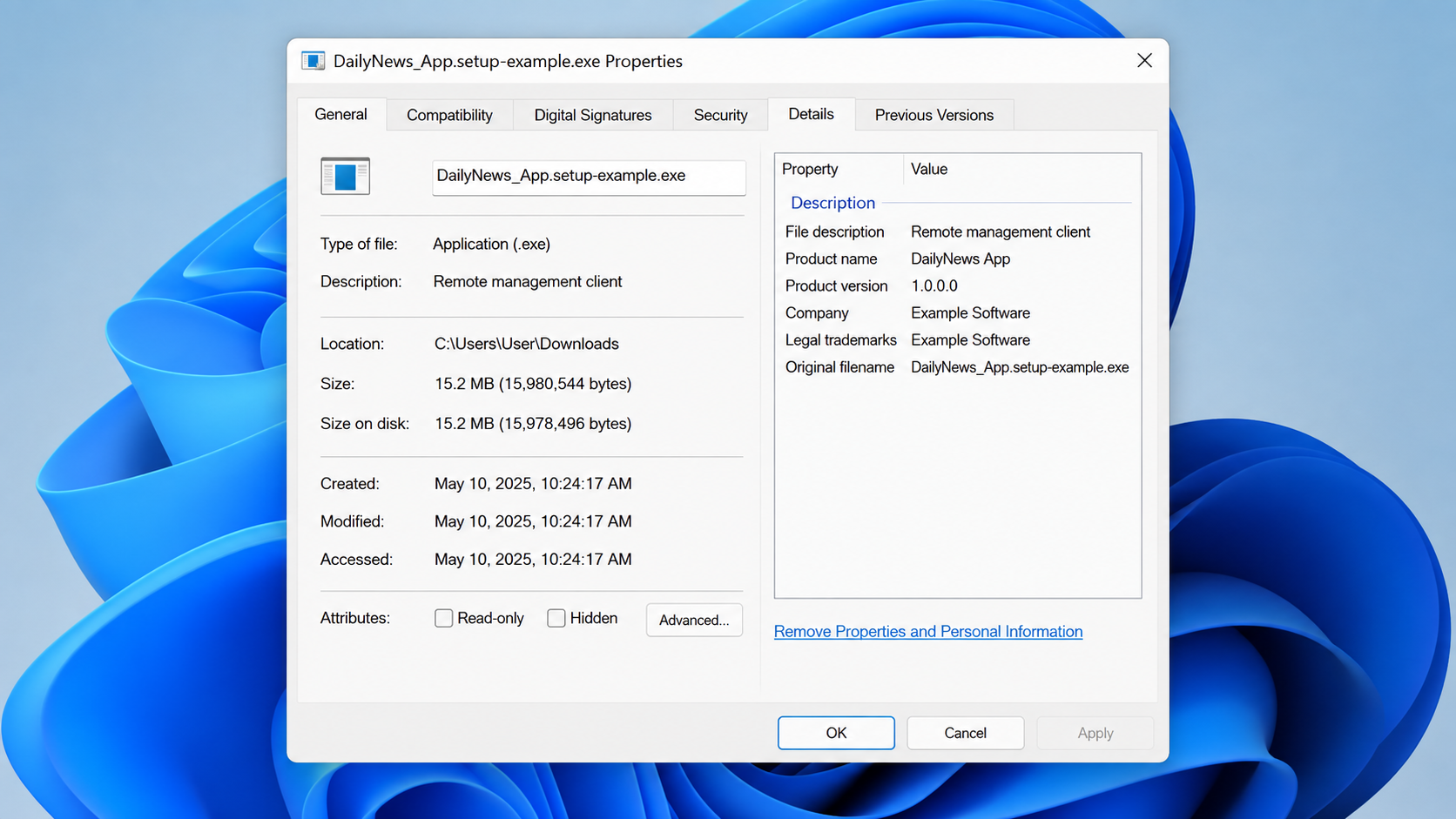
The website may say one thing while the downloaded installer says another. Inspect both. The second image shows how that mismatch can appear in file properties.
Do not treat a signed publisher as a substitute for checking the promised product. A valid signature on the wrong program is still the wrong program.
For a legitimate publisher, start from a bookmark or a manually typed official site. Search ads and social posts are weaker starting points.
If a site blocks content until you install an app, close the prompt. Verify whether the publisher even offers the named application.
Check whether remote software is already installed
If you clicked Install, open the operating system’s application list and look for the program’s exact name. Check when it was added.
Also inspect startup entries and running processes. A product may continue to run even after its setup window disappears.
If you see unfamiliar remote-management software, document it before removal. A screenshot of the app and install date can help incident responders later.
Do not sign in to sensitive accounts on that device while you are still unsure whether another party can control it.
Consider what was accessible during the window
Think about whether you entered passwords, opened banking pages, or stored sensitive documents after the installation. That helps prioritize your response.
A home computer and a work computer require different escalation. For a managed device, inform your IT team before uninstalling tools or changing logs.
Any remote-access incident can create uncertainty that a quick scan cannot fully resolve. Sometimes a clean reinstall is the most reliable path.
A careful backup of personal documents may be necessary first. Avoid carrying unknown executables or browser extensions into the rebuilt system.
What to Do If You Installed the Fake News App
- Disconnect the computer from the internet. Turn off Wi-Fi or unplug the network cable. This can interrupt an active remote session while you assess the device.
- Preserve basic evidence. Save the installer filename, its download URL, installation time, and any screenshots. Do not run the file again to investigate.
- Check installed programs and services. Look for O&O Syspectr or other remote tools you did not intentionally set up. Record what you find before removing it.
- Use a trusted security scan. Run Malwarebytes and your regular antivirus. A clean scan is helpful, but it does not prove that no remote session occurred.
- Remove unauthorized access. Follow the software vendor’s official removal instructions. For a work device, let your security team lead this step.
- Change important passwords from a clean device. Start with email, banking, and password manager accounts. End active sessions and enable multifactor authentication.
- Review accounts and files. Watch for unfamiliar logins, changed recovery details, new payment activity, and documents copied or modified.
- Reduce repeat exposure. AdGuard can block many deceptive pages and ads. It is a preventive layer, not a repair for an already enrolled computer.
Why a Signed Installer Is Not a Safety Verdict
Many people were taught to avoid unsigned downloads. That advice remains useful, but attackers can misuse legitimate, signed programs instead of writing their own malware.
Remote-management tools are especially attractive because they are built to maintain access. Security software may allow them when they appear to have been installed voluntarily.
The crucial test is whether the person who requested installation is the person who should manage your computer. A fake news site fails that test.
Read installation prompts slowly. If a supposed reading app asks for background services or remote device enrollment, stop before granting permissions.
Do not assume that removing the browser tab removes the installed program. Web content and local software live in different places.
Likewise, do not assume every legitimate remote tool is harmful. The problem here was deceptive distribution and unauthorized account association.
What an Incident Review Should Look For
A security review should establish whether the installer ran, whether the remote service enrolled the device, and whether anyone connected afterward.
Windows installation history can help establish timing. Application logs, service records, and security alerts may provide more detail on actual access.
Do not delete everything immediately if the computer holds business information. Your organization may need logs to understand the scope.
For a personal computer, a professional can weigh a full reinstall against targeted removal. The choice depends on what ran and what data was accessible.
Check browser-saved passwords and active sessions. Remote control could expose more than files if the attacker could see an unlocked browser.
Review email recovery settings as well. A changed backup address can let an intruder regain access after you reset the main password.
Payment accounts deserve a separate look. A device incident is not proof of payment theft, but unexplained charges need prompt attention.
If you use cloud storage, inspect recent sharing and download activity where available. Sensitive documents can leave without being visibly deleted.
A clean antivirus scan should not end the inquiry if the remote program itself was legitimate. Security tools may classify it as authorized software.
The aim is not to assume every worst outcome happened. It is to identify the access that actually existed and close each route.
Why the Brand-Costume Pattern Keeps Returning
Changing a fake site’s logo is cheaper than building new malware. An attacker can aim the same installation prompt at readers, movie fans, or security-conscious users.
Each audience hears a slightly different reason to click. The news reader gets convenience; the security shopper gets protection; the entertainment fan gets access.
The underlying test remains the same: why is this particular site asking to install this particular program?
That question outlasts any one domain. Scam domains disappear, but the mismatch between a promised app and a remote-management installer is harder to explain away.
Teach family members to pause at software prompts, even when a site looks polished. The pause is most valuable before the installer runs.
Bookmark sites you use often. A direct bookmark reduces the chance that a sponsored result or lookalike address becomes your starting point.
Keep your operating system and browser updated. This does not prevent every social-engineering trick, but it narrows technical opportunities around the same visit.
Remember that a legitimate software vendor can be an abuse victim too. Blaming the tool alone misses the deception that persuaded the user to enroll.
If a family member installed the app, ask what they saw before changing settings. A clear timeline helps you distinguish a download from an actual enrollment.
Frequently Asked Questions
Was the pop-up actually on CNN’s website?
No. Researchers described a lookalike news site that borrowed the brand’s appearance. Verify the full address rather than relying on a logo.
Is O&O Syspectr malware?
No. It is legitimate remote-management software. The risk came from a deceptive site offering an installer linked to an account the visitor did not authorize.
Does a valid digital signature mean I am safe?
No. A signature helps identify the software publisher. It does not validate a fake site’s claims or the account configured within an installer.
What if I downloaded the file but never opened it?
The risk is much lower if you did not run the installer. Delete it, clear the download, and scan the file or device if uncertain.
What if I installed it and saw no strange behavior?
Remote software may run quietly. Check installed programs and account activity, then use a trusted scan and consider professional help for sensitive devices.
Can an ad blocker stop this?
Ad blocking and browser protection can reduce exposure to deceptive ads and pages. Neither replaces checking a site’s address and every downloaded program.
The Bottom Line
The fake CNN app pop-up borrowed a trusted name to push a legitimate remote tool configured for someone else’s account. The signature did not make the invitation safe.
If you installed the offered file, treat the computer as potentially accessible, disconnect it, inspect the software, and secure your accounts from a clean device.








