

A confidential invoice agreement appears to be waiting for a signature. The familiar DocuSign name makes the request feel like unfinished business rather than unsolicited email.
Before reviewing anything, the recipient needs to answer a simpler question: who actually sent this envelope, and where does its button lead?
Overview
The lure combines secrecy with a plausible business document
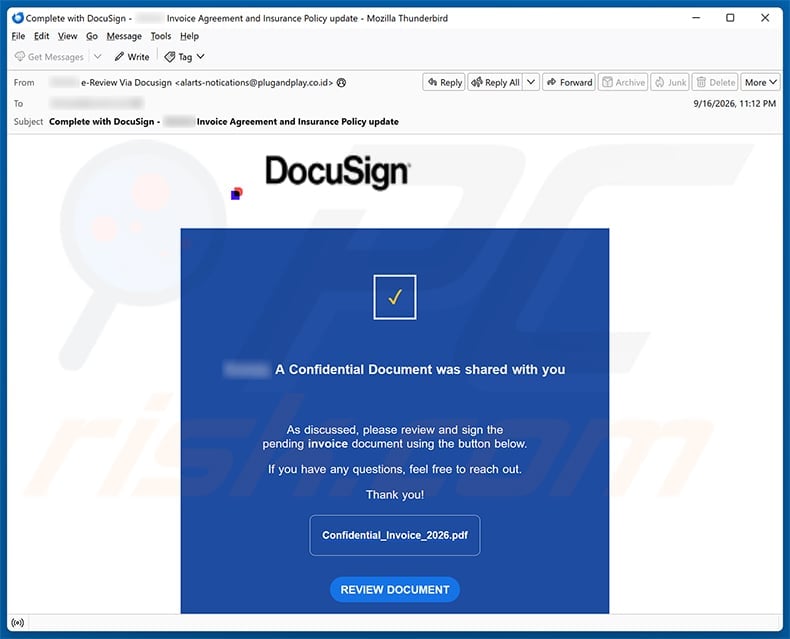
The examined email says a confidential document was shared and asks the recipient to review a pending invoice agreement.
Its subject also mentions an insurance policy update, creating the impression that an existing commercial relationship requires attention.
A filename reading “Confidential_Invoice_2026.pdf” reinforces that story without identifying a real counterparty, policy, invoice amount, or signing deadline.
The large DocuSign logo and blue document panel resemble the visual language people associate with electronic signatures.
However, the sender address in the captured sample did not belong to DocuSign, and the button did not lead to a DocuSign service.
The copied presentation is convincing only while the recipient looks at the email body instead of its technical identity.
The Review Document button leads outside DocuSign
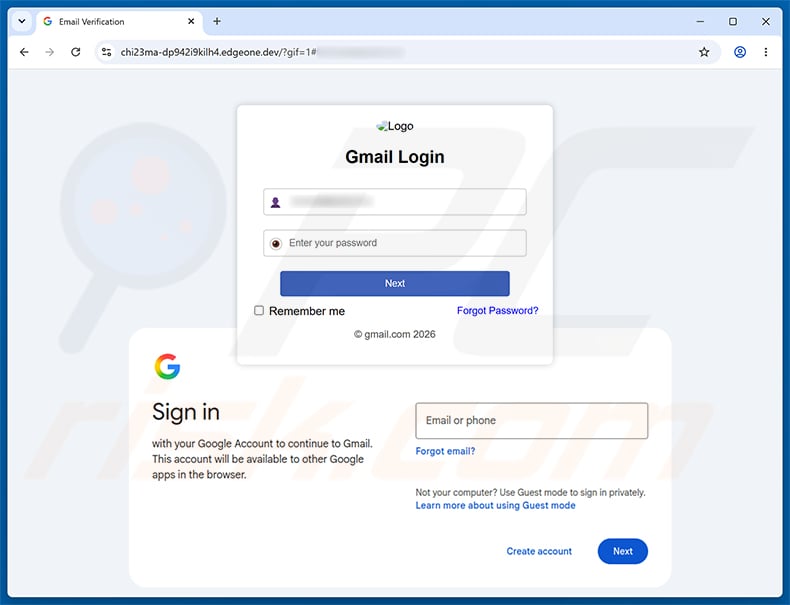
The captured route opened chi23ma-dp942i9kilh4.edgeone[.]dev, an unrelated host rather than docusign.net or docusign.com.
There, a counterfeit email-verification panel appeared over a genuine-looking Google sign-in background.
The page requested a password and displayed the recipient’s address, presenting the interaction as a normal step before document access.
No invoice was needed to perform this theft. The promised contract exists only to motivate authentication on the attacker’s page.
Docusign is a legitimate electronic-signature provider and did not create or authorize the imitated email or phishing website.
A real DocuSign envelope can be checked independently
Docusign says genuine envelope notifications are sent from the @docusign.net domain and direct recipients to its own docusign.net environment.
Legitimate notifications also include a security code that can be entered through the Access Documents feature on the official website.
That independent route matters because visual branding can be copied, while control of the official domain cannot be reproduced inside an unrelated hostname.
Docusign accepts suspicious messages at verify@docusign.com and provides Report Abuse options in supported signing experiences.
Recipients should use those official routes rather than replying to the questionable sender or trusting contact details inside the message.
- The request arrives without a recognized sender or transaction.
- “Confidential” discourages casual discussion with colleagues.
- The subject mixes an invoice agreement with an insurance update.
- The sender address does not establish DocuSign origin.
- The review button leaves official DocuSign domains.
- The destination asks for an email password.
- Gmail styling is copied on an unrelated host.
- Docusign remains a legitimate company being impersonated.
How the DocuSign Confidential Document Email Scam Works
Step 1: The sender creates a believable unfinished task
Electronic-signature invitations are common in hiring, sales, property, insurance, healthcare, and vendor relationships.
That variety gives attackers room to remain vague. A recipient may assume the document was initiated by another employee or forgotten contact.
The examined wording says “As discussed,” implying a previous conversation that may never have happened.
People often search their memory instead of challenging the premise, especially when a busy workday contains several real agreements.
The confidential label adds social pressure. A recipient may hesitate to ask coworkers about material that appears private.
This combination turns uncertainty into personal responsibility: review first, ask questions later.
Step 2: Copied branding substitutes for sender verification
The email presents the DocuSign wordmark, familiar colors, a document icon, and a prominent action button.
Those elements are ordinary images and HTML. They can be reproduced without access to any DocuSign account.
The reliable checks sit outside the design: full sender domain, authentication headers, link destination, and independently verified document code.
In the captured sample, the sender used an address unrelated to the service represented in the email body.
Display names such as “e-Review Via Docusign” can be chosen freely by the sender.
Recognition should begin an inspection, not end one.
Step 3: The action button sends the visitor to an unrelated host
The label “REVIEW DOCUMENT” describes an intention, not the actual destination.
The examined link reached an edgeone[.]dev hostname with a random-looking prefix, not an official DocuSign signing address.
Cloud and developer platforms can host legitimate projects, but their presence does not make every page trustworthy.
Attackers favor flexible hosting because a disposable subdomain can be created quickly and replaced after reports begin.
The user sees a secure browser connection and may assume the document is protected.
Encryption only protects traffic to the current host. It does not prove that host is authorized by DocuSign or Gmail.
Step 4: A fake email-verification layer appears before the document
The counterfeit page displays “Gmail Login” and places the recipient’s address above a password field.
Behind it sits a recognizable Google sign-in design, making the overlay feel like an additional corporate verification step.
The genuine Google page does not ask users to place passwords inside third-party overlays on unrelated domains.
The phishing site can select branding based on the victim’s email domain, allowing one campaign to imitate several providers.
That adaptability explains why another recipient may see Microsoft, webmail, or workplace styling instead of Gmail.
The browser hostname remains the decisive clue regardless of which logo appears.
Step 5: The password is collected before any document appears
Submitting the form sends valuable credentials to infrastructure controlled by the phishing operator.
The page may display an error, request the password again, redirect to Google, or show a harmless file afterward.
None of those outcomes retracts information already submitted.
Some campaigns ask twice because the second entry may capture a corrected password after the victim assumes the first was mistyped.
The operator can attempt a real mailbox login while the victim waits for the promised invoice.
Multi-factor prompts arriving at that moment should be denied, because approving one may complete the takeover.
Step 6: A stolen inbox enables impersonation and payment fraud
Confidential document lures often target business mailboxes because their contents reveal contracts, invoices, approval chains, and supplier contacts.
An intruder can study real correspondence before sending a payment change that matches the organization’s language.
Forwarding rules may quietly copy future messages to an external address.
Password-reset emails can expand access into cloud drives, accounting portals, customer systems, and other services.
The compromised mailbox can distribute new document invitations that look more credible because they come from a known person.
Recovery must therefore address settings, active sessions, connected applications, linked accounts, and affected contacts.
What the Captured Email Gets Wrong
The business story is internally muddled
The subject mentions both an invoice agreement and an insurance policy update, while the body refers only to a pending invoice document.
Real signature requests usually identify the sender and explain one coherent transaction.
Mixing document types allows a template to interest more recipients, but it weakens the specific business context.
The message also provides no invoice value, policy number, organization, representative, or recognizable project.
The sender identity conflicts with the brand
The display name places DocuSign in front of an unrelated sender address.
That arrangement can fool readers who see only the friendly name in a compact mobile inbox.
Expanding the sender reveals whether the domain matches the represented service.
Docusign’s official guidance says envelope notifications use @docusign.net. A look-alike phrase before another domain does not satisfy that check.
The button bypasses official document access
The destination did not offer a DocuSign envelope, security code, or recognized signing session.
It demanded an email password on an EdgeOne-hosted page.
There is no legitimate reason for a DocuSign document to require Gmail credentials inside a form hosted outside both services.
When two brands appear in one authentication journey, verify which domain is actually requesting the secret.
How to Verify a DocuSign Request Safely
Contact the named sender through existing records
If the message appears connected to a contract, call or message the supposed sender using contact details already known to you.
Do not use a telephone number, reply address, or signature introduced by the suspicious email.
Ask for the envelope subject, document purpose, and expected recipient.
A legitimate sender can resend the invitation after confirming the transaction.
Use the official Access Documents route
Open docusign.com manually and use its Access Documents feature with the security code shown in a genuine notification.
This avoids the embedded link and tests whether the envelope exists within DocuSign’s own environment.
If there is no usable code, the sender cannot be confirmed, or the official service rejects it, stop and investigate.
Never move a current email password into an external page to solve a document-access problem.
Report the message without interacting further
Docusign says suspicious messages can be forwarded as attachments to verify@docusign.com.
Forwarding as an attachment preserves more technical information than copying only the visible text.
Workplace users should also alert their internal security team, since the same lure may be targeting several employees.
Use the provider’s Report Abuse function when the suspicious item appears within an actual signing experience.
What Happens After Email Credentials Are Stolen
The attacker looks for high-value conversations
Search terms such as invoice, wire, contract, payroll, insurance, statement, and password quickly expose useful threads.
The criminal can identify who authorizes payments and which suppliers are currently awaiting settlement.
Past messages reveal tone, signatures, job titles, and expected timing.
That context supports targeted business email compromise rather than another obvious mass message.
Mail rules can hide the intrusion
An unauthorized rule may move login alerts to Trash, mark selected messages read, or forward copies externally.
Delegated access and app passwords can preserve entry after the main password changes.
Reviewing only the visible inbox leaves these quieter persistence methods untouched.
Account recovery should include every rule, connected application, device, and recovery method.
Contacts inherit a more convincing threat
A message sent from the real account can arrive inside an existing conversation and pass basic sender checks.
The attacker may share another supposed document, request gift cards, or replace legitimate bank information.
Recipients should be warned quickly when outbound messages could have been sent during the exposure period.
That warning should use a different trusted channel if the mailbox remains under investigation.
What to Do if You Have Fallen Victim to This Scam
- Stop interacting with the page. Close it, deny unexpected multi-factor prompts, and do not retry the password or open any offered download.
- Change the email password independently. Reach the real provider through its application or typed address and create a unique replacement immediately.
- End active sessions. Sign out unfamiliar devices and all existing sessions, then remove unknown app passwords and third-party authorizations.
- Audit mailbox configuration. Examine forwarding, filters, delegates, recovery addresses, telephone numbers, signatures, and automatic replies for unauthorized changes.
- Protect connected services. Replace any reused password and review cloud, finance, shopping, identity, and workplace accounts that rely on the mailbox.
- Enable phishing-resistant authentication. Use a passkey or hardware key where supported, with an authenticator application as a strong alternative.
- Check for business misuse. Review sent mail, deleted items, contract threads, invoice conversations, payment changes, and downloads during the exposure window.
- Inspect the device when necessary. If files downloaded or software ran, scan with Malwarebytes and platform security tools. AdGuard can block many later malicious destinations.
- Report the impersonation. Forward the original as an attachment to verify@docusign.com and notify workplace security when a business account was involved.
- Warn affected contacts. Tell people to disregard unexpected documents or payment requests sent from the address and verify transactions through separate channels.
Reducing Future Document-Phishing Risk
Separate document review from email authentication
Treat an unexpected password request as a new security event, not a routine extension of the document invitation.
Open the identity provider directly and confirm the session there.
If already signed in, a third-party page demanding the same password deserves even greater scrutiny.
No confidential label should override this boundary.
Adopt passkeys for the mailbox
Passkeys and hardware security keys bind authentication to the legitimate website.
A counterfeit EdgeOne host cannot ask the browser to authenticate as Gmail merely by displaying a Google logo.
Deploy stronger authentication first on email because that account often controls recovery elsewhere.
Keep emergency codes outside the inbox they protect.
Verify payment changes out of band
Organizations should require a known telephone number or approved workflow whenever a signed document changes banking details.
Do not confirm using the contact information inside the document being questioned.
Two-person approval can prevent one compromised mailbox from directing funds.
The process should apply even when the message comes from a familiar address.
Frequently Asked Questions
Is DocuSign itself a scam?
No. Docusign is a legitimate electronic-signature service. This campaign copies its identity and directs recipients to an unrelated phishing website.
How can I recognize a genuine DocuSign envelope email?
Docusign says envelope notifications come from @docusign.net and link to docusign.net. Use the official security code route when anything feels unexpected.
Why did the fake page already show my email address?
The phishing link can carry the address used for delivery. Displaying known information does not prove access to Gmail, DocuSign, or your account.
Did clicking the Review Document button steal my password?
Clicking alone does not equal credential submission. The strongest account-takeover risk begins when credentials or approvals are provided to the counterfeit page.
What if I approved a multi-factor prompt after entering my password?
Assume the attacker may have completed a login. Change the password, revoke sessions, inspect settings, and review connected services immediately.
Where should I report a suspicious DocuSign message?
Forward it as an attachment to verify@docusign.com and use official Report Abuse options. Workplace recipients should also notify their security team.
The Bottom Line
The DocuSign Confidential Document email scam uses a familiar signing workflow to lead recipients toward a fake Gmail password form.
Its unrelated sender and edgeone[.]dev destination break the chain of trust, regardless of how accurately the page copies two famous brands.
Verify envelopes through docusign.com and known contacts. If credentials were submitted, secure the mailbox and review business conversations before follow-on fraud develops.








