

An employee’s phone rings just as the workday gets busy. The caller knows the company name and says an account setting needs attention before the next meeting.
The request sounds routine enough to postpone thinking about it. A few minutes of verification, though, can change the entire outcome.
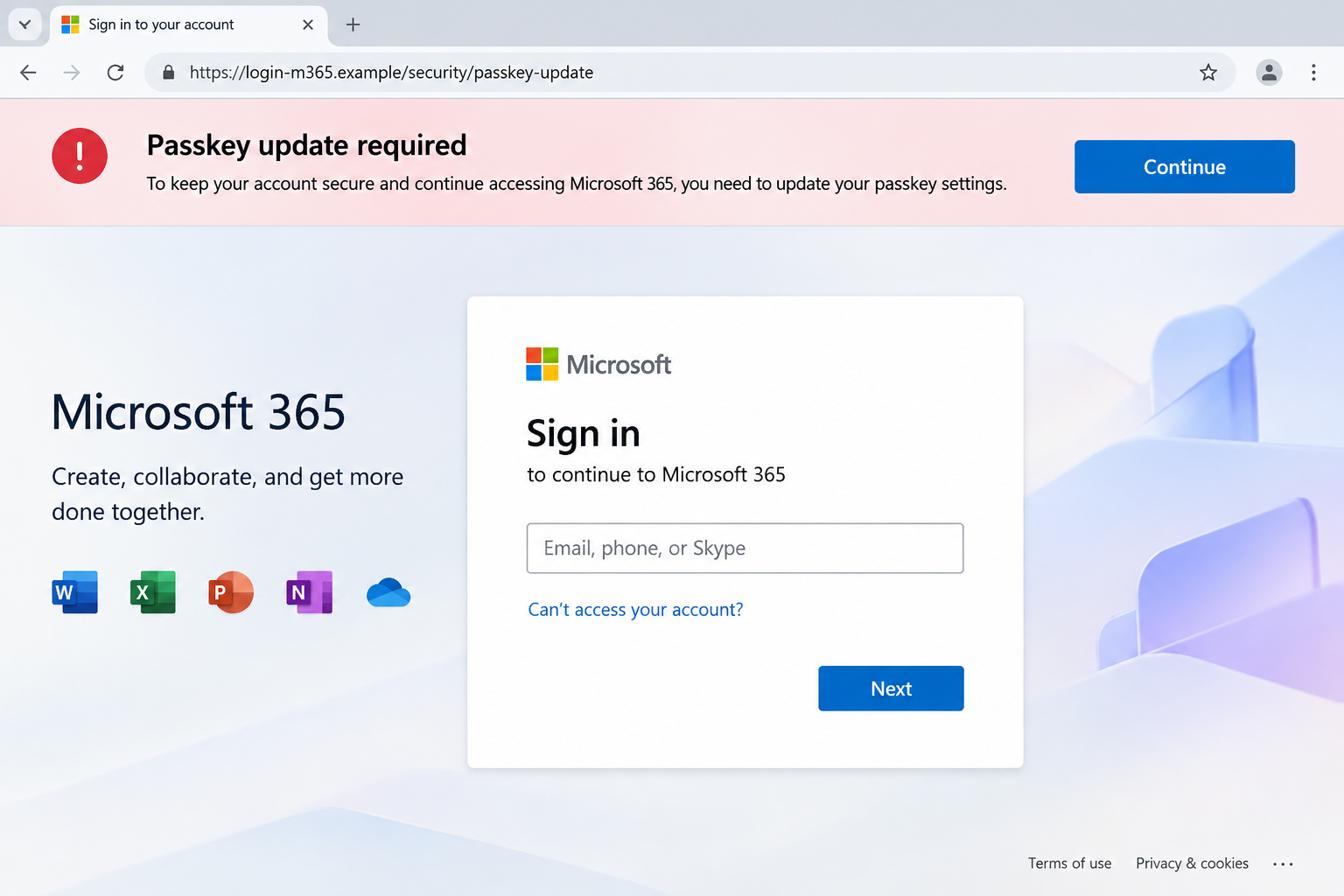
Overview
A familiar IT task with the wrong person behind it
The passkey update phishing scam begins with someone pretending to work for a company’s IT help desk. They say a passkey, MFA, or single sign-on setting needs urgent attention.
The employee may get a call, message, or text link on a personal phone. The caller frames the action as routine maintenance, not an extraordinary security exception.
Microsoft Security Research reported this pattern in active intrusions observed since May 2026. Its account connects the pretext to cloud account compromise and data access.
Microsoft is the impersonated service, not the perpetrator. A familiar sign-in screen says nothing about who sent the link or controls the page.
The word passkey is the bait, not necessarily the objective
A passkey is designed to resist ordinary password theft. That strength does not protect someone who authorizes a separate login flow at a stranger’s direction.
Microsoft says attackers in this campaign used passkey language to guide victims into adversary-in-the-middle phishing or device-code authentication. Actual passkey enrollment was often not the aim.
The difference matters because a victim may search for a newly created passkey and miss an unauthorized session, registered sign-in method, or approved device code.
In plain English, the criminal tries to make an account trust an attacker-controlled session. The caller’s script merely supplies a believable reason to start that process.
The three signs to notice first
A real help desk can contact staff, and real organizations sometimes change sign-in settings. The suspicious part is the unplanned route and pressure to act.
- The contact arrives unexpectedly on a personal number.
- The caller supplies a login link or a code you did not request.
- You are told access will stop unless you act immediately.
- The process bypasses your normal IT ticket or company portal.
Any one detail deserves a pause. Together, they call for independent verification through the help desk number or internal channel you already know.
How the Passkey Update Phishing Scam Works
Step 1: Learn enough to sound like internal support
The attacker may research an organization, its staff, and the tools employees use before making contact. A company website can reveal more than people expect.
Job titles, department names, and public conference posts make a cold call feel specific. None of those details proves the caller works for IT.
In some cases, the criminal reaches a personal number, which can make the conversation seem more direct. The employee may wonder how a stranger found it.
A convincing caller may avoid technical jargon. They can simply say the company is refreshing sign-in settings and that the employee must complete a brief check.
That language lowers resistance because legitimate IT teams do perform maintenance. The scam depends on the employee accepting the caller’s chosen path without checking it.
Step 2: Create a small deadline around account access
The supposed help desk worker says a passkey, MFA, or SSO change must be completed now. Otherwise, the employee may lose access during the workday.
The threat is calibrated to be annoying rather than dramatic. Missing a meeting or losing email for an hour feels plausible and costly.
Microsoft describes calls and messages to personal phones in the observed campaign. An SMS link can arrive while the caller remains on the line.
Staying on the phone matters. It lets the impostor answer doubts quickly and steer each click before the employee checks a separate company source.
If the person insists that a manager or colleague cannot be consulted, the pressure itself is evidence. Legitimate authentication work does not require secrecy from security staff.
Step 3: Send the victim into a convincing sign-in flow
The link may open a page resembling a Microsoft login screen. The browser address, not the visual design, determines who controls that page.
Another route uses a real Microsoft device-code page. The legitimate-looking location can mislead someone into thinking the entire request is trustworthy.
Here is the crucial distinction: a real authentication page can be misused when a stranger supplies the code, timing, or purpose. The source of the request remains unverified.
Do not type a code dictated by an unsolicited caller into a sign-in flow. End the call and ask your actual IT team whether a change was scheduled.
In adversary-in-the-middle phishing, a criminal-controlled page can relay the sign-in to Microsoft while capturing credentials or a session token.
Those details are not visible to the victim. The page may appear to accept a password and MFA exactly as a familiar work login does.
Step 4: Turn one approval into continuing access
Once the attacker obtains access, the problem may continue beyond the first login. Microsoft observed threat actors adding authentication methods after suspicious sign-ins.
An added method gives the outsider another route back into the account. A password change alone may not remove every active session or unauthorized method.
After a suspicious call, inspect account security settings for sign-in methods you did not add. Report unfamiliar entries before removing them.
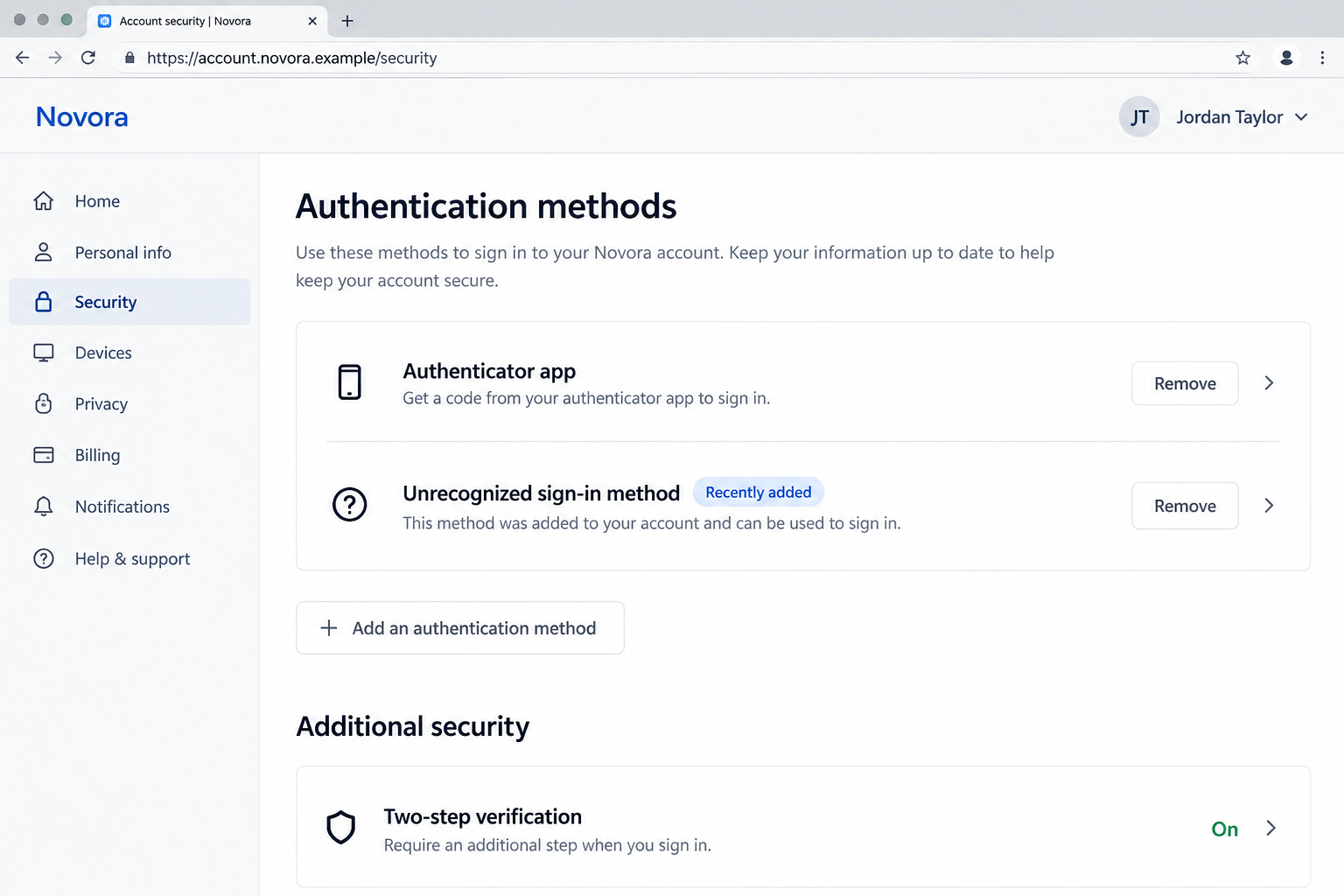
Do not assume every newly listed method is malicious. Confirm the enrollment history with your security team, then remove anything they verify as unauthorized.
Microsoft also describes token issuance and unusual cloud activity after initial access. These are signs administrators can examine even if the employee saw only a short phone call.
The attacker benefits when the victim thinks the process ended after clicking Done. A quick sign-in can be the opening move of a longer intrusion.
Step 5: Search the cloud account for useful data
Microsoft observed high-volume activity involving Microsoft Graph, SharePoint, OneDrive, and email. Those services can expose documents, messages, and organization relationships.
The attacker may look for sensitive files or conversations that support extortion, business email compromise, or access to other connected services.
Not every suspicious login results in stolen files. The response must follow evidence, including download logs, mailbox access, and changes to account permissions.
The employee may never see a strange program on their computer. A cloud account compromise can happen without malware installed on the personal phone used for the call.
That is why scanning a device is useful only when there was a suspicious download. It does not replace revoking sessions and checking account activity.
Step 6: Use the stolen access before anyone notices
An attacker with access may send mail from a real company account, search for invoices, or download files. The next victim may see a genuine sender address.
Microsoft links some of the observed activity to extortion ecosystems, but attribution differs across incidents. Avoid assuming one named group made every passkey-themed call.
After the first report, administrators should treat the incident as an identity investigation. The person who received the call can supply vital timing and wording.
A small recollection can matter: whether the link arrived by SMS, whether a code appeared, and whether the caller requested an MFA approval.
Those details help the security team connect user experience to log events. Silence or embarrassment gives the attacker more time.
Why Passkey Protection Does Not Make This Call Safe
A strong login method cannot authenticate a stranger’s instructions
Passkeys can prevent many ordinary phishing attacks because the credential is tied to the legitimate site. That is a reason to use them, not distrust them.
The attack described here asks a different question: can someone persuade you to approve access through another valid mechanism? Technology still relies on informed consent.
Think of a secure door with a very good lock. The lock works, but it cannot judge a visitor you choose to admit.
The scammer’s script tries to make their request feel like an internal maintenance order. Verification of the caller is the missing security control.
The company login page is only part of the chain
A legitimate Microsoft page can appear during a device-code flow. That alone does not show who initiated the sign-in or what access the code will grant.
Likewise, a web page that copies Microsoft styling is not necessarily hosted by Microsoft. Compare the full address carefully, including the domain immediately before the first slash.
Extra words such as verify, support, or secure do not make a domain official. A padlock icon only says the connection is encrypted.
When in doubt, close the page and open your work portal using a saved bookmark. Ask the help desk through the organization’s directory.
A personal phone can hide the beginning of the incident
Microsoft notes that a phishing link opened on a personal device may not appear in the organization’s endpoint telemetry. The employee’s report can fill that gap.
Do not wait until you can prove the page was malicious. Tell IT that an unsolicited caller directed you through an account-related process.
If you only received the call and never followed the link, there may be no compromise. Reporting the attempted impersonation still helps warn coworkers.
The proper response is proportional: preserve the message, verify the request, and let account logs determine whether access was granted.
How to Check a Real IT Request Without Losing Work Time
Ask the caller for the ticket number, but do not treat a number they provide as proof. Look it up in your own ticket system.
Call the help desk using the number in your company directory. Do not call back the number that appeared in the incoming message.
Check whether your organization announced an authentication change. Genuine migrations usually have a known schedule, support documentation, and a place to ask questions.
If the change is real, ask IT to provide the approved link through the company portal. You can complete it after the independent confirmation.
Do not share MFA codes, device codes, recovery codes, or screenshots of sign-in prompts with an unexpected caller. They are not harmless troubleshooting details.
Be especially careful when the caller says to use your personal phone. Ask whether company policy permits that workflow and why an internal channel is unavailable.
A legitimate help desk should understand a callback. The time spent confirming identity is smaller than the time required to investigate stolen cloud files.
What to Do If You Followed a Fake Passkey Update
- Contact your real security team now. Use a known company channel. Say exactly what you approved, which link you opened, and when the call occurred.
- Stop using the suspicious page. Close it, but preserve the SMS, caller number, screenshots, and browser history for investigators. Do not interact further with the caller.
- Have IT revoke active sessions. A password reset alone may leave tokens or sessions valid. Ask for a full sign-out and a review of device-code activity.
- Inspect authentication methods. Look for unfamiliar phone numbers, apps, passkeys, security keys, or registered devices. Remove only after confirming with administrators.
- Change credentials through the real portal. Follow your organization’s incident instructions, then change reused passwords on unrelated personal accounts from a trusted device.
- Review cloud and mailbox activity. Ask administrators to check unusual sign-ins, sharing links, mail forwarding, recent downloads, and new application permissions.
- Warn affected contacts if directed. If your account sent messages or exposed sensitive files, the security team can coordinate notifications and required reporting.
- Scan only when a file ran. If you downloaded software or executed a command, isolate the device and run a reputable Malwarebytes scan under IT guidance.
AdGuard can help block some malicious web destinations and ads later, but it cannot revoke a stolen cloud session. Account containment comes first.
If you merely answered the phone but did not approve any prompt, tell IT what happened. They can check whether another employee received the same script.
Do not erase texts or call logs until investigators have recorded them. Their timing can connect your report to the account activity.
When the incident is under control, ask what sign-in method was actually affected. The answer may be a device code, a token, or an unauthorized method, not a broken passkey.
Frequently Asked Questions
Can a scammer steal my passkey through this call?
The reported campaign often used passkey language as a pretext. The attacker sought access through phishing or device-code flows, not necessarily the passkey itself.
What if the page really was hosted by Microsoft?
A real Microsoft authentication page can be part of a malicious device-code request. Verify who initiated the flow before entering a code or approving access.
Will changing my password remove the attacker?
Not reliably on its own. Your administrators should revoke sessions, inspect added authentication methods, and review app permissions and cloud activity.
Could a real IT employee contact my personal phone?
Possibly, depending on workplace policy. The safe test is an independent callback through the company directory or a ticket you locate yourself.
Do I need a malware scan after receiving the SMS?
Receiving or reading a text does not by itself install malware. A scan becomes relevant if you downloaded, opened, or ran a suspicious file.
What should I tell my coworkers?
Share the caller’s wording and the unverified link with your security team. Let them send a coordinated warning without circulating the malicious URL.
The Bottom Line
The passkey update story borrows a genuine security term to make an unexpected call feel routine. The danger lies in following an unverified person’s sign-in instructions.
Hang up, verify through your real help desk, and report any approval quickly. Prompt action can close unauthorized sessions before a brief call becomes a wider breach.








