

A potential customer wants to book a meeting. Their message reaches sales through a coworker who simply forwarded it to the right person.
That sounds like an ordinary workday handoff. The trouble begins when the booking process asks the salesperson to take one more step.
Overview
The lure arrives with an internal recommendation
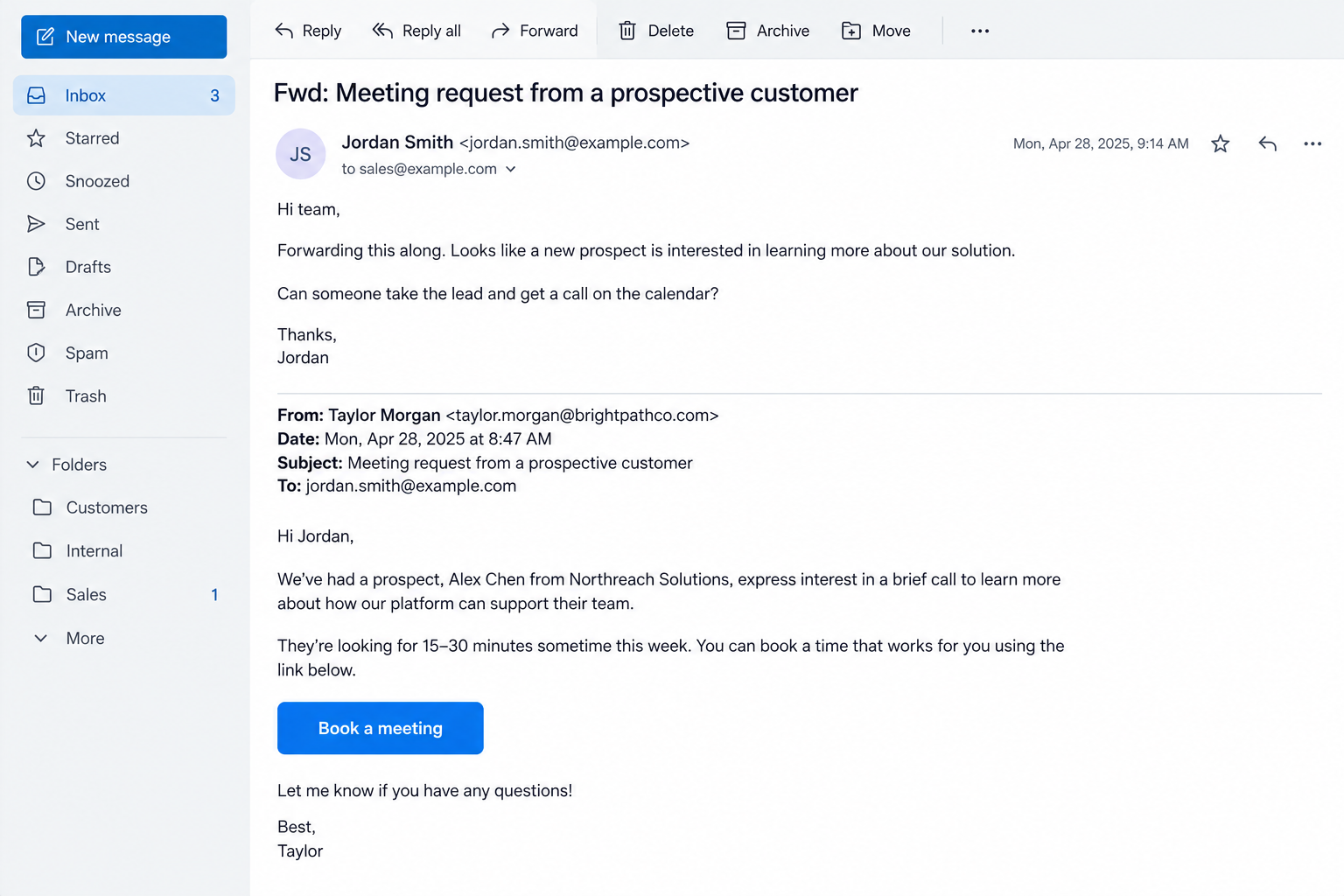
Fortra reported a calendar-booking phishing attempt that used a real coworker’s forward to make an external prospect’s link feel safer.
The attacker first contacted someone outside the sales team. That employee was asked to pass a meeting request to the right salesperson.
By the time the salesperson received it, the message had an ordinary internal wrapper: a familiar colleague and a plausible request for customer contact.
The dangerous step is not the meeting itself
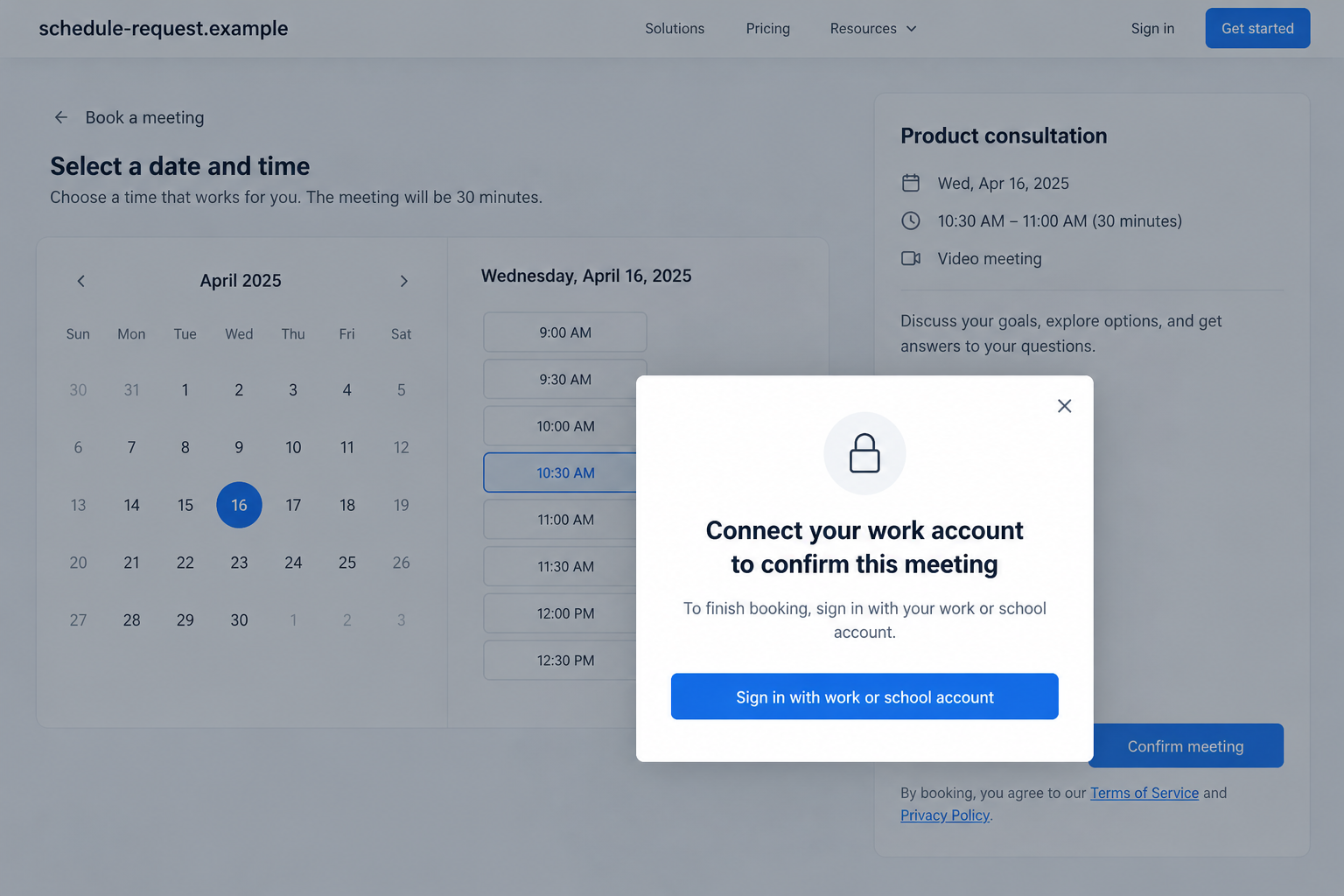
The recipient was directed to a booking page. After selecting a time, the page presented a Microsoft 365-style work or school sign-in prompt.
Fortra described that prompt as consistent with credential harvesting. Its public account documents an attempted phishing chain, not a confirmed loss of credentials by a named victim.
The case is not evidence that legitimate calendar services are unsafe. It shows how an external booking flow can be used to make a login demand seem routine.
What an employee should do
Verify the prospect and destination before entering work credentials. A coworker forwarding a request does not automatically approve every link inside it.
- Confirm the meeting request through the prospect’s independently found business contact.
- Inspect the complete booking and sign-in addresses before using them.
- Report a surprise work-account login after selecting a time.
- Use your organization’s established scheduling tool when possible.
Microsoft and the coworker are not the perpetrators in this scenario. Their familiarity is what the attacker tried to borrow.
Why an Internal Forward Changes the Reader’s Judgment
Many security warnings teach people to distrust unexpected external email. This attempt bends that rule by adding a trusted internal person to the delivery path.
The first recipient may not work in sales. Passing a customer inquiry along can feel helpful, even responsible, particularly when the request seems relevant to the business.
The coworker may add a line such as “Can you handle this?” That line is genuine, but it does not validate the stranger’s original link.
When the salesperson scans the thread, the familiar internal sender is more salient than the external origin buried below. That is the trust-chain mistake.
This is not the same as a compromised employee account. Fortra’s observed route used an ordinary forward as part of the social engineering.
The distinction matters. You cannot solve it only by checking whether the internal coworker’s account is real. You must inspect the request they passed along.
A legitimate prospect might also use a third-party scheduler. The warning arises when an unverified booking flow suddenly demands corporate credentials.
How the Calendar Booking Phishing Scam Works
Step 1: The attacker chooses an employee likely to redirect the request
Instead of emailing the target salesperson directly, the supposed prospect contacts another employee and asks for an introduction or internal forward.
That recipient may have no reason to inspect the booking link closely. They are not the person who will attend the meeting.
The attacker gains a clean-looking handoff. The forwarding employee supplies a legitimate internal address and may supply their own helpful context.
Nothing about the coworker’s good intentions makes the original meeting request genuine. The attacker controls the content that is forwarded.
Step 2: The salesperson receives an ordinary work request
Sales teams deal with meetings constantly. A possible new customer can be important enough that declining or delaying feels costly.
The forwarded message appears in the same inbox as normal introductions. That familiarity can lower the attention given to the original sender and URL.
The lure does not need an outrageous promise. It only needs the salesperson to do what they already do, book a conversation.
A calendar invitation and a booking-page link are different. In the observed case, the user was invited into a page-controlled booking sequence.
Step 3: The booking page asks for a time slot
Selecting a date and time is plausible. It encourages the visitor to invest a little effort before any suspicious demand appears.
The page’s schedule layout helps establish a normal rhythm: choose a slot, review availability, then confirm. The visitor may already feel committed.
This design can postpone skepticism. A sign-in request that would look strange at the start may seem like a final administrative step afterward.
A calendar design is easy to imitate. Its presence does not authenticate the organizer, the domain, or the next page.
Step 4: A work or school login appears
Fortra reported that the flow led to a Microsoft 365-style sign-in after a slot was chosen. That is the moment to stop.
A business email address is often needed to receive a meeting confirmation. A full corporate password is a very different request.
Single sign-on can be legitimate, but only when the organization has approved the service and the sign-in occurs at the authentic identity provider.
If the link is unfamiliar, contact IT or the prospect independently. Do not test the form with your real password to see whether it works.
Step 5: A submitted password can expose the wider workplace
If the page captures credentials, the potential impact reaches beyond one calendar appointment. A work account may connect to mail, documents, chats, and customer records.
Multi-factor authentication helps but is not a reason to ignore a submitted password. Attackers may try repeated prompts or other follow-up tricks.
Fortra’s description supports a credential-harvesting assessment. It does not establish that any specific target completed the sign-in or that an account was compromised.
Incident response should be based on what the employee actually entered and what the organization’s sign-in logs show.
How to Check the Meeting Request Without Losing the Lead
Security and customer service are not competing goals. A real prospect will generally accept a brief verification or an alternative scheduling method.
Start by reading the original external message, not only the coworker’s forwarding note. Look at the sender’s organization, context, and exact ask.
Search for the prospect’s company through a known channel. If there is a public business number, call and ask whether the meeting request came from them.
Use contact details you find independently. A signature inside the suspicious email is part of the unverified material.
Offer your company’s normal meeting link instead. A real interested buyer can choose a time there without requiring you to sign into their unfamiliar page.
If your organization approves a particular scheduling service, open that service from your own bookmark or app. Do not assume a cloned login is genuine.
Tell the forwarding coworker what you found, without criticizing them. They may help identify other recipients who received the same request.
Signs That the Login Is Out of Place
The strongest clue is the context. You are scheduling a meeting with an outside party, yet a page asks for your employer’s sign-in credentials.
- The login appears only after you choose a time, rather than through your organization’s normal sign-in route.
- The domain is unfamiliar or slightly different from the service it imitates.
- The page claims Microsoft branding but is not hosted on an authentic Microsoft sign-in destination.
- The meeting prospect cannot be confirmed through independent business contact.
- The coworker forwarded the request without personally verifying the external link.
None of these observations proves that every external scheduler is fraudulent. Together, they justify stopping before entering a password.
If you are unsure how to judge a Microsoft sign-in page, ask IT. They can inspect the link without requiring you to take the risk.
What to Do if You Have Fallen Victim to This Scam
- If you clicked but entered no credentials, report the link. Give IT the complete forwarded thread and page address. Do not revisit the site just to capture another screenshot.
- If you typed a password, change it immediately through your organization’s normal sign-in route. Tell the security team you may have entered it into a fake page.
- If you approved a sign-in prompt or shared a code, say so explicitly. Security staff need that detail to investigate sessions and revoke access quickly.
- Ask IT to review sign-in logs and active sessions. They can look for unusual locations, devices, mailbox rules, app grants, or messages sent from the account.
- Check related work and personal accounts carefully. Change reused passwords anywhere else, but do so from a clean, trusted device and a known service address.
- Report any download or unexpected extension. A credential lure does not automatically mean malware, yet extra files change the response. Use an approved scanner or Malwarebytes when relevant.
- Preserve the original chain. Keep the prospect’s message, coworker’s forward, booking URL, screenshots, and the time you submitted any data.
- Warn others through your security team. They can identify similar forwards and block destinations. AdGuard may reduce exposure to some malicious links, but account recovery remains essential.
What Managers and Teams Can Learn From This Attempt
A rule saying “trust internal mail” is too broad. Internal employees can honestly pass along unverified outside material.
Give staff a simple way to forward prospective leads without endorsing links. A short note such as “external request, not verified” can preserve context.
Sales teams should know which scheduling tools the company approves. That lets an employee offer a safe alternative without losing a potential customer.
Training should include the moment after a time slot is chosen. That is when a person may be least inclined to abandon the task.
Security teams can also provide a quick link-check channel. A delayed meeting is easier to recover than a compromised work account.
Three Different Things a Meeting Page Might Ask For
A booking page may need a name and email address to send an invitation. That is ordinary contact information, although it should still go to a verified prospect.
It may also ask permission to read a calendar. That is a broader request because it can reveal availability or other details, depending on the authorization.
A third possibility is a full work-account sign-in. This gives the visitor a much more consequential decision than simply selecting a meeting time.
The observed phishing attempt blurred those categories. Choosing a slot made the later Microsoft-style prompt appear like routine completion of the booking.
Before entering credentials, check whether your organization actually uses that scheduling provider. A genuine provider may still be the wrong place to enter work credentials.
Read the complete browser address. The phrase “Microsoft 365” in a heading cannot establish that the login is hosted by Microsoft.
If your organization uses single sign-on, the sign-in should follow its approved identity flow. Security staff can tell you what its normal prompts look like.
Do not rely on the forwarding coworker to make that judgment. They may have seen only the original request and never reached the login screen.
A polite reply to the alleged prospect can preserve the sales opportunity: offer to book through your own company’s calendar link.
If the prospect refuses any alternative and insists on their particular login page, the pressure itself deserves scrutiny.
Keep the sequence clear when reporting: original external message, internal forward, booking choice, and login prompt. Each stage explains the next.
This specificity helps prevent an overreaction. The lesson is not to reject all meeting invitations; it is to keep external links from inheriting internal trust.
Teams can reinforce that distinction in training with a simple question: “Who selected this page, and who actually controls it?”
That question remains useful even when the person who handed you the link is a genuine colleague.
It also tells the employee what to verify next. The prospect’s existence, the booking provider, and the sign-in host are three separate facts.
One confirmed fact does not authenticate the others. A real prospect can have a compromised account, and a real coworker can forward a malicious URL.
If the meeting is valuable, a short phone call or a reply offering your own booking link is usually a reasonable business step.
When IT reviews the case, it can check whether anyone submitted credentials and whether similar prospect messages reached other teams.
The goal is to keep normal business moving while denying the attacker a shortcut into the company’s identity system.
Frequently Asked Questions
Is a meeting request from a coworker automatically safe?
No. The coworker may simply be forwarding an unverified external request. Inspect the original sender and booking destination.
Does this mean our coworker’s account was hacked?
Not necessarily. Fortra’s described path involved a genuine internal forward that the attacker deliberately encouraged.
Why would booking a meeting require Microsoft 365 login?
Some approved scheduling tools use organizational sign-in. In this case, the unfamiliar sequence and imitated work login were consistent with credential harvesting.
Can I safely keep the appointment without using the link?
Yes. Verify the prospect independently and offer your company’s approved calendar link or another normal contact method.
What if I entered my email address but not my password?
Report what you entered. The address may invite more targeted phishing, but it does not by itself prove your account was accessed.
Should I delete the forwarded email?
Report or preserve it first. Your security team may need headers, links, and timestamps to find related messages.
The Bottom Line
The trick was not merely a fake calendar. It was an outside request laundered through a genuine coworker’s forward before a work-account sign-in appeared.
Keep the lead if it is real, but verify the person and use an approved scheduling route. If you entered credentials, involve your security team immediately.








