

A caller says somebody reported you dead and requested access to your Google account. There is a case number, an email, and an urgent review.
The Google Digital Legacy scam begins with that bizarre claim. The next instruction can look surprisingly ordinary for something you never asked Google to do.
Overview
A death claim is the pretext for account theft
The scam is a fake account-review process, not Google’s legitimate account-planning service. An impostor claims you must disprove a death report or legacy request.
The caller supplies a page that appears related to Google. Its verification form instead seeks credentials or another authorization that can let the attacker into your account.
You do not need to resolve that claim inside the caller’s workflow. Stop and inspect the account through Google’s own settings and support routes.
The phishing mechanism has independent technical evidence
A June 2026 technical investigation documented a Digital Legacy impersonation call leading to a Google Sites page with an embedded credential-harvesting interface.
The researcher examined the page’s behavior and found support for forwarding credentials and authentication responses. This is documented phishing, not merely an uncomfortable telephone conversation.
A later public account describes the same death-claim pretext. It does not independently establish every claimed downstream loss or the attacker’s access to other services.
A Google-hosted page is not automatically Google support
Google Sites hosts pages created by users. A page there does not become an official Google account-verification form simply because the hosting address includes Google’s domain.
- An unexpected caller says your account is subject to a death or legacy claim.
- You are told to act urgently despite having started no support case.
- A case number and email are used to reinforce the caller’s story.
- The caller chooses the page where you must verify yourself.
- The process requests a password, code, approval, or new account-access permission.
The right response is to break that chain. Check your actual account without using the caller’s page or continuing the supposed case.
Why Such an Odd Story Can Still Sound Credible
Being told you were reported dead is strange enough to demand attention. You want to know who made the claim and what it means for your account.
The caller can describe a lawyer, certificate, or pending transfer. Those details create an administrative problem that seems too specific to be ordinary spam.
Specificity is not authentication. A criminal can invent a case reference just as easily as a generic warning.
An email arriving during the call makes the story feel coordinated. But two pieces of information controlled by the same stranger are not two independent confirmations.
The caller may invite you to type a page address yourself. That feels safer than clicking, even though manually opening a fraudulent destination remains risky.
They may also explain that the review must happen on a special page. That explanation prepares you to overlook differences from your normal sign-in experience.
Do not spend the conversation trying to prove you are alive. First establish whether the person and the proposed account action are legitimate.
You can leave an unverified claim unanswered while checking through the genuine service. The caller does not get to define the only acceptable verification route.
How the Google Digital Legacy Scam Works
Step 1: An unsolicited caller announces a legacy problem
The caller claims a third party submitted a request involving your account. In the documented pretext, the request supposedly says the account holder is deceased.
The conversation introduces consequences before you have verified the underlying event. You are pushed to think about preventing access or correcting a record.
Do not accept the displayed telephone number as proof that Google called. A convincing caller ID does not authenticate the person speaking.
If you never initiated a case, treat the unexpected instruction as something to investigate independently, not a task that must be completed on the call.
Step 2: An email and case number make the claim look organized
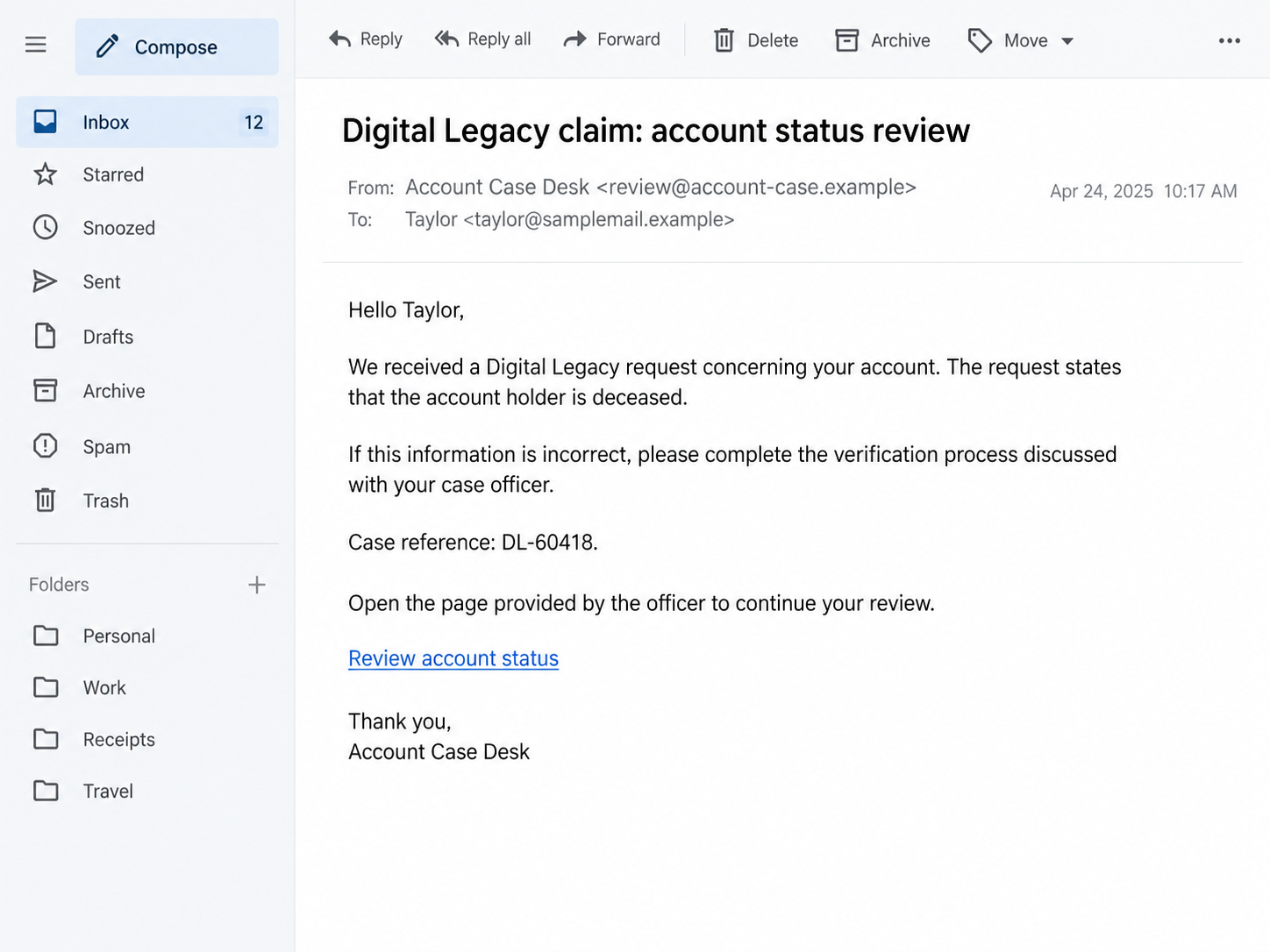
The impostor may send an email while you are listening. It repeats the story and supplies a reference or account-review instruction.
A case number helps the call resemble a formal process. It does not establish that the case exists inside Google’s systems.
Likewise, a familiar sender name is only a label. Inspect the message cautiously, but do not try to settle the case by following its chosen link.
Preserve the email if needed. Open your account separately and review genuine security information there.
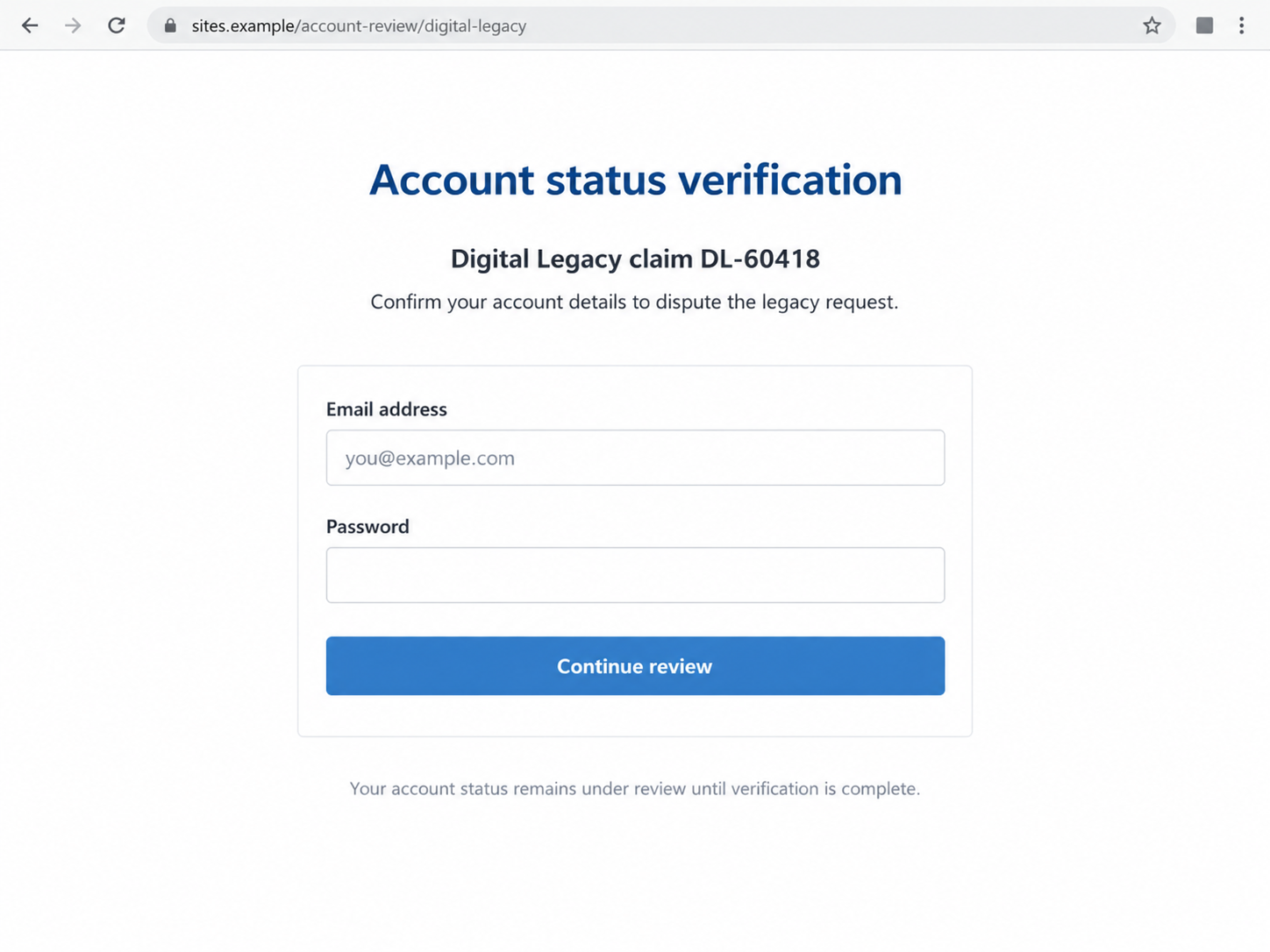
Step 3: A hosted page becomes the supposed verification desk
The documented attack used a Google Sites page. The important distinction is between Google providing a hosting service and Google operating the content you see.
User-created pages can contain forms and embedded content. A reassuring outer address does not prove where the information entered into those forms goes.
Our illustrative screens use invented case details and reserved example addresses. They show the pretext and form, not an authentic Google notice or live phishing destination.
Step 4: Verification asks for something that enables access
The form may request credentials, followed by authentication responses. The technical investigation documented a kit capable of relaying those responses during the phishing process.
Do not assume multifactor protection makes every password disclosure harmless. A fake verification flow can also solicit the additional approval needed for a current sign-in.
Read any genuine prompt independently. If it describes a login you did not initiate, reject it rather than accepting the caller’s explanation.
This does not prove every victim loses every security credential. The actual exposure depends on what was entered, approved, or granted.
Step 5: The caller’s explanation can delay the account check
A security alert may arrive during the process. The impostor can frame it as an expected review event or tell you to disregard it.
That reassurance is not evidence. Unexpected device access or a login attempt should be checked through your actual account immediately.
End the call before investigating. Remaining connected gives the stranger more opportunities to reinterpret each warning and steer your response.
Record what you actually did. Credentials entered, codes supplied, prompts accepted, and permissions granted are separate exposures that may require different cleanup steps.
Another Confirmed Variant Asks for an App Password
A September 2026 Swiss federal cybersecurity warning describes a separate Google impersonation attack that also used a Google Sites page.
In that case, a real security notification was followed by a fake caller. The victim was guided into creating an app password that allowed unauthorized mail access.
That official report does not establish that every Digital Legacy call uses app passwords. It documents a related access-granting danger, not necessarily the same campaign.
An app password is not a harmless support reference. Generating one can authorize access for an application or service outside your normal interactive sign-in.
If a stranger asks you to create or disclose one, stop. A technical-sounding explanation does not make the new access necessary for correcting a legacy claim.
After an incident, review access you granted as well as passwords you disclosed. Follow Google’s current security instructions rather than assuming one change addresses everything.
Do not infer that an attacker has copied every authenticator secret or breached Google itself. Those are separate claims requiring specific evidence.
The practical concern is already serious enough: a stranger may have obtained a way into your mailbox through instructions you were told would protect it.
What Google’s Real Account Planning Actually Does
Google’s Inactive Account Manager lets you choose what happens after a period of inactivity, including notifying selected contacts or sharing designated data.
That is a legitimate feature you configure through your account. It should not be confused with an unsolicited caller’s private verification instructions.
Google also has processes for requests concerning deceased users. Their existence does not authenticate a stranger claiming a particular request was filed about you.
Check any account-planning settings by opening your Google Account yourself. Do not use a link or instructions from the supposed case officer as your starting point.
If you find settings you do not recognize, document them and review account security. Do not assume the caller’s story explains their origin.
You should not need to give a private caller your password to establish that you control an account. Authentication belongs inside the service’s genuine systems.
The same principle applies to identity documents. Do not upload proof of identity to an unverified review form because the caller invented an administrative emergency.
An authentic support route may require legitimate verification. Start that process independently and assess its requirements there, rather than transferring trust from the incoming call.
What to Do if You Have Fallen Victim to This Scam
-
End the call and stop using the supplied review page. Do not accept another prompt, supply another code, or create another access credential.
If the caller reconnects, do not resume the case. Preserve the contact details instead and concentrate on your genuine account.
-
Open Google’s compromised-account guidance through a trusted route. If you cannot sign in, use the official account-recovery process linked there.
Use a device you trust. Tell any helper precisely what happened without sharing current passwords, backup codes, or unexpired authentication codes.
-
Change an exposed password through your real account and replace any reused passwords. Review security events, signed-in devices, and recovery information.
Remove access you do not recognize and check whether authentication methods changed. Follow the service’s current instructions for the affected account.
-
If you generated an app password or authorized an application, review those grants explicitly. Remove unfamiliar access rather than relying on the caller’s promise to disconnect it.
Record what was granted and when. Do not assume every security notice refers to the same device or permission.
-
Inspect mail forwarding and filters for changes you did not make. Check whether messages were sent, deleted, or hidden during the incident.
Preserve evidence before clearing suspicious activity where practical. For a workplace account, contact your administrator promptly so they can coordinate the review.
-
Protect other accounts that use this mailbox for recovery. Prioritize financial services and any service for which a password or code was also disclosed.
Contact an affected provider directly if you see unauthorized access or payments. Do not assume a mailbox incident establishes a confirmed loss everywhere.
-
Save the email, page address, caller details, account notices, and a short timeline. Keep sensitive account information out of public screenshots.
Report the impersonation through appropriate service channels and, where applicable, your local fraud-reporting authority. Give facts rather than guesses about who operated it.
-
If you installed software, extensions, or remote-access tools during the call, stop using that device for sensitive tasks until it has been checked.
Malwarebytes can help investigate malicious or unwanted software. AdGuard can reduce exposure to known dangerous destinations, but neither undoes credentials or permissions already given away.
If You Opened the Page but Did Not Sign In
Seeing the page does not automatically establish account takeover. Assess what happened after opening it rather than assuming the most dramatic outcome.
If you entered nothing, approved nothing, and downloaded nothing, close it and check the account independently. Do not continue just to find out what happens next.
If the browser downloaded a file, leave it unopened. Account-status verification should not become an excuse to run unfamiliar software.
If you allowed notifications, remove that permission in browser settings. Future notices from the page may be more scam messages, not genuine account alerts.
If you cannot remember whether you approved a prompt, say so when seeking help. Check available security records instead of inventing certainty.
A simple chronology helps: the call arrived, the email followed, the page opened, and then any actions you remember taking. Keep it factual.
Do not contact a supposed recovery hacker who responds to a public post about the incident. They can reuse your own story to manufacture credibility.
Continue through the legitimate account-recovery route. An urgent promise from a stranger is the same kind of leverage that began the original scam.
Frequently Asked Questions
Is Google’s Inactive Account Manager fraudulent?
No. It is a legitimate planning feature. The scam is a stranger’s fake legacy-review process used to obtain account access.
Does a sites.google.com address prove Google owns the form?
No. Google Sites hosts user-created content. A form on a hosted page is not automatically an official Google sign-in or support process.
Is typing the address safer than clicking the email?
It avoids that particular click, but not the destination’s deception. Typing an attacker-selected page still opens the attacker-selected page.
Can multifactor authentication stop this completely?
It adds protection, but phishing can request a current code or approval too. Do not authorize a sign-in you did not initiate.
Why would a caller ask for an app password?
It can provide application access. Do not create one for an unsolicited caller claiming it will repair a legacy or security issue.
Does this prove my other accounts were stolen?
No. Check them, especially if they depend on the affected mailbox, but distinguish confirmed access or payments from possible exposure.
The Bottom Line
The Google Digital Legacy scam turns a shocking administrative claim into a caller-controlled sign-in or access-granting process.
Do not prove anything on the caller’s page. Open your Google Account independently, review its actual security information, and keep credentials and approvals out of the conversation.








