

A notice says your account has been suspended over a Supported Countries Policy. You wonder whether travel, a connection change, or an ordinary sign-in caused trouble.
The message offers an appeal. Before trying to explain yourself, it is worth understanding who is asking and where that appeal would actually go.
Overview
An invented enforcement decision creates the pressure
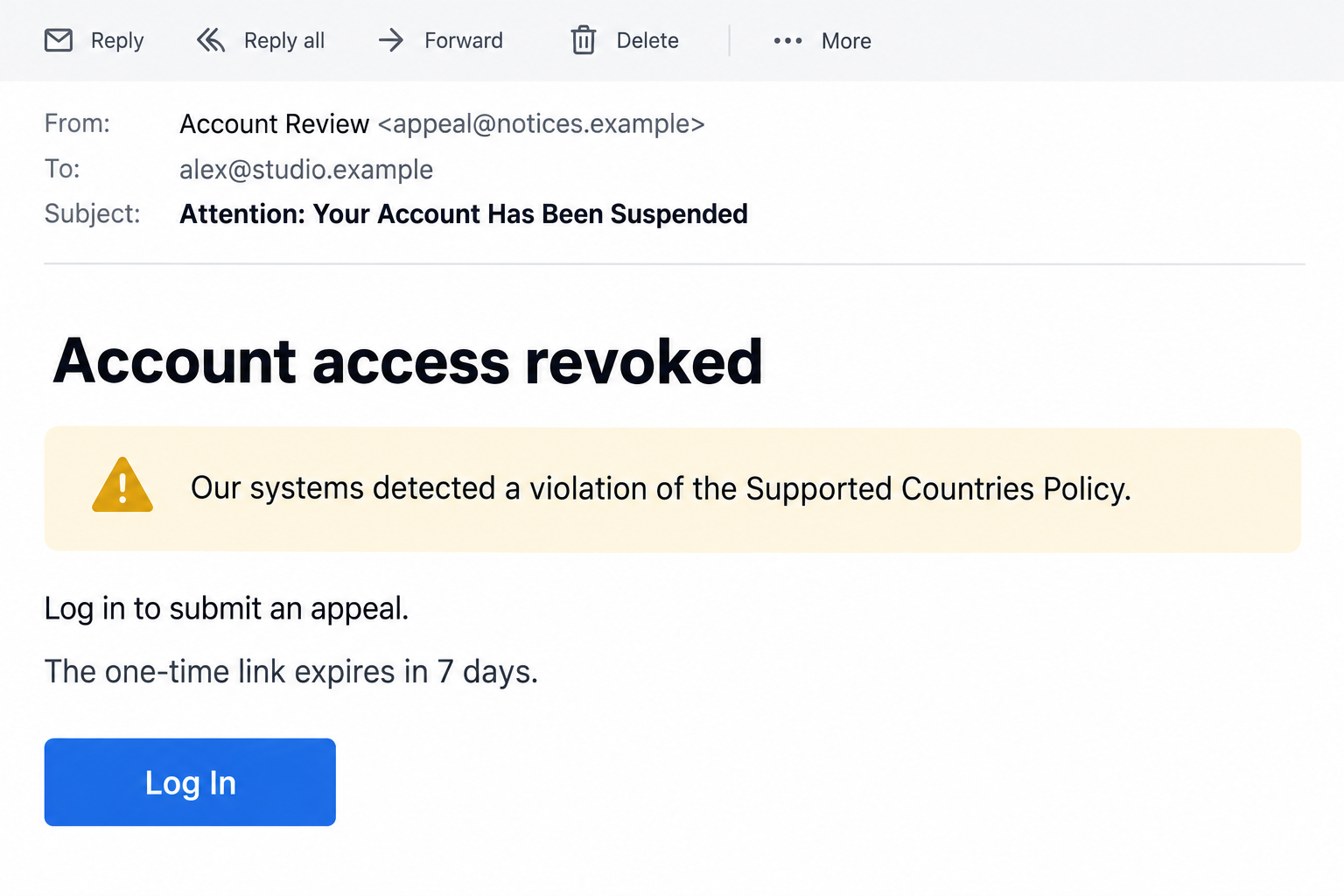
The Supported Countries Policy email scam uses a false suspension notice to direct recipients toward a counterfeit webmail login. The apparent appeal is the credential trap.
The supplied message says access was revoked after an automated review. It presents a seven-day appeal window without independent proof of an enforcement event.
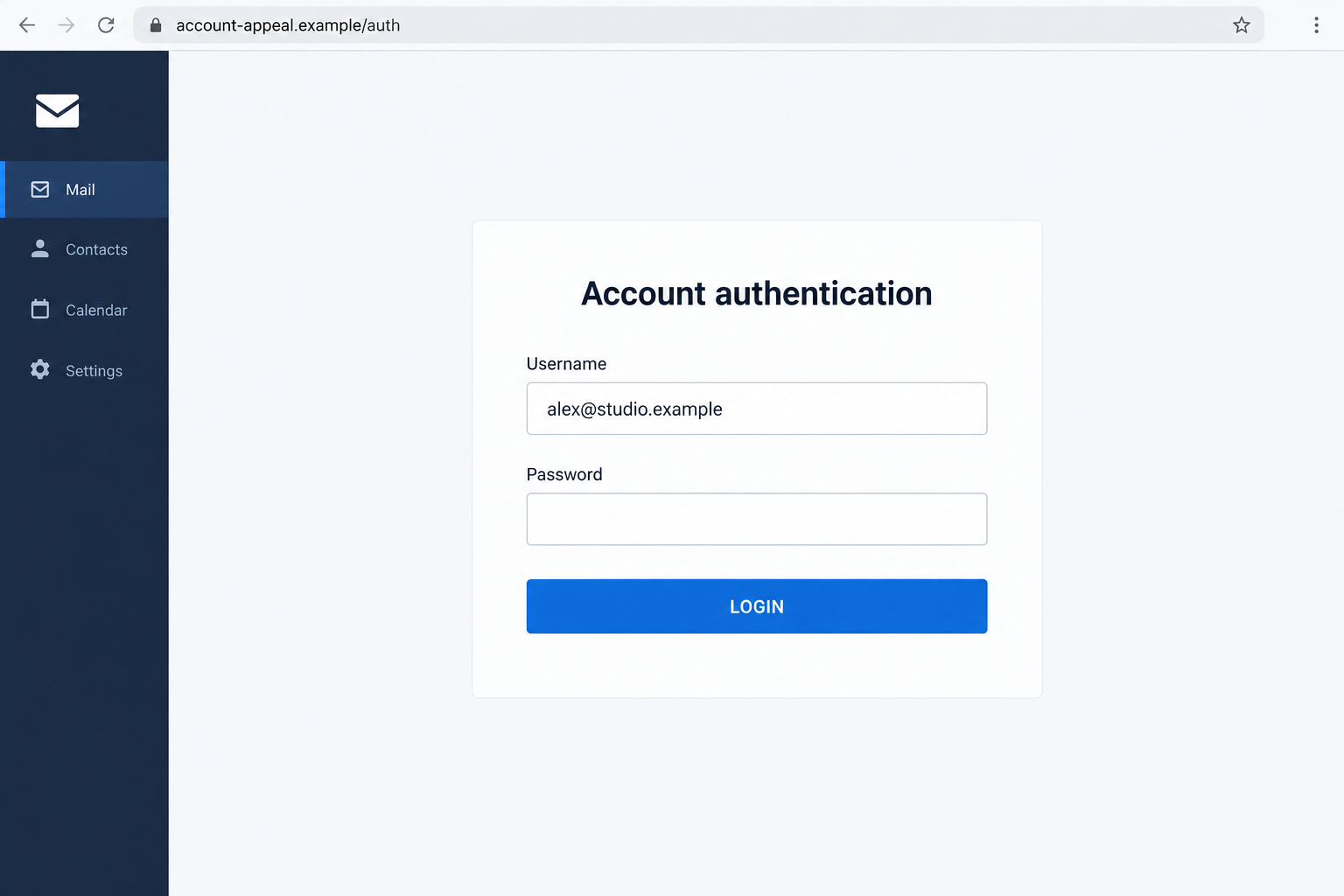
The documented destination copies a Roundcube-style interface. Its familiar layout is used to borrow credibility, not to demonstrate an authorized relationship with the recipient’s provider.
Roundcube is legitimate webmail software. This report concerns impersonation through a copied page, not an allegation that Roundcube runs the scam.
A geography claim does not establish a real account rule
Some services impose regional restrictions. A workplace may also restrict sign-ins. Those possibilities do not make every policy-themed email authentic.
The key question is whether your actual provider issued this decision through its approved systems. The warning cannot prove that by repeating its own findings.
Nothing in the supplied evidence establishes where the operators are located or that the recipient visited a prohibited country. Do not infer either from the wording.
Our illustrations use fictional addresses and simplified interfaces. They show the notice-to-login transition without presenting invented account data as an authentic enforcement record.
What to verify before considering an appeal
- The precise service supposedly suspended, not just a generic account label.
- A matching decision in the provider’s recognized account or support system.
- The actual hostname of any page requesting a password.
- A policy or case reference your administrator can independently identify.
- Whether the message’s appeal route is already part of your normal account workflow.
If these checks do not establish an authorized request, stop. Do not submit the password merely to discover what the sender thinks you did wrong.
Why the Policy Language Makes People Second-Guess Themselves
A suspension notice shifts the reader’s attention inward. Instead of examining the sender, you begin reviewing your own recent behavior.
Perhaps you traveled, used a VPN, changed networks, or logged in from a new location. The email leaves room for almost any explanation you supply.
Those examples illustrate why the hook can feel plausible. They are not verified causes of a suspension in this campaign.
The reference to automated detection can also make questioning the decision feel difficult. A machine appears to know something you cannot immediately inspect.
Adding a supposed human review gives the claim another layer of authority. Both layers can be written into an email without any review actually occurring.
The appeal then feels like a reasonable concession. You are not being asked to buy anything, only to restore a service you depend on.
That is the emotional pivot: a credential request becomes an opportunity to defend yourself. The reader may cooperate before evaluating the destination.
You can take a potential account problem seriously without accepting that framing. First establish the decision in your own provider’s systems.
A genuine restriction should be investigated through authorized support. A counterfeit notice should be reported. Neither task requires handing a password to an unfamiliar form.
How the Supported Countries Policy Scam Works
Step 1: A suspension notice claims authority over your account
The message begins with enforcement language. It tells the recipient that a decision already exists, rather than inviting them to evaluate a new request.
This makes the account owner feel behind events. Important access has apparently been revoked while they were doing something else.
An impersonal greeting can still feel credible because automated systems often send standardized mail. That familiarity should not replace checking the actual sender.
Look for the named provider, account identity, and approved support route. A generic warning has not established that it manages the mailbox where it arrived.
Also remember that receiving a notice does not prove the account is inaccessible. Confirm its status through an independent route before accepting the suspension story.
Step 2: An unclear rule gives you a reason to seek answers
The geographic policy sounds official while leaving the recipient unsure which action supposedly violated it. Uncertainty becomes a reason to follow the instructions.
People may search their memory for travel or a network change. The email does not need to know those details for that self-questioning to happen.
A support decision should connect to a real provider and policy. The absence of immediate detail is a reason to verify, not a reason to surrender credentials.
Do not start changing VPN settings, removing safeguards, or altering account information at the sender’s direction. None of that establishes who is issuing the warning.
Ask your provider whether there is an actual restriction. If there is, follow the process documented in its own account or support channel.
Step 3: The appeal link makes sign-in seem unavoidable
The notice offers a limited opportunity to reverse the decision. A deadline gives the reader a reason to prioritize the request over normal verification.
Calling a link one-time or secure does not make it so. Those descriptions are content supplied by the same party asking you to click.
The appeal may sound separate from a password reset or security warning. In practice, it still directs the reader toward an authentication step.
Examine where that step is happening. A cloud-hosted page is not automatically an authorized login simply because it can load in your browser.
You do not need to race an unverified timer. Open the established service independently and ask support about the notice before interacting further.
Step 4: The copied webmail screen requests account credentials
The destination’s familiar fields encourage a familiar action. Typing a username and password can feel routine even though the route to them was not.
A copied interface can resemble software deployed by many different hosts. That visual flexibility lets an imitation appear relevant to users of unrelated organizations.
The form is the point where an allegation about policy becomes a risk to account access. Credentials entered there may be collected outside your provider.
A padlock or encrypted connection does not show that the destination has authority to process an appeal. Nor does a well-rendered button.
Our second illustration represents this transition. It is not a recovered copy of a recipient’s real mailbox, and its example address is deliberately fictional.
Step 5: Mailbox access can create a wider problem
If the credential permits a real sign-in, the operator may obtain access to correspondence and account recovery messages. That outcome is possible, not inevitable.
A compromised mailbox can help an intruder impersonate its owner. Familiar conversations may then make further requests seem more convincing.
Recovery details, connected applications, and mail rules can matter as much as the first password. Check for changes that could preserve unauthorized access.
This evidence does not establish a specific stolen account, payment, or malware infection. Avoid inventing a victim story to explain a genuine credential risk.
The practical response depends on what you did. Reading the notice is not the same as submitting a password or approving an additional sign-in.
Roundcube Software Is Not a Universal Account Authority
The provider runs the mailbox
Roundcube describes itself as open-source webmail software. Different organizations and hosting services deploy it for their own users.
A familiar Roundcube-style screen therefore does not identify one universal mail company. Your actual hosting provider determines the account’s approved access routes.
The software can be customized, so branding alone is a weak test in either direction. A changed appearance is not automatically fraud.
Instead, confirm the relationship between the host, your organization, and the account. Use existing support records rather than a policy notice’s explanation of itself.
Regional controls can exist without this email being real
Do not dismiss every location-related account issue. Providers and organizations can have legitimate access restrictions or investigate unfamiliar sign-ins.
The important distinction is whether this particular notice corresponds to an authorized event. A broadly plausible policy is not evidence of an individual decision.
Your provider can explain a real restriction without using an unrelated password-collection page. Ask it to identify the account and approved appeal process.
If support confirms there was no matching event, keep that result with the phishing report. It helps separate an account problem from a fabricated warning.
What administrators should review
Security staff should examine the original email, its destination, and any sign-in activity after interaction. A screenshot alone may miss important routing details.
If credentials were supplied, determine which account type they protect. A hosted mailbox and an organization’s main identity account may require different containment actions.
Check whether other staff received the lure. A targeted warning can then identify the specific policy wording without distributing an active link.
Document what is known and what remains uncertain. A suspicious notice is not proof that the organization’s genuine regional controls malfunctioned.
If Your Provider Confirms a Genuine Restriction
Use the case opened through your established support route. Ask what access is restricted, which account is affected, and what approved review process applies.
Do not assume the suspicious email becomes trustworthy because a separate restriction exists. Its destination still needs independent authorization.
Provide only information the legitimate support process requires. Never send identity documents to a contact learned solely from the unverified notice.
If an organization manages the account, involve its administrator before changing access settings. A personal workaround could conflict with workplace security requirements.
Record the support case number and the confirmed instructions. That makes it easier to distinguish subsequent official updates from unsolicited appeal messages.
A real review might take time. Pressure to reveal passwords, install unrelated software, or pay an unfamiliar unlocking agent is not a shortcut to trustworthy support.
While access is being reviewed, use an approved alternate communication channel. Tell colleagues about the interruption without forwarding the suspected login page.
What to Do if You Have Fallen Victim to This Scam
- Leave the appeal route and check normal access.
Close the questionable page. Open the mail service through your usual app or bookmark and determine whether a real restriction exists there.
If you only received the email, report it rather than beginning unnecessary account repairs. Do not assume a suspension merely because the notice announced one.
- Replace any password entered on the imitation.
Change it using the authentic provider. If you reused that secret for other services, assign those accounts new and distinct passwords too.
Use a trusted device, particularly if the page persuaded you to install anything. Follow provider recovery if an intruder has already locked you out.
- Review continuing access permissions.
Inspect sessions, connected applications, recovery contacts, and authentication methods. Revoke unfamiliar access through the real service’s instructions.
Turn on stronger sign-in protection where available. If you approved a code or prompt during the interaction, tell support explicitly rather than reporting only the password.
- Inspect mail settings and conversations.
Check forwarding rules, filters, delegates, and recent outgoing mail. Look for changes that could copy correspondence or conceal warnings from you.
Warn contacts about suspicious requests actually sent from the account. Use another communication channel until you have confidence that access is secured.
- Give your provider the enforcement notice as evidence.
Preserve its wording, arrival time, and original message details. Ask the legitimate administrator to confirm whether any regional-policy decision was really issued.
For work accounts, notify IT immediately after credential disclosure. They may need to revoke organizational sessions and inspect related activity.
- Investigate device changes rather than assuming infection.
If you ran an unexpected download or installed an extension, use Malwarebytes to check the device. Keep browsers and the operating system updated.
AdGuard’s security filtering can add protection against some phishing destinations. It is not an appeal service and cannot reverse a password submission.
- Continue recovery through recognized help channels.
Watch for unfamiliar security events and follow-up messages offering to restore access for payment. Do not buy an unverified account-unlocking service.
Google’s account-security recovery steps apply to Google accounts. Other mail hosts and workplace identities need their own supported procedures.
Frequently Asked Questions
Does this notice prove I used a forbidden location?
No. The supplied message does not establish your location or an actual policy violation. Your real provider must confirm any genuine account restriction.
Is Roundcube responsible for the false appeal?
No evidence here supports that accusation. Roundcube is legitimate software whose interface is copied. The deceptive notice and unauthorized login are the concern.
What if I recently traveled or used a VPN?
That coincidence can make the wording feel relevant. Verify through your existing provider before changing settings or entering credentials on an unfamiliar website.
Should I appeal within the seven-day window?
Do not use the unverified link. Check for a real decision independently. If one exists, follow the appeal route your provider confirms.
Why can I still receive mail if access was supposedly revoked?
The claim may be fabricated. Different services also handle restrictions differently, so current mail activity alone is not a complete account-status check.
What if the copied login rejected my password?
A rejection does not prove the form failed to capture it. Replace the submitted credential through the authentic service and review account access.
The Bottom Line
The Supported Countries Policy scam uses an alarming accusation to make a counterfeit login feel like an appeal. Familiar webmail styling does not authenticate that decision.
Verify restrictions with your actual provider. Do not defend yourself through the emailed form, and secure any credential you already supplied.








