

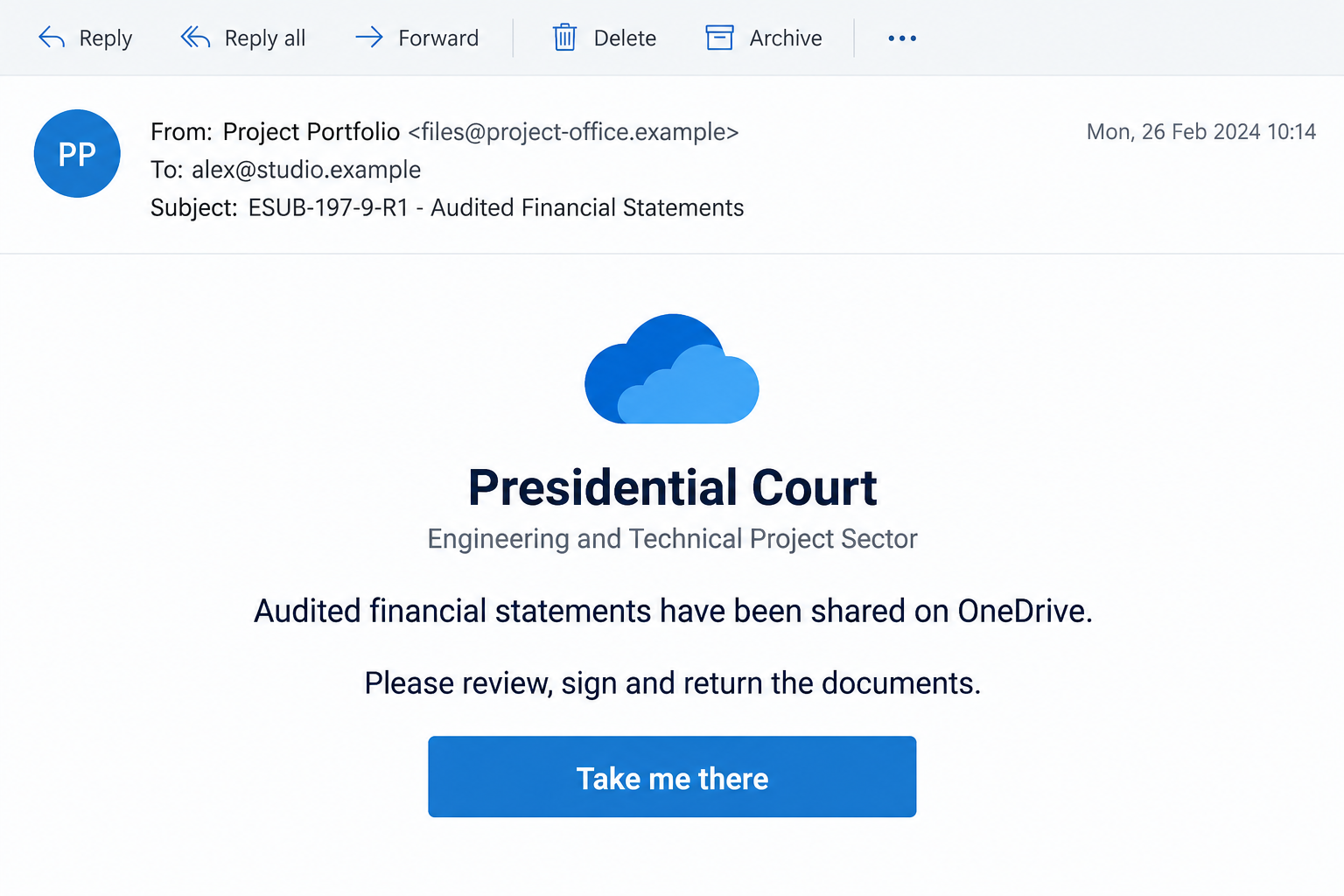
Audited financial statements arrive with an official-sounding project reference and a request to review the files. The OneDrive invitation resembles paperwork that someone expects you to handle.
Before letting a formal heading set the pace, follow the document’s identity through the invitation. A few details deserve more attention than the request’s confident tone.
Overview
The financial-document notice is an impersonation lure
The Audited Financial Statements OneDrive email scam uses a fabricated file invitation to steer recipients toward a counterfeit identity-validation page. Microsoft is not the sender of the deception.
The supplied email claims to represent a Presidential Court engineering and project division. It names ESUB-197-9-R1 and asks for financial-document review.
That wording does not establish a genuine government communication, existing project, or authorized financial statement. Formal titles can be copied into an email.
Our images are explanatory illustrations with invented recipient details. They make the relevant requests visible without presenting an invented inbox as authentic evidence.
The next page asks for a mailbox secret
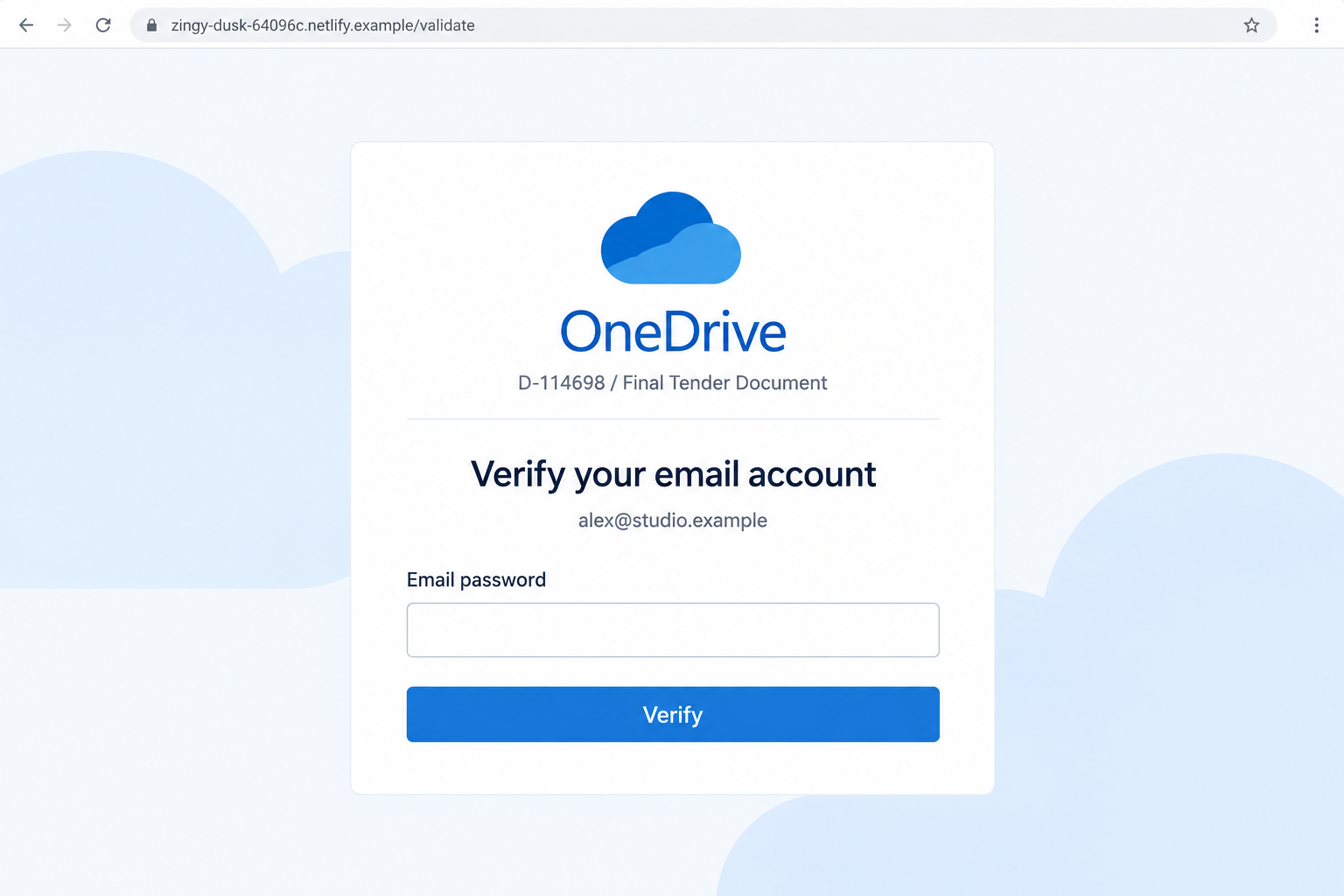
The supplied destination specimen uses an identity-validation theme and refers instead to D-114698, a final tender document. A reported host is zingy-dusk-64096c[.]netlify.app.
The mismatch between a financial statement and a tender is worth noticing. More importantly, the page requests the email password through an unauthorized form.
Netlify is a legitimate hosting platform. A page served through it does not show that Netlify or Microsoft organized the request.
This case supports a phishing warning, not a claim that a real project office was hacked or a specific recipient lost money.
The verification questions that resolve the uncertainty
- Is this project and document expected in your actual work?
- Can the known counterparty confirm the invitation outside this email?
- Does the file description remain consistent from message to access page?
- Is authentication occurring through an approved identity service?
- Is a page asking for the mailbox password instead of a legitimate sharing credential?
If the answer depends entirely on what the unfamiliar page says about itself, stop. Verify the file with its supposed owner before sharing account information.
Why the Official Project Language Deserves a Second Look
Financial paperwork often moves between people who have never met. That makes an unfamiliar name less startling than it would be in a personal message.
A project reference can seem like evidence that the sender belongs to a larger process. A reader may assume someone else has already checked the relationship.
But a reference is just an identifier until it matches your records. Its length and punctuation do not prove a tender, project, or transaction exists.
The word audited adds another cue. It suggests information has been examined, although the email provides no verified statement to inspect.
A request to review and return something also supplies a role. The recipient is encouraged to act as part of a workflow rather than evaluate its origin.
For an accounting or procurement team, that can produce understandable pressure. Nobody wants to delay a legitimate submission while important work is underway.
These are reasons the lure may be persuasive, not evidence that it reached any particular department. The response should remain tied to your actual relationship.
A known project owner can clarify the document quickly. An unknown sender cannot establish that relationship merely by giving itself a formal institutional title.
How the Audited Financial Statements OneDrive Scam Works
Step 1: The invitation supplies a ready-made business context
The email offers a document and a purpose together. That combination encourages the reader to treat access as the first task, rather than verify the sender.
An institutional-looking heading can make the request feel above your own authority. You may hesitate to question it when another person appears to be awaiting action.
The safest starting point is your existing project record. Find the actual counterparty and check whether it promised documents through the named service.
If the reference is unfamiliar, do not guess that it belongs to another team. Ask the responsible colleague through your internal channel.
A forwarded invitation deserves the same check. A coworker’s curiosity does not authenticate the original message or the destination they were asked to open.
Step 2: The cloud-sharing name makes access feel routine
Many genuine organizations share documents through OneDrive. Its appearance in the message can reassure a reader who regularly uses cloud files.
The scam borrows that familiarity without establishing an actual authorized share. A service name in an email is not evidence of a Microsoft-hosted document.
The access control moves the recipient into a destination chosen by the sender. Evaluate that destination separately from the email’s description.
Do not assume a successful page load means a document has been verified. Browsers can display a counterfeit portal as neatly as a legitimate one.
A known sender can confirm the file in their own sharing system. You should not need to enter a password merely to establish whether it exists.
Step 3: The access page changes the document story
At the next stage, check whether the filename, purpose, and reference still describe the same work. An unexplained change deserves a pause.
Financial statements and tender paperwork can belong to related business processes. They are not automatically interchangeable, and a legitimate sender should explain the relationship.
A discrepancy alone is not a complete fraud verdict. Combined with an unauthorized mailbox-password request, however, it weakens the page’s supposed continuity.
People often overlook these changes because they are focused on getting through the login. The form becomes a temporary obstacle to the promised document.
Keep the original question visible: who sent which file for what purpose? Authentication should not prevent you from checking those basics first.
Step 4: Identity validation asks for the email password
The page makes a secret look like proof that you deserve access. This is the pivotal substitution: a document invitation becomes a credential-collection opportunity.
A prefilled address can help the form feel connected to you. It may simply come from information carried in the invitation.
The important distinction is not whether the page knows your address. It is whether the service receiving the password is your real identity provider.
An unauthorized form can capture submitted information regardless of how the next screen behaves. A loading animation or error is not a privacy guarantee.
Do not try the actual mailbox password to see if it opens a financial document. That attempt may be the very disclosure the operator wants.
Step 5: A useful business identity may become available to an intruder
If the credential allows access, the operator could read mail, investigate correspondence, and look for connected account resets. These are possible consequences, not observed transactions.
An organization’s mailbox may also contain long-running vendor relationships. An intruder can exploit context that makes an unfamiliar request appear to continue established work.
For finance teams, the concern is not only the initial login. Suspicious payment changes or altered reply instructions must be verified independently if they appear later.
There is no basis here to say such a change already occurred. Recovery should check for unauthorized activity rather than invent it.
That review includes ongoing sessions and permissions. Replacing the password matters, but support may need to address access paths that the account owner cannot see.
Real OneDrive Verification Versus the Counterfeit Gate
Some genuine shares do require verification
Microsoft’s guest-sharing documentation describes account sign-in and one-time email codes. The recipient experience varies with the share settings.
It would be wrong to call every verification screen a scam. The request must be evaluated against the real service and the document relationship.
If you are being asked to sign into a Microsoft account, confirm the actual identity route. Do not transfer that password into another website’s imitation panel.
If a share uses an email passcode, use it only in the verified sharing workflow. Unexpected account-recovery codes are not interchangeable with file-access codes.
A file password is not the mailbox password
Some legitimate sharing options let the owner protect a link with a separate password. That secret should come from the known document owner.
It is not an instruction to reveal the credential that protects all your email. A page asking for the latter needs a valid identity-provider relationship.
If the distinction is unclear, ask the sender what access method they configured. A genuine colleague or counterparty should be able to explain it.
Do not improvise by trying several account passwords. Each attempt increases disclosure rather than resolving whether the file or provider is genuine.
Check the share through your own organization
Your IT or document administrator can help identify approved sharing hosts. This is especially useful where custom domains or organizational identity providers are involved.
An unfamiliar hostname is a reason to check, not automatic proof that every custom-domain service is fraudulent. The relationship needs independent confirmation.
Provide the original invitation through the approved incident channel. Avoid posting confidential project names, addresses, or document references in public discussions.
If the request proves false, separate it from any legitimate deadline. The real project owner can confirm what work remains and how to access it safely.
A Practical Handoff for Finance and Procurement Teams
Route the invitation to the person who owns the project relationship. Ask them to confirm the document purpose before anyone attempts authentication.
Keep its reference beside your own project records rather than assuming a similar-looking identifier is a match. A genuine sender can resolve discrepancies.
If the file is needed urgently, obtain access through an approved channel already used by both parties. Do not let urgency decide the authentication destination.
A colleague who forwarded the request should be told whether it was verified. Otherwise, the same uncertainty can move through the team as borrowed trust.
Where credentials were exposed, make sure account containment is not delayed while staff debate the document. Security recovery and business verification can proceed separately.
If a real financial submission remains outstanding, record that fact in the genuine workflow. The phishing email should not become the source of its deadline.
Clear ownership helps here: one team verifies the paperwork, while authorized security staff examine access. Nobody needs to test the counterfeit portal with a real password.
What to Do if You Have Fallen Victim to This Scam
- Stop interacting with the purported validation page.
Close it and record whether you entered a password, approved a sign-in, or downloaded a file. Do not revisit to test another credential.
If you merely received the invitation, report it through your mail application’s phishing function. Receipt alone does not establish an account compromise.
- Replace the exposed account secret through its real provider.
Use a trusted device and an independently opened service. A new unique password should replace the one submitted to the counterfeit gate.
Change reused credentials on other accounts. If access is already lost, follow official recovery instead of paying someone who promises an immediate unlock.
- Ask the right administrator to review active access.
For a work or school account, notify organizational IT. They can inspect sign-ins, sessions, application permissions, and security changes beyond the user’s own settings.
Personal accounts should use their provider’s security controls. Remove unfamiliar recovery details and strengthen authentication after confirming the legitimate settings.
- Inspect the mailbox and related business activity.
Review forwarding, filters, delegated access, and outgoing messages. Alert the relevant project owner if the account sent unauthorized document or payment requests.
Confirm any financial instructions through established contacts. Do not assume every invoice changed, but investigate specific discrepancies promptly.
- Preserve the invitation without spreading its active link.
Save the original email, the time of interaction, and useful screenshots. Report it through your organization’s security process and mail provider.
Keep private business details out of public reports unless the reporting body requires them. Do not accuse a real institution based solely on copied headings.
- Check downloads and browser changes if they occurred.
Use Malwarebytes for suspicious files, installed software, or concerning device symptoms. Ask IT before performing major changes on a managed computer.
AdGuard can add supported phishing filtering for future browsing. It cannot confirm a document’s owner or retract a password already disclosed.
- Recover the legitimate workflow separately.
Contact the real counterparty and obtain approved access to any expected document. Explain that the suspicious invitation needs verification before you proceed.
For an affected personal Microsoft account, use Microsoft’s compromised-account instructions. Managed identities require your organization’s process instead.
Frequently Asked Questions
Is Microsoft sending the fraudulent financial invitation?
No evidence here supports that. The campaign borrows OneDrive’s identity. Treat the impersonation as the scam rather than blaming the legitimate service.
Does the Presidential Court heading identify a verified sender?
No. A formal institution name in an email does not prove its origin. Verify the request through an established counterparty or official contact.
Is the statement-to-tender change enough to prove fraud?
Not by itself. It requires explanation, and the unauthorized password request is the more serious issue. Check both before accessing any document.
Can real OneDrive sharing ask me to sign in?
Yes. Some shares require an authentic account sign-in or email passcode. Confirm the service’s identity and the sender rather than trusting an imitation screen.
Does the Netlify address mean Netlify runs the attack?
No. Hosting a page and authoring it are different activities. The reported host is a destination indicator, not evidence that the platform operates the fraud.
What if I supplied a password but still could not see a file?
Treat the credential as exposed. Failure to display a document does not show the form discarded your submission. Secure the actual account promptly.
The Bottom Line
The Audited Financial Statements OneDrive scam turns official-looking paperwork into an unauthorized mailbox-password request. Formal references and copied cloud styling cannot establish a genuine share.
Verify the document with its real owner through an existing channel. If you already entered credentials, secure the account and have relevant activity reviewed.








