

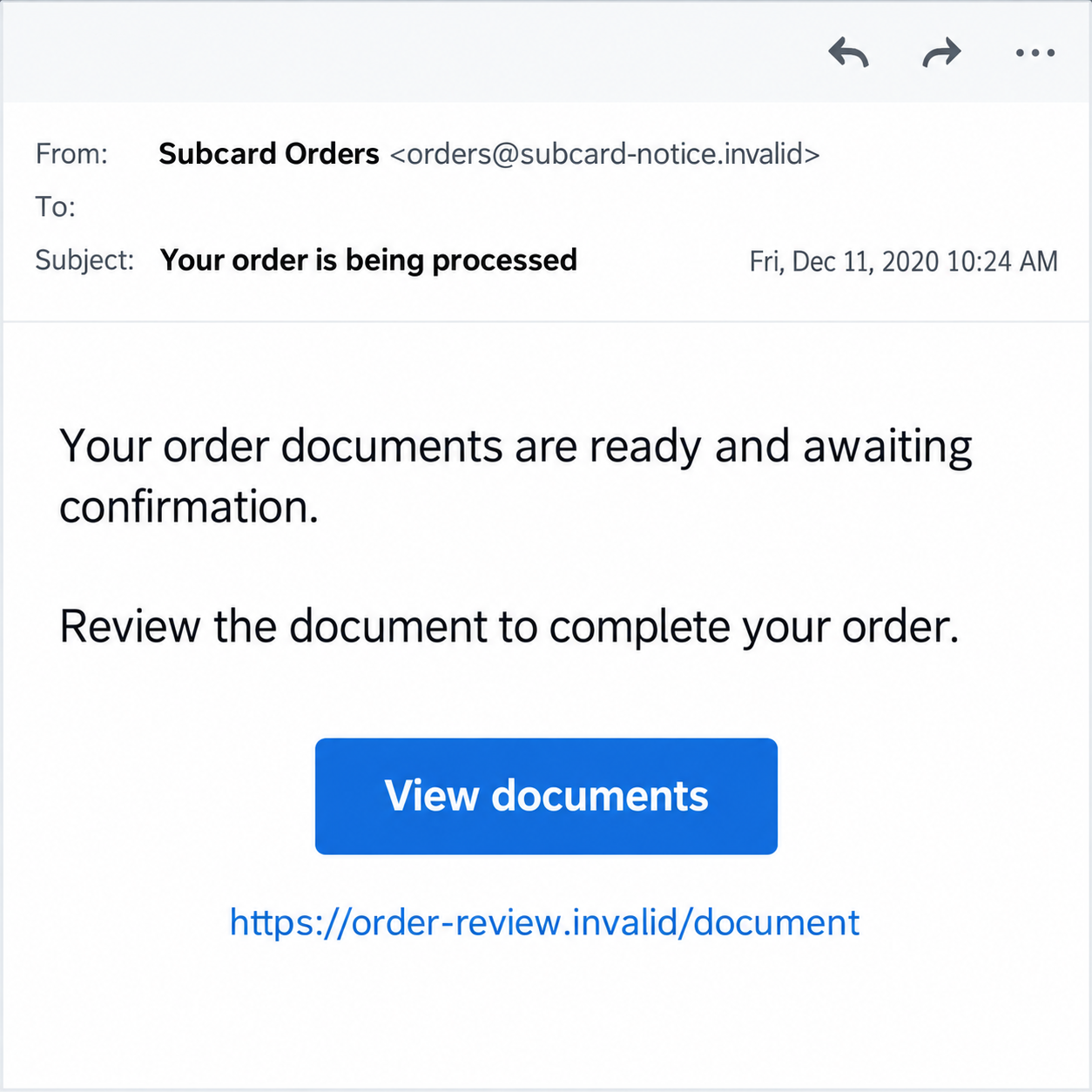
The email looks like an order update from a loyalty service you recognize. Your documents are supposedly ready, and the sender wants one more confirmation.
The Subway Subcard email scam starts with that familiar-looking transaction. Before reviewing a document, ask why this particular order requires the steps the message proposes.
Overview
A fake order became a route to a malicious spreadsheet
The December 2020 campaign used Subcard order-confirmation messages to draw recipients toward document links. The reported route led to a malicious Excel download, not an ordinary restaurant receipt.
Contemporaneous investigators identified TrickBot delivery through the analyzed campaign. Some spreadsheet variants were password-protected and urged recipients to enable active content to view a document.
That evidence concerns a historical campaign. We have not downloaded a specimen, tested a current link, or established that every later email with similar wording carries the same malware.
Subway, Subcard, and the document-service names borrowed along the route were not the scam products. Their identities supplied familiarity for a malicious delivery process.
The email system’s compromise was not a finding about every customer account
In its reported statement at the time, Subway said the email-campaign system had been compromised and that the affected system did not hold bank or card details.
The company also said it had no evidence that guest accounts were hacked. Those were historical statements, not a current independent audit or a guarantee about every system.
The distinction matters: an abused mailing relationship can make an email convincing without proving that the recipient’s restaurant payment account was already taken over.
It also explains why a familiar sender alone was not enough. The content and proposed file workflow needed scrutiny even when the message appeared connected to earlier marketing.
Do not bypass document protection to complete an unexpected order
- Check the real order through the service you used to place it.
- Do not download a spreadsheet just to investigate an unsolicited receipt.
- Keep macro and active-content restrictions in place.
- Distinguish receipt, download, opening, and content activation when seeking help.
- Involve workplace IT promptly if a managed device was exposed.
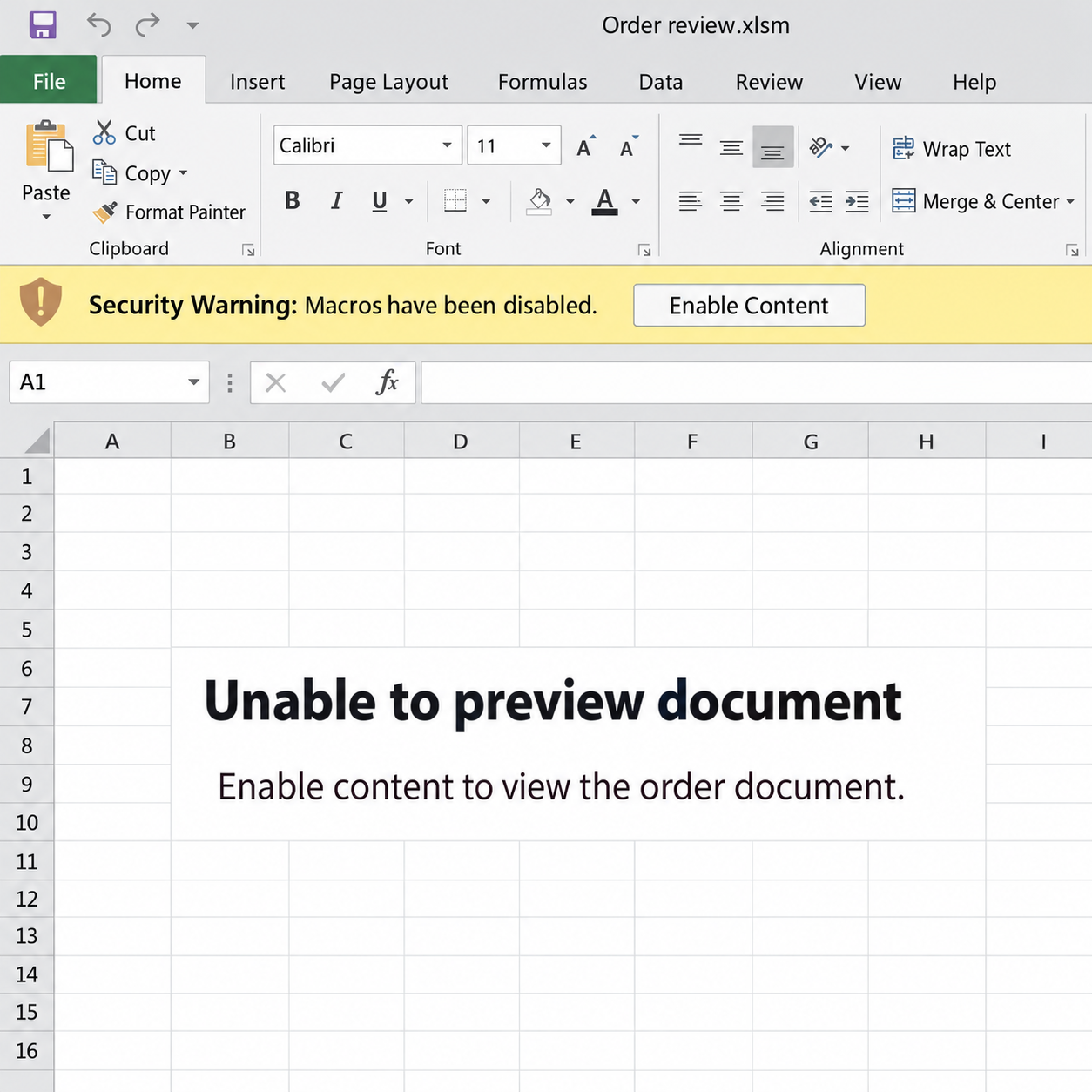
Our images are fictional historical interface examples, not actual emails or a usable workbook. The second contains no macros, executable file, or genuine document content.
Why an Order Email Can Survive a Quick Glance
A known relationship supplies the reader’s explanation
Someone who has used a loyalty program may expect promotional emails or receipts. An order subject can fit that expectation before the recipient checks the actual transaction.
A personal name can make the message feel targeted and legitimate. It does not establish that its document link serves the purpose the email describes.
If no order was placed, that discrepancy is useful. You can check the real account without opening a file to discover what the supposed purchase was.
Even if you did order something, verify the requested workflow. A matching everyday event does not automatically authenticate an additional document or content-enabling instruction.
The email turns curiosity into document handling
A reader may click to see the receipt, cancel an unfamiliar order, or identify a mistaken transaction. Each reason feels like a check rather than a risky installation.
The message can then introduce another page, download, password, or preview step. The process moves further from the original order while still using it as justification.
You can stop at any point. Completing the next step is not necessary to prove that you are a responsible account holder.
Ask the genuine service about a real transaction instead. A suspicious email does not earn permission to change your document-security settings.
How the Subway Subcard Email Scam Works
Step 1: An order-confirmation message borrows the Subcard identity
The historical messages used order-processing language and told recipients that documents were ready. This gave the link an apparently routine reason to be opened.
The campaign’s use of customer names and a familiar mailing identity strengthened that impression. Those details were not evidence that the requested document was safe.
Do not label a displayed address’s present owner a criminal. An address can be impersonated or a legitimate sending arrangement can be abused.
The practical check is the real transaction and requested action. You should not need to run document content to understand a sandwich order or loyalty notice.
Step 2: The link introduces a document-service page
The original campaign investigation described a FreshBooks-style imitation page before the Excel download. A trusted-looking document brand became another layer of borrowed authority.
A page heading can be copied just as easily as an email subject. It does not establish that the real document service controls the download.
Keep that distinction separate from whether those services are legitimate. The attack used their appearance; it did not make every document from a genuine service fraudulent.
If a receipt unexpectedly changes into a workbook download, pause. Verify the business purpose through the organization you already know, not the page’s own reassurance.
Step 3: A spreadsheet and possible password add a sense of privacy
Some analyzed variants were password-protected. That can make a file seem intentionally secured, but password protection is not evidence of a trustworthy sender.
Encryption can also limit inspection of contents without the password. It does not prove the file defeats every security product or that every protected document is malicious.
Legitimate organizations use protected files for privacy. Their appropriateness still depends on a verified relationship, expected content, and a safe workflow.
Do not search for a password or unblock the file merely to investigate this email. A provider or IT team can review the claim without you activating its content.
Step 4: A preview problem is used to request active content
The malicious document claimed it could not be previewed and directed the user toward editing or content controls. A technical obstacle became the reason to loosen protection.
That is the critical persuasion step. The file asking for permission is not an independent authority on whether it deserves that permission.
Editing and active-content permissions are not identical. Do not treat every Office banner as the same action or assume a receipt requires macros to be understood.
The fictional worksheet below shows a historical-style persuasion message. It is an illustration of instructions to reject, not a guide for opening an actual suspicious file.
Step 5: Executed content can create a device or network incident
The analyzed campaign used malicious macros to deliver TrickBot. That historical finding is different from merely receiving an email or saving an unopened file.
Actual execution may put account information or a network at risk. The consequences depend on the file, environment, controls, and actions taken.
Do not identify an infection solely from a normal Windows process name. Legitimate programs can be present on healthy systems, and malware identification needs stronger evidence.
If you enabled content or suspect execution, seek trusted technical review. Avoid additional experiments that could expand exposure or interfere with incident evidence.
What Changed in Office Since the Historical Attack
Current macro blocking is not the old yellow-banner workflow everywhere
Microsoft’s current Internet-macro guidance describes default blocking in affected Office applications. The outcome depends on version, file origin, and organizational policy.
Some users may see a stronger block rather than a simple Enable Content option. Others have different software or managed settings.
The old screenshot is not a promise of today’s interface. Preserve the protection you actually encounter instead of trying to reproduce the attack’s historical sequence.
A block is not something to remove because the document requests it
A page or file can describe protection as an inconvenience that must be fixed. That explanation comes from the content seeking permission to run.
Do not follow instructions to change trusted locations or security policy for an unexpected order document. Ask the genuine organization or your IT team about the need.
A legitimate business process should be verified independently. The fact that a software setting can be changed does not make changing it appropriate.
Active content has uses beyond this scam
Macros, add-ins, and data connections can support legitimate work. Microsoft’s active-content explanation helps distinguish those features from the file’s trustworthiness.
Do not condemn every spreadsheet that includes automation. The issue here is an unexpected malicious delivery and a deceptive reason to authorize execution.
Equally, do not assume an unopened or blocked file is harmless in every possible environment. Tell support what happened rather than relying on one button as a universal rule.
Match Your Response to the Actual Interaction
Receiving and downloading are not the same as running content
If the email arrived but nothing was opened, report and remove the message through the normal safe process. Its arrival alone does not establish malware execution.
If a file was saved, record that fact without opening it for a closer look. A work-device download belongs with the team’s established incident process.
If you opened the workbook, note any warnings and whether you changed permissions. Accurate observations are more useful than guessing which stage must have installed something.
Account protection may remain necessary after cleanup
If malicious content executed, security review can involve both the device and the accounts used on it. A scan alone cannot explain every possible exposure.
Use a trustworthy device for urgent password or financial-support actions when the original computer is still under investigation. Coordinate workplace recovery with IT.
Do not treat the historical campaign’s behavior as a diagnosis of your current file. The actual specimen and evidence need their own assessment.
What to Do if You Have Fallen Victim to This Scam
-
Stop the order-document workflow. Do not open another link, enter a supplied file password, or activate content because a preview message tells you to.
Keep the email and visible document names for reporting. Avoid forwarding a suspicious workbook casually to friends or colleagues.
-
Record which stage you reached. Distinguish receipt, link opening, download, workbook opening, security changes, and any observed program activity.
If you are uncertain, say so. Do not replay the steps on the same computer to determine whether malware would run.
-
Seek technical help when execution or compromise is possible. If suspicious content ran or device behavior changed, stop sensitive activity on that computer.
A workplace device should be reported to IT promptly. Follow its instructions for network isolation and evidence rather than improvising removal of files or management tools.
For a personal device, use trusted support to assess the incident and establish a safe recovery route.
-
Use genuine security tools, not the document’s repair offer. Malwarebytes can assist with checking malicious software; built-in and organizational protections should remain enabled.
AdGuard can help reduce harmful advertising and risky destination exposure. It does not make a malicious workbook safe or undo active-content execution.
A clean result is useful evidence, not a guarantee that no information was accessed. Continue with any account review the incident warrants.
-
Protect accounts from a trusted environment. If credentials or sessions may have been affected, replace exposed passwords and review recovery settings and unfamiliar activity.
Do not enter new sensitive details on an unresolved computer. Let the IT team coordinate work-account recovery where it manages the environment.
-
Contact financial providers if their accounts were involved. Report actual unfamiliar activity, a payment disclosure, or banking use during the suspected incident.
Explain the document interaction accurately and ask about appropriate safeguards. The historical email-system statement does not determine what your own device exposure may have affected.
-
Verify a genuine Subway transaction independently. Use the account or ordering service where you actually placed it, rather than the document-review link.
Report the misleading message through the relevant service and local fraud route. Preserve the original correspondence without accusing an address’s current owner based on old campaign material.
-
Reject paid cleanup or recovery demands from the sender. An unsolicited contact may claim it can repair the document or retrieve money after another payment.
The NCSC’s exposure-specific guidance offers a practical reference. Your trusted support team and actual providers should direct recovery, not the order email.
Frequently Asked Questions
Is the legitimate Subway loyalty service the scam?
No. The historical campaign abused familiar identities and order language to deliver malicious documents. That is different from ordinary loyalty membership or a genuine restaurant order.
Did Subway say every guest account and bank card was hacked?
No. Its reported historical statement concerned the email-campaign system and said it did not hold bank or card details. This is not a fresh security audit.
Does a document password prove it is safe?
No. Password protection can support privacy or complicate inspection. Verify the sender and expected purpose instead of treating encryption as a safety verdict.
Does Enable Editing mean the same thing as enabling macros?
No. Editing and active-content permissions differ, and interfaces vary. Do not follow an unexpected document’s instructions to weaken protections in order to view it.
Will every current Office installation show the pictured warning?
No. The image illustrates a historical-style prompt. Current blocking depends on the application, version, file origin, and organization policy.
Should I identify TrickBot from a Windows process name?
No. A legitimate process can exist on a healthy device. Use actual security evidence and trusted analysis rather than killing programs based only on a familiar name.
The Bottom Line
The Subway Subcard email scam used a familiar order message to lead readers into a malicious document workflow. An unexpected receipt did not justify activating spreadsheet content.
Verify the transaction independently and leave document protections in place. If content ran, seek trusted technical review and protect affected accounts without testing the file again.








