

A document is apparently finished, and an Adobe notification says it is waiting for you. Perhaps it relates to work, a purchase, or forgotten paperwork.
Before opening that completed PDF, look closely at what the notification actually establishes. A familiar document workflow can conceal some important gaps.
Overview
A completed-document notice without a confirmed transaction
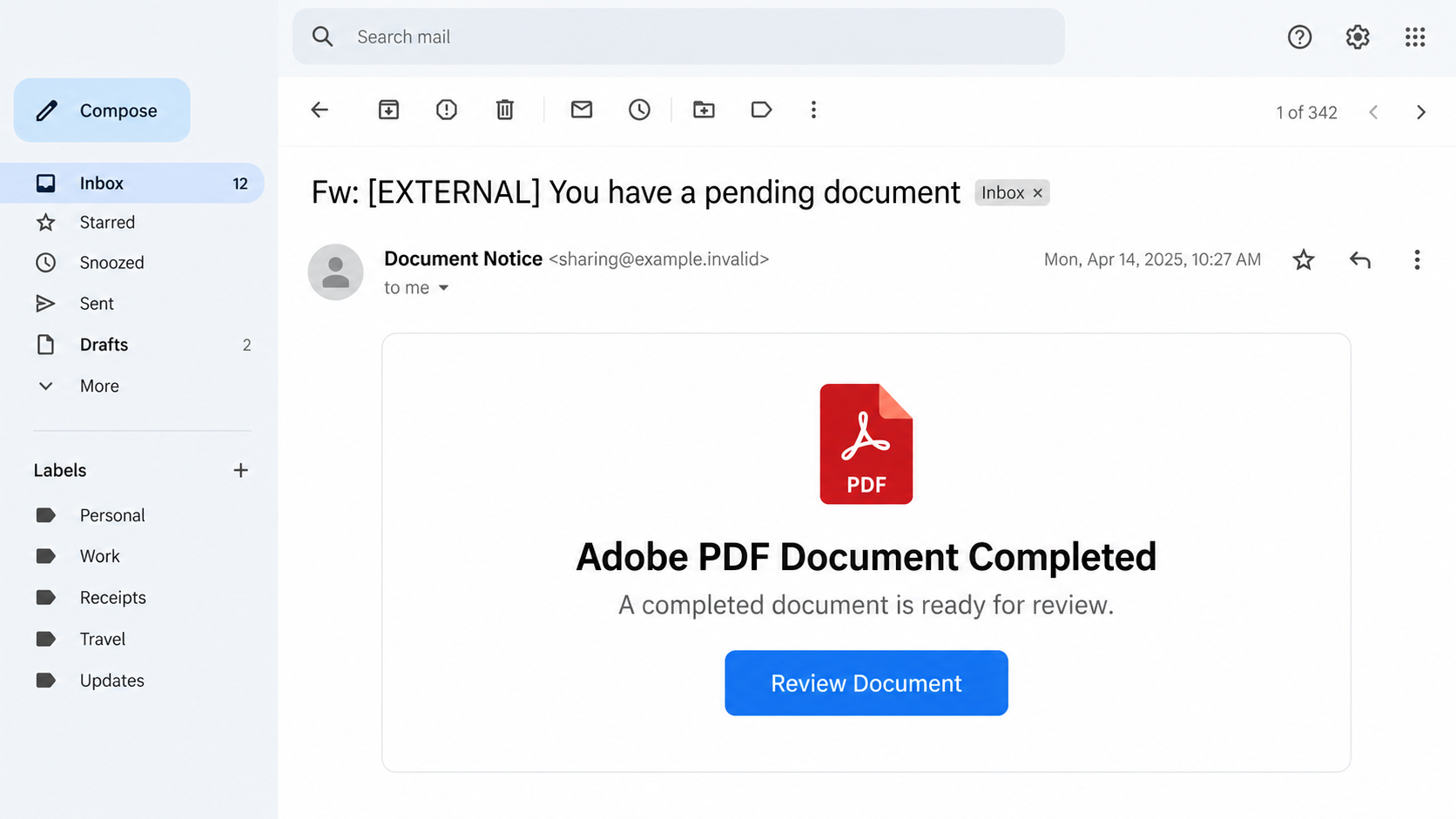
The Adobe PDF Document Completed email scam presents an unsolicited document notification as a reason to follow a review link.
The reported message claims that a document has been completed, while its subject refers to something pending. It borrows the appearance of routine electronic paperwork.
Adobe is a genuine software company, and real document-completion notifications exist. This warning concerns an impersonation message, not Adobe’s legitimate signing service.
The first question is not whether the layout resembles a familiar email. It is whether you can connect the notice to a document you expected.
The available evidence stops before the final page
In the published examination of this campaign, the destination was inactive. That limits what can responsibly be said about the exact page behind its button.
A credential-harvesting page is a plausible follow-on, but we cannot describe a particular login form, successful theft, or downloaded payload as directly observed here.
That limitation does not turn the unsolicited impersonation into a trustworthy notification. It means the warning should focus on the documented lure and safe verification.
- An unexpected completed-document claim starts the interaction.
- A recognizable PDF brand supplies apparent authority.
- A review button moves the reader beyond the inbox.
- The final destination was unavailable during the reported examination.
What to do with this particular message
Do not use its link to establish whether the paperwork exists. Ask the supposed sender through a contact route you already trust.
If you already responded, determine whether you merely opened a page, entered credentials, approved access, or downloaded something. Each requires a different response.
Our lead image is an illustrative email with fictional account details. It shows the notification style, not a recovered document or authenticated Adobe transaction.
Why a Finished Document Can Feel More Believable
A message requesting a signature asks you to make a decision. A completion notice sounds quieter: the decision supposedly happened, and you only need your copy.
That framing can lower your guard. Reviewing finished paperwork seems less consequential than signing a contract or authorizing a payment.
At work, you may handle documents created by colleagues you rarely speak with. A vague notification can fit that background just well enough.
Outside work, house moves, insurance renewals, and purchases create similar uncertainty. Readers sometimes fill missing context with their own recent activities.
The email benefits from that guesswork. Instead of identifying a clear transaction, it lets you supply a reason the message might belong in your inbox.
A forwarded-message marker can add another layer of familiarity. It suggests an existing conversation, but typed subject text does not prove such a conversation occurred.
The safest pause is specific: who sent this, which document is involved, and why should it already be complete?
How the Adobe PDF Document Completed Scam Works
Step 1: The notification borrows a recognizable document workflow
The opening claim is administrative rather than dramatic. A file has reached a milestone, and the recipient is invited to view the result.
Branding and PDF imagery make that claim easy to understand before you examine its details. Familiarity helps the message get past an initial glance.
However, anyone can place a brand name inside an email. The visible label does not establish which infrastructure delivered it or who created the request.
This is especially important when the sender display name looks reassuring. Expand the address and compare it with previous verified communications.
A different address does not automatically settle the case either. Third-party signing workflows exist, so confirmation must include the actual document context.
Step 2: Missing context becomes a reason to click
If you cannot remember the agreement, opening it seems like the obvious way to find out. That is the trap in the notification’s ambiguity.
The button appears to offer information, but it first transfers you into a web session chosen by whoever sent the message.
Before making that transfer, ask the person who supposedly shared the file for its title and purpose through an established conversation.
Do not start a new conversation using a phone number or alternate address supplied only in the questionable email. That may return you to its sender.
If the request truly belongs to a current project, someone involved should be able to explain it without requiring your password.
Step 3: The review button supplies an unverified destination
Button text describes an action; it does not identify the organization receiving the click. A review label can conceal an unrelated address.
On a desktop, inspecting the destination without opening it may expose that difference. On mobile, do not tap through merely because inspection feels inconvenient.
A trusted document service may use several legitimate domains or redirects. Rather than guessing from a substring, return to your known service or confirmed sender.
Be wary of addresses that merely contain a brand somewhere in a longer name. That placement alone does not demonstrate ownership.
For this specimen, the endpoint could not be examined successfully in the reported investigation. We are not filling that missing stage with invented screenshots.
Step 4: Any unexpected access request becomes a new decision
If a similar document lure opens a login form, pause before entering anything. Viewing a file does not justify sending credentials to an unverified site.
An account password belongs only in the legitimate authentication flow for that account. A page can copy a sign-in design without possessing that authority.
Other suspicious pages may request an application permission or offer a file download. Those possibilities require separate decisions, not automatic continuation.
Do not approve access simply because you already clicked the original link. Earlier participation creates no obligation to complete a later request.
These are practical warning points for readers encountering variants. They are not claims that every one of those requests appeared in this campaign.
Step 5: The document excuse can leave you focused on the wrong problem
After an unsuccessful review attempt, a reader may try again, blame the browser, or assume an expired password prevented access.
If you entered information, that information may matter more than whether a file eventually appeared. Stop troubleshooting the promised document and assess the exposure.
A blank page does not establish safety. Conversely, it does not establish that malware installed or that an account was taken over.
What you typed, approved, and downloaded provides a much stronger basis for deciding what help you need.
How to Verify a Real Adobe Document Request
Confirm the person and the paperwork together
Ask a known sender whether they issued this specific document, not merely whether they sometimes use Adobe. The latter question is too easy to satisfy.
A useful confirmation identifies the agreement’s purpose and expected participants. You should be able to connect it to an actual activity.
For workplace requests, use the project’s existing chat or contact directory. For personal paperwork, use the contact details from your established relationship.
Do not send an identity document just to help an unknown sender locate the supposed file. That would introduce a new exposure.
Use your established account route where available
If your normal workflow includes a signed-in dashboard, open it independently and check the documents you can legitimately access.
Not every recipient has the same account or viewing setup. Absence from one dashboard is not, by itself, definitive proof of fraud.
When the workflow is unfamiliar, verified sender confirmation is more useful than creating a new account through an unsolicited message.
For business-sensitive material, follow your organization’s process. It may have specific requirements for sharing agreements and reporting unexpected signature requests.
Understand reporting links without treating them as authenticity seals
Adobe documents Report Abuse links in Acrobat Sign notifications. These provide a reporting mechanism in supported messages.
A copied footer can imitate a reporting link, and notification types differ. Its visible presence or absence should not replace verification of the sender and agreement.
Where doubt remains, reach Adobe support through its official site rather than trusting another link in the same suspicious email.
What to Do If You Responded
-
Record what happened before changing anything. Write down the time, subject, account used, and the last action you completed.
Save the original message if your security team needs it. A screenshot helps explain the appearance but may omit important delivery details.
-
If you only viewed an empty page, close it. Check whether the browser downloaded a file or requested a permission you accepted.
Without further interaction, do not assume a stolen password or infected device. Report the message and stay alert for related attempts.
-
If you entered a password, replace it at the genuine service. Use a trusted device if you also ran suspicious software.
Choose a unique replacement and address reuse on other accounts. Secure the underlying mailbox if its password was involved in the attempted document access.
-
Review account access, not just the password. Check recent sign-ins, active sessions, recovery information, and any unfamiliar connected applications.
Revoke access you did not authorize and use the provider’s recovery process if you are locked out. Work accounts should be reported to IT promptly.
-
If a file or program was involved, treat it separately. Do not reopen a suspicious download to remember its contents.
Malwarebytes is an option for checking a personal device for malicious software. A clean scan does not undo information already typed into a web form.
For an employer’s device, let the security team direct isolation and cleanup. Their response may need to preserve evidence before removing files.
-
Remove unwanted browser changes you accepted. Review notification permissions and newly installed extensions, particularly if the document page demanded an extra viewing tool.
AdGuard can reduce some unwanted advertising and risky browsing exposure. It is an additional layer, not a replacement for confirming document requests.
-
Tell the real sender if their identity was used. Contact them through a previously verified route and avoid forwarding an active lure casually.
At work, report through the approved channel so administrators can search for related messages. Warn colleagues factually without claiming an unconfirmed company breach.
When a Shared Document Really Is Part of Your Job
Some readers cannot simply ignore unfamiliar files. Procurement, hiring, property management, and client service all involve documents arriving from outside an organization.
The goal is not to stop those workflows. It is to build a small verification step before an outside notification receives access to an account.
For example, a team can record who is expected to send the final agreement and which project it belongs to before the notification arrives.
That context makes a vague completion email easier to question. It also prevents workers from feeling that every unexpected file requires immediate action.
When a colleague forwards a request, ask whether they actually opened and confirmed it or merely passed it along.
Forwarding can spread the apparent endorsement of a trusted coworker without adding any real verification of the underlying file.
Keep legitimate signing and payment decisions separate. An agreement notification should not become an excuse to bypass your normal approval process for money or access.
If the request is urgent, contact the project owner directly. A brief delay for verification is easier to resolve than an unexplained account permission.
Preserve the distinction between suspicious conduct and a named company. A real business may be the impersonated party rather than the source of the deception.
Finally, teach people that reporting an uncertain click is helpful. Prompt, accurate information gives support teams more options than silence motivated by embarrassment.
Frequently Asked Questions
Does Adobe send genuine completion emails?
Yes, legitimate signing workflows can send document notifications. This does not authenticate an unsolicited message that copies Adobe branding or a familiar completion phrase.
Was the final phishing page confirmed in this case?
No. The destination was inactive during the reported examination. A particular login form, payload, or successful account theft should not be presented as observed.
Does a PDF icon mean there is a safe PDF attached?
No. An icon may simply decorate a link. Establish what the message actually offers before treating the graphic as proof of a document’s format.
What if I recently signed a real agreement?
Confirm with that agreement’s sender through your existing conversation. A coincidental real transaction makes the lure more plausible, but does not validate its review button.
Should I log in again if the first attempt fails?
Not on the suspicious page. Leave it, open the real service yourself, and secure any password already entered into the unverified form.
Can antivirus recover credentials I submitted?
No scan can retract a disclosed password. Account recovery, session review, and replacing exposed credentials address that risk; software checks address a different problem.
The Bottom Line
The Adobe PDF Document Completed scam uses ordinary paperwork as its opening. Familiar branding cannot supply the missing connection to a real sender and agreement.
Verify the document through an established relationship. If you already interacted, act on what you actually shared instead of repeatedly trying to unlock the promised file.








