

A health-service page offers an SSN application so you can continue. Open it on a phone or computer, and the download can change to match the device.
The branding looks administrative, and installing an app sounds familiar. The fake SSN health portal scam makes that ordinary step the one you need to question.
Overview
The health download is a route to remote-control malware
Do not install or run the files offered by this fake health portal. It impersonates Italy’s Servizio Sanitario Nazionale to distribute malware on Android and Windows.
CERT-AGID identifies two branches: SSN.apk delivers StreamRat on Android, while SSN Windows.bat starts a loader chain leading to XWorm on Windows.
These are malicious download routes, not ordinary public-health software. The familiar institutional design is the invitation to execute something you should leave alone.
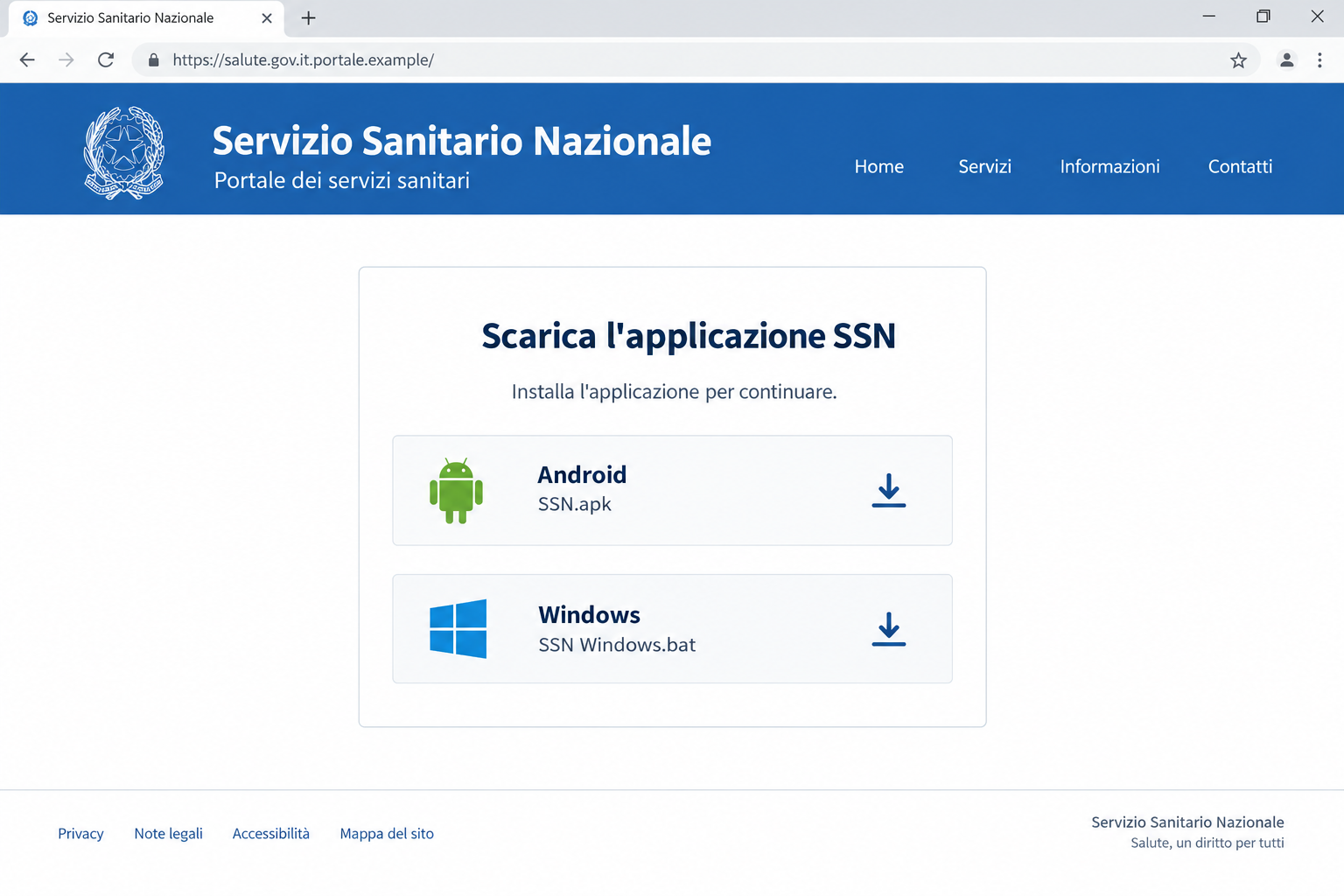
The illustration brings both file choices into one view using a fictional address. The actual campaign can select a download according to the visiting device.
The danger extends beyond the health-service story
Remote-control malware can give an attacker access to the device you use for unrelated activities. A health-themed lure doesn’t restrict what the resulting software can target.
The Android analysis includes screen observation, interface interaction, and deceptive pages over other apps. The Windows branch also aims to provide remote access.
That is why responding only inside a health account can miss the problem. If the malicious program ran, treat the device as potentially untrustworthy.
Viewing the webpage, saving a file, installing an app, and granting permissions are different exposures. Record which happened before deciding what needs protecting.
Use a clean device if you already installed it
- Stop opening sensitive accounts on a device you suspect is under remote control.
- Use another trusted device to contact banks and secure affected accounts.
- Do not grant accessibility access or disable security protections to make the supposed SSN app work.
- Keep the filenames and message as evidence without running the files again.
- Get appropriate device-removal help if you can’t establish that the affected phone or computer is safe.
The real Italian health service is being impersonated. This campaign doesn’t establish that its genuine medical systems were breached or that every recipient’s records were accessed.
A Download Is a Different Risk From a Questionnaire
Closing the false health page doesn’t remove a program you installed. The device can remain exposed after the original message disappears from view.
The health story makes installation seem useful. You may think you’re adding an official way to access appointments, documents, or other services.
But a website’s explanation doesn’t determine what the downloaded file does. Its behavior matters more than the institution name attached to it.
A familiar icon can also reduce concern after installation. Seeing SSN in your app list tells you what the application calls itself, not who controls it.
The request to update or enable a permission may then feel like normal setup. Stop when that request comes from software obtained through an unverified portal.
You don’t need to complete setup to find out whether it is genuine. Reach the real health-service route independently and ask what official software, if any, is required.
How the Fake SSN Health Portal Scam Works
Step 1: The health-service identity gives the approach a purpose
The campaign uses an emailed link and a counterfeit health-service page. The reader is given an apparently useful reason to reach the site.
Government-style presentation can make the download appear part of accessing care or administration. That expectation is what the attacker needs before a file is opened.
Use the genuine service to verify the task. A copied health heading cannot authorize software on your phone or computer.
Step 2: A misleading address hides the controlling domain
The reported infrastructure includes salute.gov.it.v4476[.]com. Its beginning resembles the Italian health ministry address, but the controlling domain is v4476[.]com.
That difference is easy to overlook when reading quickly. Recognizing salute.gov.it at the beginning isn’t the same as being on that official domain.
Leave the page rather than following its installation instructions. A browser’s full address is more useful than the title the website gives itself.
Step 3: The page chooses a file for the device
Visitors on Android are offered an APK, the kind of package used to install an Android application. Windows visitors receive a BAT file.
The campaign therefore doesn’t need identical instructions for every recipient. The same health-themed page can move different devices into different malware chains.
This doesn’t mean the visitor has to run both files. Your response depends on which device you used and whether its offered file was actually executed.
Step 4: The supposed setup gives the malicious software room to act
On Android, the false app includes an update step and encourages accessibility access. On Windows, running the batch file begins further background loading.
The reader may see these as technical chores required to finish the health task. In this campaign, they belong to the malicious process.
Don’t override security warnings, grant additional access, or retry installation because the portal says a setup step failed. Stop the process and assess the actual exposure.
Step 5: Other activity on the device can become exposed
The attacker isn’t limited to the original health page once remote access is established. Sensitive activities elsewhere on the device may become relevant.
Consider which accounts were used after installation. Banking, email, and identity-service access deserve particular attention when discussing the incident with genuine support.
Do that from another trusted device. Typing replacement credentials on a potentially monitored system can undermine the protection you’re trying to add.
The Android Trap: An Update That Wants More Access
SSN.apk presents itself as a health application. CERT’s analysis describes additional malicious software behind that presentation, with StreamRat emerging through the app’s update process.
For the user, the important boundary is permission. An installed app asking for accessibility access can gain abilities that go beyond displaying its own interface.
Accessibility features are legitimate and essential for many users. The problem is granting them to the malicious application disguised as SSN.
In the analyzed sample, the malware can observe screen content and interact with the interface. Those abilities explain why sensitive account activity may be at risk.
It can also present deceptive overlays, meaning a false page appears over another application. A request can then look connected to the app you’re already using.
You don’t need to identify every malware feature before stopping. If this application was installed and granted powerful access, use a clean device and obtain removal guidance.
When seeking help, say which permissions you accepted. Include an update or second installation even if it seemed to be part of setting up the first app.
Don’t assume that removing the visible SSN icon resolves everything. If additional software or permissions were involved, the whole interaction needs assessment.
The Windows Trap: A Health File That Runs Instructions
SSN Windows.bat is a batch script, not a document containing a medical notice. Running it lets its instructions execute on the computer.
Batch files can have legitimate uses, but this particular download is part of the analyzed malware campaign. Its health-service name doesn’t make it safe.
The reported loader uses PowerShell and additional downloaded material before reaching XWorm. Much of that activity can happen away from the original page.
A filename ending in jpg also appears in the analyzed chain, although its contents are used as code-related data rather than a normal photograph.
The practical lesson is simple: a familiar extension or reassuring filename can’t authenticate downloaded content. Don’t reopen a file from this route to inspect what happened.
If the script ran, keep its name and location in your incident note. A brief window, no obvious error, or no visible application doesn’t prove nothing executed.
Workplace computers need their organization’s security team involved. Tell them about the file promptly instead of attempting a private cleanup while continuing normal work.
For a personal computer, seek help appropriate to the suspected remote-access infection. The priority is restoring a trustworthy device and protecting the accounts used on it.
What to Do if You Have Fallen Victim to This Scam
-
Isolate a device on which the program ran. Disconnect its network connections while you begin the response through another trusted phone or computer.
Don’t continue banking or changing passwords on it. A system suspected of remote control should not be your tool for securing sensitive access.
-
Contact financial providers from that clean device. Explain the possible malware exposure and any banking activity performed after installation.
Report unfamiliar transactions or approvals promptly. The provider can advise on affected access, payment methods, and financial activity without relying on the health portal.
-
Secure important accounts through their genuine services. Prioritize email and financial accounts used on the affected device, based on what happened.
Replace exposed passwords, inspect recovery details, and review available session controls. Don’t approve unexpected prompts that arrive while doing this.
Keep a record of each actual change. A clear account helps support distinguish your protective actions from unfamiliar account activity.
-
Get the Android installation assessed. Identify the SSN app, updates, and permissions enabled. Seek help removing malicious software and revoking its access.
Google Play Protect checks for harmful apps, including some from outside the store. Keep its protection enabled and follow genuine removal guidance.
If the device still can’t be trusted, ask a qualified support professional about recovery or resetting it. Don’t assume one clean scan proves every account is safe.
-
Investigate a Windows script that was executed. Keep security protection active and obtain appropriate malware-removal assistance.
Windows Security provides full and offline scan options. An offline scan restarts the PC, so save legitimate work before following that procedure.
A Malwarebytes scan can provide another way to examine unwanted software. Get further help if remote access or persistent changes remain a concern.
-
Save evidence without sharing working malware files. Record the message, website address, filenames, installation time, and permissions or approvals involved.
The official campaign indicators can help a support team recognize the route. You don’t need to download samples or run them for comparison.
-
Report the health-service impersonation and any loss. Use genuine institutional and appropriate police-reporting routes, with the device timeline and financial evidence available.
Don’t send private medical records just to explain the false portal. The address, message, file names, and actions usually describe the approach without unnecessary disclosure.
-
Restore a safer browsing routine after containment. Obtain applications from genuine publisher or official-store routes and verify unexpected installation demands independently.
AdGuard can help reduce some deceptive advertising and risky web exposure. It does not remove an installed remote-access Trojan or undo information stolen before containment.
If You Only Downloaded the File
Downloading isn’t the same as executing. If the file was saved but never opened or installed, don’t run it now to determine what it was.
Keep a note of its filename and the originating message, then remove the unwanted download safely. Check whether an app installation or permission prompt actually occurred.
On Windows, distinguish saving the BAT file from double-clicking it. On Android, distinguish receiving the APK from completing installation and granting permissions.
If you can’t remember, say that when asking for help. An honest uncertainty is better than guessing that every setup screen was harmless.
Simply viewing the portal also doesn’t establish the full infection described here. Explain downloads, installations, and actions separately so the response fits the incident.
What to Tell a Support Technician
Start with the device and the file: Android with SSN.apk, or Windows with SSN Windows.bat. Then describe whether it was installed or run.
For Android, mention an apparent update and accessibility permission. For Windows, mention any prompts or windows seen, even if they closed quickly.
List sensitive accounts used afterward without handing the technician their passwords. Account protection should happen through genuine services, ideally from a different trusted device.
If it is an employer’s device, follow its incident process and preserve records as instructed. Don’t hide the download because you are embarrassed about the health branding.
Frequently Asked Questions
What does SSN mean in this campaign?
It refers to Italy’s Servizio Sanitario Nazionale. The attackers misuse that health-service identity; this article isn’t describing a U.S. Social Security number service.
Are the Android and Windows downloads the same file?
No. The campaign selects different routes: an Android APK associated with StreamRat and a Windows batch-script chain leading to XWorm.
Is accessibility access itself malicious?
No. Accessibility is a legitimate feature. The danger is granting powerful access to the malicious app disguised as a health service.
Does downloading the file mean I definitely installed the malware?
No. Record whether it was merely saved or actually run, installed, updated, or granted permissions. Those distinctions guide the appropriate response.
Is the malware limited to medical information?
No. The health identity is the lure. The analyzed remote-access capabilities can affect other activity on the device, so consider the sensitive accounts used afterward.
Should I change passwords on the affected device?
Use another trusted device if infection is suspected. Protecting accounts through a system that may be monitored can expose the replacement credentials.
The Bottom Line
Do not install SSN.apk or run SSN Windows.bat from this fake health portal. The health branding disguises downloads that can give an attacker remote device access.
If a file ran, isolate the device, contact affected providers from a clean device, and get proper malware-removal help. Don’t continue sensitive activity while trusting the disguise.








