

A booking invoice lands in your inbox, and the attachment seems ready to open. It looks like a routine accounting task you could finish in seconds.
One detail in the filename changes the story. If you have received this message, check that detail before treating the attachment like a document.
Overview
What the booking invoice message says
The reported message claims that a booking invoice is attached. It is short, signed as an accounts note, and built to look like ordinary business correspondence.
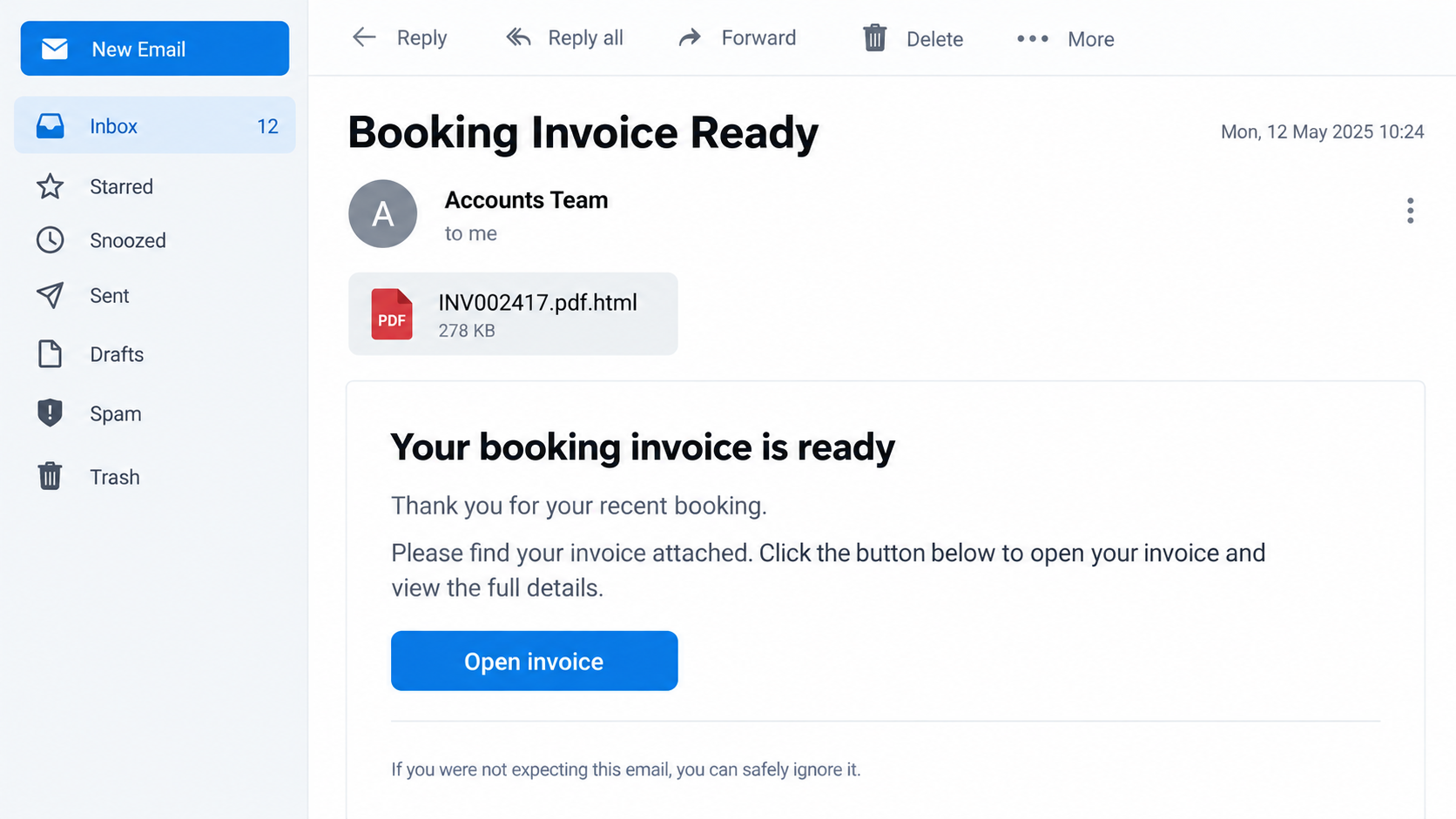
Its attachment uses a double extension: a name ending in .pdf.html. The PDF-looking middle section is bait. The final extension tells you it is an HTML page.
The image above illustrates that filename trick with fictional details. It is not a screenshot of the original email or a safe copy of its attachment.
Opening the file in a browser displays a document-like page with a password prompt. The page is not a normal PDF reader.
The risk is the password prompt
The reported page places a blurred invoice behind a login box. That visual says the file exists and access requires one last identity check.
The requested credential is the reader’s email password. An invoice from an unfamiliar sender has no legitimate reason to demand it.
A stolen mailbox password can expose messages and reset links for other accounts. It can also let an attacker write to customers as the victim.
- The file is HTML, despite its PDF-like name.
- The invoice image is a prop for a login request.
- The password goes to an untrusted page, not an accounting system.
- The safe verification route is a known contact, not the attachment.
The conclusion, with one important limit
Treat this booking invoice email as credential phishing. Do not open the attachment or enter a password into its page.
The original attachment was not supplied to us for independent forensic analysis. The reported mechanism is specific; the exact address receiving passwords was not verified here.
That limit does not make the message safe. A supposed invoice requiring your email password is enough reason to stop and verify elsewhere.
Why an Invoice Is a Better Lure Than a Wild Warning
Many suspicious emails threaten account closure or announce a prize. An invoice can be quieter and more effective because accounting teams receive them every day.
The subject may begin with “FWD,” implying the message came through an existing conversation. A recipient scanning quickly might overlook the actual sender.
Booking language also reaches beyond travel. A small business may book equipment, services, rooms, freight, or event space and expect paperwork afterward.
The email does not need to know which kind of booking you made. It only needs to arrive when you have another invoice on your mind.
A brief message can seem more professional than a dramatic one. The absence of a long sales pitch is not an authenticity signal.
An accounts signature gives the email a person to trust. Names and job titles can be typed into a template by anyone.
The attached file creates another small illusion. A reader sees a familiar PDF icon or the letters “pdf” and assumes the computer will open a document.
On some systems, the final extension is hidden or truncated in a narrow mail window. A filename deserves a second look before opening.
The legitimate question is simple: were you expecting an invoice from this exact sender for this exact transaction?
If the answer is no, the attachment should not become the place where you find out. Confirm the booking through a known channel.
Why the PDF-Looking Filename Matters
A true PDF typically ends in .pdf. A file ending in .html is a web page, even if “pdf” appears earlier in the name.
That difference changes the trust model. The attachment can render forms and scripts in a browser rather than merely display a document.
HTML files can be used legitimately, but an unexpected invoice attachment carrying a credential form is not a normal business document.
The browser may show a local file address rather than a familiar website. That can make the page feel private or self-contained.
Local display does not mean a submitted form stays local. An HTML page can send entered information to a remote server when network access is available.
It may also load images or code from external sites. The critical risk here is entering your password, not the visual act of seeing a blurred invoice.
Do not assume that every HTML attachment installs malware. This specimen is described as credential phishing. Other attachments can use different techniques.
That distinction matters after exposure. Someone who only previewed the email needs different steps from someone who entered an email password.
A PDF viewer should not ask for your mailbox password to display a supplier invoice. A password-protected document would use a document password shared separately.
If the prompt is framed as “sign in to view,” ask whose service you are signing into. The attachment cannot become your email provider merely by copying its colors.
How the Booking Invoice Email Scam Works
Step 1: A routine accounts message reaches the inbox
The email presents an invoice reference and a polite note. There may be no obvious threat, which helps it blend with genuine business mail.
The sender can target a broad list without knowing whether anyone made a booking. One person expecting paperwork may be enough.
Forwarded-message styling can add another layer of apparent history. It does not prove that a real colleague forwarded the invoice.
Before opening anything, compare the full sender address with the company you actually dealt with. Display names are easy to imitate.
Step 2: The attachment impersonates a PDF
A filename ending in .pdf.html places the trusted-looking type before the real extension. The final suffix is the one your computer uses.
A hurried reader may see only the invoice number and “pdf.” That is why the exact filename is more informative than the file icon.
If your mail app hides extensions, view the attachment details without opening it. Ask IT for help if the file type remains unclear.
Do not forward the attachment to another coworker as a test. That merely moves the risk to someone else’s inbox.
Step 3: A browser page displays a blurred invoice
The HTML file opens a page that resembles a document viewer. A blurred page suggests the invoice is present but locked behind verification.
That is theater, not proof of a valid booking. The background can be an image placed behind any form.
The fake viewer may borrow familiar colors, icons, or PDF terminology. None of those elements identifies the server that receives the form.
Even if the page shows your email address, it may have read it from the message or file. A prefilled field is not evidence of account ownership.
Step 4: The form asks for an email password
This is the decisive moment. Entering the password can give the operator of the page a credential for your real mailbox.
The page may say verification is necessary to unlock the invoice. An unrelated invoice sender cannot validate your email account that way.
Do not try a “wrong” password to test it. That can still reveal information about your account and may lead to another prompt.
Close the page and use a known contact at the supposed sender if you need to confirm whether a booking exists.
Step 5: Mail access can support a second attack
With access to an inbox, an attacker can search for invoices, payment conversations, and password-reset messages. Business mailboxes are especially valuable.
They may create a forwarding rule so new mail continues to reach them after the password changes.
They could also send a convincing follow-up invoice to a customer who has already corresponded with you. The conversation history makes that message believable.
Those outcomes are risks, not proof they happened in every case. Check actual account activity and mail settings before concluding what was exposed.
How to Verify a Real Booking Invoice
Start with the purchase or booking record you already have. Does its date, amount, and supplier match the email’s claim?
Open the supplier’s website from your own bookmark or type its known address. A real invoice may be available in your account’s billing area.
If a colleague arranged the booking, ask them through your normal work chat or call them. Avoid replying to the suspicious email to ask whether it is real.
Call the supplier using a number from a previous invoice or its verified website. Do not use a phone number supplied only in the new message.
For a business, keep a shared process for unexpected invoices. A second person should approve payments or account changes when the transaction is unusual.
The process should also cover attachments. A document request can be fraudulent even when no immediate payment is requested.
If the supplier confirms an invoice exists, ask them to send it through their usual portal. The existence of a real booking does not authenticate the attachment.
Keep the suspicious message for your security team. Headers and attachment names may help them block similar mail for everyone.
Do not publish the original attachment or upload it to a public scanner if it contains customer information. An administrator can choose an appropriate analysis method.
A real invoice should stand on its commercial facts. It should not require your email password to prove that it exists.
Sender and Attachment Checks That Help
Read the address after the display name
“Accounts” or a person’s name is editable text. The domain in the full address should match an organization you recognize.
A matching domain is helpful but not conclusive. A compromised supplier account can send a malicious file from a real mailbox.
Check the context: order number, previous conversation, expected timing, and whether the supplier normally sends files this way.
Expose the final extension
On Windows, file extensions can be shown in File Explorer. On other systems, inspect file details or ask your IT team.
The rule is not “all HTML files are dangerous.” The rule is that an unsolicited invoice disguised as a PDF deserves independent verification.
Do not rely solely on a red PDF icon. An attacker can select an icon that looks familiar while the file remains HTML.
Notice what the page asks you to do
An invoice may ask you to confirm a purchase with your supplier. It should not ask for your primary email password inside an attachment.
Some fake pages also request a one-time code after a password. Never share a sign-in code to access an unsolicited file.
If a real service requires authentication, navigate to it independently and check the document there.
What to Do if You Have Fallen Victim to This Scam
If you only received the email, do not open the file. Mark it as phishing and tell your workplace administrator if it reached a business inbox.
Receiving a message does not compromise your account. Verification is only necessary if the claimed booking matters to you.
If you opened the HTML file but entered nothing, close it. Check for unexpected downloads or browser notification requests.
A Malwarebytes scan is sensible if a file downloaded or you ran something. Seeing the fake viewer alone does not establish an infection.
If you entered a password, change it from a clean device. Use your email provider’s known website, then sign out of other sessions.
Enable multifactor authentication and change any other account using the same password. Prioritize the mailbox that receives your reset links.
Inspect mailbox rules and recent logins. Remove unknown forwarding addresses, connected apps, delegated users, and recovery details.
A workplace administrator can check audit logs and alert colleagues if the account sent messages after the suspicious login.
Protect financial conversations. Tell your bank or payment provider if an invoice or transfer was altered after the email account was exposed.
Warn affected customers through a separate trusted channel if your mailbox was used to send fraudulent payment instructions.
Report and retain evidence. Preserve the email headers, attachment name, time opened, and any unusual account activity.
Report the message through your provider. AdGuard can reduce malicious advertising, but it cannot undo a stolen password or a bank transfer.
Is Your Device Infected? Run a Free Malware Scan
Slow performance, constant pop-ups, or strange behavior? These are classic signs of a malware infection. The fastest way to find out is to scan your device with Malwarebytes Free — one of the most trusted malware removal tools available.
The free version detects and removes the most common threats, including:
- Adware — the cause of those annoying pop-ups
- Browser hijackers — unwanted redirects and changed homepages
- Trojans and spyware — hidden programs stealing your data
- Potentially unwanted programs (PUPs) — software you never asked for
👉 Select your device below — Windows, Mac, or Android — then follow the simple steps to download Malwarebytes, scan your system, and remove any threats it finds. The scan usually takes 5 to 20 minutes.
Run a Malware Scan with Malwarebytes for Windows
Malwarebytes is one of the most popular and trusted anti-malware tools for Windows — and it’s completely free for removing infections. It catches threats that many antivirus programs miss, including adware, browser hijackers, and trojans. Follow the steps below to scan and clean your PC in just a few minutes.
Download Malwarebytes
Click the button below to download the latest version of Malwarebytes for Windows from the official source. The free version is all you need — it will scan your computer and remove adware, browser hijackers, and other malicious software at no cost.
Download MalwarebytesOfficial installer for Windows 11 and 10. Your download starts right away.Want real-time protection? See Malwarebytes Premium Malwarebytes Free for WindowsScans and removes malware at no cost
-
Install Malwarebytes
When the download finishes, open your Downloads folder and double-click the MBSetup file. If Windows shows a User Account Control pop-up, click “Yes” to allow the installation.

Follow the On-Screen Prompts to Install Malwarebytes
The setup wizard will walk you through a few quick screens:
-
Choose where you’re installing the program — “Personal Computer” or “Work Computer” — then click Next.

-
Malwarebytes will now install on your device. This usually takes under a minute.

-
When installation is complete, the “Welcome to Malwarebytes” screen will open automatically.

-
On the final screen, click Open Malwarebytes to launch the program.

-
Enable “Scan for Rootkits”
Before scanning, turn on rootkit detection so Malwarebytes can find even the most hidden threats. Click the Settings gear icon on the left side of the screen.

In the settings menu, find “Scan for rootkits” and click the toggle so it turns blue.

Done? Click “Dashboard” in the left pane to return to the main screen.
Start the Scan
Click the blue Scan button. Malwarebytes will automatically update its virus database and start checking your computer for malware.

-
Wait for the Scan to Finish
The scan checks your entire system for browser hijackers and other malicious programs, so it can take 5 to 20 minutes depending on your computer. Feel free to do something else — just check back occasionally to see the progress.

-
Quarantine the Detected Threats
When the scan is done, you’ll see a list of everything Malwarebytes found — malware, adware, and potentially unwanted programs. Click the “Quarantine” button to remove all of them at once.

Malwarebytes will now remove the malicious files and registry entries and move them safely into quarantine.

-
Restart Your Computer
Some threats can only be fully removed after a reboot. If Malwarebytes asks you to restart, click Yes. Once you’re logged back in, Malwarebytes has finished removing the threats it found.

That’s it — your Windows PC is now clean of trojans, adware, and other malware, and should be back to running smoothly.
If you are still having problems with your computer after completing these instructions, then please follow one of the steps:
- Run a computer scan with ESET Online Scanner
- Ask for help in our Windows Malware Removal Help & Support forum.
Run a Malware Scan with Malwarebytes for Mac
Malwarebytes for Mac is a free on-demand scanner that removes the malware other security software tends to miss — adware, browser hijackers, and unwanted programs included. Cleaning an infected Mac with Malwarebytes has always been completely free, and it’s our go-to recommendation. Follow the steps below to scan and clean your Mac in just a few minutes.
-
Download Malwarebytes for Mac
Click the button below to download the latest version of Malwarebytes for Mac.
Download MalwarebytesOfficial installer for macOS. Your download starts right away.Want real-time protection? See Malwarebytes PremiumMalwarebytes Free for MacScans and removes malware at no cost -
Open the Malwarebytes setup file
When the download finishes, open your Downloads folder and double-click the setup file to begin the installation.

-
Follow the On-Screen Prompts to Install Malwarebytes
The Malwarebytes for Mac Installer will guide you through a few quick screens. Click “Continue” and keep following the prompts until the installation completes.



When the installation is complete, Malwarebytes opens to the Welcome to Malwarebytes screen. Click “Get started“.
-
Select “Personal Computer” or “Work Computer”
Malwarebytes will ask what type of computer you’re installing it on. Click either Personal Computer or Work Computer, whichever applies.

-
Start the Scan
Click the “Scan” button. Malwarebytes will automatically update its detection database and begin checking your Mac for malware.

-
Wait for the Scan to Finish
Malwarebytes will scan your Mac for adware, browser hijackers, and other malicious programs. This can take a few minutes, so feel free to do something else — just check back occasionally to see the progress.

-
Quarantine the Detected Threats
When the scan is done, you’ll see a list of everything Malwarebytes found. Click the “Quarantine” button to remove all the threats at once.

-
Restart Your Mac
Malwarebytes will now remove all the malicious files it found. Some threats can only be fully removed after a reboot — if Malwarebytes asks you to restart, allow it. Once you’re logged back in, your Mac is clean.

That’s it — your Mac is now free of adware, rogue browser extensions, and other potentially harmful software.
If you are still experiencing problems while trying to remove a malicious program from your computer, please ask for help in our Mac Malware Removal Help & Support forum.
Run a Malware Scan with Malwarebytes for Android
Malwarebytes for Android automatically detects and removes dangerous threats like malware and ransomware so you don’t have to worry about your most-used device being compromised. Aggressive detection of adware and potentially unwanted programs keeps your Android phone or tablet running smooth.
-
Download Malwarebytes for Android.
You can download Malwarebytes for Android by clicking the link below.
Get Malwarebytes for AndroidOpens Google Play in a new tab.Want real-time protection? See Malwarebytes Premium for AndroidMalwarebytes for AndroidScans your phone and removes malware at no cost -
Install Malwarebytes for Android on your phone.
In the Google Play Store, tap “Install” to install Malwarebytes for Android on your device.

When the installation process has finished, tap “Open” to begin using Malwarebytes for Android. You can also open Malwarebytes by tapping on its icon in your phone menu or home screen.

-
Follow the on-screen prompts to complete the setup process
When Malwarebytes will open, you will see the Malwarebytes Setup Wizard which will guide you through a series of permissions and other setup options.
This is the first of two screens that explain the difference between the Premium and Free versions. Swipe this screen to continue.
Tap on “Got it” to proceed to the next step.
Malwarebytes for Android will now ask for a set of permissions that are required to scan your device and protect it from malware. Tap on “Give permission” to continue.
Tap on “Allow” to permit Malwarebytes to access the files on your phone.
-
Update database and run a scan with Malwarebytes for Android
You will now be prompted to update the Malwarebytes database and run a full system scan.

Click on “Update database” to update the Malwarebytes for Android definitions to the latest version, then click on “Run full scan” to perform a system scan.

-
Wait for the Malwarebytes scan to complete.
Malwarebytes will now start scanning your phone for adware and other malicious apps. This process can take a few minutes, so we suggest you do something else and periodically check on the status of the scan to see when it is finished.

-
Click on “Remove Selected”.
When the scan has been completed, you will be presented with a screen showing the malware infections that Malwarebytes for Android has detected. To remove the malicious apps that Malwarebytes has found, tap on the “Remove Selected” button.

-
Restart your phone.
Malwarebytes for Android will now remove all the malicious apps that it has found. To complete the malware removal process, Malwarebytes may ask you to restart your device.
That’s it — your Android phone is now clean — no more malicious apps, adware, or browser redirects.
If you are still having problems with your phone after completing these instructions, then please follow one of the steps:
- Restore your phone to factory settings by going to Settings > General management > Reset > Factory data reset.
- Ask for help in our Mobile Malware Removal Help & Support forum.
Stay Protected: Block Ads and Malicious Sites
Now that your device is clean, keep it that way. Most infections start with a malicious ad or a fake download button — so blocking them at the source is your best defense.
We recommend AdGuard, which blocks malicious ads, phishing pages, and dangerous redirects before they can reach you.
👉 Download AdGuard and browse safely
Why This Is Not an Ordinary PDF Problem
It is tempting to focus on whether the attachment “contains a virus.” That question misses the most direct danger described for this sample.
The attacker does not need to infect a computer if the reader voluntarily enters a valid email password into a fake viewer.
Security software can help with malicious downloads. It cannot reliably tell you whether a polished form has a legitimate reason to ask for credentials.
The best defense is to separate document verification from account authentication. An invoice from a new sender should be checked through the supplier, not the attachment.
Even a real-looking invoice image can be copied or fabricated. Check payment instructions against a previously verified channel before changing bank details.
That habit protects against a wider class of business email scams, not just this one filename.
If your organization sees multiple copies, treat them as one incident. Central reporting helps administrators block the message and notify other recipients.
Do not shame the person who opened it. Fast reporting can prevent a stolen password from becoming a larger financial loss.
Frequently Asked Questions
Is .pdf.html really a PDF?
No. The final extension is HTML, so the file opens as a web page. The earlier “pdf” text is part of its deceptive name.
Can opening the attachment steal my password automatically?
The reported mechanism asks the reader to type a password. Do not assume automatic theft from simply viewing it, but investigate any downloads or scripts.
Why does the fake invoice look blurred?
The blur makes a document appear present but inaccessible. It encourages the reader to treat the password box as a normal unlocking step.
What if I really have a booking with a similar invoice number?
Contact the supplier using a known number or sign in through its established portal. A real transaction does not make an unsolicited attachment safe.
Should I change my password if I only read the email?
No password change is needed solely because the email arrived. Change it promptly if you entered it on the fake page or see suspicious activity.
Can Malwarebytes recover my mailbox after phishing?
Malwarebytes can check for malicious software. Account recovery requires changing credentials, ending sessions, reviewing mailbox settings, and contacting your provider.
The Bottom Line
Do not open a booking invoice attachment that ends in .pdf.html and asks for your email password. Verify the transaction with the sender through a channel you already trust.
If you entered a password, secure the mailbox immediately and inspect forwarding rules. The fastest useful step is account recovery, not repeatedly reopening the suspicious file.








