

A message says your Social Security benefit letter is ready. If you need proof of income, that can sound like useful news rather than a warning.
The note includes a reference number and a short deadline. Before you open its “secure” link, there is a safer way to find the letter.
Overview
The benefit letter claim
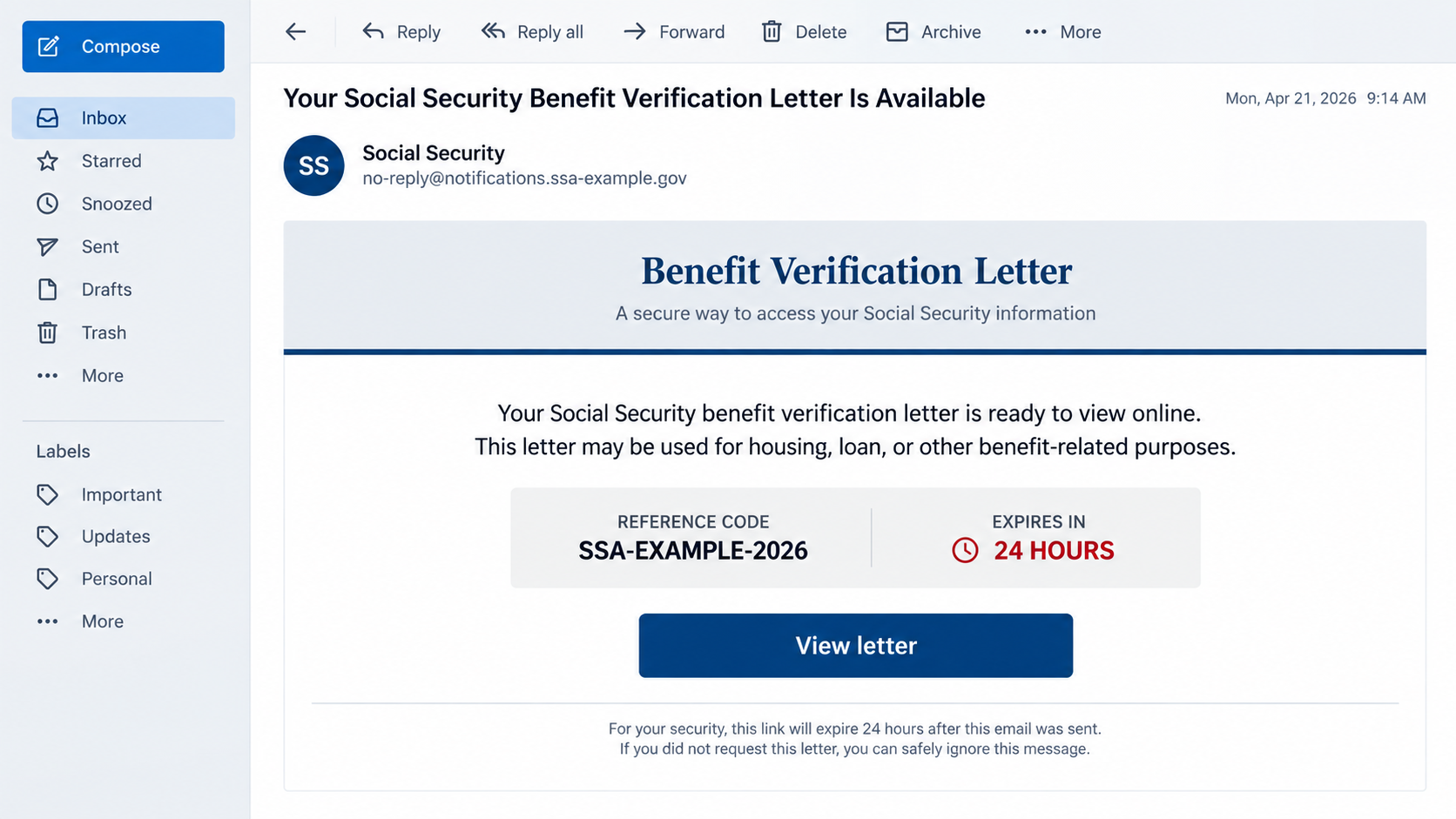
A reported email impersonates the Social Security Administration and says a benefit verification letter is waiting online. It includes a reference number and a 24-hour link.
The message describes information that a real benefit letter can contain, including benefit status and payment amounts. That familiar subject makes the email plausible.
It asks the recipient to “verify and access” the letter through its button. That button moves the reader away from a trusted route.
The image above is a fictional illustration of the lure. It is not the original email, and its sample sender details should never be used to access benefits.
What is verified and what is not
SSA genuinely offers benefit verification letters through a personal my Social Security account. You can reach that service by typing the agency’s address yourself.
The reported suspicious email was not sent by SSA. Its outside link was not available for independent inspection during this review.
That means the exact page or file it may have delivered cannot be identified here. Do not treat an unknown payload as proof of a specific virus.
- A benefit verification letter is a real SSA document.
- The email’s reference and deadline do not authenticate its link.
- The reported destination could not be verified as an SSA service.
- A genuine letter can be checked from the agency’s known website.
The practical answer
Do not use the email’s button. If you need the letter, open SSA’s website independently or use a known agency contact route.
The risk is not that every SSA email is fake. The risk is trusting an unsolicited link because the topic and formatting resemble a real service.
If you already followed it, the right response depends on what happened next: a page view, an entered password, a download, or a payment request.
Why This Message Feels Personal
A benefit verification letter is not a random prize. It is a document people may need for housing, a loan, assistance, or proof of income.
That makes a message about its availability feel timely. Someone awaiting a decision may be eager to retrieve it without logging into another portal.
The reference number creates the appearance of a case file. A string of letters and digits can look official even when it was generated by the sender.
A 24-hour expiration adds pressure. It asks the reader to choose speed over checking the sender and destination.
Real agencies do use identity verification, which gives the phrase “final verification step” a familiar ring. The phrase alone says nothing about this link.
Scammers often borrow accurate details about legitimate services. Accuracy in one sentence does not make the rest of a message trustworthy.
The email may also include a real SSA phone number. A copied number in the footer does not certify the link above it.
If a message tells you to ignore it when you did not request a letter, that sounds considerate. It can still be part of the disguise.
People who receive benefits may fear that missing a deadline affects their payment. This email exploits that uncertainty without proving any account change.
Pause before acting. You can verify a document request without using the path the message gives you.
How Real Benefit Verification Letters Are Obtained
SSA says a benefit verification letter can be viewed, saved, or printed from a personal my Social Security account.
The agency’s benefit-letter guide describes the account route and explains when people may need proof of benefits.
Go to the agency’s website directly. A saved bookmark is useful; typing ssa.gov yourself is another option.
Do not search for a login page and choose a sponsored result without checking its address. Search ads can resemble official links at a glance.
Once signed in, check whether the document is available in your account. An unsolicited email cannot tell you what your account contains.
If you do not have an online account, SSA provides other ways to request help. Use contact information published on its own site.
Creating an account may involve an identity provider such as Login.gov or ID.me. That process should begin from SSA’s authentic site, not an email button.
A person who does not receive benefits can also request certain verification information through legitimate channels. That does not validate an unexpected email.
Do not share a Social Security number or sign-in code with someone who contacts you first and claims to be “finishing” the letter.
A genuine service should remain accessible after a suspicious email expires. The 24-hour clock belongs to the message, not to your right to check your account.
How the Fake Benefit Letter Email Scam Works
Step 1: The sender chooses a genuine government task
The email does not invent the concept of a benefit letter. It starts with a real document that many recipients have heard of or requested.
That choice lowers resistance. A person who recently applied for housing may think the message is part of the same paperwork.
The sender does not need access to SSA records to make that guess. Broad email lists can still reach people at a vulnerable moment.
Nothing in the message demonstrates knowledge of your actual benefit record, even if it addresses you by name.
Step 2: A reference number makes the notice feel official
A case-like number gives the reader something concrete to focus on. It may look as though the letter was generated by an agency system.
A reference field can be printed in any email template. It is not a digital signature and cannot authenticate the sender.
Compare it only through your real account or an independently reached SSA representative. Never feed it into an unfamiliar website to “validate” it.
The sample’s number is less important than the tactic: official-looking formatting can make an unverified link seem routine.
Step 3: A deadline pushes the reader toward the button
The reported message says its code or link expires in 24 hours. That creates a reason not to wait for a trusted check.
Someone may worry that the benefit letter, or even their benefits, will disappear. The message provides no reliable basis for either conclusion.
SSA’s own service is the place to check document availability. You do not need an email’s one-time link to discover whether your letter exists.
Time pressure is especially potent when paperwork is due to a lender or landlord. Tell them you are obtaining the document through the agency directly.
Step 4: The link leaves the known SSA route
The button is presented as a secure portal. The reported link led to an external website rather than an authenticated SSA account page.
That destination was unavailable when examined for this article. Its exact behavior, including whether it offered a download or requested data, remains unverified.
Do not make up a malware name or claim every click causes infection. The observed deception is the attempted redirection through an impersonating email.
If a page asks for credentials, an SSN, or a code after that click, stop. Close it and begin again from SSA’s published address.
Step 5: The page may try to turn concern into disclosure
Government-themed phishing pages often ask for personal details because a benefit letter sounds private. The specific fields on this unavailable destination are unknown.
Even a field that requests only an email address can prepare a later, more convincing approach. A password or sign-in code is far more urgent.
A page can also invite a download. Do not run a file to access a letter you can obtain through an official account.
Record what you actually entered or downloaded. That detail determines which recovery steps are useful.
Sender and Link Checks That Matter More Than a Seal
Inspect the real sender address
A display name such as “Social Security Administration” is editable. Open the message details and read the full address.
Do not treat a familiar address as the only check. A sender can be spoofed, and some messages may be forwarded through compromised accounts.
The relevant question is whether the email’s route and request match information you can verify on SSA’s own website.
Check the destination before entering anything
A lock symbol means a connection is encrypted, not that the site belongs to a government agency. Look at the complete hostname.
Do not trust extra words attached to an unrelated domain. A long URL can contain “ssa” without being controlled by SSA.
On a phone, a link preview can be incomplete. When in doubt, skip the link entirely and open a fresh browser tab.
Use the agency’s warning page
SSA’s scam guidance warns that impostors contact people by email and text to seek personal information or money.
The guidance also directs people to their personal account and explains how to report suspicious contacts. It is a better reference than the email footer.
Ask a trusted person to help navigate the official site if the process feels confusing. The safest path does not have to be the fastest-looking one.
What to Do if You Have Fallen Victim to This Scam
If you only received the message, avoid its link. Mark it as phishing and use your normal SSA account route if you need a letter.
There is no reason to scan a device merely because the email arrived.
If you clicked but entered nothing, close the page. Check browser downloads and notification permissions before doing anything else.
A click does not prove malware was installed. Run Malwarebytes if a file downloaded, opened, or the browser began acting unusually.
If you entered account credentials, secure the account. Change the password from SSA’s authentic sign-in path or the relevant identity provider.
Use a clean device, review recent sign-ins, end unknown sessions, and strengthen multifactor authentication. Change reused passwords elsewhere.
If you gave an SSN or other identity details, make a recovery plan. Visit IdentityTheft.gov and follow advice suited to the information disclosed.
Monitor financial and government accounts. Do not assume a single form submission proves identity theft, but take the exposure seriously.
If you downloaded a file, do not run it. Delete the file only after your security team has the details it needs.
If it ran, disconnect from the network if appropriate and seek professional help. Malwarebytes can scan; AdGuard can help block later malicious ads.
Report the impersonation. Use SSA’s scam reporting route and preserve the email headers, link, and any page screenshot.
If money or card details were involved, contact your payment provider using its independently verified number.
Is Your Device Infected? Run a Free Malware Scan
Slow performance, constant pop-ups, or strange behavior? These are classic signs of a malware infection. The fastest way to find out is to scan your device with Malwarebytes Free — one of the most trusted malware removal tools available.
The free version detects and removes the most common threats, including:
- Adware — the cause of those annoying pop-ups
- Browser hijackers — unwanted redirects and changed homepages
- Trojans and spyware — hidden programs stealing your data
- Potentially unwanted programs (PUPs) — software you never asked for
👉 Select your device below — Windows, Mac, or Android — then follow the simple steps to download Malwarebytes, scan your system, and remove any threats it finds. The scan usually takes 5 to 20 minutes.
Run a Malware Scan with Malwarebytes for Windows
Malwarebytes is one of the most popular and trusted anti-malware tools for Windows — and it’s completely free for removing infections. It catches threats that many antivirus programs miss, including adware, browser hijackers, and trojans. Follow the steps below to scan and clean your PC in just a few minutes.
Download Malwarebytes
Click the button below to download the latest version of Malwarebytes for Windows from the official source. The free version is all you need — it will scan your computer and remove adware, browser hijackers, and other malicious software at no cost.
Download MalwarebytesOfficial installer for Windows 11 and 10. Your download starts right away.Want real-time protection? See Malwarebytes Premium Malwarebytes Free for WindowsScans and removes malware at no cost
-
Install Malwarebytes
When the download finishes, open your Downloads folder and double-click the MBSetup file. If Windows shows a User Account Control pop-up, click “Yes” to allow the installation.

Follow the On-Screen Prompts to Install Malwarebytes
The setup wizard will walk you through a few quick screens:
-
Choose where you’re installing the program — “Personal Computer” or “Work Computer” — then click Next.

-
Malwarebytes will now install on your device. This usually takes under a minute.

-
When installation is complete, the “Welcome to Malwarebytes” screen will open automatically.

-
On the final screen, click Open Malwarebytes to launch the program.

-
Enable “Scan for Rootkits”
Before scanning, turn on rootkit detection so Malwarebytes can find even the most hidden threats. Click the Settings gear icon on the left side of the screen.

In the settings menu, find “Scan for rootkits” and click the toggle so it turns blue.

Done? Click “Dashboard” in the left pane to return to the main screen.
Start the Scan
Click the blue Scan button. Malwarebytes will automatically update its virus database and start checking your computer for malware.

-
Wait for the Scan to Finish
The scan checks your entire system for browser hijackers and other malicious programs, so it can take 5 to 20 minutes depending on your computer. Feel free to do something else — just check back occasionally to see the progress.

-
Quarantine the Detected Threats
When the scan is done, you’ll see a list of everything Malwarebytes found — malware, adware, and potentially unwanted programs. Click the “Quarantine” button to remove all of them at once.

Malwarebytes will now remove the malicious files and registry entries and move them safely into quarantine.

-
Restart Your Computer
Some threats can only be fully removed after a reboot. If Malwarebytes asks you to restart, click Yes. Once you’re logged back in, Malwarebytes has finished removing the threats it found.

That’s it — your Windows PC is now clean of trojans, adware, and other malware, and should be back to running smoothly.
If you are still having problems with your computer after completing these instructions, then please follow one of the steps:
- Run a computer scan with ESET Online Scanner
- Ask for help in our Windows Malware Removal Help & Support forum.
Run a Malware Scan with Malwarebytes for Mac
Malwarebytes for Mac is a free on-demand scanner that removes the malware other security software tends to miss — adware, browser hijackers, and unwanted programs included. Cleaning an infected Mac with Malwarebytes has always been completely free, and it’s our go-to recommendation. Follow the steps below to scan and clean your Mac in just a few minutes.
-
Download Malwarebytes for Mac
Click the button below to download the latest version of Malwarebytes for Mac.
Download MalwarebytesOfficial installer for macOS. Your download starts right away.Want real-time protection? See Malwarebytes PremiumMalwarebytes Free for MacScans and removes malware at no cost -
Open the Malwarebytes setup file
When the download finishes, open your Downloads folder and double-click the setup file to begin the installation.

-
Follow the On-Screen Prompts to Install Malwarebytes
The Malwarebytes for Mac Installer will guide you through a few quick screens. Click “Continue” and keep following the prompts until the installation completes.



When the installation is complete, Malwarebytes opens to the Welcome to Malwarebytes screen. Click “Get started“.
-
Select “Personal Computer” or “Work Computer”
Malwarebytes will ask what type of computer you’re installing it on. Click either Personal Computer or Work Computer, whichever applies.

-
Start the Scan
Click the “Scan” button. Malwarebytes will automatically update its detection database and begin checking your Mac for malware.

-
Wait for the Scan to Finish
Malwarebytes will scan your Mac for adware, browser hijackers, and other malicious programs. This can take a few minutes, so feel free to do something else — just check back occasionally to see the progress.

-
Quarantine the Detected Threats
When the scan is done, you’ll see a list of everything Malwarebytes found. Click the “Quarantine” button to remove all the threats at once.

-
Restart Your Mac
Malwarebytes will now remove all the malicious files it found. Some threats can only be fully removed after a reboot — if Malwarebytes asks you to restart, allow it. Once you’re logged back in, your Mac is clean.

That’s it — your Mac is now free of adware, rogue browser extensions, and other potentially harmful software.
If you are still experiencing problems while trying to remove a malicious program from your computer, please ask for help in our Mac Malware Removal Help & Support forum.
Run a Malware Scan with Malwarebytes for Android
Malwarebytes for Android automatically detects and removes dangerous threats like malware and ransomware so you don’t have to worry about your most-used device being compromised. Aggressive detection of adware and potentially unwanted programs keeps your Android phone or tablet running smooth.
-
Download Malwarebytes for Android.
You can download Malwarebytes for Android by clicking the link below.
Get Malwarebytes for AndroidOpens Google Play in a new tab.Want real-time protection? See Malwarebytes Premium for AndroidMalwarebytes for AndroidScans your phone and removes malware at no cost -
Install Malwarebytes for Android on your phone.
In the Google Play Store, tap “Install” to install Malwarebytes for Android on your device.

When the installation process has finished, tap “Open” to begin using Malwarebytes for Android. You can also open Malwarebytes by tapping on its icon in your phone menu or home screen.

-
Follow the on-screen prompts to complete the setup process
When Malwarebytes will open, you will see the Malwarebytes Setup Wizard which will guide you through a series of permissions and other setup options.
This is the first of two screens that explain the difference between the Premium and Free versions. Swipe this screen to continue.
Tap on “Got it” to proceed to the next step.
Malwarebytes for Android will now ask for a set of permissions that are required to scan your device and protect it from malware. Tap on “Give permission” to continue.
Tap on “Allow” to permit Malwarebytes to access the files on your phone.
-
Update database and run a scan with Malwarebytes for Android
You will now be prompted to update the Malwarebytes database and run a full system scan.

Click on “Update database” to update the Malwarebytes for Android definitions to the latest version, then click on “Run full scan” to perform a system scan.

-
Wait for the Malwarebytes scan to complete.
Malwarebytes will now start scanning your phone for adware and other malicious apps. This process can take a few minutes, so we suggest you do something else and periodically check on the status of the scan to see when it is finished.

-
Click on “Remove Selected”.
When the scan has been completed, you will be presented with a screen showing the malware infections that Malwarebytes for Android has detected. To remove the malicious apps that Malwarebytes has found, tap on the “Remove Selected” button.

-
Restart your phone.
Malwarebytes for Android will now remove all the malicious apps that it has found. To complete the malware removal process, Malwarebytes may ask you to restart your device.
That’s it — your Android phone is now clean — no more malicious apps, adware, or browser redirects.
If you are still having problems with your phone after completing these instructions, then please follow one of the steps:
- Restore your phone to factory settings by going to Settings > General management > Reset > Factory data reset.
- Ask for help in our Mobile Malware Removal Help & Support forum.
Stay Protected: Block Ads and Malicious Sites
Now that your device is clean, keep it that way. Most infections start with a malicious ad or a fake download button — so blocking them at the source is your best defense.
We recommend AdGuard, which blocks malicious ads, phishing pages, and dangerous redirects before they can reach you.
👉 Download AdGuard and browse safely
What the Unavailable Link Does Not Tell Us
A closed or blocked destination prevents a complete reconstruction of this particular campaign. It does not establish that the email was harmless.
It also does not justify inventing a payload. The page could have displayed a form, prompted a download, redirected elsewhere, or done nothing.
The known risk is the inducement to leave a trusted government workflow for a sender-supplied link. Recovery should follow the action actually taken.
Some security articles treat every phishing click as an automatic virus infection. That can frighten readers and waste time better spent protecting an exposed account.
Other articles treat all unknown links as merely annoying. That can miss a real credential or identity exposure if the reader submitted information.
A calm timeline helps: when did you click, what opened, what did you type, and was any file saved or run?
Write those answers down before clearing browser history. They will help a bank, identity provider, or security team give specific guidance.
Do not contact a “recovery agent” introduced by the suspicious page. Such follow-up offers can be a second attempt to take money.
Frequently Asked Questions
Is a benefit verification letter a real SSA document?
Yes. SSA provides it through a personal my Social Security account and other official assistance routes. The genuine document does not authenticate this email.
Does the reference number prove the email is official?
No. Anyone can place a reference-like code in a template. Check your account or contact SSA through its published site.
Will my benefits end if I ignore the 24-hour link?
The suspicious email provides no reliable evidence of a benefit change. Check any account notice directly with SSA rather than trusting its countdown.
Was the linked site confirmed to deliver malware?
No specific payload was verified because the reported destination was unavailable. Treat the link as unsafe, but choose recovery steps based on what happened.
What if I already entered my Social Security number?
Use IdentityTheft.gov for a tailored plan, monitor accounts, and report the contact to SSA. Additional steps depend on what other information you shared.
Can a security scan replace changing a stolen password?
No. A scan checks the device. If you entered credentials, change them and review account activity through the legitimate provider.
The Bottom Line
Do not use the “Verify and Access Letter” button in an unsolicited SSA benefit-letter email. Get the document through your own my Social Security sign-in instead.
If you clicked, identify what you actually entered or downloaded, then secure the affected account or device. The email’s deadline is not a reason to skip verification.








