

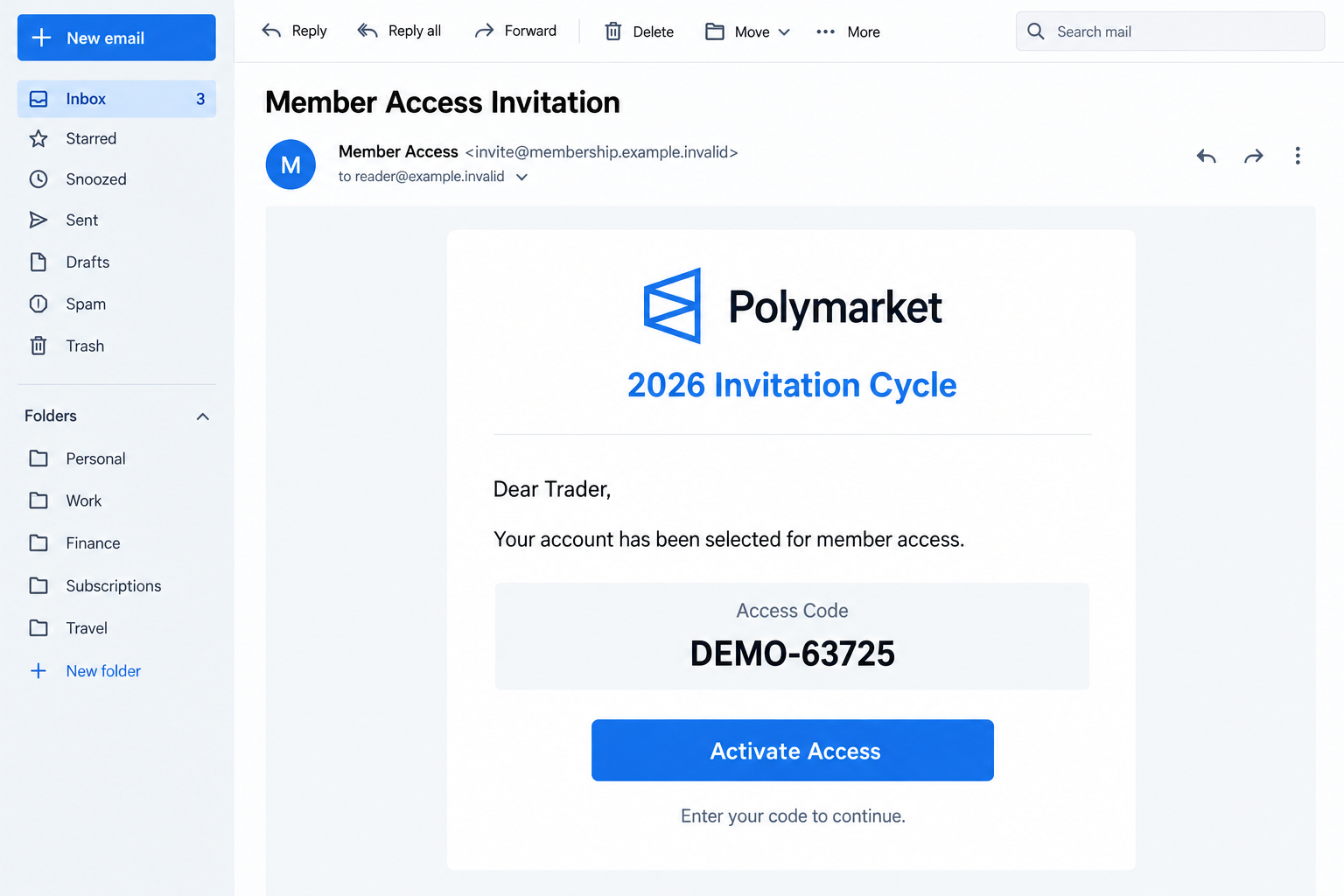
A Polymarket email says your activity has earned an invitation to enhanced member access. There is a code, an activation button, and a reason to feel selected.
Before using that code, look beyond the invitation’s professional wording. The destination and the verification request tell you more than the promise of special access.
Overview
The invitation claims to reward an established trading history
The Polymarket Member Access Invitation email scam presents a supposed invitation cycle for selected participants. It claims eligibility comes from past platform activity and engagement.
A code makes the message appear individualized. The recipient is instructed to activate access and complete verification rather than simply read a general announcement.
This invitation is fraudulent. Its apparent recognition of your account does not establish a real benefit, and the linked flow is reported as a cryptocurrency-drainer campaign.
The warning applies to the counterfeit email and destination. Polymarket’s genuine service is being impersonated, not identified as the sender of this offer.
The activation route changes the nature of the offer
The reported destination was thepolymarketportal-2026[.]com, a separate domain from Polymarket’s established website. It used a staged landing page and imitation market interface.
The journey then introduced a code-verification claim panel, apparent live activity, and wallet connection. A private invitation became a reason to authorize something involving assets.
- The email says your trading history made you eligible.
- An access code gives the offer an administrative appearance.
- A separate website borrows the market platform’s identity.
- The claim or signup route asks the wallet to get involved.
That progression is the important clue. Your expectation of better account features should not become permission for an unexplained transaction.
What is known about this version
The original inbox message was not supplied, and the reported destination did not yield a usable live capture. The description concerns the documented invitation variant.
The exact authorization accepted by an individual recipient must be checked in their wallet records. A connection, signature, approval, and transfer are not interchangeable events.
Do not enter the invitation flow to investigate. You can reject the email and use the genuine service’s support route without connecting anything to its imitation.
Why an Access Code Makes the Email Feel Personal
An invitation code looks like evidence that somebody checked your account. In reality, generating a code does not require the sender to know your history.
The surrounding story does much of the persuasion. It describes increased participation and enhanced features, making the invitation sound like an ordinary product rollout.
If you have traded before, you may mentally connect that story to your experience. The message does not need to demonstrate the connection itself.
If you have never used Polymarket, the mismatch is easier to notice. But an existing user’s familiarity should not replace verification of the sender and destination.
A code can also make abandoning the process feel like wasting an opportunity. You have already been given something that looks reserved for you.
Remember what it actually is: text printed in an email. Until the genuine service confirms it, the code is not proof of eligibility or value.
Do not forward the invitation to a friend who uses the platform and ask them to try it. That exposes another wallet instead of verifying yours.
How the Polymarket Member Access Invitation Scam Works
Step 1: The message claims that you have been selected
The email frames enhanced access as a result of historical participation. That makes clicking feel like claiming a benefit rather than responding to an unknown advertiser.
Its businesslike tone helps. Not every fraudulent message is full of spelling errors or obviously unrealistic riches; some imitate restrained administrative correspondence.
Check whether the invitation appears in your genuine account or established project announcements. Do that independently, without following the email’s activation route.
A familiar platform name in the sender field is insufficient. Expand the address and examine the link, while remembering that even a compromised account can send dishonest material.
Step 2: The activation button moves you to a separate portal
The reported link takes the recipient to an unofficial portal rather than the normal Polymarket destination. The domain includes the brand and a year.
Neither element creates affiliation. A year can reinforce the invitation-cycle story while a project name helps the address look relevant at a glance.
Read the actual registered domain, not just the recognizable word. Thepolymarketportal-2026[.]com is not a page under polymarket.com.
Do not ask the portal whether it is official. A counterfeit website can display an official-looking answer as easily as an official-looking homepage.
The safer route begins at Polymarket’s established website. Confirm any claimed benefit there before continuing.
Step 3: A market-themed landing page leads into a clone
The documented flow first displays a branded landing page, then offers entry to a market board. This extra stage makes the destination feel like a substantial service.
A familiar market layout can reduce the surprise of arriving somewhere new. You see categories and activity that resemble the platform you expected.
Those details still belong to the same unverified destination. Moving between its pages does not provide an independent check on its operator.
Keep the address in view when the interface changes. A convincing screen is not a reason to forget the separate domain that brought you there.
Sports, world events, and cryptocurrency are normal prediction-market subjects. Their presence can establish the theme, but not the invitation’s authenticity.
Step 4: Verification becomes a claim process
The imitation interface uses a code-verification panel tied to unlocking a claim. Apparent claiming counters and wallet notifications make the reward look active.
Those displays are not transaction evidence. A website can announce that others are receiving benefits without proving that any reported claim occurred.
Notice the change from the email’s promise. Enhanced discovery or access features should not quietly become an unexplained cryptocurrency-claim procedure.
Ask what the benefit is and why a wallet needs to authorize it. If those answers come only from the counterfeit page, they are not reliable.
Do not hurry because other wallets seem to be finishing first. The activity display is part of the page trying to influence your decision.
Step 5: A wallet request supplies the dangerous authority
The claim or signup flow offers popular wallet connection methods. Familiar product names can make an unfamiliar request seem standard.
After connection, the flow may request a signature or token approval. Those requests can authorize something materially different from verifying an invitation code.
Read the request in the wallet itself. A website’s claim that an action is verification cannot turn asset-spending authority into a harmless identity check.
Decline anything you cannot interpret. No private access code justifies exposing your recovery phrase, and no legitimate-looking signup label guarantees a safe approval.
If you approved an action, examine the actual network and transaction. Do not rely on the clone’s description of what supposedly happened.
A normal wallet connection alone is not proof of theft. Conversely, approving a malicious request does not require a visibly broken computer or a stolen email password.
Check the Invitation Without Using It
Use the platform’s own support entry point
Polymarket publishes support guidance through its help center. Its website support and US app support have distinct contact routes, so match the service you actually use.
The official support instructions identify those routes. Start there rather than using a contact supplied by the imitation portal.
Ask a simple question: does this invitation and its exact domain belong to your account’s service? Supply the email with sensitive information removed where appropriate.
Keep the question focused on the invitation. Do not attach identity documents or recovery material merely to ask whether a domain is genuine.
Check whether the stated benefit remains consistent
Save the email’s complete offer before reporting it. A cropped code panel can omit the selection claim or activation destination that explains why the message was convincing.
When warning another recipient, identify the exact invitation variant. An unrelated legitimate account notification should not be dismissed merely because it carries the same brand.
List what the email promised: selected access, discovery tools, or market features. Compare that with the action demanded by the destination.
An unexplained jump to token approval is not a minor interface difference. It changes what you are giving the operator permission to do.
Do not accept a vague explanation that everyone must synchronize a wallet. Ask for verified documentation of the specific action or decline it.
Keep account login and wallet authorization separate
Someone who obtained a wallet approval may not have your email password. Someone who collected a sign-in credential may create a different account exposure.
Record both if both occurred. A good recovery plan should not assume that changing one password resolves a cryptocurrency permission.
Likewise, revoking an allowance does not fix a phrase already disclosed. The remedy must match the information or authority you actually handed over.
What to Do if You Have Fallen Victim to This Scam
Stop the activation process. Reject outstanding wallet prompts and leave the portal. Remove its connection through the wallet application’s own controls.
Do not use the invitation code again to check whether it still works. A repeated attempt adds interaction, not useful proof.
Save the message and authorization records. Keep the sender details, destination, code, accepted requests, and any transaction hashes. Preserve the sequence of events.
Do not include secret wallet words in evidence shared with support. An investigation can begin with the public transaction and the suspicious message.
Review inappropriate spending access. Use verified wallet-provider guidance to inspect permissions on the relevant chain. Revoke unwanted allowances where applicable.
Disconnecting a website may leave on-chain approval intact. Investigate consequential signatures as well, rather than assuming every request appears as an ordinary transfer.
Recover credentials or keys that were disclosed. Protect an account login through the genuine provider. Replace exposed wallet secrets with fresh keys through a trusted process.
Make account changes on equipment you trust. If the imitation asked for a software installation, include that additional exposure in the recovery assessment.
Report the impersonation and any loss. Notify Polymarket through its official support channel and any exchange involved in relevant transfers. Provide concise, specific evidence.
For US fraud reporting, use IC3. Retain case numbers and responses, but do not assume that filing a report guarantees funds will return.
Check software exposure when it actually occurred. If you executed a download or gave remote access, scan the affected device with trusted protection such as Malwarebytes.
AdGuard can reduce some malicious-ad exposure. These tools do not reverse a wallet transaction, and opening the invitation email alone does not demonstrate infection.
Refuse another claim or recovery charge. Do not pay someone who says your bonus needs release, your wallet needs validation, or your stolen funds require an upfront rescue fee.
Block unverified follow-up contacts after preserving their messages. Use the provider’s established support route, not the person who approached you.
Is Your Device Infected? Run a Free Malware Scan
Slow performance, constant pop-ups, or strange behavior? These are classic signs of a malware infection. The fastest way to find out is to scan your device with Malwarebytes Free — one of the most trusted malware removal tools available.
The free version detects and removes the most common threats, including:
- Adware — the cause of those annoying pop-ups
- Browser hijackers — unwanted redirects and changed homepages
- Trojans and spyware — hidden programs stealing your data
- Potentially unwanted programs (PUPs) — software you never asked for
👉 Select your device below — Windows, Mac, or Android — then follow the simple steps to download Malwarebytes, scan your system, and remove any threats it finds. The scan usually takes 5 to 20 minutes.
Run a Malware Scan with Malwarebytes for Windows
Malwarebytes is one of the most popular and trusted anti-malware tools for Windows — and it’s completely free for removing infections. It catches threats that many antivirus programs miss, including adware, browser hijackers, and trojans. Follow the steps below to scan and clean your PC in just a few minutes.
Download Malwarebytes
Click the button below to download the latest version of Malwarebytes for Windows from the official source. The free version is all you need — it will scan your computer and remove adware, browser hijackers, and other malicious software at no cost.
Download MalwarebytesOfficial installer for Windows 11 and 10. Your download starts right away.Want real-time protection? See Malwarebytes Premium Malwarebytes Free for WindowsScans and removes malware at no cost
-
Install Malwarebytes
When the download finishes, open your Downloads folder and double-click the MBSetup file. If Windows shows a User Account Control pop-up, click “Yes” to allow the installation.

Follow the On-Screen Prompts to Install Malwarebytes
The setup wizard will walk you through a few quick screens:
-
Choose where you’re installing the program — “Personal Computer” or “Work Computer” — then click Next.

-
Malwarebytes will now install on your device. This usually takes under a minute.

-
When installation is complete, the “Welcome to Malwarebytes” screen will open automatically.

-
On the final screen, click Open Malwarebytes to launch the program.

-
Enable “Scan for Rootkits”
Before scanning, turn on rootkit detection so Malwarebytes can find even the most hidden threats. Click the Settings gear icon on the left side of the screen.

In the settings menu, find “Scan for rootkits” and click the toggle so it turns blue.

Done? Click “Dashboard” in the left pane to return to the main screen.
Start the Scan
Click the blue Scan button. Malwarebytes will automatically update its virus database and start checking your computer for malware.

-
Wait for the Scan to Finish
The scan checks your entire system for browser hijackers and other malicious programs, so it can take 5 to 20 minutes depending on your computer. Feel free to do something else — just check back occasionally to see the progress.

-
Quarantine the Detected Threats
When the scan is done, you’ll see a list of everything Malwarebytes found — malware, adware, and potentially unwanted programs. Click the “Quarantine” button to remove all of them at once.

Malwarebytes will now remove the malicious files and registry entries and move them safely into quarantine.

-
Restart Your Computer
Some threats can only be fully removed after a reboot. If Malwarebytes asks you to restart, click Yes. Once you’re logged back in, Malwarebytes has finished removing the threats it found.

That’s it — your Windows PC is now clean of trojans, adware, and other malware, and should be back to running smoothly.
If you are still having problems with your computer after completing these instructions, then please follow one of the steps:
- Run a computer scan with ESET Online Scanner
- Ask for help in our Windows Malware Removal Help & Support forum.
Run a Malware Scan with Malwarebytes for Mac
Malwarebytes for Mac is a free on-demand scanner that removes the malware other security software tends to miss — adware, browser hijackers, and unwanted programs included. Cleaning an infected Mac with Malwarebytes has always been completely free, and it’s our go-to recommendation. Follow the steps below to scan and clean your Mac in just a few minutes.
-
Download Malwarebytes for Mac
Click the button below to download the latest version of Malwarebytes for Mac.
Download MalwarebytesOfficial installer for macOS. Your download starts right away.Want real-time protection? See Malwarebytes PremiumMalwarebytes Free for MacScans and removes malware at no cost -
Open the Malwarebytes setup file
When the download finishes, open your Downloads folder and double-click the setup file to begin the installation.

-
Follow the On-Screen Prompts to Install Malwarebytes
The Malwarebytes for Mac Installer will guide you through a few quick screens. Click “Continue” and keep following the prompts until the installation completes.



When the installation is complete, Malwarebytes opens to the Welcome to Malwarebytes screen. Click “Get started“.
-
Select “Personal Computer” or “Work Computer”
Malwarebytes will ask what type of computer you’re installing it on. Click either Personal Computer or Work Computer, whichever applies.

-
Start the Scan
Click the “Scan” button. Malwarebytes will automatically update its detection database and begin checking your Mac for malware.

-
Wait for the Scan to Finish
Malwarebytes will scan your Mac for adware, browser hijackers, and other malicious programs. This can take a few minutes, so feel free to do something else — just check back occasionally to see the progress.

-
Quarantine the Detected Threats
When the scan is done, you’ll see a list of everything Malwarebytes found. Click the “Quarantine” button to remove all the threats at once.

-
Restart Your Mac
Malwarebytes will now remove all the malicious files it found. Some threats can only be fully removed after a reboot — if Malwarebytes asks you to restart, allow it. Once you’re logged back in, your Mac is clean.

That’s it — your Mac is now free of adware, rogue browser extensions, and other potentially harmful software.
If you are still experiencing problems while trying to remove a malicious program from your computer, please ask for help in our Mac Malware Removal Help & Support forum.
Run a Malware Scan with Malwarebytes for Android
Malwarebytes for Android automatically detects and removes dangerous threats like malware and ransomware so you don’t have to worry about your most-used device being compromised. Aggressive detection of adware and potentially unwanted programs keeps your Android phone or tablet running smooth.
-
Download Malwarebytes for Android.
You can download Malwarebytes for Android by clicking the link below.
Get Malwarebytes for AndroidOpens Google Play in a new tab.Want real-time protection? See Malwarebytes Premium for AndroidMalwarebytes for AndroidScans your phone and removes malware at no cost -
Install Malwarebytes for Android on your phone.
In the Google Play Store, tap “Install” to install Malwarebytes for Android on your device.

When the installation process has finished, tap “Open” to begin using Malwarebytes for Android. You can also open Malwarebytes by tapping on its icon in your phone menu or home screen.

-
Follow the on-screen prompts to complete the setup process
When Malwarebytes will open, you will see the Malwarebytes Setup Wizard which will guide you through a series of permissions and other setup options.
This is the first of two screens that explain the difference between the Premium and Free versions. Swipe this screen to continue.
Tap on “Got it” to proceed to the next step.
Malwarebytes for Android will now ask for a set of permissions that are required to scan your device and protect it from malware. Tap on “Give permission” to continue.
Tap on “Allow” to permit Malwarebytes to access the files on your phone.
-
Update database and run a scan with Malwarebytes for Android
You will now be prompted to update the Malwarebytes database and run a full system scan.

Click on “Update database” to update the Malwarebytes for Android definitions to the latest version, then click on “Run full scan” to perform a system scan.

-
Wait for the Malwarebytes scan to complete.
Malwarebytes will now start scanning your phone for adware and other malicious apps. This process can take a few minutes, so we suggest you do something else and periodically check on the status of the scan to see when it is finished.

-
Click on “Remove Selected”.
When the scan has been completed, you will be presented with a screen showing the malware infections that Malwarebytes for Android has detected. To remove the malicious apps that Malwarebytes has found, tap on the “Remove Selected” button.

-
Restart your phone.
Malwarebytes for Android will now remove all the malicious apps that it has found. To complete the malware removal process, Malwarebytes may ask you to restart your device.
That’s it — your Android phone is now clean — no more malicious apps, adware, or browser redirects.
If you are still having problems with your phone after completing these instructions, then please follow one of the steps:
- Restore your phone to factory settings by going to Settings > General management > Reset > Factory data reset.
- Ask for help in our Mobile Malware Removal Help & Support forum.
Stay Protected: Block Ads and Malicious Sites
Now that your device is clean, keep it that way. Most infections start with a malicious ad or a fake download button — so blocking them at the source is your best defense.
We recommend AdGuard, which blocks malicious ads, phishing pages, and dangerous redirects before they can reach you.
👉 Download AdGuard and browse safely
If the Invitation Arrived at a Work Address
A work inbox does not make a personal crypto offer a business task. Report the suspicious message through your organization’s normal phishing channel.
If you used a company-managed browser or computer, tell the security team whether anything downloaded or ran. Include that fact even if the wallet was personal.
Conversely, do not describe a simple unwanted email as a confirmed company breach. The team needs the actual exposure to decide its response.
Keep colleagues from testing the link on your behalf. A safe report preserves evidence without distributing another invitation to connect a wallet.
If the message was forwarded, include the original sender information where available. A familiar colleague’s forwarding address does not identify the underlying operator.
Warn the colleague calmly and specifically. Explain that the code and activation destination are unverified, rather than accusing them of intentionally distributing fraud.
After reporting, remove the message from ordinary use so it is not reopened later. Keep the preserved evidence wherever your support process requires it.
Frequently Asked Questions
Is the Polymarket Member Access Invitation real?
The email variant described here is fraudulent. It uses account-history language and a code to send recipients toward an unofficial wallet-drainer portal.
Does an access code prove my account was selected?
No. A code printed in an email can be fabricated. Verify any genuine selection through the platform’s own account and support channels.
Is thepolymarketportal-2026.com part of polymarket.com?
They are separate domains. The brand name and year in the imitation’s address do not make it an authorized part of the genuine service.
Can reading the email move my cryptocurrency?
Reading this invitation is not itself a wallet transaction. Review what happened afterward, especially any signature, spending permission, key disclosure, or transfer.
Are the live claiming notifications reliable?
Not as proof of a reward. Activity printed by the same counterfeit website is not independent confirmation that other people received legitimate allocations.
Should I contact the support address inside the portal?
No. Use the official help center and match its support route to the service you use. Do not let the imitation choose who verifies it.
The Bottom Line
Do not activate this Polymarket invitation through its unofficial portal. An access code and account-history story do not authenticate a wallet request.
If you already accepted one, inspect the actual authorization and secure the relevant access. Report the imitation through genuine channels and refuse further payments or secret-sharing requests.








