
Reset Chrome on Android: Clear Unwanted Settings and Know What You Lose

Resetting the Chrome browser settings to their default it’s an easy task on Windows or Mac, however, when it comes to Android this can’t be done directly because it’s not an option built-in into the browser settings. Restoring the Chrome browser settings on Android can be done by clearing the application data. This will remove all the cookies, cache, and other site settings that may have been saved. So let’s see how we can restore Chrome to its factory settings.
Illustration showing a careful Android Chrome cleanup with a backup checkpoint before data removal

How To Reset Chrome For Android To Default Settings

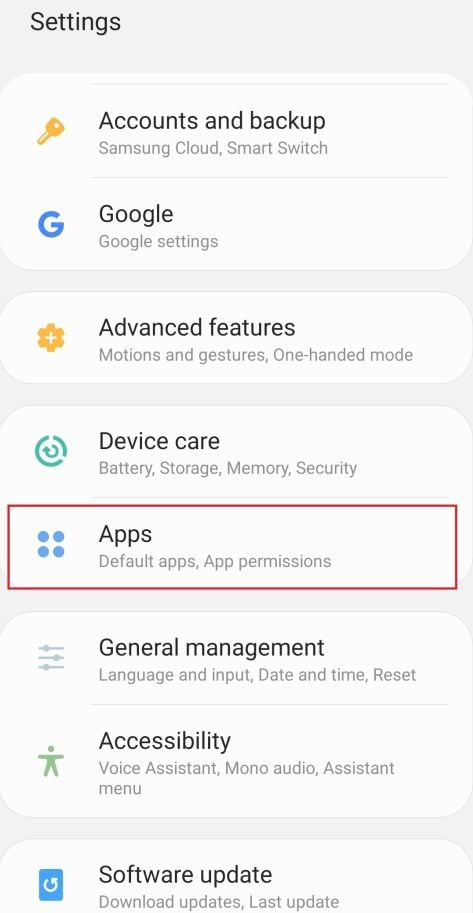
  1. Open your device’s “Settings” menu, then tap on “Apps”

    To reset Chrome’s settings from your Android device, go to the Settings menu, then tap on Apps or Application manager (this may differ depending on your device). Go to Apps
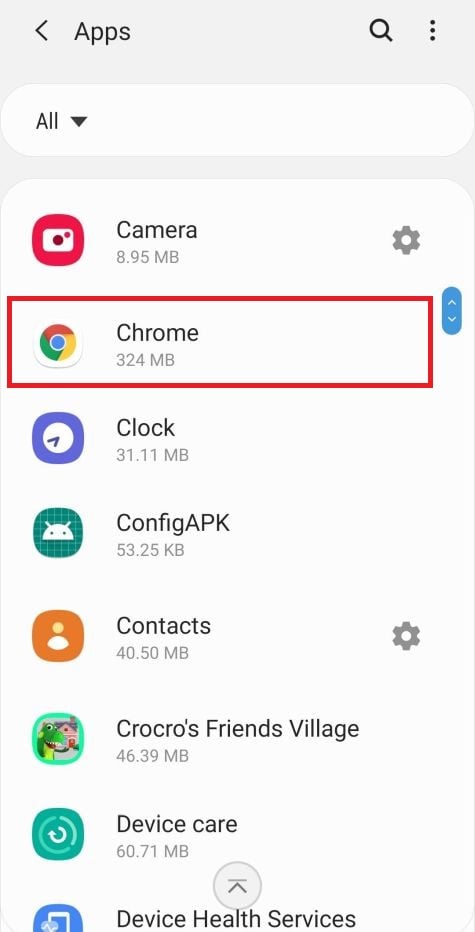
  2. Find and tap on the Chrome app.

    The “Apps” screen will be displayed with a list of all the apps installed on your device. Scroll through the list until you find the Chrome app. Find and tap on the Chrome app.
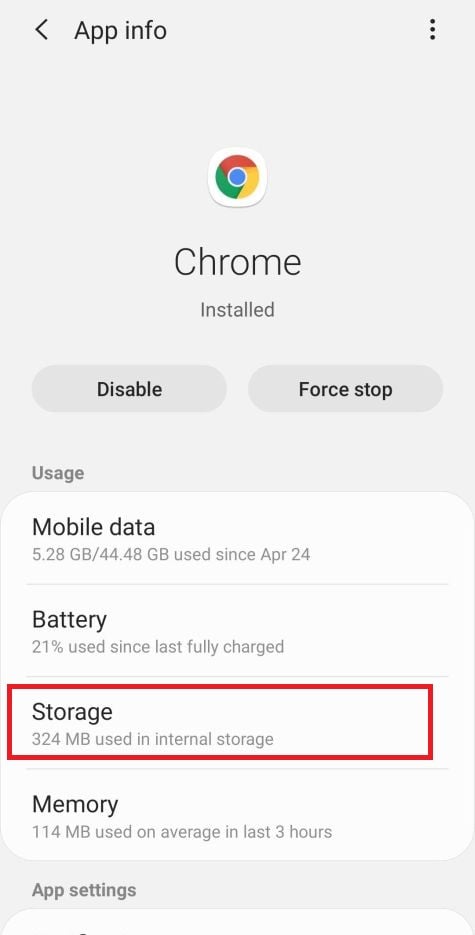
  3. Tap “Storage”.

    Chrome’s “App info” menu should now be displayed. Tap on “Storage“. Tap on Storage
  4. Tap “Manage Space”.

    Under storage settings, the labels vary by phone. Choose Manage Space, Manage Storage, or Clear storage; do not select only Clear Cache. Some devices show Manage Space and Clear Cache. Tap on “Manage Space”. Tap on Manage Space
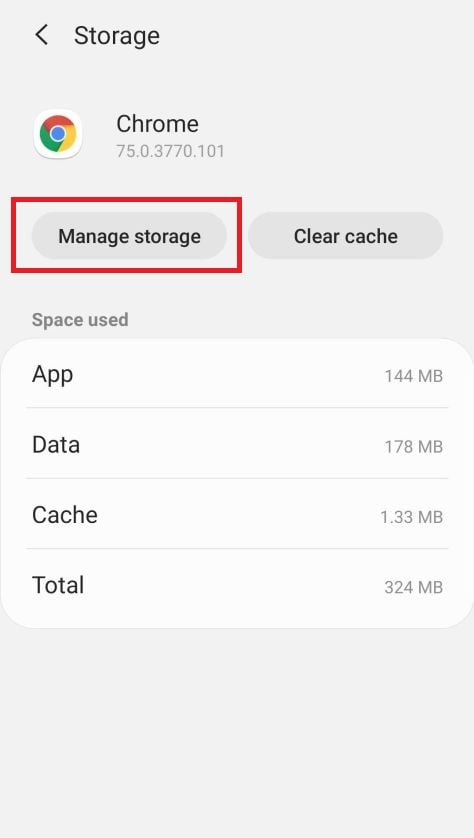
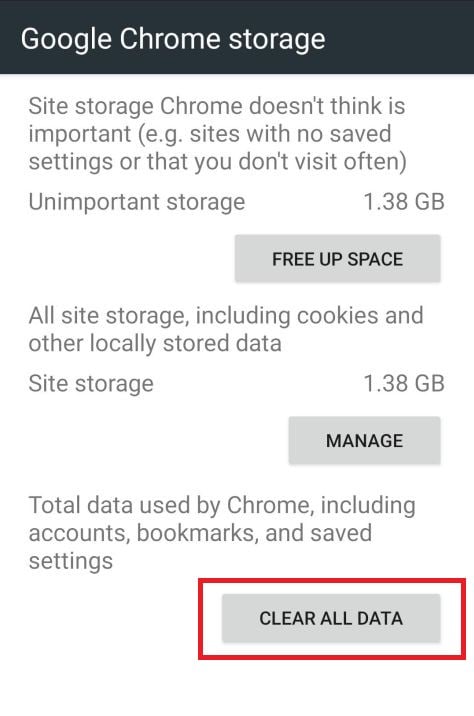
  5. Tap “Clear all data”.

    Before clearing data, save any tabs and unsynced bookmarks you need. Tap “Clear all data” to reset Chrome’s local app storage and sign-ins. This does not delete your Google account or the data already saved in it. Tap on Clear All Data
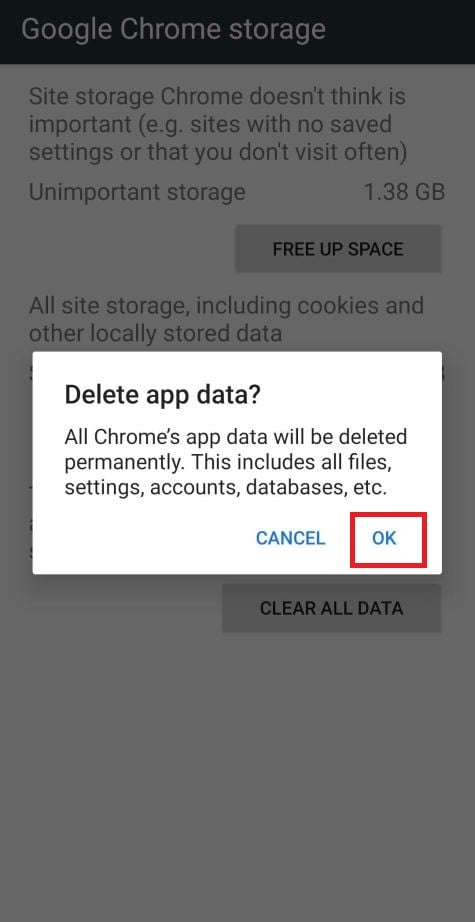
  6. Confirm by tapping “Ok”.

    A confirmation dialog should now be displayed, detailing the components that will be restored to their default state should you continue on with the reset process. To complete the restoration process, tap “Ok”. Tap Ok to reset Chrome
That’s it, Google Chrome settings will be restored to their defaults. We strongly recommend that you install an adblocker like AdGuard [recommended] to block the malicious ads. While resetting Google Chrome will restore the browser’s settings back to default, an unwanted Android app or a website permission can cause the problem to return. Standard Chrome for Android does not use desktop Chrome extensions. If you are still having problems with your phone after completing these instructions, then please follow one of the steps:

Comment on this post

Previous

Android Pop-Up Ads Won’t Stop? Remove Spam, Redirects and Unwanted Apps

Next

Ransomware Removal and Recovery: What to Do When Your Files Are Locked