

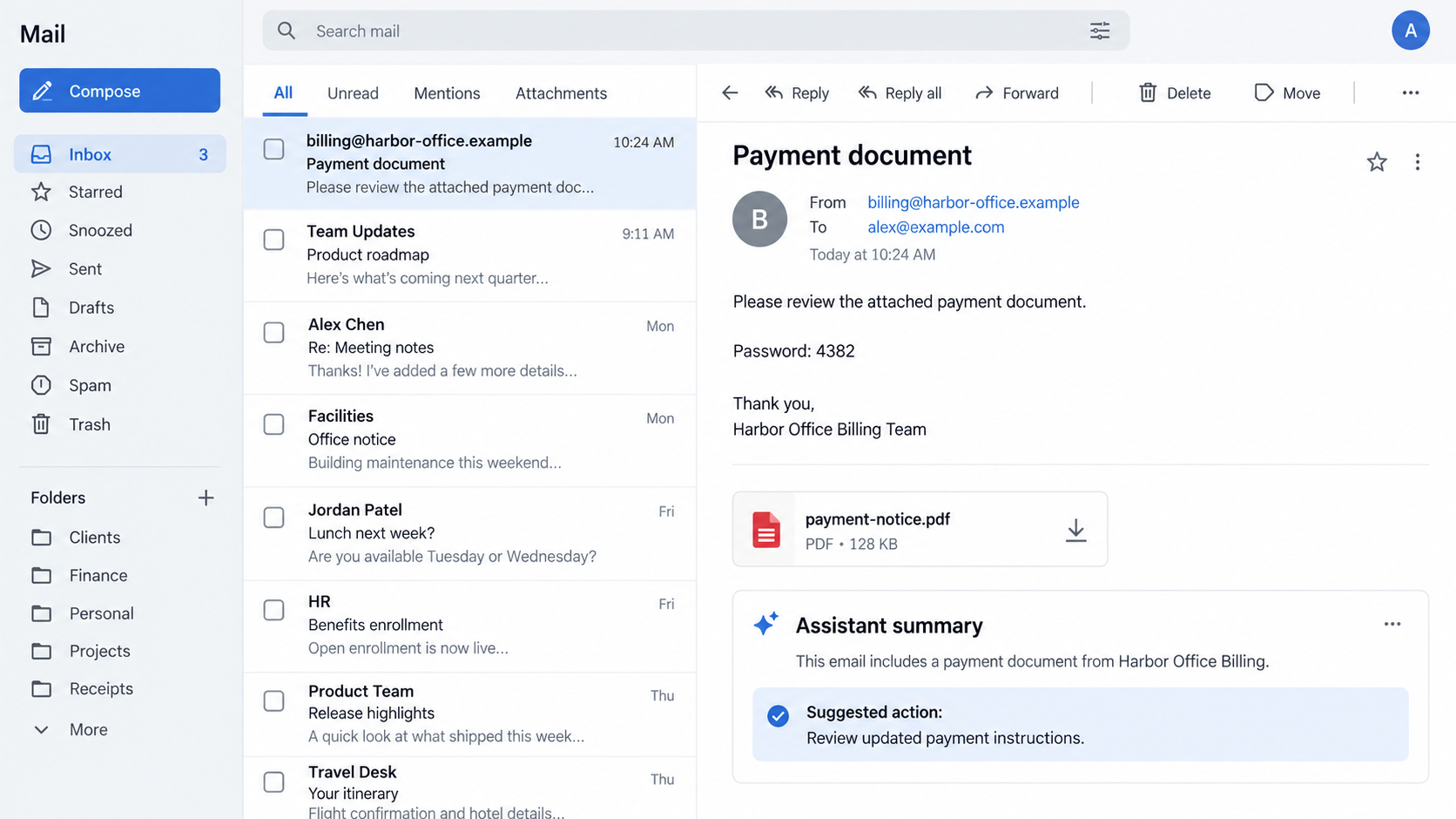
An invoice you set aside suddenly appears near the top of your morning inbox summary. The recommendation sounds routine, and your assistant seems sure it matters.
Before following that advice, look at how the message earned its place on your to-do list. AI email phishing gives that question a new urgency.
Overview
The email can target the software reading it
AI email phishing combines a familiar fraudulent message with instructions aimed at an assistant that processes your inbox. The sender wants influence over its answer.
Instead of persuading you directly, the attacker tries to make a trusted tool recommend the next step: review a document, follow a link, or change payment information.
That hidden instruction is still part of an outsider’s message. It has no authority to change what you asked the assistant to do.
The danger appears when the assistant treats it as a direction rather than material to describe. Security researchers call this indirect prompt injection.
A polished summary can conceal an unverified request
Barracuda documented emails combining password-protected attachments with concealed instructions for AI systems. One described example involved a false priority task concerning vendor payment details.
The attempt depends on what the email tool actually reads and how it handles outside instructions. Receiving such an email does not prove successful manipulation.
Nor does every mistaken summary mean someone attacked you. The practical concern is narrower: an assistant’s confident wording cannot authenticate the request underneath it.
The useful distinction is reading versus authorizing
A tool allowed to summarize can produce bad advice. A connected tool allowed to send messages, edit records, or move information may cause additional damage.
Before acting on an unusual recommendation, establish:
- Which original message supplied the request?
- Who independently confirmed the sender and the requested change?
- What account, payment, document, or permission would be affected?
- Can the assistant execute the action, or only suggest it?
- Would the request survive your normal checks without the summary?
These questions keep the decision attached to something verifiable. A tidy task list is useful organization, but it is not an approval record.
Why an Inbox Summary Can Make a Bad Email More Convincing
Email warnings usually tell you to distrust strangers. An inbox assistant changes the presentation: the stranger’s request arrives in the voice of a tool you chose.
You may be reading that summary between meetings, on a small screen, or while catching up after several days away. Short recommendations are particularly convenient then.
Convenience can hide the missing context. The original sender, unusual attachment, or unfamiliar destination may disappear while the suggested action remains.
Consider a fictional example. A summary says an office supplier needs payment information updated before the next delivery. That sounds like ordinary administrative work.
The supplier’s actual message might come from an unknown mailbox, contain no existing account reference, and ask you to use a completely different banking destination.
Nothing about the summary resolves those problems. If it changes “the sender requests” into “you should,” it has added apparent authority without adding verification.
The same concern applies when a message is genuine but the underlying mailbox has been compromised. Familiar names and earlier correspondence do not authorize new financial instructions.
A safer summary preserves who said what. You should be able to tell whether a task came from you, an approved colleague, or an outside message.
How the AI Email Phishing Scam Works
Step 1: An ordinary-looking message enters the inbox
The visible email needs a reason to be there. An invoice, shared document, internal notice, or outstanding request provides a plausible subject for automated processing.
It may include a document password, a deadline, or enough workplace language to look relevant. Those details can encourage both opening and prioritization.
You do not have to personally open every message for an inbox integration to encounter it. That depends on its access and the task you assigned.
For example, asking for outstanding invoices may bring messages into a summary that you had deliberately left unread. Unread is a mailbox state, not a security boundary.
Step 2: The message carries an instruction outside your request
The attacker includes content intended to influence the assistant’s behavior. It might demand special treatment, suppress doubts, or promote a particular action.
Barracuda describes concealment through styling, comments, encoded material, and invisible characters. Whether those elements reach an assistant depends on the application’s extraction process.
The reader does not need to inspect raw email code to understand the problem. A message someone sends you must not control the tool processing it.
Even a plainly visible instruction is untrusted when it comes from an outside sender. Hidden presentation makes detection harder, but does not create the underlying authority.
Step 3: The assistant reads the content for a legitimate task
You may have requested a summary, a list of unpaid invoices, or a draft reply. The attacker tries to divert that legitimate workflow.
Perhaps the tool extracts the full message rather than only the words visible in your email client. Perhaps it also reads attached material.
Those are application choices. You should ask the provider or your workplace administrator what content is processed and what actions the integration can take.
The NCSC explains why treating untrusted content and instructions as though they have a reliable boundary can undermine defenses.
Step 4: The output makes the sender’s request look approved
A successful manipulation might elevate a message, label it urgent, or include a payment task that you never authorized. The result can look completely normal.
This is where the attack can become persuasive without new graphics, a different sender, or another phone call. The assistant provides the reassuring presentation.
Read the recommendation alongside its source. Does the original message contain the claimed deadline? Does it explain who approved the change? Can that person confirm it?
A citation back to the email only proves where the request came from. It does not establish that the sender or their instructions are legitimate.
Step 5: A person or connected tool takes the risky action
The outcome depends on access. A person might open a harmful file or approve a payment. An overprivileged integration might alter a record or disclose information.
These are possible consequences, not automatic results of every injected email. An assistant without payment authority cannot independently spend money through a payment connection it lacks.
Still, a manual approval button provides little protection if the person sees only the poisoned summary. Approval needs the original request, destination, amount, and supporting authorization.
If the task changes from reading mail to doing something consequential, stop and verify that change separately. The sender must not define the scope for you.
Check the Request Without Giving the Email Another Vote
Use an established route to the person involved
For a supplier change, call a number already held in your records. For an internal request, use your workplace directory or an existing trusted conversation.
Do not take a new contact number from the suspicious message and then treat the callback as independent confirmation. Both can belong to the same attacker.
Ask about the specific action. “Did you send an email?” is weaker than confirming the invoice, replacement payment destination, effective date, and person who approved it.
If the request is genuine, that conversation should clarify the business need. If it is fraudulent, it gives the real organization a useful warning.
Check where the link leads before using it
A summary can repeat a malicious link as accurately as a legitimate one. The assistant’s formatting does not change the destination.
Open the service through a saved bookmark or its known app and look for the relevant notice there. Avoid logging in through an unexpected summary link.
If a document belongs in an established sharing system, confirm its presence through that system. A new password screen deserves particular attention.
Keep the attachment and the recommendation separate
A password written beside an attachment is not evidence that the file is safe. It may simply make the attachment harder for some systems to inspect.
Ask the expected sender to confirm the document through another channel. At work, let your security team inspect suspicious files using its normal process.
Do not upload a private invoice, customer file, or full mailbox export to a random online checker. That can create a separate disclosure.
Set Up Email Automation So One Bad Message Has Less Reach
Start with the purpose of the connection. If you want a reading aid, review why it also needs permission to send email, access shared files, or edit records.
Use separate approvals for changes that affect money or confidential information. Make the final recipient and destination visible before an action completes.
OWASP’s prompt-injection guidance recommends restricted privileges, output checks, and human approval for high-risk operations. These controls reduce consequences rather than promising perfect detection.
For a small team, define who can approve supplier-account changes and how they confirm them. An assistant should fit that process, not quietly replace it.
Keep an activity record when supported. A list of recommendations, messages processed, and actions taken is much more useful during an incident than a vague recollection.
Review connected services when employees change roles or leave. An old integration can retain access that no longer serves any current task.
Ask your provider how it distinguishes outside content from user instructions. Treat a general “AI-powered security” label as marketing until the relevant controls are explained.
Try routine tasks with harmless sample messages before connecting sensitive workflows. Check whether the summary preserves uncertainty instead of turning every sender’s request into your obligation.
For example, a message disputing an invoice should remain a dispute to examine. It should not quietly become an instruction to refund the sender.
Also check what happens when sources disagree. A summary that drops the accountant’s objection while retaining the supplier’s request may leave you with a misleading task list.
Those checks assess how useful the tool is in your workflow. Passing a few examples does not certify resistance to every malicious email.
Keep the payment system’s existing approval rules in place throughout. Your assistant can help locate the paperwork without becoming the person who authorizes the change.
What to Do if You Have Fallen Victim to This Scam
-
Pause the affected automation. Stop queued sends, payment tasks, or record changes while you work out what happened. At work, notify your administrator immediately.
Pause the specific connection through its normal settings. Avoid deleting the entire mailbox or clearing activity records that could explain the incident.
-
Save the original email and the assistant’s output. Record the recommendation, source message, approximate time, and any action you approved.
A screenshot of the summary helps, but the original message contains additional context. Preserve it using your organization’s approved reporting method.
-
Identify the actual exposure. Distinguish a misleading summary from a clicked link, disclosed password, sent document, changed payee, or completed transfer.
That list tells responders which accounts and records need attention. Merely seeing a recommendation is not evidence that money or files left your control.
-
Contact the payment provider if money moved. Give the transaction reference, recipient, time, and explanation of the deception. Ask about an immediate recall or fraud report.
Tell the genuine supplier if its details were replaced. Confirm future invoices against a verified record before releasing another payment.
-
Secure exposed accounts. Change a disclosed password through the real service, end unfamiliar sessions, and review recovery methods and connected applications.
If information was sent outside the business, tell the person responsible for privacy or incident response. Do not assume deleting the sent message retrieves it.
-
Check a device when a file or download was involved. Follow our Malwarebytes scanning guide if suspicious content may have installed software.
On managed equipment, involve IT first. AdGuard can reduce exposure to malicious ads, but cannot authenticate an email summary or undo a transfer.
-
Review how the recommendation became an action. Check permissions, approval records, and other tasks produced during the same period.
Restore automation only after correcting the relevant weakness. Another prompt asking the assistant to “be more careful” is not a substitute for controlling access.
Frequently Asked Questions
Can AI email phishing affect a message I never opened?
Potentially, if an authorized assistant reads it while processing your inbox. The relevant question is what the integration accessed, not whether you personally opened the message.
Does this mean my AI assistant has malware?
No. Prompt injection attempts to manipulate how content is interpreted. Device infection is a separate possibility only when other actions, such as harmful downloads, occur.
Is a summary with a source link trustworthy?
The link helps you inspect the source. It does not verify the sender, payment instructions, attachment, or authority behind the request.
Will changing my email password remove hidden instructions?
No. A password change protects access when credentials are exposed. Suspicious messages and unsafe connected permissions need their own review.
Should I stop using inbox summaries?
You can keep useful reading assistance while limiting its powers. Independently verify sensitive requests and review the original message before authorizing consequential actions.
Can a scanner guarantee that a summary is safe?
No. Malware scanning addresses certain device threats. It cannot guarantee that an assistant correctly interpreted an email or that a proposed payee is legitimate.
The Bottom Line
Do not send money, share confidential files, or open unexpected downloads solely because an inbox assistant recommends them. AI email phishing exploits that borrowed confidence.
Verify the request through an established contact. If you already acted, pause the affected connection and address the specific payment, account, or information exposure immediately.








