

The email mentions the photos you keep meaning to back up. Your storage is supposedly full, and a bright button offers a quick way to fix it.
An iCloud storage email scam can sound uncomfortably familiar. Before touching that button, take a moment to check what the message is actually asking you to protect.
Overview
The warning borrows a real storage problem
Apple accounts can genuinely run short of iCloud storage. Scammers use that ordinary problem to make an unsolicited warning seem relevant before you inspect its source.
The fraudulent version pushes you toward a different website, where a supposed upgrade or billing check becomes a request for account credentials or payment information.
Apple is not behind that impersonation. The risk comes from trusting the message’s route into your account, not from using iCloud itself.
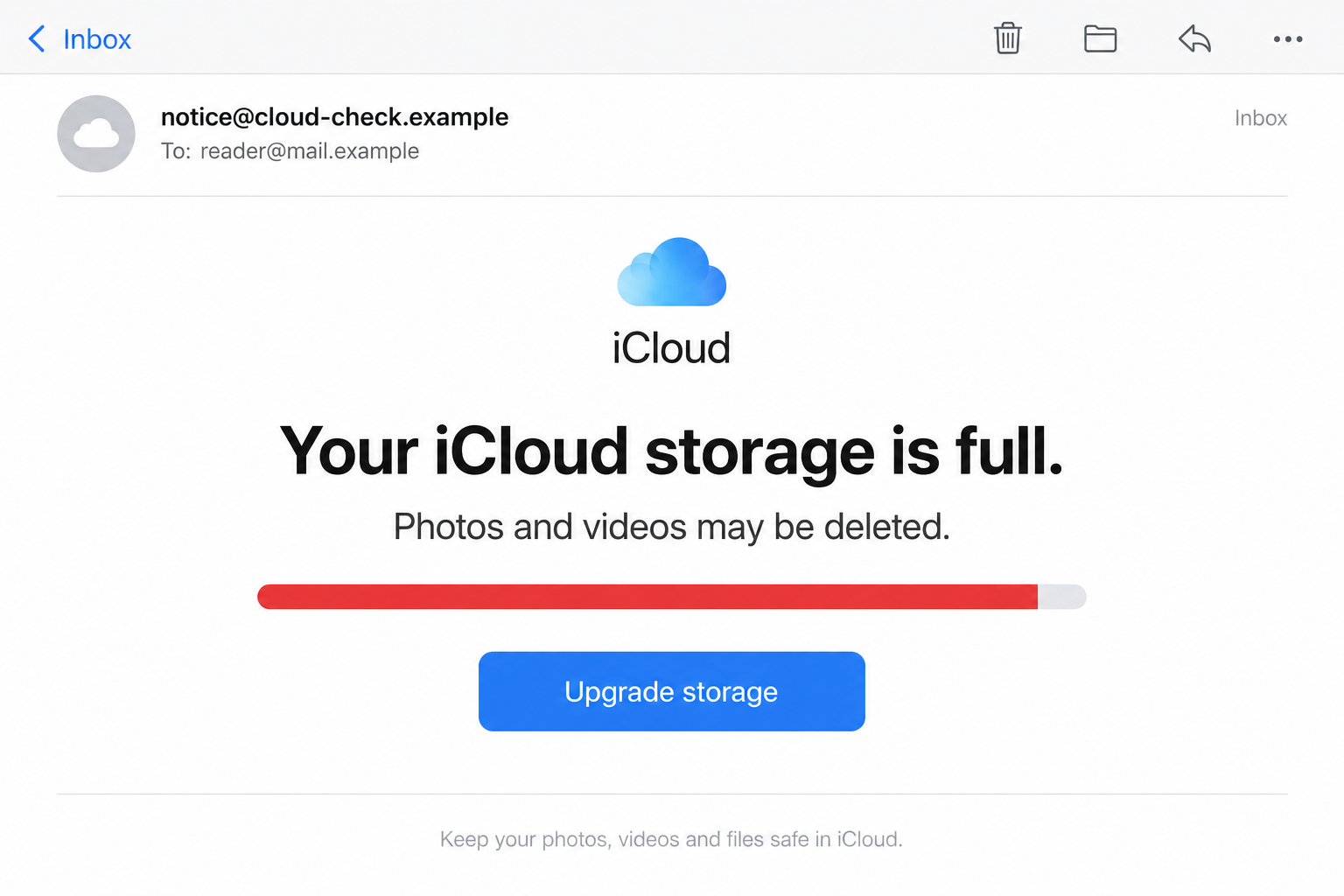
The email illustration uses invented details to show the pressure. It is not an actual Apple notice or evidence that your own photos face deletion.
A genuine account check does not depend on the email
You can examine storage through your Apple device’s settings or by opening iCloud independently. That gives you an account-specific answer without following the sender’s instructions.
Apple’s storage management guidance explains that full storage can interrupt backups, new photo uploads, syncing, and iCloud email.
Those practical limits are different from a stranger’s countdown. An email describing an imminent disaster does not establish what is happening inside your account.
Even if your storage really is nearly full, that coincidence does not authenticate the email or its payment page. Handle the genuine issue through your own settings.
The next action determines the exposure
Opening a message, entering a password, sharing a verification code, and submitting card details are different events. Your response should match what actually happened.
Pause if the warning asks you to:
- Sign in through an unfamiliar address to save photos.
- Send a security code to a supposed storage adviser.
- Pay an unexpected charge to prevent immediate deletion.
- Install a cleaner, browser extension, or remote-support tool.
- Disable account protections before the upgrade can proceed.
None of those requests becomes trustworthy because the page includes a cloud icon, your email address, or an accurate-looking capacity bar.
Check the Storage Problem Without Following the Warning
Look at the account you actually use
Open Settings on your iPhone or iPad, or System Settings on your Mac. Select your Apple Account and examine the iCloud storage information there.
First confirm that the signed-in account is yours. A family device, old account, or different work login can otherwise make two storage figures look inconsistent.
If you prefer a browser, Apple’s online storage instructions describe checking usage through iCloud.com. Start independently, not through the questionable email.
You are checking the account, not testing the suspicious button. There is no need to visit the questionable page just to see whether it looks professional.
Separate iCloud capacity from space on the device
A phone can have little available space while the cloud account still has room. The reverse can also happen. They are not the same storage pool.
That distinction matters when an email claims one small payment will fix everything. Buying cloud capacity is not a universal repair for every local storage problem.
Read the labels in the genuine settings rather than matching a number from the message. The sender may have chosen a convincing figure without accessing your account.
Do not panic-delete the files you wanted to protect
A frightening warning can push you into hurried cleanup. Before changing synced content, understand where copies are stored and what deletion would affect.
Save or archive important material through a trusted method first. Apple’s storage guidance recommends making copies before removing information you may still need.
If the real account needs attention, address that calmly. Rejecting a phishing email does not mean ignoring an actual backup or billing issue.
How the iCloud Storage Email Scam Works
Step 1: A familiar account concern reaches your inbox
The message presents a problem that many Apple users have encountered: insufficient storage, a payment issue, paused backups, or files supposedly at risk.
Its sender name may say iCloud or Apple. A display name is easy to choose, so it should not decide whether you trust the message.
You may already be expecting a storage reminder. That makes the timing persuasive, but it still does not establish who sent this particular warning.
Start by reading the request rather than reacting to the brand. What does the sender want you to enter, authorize, install, or pay?
You can check a genuine storage problem without using the email. Leave its countdown alone and open your own account settings.
Step 2: Personal memories make the deadline feel urgent
The warning emphasizes photos, videos, or backups because those files represent more than replaceable documents. Losing them sounds personal and difficult to undo.
A progress bar or deletion notice can make the situation feel measured and official. In the fraudulent message, it is simply part of the presentation.
The deadline encourages a quick decision before you compare the claim with the real account. That is why the independent check is so valuable.
Do not treat an email timer as a technical assessment. A timer on an untrusted page cannot establish when Apple will take an action.
Step 3: The button moves you away from a trusted route
A button labeled Upgrade Storage or Update Payment can lead somewhere unrelated to Apple. The visible wording describes an action, not the destination’s identity.
The next page may copy familiar colors, account fields, or a sign-in layout. Those elements can be reproduced without any connection to your storage account.
Look at the actual destination, not a word embedded inside it. A brand name placed before an unrelated domain does not make that domain Apple’s.
A browser’s encrypted-connection indicator also has a limited meaning. It does not certify that the business collecting your password is Apple.
If the destination is unclear, stop there. Opening the genuine app or account page separately gives you a safer route to the same legitimate task.
Step 4: The storage fix becomes a request for secrets
The fraudulent form may request an Apple Account password, card details, or information described as verification. Different versions can collect different combinations.
A later request for a one-time code deserves particular attention. Read what the genuine code message says it authorizes before doing anything with it.
Entering a code into the scammer’s page can help them complete a real login or reset. A security code is not a storage-cleanup instruction.
Apple’s social engineering guidance warns against sharing passwords and verification codes with impersonators, including people who claim to be helping secure an account.
Do not lower your protection because a supposed adviser says it is blocking the upgrade. Contact the real service if you need account assistance.
Step 5: The original warning becomes a second problem
After information is submitted, the page may claim there was an error or ask for another step. That does not mean the earlier information was discarded.
Account credentials, card exposure, and a software installation need separate attention. A message saying the payment failed does not settle whether card details were received.
A follow-up contact may describe itself as security support or refunds. Check that new approach independently rather than continuing the first conversation.
Write down what you shared before the details blur. Protecting that information matters more than returning to the email to decide how convincing it looked.
Read the Message Without Letting Its Design Decide
A correct email address is not a private account report
The recipient’s address may appear inside the warning. That proves the sender knew where to deliver the message, not how much storage the account uses.
The same applies to a name, a familiar device label, or a generic subscription reference. Consider whether the detail actually demonstrates access or merely looks personalized.
Do not reply with extra information to correct the sender. A response can give an unverified contact more material without resolving the storage question.
Good spelling does not make the form safe
Some scam messages are polished. Others are awkward. Either can lead to a dangerous credential request, so grammar should not be your main test.
Focus on the route and requested action: did you open the genuine service yourself, and does the request fit the task you intended to perform?
A real billing problem belongs in the genuine account. The email does not need to become the place where you solve it.
What to Do if You Have Fallen Victim to This Scam
-
Stop the interaction and note what you supplied. Close the questionable page without testing another password or making another payment. Keep the message for reporting.
Write down whether you only opened it, followed a link, entered credentials, shared a code, submitted payment details, or installed something. Be specific rather than assuming the worst.
Use that record to choose the steps below. If you only saw the email, you do not need to buy a cleanup service or replace every device.
-
Protect the Apple Account through Apple’s own controls. If you entered its password, open the genuine account route and change it to a strong, unique one.
Follow Apple’s compromised-account instructions to inspect unfamiliar devices and security information. Check that the associated email addresses and phone numbers remain under your control.
If you cannot regain access, use Apple’s recovery process at iforgot.apple.com. Recovery may take time; a stranger cannot guarantee an immediate shortcut.
-
Review a shared code or unexpected approval promptly. Identify the service named in the real notification. Protect that account even if the fake page called it storage verification.
Inspect sign-in and recovery changes through the service’s genuine settings. Do not approve another prompt because the same contact claims the first attempt did not work.
Turn on two-factor authentication where it is not already enabled. Keep it enabled during recovery rather than following an outsider’s instructions to remove it.
-
Address any exposed card or payment. Contact the issuer through its official app or the number on your card. Explain the information entered and any charge observed.
Ask which protective, replacement, or dispute steps fit the transaction. Describe a payment you approved accurately instead of labeling every misleading purchase an unauthorized charge.
The FTC’s payment-response guide explains possible routes. A refund is not guaranteed, so act promptly and retain the case reference.
-
Secure other accounts affected by password reuse. Replace a disclosed password anywhere else you used it. Give email particular attention because it can receive account-reset messages.
Review security notices through genuine provider apps. Do not let a second warning email choose the recovery link for the first incident.
If this involved work credentials or a managed device, tell your IT team what happened. Include the approximate time and the material you submitted.
-
Deal with downloads or permissions only if relevant. If you installed an unfamiliar program or extension, stop using it and obtain trusted technical assistance when needed.
A Malwarebytes scan can help identify and remove malicious software. It does not change an exposed Apple password, reverse a card payment, or restore missing files.
Remove unwanted website notification permissions. AdGuard can reduce exposure to malicious advertising and redirects, but it cannot make an unverified storage email trustworthy.
-
Report the impersonation through a verified destination. Apple’s guidance lists reportphishing@apple.com for suspicious emails pretending to be from Apple. Your mail provider also has a phishing-report option.
Supply the original message where possible, without adding passwords, full card numbers, or security codes. Keep private financial records for the issuer’s secure process.
For a U.S. fraud report, use ReportFraud.ftc.gov. Elsewhere, use the appropriate local reporting service as well as contacting the affected provider.
-
Return to the real storage issue after securing access. Check usage, backups, and billing inside your account. Make any legitimate plan decision there, without the email’s deadline.
Preserve important copies before deleting synced material. If files or account settings have changed unexpectedly, discuss the situation with genuine Apple support.
Ignore anyone offering guaranteed photo recovery or account repair for an advance payment. Continue through your existing provider case, not a new unsolicited promise.
Frequently Asked Questions
Can a real iCloud account run out of storage?
Yes. Apple explains the resulting backup, syncing, upload, and email limits. Check your actual usage independently instead of treating every storage warning as false.
Does a nearly full storage bar authenticate the email?
No. A graphic is easy to include in a message. Compare it with the usage shown through your genuine Apple account settings.
What if I opened the email but entered nothing?
Report the suspicious message and avoid its links. Opening it alone does not establish that your password was stolen or a payment was made.
Should I delete photos immediately to prevent the threat?
Do not let the email rush that decision. Check the real account, understand syncing, and save important copies before removing content.
Can an antivirus scan recover my Apple Account?
No. A scan addresses software threats. Account recovery, password protection, unfamiliar devices, and payment disputes require their own provider-specific steps.
Why does the page ask for another security code?
The code may authorize an account action rather than a storage upgrade. Read the genuine notification and never pass a code to an unverified contact.
The Bottom Line
An iCloud storage email scam turns concern about personal photos into pressure to trust a sign-in or payment link. Check the genuine account instead.
If you already submitted information, protect the affected account or card now. Handle any real storage problem afterward, through Apple’s own settings and support.

Join the discussion
0 commentsShare your experience or ask a question about this article.
Discussion
Start the conversation
Have a question or something useful to share? Add the first comment.