

The warning appears while you are doing something ordinary online. It names a security brand you recognize and says a scan has already found trouble.
A McAfee pop-up scam makes the next click feel like responsible housekeeping. Before choosing a fix, check where that alarming message actually came from.
Overview
The name belongs to a real company, but the warning may not
McAfee is a legitimate security provider. Scammers misuse its branding in browser pages and notifications to make invented problems look like findings from installed security software.
The company’s tech-support impersonation warning describes false renewal messages that can lead to card collection and requests for remote access.
Other versions imitate virus scans or direct visitors toward a purchase. The specific demand matters more than whether the page successfully copies a familiar logo.
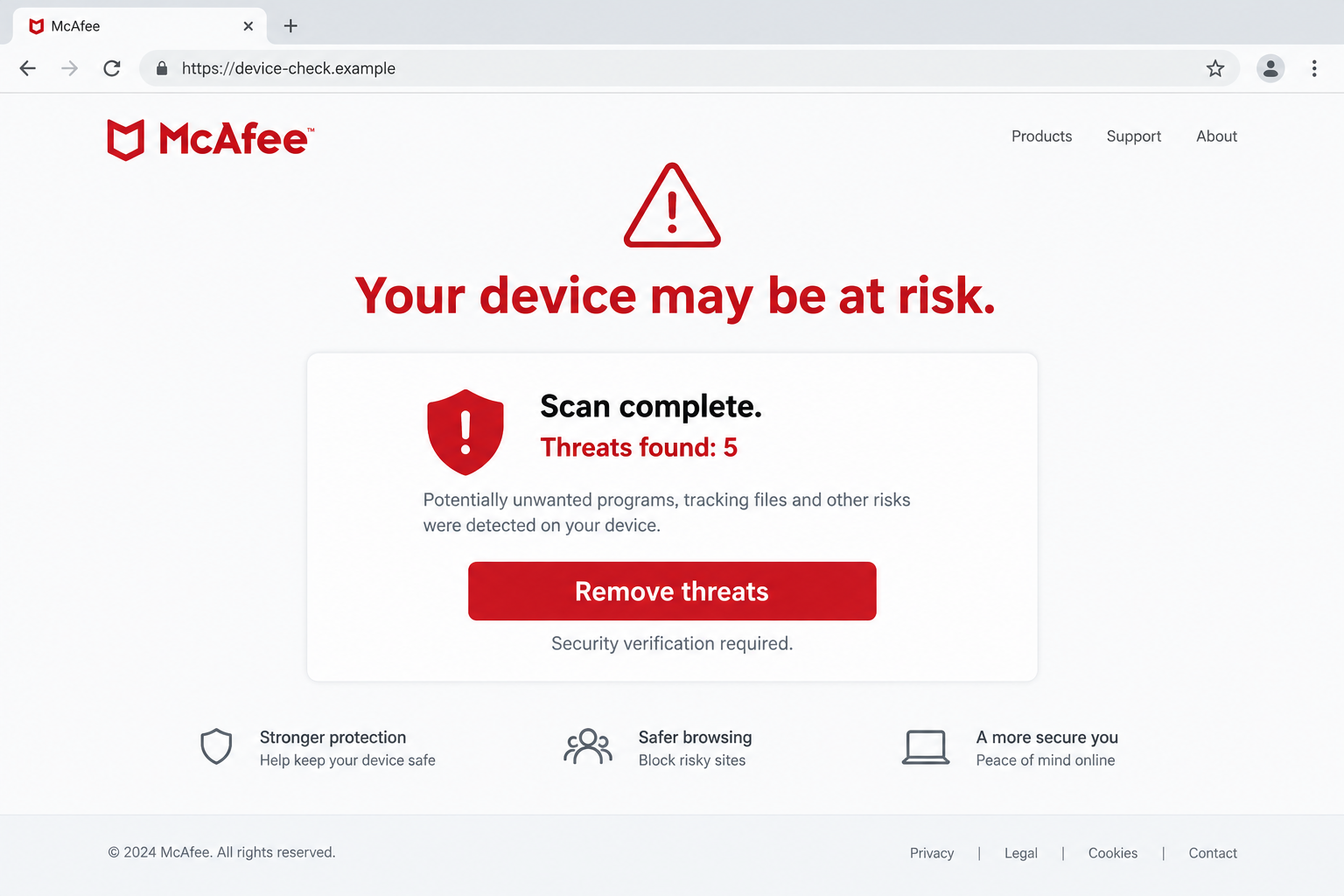
The illustration contains an invented warning and threat count. It is not a real scan, an actual diagnosis, or evidence that a particular computer is infected.
A web page and an installed security application are different sources
A page can display a scan animation or a list of alarming findings. That presentation does not establish that trusted security software examined your computer.
Open your installed security application independently to inspect its status. Do not use the warning’s button or telephone number as the route to that check.
If you do not use McAfee, its name on an unfamiliar browser page should not convince you that you suddenly need to purchase its recommended fix.
If you do use it, check the actual application and account. A real subscription or security issue still deserves attention through genuine channels.
Choose the response that matches the source and exposure
A browser tab, an authorized website notification, an unwanted extension, and a remote-support session are different situations. They do not all need the same remedy.
Start by identifying what happened:
- You saw a warning inside one browser tab.
- Notifications keep appearing from a website you allowed.
- You submitted a password or payment details.
- You installed software or an extension from the alert.
- You let someone connect to the device remotely.
Closing a tab can end the immediate display, but it does not reverse a payment or remove access you already granted to someone.
Why the Alert Can Look Like It Came From Your Computer
The scan display can be part of the page
A progress bar, red panel, file name, or increasing threat counter can be drawn by the website. An animation is not an authenticated diagnostic report.
The page may make you feel that the test is already complete and only payment remains. That skips the more important question of who performed the test.
You do not need to settle that question by running another test on the suspicious page. Close it and use software you obtained from a trusted source.
Website notifications can appear outside the original page
A site that has notification permission can send alerts later. Their placement near other notifications can make them feel like operating-system warnings.
The source is still the permitted website. A notification does not become a McAfee diagnostic merely because it appears outside an open web page.
Look for the sender’s site information and review permissions through browser settings. Do not follow the notification to the same warning page to fix it.
Not every pop-up is an infection
Websites and legitimate applications use pop-ups for many reasons. Some are ordinary notices; others are intrusive advertising or fraudulent messages.
Repeated alerts can result from notification permission without proving malware was installed. Conversely, installed malicious software needs attention beyond blocking one website.
Check which app or site sent it and what you allowed. That tells you where to start without trusting the threat counter.
How the McAfee Pop-Up Scam Works
Step 1: An unexpected alert interrupts an ordinary activity
The warning may appear after a link, advertisement, redirect, or website notification. It introduces a security problem you were not independently investigating.
Because it interrupts you, the message feels like something the computer discovered on its own. The interruption can be part of the advertising or deception.
A recognized security name supplies the authority. You may focus on whether the device is safe rather than whether the source is genuine.
Pause before responding. The appearance of an alert does not establish that its sender has access to your files or control over your machine.
Step 2: A supposed scan or expiration makes action seem necessary
A fake scan can report threats quickly, while a false renewal warning may say protection has expired. Both create a problem the page claims it can solve.
A ticking countdown makes checking feel like a delay you cannot afford. Take that pause anyway and look at your actual security application.
Check the installed program separately. If it shows a genuine issue, follow that program’s trusted guidance rather than returning to the unsolicited page.
McAfee’s guidance on fake sites and warnings describes the misuse of its name in false security pop-ups.
Step 3: A button offers the quickest-looking way out
The action may be labeled Remove Threats, Renew Now, or Contact Support. The label tells you the promised outcome, not what the click actually authorizes.
Some pages solicit card information. Others encourage a download or a call. A purchase destination may differ from the company suggested by the initial warning.
Do not assume every route is identical. A misleading advertisement, a credential form, and a remote-support demand create different kinds of exposure.
You do not have to follow the button to identify the risk. A trusted application or the provider’s independently opened support site gives you another route.
If the page resists closing, use browser or operating-system controls instead of repeatedly clicking controls drawn inside the warning itself.
Step 4: A supposed helper can ask for payment or device access
A person reached through the alert may claim they must install protection, verify a payment, or connect remotely. Their confidence does not authenticate their relationship with McAfee.
Remote access is a significant permission. Someone controlling the device may see sensitive information or manipulate what is displayed, even while describing the session as support.
Do not sign into banking or share security codes during an unverified support session. End the contact and reach the genuine provider independently.
The FTC’s tech-support scam guidance explains how fabricated computer problems become demands for money or access.
A real payment to a recognizable business also would not prove that the earlier warning was honest. Assess the contact, transaction, and device access separately.
Step 5: The warning can return after the original page closes
If a website still has notification permission, closing its tab may not stop later alerts. That persistence can make the invented problem feel confirmed.
A follow-up call or payment demand can create the same impression. Repetition does not establish that a genuine scan found the threatened condition.
Remove the delivery route and address any information already exposed. Buying another product through the warning is not the same as stopping its source.
If alerts continue after permissions are corrected, seek trusted help investigating extensions, applications, or other causes. Do not keep negotiating with the contact from the pop-up.
Stop the Source Without Disabling Real Protection
Review notifications separately from pop-ups and redirects
Chrome has separate controls for notifications and for pop-ups or redirects. Blocking one category may not stop a site allowed under the other.
Google’s notification instructions explain the relevant settings under Privacy and security, Site Settings, and Notifications on a computer.
Review which sites have permission and block unfamiliar sources. Menu labels can vary by device, so use the browser’s own help for your platform.
Do not switch off all security notifications merely to make the warning disappear. Keep useful alerts from genuine security applications separate from unwanted website messages.
Check the genuine account without buying under pressure
If the message claims a subscription problem, inspect the provider account you actually use. A renewal decision should show the real product, price, term, and account.
If the genuine application identifies a threat, follow its instructions and obtain reputable assistance if needed. Rejecting a scam pop-up is not a reason to dismiss real findings.
A contact who insists that independent checking will make matters worse is not helping you make an informed decision. End that conversation.
What to Do if You Have Fallen Victim to This Scam
-
Close the warning through trusted controls. Avoid the page’s payment, scan, or support buttons. Use the browser’s close controls rather than an imitation close button in the content.
If the page prevents normal closing, use your operating system to end the browser. Unsaved browser work may be lost, so use that option when necessary.
When reopening, avoid restoring the suspicious tab. Do not revisit the page just to see whether the invented threat count has changed.
-
Remove permission for unwanted website notifications. Use the browser’s settings and identify the unfamiliar source in the allowed list. Block its notifications there.
Review pop-up and redirect permissions separately if tabs keep opening. Do not click an alert’s unsubscribe or repair button to manage its delivery.
If you only allowed notifications, that does not automatically mean software was installed. Watch whether the problem stops after the source permission is removed.
-
End unverified remote access and obtain trusted assistance. If someone connected to the device, stop the session and disconnect the affected device from the network when needed.
Use another trusted device to contact your bank or genuine support. Explain which application was used and what the person could see or control.
Do not assume closing the visible support window removes every access method. A trusted technician can help assess the installed tools and preserve useful evidence.
-
Check software and extensions you installed. Record the application names and approximate installation time. Avoid running the download again or experimenting with unfamiliar repair commands.
Obtain Malwarebytes from its official source if a scan is appropriate. It can help detect and remove malware, but a clean result is not an account-security guarantee.
AdGuard can help reduce malicious ads and redirects during future browsing. It does not revoke remote access or undo information already disclosed to a caller.
-
Tell the payment provider about card details or charges. Use the issuer’s verified contact route. Describe what you entered, approved, or paid and identify the actual transaction.
Ask about protecting the card and the applicable dispute process. Keep receipts and the merchant description, including any separate purchase made during the support conversation.
The FTC’s payment-specific recovery guidance describes possible requests. Act promptly, but do not rely on a guarantee that a transaction will be reversed.
-
Protect accounts exposed during the incident. From a trusted device, change disclosed passwords and review unfamiliar logins, sessions, and recovery information with each provider.
Prioritize banking and email if they were visible during remote access. If a code was shared, identify the account and action it actually authorized.
Workplace access belongs with your organization’s IT team as well. Give them the sequence of events rather than trying to clean a managed device secretly.
-
Keep a concise incident record and report the impersonation. Save the warning’s source address, contact details, transaction records, and the times of any remote session.
Do not publish sensitive screenshots containing passwords, account balances, or full payment details. Provide those records only through appropriate secure reporting or provider channels.
U.S. readers can report fraud through ReportFraud.ftc.gov. Use the genuine security vendor’s support route for abuse involving its name.
-
Recheck the genuine security status after containment. Update trusted security software, inspect its results, and follow up on any account or payment case already opened.
Monitor for new contacts offering refunds or a final cleanup payment. Someone who knows about the incident is not automatically an authorized representative.
Keep real protections enabled. The goal is to remove the fraudulent delivery and access routes, not to silence every legitimate warning on the device.
Frequently Asked Questions
Does a McAfee-branded pop-up prove my computer is infected?
No. A website can copy branding and display a false scan. Inspect your trusted installed security application independently before accepting the claim.
Why do warnings continue after I close the website?
The site may still have notification permission. Review allowed sites in browser settings, while checking other causes if the alerts persist.
Are genuine McAfee alerts always fraudulent?
No. McAfee provides real security software. Distinguish its installed application and verified account from a browser page borrowing its name.
Should I call the telephone number inside the warning?
No. Use the provider’s independently found official support route. An urgent callback request inside an unsolicited warning is not an authenticated support channel.
Can removing notification permission reverse a card charge?
No. That stops a delivery route. Contact the payment provider separately about exposed details, charges, and any applicable dispute options.
Is a scan enough after someone controlled my device?
No single result settles every risk. Review remote-access tools, exposed accounts, and financial activity with trusted assistance as appropriate.
The Bottom Line
Do not pay for a fix or call a number supplied by a McAfee pop-up scam. Check the real security application and remove the unwanted message source.
If you already paid, disclosed credentials, installed software, or allowed remote access, address each exposure separately. Keep genuine protections active while working through trusted support.

Join the discussion
0 commentsShare your experience or ask a question about this article.
Your progress
Did these steps help?
Let us know how the guide worked for you.
Describe what you see and the step you reached. Keep passwords and other private information out.
Discussion
Start the conversation
Have a question or something useful to share? Add the first comment.