

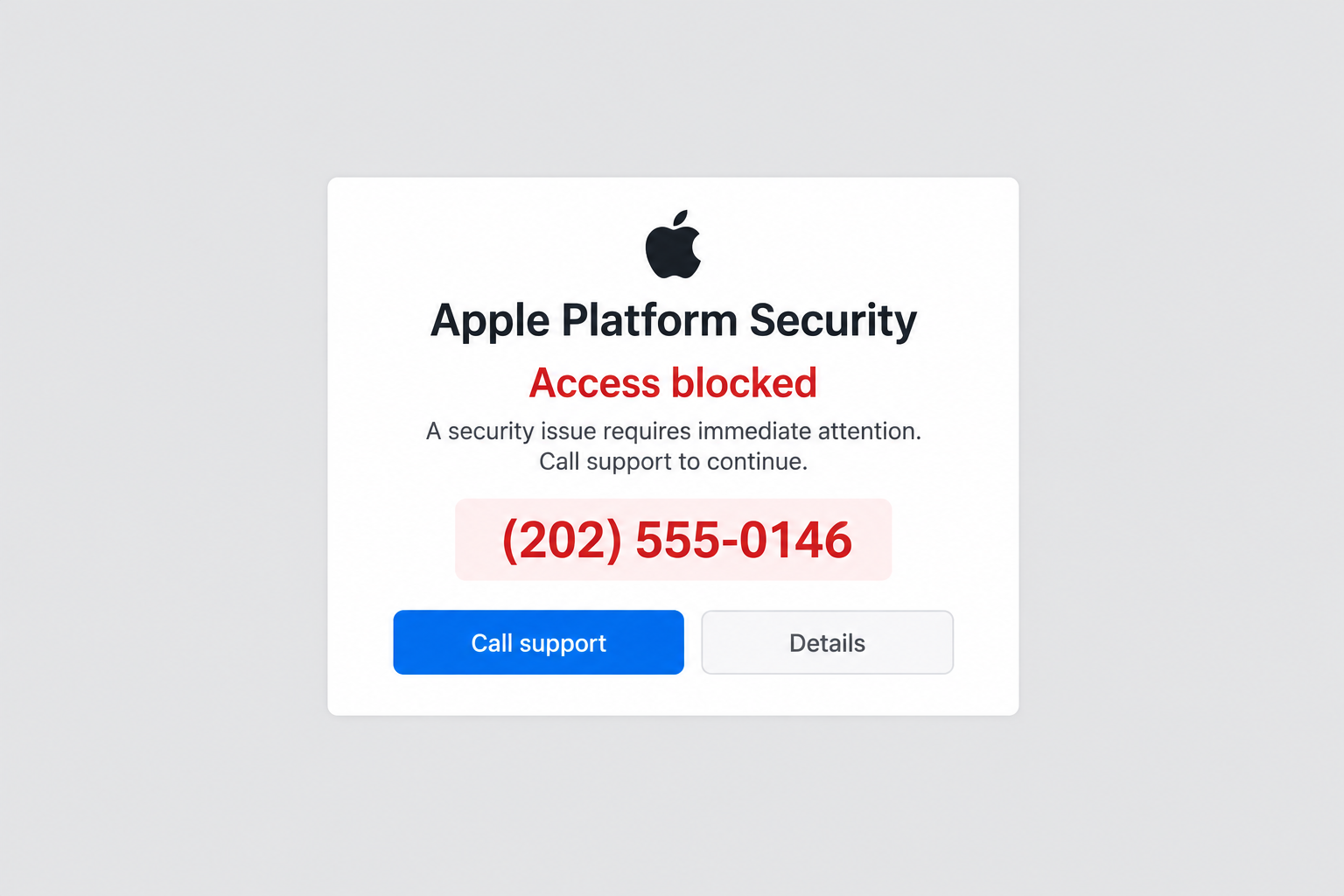
A warning fills the browser with the words Apple Platform Security. It says access is blocked and puts a support number where the next useful instruction should be.
The Apple Platform Security scam can be especially unsettling when the page resists closing. Understanding what is happening on that screen helps you decide what actually needs attention.
Overview
The genuine security guide is different from a callback alert
Apple publishes a real Apple Platform Security guide about the protections built into its products. The name itself is not malicious.
The scam uses security language on a page that claims you must call someone to remove a threat, unlock access, or prevent a consequence.
Apple’s scam guidance warns about misleading virus pop-ups and tells readers not to follow their links or call the number offered as a fix.
The image here is an invented alert with a fictional phone number. It illustrates the callback request, not a verified diagnosis or a message received on someone’s device.
A stubborn browser page does not diagnose the whole device
A webpage can make frightening claims and interrupt browsing without establishing that your accounts, files, or operating system have been compromised.
Closing that page is different from cleaning up software you installed afterward. The response should depend on what you did, not everything the warning alleged.
If you only saw the alert, start by leaving it. If you shared credentials, paid, installed software, or permitted remote control, those actions need their own protection steps.
The request for help can become the route to exposure
Watch for a page that combines several of these elements:
- A claim that your device, files, or access is blocked.
- A support telephone number presented as the only solution.
- Instructions not to close the window or consult anyone else.
- A request to install a tool, enter credentials, or weaken security.
- A payment needed to complete the supposed repair.
Find genuine assistance outside that page. A number printed beside an Apple logo is not proof that Apple operates the line.
Why the Alert Can Feel Like a System Message
The page borrows a familiar security vocabulary
Words such as spyware, blocked access, or identity protection suggest that a technical process has already identified a problem. The reader is invited to act on that conclusion.
But the page has not earned that authority. A list of threatened losses is a claim written by its operator, not a scan result you independently established.
The Apple name can make that distinction harder to notice. A real brand, logo, or documentation title can be reproduced without any involvement by the company.
Look at the proposed action rather than debating every threat. If a stranger’s page supplies a number and insists you call, leave its instructions behind.
Difficulty closing can be mistaken for proof of control
A page that repeatedly interrupts you can create the impression that something outside the browser has taken over. That impression is what the phone invitation exploits.
Browser trouble still deserves attention, but it does not tell you who should provide help. The party that created the obstacle should not become your trusted repair service.
Use the application’s own controls or the operating system’s app controls, not a large close or continue button designed into the warning page.
Force-quitting can lose browser work you have not saved. If the normal Quit command works, use that first.
Reopening the same tab can make the story seem to continue
Browsers may restore earlier windows or tabs. If the unwanted page returns, it can feel as though the alleged threat survived a restart.
Restoring the same destination is a different explanation. Before assuming a persistent infection, stop the browser from bringing back the page and consider what else you changed.
Repeated alerts can also warrant a review of permissions, extensions, or installed software. Investigate those possibilities through trusted help, without treating one explanation as automatically proven.
How the Apple Platform Security Scam Works
Step 1: Browsing turns into an apparent security emergency
The alert appears during a browsing session, possibly after a misleading advertisement or redirect. Its warning is unrelated to a security check you intentionally started.
The page claims that waiting or leaving will make things worse. You are encouraged to deal with the alarming screen before questioning how it arrived.
Do not grant notifications, download a viewer, or open another instruction merely to understand the warning. Its appearance does not require you to complete a process.
Step 2: The warning appoints its own support line
A displayed number becomes the obvious next action. Calling it can feel safer than clicking a link, especially when the problem seems to involve a website.
A phone call may feel separate from the website, but the website chose the number. You still have not reached Apple through your own route.
Apple’s advice is to avoid the number in a suspicious pop-up. If you want assistance, reach the company’s official support route yourself.
Step 3: A supposed technician turns reassurance into instructions
The person answering may describe a repair, security check, or verification process. A calm explanation can lower the concern created by the page moments earlier.
Judge the instructions rather than the confidence of the voice. Requests for passwords, verification codes, account approvals, or disabled security protections are not harmless demonstrations.
Apple says it does not ask customers to give support their password or verification codes. Do not surrender those protections because someone claims to be stopping an attacker.
Step 4: The requested fix adds access or software
The caller can ask you to install a program, share the screen, or allow remote control. That changes what the other person can see or do.
Software may have legitimate uses without making this particular session legitimate. You still need to know who is asking for access and why it is necessary.
A webpage may also tell you to run commands or change device management. Do not follow those instructions from an unverified alert or caller.
For an employer-managed device, involve the actual IT team. A stranger should not direct you to remove work protections or bypass management to complete a repair.
Step 5: The emergency ends only after another disclosure or payment
The supposed solution may require a service fee, a security purchase, or an account action. You are asked to solve the caller’s new condition to escape the original warning.
Stop if the payment is to another person, by gift card, or through an unfamiliar financial route. The security language does not make that transfer a device repair.
Even if the browser closes afterward, it does not prove the service was genuine. Deal with any access, software, or money involved through independently trusted organizations.
Leave the Page Without Letting It Choose the Repair
Close the browser with its own controls
Try closing the tab or quitting the application through its normal controls. Do not use buttons inside the warning that pretend to handle cancellation or diagnosis.
On a Mac, Command-Q quits the active application normally. If Safari is unresponsive, Apple’s Safari troubleshooting instructions describe using Option-Command-Esc to force it to quit.
Select the browser in the genuine Force Quit window. Do not select an application name merely because the webpage tells you that it caused the alleged infection.
Reopen without restoring the unwanted destination
Apple advises holding Shift while opening Safari if it keeps restoring unwanted pages. Start from a known useful website rather than the alert’s recovery or continue button.
A phone or tablet uses different app controls. Use the device’s actual interface and official browser guidance, not instructions embedded in the threatening page.
If removing site data becomes necessary, understand that it may sign you out of legitimate websites. Do not erase records indiscriminately while trying to document a payment incident.
Review changes, not just whether the warning disappeared
Recall whether you installed an extension, allowed notifications, downloaded a file, or followed a caller’s directions. Those details determine whether further investigation is useful.
A vanished warning does not settle a shared password or payment. Likewise, a returning tab does not automatically establish that malicious software is installed.
Ask trusted technical support about unexplained persistent behavior. Describe what you observed and changed instead of repeating the page’s diagnosis as an established fact.
What to Do if You Have Fallen Victim to This Scam
-
End the callback and leave the alert. Do not keep the caller connected while searching for another opinion. Stop following its technical and financial instructions.
Save any details already available, including the contact route and payment references. Avoid reopening the page merely to capture a more complete warning image.
Write down your actual actions: viewed, called, disclosed information, approved access, installed something, or paid. Start recovery from those actions rather than the alert’s threats.
-
Disconnect access you did not intend to grant. If someone has remote control, end that session and get independent help checking how access was enabled.
Where practical, use another trusted device to contact important account providers. Do not perform banking while the unverified person can watch or control the affected screen.
On a work device, tell your real IT team promptly. Keep the installed tool’s name and the incident timeline instead of making undocumented changes to managed settings.
-
Protect passwords and security approvals you shared. Open the genuine account service and replace exposed credentials, including passwords reused elsewhere.
Apple recommends changing the Apple Account password and ensuring two-factor authentication is enabled if the account may have been compromised. Use its official recovery and support routes.
Tell support about any code, passcode, or approval involved. Check recovery details and account access rather than assuming a password change describes the entire incident.
-
Contact the payment provider if money or card information was involved. Explain that a browser support warning led to the transaction or disclosure.
Use your bank’s normal contact method or the payment service’s genuine app. Ask about protecting the account and reviewing the exact transaction you can identify.
For gift cards, keep the card and receipt and contact the issuer. For other transfers, speak to the service used promptly. No recovery outcome is guaranteed.
-
Assess installed software through a trusted source. Keep macOS and the browser updated, and ask for help with unfamiliar programs, permissions, or extensions.
Malwarebytes can help examine a compatible Mac for malicious software. That does not mean every mobile app can inspect an iPhone as a desktop scanner would.
AdGuard can reduce intrusive ads and tracking while browsing. Neither product can take back disclosed credentials, verify a caller, or reverse an earlier payment.
-
Handle profiles and work management carefully. If you installed a configuration profile at the caller’s direction, tell genuine support exactly when and why.
Do not remove an organization’s legitimate management simply because the caller blamed it. On a personal device, use Apple’s own guidance to assess an unfamiliar profile.
Keep a note of changes made during cleanup. A proper record helps distinguish your normal configuration from something introduced during the interaction.
-
Report the deception without exposing more private information. Apple’s scam guidance explains reporting options for fraudulent emails, texts, and calls impersonating its services.
For a US fraud report, use ReportFraud.ftc.gov. Preserve the misleading contact, payment details, and software names privately for the appropriate reporting process.
Do not post account codes, identifying documents, or an unredacted banking screen as evidence. Trusted support should not need your password in a report.
-
Follow through on the exposure that remains. The FTC recovery guide separates payments, account details, identity information, and device access.
If you disclosed sensitive identifiers, IdentityTheft.gov can help organize suitable protective steps. Keep genuine providers informed about any misuse you notice.
Reject a new caller promising a guaranteed refund or final security certificate. Closing the original warning should end its authority over your next decisions.
Frequently Asked Questions
Is Apple’s real Platform Security guide part of the scam?
No. Apple publishes legitimate security documentation under that name. The warning here concerns a deceptive browser alert directing you to an unverified support contact.
Does the alert prove that spyware is installed?
No. A webpage’s claim is not an independent device diagnosis. Evaluate actual installations, permissions, account activity, and other observed behavior through trusted help.
Should I call the number because the browser will not close?
No. Use the browser or operating system’s genuine app controls. Apple advises against calling a number offered by a suspicious security pop-up.
Why does the warning return when I reopen Safari?
Safari may be restoring an earlier page. Apple’s instructions describe holding Shift while reopening it. Repeated behavior may need further checks, but does not prove the alert’s diagnosis.
Is restarting enough after I gave someone remote access?
Not necessarily. Have the access method and device changes reviewed, and protect exposed accounts separately. A restart does not reverse disclosures or payments.
Must I change every password after only seeing the page?
Seeing the page alone does not establish that passwords were disclosed. Leave it, keep the device updated, and escalate according to what actually happened.
The Bottom Line
Do not call or follow the Apple Platform Security scam alert. Leave the page using genuine app controls and obtain any needed assistance through Apple’s independently reached support.
If you already responded, address the access, credentials, software, or money involved. Removing the frightening screen is only the first step when something beyond browsing occurred.

Join the discussion
0 commentsShare your experience or ask a question about this article.
Community experiences
Did this happen to you?
Your experience could help someone recognize the same scam. Submit a private report for our team to review.
I experienced this tooReports are reviewed before publication. Sharing publicly is always your choice.
Discussion
Start the conversation
Have a question or something useful to share? Add the first comment.