


You need a meeting app, and the download page looks familiar. The installation finishes without much drama, so you get back to what you were doing.
Later, a security alert mentions AgtaBackup. The name sounds like a backup utility, but understanding how it reached the computer changes what needs checking next.
Overview
AgtaBackup is a Windows backdoor, not a backup service
AgtaBackup RAT is malicious remote-control software. An affected computer can give its operator access to private data and capabilities far beyond a normal meeting application.
Unit 42’s original analysis describes a counterfeit meeting-software listing that first installs legitimate remote-management software under an attacker’s control, followed later by the RAT.
The distinction matters for AgtaBackup RAT removal. Cleaning a detected payload is not enough if an unauthorized management connection still permits another installation.
Remote access and account exposure need separate attention
The documented malware includes browser-data theft, keystroke collection, screen capture, and hidden interaction. Persistence components can restore its service after a simple stop or deletion.
- A counterfeit download can deliver a genuine remote-support installer.
- A valid software signature does not establish who controls its management account.
- The later backdoor can expose information without a visible support window.
- Recovery needs both device cleanup and review of accounts used on that device.
Respond to evidence, not just a suspicious name
Isolate a computer with a confirmed detection or credible unauthorized remote installation. Stop using it for email, banking, or password changes while its condition is assessed.
Do not remove legitimate workplace management tools indiscriminately. Ask the administrator to distinguish approved enrollment from a stranger’s access.
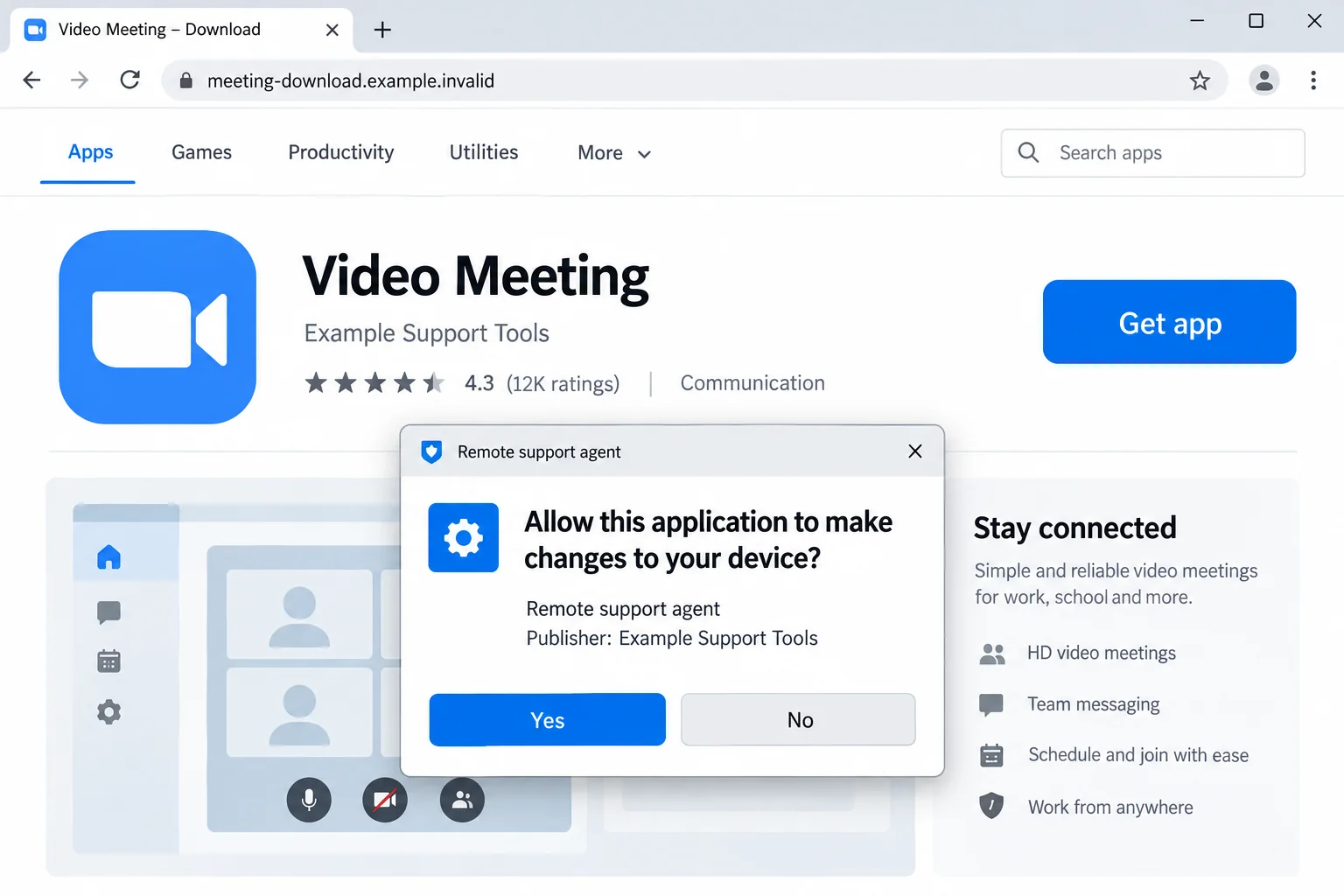
The lead illustration shows the mismatch between a meeting download and a support installer. Its fictional listing is not a capture of a specific infected computer.
Why a Legitimate Installer Can Still Open the Wrong Door
Remote-management tools are used every day by real support teams. They help technicians maintain computers without sitting in front of them.
The same capability becomes dangerous when the person enrolling the computer is not your technician. The software may be authentic while the relationship is unauthorized.
You can install genuine support software and still give the wrong person access. The signature identifies a publisher, not the technician controlling your device.
A Windows approval prompt similarly asks whether a program may make changes. It cannot decide whether the download story leading you there was honest.
If a video app unexpectedly introduces unattended support, stop. That is a change in purpose substantial enough to verify before granting permission.
For an employer-owned machine, verification should come from the existing IT team. A stranger claiming to represent that team is not an independent source.
How AgtaBackup Reaches and Persists on a Computer
Step 1: A fake meeting download borrows a trusted storefront’s appearance
The initial page resembles a familiar software listing. That makes the visitor expect an ordinary download rather than a decision about remote administration.
Store-like layout, ratings, and a recognizable application category can make the page feel established. None of those visual elements proves where its installer came from.
Reach the meeting provider through a known address or your organization’s application catalog. Avoid installing from an invitation’s unexpected download page.
If your meeting application already works, an urgent demand for a replacement deserves particular scrutiny. Check with the organizer using a communication channel you already trust.
Step 2: The support agent enrolls the machine with the wrong operator
In the documented chain, the first installation creates remote-management access. The later malware does not have to be present for that enrollment to be a problem.
This explains why inspecting only the most recent antivirus alert can miss the earlier doorway. A technician needs the installation history as well.
Tell them about the meeting page, installer, and any approval prompt you accepted. Do not run the installer again to show what it looked like.
A support product’s name alone does not establish abuse. The meaningful question is whether the computer belongs to a management account authorized by its owner.
Step 3: The attacker uses existing access to deliver the RAT
Unit 42 describes a variable delay before the intruder uses the management channel to install AgtaBackup. The absence of an immediate problem is therefore not reassuring.
A delayed intrusion can also confuse recollection. The computer may seem unrelated to a download you completed hours or days before the first alert.
Record approximate times rather than guessing. Browser history, download records, installation events, and security alerts can help a responder reconstruct the sequence.
Do not assume a quiet screen means nobody is connected. Background administration is designed to work without requiring a fresh invitation each time.
Step 4: Theft and persistence make casual cleanup unreliable
The RAT can collect sensitive information while mechanisms keep its service alive. Closing an application window would not address that kind of access.
Deleting one detected file might leave a component able to restore it. Conversely, a blocked installer might never have reached the stage where information was stolen.
The alert’s action and timing are important. Ask whether execution was prevented, a running threat was quarantined, or additional components remain under investigation.
A proper response follows the whole chain: unauthorized enrollment, delivered files, persistence, and potentially exposed accounts. One reassuring screenshot cannot answer all four questions.
What an AgtaBackup Detection Can Mean for Your Accounts
A changed password is only one part of recovery
Where browser data may have been collected, saved passwords are an obvious concern. Existing signed-in sessions need attention too.
Some services keep sessions active separately from a password change. Use the service’s device and session controls rather than assuming a new password removes every login.
Workplace identity administrators may need to revoke sessions or examine application permissions centrally. Tell them which accounts were used, not just which browser was open.
Prioritize the accounts that unlock other accounts
Start with primary email, password-management access, business administration, and financial services. These can provide leverage over other information and transactions.
Do the work on an unaffected device. Typing replacement credentials into a computer that might still record input defeats the purpose of replacing them.
If confidential work documents were accessible, involve the responsible organization. Avoid deciding on your own that the lack of visible damage means no disclosure occurred.
Let confirmed activity determine financial action
A RAT detection does not prove that every card was charged. Check transactions and security notifications, then tell the relevant institution what you found.
If an unauthorized transfer appears, report it promptly. Use the bank’s official contact route rather than a person offering remote help after hearing about the infection.
Do not send funds to a temporary safe account. A genuine fraud investigation does not become safer because another caller knows the malware’s name.
What to Do If AgtaBackup May Be on Your PC
Contain the computer’s connection. Disconnect its Wi-Fi and network cable when unauthorized control is suspected. On a work device, notify IT using another device.
Keep it out of sensitive accounts. Do not reconnect simply to see whether the attacker returns or to resume the meeting that started the download.
Preserve a useful incident record. Photograph or record the security alert, detection name, time, and action taken. Note the unexpected download and any support software installed.
Keep the machine available for a responder. Do not erase logs, clean browsing history, or start deleting Windows components to make the alert disappear.
Identify unauthorized management access. Have the owner or administrator review installed remote-support agents and their enrollment. Remove access that does not belong to an approved support arrangement.
Coordinate business-device changes with IT. A legitimate agent may be essential, while a separate enrollment or second agent could be the actual problem.
Run a supported malware-removal process. Use trusted installers obtained independently, not a cleaner offered by the original download page or a surprise support caller.
Malwarebytes can help identify and quarantine malicious components. Record its findings and complete requested restarts, then assess whether the initial access and persistence were addressed.
Escalate recurring detections. Microsoft’s offline scanning option runs outside the ordinary Windows session. Save work before starting it because the computer restarts.
Repeated reappearance or unresolved remote control warrants specialist help. A clean reinstall may be appropriate when the extent of compromise cannot be established confidently.
Recover important accounts elsewhere. Replace exposed passwords from a known-safe machine, end unfamiliar sessions, and review account recovery methods. Give business administrators the incident timeline.
Enable stronger authentication where available. Do not approve new sign-ins merely because you are expecting security messages during recovery.
Check for consequences and improve the download route. Review financial activity and sensitive correspondence. Contact affected institutions when suspicious activity appears.
After recovery, AdGuard can add filtering against some malicious ads and destinations. It does not remove an installed RAT or cancel an existing remote-management enrollment.
Is Your Device Infected? Run a Free Malware Scan
Slow performance, constant pop-ups, or strange behavior? These are classic signs of a malware infection. A quick way to check is to scan your device with Malwarebytes Free, one of the most trusted malware removal tools available. If you only visited a scam page and didn’t download or install anything, this scan is optional.
The free version detects and removes the most common threats, including:
- Adware — the cause of those annoying pop-ups
- Browser hijackers — unwanted redirects and changed homepages
- Trojans and spyware — hidden programs stealing your data
- Potentially unwanted programs (PUPs) — software you never asked for
👉 Select your device below — Windows, Mac, or Android — then follow the simple steps to download Malwarebytes, scan your system, and remove any threats it finds. The scan usually takes 5 to 20 minutes.
Run a Malware Scan with Malwarebytes for Windows
Malwarebytes is one of the most popular and trusted anti-malware tools for Windows — and it’s completely free for removing infections. It catches threats that many antivirus programs miss, including adware, browser hijackers, and trojans. Follow the steps below to scan your PC and remove what Malwarebytes finds.
Download Malwarebytes
Click the button below to download the latest version of Malwarebytes for Windows from the official source. The free version is all you need — it will scan your computer and remove adware, browser hijackers, and other malicious software at no cost.
Download MalwarebytesOfficial installer for Windows 11 and 10. Your download starts right away.Want real-time protection? See Malwarebytes Premium Malwarebytes Free for WindowsScans and removes malware at no cost
-
Install Malwarebytes
When the download finishes, open your Downloads folder and double-click the MBSetup file. If Windows shows a User Account Control pop-up, click “Yes” to allow the installation.

Follow the On-Screen Prompts to Install Malwarebytes
The setup wizard will walk you through a few quick screens:
-
Choose where you’re installing the program — “Personal Computer” or “Work Computer” — then click Next.

-
Malwarebytes will now install on your device. This usually takes under a minute.

-
When installation is complete, the “Welcome to Malwarebytes” screen will open automatically.

-
On the final screen, click Open Malwarebytes to launch the program.

-
Optional: Check for rootkits with a Custom Scan
You don’t need to change any settings for a normal scan. The standard Threat Scan in the next step is enough for most problems, so you can go straight to it.
If you also want to check for rootkits, use a Custom Scan. In current versions of Malwarebytes, rootkit scanning is only available there:
- On the Scanner tile, click the three-dot menu and select Advanced Scan.
- Choose Custom Scan. In its options, check Scan for rootkits.
- Select your system drive (usually C:\) as the location to scan, then start the scan. It takes longer than a Threat Scan.
- When it finishes, review and quarantine the results as described in the steps below.
Rootkit scanning isn’t available on Windows devices with ARM processors.
Start the Scan
Click the blue Scan button. Malwarebytes will automatically update its virus database and start checking your computer for malware.

-
Wait for the Scan to Finish
The scan checks your entire system for browser hijackers and other malicious programs, so it can take 5 to 20 minutes depending on your computer. Feel free to do something else — just check back occasionally to see the progress.

-
Quarantine the Detected Threats
When the scan is done, you’ll see a list of everything Malwarebytes found — malware, adware, and potentially unwanted programs. Click the “Quarantine” button to remove all of them at once.

Malwarebytes will now remove the malicious files and registry entries and move them safely into quarantine.

-
Restart Your Computer
Some threats can only be fully removed after a reboot. If Malwarebytes asks you to restart, click Yes. Once you’re logged back in, Malwarebytes has finished removing the threats it found.

When the scan is done, check whether the problems you noticed have stopped. If they continue, see the options below.
If you are still having problems with your computer after completing these instructions, then please follow one of the steps:
- Run a computer scan with ESET Online Scanner
- Ask for help in our Windows Malware Removal Help & Support forum.
Run a Malware Scan with Malwarebytes for Mac
Malwarebytes for Mac is a free on-demand scanner that removes the malware other security software tends to miss — adware, browser hijackers, and unwanted programs included. Cleaning an infected Mac with Malwarebytes has always been completely free, and it’s our go-to recommendation. Follow the steps below to scan your Mac and remove what Malwarebytes finds.
-
Download Malwarebytes for Mac
Click the button below to download the latest version of Malwarebytes for Mac.
Download MalwarebytesOfficial installer for macOS. Your download starts right away.Want real-time protection? See Malwarebytes PremiumMalwarebytes Free for MacScans and removes malware at no cost -
Open the Malwarebytes setup file
When the download finishes, open your Downloads folder and double-click the setup file to begin the installation.

-
Follow the On-Screen Prompts to Install Malwarebytes
The Malwarebytes for Mac Installer will guide you through a few quick screens. Click “Continue” and keep following the prompts until the installation completes.



When the installation is complete, Malwarebytes opens to the Welcome to Malwarebytes screen. Click “Get started“.
Malwarebytes needs Full Disk Access to check your whole Mac. When it asks, open System Settings > Privacy & Security > Full Disk Access, turn on Malwarebytes (it may be listed as Malwarebytes Protection), and confirm with your password or Touch ID. Then return to Malwarebytes. On macOS Monterey and earlier, this setting is in System Preferences > Security & Privacy > Privacy.
-
Select “Personal Computer” or “Work Computer”
Malwarebytes will ask what type of computer you’re installing it on. Click either Personal Computer or Work Computer, whichever applies.

-
Start the Scan
Click the “Scan” button. Malwarebytes will automatically update its detection database and begin checking your Mac for malware.

-
Wait for the Scan to Finish
Malwarebytes will scan your Mac for adware, browser hijackers, and other malicious programs. This can take a few minutes, so feel free to do something else — just check back occasionally to see the progress.

-
Quarantine the Detected Threats
When the scan is done, you’ll see a list of everything Malwarebytes found. Click the “Quarantine” button to remove all the threats at once.

-
Restart Your Mac
Malwarebytes will now remove all the malicious files it found. Some threats can only be fully removed after a reboot — if Malwarebytes asks you to restart, allow it. Once you’re logged back in, check whether the problems you noticed have stopped. If they come back, save the scan report and ask for help in our forum.

If the problems you noticed continue after the scan, see the options below.
If you are still experiencing problems while trying to remove a malicious program from your computer, please ask for help in our Mac Malware Removal Help & Support forum.
Run a Malware Scan with Malwarebytes for Android
Malwarebytes for Android scans your phone or tablet for malware, adware, and potentially unwanted apps. The free version scans only when you start a scan. Real-time protection, which checks apps automatically, is part of the paid Premium version.
-
Download Malwarebytes for Android.
You can download Malwarebytes for Android by clicking the link below.
Get Malwarebytes for AndroidOpens Google Play in a new tab.Want real-time protection? See Malwarebytes Premium for AndroidMalwarebytes for AndroidScans your phone and removes malware at no cost -
Install Malwarebytes for Android on your phone.
In the Google Play Store, tap “Install” to install Malwarebytes for Android on your device.

When the installation process has finished, tap “Open” to begin using Malwarebytes for Android. You can also open Malwarebytes by tapping on its icon in your phone menu or home screen.

-
Follow the on-screen prompts to complete the setup process
When Malwarebytes opens, it walks you through a short setup. Tap Get started and follow the prompts. If you see an offer for a trial or a paid plan, read it before you accept. You can skip it and keep using the free scanner.
Malwarebytes will ask for permission to access the files on your phone so it can scan them. Tap Allow, or turn on the permission in the Android screen that opens, then return to Malwarebytes.
-
Run a scan with Malwarebytes for Android
On the main screen, tap Scan now. In some versions, you open the menu, tap Scanner, and then tap Run a scan.
-
Wait for the Malwarebytes scan to complete.
Malwarebytes will now start scanning your phone for adware and other malicious apps. This process can take a few minutes, so we suggest you do something else and periodically check on the status of the scan to see when it is finished.

-
Remove the detected apps.
When the scan has been completed, you will see a list of the threats that Malwarebytes for Android has detected. Next to each detected item, tap the menu icon (three dots), then choose to uninstall the app or delete the file. Android then asks you to confirm. Tap OK or Uninstall to remove the app.
-
Restart your phone.
When the detected apps are removed, restart your phone if Malwarebytes asks you to. Then check whether the problems you noticed have stopped.
If the problems you noticed continue after the scan, see the options below.
If you are still having problems with your phone after completing these instructions, then please follow one of the steps:
- Ask for help in our Mobile Malware Removal Help & Support forum.
- Only as a last resort, reset your phone to factory settings. Read the warning below first.
- Back up your photos, videos, files, and messages, for example to your Google account or a computer.
- Make sure you know your Google account email and password. The phone asks for them after the reset. If you changed the password recently, Google recommends waiting 24 hours before you reset.
- On a Samsung phone, also make sure you know your Samsung account password.
- If you use an authenticator app for two-step verification, move your accounts to another device or save your backup codes first.
Stay Protected: Block Ads and Malicious Sites
No scan can prove a device is completely clean, so it helps to block threats before they reach you. Most infections start with a malicious ad or a fake download button — so blocking them at the source is your best defense.
We recommend AdGuard, which blocks malicious ads, phishing pages, and dangerous redirects before they can reach you.
👉 Download AdGuard and browse safely
When Reinstalling Windows Makes More Sense Than Chasing Files
Reinstallation is disruptive, but it can be the clearer choice after extensive unauthorized control. The decision should reflect the evidence and value of the information involved.
Do not treat it as a substitute for account recovery. Replacing Windows cannot retrieve information already copied or invalidate sessions held on a service’s servers.
Microsoft’s recovery guidance explains that a clean installation removes files, applications, and settings from the selected drive. Prepare before taking that step.
Preserve essential documents using a trusted process, and record licensing or recovery information you may need. Keep potentially malicious installers separate from ordinary personal files.
Prefer backups from before the suspected intrusion. Do not automatically restore the entire old software environment, including the installer that created unauthorized access.
If the computer contains work evidence, consult the incident team before wiping it. An early reinstall can destroy records needed to understand other affected systems.
For personal devices, a reputable technician can help plan the process. Obtain that help independently, not through a pop-up advertising an urgent AgtaBackup repair.
Checks Before You Trust the Computer Again
Check who is allowed to support the machine
Write down the support provider you genuinely use and how you normally reach them. This makes an unexpected management installation easier to question.
If you previously paid a repair shop, ask whether it left remote access installed and what authorization covers its use. Get an answer through its established contact details.
Do not give a surprise caller a connection code while trying to clarify that history. Confirm the relationship first and decide whether further support is actually needed.
For a family computer, tell other users which installation caused concern. They may otherwise restore the same unwanted program while attempting to fix a missing meeting app.
Keep backups outside the uncertain environment
Check that recovery files are readable from a trusted device before assuming they can rescue the computer. A backup name or successful copy notification is not enough.
Separate ordinary documents from software that could reinstall the problem. Ask the responder how restored files should be checked before opening them on the rebuilt system.
These preparations make a reinstall less frightening and reduce pressure to accept another unverified shortcut. They also preserve options if the first cleanup does not hold.
Recovery should end with a short, concrete review rather than a vague feeling that the machine seems faster.
- The unwanted management relationship has been removed or conclusively ruled out.
- Detected components have been addressed, including any that returned after restart.
- The operating system, browser, and security protection are updated and functioning.
- Important accounts have been secured from outside the affected environment.
- The owner or responsible administrator understands any remaining uncertainty.
No checklist guarantees that every sophisticated intrusion has been found. If sensitive activity cannot wait, use a separate trusted system until the assessment is complete.
Maintain the incident notes afterward. A later account alert may be easier to interpret when you know which device and period were involved.
For future meetings, keep an approved app installed and updated through its own supported channel. That removes the pressure to trust a last-minute substitute download.
Frequently Asked Questions
Is AgtaBackup a legitimate backup application?
AgtaBackup RAT names the malicious backdoor addressed here. Do not decide whether unrelated software is safe by its name alone; establish its origin and behavior.
Are LogMeIn Resolve and ScreenConnect malware?
No. They are legitimate management products that can be abused. The issue is unauthorized enrollment and control, not the existence of the products.
Can AgtaBackup operate without a visible remote session?
The documented capabilities include hidden interaction and background collection. A desktop that looks normal is not enough to rule out a confirmed intrusion.
Why might the detection return after removing one file?
Persistence or the initial remote-management access may remain. Repeated detections call for a broader investigation, not repeated deletion of the same filename.
Should I change passwords on the infected computer?
Use another trusted device while compromise remains possible. After securing accounts, ensure their replacement credentials are not entered into the affected environment prematurely.
Does a clean scan prove my information was not stolen?
No. A scan assesses detectable device threats. It cannot undo earlier access or establish that no private information left the computer before cleanup.
The Bottom Line
Take confirmed AgtaBackup activity seriously. Stop sensitive use, contain the machine, and address the remote-access doorway as well as the malware it delivered.
Secure important accounts from another device. If the cleanup cannot establish a trustworthy system, plan a proper reinstall rather than relying on a disappearing alert.

Join the discussion
0 commentsShare your experience or ask a question about this article.
Your progress
Did these steps help?
Let us know how the guide worked for you.
Describe what you see and the step you reached. Keep passwords and other private information out.
Discussion
Start the conversation
Have a question or something useful to share? Add the first comment.