

A support request is supposed to be routine: open the ticket, review the attachment, and help the customer. That habit can make a well-aimed message unusually effective.
Golden Gh0st shows why defenders have to look beyond the message itself. The dangerous handoff can occur inside a program that appears legitimate.
Overview
What Golden Gh0st is
Golden Gh0st is a remote-access trojan described in a 2026 investigation of a targeted intrusion campaign. It can give an operator control of an infected Windows system.
The reported activity focused on financial organizations in the Asia-Pacific region. It is not evidence that everyone receiving a support email faces this particular malware.
Researchers linked the activity to a subgroup they called CylindricalCanine, associated with APT-Q-27. Attribution is a research assessment, not an identity proof for every sample.
For ordinary readers, the practical issue is simpler: a file that looks like part of a legitimate support workflow can launch an unauthorized remote-control tool.
How the lure reaches a target
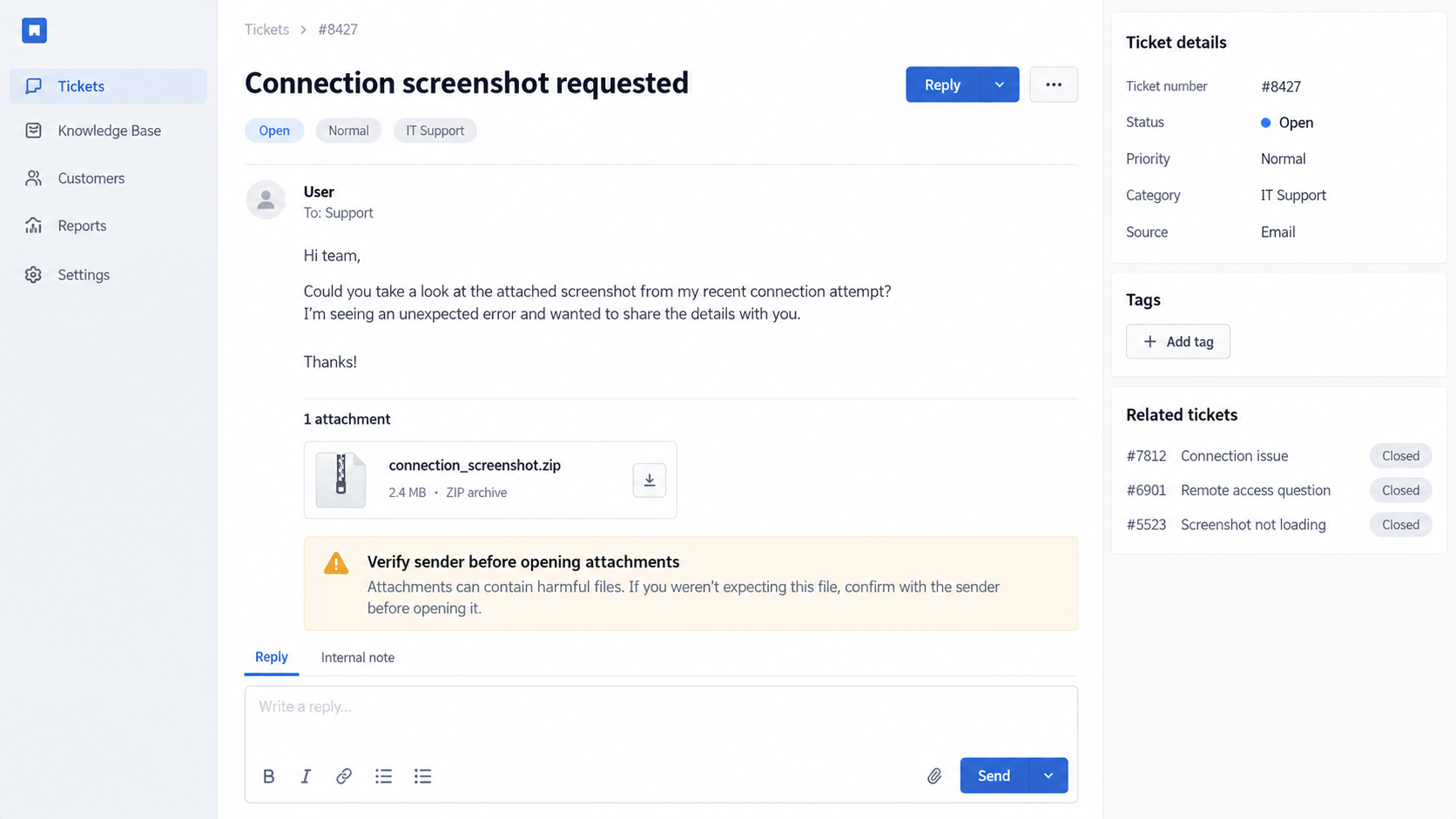
The documented campaign used support-ticket themes and compromised websites. A recipient might see what appears to be a customer issue with an attachment to review.
That context matters because support staff are expected to handle unfamiliar files. A filename related to the ticket can feel like normal work rather than a warning.
Researchers also observed watering-hole delivery, where a site relevant to a target is used to distribute the malicious chain.
The exact link, attachment, and page can change. Judging every ticket as Golden Gh0st would be as misleading as trusting every ticket automatically.
What makes the loader deceptive
- A legitimate signed application can be used to load a malicious DLL placed beside it.
- An encrypted payload can be stored under an ordinary-looking data or log filename.
- A cloud-hosted manifest can direct the chain to the next component.
- The final remote-access code can be unpacked in memory, leaving fewer obvious files to inspect.
Researchers also documented misuse of trusted signing material connected to a separate support compromise. A valid signature is useful context, but never a blanket safety guarantee.
The support-ticket illustration above is an original reconstruction. It does not reproduce a real organization’s customer message or a victim’s private ticket.
Why a Legitimate Program Can Be Part of the Attack
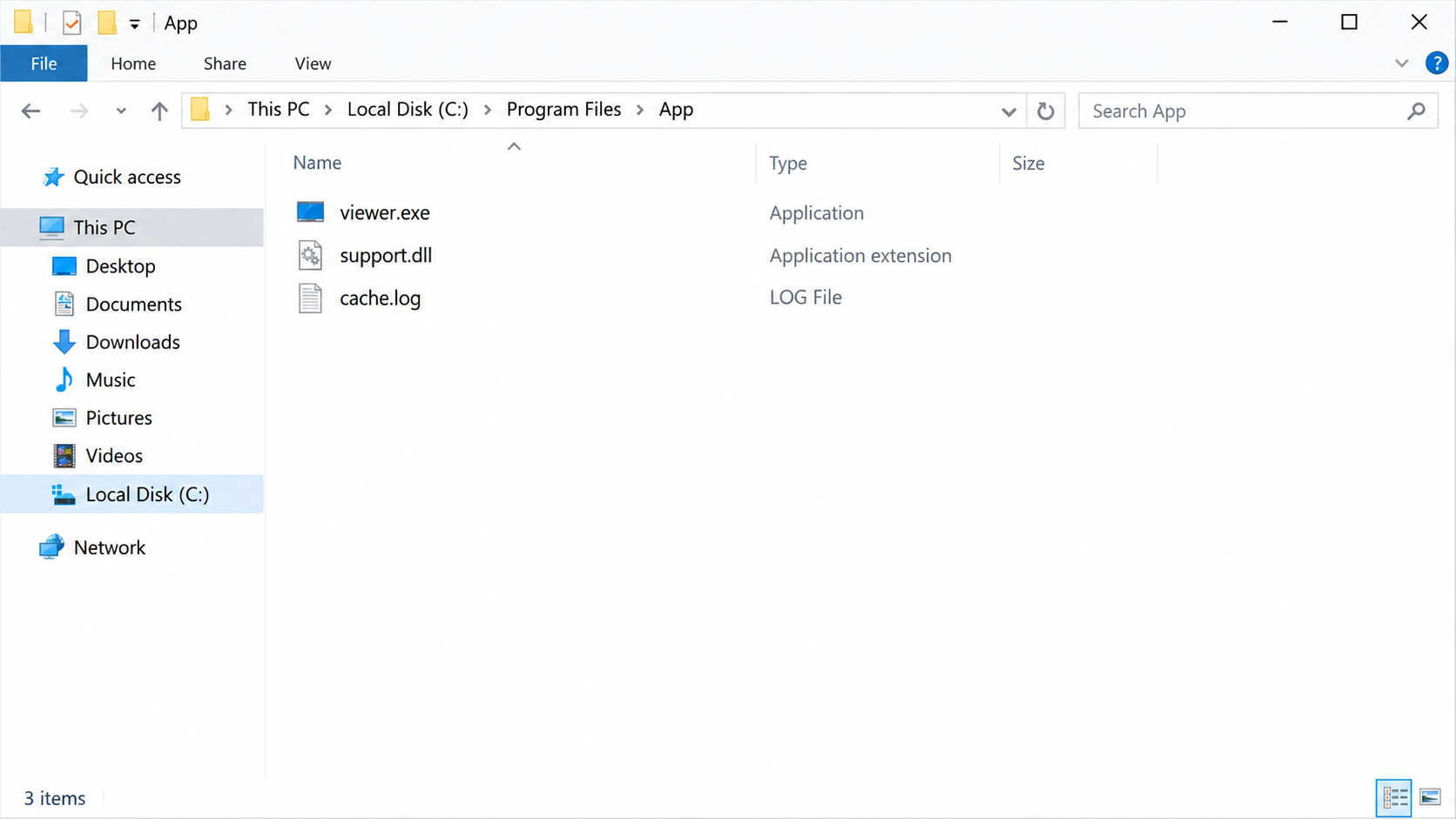
Windows programs often load helper libraries from nearby folders. In a DLL side-loading attack, the attacker places a malicious library where a real program will find it.
The executable can still be genuine. The unauthorized behavior comes from the neighboring component it loads, not necessarily from a forged main application.
That distinction matters when a user sees a valid digital signature. Signing helps verify a file’s origin, but it does not validate every file loaded afterward.
The Golden Gh0st chain also used an encrypted component disguised as ordinary support data. Encryption can keep the final code hidden from a quick file inspection.
Once loaded, the remote-access component can let an operator run commands and handle files. The scope of harm depends on privileges and the network reached.
A help-desk workstation can be especially valuable. It may have access to customer cases, internal tools, and administrative workflows.
That does not mean every support employee is an administrator. It means compromise can lead to further access if permissions and network controls allow it.
Researchers described a cloud-hosted manifest that helped direct the loader. This can let an attacker update where later components are fetched without changing every initial lure.
The file-browser illustration below shows a conceptual side-loading layout. It is not the original malware package and its generic filenames are not indicators of compromise.
What This Means for a Support Team
Most support staff cannot reverse engineer a DLL before answering a ticket. Good defense starts by reducing unnecessary execution.
Open cases in the trusted ticketing system. If a message asks you to move to a separate portal, verify that request through an established channel.
Use attachment preview or an isolated review process for documents from unknown senders. A support workstation should not be the testing environment.
Pay attention to a ZIP that contains a runnable program when the customer supposedly sent a screenshot or log. Ask why the file type changed.
Even a real customer can forward a malicious package unknowingly. The question is not whether the person seems honest, but whether executing it is necessary.
If a file opens a familiar utility instead of the expected case material, stop there. Do not keep clicking to make the attachment work.
Write down exactly what happened while it is fresh: the file name, source, time, visible window, and any warning. Small details can join an investigation later.
Support managers can help by giving staff a fast, nonpunitive reporting path. Delay often comes from uncertainty about whether a strange attachment is worth escalating.
Security teams should tune logging for library loads and unexpected outbound connections from support workstations. These signals can reveal the loader beyond its filename.
They should also restrict unnecessary administrator rights. A remote tool on a low-privilege machine is still serious, but fewer permissions can limit its reach.
These are layered safeguards, not a claim that one setting would have stopped every stage of the observed campaign.
How a Golden Gh0st Intrusion Can Unfold
Step 1: A plausible support problem creates the opening
A message framed as a customer ticket asks the recipient to review a file or visit a case page. The request fits the recipient’s daily job.
That is why this attack does not need loud language about a locked account. It borrows credibility from an established support process.
The message’s display name and ticket number are easy to imitate. Compare the case through the organization’s own ticket system before opening an attachment.
Some campaigns used compromised sites instead of a direct attachment. A familiar site can still be unsafe if its content has been altered.
Step 2: A package arrives with a real executable
The malicious chain may include a legitimate signed application. That can make a folder seem less suspicious during a superficial inspection.
Do not treat a publisher name on one file as approval for the entire download. Check the package origin and every unexpected file around the executable.
In side-loading, the adjacent DLL is the important companion. The genuine program loads it because of its expected location or name.
Staff should not extract unsolicited support attachments onto privileged workstations. Isolated review environments reduce the chance that an opened file reaches internal systems.
Step 3: The DLL loads an encrypted component
The injected library can read an encrypted payload from what looks like routine data. A log-like extension is not proof the contents are harmless.
Researchers documented an in-memory loading path. That can avoid dropping a plainly named final executable onto the disk.
It does not make the activity undetectable. Process behavior, unusual library loads, network traffic, and endpoint telemetry can still reveal it.
A basic search for a file named Golden Gh0st will miss the point. The threat can be present without that name appearing anywhere on the PC.
Step 4: The chain reaches outside infrastructure
A cloud-hosted manifest can tell the loader where to retrieve additional material. The use of a mainstream hosting service can blend into normal traffic.
Cloud hosting is not inherently suspicious. The concern is a newly opened support package contacting an unexpected external resource as part of execution.
Network logs can help establish whether the follow-on stage was retrieved. Blocking one URL does not necessarily rule out alternative infrastructure.
For a business incident, preserve proxy, DNS, and endpoint records. They help distinguish a blocked attempt from an established foothold.
Step 5: Remote access gives the operator options
After the remote-access tool runs, the attacker can attempt commands, file operations, and reconnaissance. Exact actions depend on the environment and credentials available.
The presence of a RAT does not prove data was stolen. It does justify investigating what the process accessed and which connections it made.
On a shared network, responders should look for related activity on other machines. A compromised support workstation can be a starting point.
Do not simply close the suspicious window and resume work. The visible application may not represent the code now running behind it.
Step 6: Trusted-looking signatures can confuse triage
The broader investigation described stolen signing material connected to an earlier support-system compromise. This is a reminder that signatures can be abused.
A valid signature answers a narrow question about a file. It cannot certify the safety of a download source, an adjacent DLL, or a loaded payload.
Security teams should review signing chains along with behavior and provenance. Users should rely on their organization’s verified software-distribution process.
Do not disregard all signatures either. They remain an important signal when considered with other evidence.
Step 7: Delayed discovery raises containment stakes
A targeted operation may avoid noisy actions that would interrupt support work. That can postpone discovery until a later alert or account anomaly.
Review the first suspected execution time, not just the time an antivirus product raised a warning. Logs before the alert may contain the entry point.
If a compromised machine handled customer data, the response may need legal, privacy, and customer-notification review under applicable rules.
Those decisions belong to the organization and its incident team. An individual employee should preserve evidence and report the issue promptly.
Ticket, File, Signature, and Network Checks
Verify the ticket independently
Open the case inside the known support system, not through the message link. Confirm the sender, customer context, and expected attachment type.
A valid case number alone is weak proof. Attackers can copy identifiers or exploit a compromised account in a real workflow.
Inspect the full extracted folder
Look for DLLs and data files packaged beside a signed application. Ask IT to examine the folder rather than running the program to see what it does.
Do not delete the package before the security team preserves a copy. The adjacent files may explain the actual loading path.
Treat signatures as one signal
Check the file’s publisher and signature, but also ask where it came from and why a support request delivered it.
A genuine signed application in an unexpected ZIP file is not a reason to waive normal attachment handling.
Review behavior and connections
Endpoint and network teams can look for unusual DLL loads, child processes, external manifest fetches, and remote-control traffic.
Those checks require context. A single cloud-hosting connection is not enough to identify Golden Gh0st without matching behavior.
What to Do if You Opened a Suspicious Support Package
Stop using the affected computer for support or sensitive accounts. Disconnect it from the network if your organization’s incident procedure says to do so.
Do not power it off blindly if your security team needs live evidence. Contact them immediately.
Report the ticket and attachment through the established security channel. Include the case number, message, download location, and time you opened it.
Do not email the executable to colleagues for a second opinion. That can spread the same package.
Preserve the original ZIP, extracted folder, security alerts, and relevant browser history. Let the incident team collect logs and memory where appropriate.
The specific combination of executable, DLL, and data file may be more informative than any one filename.
Have IT examine the system with approved endpoint tools. Malwarebytes can help with a personal PC, but business machines should follow central incident procedures.
AdGuard may reduce risky ads in everyday browsing; it is not a substitute for investigating a targeted attachment or RAT.
From a trusted device, change passwords for accounts used on the affected workstation when the incident team advises it. Revoke active sessions.
Prioritize support, identity, administrator, and email accounts. Check whether access tokens or customer information may have been exposed.
Let responders decide whether to rebuild the machine and review neighboring systems. A clean antivirus result alone may not close a targeted intrusion.
Reinstall software only through approved channels. Do not restore the suspicious support package.
Document any customer or business impact. Escalate possible data exposure to the appropriate privacy and legal contacts promptly.
If this was a personal device, keep the evidence and consider professional assistance before returning to sensitive work.
Is Your Device Infected? Run a Free Malware Scan
Slow performance, constant pop-ups, or strange behavior? These are classic signs of a malware infection. The fastest way to find out is to scan your device with Malwarebytes Free — one of the most trusted malware removal tools available.
The free version detects and removes the most common threats, including:
- Adware — the cause of those annoying pop-ups
- Browser hijackers — unwanted redirects and changed homepages
- Trojans and spyware — hidden programs stealing your data
- Potentially unwanted programs (PUPs) — software you never asked for
👉 Select your device below — Windows, Mac, or Android — then follow the simple steps to download Malwarebytes, scan your system, and remove any threats it finds. The scan usually takes 5 to 20 minutes.
Run a Malware Scan with Malwarebytes for Windows
Malwarebytes is one of the most popular and trusted anti-malware tools for Windows — and it’s completely free for removing infections. It catches threats that many antivirus programs miss, including adware, browser hijackers, and trojans. Follow the steps below to scan and clean your PC in just a few minutes.
Download Malwarebytes
Click the button below to download the latest version of Malwarebytes for Windows from the official source. The free version is all you need — it will scan your computer and remove adware, browser hijackers, and other malicious software at no cost.
Download MalwarebytesOfficial installer for Windows 11 and 10. Your download starts right away.Want real-time protection? See Malwarebytes Premium Malwarebytes Free for WindowsScans and removes malware at no cost
-
Install Malwarebytes
When the download finishes, open your Downloads folder and double-click the MBSetup file. If Windows shows a User Account Control pop-up, click “Yes” to allow the installation.

Follow the On-Screen Prompts to Install Malwarebytes
The setup wizard will walk you through a few quick screens:
-
Choose where you’re installing the program — “Personal Computer” or “Work Computer” — then click Next.

-
Malwarebytes will now install on your device. This usually takes under a minute.

-
When installation is complete, the “Welcome to Malwarebytes” screen will open automatically.

-
On the final screen, click Open Malwarebytes to launch the program.

-
Enable “Scan for Rootkits”
Before scanning, turn on rootkit detection so Malwarebytes can find even the most hidden threats. Click the Settings gear icon on the left side of the screen.

In the settings menu, find “Scan for rootkits” and click the toggle so it turns blue.

Done? Click “Dashboard” in the left pane to return to the main screen.
Start the Scan
Click the blue Scan button. Malwarebytes will automatically update its virus database and start checking your computer for malware.

-
Wait for the Scan to Finish
The scan checks your entire system for browser hijackers and other malicious programs, so it can take 5 to 20 minutes depending on your computer. Feel free to do something else — just check back occasionally to see the progress.

-
Quarantine the Detected Threats
When the scan is done, you’ll see a list of everything Malwarebytes found — malware, adware, and potentially unwanted programs. Click the “Quarantine” button to remove all of them at once.

Malwarebytes will now remove the malicious files and registry entries and move them safely into quarantine.

-
Restart Your Computer
Some threats can only be fully removed after a reboot. If Malwarebytes asks you to restart, click Yes. Once you’re logged back in, Malwarebytes has finished removing the threats it found.

That’s it — your Windows PC is now clean of trojans, adware, and other malware, and should be back to running smoothly.
If you are still having problems with your computer after completing these instructions, then please follow one of the steps:
- Run a computer scan with ESET Online Scanner
- Ask for help in our Windows Malware Removal Help & Support forum.
Run a Malware Scan with Malwarebytes for Mac
Malwarebytes for Mac is a free on-demand scanner that removes the malware other security software tends to miss — adware, browser hijackers, and unwanted programs included. Cleaning an infected Mac with Malwarebytes has always been completely free, and it’s our go-to recommendation. Follow the steps below to scan and clean your Mac in just a few minutes.
-
Download Malwarebytes for Mac
Click the button below to download the latest version of Malwarebytes for Mac.
Download MalwarebytesOfficial installer for macOS. Your download starts right away.Want real-time protection? See Malwarebytes PremiumMalwarebytes Free for MacScans and removes malware at no cost -
Open the Malwarebytes setup file
When the download finishes, open your Downloads folder and double-click the setup file to begin the installation.

-
Follow the On-Screen Prompts to Install Malwarebytes
The Malwarebytes for Mac Installer will guide you through a few quick screens. Click “Continue” and keep following the prompts until the installation completes.



When the installation is complete, Malwarebytes opens to the Welcome to Malwarebytes screen. Click “Get started“.
-
Select “Personal Computer” or “Work Computer”
Malwarebytes will ask what type of computer you’re installing it on. Click either Personal Computer or Work Computer, whichever applies.

-
Start the Scan
Click the “Scan” button. Malwarebytes will automatically update its detection database and begin checking your Mac for malware.

-
Wait for the Scan to Finish
Malwarebytes will scan your Mac for adware, browser hijackers, and other malicious programs. This can take a few minutes, so feel free to do something else — just check back occasionally to see the progress.

-
Quarantine the Detected Threats
When the scan is done, you’ll see a list of everything Malwarebytes found. Click the “Quarantine” button to remove all the threats at once.

-
Restart Your Mac
Malwarebytes will now remove all the malicious files it found. Some threats can only be fully removed after a reboot — if Malwarebytes asks you to restart, allow it. Once you’re logged back in, your Mac is clean.

That’s it — your Mac is now free of adware, rogue browser extensions, and other potentially harmful software.
If you are still experiencing problems while trying to remove a malicious program from your computer, please ask for help in our Mac Malware Removal Help & Support forum.
Run a Malware Scan with Malwarebytes for Android
Malwarebytes for Android automatically detects and removes dangerous threats like malware and ransomware so you don’t have to worry about your most-used device being compromised. Aggressive detection of adware and potentially unwanted programs keeps your Android phone or tablet running smooth.
-
Download Malwarebytes for Android.
You can download Malwarebytes for Android by clicking the link below.
Get Malwarebytes for AndroidOpens Google Play in a new tab.Want real-time protection? See Malwarebytes Premium for AndroidMalwarebytes for AndroidScans your phone and removes malware at no cost -
Install Malwarebytes for Android on your phone.
In the Google Play Store, tap “Install” to install Malwarebytes for Android on your device.

When the installation process has finished, tap “Open” to begin using Malwarebytes for Android. You can also open Malwarebytes by tapping on its icon in your phone menu or home screen.

-
Follow the on-screen prompts to complete the setup process
When Malwarebytes will open, you will see the Malwarebytes Setup Wizard which will guide you through a series of permissions and other setup options.
This is the first of two screens that explain the difference between the Premium and Free versions. Swipe this screen to continue.
Tap on “Got it” to proceed to the next step.
Malwarebytes for Android will now ask for a set of permissions that are required to scan your device and protect it from malware. Tap on “Give permission” to continue.
Tap on “Allow” to permit Malwarebytes to access the files on your phone.
-
Update database and run a scan with Malwarebytes for Android
You will now be prompted to update the Malwarebytes database and run a full system scan.

Click on “Update database” to update the Malwarebytes for Android definitions to the latest version, then click on “Run full scan” to perform a system scan.

-
Wait for the Malwarebytes scan to complete.
Malwarebytes will now start scanning your phone for adware and other malicious apps. This process can take a few minutes, so we suggest you do something else and periodically check on the status of the scan to see when it is finished.

-
Click on “Remove Selected”.
When the scan has been completed, you will be presented with a screen showing the malware infections that Malwarebytes for Android has detected. To remove the malicious apps that Malwarebytes has found, tap on the “Remove Selected” button.

-
Restart your phone.
Malwarebytes for Android will now remove all the malicious apps that it has found. To complete the malware removal process, Malwarebytes may ask you to restart your device.
That’s it — your Android phone is now clean — no more malicious apps, adware, or browser redirects.
If you are still having problems with your phone after completing these instructions, then please follow one of the steps:
- Restore your phone to factory settings by going to Settings > General management > Reset > Factory data reset.
- Ask for help in our Mobile Malware Removal Help & Support forum.
Stay Protected: Block Ads and Malicious Sites
Now that your device is clean, keep it that way. Most infections start with a malicious ad or a fake download button — so blocking them at the source is your best defense.
We recommend AdGuard, which blocks malicious ads, phishing pages, and dangerous redirects before they can reach you.
👉 Download AdGuard and browse safely
Frequently Asked Questions
Is Golden Gh0st a fake support website?
No. It is a remote-access trojan. A support-themed message or compromised site can be a delivery route, but the malware is the payload.
Does a signed executable mean the attachment is safe?
No. A legitimate executable can load a malicious DLL placed beside it. Evaluate the full package, its source, and its behavior.
Was every support ticket in the campaign infected?
No. Public research describes a targeted operation. A support ticket should be verified on its merits, not labeled infected because it shares a theme.
Can I remove the suspicious DLL and keep working?
Not safely without investigation. The remote-access stage may already have run, and a business network may need broader containment.
Does the cloud-hosted manifest identify the attacker?
It is one part of the loading chain. Hosting location alone does not establish who operated the intrusion or whether your machine retrieved the payload.
What should an employee do first?
Report the incident to the security team, preserve the original package, and follow their containment instructions. Avoid improvising cleanup on a managed PC.
The Bottom Line
Golden Gh0st turns a believable support workflow and a genuine program into a path for remote access. The deceptive detail is the surrounding package.
Verify tickets through trusted systems and investigate suspicious attachments as a whole. If one ran, preserve evidence and involve the incident team quickly.

Join the discussion
0 commentsShare your experience or ask a question about this article.
Discussion
Start the conversation
Have a question or something useful to share? Add the first comment.