


A rental listing leads you to an Android app, then the app says an update is needed. You only wanted to arrange a place to stay.
Glitch SPY reports describe why that extra installation deserves attention. The useful questions are what entered your device and which permissions you granted.
Overview
An Android remote-access threat behind a rental disguise
Glitch SPY is an Android remote-access trojan. A documented distribution campaign used a counterfeit Polish rental site to persuade visitors to install an application.
The reported address was tutaj-dompl[.]com. The rental presentation was the lure, not evidence that a real property booking required the downloaded software.
Cyble’s analysis connected the first installation with Brokewell Android Loader. An apparent update then introduced the Glitch SPY payload.
This layered route explains why removing only the file you remember downloading may leave uncertainty. Review the installed applications and permissions as well.
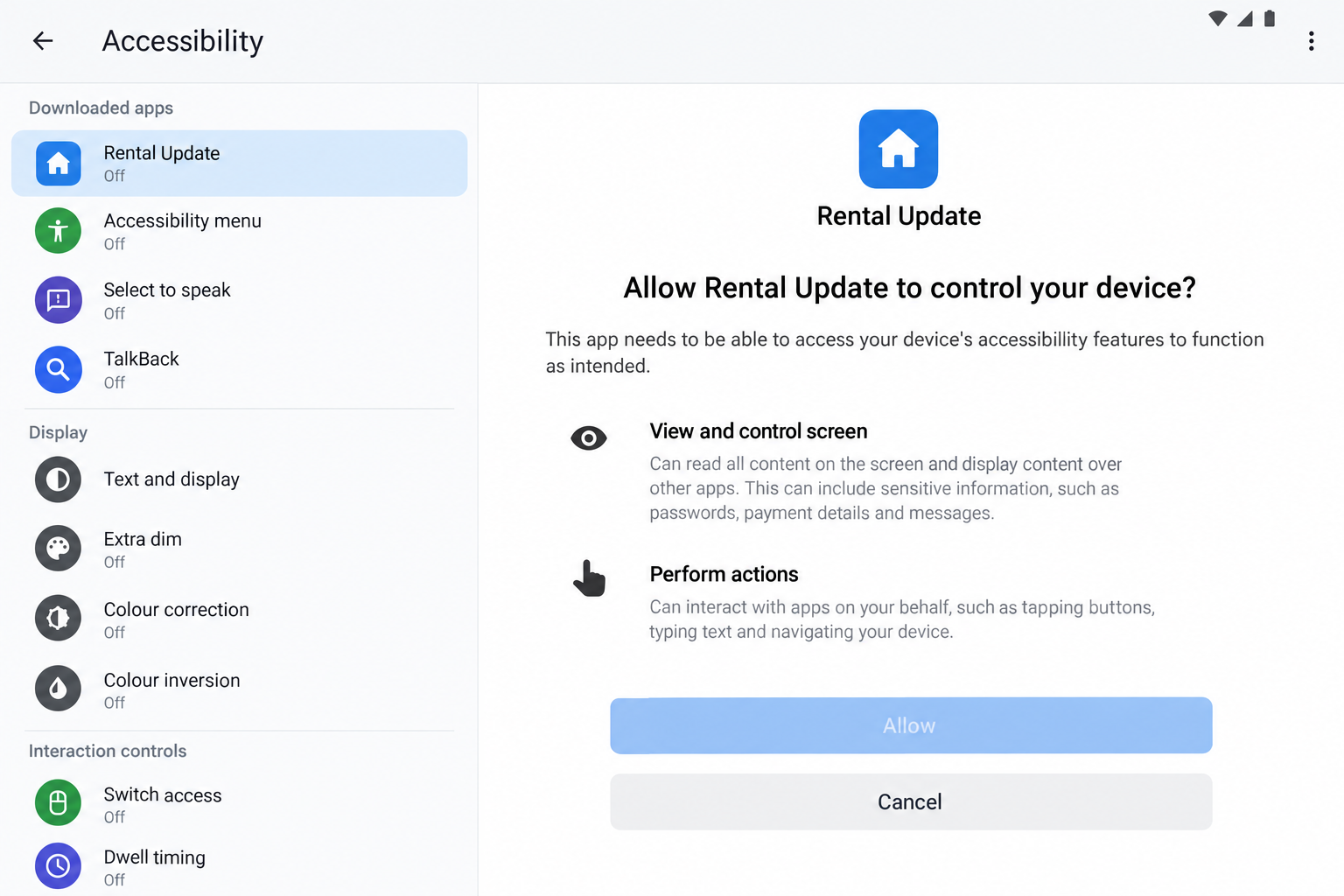
The permission that changes the level of access
Accessibility is designed to help people interact with Android. When misused by an untrusted app, that powerful access can expose the screen and enable actions.
Glitch SPY’s documented capabilities include collecting sensitive device information and remotely controlling activity. Available functions are not proof that every function ran on your device.
- Unknown-source installation was presented as part of using the rental service.
- A second installation appeared under an update pretext.
- Accessibility access could make an unrelated app unusually powerful.
- Account recovery may be necessary alongside application removal.
The practical warning is the mismatch: arranging accommodation does not justify handing an unknown application broad control over everything displayed on Android.
How to decide whether you need cleanup
Visiting a listing is not the same as installing its APK. An APK is an Android application package; installation is the meaningful change to the device.
If you downloaded a file without installing it, remove the unused package. If you installed it, check the permissions and obtain a trusted security assessment.
A detection naming Glitch SPY, Brokewell, or another malicious component deserves prompt attention. Keep the alert and stop using the affected device for sensitive approvals.
The Rental Context Makes an Update Easier to Accept
A housing search can be time-sensitive. You may worry that a listing will disappear before you can contact the owner or finish an application.
That pressure makes an unfamiliar download feel like a small inconvenience. The promise is access to the property, not access to your device.
When an app then demands an update, you may already feel committed. You have spent time on the listing and want the process to work.
Separate those decisions. An attractive property does not validate an APK, and an APK does not become safer because the page calls its replacement an update.
A genuine update should have an identifiable publisher and distribution route. A random listing should not require you to bypass Android’s warnings to contact someone.
The language and country of the page are not the diagnosis. The installation chain and excessive access are what make this campaign dangerous.
How the Glitch SPY Infection Chain Works
Step 1: A property page supplies a reason to download
The reported campaign began with a rental-themed website. Instead of keeping the interaction in ordinary browsing, it directed users toward an Android package.
Before accepting that shift, ask why the task needs an application at all. Viewing details or communicating with an owner should not require unexplained device privileges.
Do not rely on an icon, property photo, or professional layout to verify the software. Those details describe presentation, not who controls the download.
If a listing insists on its own installation route, stop before enabling it. Use an independently verified contact method or leave the offer.
Keep the listing address if you need to report the encounter. Avoid sharing a live malicious link with other people as an invitation to investigate.
Step 2: The first APK establishes a foothold
An installation outside a trusted app-store route may require approval for the browser or another app to install unknown packages.
That setting is not a minor cosmetic step. It permits software from a source that may not have the same checks you expected from an app store.
The documented first-stage component was a loader. Its purpose in this chain was to bring in another malicious application rather than simply display rental information.
For recovery, note which application handled the download and when installation occurred. This helps distinguish the original package from applications that appeared afterward.
You do not need to reopen the package to discover its name. Android’s installed-app list and a saved security alert are safer starting points.
Step 3: A supposed update introduces Glitch SPY
The next prompt presents another installation as an update. A maintenance explanation can make a second package seem less suspicious than the first.
The important question is whether it belongs to a verified publisher. A message inside an untrusted app is not independent confirmation of that publisher.
Do not assume the original app’s removal also removed everything it delivered. Check recently installed applications, including names you do not associate with the listing.
Malware builders can vary an app’s label and icon. An exact name from a report is useful context, but not a complete checklist for every copy.
A security scan can help identify components you would otherwise overlook. Keep its findings rather than guessing solely from familiar or unfamiliar app names.
Step 4: Sensitive permissions expand what the operator can do
Accessibility abuse can enable screen reading, gestures, and other actions that make account activity vulnerable. Android’s restricted-setting warnings deserve attention, not instructions for bypassing them.
Other documented functions involve messages, contacts, call information, location, and device sensors. Which data was accessible depends on granted permissions and the particular sample.
The danger is not limited to information already stored in a document. A compromised interface can expose activity while you sign in or approve something.
If you notice unexpected taps, overlays, or approval requests, pause sensitive use. Treat those observations as incident details, not definitive proof of a particular malware family.
Contact your bank from somewhere else if the device was used for financial services. The same device should not be your only channel for checking its own compromise.
Step 5: Device access can become an account incident
The reported remote-control functions can facilitate account takeover from the affected device. A service may therefore see activity coming from equipment it already recognizes.
That is why a familiar device entry in an account log does not automatically rule out abuse. Compare the action and time with what you actually did.
Review unexpected password changes, sent messages, new payees, and approvals. Give relevant providers specific records rather than simply saying that the device seemed slow.
If cryptocurrency was used, inspect recipient addresses against trusted records. Clipboard manipulation is another documented capability, but your transfer history determines whether it caused a loss.
Do not send another transaction to check whether the malware is still present. Complete cleanup and verify account access before returning to transfers.
Permission Checks That Actually Help
Review Accessibility without disabling tools you need
Open Android’s settings and inspect enabled downloaded Accessibility services. Menu names vary by manufacturer; use its official help if the location is unclear.
Identify anything recently added by the rental download or update. Revoke unwanted access, but do not remove a trusted assistive tool merely because Accessibility is powerful.
Document the suspicious application’s details before uninstalling it. A screenshot of its app-information page can help support staff recognize what was installed.
Also examine device-administrator access and unknown-installation permissions. An application should not retain special privileges after its purpose and trust have failed.
Recognize what a scan cannot tell you
A scan helps find malicious software. It does not reconstruct every message read, gesture performed, or account action taken while the application was active.
Use account-side evidence for those questions. Security notifications, login records, payment history, and provider support can reveal issues that the device scan cannot undo.
Battery drain and crashes can have ordinary causes. Conversely, a device that feels normal can still have an untrusted service enabled.
Base the response on installations, permissions, credible detections, and account activity. That is more reliable than diagnosing the infection from performance alone.
What to Do if You Installed the Glitch SPY Rental App
Take the affected Android device out of sensitive use. Disconnect its network access when you suspect active control. Use another trusted device for banking, password changes, and support contact.
Tell anyone managing the device for work. They may need to preserve information or revoke organizational access before you reset it.
Record the applications and security findings. Note the rental page, download time, update prompt, installed-app names, and any detection. Keep these privately with your incident timeline.
Do not upload the APK to a public conversation or ask friends to install it. Share evidence only through appropriate security-reporting channels.
Revoke unwanted special access and remove the applications. Check Accessibility and device-administrator settings, then uninstall the untrusted loader and payload identified by the assessment.
If removal is blocked, consult the manufacturer’s safe-mode instructions or a trusted technician. Do not follow troubleshooting instructions supplied by the suspicious application.
Use Android-appropriate security checks. Run Google Play Protect and a current trusted Android scanner, such as Malwarebytes for Android. Keep detection results and follow the recommended action.
Update Android and installed apps through their legitimate update routes. A Windows installer cannot clean Android; choose the product version that matches the affected operating system.
Protect accounts used during the exposure. Change relevant credentials from safe equipment. Check email recovery information, bank activity, and active account sessions.
Ask financial providers about unfamiliar approvals or transfers. If messages or verification codes could have been exposed, explain that specifically rather than reporting only an app installation.
Reset the device if trust cannot be restored. A factory reset may be necessary when unwanted control persists or a reliable assessment recommends it.
Save essential personal files first. Reinstall trusted applications deliberately instead of restoring the suspicious packages or every old setting without review.
Close the original download route. Remove unused APK files and revoke unnecessary unknown-installation permission. Report the malicious listing or message to the service where you encountered it.
AdGuard can help reduce some deceptive advertising exposure. It is not a substitute for refusing unknown rental-app installations or for removing an already active trojan.
Is Your Device Infected? Run a Free Malware Scan
Slow performance, constant pop-ups, or strange behavior? These are classic signs of a malware infection. The fastest way to find out is to scan your device with Malwarebytes Free — one of the most trusted malware removal tools available.
The free version detects and removes the most common threats, including:
- Adware — the cause of those annoying pop-ups
- Browser hijackers — unwanted redirects and changed homepages
- Trojans and spyware — hidden programs stealing your data
- Potentially unwanted programs (PUPs) — software you never asked for
👉 Select your device below — Windows, Mac, or Android — then follow the simple steps to download Malwarebytes, scan your system, and remove any threats it finds. The scan usually takes 5 to 20 minutes.
Run a Malware Scan with Malwarebytes for Windows
Malwarebytes is one of the most popular and trusted anti-malware tools for Windows — and it’s completely free for removing infections. It catches threats that many antivirus programs miss, including adware, browser hijackers, and trojans. Follow the steps below to scan and clean your PC in just a few minutes.
Download Malwarebytes
Click the button below to download the latest version of Malwarebytes for Windows from the official source. The free version is all you need — it will scan your computer and remove adware, browser hijackers, and other malicious software at no cost.
Download MalwarebytesOfficial installer for Windows 11 and 10. Your download starts right away.Want real-time protection? See Malwarebytes Premium Malwarebytes Free for WindowsScans and removes malware at no cost
-
Install Malwarebytes
When the download finishes, open your Downloads folder and double-click the MBSetup file. If Windows shows a User Account Control pop-up, click “Yes” to allow the installation.

Follow the On-Screen Prompts to Install Malwarebytes
The setup wizard will walk you through a few quick screens:
-
Choose where you’re installing the program — “Personal Computer” or “Work Computer” — then click Next.

-
Malwarebytes will now install on your device. This usually takes under a minute.

-
When installation is complete, the “Welcome to Malwarebytes” screen will open automatically.

-
On the final screen, click Open Malwarebytes to launch the program.

-
Enable “Scan for Rootkits”
Before scanning, turn on rootkit detection so Malwarebytes can find even the most hidden threats. Click the Settings gear icon on the left side of the screen.

In the settings menu, find “Scan for rootkits” and click the toggle so it turns blue.

Done? Click “Dashboard” in the left pane to return to the main screen.
Start the Scan
Click the blue Scan button. Malwarebytes will automatically update its virus database and start checking your computer for malware.

-
Wait for the Scan to Finish
The scan checks your entire system for browser hijackers and other malicious programs, so it can take 5 to 20 minutes depending on your computer. Feel free to do something else — just check back occasionally to see the progress.

-
Quarantine the Detected Threats
When the scan is done, you’ll see a list of everything Malwarebytes found — malware, adware, and potentially unwanted programs. Click the “Quarantine” button to remove all of them at once.

Malwarebytes will now remove the malicious files and registry entries and move them safely into quarantine.

-
Restart Your Computer
Some threats can only be fully removed after a reboot. If Malwarebytes asks you to restart, click Yes. Once you’re logged back in, Malwarebytes has finished removing the threats it found.

That’s it — your Windows PC is now clean of trojans, adware, and other malware, and should be back to running smoothly.
If you are still having problems with your computer after completing these instructions, then please follow one of the steps:
- Run a computer scan with ESET Online Scanner
- Ask for help in our Windows Malware Removal Help & Support forum.
Run a Malware Scan with Malwarebytes for Mac
Malwarebytes for Mac is a free on-demand scanner that removes the malware other security software tends to miss — adware, browser hijackers, and unwanted programs included. Cleaning an infected Mac with Malwarebytes has always been completely free, and it’s our go-to recommendation. Follow the steps below to scan and clean your Mac in just a few minutes.
-
Download Malwarebytes for Mac
Click the button below to download the latest version of Malwarebytes for Mac.
Download MalwarebytesOfficial installer for macOS. Your download starts right away.Want real-time protection? See Malwarebytes PremiumMalwarebytes Free for MacScans and removes malware at no cost -
Open the Malwarebytes setup file
When the download finishes, open your Downloads folder and double-click the setup file to begin the installation.

-
Follow the On-Screen Prompts to Install Malwarebytes
The Malwarebytes for Mac Installer will guide you through a few quick screens. Click “Continue” and keep following the prompts until the installation completes.



When the installation is complete, Malwarebytes opens to the Welcome to Malwarebytes screen. Click “Get started“.
-
Select “Personal Computer” or “Work Computer”
Malwarebytes will ask what type of computer you’re installing it on. Click either Personal Computer or Work Computer, whichever applies.

-
Start the Scan
Click the “Scan” button. Malwarebytes will automatically update its detection database and begin checking your Mac for malware.

-
Wait for the Scan to Finish
Malwarebytes will scan your Mac for adware, browser hijackers, and other malicious programs. This can take a few minutes, so feel free to do something else — just check back occasionally to see the progress.

-
Quarantine the Detected Threats
When the scan is done, you’ll see a list of everything Malwarebytes found. Click the “Quarantine” button to remove all the threats at once.

-
Restart Your Mac
Malwarebytes will now remove all the malicious files it found. Some threats can only be fully removed after a reboot — if Malwarebytes asks you to restart, allow it. Once you’re logged back in, your Mac is clean.

That’s it — your Mac is now free of adware, rogue browser extensions, and other potentially harmful software.
If you are still experiencing problems while trying to remove a malicious program from your computer, please ask for help in our Mac Malware Removal Help & Support forum.
Run a Malware Scan with Malwarebytes for Android
Malwarebytes for Android automatically detects and removes dangerous threats like malware and ransomware so you don’t have to worry about your most-used device being compromised. Aggressive detection of adware and potentially unwanted programs keeps your Android phone or tablet running smooth.
-
Download Malwarebytes for Android.
You can download Malwarebytes for Android by clicking the link below.
Get Malwarebytes for AndroidOpens Google Play in a new tab.Want real-time protection? See Malwarebytes Premium for AndroidMalwarebytes for AndroidScans your phone and removes malware at no cost -
Install Malwarebytes for Android on your phone.
In the Google Play Store, tap “Install” to install Malwarebytes for Android on your device.

When the installation process has finished, tap “Open” to begin using Malwarebytes for Android. You can also open Malwarebytes by tapping on its icon in your phone menu or home screen.

-
Follow the on-screen prompts to complete the setup process
When Malwarebytes will open, you will see the Malwarebytes Setup Wizard which will guide you through a series of permissions and other setup options.
This is the first of two screens that explain the difference between the Premium and Free versions. Swipe this screen to continue.
Tap on “Got it” to proceed to the next step.
Malwarebytes for Android will now ask for a set of permissions that are required to scan your device and protect it from malware. Tap on “Give permission” to continue.
Tap on “Allow” to permit Malwarebytes to access the files on your phone.
-
Update database and run a scan with Malwarebytes for Android
You will now be prompted to update the Malwarebytes database and run a full system scan.

Click on “Update database” to update the Malwarebytes for Android definitions to the latest version, then click on “Run full scan” to perform a system scan.

-
Wait for the Malwarebytes scan to complete.
Malwarebytes will now start scanning your phone for adware and other malicious apps. This process can take a few minutes, so we suggest you do something else and periodically check on the status of the scan to see when it is finished.

-
Click on “Remove Selected”.
When the scan has been completed, you will be presented with a screen showing the malware infections that Malwarebytes for Android has detected. To remove the malicious apps that Malwarebytes has found, tap on the “Remove Selected” button.

-
Restart your phone.
Malwarebytes for Android will now remove all the malicious apps that it has found. To complete the malware removal process, Malwarebytes may ask you to restart your device.
That’s it — your Android phone is now clean — no more malicious apps, adware, or browser redirects.
If you are still having problems with your phone after completing these instructions, then please follow one of the steps:
- Restore your phone to factory settings by going to Settings > General management > Reset > Factory data reset.
- Ask for help in our Mobile Malware Removal Help & Support forum.
Stay Protected: Block Ads and Malicious Sites
Now that your device is clean, keep it that way. Most infections start with a malicious ad or a fake download button — so blocking them at the source is your best defense.
We recommend AdGuard, which blocks malicious ads, phishing pages, and dangerous redirects before they can reach you.
👉 Download AdGuard and browse safely
What to Tell Your Bank or Account Provider
Review the device’s role in each account before asking support to restore access. It might receive text codes, approve notifications, or hold a signed-in application.
Those roles create different follow-up questions. Ask how to replace an affected approval device, not simply whether your password still works.
If an unfamiliar text or call appeared during the incident, retain its time and content. Avoid calling the number back as part of your investigation.
A suspicious transaction may need a formal dispute process. Request the provider’s exact procedure and keep confirmation that your report was received.
Where a rental deposit was also paid, record that payment separately. Malware exposure and a disputed accommodation payment are related events, but not the same recovery task.
Do not reinstall the rental application to retrieve missing booking details. Use screenshots, saved messages, or the payment record already available.
Afterward, remove old installation permissions that no longer serve a trusted purpose. This reduces the chance that another download can repeat the same entry route unnoticed.
Give support a short, factual description: an untrusted rental APK was installed, a second update followed, and sensitive permissions may have been enabled.
Include the exposure period and disputed actions. Ask whether sessions, payment beneficiaries, or recovery settings changed during that window.
If an account uses the affected device for approval, ask how to re-establish that trust safely. Reinstalling an app is not always the complete account-side process.
Keep confirmation of any access revocation or payment dispute. Having a case number helps when a second team handles a different part of the recovery.
Where personal conversations were exposed, warn relevant contacts about unusual messages. Keep the warning specific and avoid forwarding the malicious package itself.
Frequently Asked Questions
Is Glitch SPY an Android virus?
It is more precisely an Android remote-access trojan. That description emphasizes the unauthorized monitoring and control capabilities rather than suggesting every infection spreads automatically.
Can a rental website infect Android just by opening?
The documented campaign relied on application installation and subsequent access. Opening the page alone is not evidence that the APK or Glitch SPY installed.
Why is the update prompt important?
It was part of a second-stage delivery route. Check both the first application and anything installed afterward rather than assuming one uninstall removes the whole chain.
Does every Accessibility application need removal?
No. Legitimate assistive applications use these permissions. Investigate the untrusted installation and its access, while preserving tools you knowingly installed from trusted publishers.
Will an Android scan fix stolen account access?
No. Scanning addresses malicious software. Passwords, sessions, financial transactions, and account recovery settings require their own provider-specific review.
Should I always factory-reset the device?
Not simply because you saw a suspicious listing. Consider a reset when malicious control is confirmed, removal fails, or trusted support cannot establish a clean device.
The Bottom Line
Do not install a rental-site APK or its supposed update to gain access to a listing. This campaign turns an ordinary housing task into an Android-control risk.
If you installed the software, review special permissions, remove the malicious components, and protect affected accounts from a different device. Reset when reliable cleanup is not possible.

Join the discussion
0 commentsShare your experience or ask a question about this article.
Discussion
Start the conversation
Have a question or something useful to share? Add the first comment.