


You searched for a familiar development tool, clicked a download, and Windows opened an installer. Now a security alert mentions CastleStealer or OXLOADER.
The filename and download route can help explain what needs attention. Start there before returning to the browser profiles and projects stored on that PC.
Overview
Two malware names describe different parts of the incident
OXLOADER is a Windows malware loader. A documented campaign used it to deliver an information stealer consistent with CastleStealer.
A loader gets another program into position. An information stealer targets useful data. Knowing those roles helps avoid treating one removed download as the complete incident.
The reported delivery impersonated software people intentionally search for, including Node.js. The legitimate developer tool was not the malicious program.
If your alert names either component, save the detection details. The path, action taken, and execution time help establish which stage reached your computer.
A download chain that can look routine
Elastic Security Labs traced a route from malicious search advertising to a counterfeit download page. A batch file preceded further installer stages.
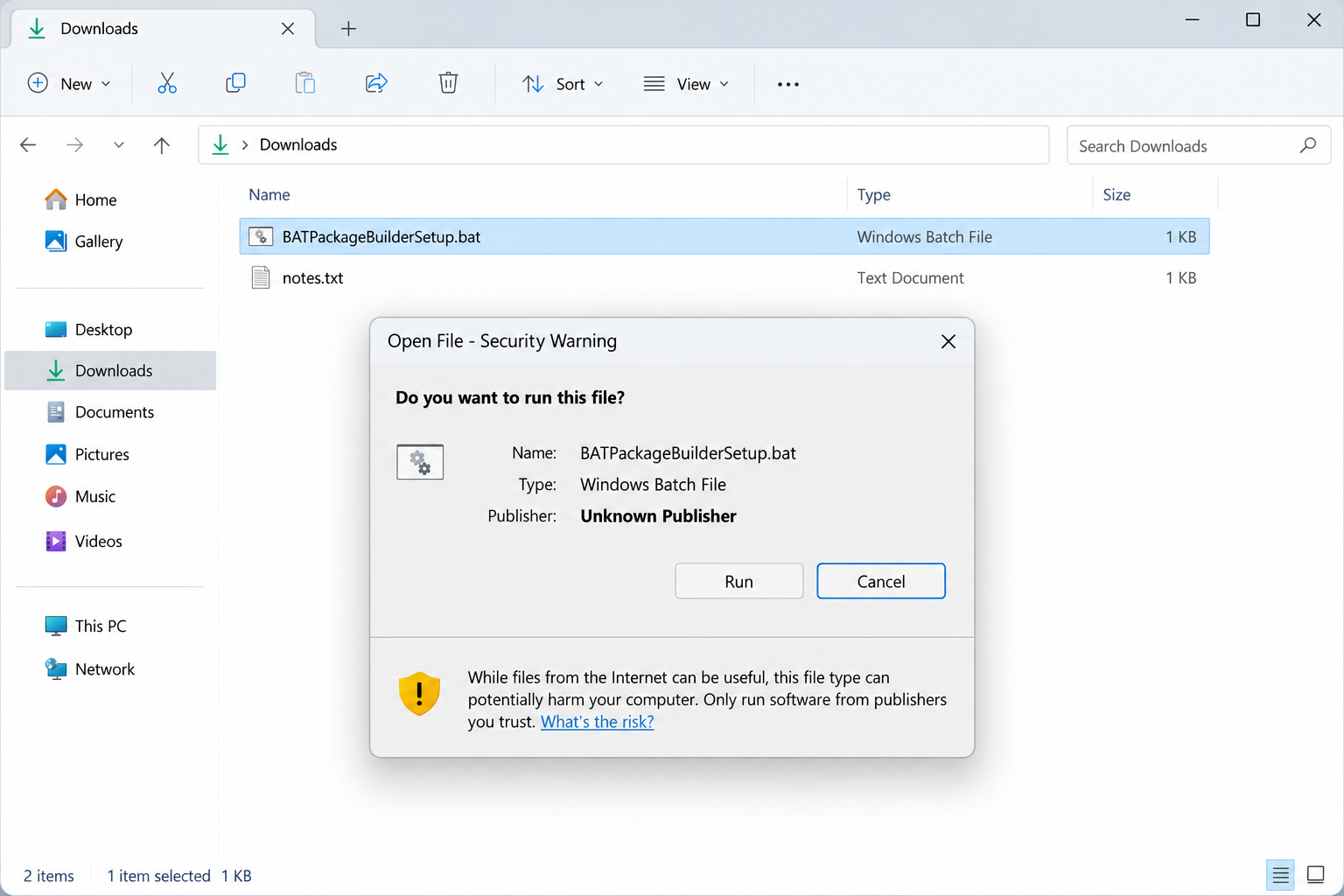
The reported filename was BATPackageBuilderSetup.bat. Another stage used an API Monitor disguise, adding a second familiar software identity to the chain.
- The search result’s appearance did not authenticate its download destination.
- A Windows batch file could execute instructions rather than display a document.
- A convincing installer window did not establish a trustworthy publisher.
- Device cleanup and review of exposed accounts required separate attention.
A filename is a lead, not a universal detection rule. Other builds can change names, and a similarly named file needs assessment in its actual context.
The priority is restoring trust, not finishing installation
Stop the installation when a credible malware alert appears. Do not add an exclusion merely because you still need the software for a project.
Use a clean device to review accounts that were available on the affected PC. A stealer incident can involve access that survives removal of the executable.
If this computer belongs to work, contact the security team. Browser sessions, development access, and organizational credentials may need coordinated action.
Why a Search Ad Is Not a Software Verification
Searching for an exact product name feels careful. You are not browsing random downloads; you know what you want and expect the search engine to find it.
Advertising changes that route. A prominent result may be purchased placement rather than the developer’s ordinary download page.
Check the destination before opening an installer. A software name elsewhere in a long address does not make the domain belong to its publisher.
The observed Node.js imitation used node-js.prentiva99[.]info. Its relevant identity is prentiva99[.]info, not the product name placed before it.
For Node.js, begin at the official Node.js website. Follow its own download routes instead of treating a lookalike result as equivalent.
This is not a claim that every software advertisement is malicious. It is a reason to authenticate the publisher’s route before giving downloaded code access to Windows.
How the OXLOADER and CastleStealer Delivery Chain Works
Step 1: A software search supplies the opportunity
The documented campaign placed malicious advertising in a search journey for software. Users arrived with a practical task, which made an installation feel expected.
The first useful defense is to slow down before the download. Confirm that the domain belongs to the tool’s publisher, not simply that the page looks familiar.
A copied logo and recognizable navigation can disguise a different operator. Branding is easy to reproduce; a verified distribution route is harder to replace unnoticed.
Where your employer provides an approved software catalog, use it. That avoids making an urgent project deadline depend on an unfamiliar search advertisement.
If you saved the search result or download history, keep it for incident review. Do not revisit the live destination to repeat the installation.
Step 2: The download arrives as an executable script
A Windows batch file is not an ordinary read-only attachment. When executed, it can issue commands under the permissions available to the user.
In the reported chain, the download led to BATPackageBuilderSetup.bat. A packaging-related name made it easier to mistake the script for a necessary installation helper.
Pay attention to the actual file type. A name ending in .bat deserves a different decision from viewing a manual or opening an image.
Never run an unknown script as a diagnostic test. A file can perform its harmful work before you decide that its installer did not behave as expected.
If it remains unexecuted, keep it closed and let a security tool assess it. Record its origin without opening it in the hope of finding reassurance.
Step 3: Installer stages make the process look legitimate
The chain used an installer-style presentation and additional executable stages. Familiar installation behavior can encourage the user to keep approving the process.
An installation wizard is only an interface. It does not tell you whether the downloaded code belongs to the software publisher named on the page.
A permission prompt likewise tells you that access is being requested. Check the publisher and the original source instead of interpreting the prompt as a safety endorsement.
The API Monitor disguise adds another reason to examine unexpected software names. A tool you did not request should not gain trust merely by sounding technical.
Cancel the interaction if the installation takes an unexplained turn. Do not disable protection because the page says another component is required to finish.
Step 4: The loader prepares and launches the payload
OXLOADER’s analysis describes checks and concealment intended to complicate detection. The final payload was consistent with CastleStealer, rather than the promised legitimate software.
Those technical details explain why one visible installer is not the only item worth checking. Some activity may not present itself as a neatly labeled application.
That does not make the threat universally undetectable. Detection results vary, and a legitimate security warning should not be overridden because a report discusses evasive behavior.
Leave the low-level cleanup to trusted tools or trained responders. Manually deleting Windows libraries can damage the system without proving that the payload is gone.
Your immediate role is simpler: stop sensitive use, preserve the alerts, and arrange assessment. You do not need to reproduce the loader to recover safely.
Step 5: A device compromise becomes a credentials problem
An information-stealing payload creates concern about sensitive material available on the machine. Its capabilities do not prove which individual secrets were taken from your PC.
Review the accounts and working data you actually used. Email, browser sessions, development services, and payment access have different recovery procedures.
For a development workstation, ask whether reusable credentials were present. An organization may need to rotate relevant access rather than wait for a personal password change.
Do not make replacements on the machine before it is trusted again. Otherwise, the same compromised environment may see the new information.
Keep any later account alert with the installation timeline. It may help connect suspicious activity to the exposure without assuming every unrelated sign-in belongs to this incident.
Deciding What Was Actually Exposed
Distinguish download, execution, and detection
A file stopped before execution is a different event from a payload found running. The scanner’s action and timing matter as much as the malware name.
Read whether the tool blocked, quarantined, or removed something. If that language is unclear, ask support to interpret the detection record.
Do not conclude that every account was stolen from a generic threat description. Equally, do not dismiss a running stealer because there has been no visible loss.
Write a realistic exposure window. Start with the script execution or relevant alert, then include sensitive tasks performed before the computer was isolated.
Organize account recovery by consequence
Email often controls password resets for other services. Secure it early, including recovery methods and sessions that should no longer remain active.
Work credentials require the organization’s help. An employee may not have authority to replace a shared token, disable a session, or inspect connected systems.
If wallet secrets were accessible, handle that as a separate key-exposure question. A changed exchange password does not replace an exposed self-custody recovery phrase.
You can prioritize without panic. Use the accounts present during the incident and the detection findings to decide which provider needs attention next.
What to Do if CastleStealer or OXLOADER Is Detected
End the installation and isolate the PC. Disconnect its network connection and avoid signing into more services. Do not resume a suspicious installer after a restart.
For a company device, notify the responsible team with the file name, source, detection, and execution time. They may need evidence before removal.
Preserve the useful records. Save download history, the security alert, and any installer names that appeared. Keep a record of whether administrator approval was granted.
Avoid public uploads containing personal folders or credentials. Share the necessary details through your organization’s or security provider’s approved channel.
Run updated, trusted removal tools. Malwarebytes can assess Windows malware and quarantine detected components. Follow the product’s results and any required restart.
If findings persist, use Microsoft’s guidance for an offline scan or obtain professional help. Do not keep approving an installer that security software blocks.
Recover potentially exposed access from clean equipment. Change relevant account passwords and review session controls. Check recovery addresses, connected applications, and unfamiliar activity.
Ask your administrator to assess work credentials and access tokens. Tell them what was available on the workstation, not just which personal accounts you remember opening.
Decide whether a clean rebuild is needed. When malware persists or the system cannot be trusted, reinstall Windows from official media with appropriate technical assistance.
Preserve essential documents, but leave suspicious installers and scripts behind. Reinstall the required development tools from their genuine publishers after recovery.
Check for consequences after removal. Review important account notifications and transaction histories. Report unauthorized activity directly to the affected provider with dates and reference numbers.
A clean scan is valuable, but it does not cancel sessions elsewhere or reverse completed payments. Follow through on the separate account-side tasks.
Replace the download habit that led here. Bookmark verified software pages or use an approved catalog. Read the full file type before granting execution.
AdGuard may reduce unwanted advertising encounters. It cannot establish that an installer is genuine, and it should not replace publisher verification.
Is Your Device Infected? Run a Free Malware Scan
Slow performance, constant pop-ups, or strange behavior? These are classic signs of a malware infection. A quick way to check is to scan your device with Malwarebytes Free, one of the most trusted malware removal tools available. If you only visited a scam page and didn’t download or install anything, this scan is optional.
The free version detects and removes the most common threats, including:
- Adware — the cause of those annoying pop-ups
- Browser hijackers — unwanted redirects and changed homepages
- Trojans and spyware — hidden programs stealing your data
- Potentially unwanted programs (PUPs) — software you never asked for
👉 Select your device below — Windows, Mac, or Android — then follow the simple steps to download Malwarebytes, scan your system, and remove any threats it finds. The scan usually takes 5 to 20 minutes.
Run a Malware Scan with Malwarebytes for Windows
Malwarebytes is one of the most popular and trusted anti-malware tools for Windows — and it’s completely free for removing infections. It catches threats that many antivirus programs miss, including adware, browser hijackers, and trojans. Follow the steps below to scan your PC and remove what Malwarebytes finds.
Download Malwarebytes
Click the button below to download the latest version of Malwarebytes for Windows from the official source. The free version is all you need — it will scan your computer and remove adware, browser hijackers, and other malicious software at no cost.
Download MalwarebytesOfficial installer for Windows 11 and 10. Your download starts right away.Want real-time protection? See Malwarebytes Premium Malwarebytes Free for WindowsScans and removes malware at no cost
-
Install Malwarebytes
When the download finishes, open your Downloads folder and double-click the MBSetup file. If Windows shows a User Account Control pop-up, click “Yes” to allow the installation.

Follow the On-Screen Prompts to Install Malwarebytes
The setup wizard will walk you through a few quick screens:
-
Choose where you’re installing the program — “Personal Computer” or “Work Computer” — then click Next.

-
Malwarebytes will now install on your device. This usually takes under a minute.

-
When installation is complete, the “Welcome to Malwarebytes” screen will open automatically.

-
On the final screen, click Open Malwarebytes to launch the program.

-
Optional: Check for rootkits with a Custom Scan
You don’t need to change any settings for a normal scan. The standard Threat Scan in the next step is enough for most problems, so you can go straight to it.
If you also want to check for rootkits, use a Custom Scan. In current versions of Malwarebytes, rootkit scanning is only available there:
- On the Scanner tile, click the three-dot menu and select Advanced Scan.
- Choose Custom Scan. In its options, check Scan for rootkits.
- Select your system drive (usually C:\) as the location to scan, then start the scan. It takes longer than a Threat Scan.
- When it finishes, review and quarantine the results as described in the steps below.
Rootkit scanning isn’t available on Windows devices with ARM processors.
Start the Scan
Click the blue Scan button. Malwarebytes will automatically update its virus database and start checking your computer for malware.

-
Wait for the Scan to Finish
The scan checks your entire system for browser hijackers and other malicious programs, so it can take 5 to 20 minutes depending on your computer. Feel free to do something else — just check back occasionally to see the progress.

-
Quarantine the Detected Threats
When the scan is done, you’ll see a list of everything Malwarebytes found — malware, adware, and potentially unwanted programs. Click the “Quarantine” button to remove all of them at once.

Malwarebytes will now remove the malicious files and registry entries and move them safely into quarantine.

-
Restart Your Computer
Some threats can only be fully removed after a reboot. If Malwarebytes asks you to restart, click Yes. Once you’re logged back in, Malwarebytes has finished removing the threats it found.

When the scan is done, check whether the problems you noticed have stopped. If they continue, see the options below.
If you are still having problems with your computer after completing these instructions, then please follow one of the steps:
- Run a computer scan with ESET Online Scanner
- Ask for help in our Windows Malware Removal Help & Support forum.
Run a Malware Scan with Malwarebytes for Mac
Malwarebytes for Mac is a free on-demand scanner that removes the malware other security software tends to miss — adware, browser hijackers, and unwanted programs included. Cleaning an infected Mac with Malwarebytes has always been completely free, and it’s our go-to recommendation. Follow the steps below to scan your Mac and remove what Malwarebytes finds.
-
Download Malwarebytes for Mac
Click the button below to download the latest version of Malwarebytes for Mac.
Download MalwarebytesOfficial installer for macOS. Your download starts right away.Want real-time protection? See Malwarebytes PremiumMalwarebytes Free for MacScans and removes malware at no cost -
Open the Malwarebytes setup file
When the download finishes, open your Downloads folder and double-click the setup file to begin the installation.

-
Follow the On-Screen Prompts to Install Malwarebytes
The Malwarebytes for Mac Installer will guide you through a few quick screens. Click “Continue” and keep following the prompts until the installation completes.



When the installation is complete, Malwarebytes opens to the Welcome to Malwarebytes screen. Click “Get started“.
Malwarebytes needs Full Disk Access to check your whole Mac. When it asks, open System Settings > Privacy & Security > Full Disk Access, turn on Malwarebytes (it may be listed as Malwarebytes Protection), and confirm with your password or Touch ID. Then return to Malwarebytes. On macOS Monterey and earlier, this setting is in System Preferences > Security & Privacy > Privacy.
-
Select “Personal Computer” or “Work Computer”
Malwarebytes will ask what type of computer you’re installing it on. Click either Personal Computer or Work Computer, whichever applies.

-
Start the Scan
Click the “Scan” button. Malwarebytes will automatically update its detection database and begin checking your Mac for malware.

-
Wait for the Scan to Finish
Malwarebytes will scan your Mac for adware, browser hijackers, and other malicious programs. This can take a few minutes, so feel free to do something else — just check back occasionally to see the progress.

-
Quarantine the Detected Threats
When the scan is done, you’ll see a list of everything Malwarebytes found. Click the “Quarantine” button to remove all the threats at once.

-
Restart Your Mac
Malwarebytes will now remove all the malicious files it found. Some threats can only be fully removed after a reboot — if Malwarebytes asks you to restart, allow it. Once you’re logged back in, check whether the problems you noticed have stopped. If they come back, save the scan report and ask for help in our forum.

If the problems you noticed continue after the scan, see the options below.
If you are still experiencing problems while trying to remove a malicious program from your computer, please ask for help in our Mac Malware Removal Help & Support forum.
Run a Malware Scan with Malwarebytes for Android
Malwarebytes for Android scans your phone or tablet for malware, adware, and potentially unwanted apps. The free version scans only when you start a scan. Real-time protection, which checks apps automatically, is part of the paid Premium version.
-
Download Malwarebytes for Android.
You can download Malwarebytes for Android by clicking the link below.
Get Malwarebytes for AndroidOpens Google Play in a new tab.Want real-time protection? See Malwarebytes Premium for AndroidMalwarebytes for AndroidScans your phone and removes malware at no cost -
Install Malwarebytes for Android on your phone.
In the Google Play Store, tap “Install” to install Malwarebytes for Android on your device.

When the installation process has finished, tap “Open” to begin using Malwarebytes for Android. You can also open Malwarebytes by tapping on its icon in your phone menu or home screen.

-
Follow the on-screen prompts to complete the setup process
When Malwarebytes opens, it walks you through a short setup. Tap Get started and follow the prompts. If you see an offer for a trial or a paid plan, read it before you accept. You can skip it and keep using the free scanner.
Malwarebytes will ask for permission to access the files on your phone so it can scan them. Tap Allow, or turn on the permission in the Android screen that opens, then return to Malwarebytes.
-
Run a scan with Malwarebytes for Android
On the main screen, tap Scan now. In some versions, you open the menu, tap Scanner, and then tap Run a scan.
-
Wait for the Malwarebytes scan to complete.
Malwarebytes will now start scanning your phone for adware and other malicious apps. This process can take a few minutes, so we suggest you do something else and periodically check on the status of the scan to see when it is finished.

-
Remove the detected apps.
When the scan has been completed, you will see a list of the threats that Malwarebytes for Android has detected. Next to each detected item, tap the menu icon (three dots), then choose to uninstall the app or delete the file. Android then asks you to confirm. Tap OK or Uninstall to remove the app.
-
Restart your phone.
When the detected apps are removed, restart your phone if Malwarebytes asks you to. Then check whether the problems you noticed have stopped.
If the problems you noticed continue after the scan, see the options below.
If you are still having problems with your phone after completing these instructions, then please follow one of the steps:
- Ask for help in our Mobile Malware Removal Help & Support forum.
- Only as a last resort, reset your phone to factory settings. Read the warning below first.
- Back up your photos, videos, files, and messages, for example to your Google account or a computer.
- Make sure you know your Google account email and password. The phone asks for them after the reset. If you changed the password recently, Google recommends waiting 24 hours before you reset.
- On a Samsung phone, also make sure you know your Samsung account password.
- If you use an authenticator app for two-step verification, move your accounts to another device or save your backup codes first.
Stay Protected: Block Ads and Malicious Sites
No scan can prove a device is completely clean, so it helps to block threats before they reach you. Most infections start with a malicious ad or a fake download button — so blocking them at the source is your best defense.
We recommend AdGuard, which blocks malicious ads, phishing pages, and dangerous redirects before they can reach you.
👉 Download AdGuard and browse safely
Installing the Real Tool After the Incident
Before reopening a project, check whether its required credentials were part of the recovery review. A rebuilt workstation can still use access that should have been replaced.
Ask the responsible service owner to confirm the next step. Replacing a company token without coordination can interrupt other users while leaving the relevant access unresolved.
Keep the new installation record: publisher, download route, and version. That provides a useful baseline if another security notification appears later.
A warning after reinstallation needs assessment rather than automatic dismissal. Compare it with the fresh source and detection details, not only the application’s recognizable name.
When reviewing browser profiles, restore only what you need and trust. Avoid carrying an unknown extension into the clean environment without checking its purpose.
Do not recover by installing a stranger’s all-in-one cleanup script. Another executable from an unverified source repeats the original trust mistake.
For a shared machine, explain which download caused concern. A specific explanation helps other users avoid restarting the same installer while cleanup is underway.
You may still need Node.js or another development utility. Obtain it only after the device is trusted and the necessary accounts are secured.
Use the publisher’s current instructions for your operating system. Do not salvage the original download because reinstalling it seems faster.
Where the publisher supplies integrity checks or signed releases, follow its explanation rather than a stranger’s command sequence. Verification should not introduce another untrusted tool.
Keep installation sources separate from project instructions. A repository telling you how to build an application does not automatically authenticate an external binary it recommends.
If colleagues received the same link, warn the security team. A useful warning identifies the route and file without accusing the legitimate software developer of distributing malware.
Once recovery is complete, retain the incident notes. They explain why particular credentials were rotated and help if a delayed account alert needs investigation.
Frequently Asked Questions
Are CastleStealer and OXLOADER the same program?
No. OXLOADER is the loader in the documented delivery chain; the resulting information-stealing payload was consistent with CastleStealer.
Is the genuine Node.js download malicious?
This campaign impersonated Node.js through a counterfeit distribution route. Use the developer’s official website rather than blaming or avoiding the legitimate tool.
Can a .bat file install malware?
Yes. A batch file can execute Windows commands. Do not run an unfamiliar one simply because its filename sounds like a setup helper.
What if protection blocked the file before I ran it?
Preserve the block record and leave the file quarantined. That may be a prevented attempt, not a completed infection; confirm the detection’s action and timing.
Should I delete suspicious Windows DLL files myself?
No. A malware report’s technical details are not a personal deletion list. Use trusted removal software or qualified assistance to avoid damaging legitimate system components.
Will changing passwords finish the recovery?
Not alone. The device must be cleaned or rebuilt, relevant sessions revoked, and organizational access reviewed where applicable. Perform those account changes from safe equipment.
The Bottom Line
Do not continue a software installation linked to CastleStealer or OXLOADER detections. A familiar product name and installer interface cannot authenticate the code behind them.
Isolate the PC, complete trusted removal, and address potentially exposed credentials. Return to the legitimate publisher only after the computer is safe to use again.

Join the discussion
0 commentsShare your experience or ask a question about this article.
Discussion
Start the conversation
Have a question or something useful to share? Add the first comment.