

The match is about to start, and a sponsored post offers an easy stream. Its “viewer” asks you to install an Android app first.
That small detour matters. The promise on the advertisement and the permissions on the phone tell two very different stories.
Overview
A sports-stream lure tied to Mirax
Mirax is an Android remote access trojan observed in a campaign that advertised access to illicit sports streams in Spain.
Researchers traced paid social advertisements to a fake streaming app. The ads reached many accounts, but reach is not the number of infections.
The download chain used a separate dropper package distributed through a code-hosting release service. The service itself was not the malware operator.
Once installed, the malicious app sought powerful Android access. Its purpose went far beyond showing a match.
The campaign’s sports theme is a specific observed lure, not a claim that every illegal stream contains Mirax.
Why this RAT deserves attention
Mirax can present convincing overlays over targeted banking and other apps. An overlay is a false screen placed where the user expects a genuine one.
Investigators documented targeting across more than 180 applications. That count describes configured targets, not accounts confirmed stolen.
Mirax also has remote-control capabilities and can route traffic through the victim’s device as a residential proxy.
That last feature is easy to overlook. The phone may become a path for someone else’s network requests while the owner sees little.
Exact features depend on the sample, settings, and permissions. Do not treat a family capability list as proof of activity on one handset.
What a reader can verify quickly
- Did a paid ad or unofficial sports page send you to an APK download?
- Was the app installed outside your usual Android store?
- Did it request Accessibility, SMS, notification access, or other permissions unrelated to video playback?
- Have banking apps shown unfamiliar login screens or requests since installation?
The strongest immediate clue is the mismatch between the advertised service and the access requested. A sports viewer does not need to control your screen.
Keep that principle even if the advertisement uses a different team, league, language, or app name.
From Advertisement to Device Control
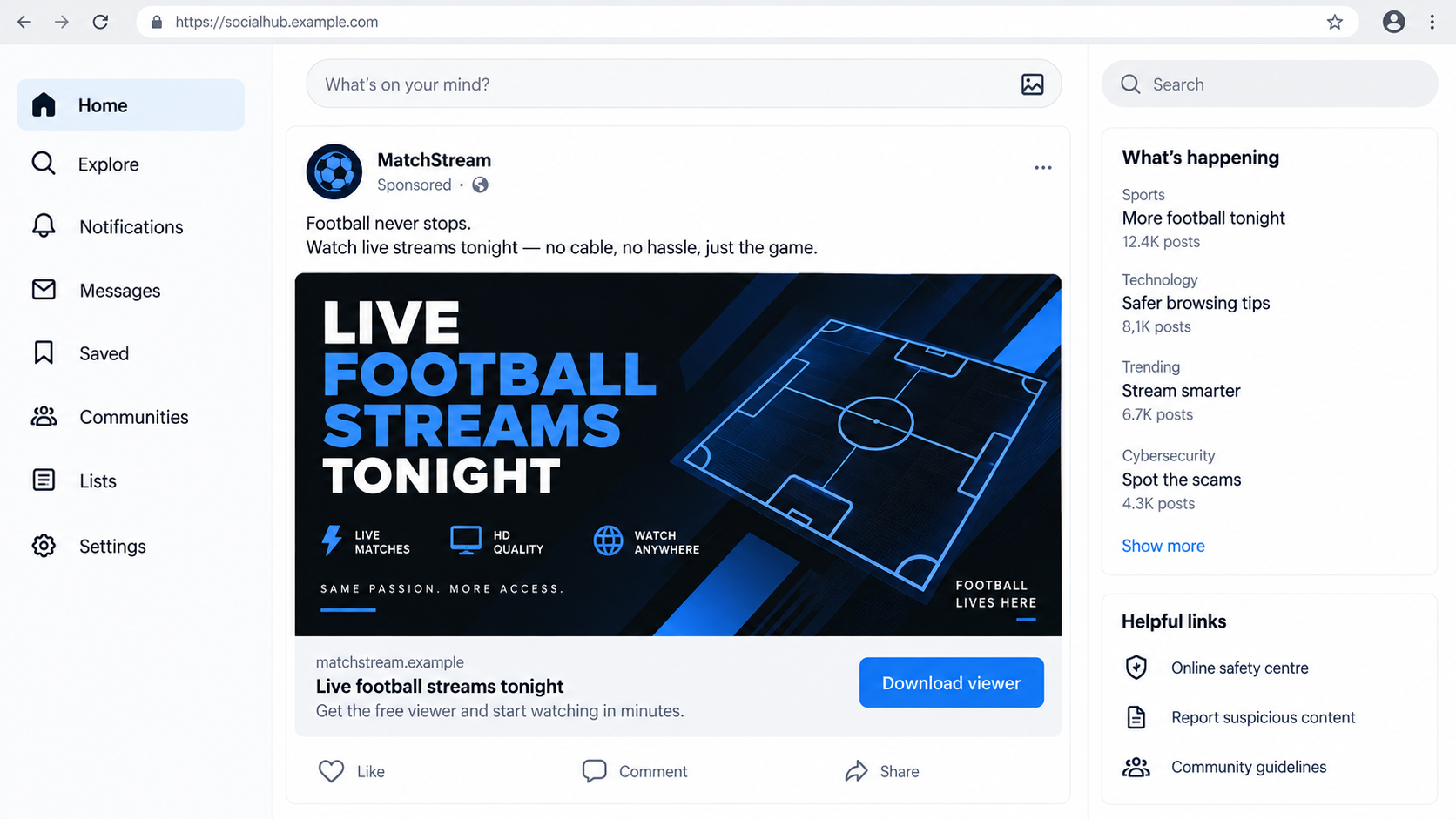
The first image is an illustrative social post, not a captured Mirax advertisement. It shows why a streaming offer can look ordinary in a busy feed.
A person searching urgently for a live match may judge the content by the promise, not the route to the app.
Paid placement also lends false reassurance. Advertising approval is not a malware audit, and platforms can miss harmful campaigns.
The reported campaign reached more than 200,000 accounts through ads. That figure should not be repeated as a confirmed victim total.
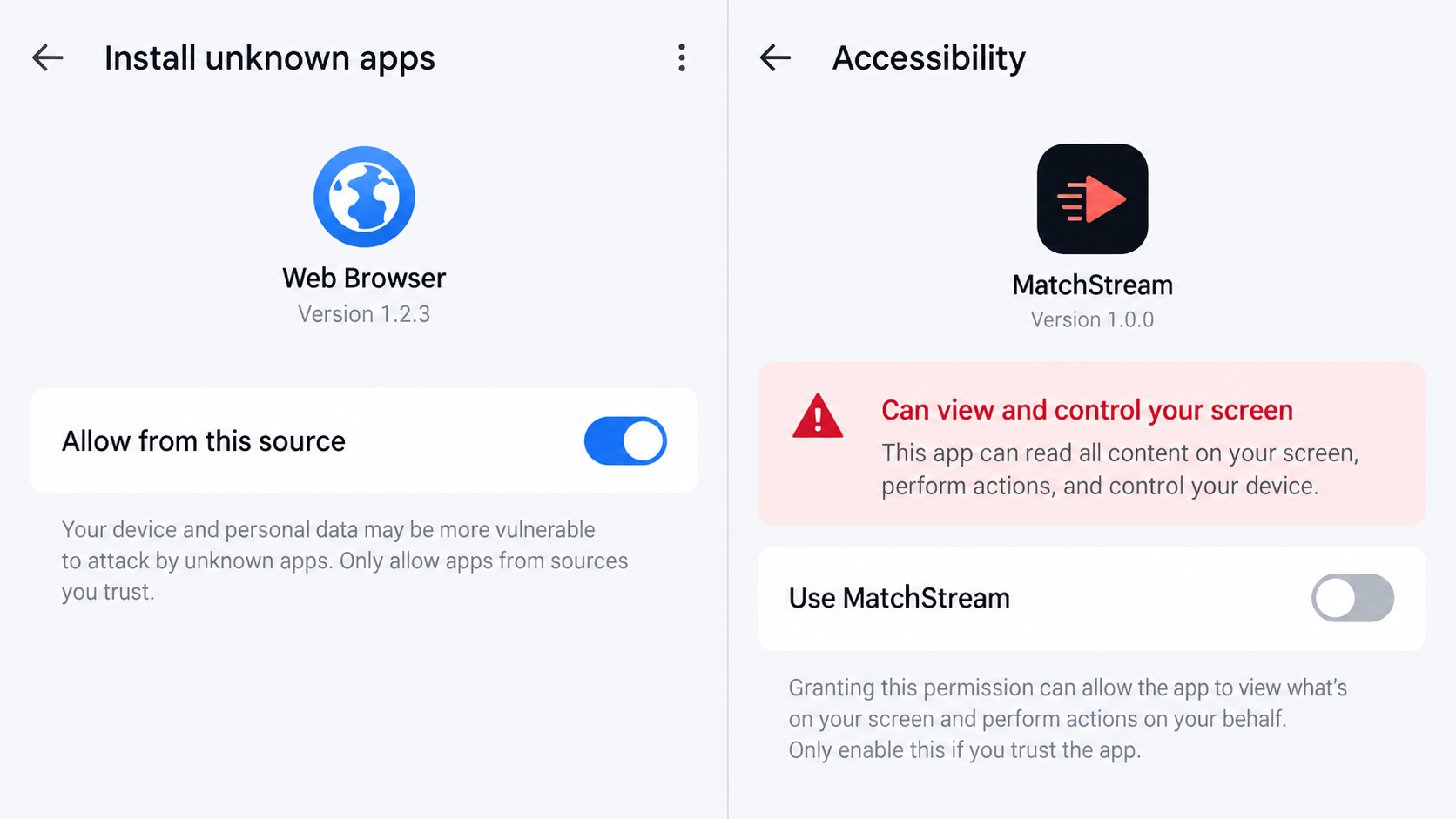
After the click, the user is asked to make Android accept an outside app. The system warnings at that point deserve more attention than the ad copy.
Some Android versions present these settings differently. The underlying issue is the same: an unknown package is gaining access beyond ordinary playback.
The following image reconstructs two permission screens. It is a guide to the pattern, not a precise record of one infected device.
How the Mirax Android RAT Campaign Works
Step 1: A paid post sells a shortcut to the match
The observed operation used social advertisements for an app that supposedly unlocked sports broadcasts. The bait was directed at Spanish-speaking audiences.
A sponsored label only tells you that placement was paid for. It does not certify the advertiser’s identity or the safety of its download.
The lure appealed to viewers who wanted an immediate stream rather than a long account-creation process.
Watch for pressure tied to the event’s start time. “Install now or miss kickoff” reduces the chance a reader checks the source.
Even if a stream eventually appears, that would not prove the installed app is safe. Malicious software can provide a little functionality.
Step 2: The download moves outside normal store review
The campaign distributed an Android dropper through release files on GitHub. A release page is a delivery location, not an endorsement.
That distinction is important: useful developer infrastructure can host unwanted files uploaded by an attacker.
Android warns when an app from a particular browser or file manager can install unknown packages. Enabling that right expands the installation path.
The installer may carry code hidden or transformed by a packer. Researchers reported GoldCrypt in this chain, making simple inspection harder.
Ordinary users do not need to identify a packer. They need to recognize that an ad has escalated into sideloading a package.
Step 3: The app requests access no viewer should need
The infected app can ask for Accessibility permissions and other sensitive capabilities. Those permissions help it interact with the phone beyond video playback.
Accessibility can read displayed content and automate taps. SMS access can expose codes or message data, depending on the permission granted.
An instruction screen may claim these rights prevent playback problems. Compare that explanation with the Android warning itself.
If a player cannot function without full screen control, a safer choice is to leave rather than grant it.
Do not approve a second prompt merely because you approved the first. Each setting is a separate trust decision.
Step 4: A fake screen can appear over real banking apps
Mirax was configured with HTML overlays for a large set of applications. The fake screen can appear at a moment the user expects a familiar login.
That makes the theft harder to spot than a simple link to a phishing site. The victim may believe they remained inside their bank app.
Look for a changed layout, unexpected reauthentication, or requests for data your bank normally would not ask for at that point.
Do not use visual differences as the only test. A well-made overlay can closely mimic a real interface.
If a new banking prompt appears after installing an unrelated APK, stop and contact the bank from another device.
Step 5: The phone can become a remote workstation
Beyond overlays, Mirax includes remote access features. Researchers also documented SOCKS proxy functionality that can relay traffic through the victim’s connection.
To outside services, relayed requests may appear to originate from the device’s residential IP address rather than the attacker’s system.
That does not automatically mean the owner committed actions seen from the IP. It means the phone’s connection could have been misused.
Unusual data use or unexplained account alerts can support investigation, but neither alone identifies a proxy infection.
Preserve timestamps and ask a qualified responder to review the device if legal, banking, or workplace concerns arise.
Step 6: The operator can adapt the theme
The same technical chain could be repackaged around another match or a different app name. A static list of suspicious names ages quickly.
Focus on the redirection from ad to APK, then on the permissions requested after installation.
For future events, use a broadcaster’s official app or a service you can verify through its own site and established store listing.
A cheap shortcut can become far more expensive if it places banking sessions and phone access at risk.
Report harmful advertisements to the platform, including the landing address and date, so the campaign can be investigated.
How to Spot a Fake Stream Before Installation
Start with the advertiser, not the match graphic. An account created recently for one event has less history to verify than an established broadcaster.
Check whether the claimed broadcaster links to the same app from its own official website. Do not use a link supplied only by the ad.
A legitimate broadcast service should explain licensing, geographic availability, and payment terms. A vague promise of every match for free deserves scrutiny.
Read the install path. If a sponsored post jumps to an APK instead of a known store listing, pause before granting unknown-app installation rights.
App reviews shown on the landing page can be fabricated. Seek independent reviews that discuss the specific publisher and package.
One suspicious ad does not mean the entire social platform or sport is fraudulent. It means that advertisement needs its own verification.
If you are already watching a legitimate stream, do not install a second “required viewer” from a pop-up. Such interruptions can be separate lures.
When reporting the ad, include the account name and destination address. Platforms can act more effectively on exact examples than on a vague warning.
What the Residential Proxy Feature Changes
Banking overlays are the most obvious personal risk, but proxy behavior can create a different kind of exposure.
A proxy sends someone else’s network requests through your phone. The destination service may record your residential IP for activity you did not initiate.
That can complicate abuse reports or account security alerts. It does not prove the phone owner deliberately visited a suspicious site.
If your internet provider sends an alert, keep it and note the time. It may help correlate traffic with the installation window.
Do not try to investigate by running unknown traffic-monitoring apps on the same compromised phone. That adds another uncertain package.
A professional responder can inspect network logs and device artifacts if the stakes are high. For most readers, isolation and cleanup come first.
For workplaces, this feature matters because traffic may appear to originate from an employee’s home connection rather than a known attacker network.
Clear documentation helps separate observed traffic from assumptions about who caused it.
Keep bank alerts and provider notices together. An investigator can compare their times with the app’s installation and removal history.
If a legitimate family member shares the connection, explain that a device issue is being checked without accusing anyone of causing the traffic.
Most importantly, do not keep the suspect streaming app installed just to see whether another game works.
Ad, Installer, Banking, and Proxy Checks
Identify the advertisement’s route
Find the original sponsored post if available. Record the advertiser name, landing page, and download address without reopening the APK.
An ad tied to a specific match can disappear quickly. Screenshots and browser history may preserve the route for responders.
Inspect the installed package and permissions
Check recent installations, install source, Accessibility services, notification access, and permissions. An unfamiliar player with broad control needs immediate review.
Do not assume a common-sounding app name identifies the actual publisher. Package details and installation history are more useful.
Review bank accounts from a separate device
Inspect logins, transfers, beneficiaries, and device registrations. Contact the bank’s fraud team if an unexpected authorization or screen appeared.
They can advise on account restrictions and whether a transaction needs dispute. Do not wait for money to move before reporting credential exposure.
Consider network misuse without jumping to conclusions
Proxy capability means traffic may pass through the phone. Ask your provider or workplace team for help if unexplained traffic or abuse alerts appear.
Keep the device isolated for examination if there is a serious incident. A routine consumer scan may not explain every network event.
What to Do if You Installed the Fake Sports App
- Stop banking on that phone. Close financial apps and use a separate trusted device or a bank branch for urgent account actions.
- Document what happened. Note the ad, download address, app name, installation time, and permissions granted. Preserve messages and bank alerts.
- Restrict the suspected app. Disable its Accessibility and other special access where possible. If it resists removal, get help before repeated attempts.
- Contact financial providers quickly. Ask them to review recent sign-ins, transfers, cards, and newly added payees. Follow their instructions on disputed activity.
- Clean the device carefully. Scan with Malwarebytes for Android and remove the package. AdGuard can help reduce malicious web exposure, but it is not a substitute for malware removal.
- Reset if trust cannot be restored. Save essential personal files, then consider a factory reset and reinstall only verified apps. Avoid restoring unknown APKs or settings.
- Tell your workplace if work accounts were present. A phone used for company mail may expose more than personal data. Let responders preserve evidence before wiping a managed device.
Is Your Device Infected? Run a Free Malware Scan
Slow performance, constant pop-ups, or strange behavior? These are classic signs of a malware infection. The fastest way to find out is to scan your device with Malwarebytes Free — one of the most trusted malware removal tools available.
The free version detects and removes the most common threats, including:
- Adware — the cause of those annoying pop-ups
- Browser hijackers — unwanted redirects and changed homepages
- Trojans and spyware — hidden programs stealing your data
- Potentially unwanted programs (PUPs) — software you never asked for
👉 Select your device below — Windows, Mac, or Android — then follow the simple steps to download Malwarebytes, scan your system, and remove any threats it finds. The scan usually takes 5 to 20 minutes.
Run a Malware Scan with Malwarebytes for Windows
Malwarebytes is one of the most popular and trusted anti-malware tools for Windows — and it’s completely free for removing infections. It catches threats that many antivirus programs miss, including adware, browser hijackers, and trojans. Follow the steps below to scan and clean your PC in just a few minutes.
Download Malwarebytes
Click the button below to download the latest version of Malwarebytes for Windows from the official source. The free version is all you need — it will scan your computer and remove adware, browser hijackers, and other malicious software at no cost.
Download MalwarebytesOfficial installer for Windows 11 and 10. Your download starts right away.Want real-time protection? See Malwarebytes Premium Malwarebytes Free for WindowsScans and removes malware at no cost
-
Install Malwarebytes
When the download finishes, open your Downloads folder and double-click the MBSetup file. If Windows shows a User Account Control pop-up, click “Yes” to allow the installation.

Follow the On-Screen Prompts to Install Malwarebytes
The setup wizard will walk you through a few quick screens:
-
Choose where you’re installing the program — “Personal Computer” or “Work Computer” — then click Next.

-
Malwarebytes will now install on your device. This usually takes under a minute.

-
When installation is complete, the “Welcome to Malwarebytes” screen will open automatically.

-
On the final screen, click Open Malwarebytes to launch the program.

-
Enable “Scan for Rootkits”
Before scanning, turn on rootkit detection so Malwarebytes can find even the most hidden threats. Click the Settings gear icon on the left side of the screen.

In the settings menu, find “Scan for rootkits” and click the toggle so it turns blue.

Done? Click “Dashboard” in the left pane to return to the main screen.
Start the Scan
Click the blue Scan button. Malwarebytes will automatically update its virus database and start checking your computer for malware.

-
Wait for the Scan to Finish
The scan checks your entire system for browser hijackers and other malicious programs, so it can take 5 to 20 minutes depending on your computer. Feel free to do something else — just check back occasionally to see the progress.

-
Quarantine the Detected Threats
When the scan is done, you’ll see a list of everything Malwarebytes found — malware, adware, and potentially unwanted programs. Click the “Quarantine” button to remove all of them at once.

Malwarebytes will now remove the malicious files and registry entries and move them safely into quarantine.

-
Restart Your Computer
Some threats can only be fully removed after a reboot. If Malwarebytes asks you to restart, click Yes. Once you’re logged back in, Malwarebytes has finished removing the threats it found.

That’s it — your Windows PC is now clean of trojans, adware, and other malware, and should be back to running smoothly.
If you are still having problems with your computer after completing these instructions, then please follow one of the steps:
- Run a computer scan with ESET Online Scanner
- Ask for help in our Windows Malware Removal Help & Support forum.
Run a Malware Scan with Malwarebytes for Mac
Malwarebytes for Mac is a free on-demand scanner that removes the malware other security software tends to miss — adware, browser hijackers, and unwanted programs included. Cleaning an infected Mac with Malwarebytes has always been completely free, and it’s our go-to recommendation. Follow the steps below to scan and clean your Mac in just a few minutes.
-
Download Malwarebytes for Mac
Click the button below to download the latest version of Malwarebytes for Mac.
Download MalwarebytesOfficial installer for macOS. Your download starts right away.Want real-time protection? See Malwarebytes PremiumMalwarebytes Free for MacScans and removes malware at no cost -
Open the Malwarebytes setup file
When the download finishes, open your Downloads folder and double-click the setup file to begin the installation.

-
Follow the On-Screen Prompts to Install Malwarebytes
The Malwarebytes for Mac Installer will guide you through a few quick screens. Click “Continue” and keep following the prompts until the installation completes.



When the installation is complete, Malwarebytes opens to the Welcome to Malwarebytes screen. Click “Get started“.
-
Select “Personal Computer” or “Work Computer”
Malwarebytes will ask what type of computer you’re installing it on. Click either Personal Computer or Work Computer, whichever applies.

-
Start the Scan
Click the “Scan” button. Malwarebytes will automatically update its detection database and begin checking your Mac for malware.

-
Wait for the Scan to Finish
Malwarebytes will scan your Mac for adware, browser hijackers, and other malicious programs. This can take a few minutes, so feel free to do something else — just check back occasionally to see the progress.

-
Quarantine the Detected Threats
When the scan is done, you’ll see a list of everything Malwarebytes found. Click the “Quarantine” button to remove all the threats at once.

-
Restart Your Mac
Malwarebytes will now remove all the malicious files it found. Some threats can only be fully removed after a reboot — if Malwarebytes asks you to restart, allow it. Once you’re logged back in, your Mac is clean.

That’s it — your Mac is now free of adware, rogue browser extensions, and other potentially harmful software.
If you are still experiencing problems while trying to remove a malicious program from your computer, please ask for help in our Mac Malware Removal Help & Support forum.
Run a Malware Scan with Malwarebytes for Android
Malwarebytes for Android automatically detects and removes dangerous threats like malware and ransomware so you don’t have to worry about your most-used device being compromised. Aggressive detection of adware and potentially unwanted programs keeps your Android phone or tablet running smooth.
-
Download Malwarebytes for Android.
You can download Malwarebytes for Android by clicking the link below.
Get Malwarebytes for AndroidOpens Google Play in a new tab.Want real-time protection? See Malwarebytes Premium for AndroidMalwarebytes for AndroidScans your phone and removes malware at no cost -
Install Malwarebytes for Android on your phone.
In the Google Play Store, tap “Install” to install Malwarebytes for Android on your device.

When the installation process has finished, tap “Open” to begin using Malwarebytes for Android. You can also open Malwarebytes by tapping on its icon in your phone menu or home screen.

-
Follow the on-screen prompts to complete the setup process
When Malwarebytes will open, you will see the Malwarebytes Setup Wizard which will guide you through a series of permissions and other setup options.
This is the first of two screens that explain the difference between the Premium and Free versions. Swipe this screen to continue.
Tap on “Got it” to proceed to the next step.
Malwarebytes for Android will now ask for a set of permissions that are required to scan your device and protect it from malware. Tap on “Give permission” to continue.
Tap on “Allow” to permit Malwarebytes to access the files on your phone.
-
Update database and run a scan with Malwarebytes for Android
You will now be prompted to update the Malwarebytes database and run a full system scan.

Click on “Update database” to update the Malwarebytes for Android definitions to the latest version, then click on “Run full scan” to perform a system scan.

-
Wait for the Malwarebytes scan to complete.
Malwarebytes will now start scanning your phone for adware and other malicious apps. This process can take a few minutes, so we suggest you do something else and periodically check on the status of the scan to see when it is finished.

-
Click on “Remove Selected”.
When the scan has been completed, you will be presented with a screen showing the malware infections that Malwarebytes for Android has detected. To remove the malicious apps that Malwarebytes has found, tap on the “Remove Selected” button.

-
Restart your phone.
Malwarebytes for Android will now remove all the malicious apps that it has found. To complete the malware removal process, Malwarebytes may ask you to restart your device.
That’s it — your Android phone is now clean — no more malicious apps, adware, or browser redirects.
If you are still having problems with your phone after completing these instructions, then please follow one of the steps:
- Restore your phone to factory settings by going to Settings > General management > Reset > Factory data reset.
- Ask for help in our Mobile Malware Removal Help & Support forum.
Stay Protected: Block Ads and Malicious Sites
Now that your device is clean, keep it that way. Most infections start with a malicious ad or a fake download button — so blocking them at the source is your best defense.
We recommend AdGuard, which blocks malicious ads, phishing pages, and dangerous redirects before they can reach you.
👉 Download AdGuard and browse safely
Frequently Asked Questions
Did 200,000 people install Mirax?
No. Researchers reported ad reach above 200,000 accounts. Reach is not a count of downloads, infections, or bank theft.
Is GitHub responsible for the malware?
The campaign misused a release-hosting feature to distribute a file. Hosting the file does not mean the platform created or endorsed it.
What is a banking overlay?
It is a false screen displayed over an app the user expects to trust, potentially capturing information entered into the imitation.
Why would a RAT use my phone as a proxy?
Relaying traffic through a residential connection can make attacker requests look like they came from that device’s network address.
Will deleting the streaming app protect my bank account?
Removal addresses the device, but exposed passwords, sessions, and transactions require separate bank and account review.
Are all sports-streaming apps malicious?
No. The risk here concerns a specific observed ad-to-APK chain and excessive permissions, not every service showing sports.
The Bottom Line
Mirax used a tempting stream as the front door to an Android RAT with banking overlays and possible proxy misuse.
Do not grant a sideloaded viewer control over your phone. If you installed one, separate account recovery from device cleanup and contact your bank promptly.

Join the discussion
0 commentsShare your experience or ask a question about this article.
Discussion
Start the conversation
Have a question or something useful to share? Add the first comment.