


A shopping or video app opens normally, then says an update is needed. The request appears inside something you already installed, which makes it feel familiar.
What deserves attention is what that update asks to install and control. If a banking app later needs replacing too, stop before accepting another prompt.
Overview
Hirudo targets Android devices and financial access
Hirudo is Android banking malware with remote-control capabilities. It is not a Windows threat, and a Windows antivirus download will not clean an Android installation.
ThreatFabric describes a two-app delivery chain: a shopping or entertainment lure introduces a separate malicious package through a fake update request.
Successful Hirudo Android malware removal needs to address both stages. Deleting only the visible entertainment app may leave the component with sensitive permissions behind.
The most serious deception can involve the banking app itself
The research documents modified replacements for targeted Indonesian banking apps, alongside credential theft and device-control features. This goes beyond a fake login shown over another application.
- A seemingly functional lure gives the first installation an ordinary purpose.
- An in-app update request introduces a second package with its own permissions.
- Sensitive access can expose screen content, messages, or user actions.
- A bank-themed installation request may substitute an altered application for the genuine one.
Stop financial activity on a device you no longer trust
Contact your bank from another device if unauthorized permissions, suspicious app replacement, or a credible detection suggests compromise. Do not test safety by making a small transfer.
Configured financial targets extend beyond Indonesia, but a target list is not proof that every listed bank or every customer has been compromised.
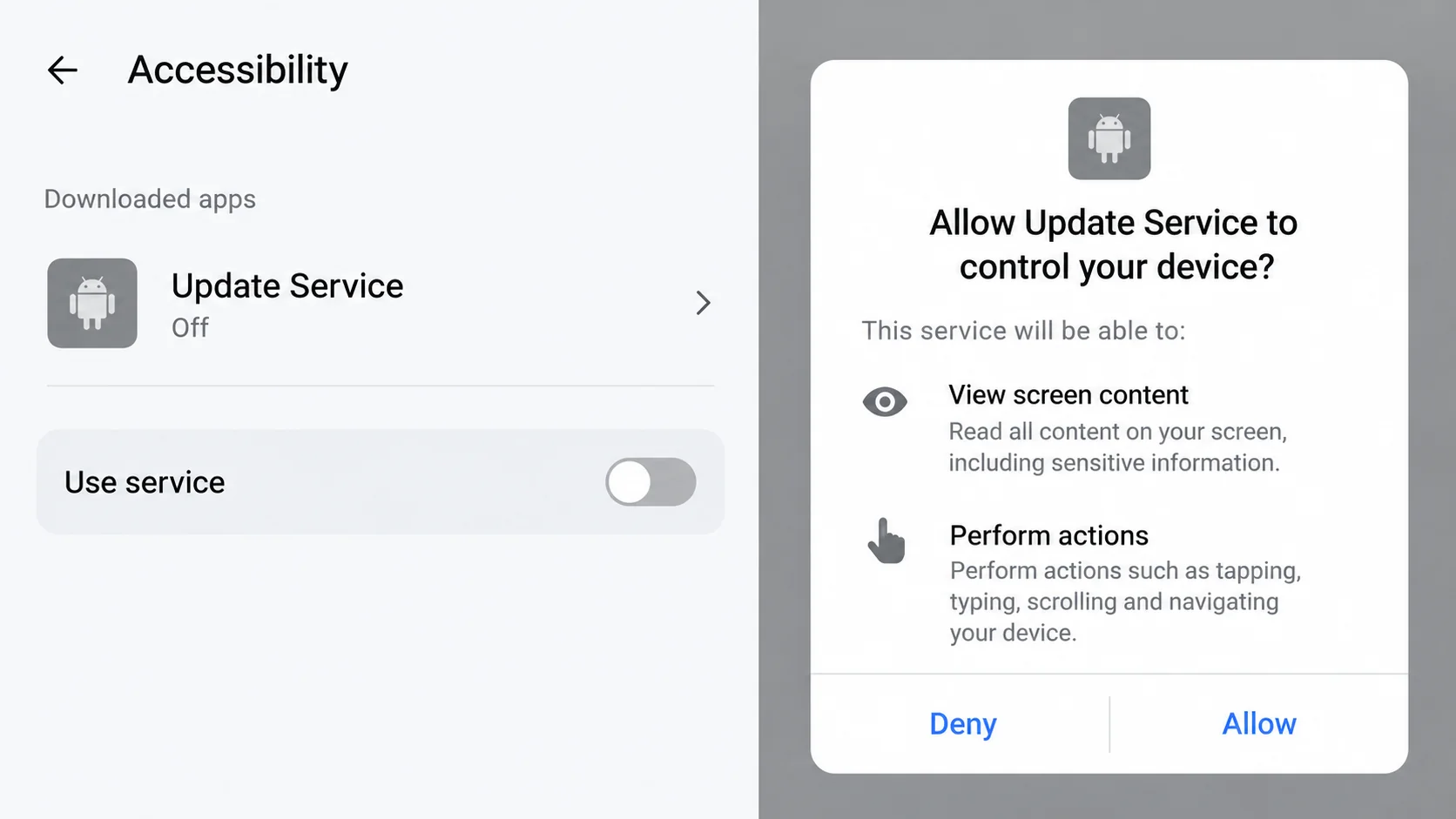
The permission image is a conceptual example using a fictional app label. It does not identify the display name of every Hirudo installation.
Why a Working App Does Not Settle the Safety Question
An app can show genuine products or play videos while also requesting access that has nothing to do with shopping or entertainment.
That creates a trust problem. You judge the app by what you can see, while the dangerous decision concerns another package or permission hidden behind its update story.
Enjoying the videos answers one question, whether the app works. It says nothing about whether the developer should gain control over your other applications.
Judge each new permission request separately, even when an app has worked normally for weeks.
A short-drama player might need network access. That does not explain why it should control other applications or require you to replace a bank’s software.
Accessibility tools also have important legitimate uses. The warning is not that accessibility is bad, but that an untrusted app is requesting powerful assistance capabilities.
Google’s restricted-settings guidance explains that accessibility access can allow an application to read screen content and interact on your behalf.
If the reason for that access does not fit the app’s purpose, decline it. Do not enable restricted settings simply because the app supplies instructions.
How the Hirudo Android Infection Develops
Step 1: A lure app provides shopping or entertainment content
The initial app creates an ordinary reason to stay engaged. The reported lure families include shopping and short-video experiences, with names such as Shopora and ZoyaTV.
Those names describe investigated samples, not a reliable blacklist of every future version. Attackers can change a label without changing the underlying request for access.
Focus on origin and behavior. Was the installer obtained from a trusted source, and does its developer match the service you intended to use?
A professional-looking advertisement or a functioning catalog does not answer those questions. Both can appear before the step that actually exposes the device.
Step 2: An update installs a separate component
The fake update is not merely a new version of the content you expected. It introduces another package, creating a second item to identify during recovery.
Installation and permissions are consequential user decisions in this chain. Do not read the research as a claim that every visit silently replaces Android applications.
If an app insists on a separate download to continue, stop and check its official update route. Refusing an unexplained package is a valid response.
Tell a helper whether you accepted the installation, granted access afterward, or only saw the prompt. That information narrows the investigation substantially.
Step 3: Permissions turn the phone into a source of sensitive information
The documented malware can collect financial credentials and messages while supporting remote interaction. The permissions and version involved affect which capabilities are available.
This is why repeated requests for accessibility, notification access, or other unusual control deserve attention. They are not interchangeable with routine permission to show an alert.
On a compromised device, a one-time code delivered to the same phone may not provide the separation you expected. Tell the bank about the suspected device exposure.
Do not approve a payment simply because a familiar-looking screen appears. An unexpected transaction should be verified through the institution outside the questionable application.
Step 4: A false banking update can replace the trusted app
In the documented replacement technique, the legitimate banking app is removed before an altered version is installed. Keeping the familiar appearance helps conceal that change.
The practical warning is straightforward: an entertainment app has no business choosing a replacement for your bank’s application.
Do not accept an uninstall-and-reinstall instruction from a shopping app, advertisement, caller, or unexpected message. Get banking installation guidance from the bank itself.
A matching icon or application name is not enough to establish authenticity after a replacement. The installation source and the device’s remaining condition matter.
Step 5: Stolen information and device access can support financial fraud
The combination creates more than a password problem. A criminal may have information and control associated with the same device used to approve transactions.
That does not mean every infected person experiences the same loss. The bank needs to investigate its records and protect the particular accounts at risk.
Do not keep checking balances in the suspect app while discussing the incident. Use an alternative trusted channel until the bank and device owner restore confidence.
Removal and financial recovery proceed together, but they are different jobs. Uninstalling an app cannot reverse an authorized-looking transaction already processed by a bank.
Which Warning Signs Deserve Immediate Attention?
An update asks for unrelated control
Pay attention when the permissions do not match what you wanted the app to do. A request to control the screen is different from downloading another episode.
The relevant question is not whether the app offers an explanation. It is whether that explanation reasonably requires access to other apps and sensitive information.
A bank app disappears or needs an unusual replacement
If a banking application is removed unexpectedly, stop and contact the bank. Do not reinstall it from a link supplied by the application that caused concern.
Write down what changed and when. Avoid repeatedly entering credentials to test whether the replacement works, because a working interface cannot establish that it is authentic.
Security controls are treated as obstacles
A prompt telling you to turn off protection or bypass a restriction should increase scrutiny, not reduce it. Do not follow it to complete an entertainment download.
Some legitimate apps need special settings, but trust must come first. A stranger’s installation guide cannot supply the missing relationship with a verified developer.
Heat, battery drain, or sluggish performance alone are not a diagnosis of Hirudo. Combine symptoms with installation history, permissions, alerts, and any unauthorized financial activity.
What to Do If Hirudo May Have Affected Your Android Device
Stop using the phone for financial access. Disconnect mobile data and Wi-Fi if remote control is suspected. Use another phone or computer for urgent help.
Tell your bank that the device itself may be compromised, not merely that a password is forgotten. Ask about restricting access and reviewing recent activity.
Preserve information without exposing more. Note app names, installation times, alerts, and any unexpected banking-app replacement. Keep receipts or transaction identifiers for disputed activity.
Do not collect screenshots containing full banking secrets for public posting. Share sensitive records through the institution’s secure reporting channel.
Review elevated permissions through Android Settings. Inspect accessibility services, device-admin access, notification access, and unfamiliar VPN entries. Menu names differ by manufacturer and Android version.
Disable unauthorized access before trying to remove the associated app. If controls are blocked or the device behaves unpredictably, seek manufacturer guidance from another device.
Remove both the lure and any malicious second package. Use the system’s application-management settings, not an uninstall button inside the suspicious entertainment app.
Do not guess solely from the fictional label in the illustration. Use your installation history and security findings to identify the actual items.
Scan with Android-compatible protection. Enable Google Play Protect and investigate its warnings. Malwarebytes for Android can provide an additional assessment of installed applications.
The reusable scan section below offers platform choices. Use its Android instructions on this device; a Windows installer is not an Android treatment.
Consider a reset when control remains uncertain. Persistent symptoms, blocked removal, or an untrustworthy banking-app environment may require a manufacturer-guided factory reset.
Preserve essential personal data first. Do not automatically restore unknown APK files or the complete suspicious app collection after resetting.
Reestablish banking and account access safely. Follow the bank’s verified installation route only after the device is trusted. Replace exposed financial and email credentials elsewhere.
Ask about device registration, sessions, payment approvals, and recent transfers. Changing a single password may not address every access path the institution maintains.
Reduce future exposure without overestimating filters. Keep Android and applications updated, restrict unnecessary installation permissions, and decline update packages pushed by unrelated apps.
AdGuard can help limit malicious advertising and known risky sites. It cannot revoke accessibility access, remove a banking-app substitute, or retrieve lost funds.
Is Your Device Infected? Run a Free Malware Scan
Slow performance, constant pop-ups, or strange behavior? These are classic signs of a malware infection. A quick way to check is to scan your device with Malwarebytes Free, one of the most trusted malware removal tools available. If you only visited a scam page and didn’t download or install anything, this scan is optional.
The free version detects and removes the most common threats, including:
- Adware — the cause of those annoying pop-ups
- Browser hijackers — unwanted redirects and changed homepages
- Trojans and spyware — hidden programs stealing your data
- Potentially unwanted programs (PUPs) — software you never asked for
👉 Select your device below — Windows, Mac, or Android — then follow the simple steps to download Malwarebytes, scan your system, and remove any threats it finds. The scan usually takes 5 to 20 minutes.
Run a Malware Scan with Malwarebytes for Windows
Malwarebytes is one of the most popular and trusted anti-malware tools for Windows — and it’s completely free for removing infections. It catches threats that many antivirus programs miss, including adware, browser hijackers, and trojans. Follow the steps below to scan your PC and remove what Malwarebytes finds.
Download Malwarebytes
Click the button below to download the latest version of Malwarebytes for Windows from the official source. The free version is all you need — it will scan your computer and remove adware, browser hijackers, and other malicious software at no cost.
Download MalwarebytesOfficial installer for Windows 11 and 10. Your download starts right away.Want real-time protection? See Malwarebytes Premium Malwarebytes Free for WindowsScans and removes malware at no cost
-
Install Malwarebytes
When the download finishes, open your Downloads folder and double-click the MBSetup file. If Windows shows a User Account Control pop-up, click “Yes” to allow the installation.

Follow the On-Screen Prompts to Install Malwarebytes
The setup wizard will walk you through a few quick screens:
-
Choose where you’re installing the program — “Personal Computer” or “Work Computer” — then click Next.

-
Malwarebytes will now install on your device. This usually takes under a minute.

-
When installation is complete, the “Welcome to Malwarebytes” screen will open automatically.

-
On the final screen, click Open Malwarebytes to launch the program.

-
Optional: Check for rootkits with a Custom Scan
You don’t need to change any settings for a normal scan. The standard Threat Scan in the next step is enough for most problems, so you can go straight to it.
If you also want to check for rootkits, use a Custom Scan. In current versions of Malwarebytes, rootkit scanning is only available there:
- On the Scanner tile, click the three-dot menu and select Advanced Scan.
- Choose Custom Scan. In its options, check Scan for rootkits.
- Select your system drive (usually C:\) as the location to scan, then start the scan. It takes longer than a Threat Scan.
- When it finishes, review and quarantine the results as described in the steps below.
Rootkit scanning isn’t available on Windows devices with ARM processors.
Start the Scan
Click the blue Scan button. Malwarebytes will automatically update its virus database and start checking your computer for malware.

-
Wait for the Scan to Finish
The scan checks your entire system for browser hijackers and other malicious programs, so it can take 5 to 20 minutes depending on your computer. Feel free to do something else — just check back occasionally to see the progress.

-
Quarantine the Detected Threats
When the scan is done, you’ll see a list of everything Malwarebytes found — malware, adware, and potentially unwanted programs. Click the “Quarantine” button to remove all of them at once.

Malwarebytes will now remove the malicious files and registry entries and move them safely into quarantine.

-
Restart Your Computer
Some threats can only be fully removed after a reboot. If Malwarebytes asks you to restart, click Yes. Once you’re logged back in, Malwarebytes has finished removing the threats it found.

When the scan is done, check whether the problems you noticed have stopped. If they continue, see the options below.
If you are still having problems with your computer after completing these instructions, then please follow one of the steps:
- Run a computer scan with ESET Online Scanner
- Ask for help in our Windows Malware Removal Help & Support forum.
Run a Malware Scan with Malwarebytes for Mac
Malwarebytes for Mac is a free on-demand scanner that removes the malware other security software tends to miss — adware, browser hijackers, and unwanted programs included. Cleaning an infected Mac with Malwarebytes has always been completely free, and it’s our go-to recommendation. Follow the steps below to scan your Mac and remove what Malwarebytes finds.
-
Download Malwarebytes for Mac
Click the button below to download the latest version of Malwarebytes for Mac.
Download MalwarebytesOfficial installer for macOS. Your download starts right away.Want real-time protection? See Malwarebytes PremiumMalwarebytes Free for MacScans and removes malware at no cost -
Open the Malwarebytes setup file
When the download finishes, open your Downloads folder and double-click the setup file to begin the installation.

-
Follow the On-Screen Prompts to Install Malwarebytes
The Malwarebytes for Mac Installer will guide you through a few quick screens. Click “Continue” and keep following the prompts until the installation completes.



When the installation is complete, Malwarebytes opens to the Welcome to Malwarebytes screen. Click “Get started“.
Malwarebytes needs Full Disk Access to check your whole Mac. When it asks, open System Settings > Privacy & Security > Full Disk Access, turn on Malwarebytes (it may be listed as Malwarebytes Protection), and confirm with your password or Touch ID. Then return to Malwarebytes. On macOS Monterey and earlier, this setting is in System Preferences > Security & Privacy > Privacy.
-
Select “Personal Computer” or “Work Computer”
Malwarebytes will ask what type of computer you’re installing it on. Click either Personal Computer or Work Computer, whichever applies.

-
Start the Scan
Click the “Scan” button. Malwarebytes will automatically update its detection database and begin checking your Mac for malware.

-
Wait for the Scan to Finish
Malwarebytes will scan your Mac for adware, browser hijackers, and other malicious programs. This can take a few minutes, so feel free to do something else — just check back occasionally to see the progress.

-
Quarantine the Detected Threats
When the scan is done, you’ll see a list of everything Malwarebytes found. Click the “Quarantine” button to remove all the threats at once.

-
Restart Your Mac
Malwarebytes will now remove all the malicious files it found. Some threats can only be fully removed after a reboot — if Malwarebytes asks you to restart, allow it. Once you’re logged back in, check whether the problems you noticed have stopped. If they come back, save the scan report and ask for help in our forum.

If the problems you noticed continue after the scan, see the options below.
If you are still experiencing problems while trying to remove a malicious program from your computer, please ask for help in our Mac Malware Removal Help & Support forum.
Run a Malware Scan with Malwarebytes for Android
Malwarebytes for Android scans your phone or tablet for malware, adware, and potentially unwanted apps. The free version scans only when you start a scan. Real-time protection, which checks apps automatically, is part of the paid Premium version.
-
Download Malwarebytes for Android.
You can download Malwarebytes for Android by clicking the link below.
Get Malwarebytes for AndroidOpens Google Play in a new tab.Want real-time protection? See Malwarebytes Premium for AndroidMalwarebytes for AndroidScans your phone and removes malware at no cost -
Install Malwarebytes for Android on your phone.
In the Google Play Store, tap “Install” to install Malwarebytes for Android on your device.

When the installation process has finished, tap “Open” to begin using Malwarebytes for Android. You can also open Malwarebytes by tapping on its icon in your phone menu or home screen.

-
Follow the on-screen prompts to complete the setup process
When Malwarebytes opens, it walks you through a short setup. Tap Get started and follow the prompts. If you see an offer for a trial or a paid plan, read it before you accept. You can skip it and keep using the free scanner.
Malwarebytes will ask for permission to access the files on your phone so it can scan them. Tap Allow, or turn on the permission in the Android screen that opens, then return to Malwarebytes.
-
Run a scan with Malwarebytes for Android
On the main screen, tap Scan now. In some versions, you open the menu, tap Scanner, and then tap Run a scan.
-
Wait for the Malwarebytes scan to complete.
Malwarebytes will now start scanning your phone for adware and other malicious apps. This process can take a few minutes, so we suggest you do something else and periodically check on the status of the scan to see when it is finished.

-
Remove the detected apps.
When the scan has been completed, you will see a list of the threats that Malwarebytes for Android has detected. Next to each detected item, tap the menu icon (three dots), then choose to uninstall the app or delete the file. Android then asks you to confirm. Tap OK or Uninstall to remove the app.
-
Restart your phone.
When the detected apps are removed, restart your phone if Malwarebytes asks you to. Then check whether the problems you noticed have stopped.
If the problems you noticed continue after the scan, see the options below.
If you are still having problems with your phone after completing these instructions, then please follow one of the steps:
- Ask for help in our Mobile Malware Removal Help & Support forum.
- Only as a last resort, reset your phone to factory settings. Read the warning below first.
- Back up your photos, videos, files, and messages, for example to your Google account or a computer.
- Make sure you know your Google account email and password. The phone asks for them after the reset. If you changed the password recently, Google recommends waiting 24 hours before you reset.
- On a Samsung phone, also make sure you know your Samsung account password.
- If you use an authenticator app for two-step verification, move your accounts to another device or save your backup codes first.
Stay Protected: Block Ads and Malicious Sites
No scan can prove a device is completely clean, so it helps to block threats before they reach you. Most infections start with a malicious ad or a fake download button — so blocking them at the source is your best defense.
We recommend AdGuard, which blocks malicious ads, phishing pages, and dangerous redirects before they can reach you.
👉 Download AdGuard and browse safely
Restoring the Banking App Is Not the Entire Recovery
Reinstalling the genuine banking app is important if it was replaced. It does not, by itself, remove another malicious application still controlling the device.
Similarly, uninstalling the entertainment lure does not establish that its separate payload disappeared. That is why the installed-app and permissions review matters.
Google’s Android malware guidance covers untrusted applications, system updates, security checks, and seeking further help when symptoms persist.
If you need to reset, plan recovery access before wiping the phone. You may need another way to receive legitimate account-recovery information.
Do not disable your only working authentication method without understanding the replacement process. The bank or account provider can explain its supported recovery options.
Afterward, use an official store listing reached through the bank’s verified website. Check the developer rather than selecting the first familiar-looking result in an advertisement.
Keep the banking investigation open until disputed activity is addressed. A restored phone does not automatically close a fraud report or preserve your dispute evidence.
What to Tell Your Bank or Device Support Team
A precise description helps the next person act. Explain that a separate app or permissions request followed an update in a shopping or entertainment application.
- Identify any known transaction you did not initiate.
- Describe whether the genuine bank app was uninstalled or replaced.
- Say whether codes, PINs, or banking credentials were entered afterward.
- List suspicious permissions you observed without sharing the secrets themselves.
- Explain whether you can still control the device and reach its settings.
You do not need to prove the malware family before requesting help. Unauthorized financial activity and an untrusted device already justify a careful review.
Avoid paying an unsolicited recovery agent who claims to remove Hirudo remotely. Establish who is helping through the bank, manufacturer, or a reputable independent professional.
If the app involved embarrassing content, still describe the installation honestly. The technical team needs the route and timing, not a reason to judge your interests.
Frequently Asked Questions
Is Hirudo malware for Windows or Android?
The threat discussed here targets Android. Choose Android removal procedures and compatible security tools rather than following Windows desktop instructions.
Can a video app really affect a banking app?
A malicious installation chain with powerful permissions can create that risk. The documented Hirudo operation includes separate payloads and modified replacements for specific banking applications.
Does every update prompt install Hirudo?
No. Legitimate updates are routine. The concern is an untrusted request that introduces another package, excessive control, or a bank-app replacement outside its verified channel.
Is deleting the first shopping app enough?
Not necessarily. The second package may remain installed independently. Check both application history and sensitive permissions as part of a complete assessment.
Am I safe because my bank still asks for an SMS code?
Do not rely on that alone when the phone may be compromised. Report the device exposure and let the bank determine appropriate restrictions and recovery steps.
Will a factory reset return money lost to fraud?
No. A reset addresses the device, not completed payments. Report unauthorized transactions directly to the financial institution and retain the evidence it requests.
The Bottom Line
Do not grant entertainment apps control of your phone or let them replace banking software. Hirudo exploits that shift from ordinary content to sensitive device access.
If the chain already occurred, stop banking on the device. Contact the bank elsewhere, address both malicious stages, and restore financial access through verified channels.

Join the discussion
0 commentsShare your experience or ask a question about this article.
Your progress
Did these steps help?
Let us know how the guide worked for you.
Describe what you see and the step you reached. Keep passwords and other private information out.
Discussion
Start the conversation
Have a question or something useful to share? Add the first comment.