

A ZIP attachment appears to contain a voucher or routine document. The file inside looks small, and double-clicking it may seem like the fastest way to see what arrived.
In the E4del investigation, that small shortcut is the beginning of a much less visible process. Understanding the handoff matters more than recognizing a scary file name.
Overview
A shortcut can behave like a program
E4del is a Windows remote-access trojan documented in an August 2026 investigation. The observed delivery chain begins with a malicious .lnk shortcut, often packaged in a ZIP archive.
A Windows shortcut is not the document it appears to represent. It can launch commands, contact a remote service, and fetch more code.
Researchers observed attacker instructions hidden in FTP server greeting messages. The shortcut can retrieve those instructions without carrying the full command sequence inside itself.
This is why file type matters. A “voucher” icon or friendly filename does not turn a .lnk into a harmless invoice.
The payload hides behind a familiar signed app
The later stage launches a genuine, signed Discord executable with modified internal code. The signature on that program does not validate every file the attacker placed beside it.
Discord uses the Electron framework, which loads an application archive containing JavaScript. In this chain, that archive is altered to run E4del.
The program starts without a visible Discord window. A user may therefore see no obvious clue after opening the shortcut.
Discord itself is not the attacker. The abuse depends on bundling legitimate software with malicious replacement content and unusual launch arguments.
What remote control can mean
- The operator can view screenshots or a continuing desktop stream.
- A hidden command shell can run instructions on the computer.
- Additional files or malware can be downloaded and executed.
- The program can try to start again when the user signs in.
- System details and installed security products can be reported to the operator.
These capabilities come from analysis of the malware, not from evidence that every infected machine experienced every possible command.
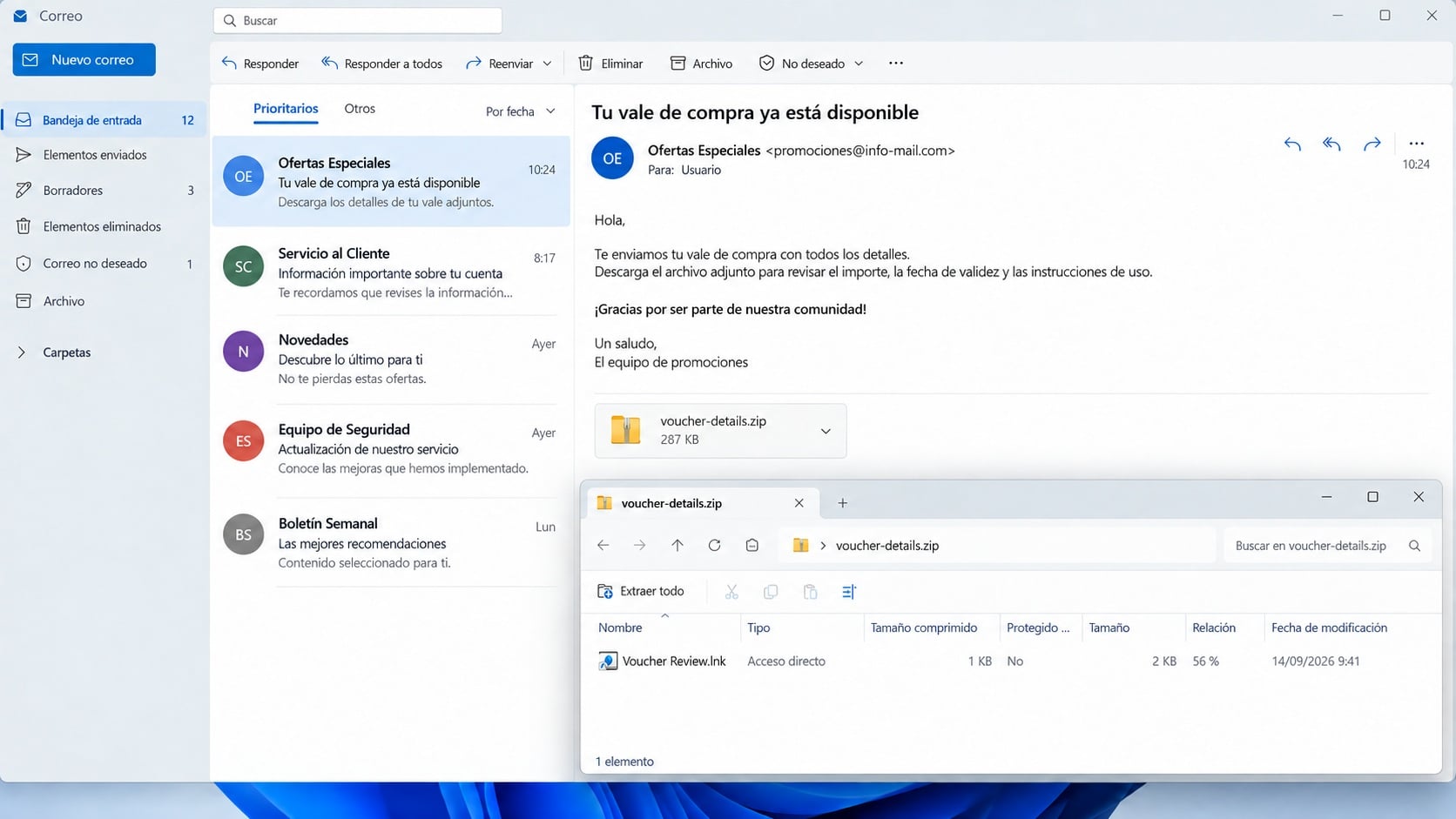
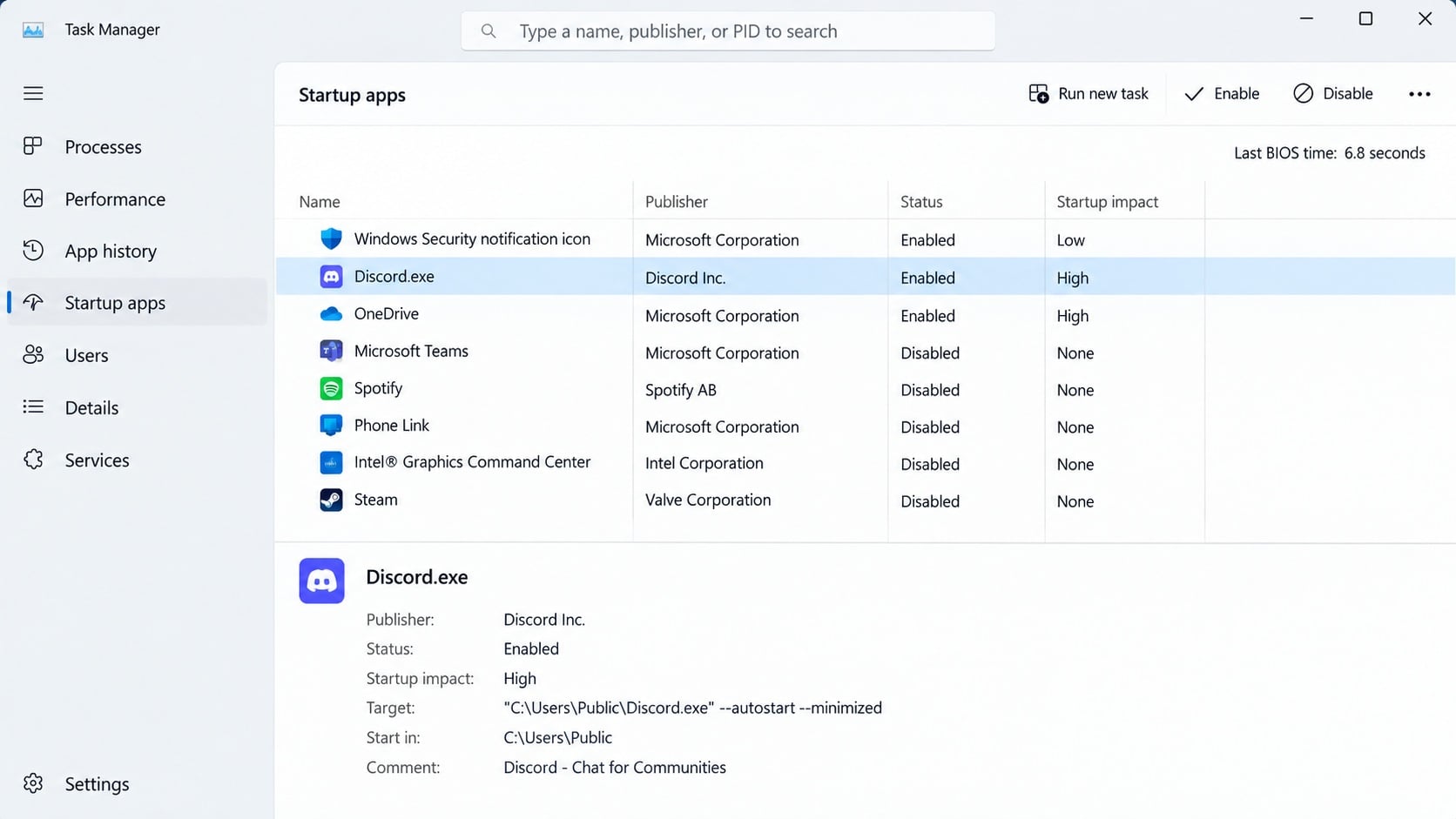
The images are static teaching illustrations. They show a plausible lure and a suspicious startup entry without reproducing a live malicious shortcut.
Why a Signed Discord File Is Not a Safety Verdict
Digital signatures answer a narrow question: whether a particular signed file was issued by the claimed publisher and remains unmodified.
They do not promise that every neighboring file, command-line argument, plugin, or data archive in a package is safe.
The E4del chain exploits that distinction. A legitimate Discord executable loads altered application resources supplied in the attacker’s ZIP package.
A security dialog may show a familiar publisher for the executable. That observation should be considered alongside where the package came from and what it launched.
The ordinary Discord app installed from its official distribution channel is not the same as an unexpected copy extracted from a voucher attachment.
That is an important distinction for readers who use Discord daily. Do not delete a legitimate installation simply because its name appears in this report.
Investigators should examine the path, package contents, execution chain, and startup configuration. A known filename in an unusual folder deserves attention.
The malware’s silent startup also means “nothing happened” after opening the shortcut is not reassuring. The visible document may never appear because it was only a lure.
For an employee, the safest response to an unexpected archive is to ask the sender through a known channel before opening shortcuts inside it.
How the E4del RAT Infection Works
Step 1: A document lure delivers a shortcut
The chain begins with a ZIP file containing a Windows .lnk shortcut. The precise sender and wording can vary, so the file behavior matters more than a single subject line.
Some related samples used Spanish-language voucher themes. That does not mean every E4del recipient saw the same email or that every voucher message is malicious.
Windows may hide known file extensions. Showing extensions helps reveal that the supposed document is actually a shortcut.
Step 2: The shortcut reads commands from an FTP greeting
When executed, the shortcut connects to an attacker-controlled FTP server. The server’s welcome banner contains instructions instead of only a normal greeting.
This “dead drop” arrangement keeps the next command out of the shortcut file. It can complicate simple scans that look for a hardcoded download address.
FTP traffic to unknown servers is itself an unusual event in many workplaces. Network logs may capture this step even if the shortcut is gone.
Step 3: Another stage downloads the altered application
The observed chain uses a second FTP banner and PowerShell to obtain a ZIP payload. That package contains the signed Discord host and altered Electron resources.
PowerShell is a legitimate Windows administration tool. Its presence is not automatically malicious, but its use from an unexpected shortcut changes the context.
The chain extracts the package and launches Discord.exe with arguments designed for this payload, not for ordinary chat use.
Step 4: E4del establishes quiet persistence
The RAT uses Electron’s startup settings to launch on subsequent sign-ins. It also checks whether the Windows username matches the argument passed at launch.
That check can prevent execution in an analysis environment while allowing it on the intended target machine.
It starts with hidden-window settings, leaving the user without a visible app window to explain why Discord is running.
Step 5: The operator can watch and issue commands
E4del fingerprints the machine, checks installed security software, and communicates with its command server. It can capture screenshots, stream the desktop, and execute shell commands.
The malware also supports downloading additional payloads. A single E4del detection should therefore prompt a search for follow-on tools rather than a one-file cleanup.
The specific harm depends on the commands actually sent. Preserve logs before making claims about stolen information or financial loss.
Shortcut, Package, Startup, and Network Checks
Inspect the archived file type
Show file extensions in Windows and check whether the item is a .lnk shortcut. A shortcut inside a payment or voucher ZIP is not a normal PDF.
Do not run it to see what happens. Forward the archive to a security team through approved reporting channels.
Trace where Discord.exe came from
An official Discord installation and an executable unpacked beside a suspicious attachment have different trust contexts.
Examine the path and adjacent application archive. A valid signature on Discord.exe does not bless a modified resources folder.
Review persistence without deleting blindly
Check startup entries and the arguments used to launch the suspicious copy. E4del’s persistence may look ordinary if only the publisher name is displayed.
Do not remove random Discord or system files from a production machine. Capture evidence first and let qualified responders identify the altered package.
Look for the delivery trail
Investigators can correlate email receipt, archive extraction, shortcut execution, FTP connections, PowerShell activity, and the later Discord process.
One artifact alone may be ambiguous. The full sequence is much stronger evidence than a single process name or screenshot.
What to Do if You Suspect E4del on Your Computer
- Stop using the affected device for sensitive work. Disconnect its network connection and avoid opening banking, email, or administrative accounts on it.
- Tell your security team what was opened. Include the email, ZIP filename, shortcut, and approximate time. If this is a personal computer, keep those details for a trusted technician.
- Preserve the original evidence. Do not double-click the shortcut again. Save the email and archive safely for analysis, and avoid deleting logs before responders collect them.
- Check for additional infections. Use Windows Security and Malwarebytes to scan the system. A professional may need to inspect persistence, downloaded payloads, and memory activity.
- Protect exposed accounts from a clean device. Reset passwords used while the RAT may have been active, revoke sessions, and review multifactor authentication.
- Assess what the screen and files revealed. Desktop streaming can expose documents and login prompts. Check the period of possible access before deciding what data was actually taken.
- Rebuild if trust cannot be restored. On a high-value business machine, a clean reimage may be safer than manual deletion. Restore only verified files and applications.
- Warn colleagues about the lure. Search for matching attachments and block related infrastructure. AdGuard can reduce malicious-web exposure, but attachment handling and endpoint controls remain essential.
Is Your Device Infected? Run a Free Malware Scan
Slow performance, constant pop-ups, or strange behavior? These are classic signs of a malware infection. The fastest way to find out is to scan your device with Malwarebytes Free — one of the most trusted malware removal tools available.
The free version detects and removes the most common threats, including:
- Adware — the cause of those annoying pop-ups
- Browser hijackers — unwanted redirects and changed homepages
- Trojans and spyware — hidden programs stealing your data
- Potentially unwanted programs (PUPs) — software you never asked for
👉 Select your device below — Windows, Mac, or Android — then follow the simple steps to download Malwarebytes, scan your system, and remove any threats it finds. The scan usually takes 5 to 20 minutes.
Run a Malware Scan with Malwarebytes for Windows
Malwarebytes is one of the most popular and trusted anti-malware tools for Windows — and it’s completely free for removing infections. It catches threats that many antivirus programs miss, including adware, browser hijackers, and trojans. Follow the steps below to scan and clean your PC in just a few minutes.
Download Malwarebytes
Click the button below to download the latest version of Malwarebytes for Windows from the official source. The free version is all you need — it will scan your computer and remove adware, browser hijackers, and other malicious software at no cost.
Download MalwarebytesOfficial installer for Windows 11 and 10. Your download starts right away.Want real-time protection? See Malwarebytes Premium Malwarebytes Free for WindowsScans and removes malware at no cost
-
Install Malwarebytes
When the download finishes, open your Downloads folder and double-click the MBSetup file. If Windows shows a User Account Control pop-up, click “Yes” to allow the installation.

Follow the On-Screen Prompts to Install Malwarebytes
The setup wizard will walk you through a few quick screens:
-
Choose where you’re installing the program — “Personal Computer” or “Work Computer” — then click Next.

-
Malwarebytes will now install on your device. This usually takes under a minute.

-
When installation is complete, the “Welcome to Malwarebytes” screen will open automatically.

-
On the final screen, click Open Malwarebytes to launch the program.

-
Enable “Scan for Rootkits”
Before scanning, turn on rootkit detection so Malwarebytes can find even the most hidden threats. Click the Settings gear icon on the left side of the screen.

In the settings menu, find “Scan for rootkits” and click the toggle so it turns blue.

Done? Click “Dashboard” in the left pane to return to the main screen.
Start the Scan
Click the blue Scan button. Malwarebytes will automatically update its virus database and start checking your computer for malware.

-
Wait for the Scan to Finish
The scan checks your entire system for browser hijackers and other malicious programs, so it can take 5 to 20 minutes depending on your computer. Feel free to do something else — just check back occasionally to see the progress.

-
Quarantine the Detected Threats
When the scan is done, you’ll see a list of everything Malwarebytes found — malware, adware, and potentially unwanted programs. Click the “Quarantine” button to remove all of them at once.

Malwarebytes will now remove the malicious files and registry entries and move them safely into quarantine.

-
Restart Your Computer
Some threats can only be fully removed after a reboot. If Malwarebytes asks you to restart, click Yes. Once you’re logged back in, Malwarebytes has finished removing the threats it found.

That’s it — your Windows PC is now clean of trojans, adware, and other malware, and should be back to running smoothly.
If you are still having problems with your computer after completing these instructions, then please follow one of the steps:
- Run a computer scan with ESET Online Scanner
- Ask for help in our Windows Malware Removal Help & Support forum.
Run a Malware Scan with Malwarebytes for Mac
Malwarebytes for Mac is a free on-demand scanner that removes the malware other security software tends to miss — adware, browser hijackers, and unwanted programs included. Cleaning an infected Mac with Malwarebytes has always been completely free, and it’s our go-to recommendation. Follow the steps below to scan and clean your Mac in just a few minutes.
-
Download Malwarebytes for Mac
Click the button below to download the latest version of Malwarebytes for Mac.
Download MalwarebytesOfficial installer for macOS. Your download starts right away.Want real-time protection? See Malwarebytes PremiumMalwarebytes Free for MacScans and removes malware at no cost -
Open the Malwarebytes setup file
When the download finishes, open your Downloads folder and double-click the setup file to begin the installation.

-
Follow the On-Screen Prompts to Install Malwarebytes
The Malwarebytes for Mac Installer will guide you through a few quick screens. Click “Continue” and keep following the prompts until the installation completes.



When the installation is complete, Malwarebytes opens to the Welcome to Malwarebytes screen. Click “Get started“.
-
Select “Personal Computer” or “Work Computer”
Malwarebytes will ask what type of computer you’re installing it on. Click either Personal Computer or Work Computer, whichever applies.

-
Start the Scan
Click the “Scan” button. Malwarebytes will automatically update its detection database and begin checking your Mac for malware.

-
Wait for the Scan to Finish
Malwarebytes will scan your Mac for adware, browser hijackers, and other malicious programs. This can take a few minutes, so feel free to do something else — just check back occasionally to see the progress.

-
Quarantine the Detected Threats
When the scan is done, you’ll see a list of everything Malwarebytes found. Click the “Quarantine” button to remove all the threats at once.

-
Restart Your Mac
Malwarebytes will now remove all the malicious files it found. Some threats can only be fully removed after a reboot — if Malwarebytes asks you to restart, allow it. Once you’re logged back in, your Mac is clean.

That’s it — your Mac is now free of adware, rogue browser extensions, and other potentially harmful software.
If you are still experiencing problems while trying to remove a malicious program from your computer, please ask for help in our Mac Malware Removal Help & Support forum.
Run a Malware Scan with Malwarebytes for Android
Malwarebytes for Android automatically detects and removes dangerous threats like malware and ransomware so you don’t have to worry about your most-used device being compromised. Aggressive detection of adware and potentially unwanted programs keeps your Android phone or tablet running smooth.
-
Download Malwarebytes for Android.
You can download Malwarebytes for Android by clicking the link below.
Get Malwarebytes for AndroidOpens Google Play in a new tab.Want real-time protection? See Malwarebytes Premium for AndroidMalwarebytes for AndroidScans your phone and removes malware at no cost -
Install Malwarebytes for Android on your phone.
In the Google Play Store, tap “Install” to install Malwarebytes for Android on your device.

When the installation process has finished, tap “Open” to begin using Malwarebytes for Android. You can also open Malwarebytes by tapping on its icon in your phone menu or home screen.

-
Follow the on-screen prompts to complete the setup process
When Malwarebytes will open, you will see the Malwarebytes Setup Wizard which will guide you through a series of permissions and other setup options.
This is the first of two screens that explain the difference between the Premium and Free versions. Swipe this screen to continue.
Tap on “Got it” to proceed to the next step.
Malwarebytes for Android will now ask for a set of permissions that are required to scan your device and protect it from malware. Tap on “Give permission” to continue.
Tap on “Allow” to permit Malwarebytes to access the files on your phone.
-
Update database and run a scan with Malwarebytes for Android
You will now be prompted to update the Malwarebytes database and run a full system scan.

Click on “Update database” to update the Malwarebytes for Android definitions to the latest version, then click on “Run full scan” to perform a system scan.

-
Wait for the Malwarebytes scan to complete.
Malwarebytes will now start scanning your phone for adware and other malicious apps. This process can take a few minutes, so we suggest you do something else and periodically check on the status of the scan to see when it is finished.

-
Click on “Remove Selected”.
When the scan has been completed, you will be presented with a screen showing the malware infections that Malwarebytes for Android has detected. To remove the malicious apps that Malwarebytes has found, tap on the “Remove Selected” button.

-
Restart your phone.
Malwarebytes for Android will now remove all the malicious apps that it has found. To complete the malware removal process, Malwarebytes may ask you to restart your device.
That’s it — your Android phone is now clean — no more malicious apps, adware, or browser redirects.
If you are still having problems with your phone after completing these instructions, then please follow one of the steps:
- Restore your phone to factory settings by going to Settings > General management > Reset > Factory data reset.
- Ask for help in our Mobile Malware Removal Help & Support forum.
Stay Protected: Block Ads and Malicious Sites
Now that your device is clean, keep it that way. Most infections start with a malicious ad or a fake download button — so blocking them at the source is your best defense.
We recommend AdGuard, which blocks malicious ads, phishing pages, and dangerous redirects before they can reach you.
👉 Download AdGuard and browse safely
What a User Might Notice, and What They Might Not
The archive can be the only obvious artifact. E4del is designed to continue without drawing a normal application window.
You might see a new Discord process or startup entry, but many legitimate users already have Discord installed. That makes a bare process name inconclusive.
A security prompt about PowerShell or a download may appear on some systems. Whether it appears depends on local protections and the exact delivery stage.
Unexpected network traffic is harder for a user to see. An organization may detect the FTP contact or later command traffic in its logs.
The malware’s anti-analysis check can also change what investigators observe. A sample that exits in a test environment may still have run on the original machine.
Do not try to prove safety by double-clicking the archive again. That repeats the risky step and can change evidence.
Instead, record the time, sender, file path, and what happened immediately afterward. Even an approximate sequence gives responders a useful starting point.
If the computer began behaving normally again, that is not a clean bill of health. Remote-access tools are often designed to leave little visible disturbance.
What a Security Team Should Preserve
Keep the original message with full headers, the ZIP archive, and the shortcut. Their hashes and timestamps can connect the delivery to later endpoint events.
Collect process ancestry around the first execution. Investigators should see whether the shortcut spawned PowerShell and whether a separate Discord copy launched.
Review network logs for unusual FTP greetings and later outbound traffic from the suspicious process. Blocking a known address may help, but infrastructure can rotate.
Preserve the altered Electron resource archive and its surrounding files. The signed executable alone may look normal and miss the malicious code.
Check startup records for the path and arguments used to launch Discord.exe. A suspicious copy can persist even after the original attachment is deleted.
Look for secondary payloads. E4del can fetch and run additional tools, so removing one file without checking later activity is incomplete.
Assess user accounts and cloud sessions active while the RAT may have run. Desktop viewing can expose credentials even without a dedicated password stealer.
Keep findings qualified. The malware’s capability to stream the screen does not prove an operator watched a particular document without supporting telemetry.
How to Make This Delivery Route Less Effective
At the mail gateway, block or quarantine unexpected archives containing shortcuts. Give staff a clear process to request legitimate files in a safer format.
On endpoints, show file extensions and restrict execution from user download folders where business needs allow it.
Application control can limit which programs run from unexpected paths. That helps when a familiar signed executable arrives inside an unapproved package.
Monitor scripting spawned by shortcuts. PowerShell is useful for administrators, but a voucher file should not need it to display a payment detail.
Network controls can flag outbound FTP connections from workstations that never use FTP for their duties.
Keep security tools updated and investigate alerts quickly. A brief interruption before the later payload starts is much easier to handle than a persistent RAT.
Training should focus on the decision point, not a long list of malware names. The employee should know that a shortcut in an attachment is executable.
Offer a low-friction reporting button or mailbox. The easier it is to ask, the less likely someone will open a questionable file to avoid delaying work.
Review the rule after deployment so legitimate workflows are not silently broken. A workable control that staff understand is stronger than a blanket prohibition they must bypass.
Frequently Asked Questions
Is E4del the same as Discord?
No. The attack uses a legitimate Discord executable as a host for altered application code. Ordinary official Discord installations are not equivalent.
Is every .lnk file malicious?
No. Shortcuts are common. An unexpected shortcut inside a document-themed ZIP is risky because it can launch commands instead of opening a document.
Why is an FTP greeting involved?
The attacker placed instructions in the server’s initial response. The shortcut retrieves that response to learn the next stage.
Would a valid signature make the package safe?
No. The signed host executable can load unsigned or altered adjacent resources. Examine the entire package and its origin.
Can E4del steal passwords?
Its remote viewing and command capabilities could expose credentials. Whether a specific victim’s passwords were collected requires investigation.
What if I only received the ZIP?
Receiving an archive is not the described execution step. Do not open the shortcut. Report the message and remove it according to your security policy.
The Bottom Line
E4del turns an innocent-looking shortcut into a hidden delivery route, then runs malicious Electron code behind a real signed Discord executable.
Focus on the full chain: the archive, shortcut, FTP connection, altered package, and quiet startup. That context is more useful than a familiar filename.

Join the discussion
0 commentsShare your experience or ask a question about this article.
Discussion
Start the conversation
Have a question or something useful to share? Add the first comment.