

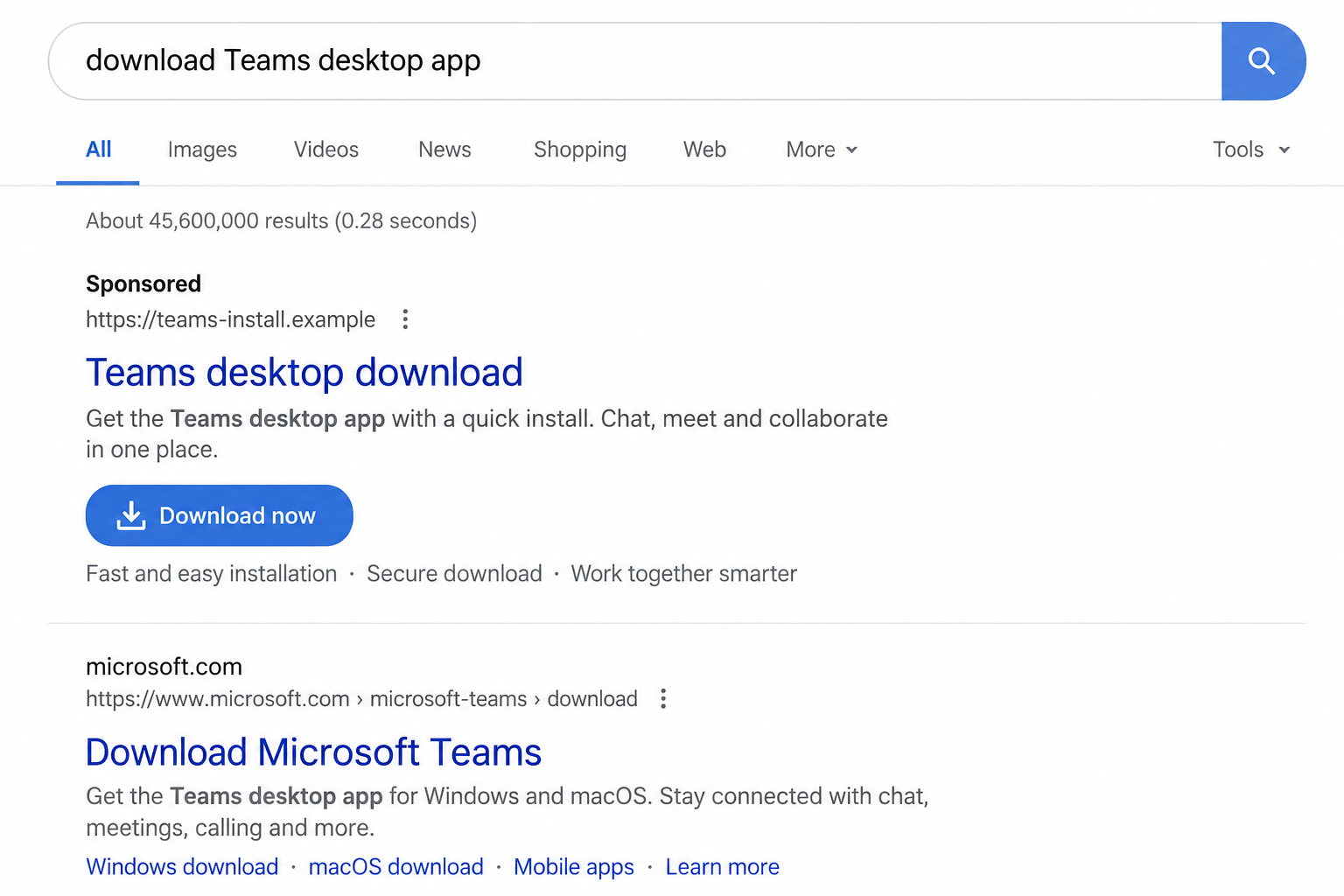
You need Teams for a meeting, so you search for the desktop download. The first result offers the installer in one click.
Its name and layout look ordinary. Before running the file, there is one question the search page cannot answer for you.
Overview
A paid result can redirect a software search
Microsoft documented a confirmed campaign in which criminals purchased advertisements targeting people searching for Microsoft Teams. The ads led to fraudulent download pages.
The visitor expected a collaboration app. The file offered in its place was a malicious installer named like a normal Teams setup program.
In Microsoft’s May 2026 investigation, Vanilla Tempest distributed those files with help from a separate malware-signing operation, Fox Tempest.
Teams itself is a real Microsoft product. The scam was the ad and counterfeit download that borrowed its identity.
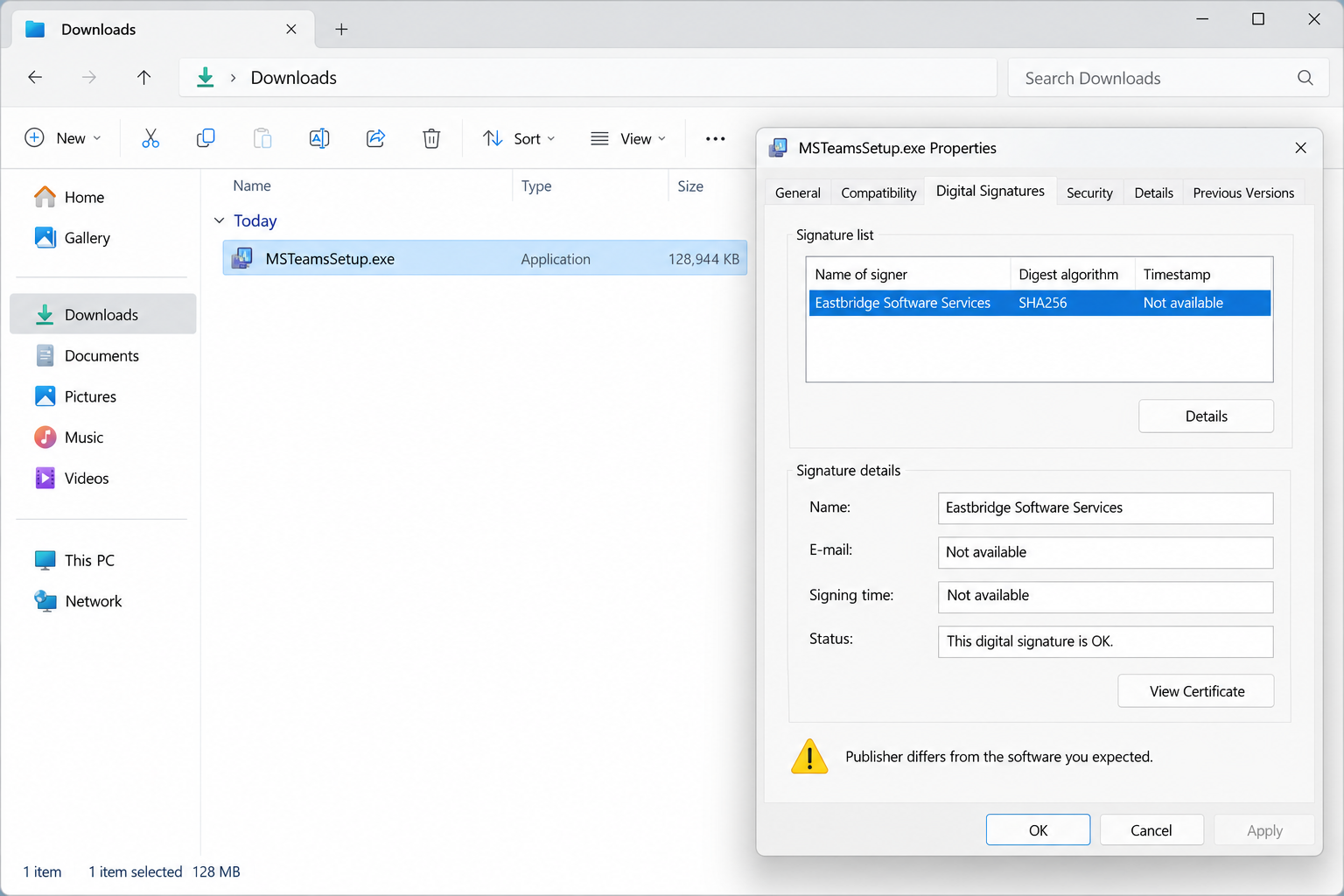
The dangerous file could appear digitally signed
Most people expect a signed program to be safer than an unsigned one. The campaign exploited that expectation.
Microsoft says Fox Tempest fraudulently obtained short-lived signing certificates and supplied signed malware to other criminal operators.
The service created more than 1,000 certificates. Microsoft reported revoking more than 1,000 associated certificates and disrupting the service in May 2026.
A valid-looking signature therefore could not establish that the file came from Microsoft or that its behavior was safe.
The installer could lead beyond one infected computer
Microsoft observed counterfeit `MSTeamsSetup.exe` files delivering Oyster, a backdoor capable of persistent remote access and further payload delivery.
In some investigated cases, the same path was followed by Rhysida ransomware. That does not mean every fake Teams installer produced ransomware.
The important warning signs are:
- The download result is labeled Sponsored and points outside Microsoft’s official domain.
- The page claims to offer Teams but uses a lookalike or unrelated address.
- An installer is presented as “verified” without a clear Microsoft publisher identity.
- A meeting invitation insists that you download through its own link.
- The file requests administrative privileges that you did not expect.
- Security software warns about the file or a child process after installation.
Why a Fake Download Page Is So Effective
Software searches are goal-directed. A person may be minutes from a meeting and want the first usable download, not an investigation.
A paid search result can appear above the official page. Its label is small compared with the product name and download button.
The FBI has warned about brand-impersonation search ads that send users to copies of software sites and deliver malware under familiar file names.
That general warning is directly relevant here. Microsoft traced a specific operation using Teams searches, purchased ads, and fraudulent download pages.
A page can copy a logo, version number, release date, and setup instructions. None of those details proves who built the file.
Even a genuinely signed binary can be dangerous if the signing identity was obtained fraudulently or belongs to a different publisher.
People sometimes equate an executable’s name with its origin. A file called `MSTeamsSetup.exe` can be created by anyone.
Meeting pressure adds another layer. A fake invite may say the browser version will not work or that audio requires a special download.
A Reddit report described a purported Teams invite leading to a non-Microsoft page that offered a “newest version” download.
That individual report is not proof it belonged to Vanilla Tempest. It illustrates why a meeting link should not decide where software is installed from.
How the Fake Teams Download Scam Works
Step 1: The attacker buys attention at the moment of need
The criminal purchases ad placement against Teams-related searches. Someone seeking the real installer may see the counterfeit result first.
Search advertising is not inherently malicious. The problem is an advertiser impersonating a software publisher and routing users to its own file.
Step 2: A fraudulent page presents a familiar download
The destination resembles a software page, with a prominent download control and language about the latest desktop version.
Its visual polish is not the key evidence. The domain and file origin are. A Microsoft product should be obtained through Microsoft’s verified channels.
Step 3: The file arrives under a trusted name
Microsoft says victims were offered `MSTeamsSetup.exe` in place of the legitimate client. The file name was a costume for the payload.
The attacker did not need to compromise Microsoft’s real website to do that. A separate page and ordinary browser download were enough.
Step 4: A signature makes the installer appear respectable
Fox Tempest’s service signed malicious files through fraudulently obtained certificates. Some certificates were short-lived, limiting the window for straightforward detection.
A signature confirms a relationship to the certificate used. It cannot, by itself, establish that the signer was the product’s legitimate publisher.
Step 5: Running the file installs Oyster
In Microsoft’s observed chain, executing the counterfeit Teams installer deployed Oyster, also called Broomstick.
That backdoor could communicate with attacker infrastructure, collect information, and support additional tools. It was not simply an unwanted browser extension.
Step 6: The intruder may expand the damage
Persistent access can expose business accounts, files, and other devices. Microsoft says Rhysida ransomware followed in some cases.
Do not assume a computer is safe because Teams appeared to install normally. A malicious setup can show a familiar screen while doing more in the background.
Step 7: The ad and domain can be replaced
Microsoft disrupted the documented signing service, but removing one service does not erase the general fake-download method.
New ads, domains, and file names can copy the same pattern. The durable defense is checking the publisher and obtaining software from a verified source.
What a Digital Signature Does Not Tell You
Many people have learned to reject unsigned software. That remains useful, but a signature is one piece of evidence, not a safety verdict.
The publisher name matters. A signed file claiming to be Teams but showing an unrelated signer deserves scrutiny, even if the dialog says the signature is valid.
Certificate age and validity matter to security teams, but ordinary users should not need to interpret a certificate chain under meeting pressure.
The simpler habit is to avoid receiving an executable from an advertisement or meeting invite. Open Microsoft’s download page independently instead.
If your workplace manages Teams, use its approved software portal. That route also helps IT track versioning and installation support.
A malicious file may be signed by a name that looks formal. Do not treat “verified publisher” as synonymous with “Microsoft.”
Likewise, a familiar Microsoft icon, polished installer, or successful program launch cannot prove that no backdoor ran beforehand.
Microsoft’s report distinguishes the actors. Fox Tempest supplied signing infrastructure; Vanilla Tempest used it in the Teams distribution chain.
That distinction matters because the actual risk to a user begins at the counterfeit download, regardless of which criminal group operated the supporting service.
How to Get Teams Without Following the Ad
Use the Teams link inside an authenticated Microsoft account, your organization’s software catalog, or Microsoft’s known download page.
If you search, read the full destination address before opening a result. A paid placement is not a recommendation from Microsoft.
Do not use a file supplied by a recruiter, meeting host, or document site merely because the meeting is urgent.
If the host says their special version is required, ask for a normal meeting link. Many meetings support a browser or an organization-managed client.
Check the software publisher through the operating system and your IT team’s instructions. An unrelated publisher should stop the installation.
Keep endpoint protection active. Do not disable warnings because a page says the installer is “safe” or “signed.”
For a work device, report the suspicious page and file to security. They can compare the hash, download source, and process behavior.
For a personal device, save the URL and file details without opening the executable. Delete the unrun download after documenting it.
If You Already Ran the File, Look Beyond the App Window
The most important question is not whether a Teams window eventually opened. It is what the installer launched before, during, and after that window appeared.
Record the time you downloaded and ran it. That timestamp helps responders search process logs, browser history, antivirus detections, and network connections.
Tell them whether the operating system asked for administrator approval. A request you accepted can explain how the installer gained broader access.
Check the actual download source in browser history. A result’s displayed title may say Microsoft while its destination belongs to an unrelated domain.
Do not open the suspicious site again just to confirm your memory. Screenshots, cached history, and the downloaded file can supply useful details safely.
A backdoor may persist through a service, scheduled task, or other startup mechanism. Uninstalling a visible Teams entry might leave that mechanism untouched.
Ask the responder whether the affected machine needs a full rebuild. The answer depends on observed execution, persistence, access, and the organization’s risk.
If the device was used for work, list the accounts and resources open at the time. Browser sessions and company VPN access can matter even without a typed password.
If it was a personal device, review banking, email, cloud storage, and shopping accounts from a clean device. Look for unfamiliar sign-ins and security changes.
Changing passwords on the possibly compromised computer can expose the replacements. Wait until you have a trusted device and a containment plan.
Do not assume that an absent ransom note means the incident ended. Microsoft observed Oyster as a backdoor that could support later activity.
Nor should every download be described as an infection. The documented compromise required the counterfeit installer to be executed successfully.
A security warning or a failed launch still deserves reporting. It may indicate the file was blocked, partially executed, or attempted to create another process.
Keep the original file if your security team requests it. Its hash and signing certificate can help distinguish a known malicious sample from a harmless download.
Do not upload a work file to a public scanning service without organizational approval. Such services may retain samples or reveal confidential material.
For people without IT support, a reputable local security professional can help preserve the machine and determine whether a reinstall is appropriate.
Report any unauthorized payments to your bank immediately. The technical investigation and financial response can proceed at the same time.
Finally, tell meeting participants only what is known. A fake installer may have arrived through a search ad, not from the real person who invited you.
That distinction avoids blaming an innocent colleague while giving everyone the warning that matters: install collaboration software through verified channels.
What to Do if You Have Fallen Victim to This Scam
- If you only opened the page, do not run the file. Close the page and download Teams through Microsoft’s verified site or your employer’s software portal.
- If you ran the installer, disconnect the device from the internet and any work VPN. Do not continue banking or work sessions on it.
- Tell your organization’s IT or security team immediately. Provide the ad, full URL, file name, download time, and any security alerts.
- Preserve the file and logs for responders. Do not wipe a business device before its security team decides what evidence is needed.
- From a clean device, reset exposed passwords and revoke active sessions. Include email, work identity, banking, cloud storage, and password-manager accounts.
- Ask responders to check for persistence, remote access, and lateral movement. Removing the visible installer is not enough if Oyster executed.
- Run trusted security checks, including Microsoft Defender and Malwarebytes where appropriate. A clean scan does not replace incident response after confirmed backdoor activity.
- If files are encrypted or a ransom note appears, do not negotiate through a pop-up. Isolate affected systems and contact the organization’s incident-response lead.
- Report the malicious advertisement to the search platform and the impersonation to Microsoft. US victims can also report it to IC3.
An ad blocker such as AdGuard may reduce exposure to malicious search placements. It cannot prove that every visible result is legitimate.
Be wary of “cleanup” callers who contact you after you report the ad. Genuine incident response should come through a known provider or your employer.
Frequently Asked Questions
Is Microsoft Teams dangerous to install?
No. The documented scam distributed a counterfeit installer from fraudulent pages. Obtain the real application through Microsoft or your employer.
Was this campaign actually observed, or only theorized?
Microsoft documented purchased ads, fake download pages, signed counterfeit installers, Oyster deployment, and some subsequent Rhysida incidents.
Does a digital signature prove an installer is safe?
No. A signature should be assessed with the publisher and source. The documented criminal service fraudulently obtained certificates for malicious files.
Did every victim receive ransomware?
No. Microsoft reported Rhysida in some cases. The confirmed initial danger was Oyster backdoor installation after running the counterfeit file.
What if I downloaded the file but never opened it?
Do not execute it. Document the source, delete the file after any workplace reporting, and obtain a verified Teams installer.
Can a fake search result appear above Microsoft’s page?
Yes. Paid search placement can put an impersonator first. Inspect the destination address instead of trusting the result’s position.
The Bottom Line
Fake Teams download ads used a familiar software name to deliver a signed backdoor. In some cases, the infection led to ransomware.
Open Microsoft’s official download route or your employer’s software catalog. If you ran a file from a lookalike page, report it immediately.

Join the discussion
0 commentsShare your experience or ask a question about this article.
Discussion
Start the conversation
Have a question or something useful to share? Add the first comment.