

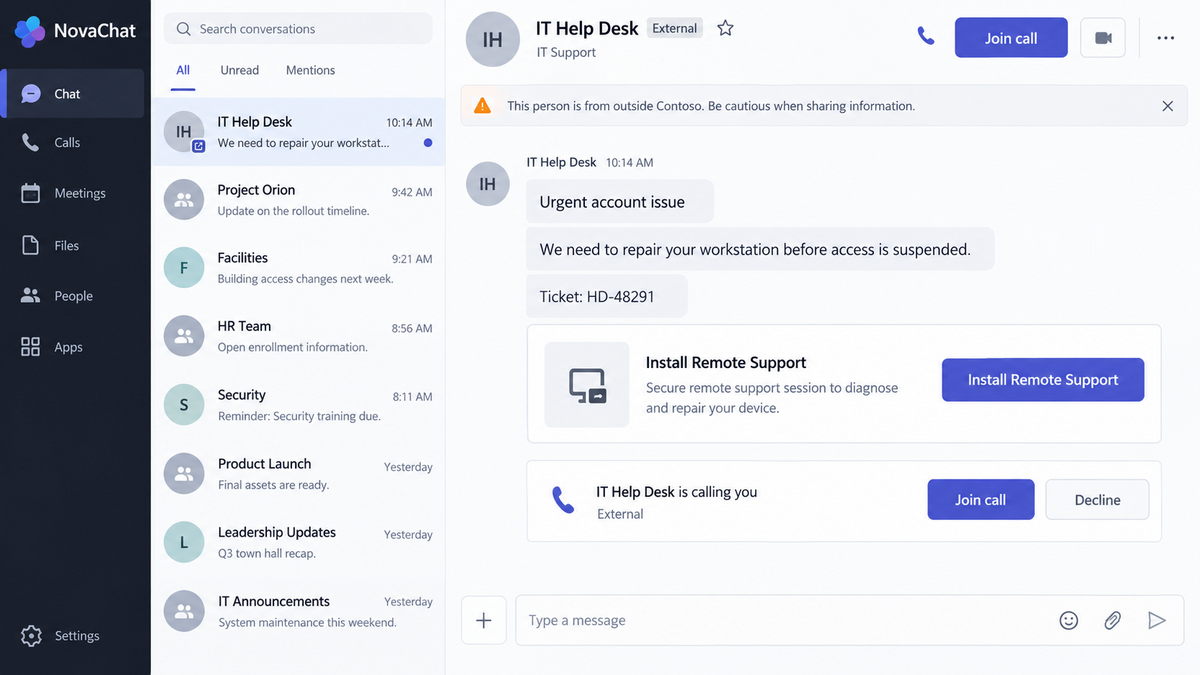
The message appears in Microsoft Teams during a busy workday. Someone named IT Help Desk says the employee’s account has a problem and offers to fix it before access is interrupted.
The caller knows the language of corporate support, sounds patient, and keeps the conversation inside a tool the company already uses. Installing a small remote-support program can feel like the fastest way back to work.
In the Spring Ring campaign, that helpful conversation was the attack.
Overview
Attackers pose as company support inside Microsoft Teams
Palo Alto Networks Unit 42 investigated a coordinated voice-phishing operation it calls Spring Ring. Between January and April 2026, the activity targeted more than 150 employees across at least 10 companies and several industries.
The attackers used external Microsoft Teams accounts with names and profile details designed to resemble an internal IT help desk. They did not rely on a badly written email alone. They contacted employees through chat and live voice conversations, where a confident person could answer questions and adjust the story in real time.
The problem described by the caller could vary. What mattered was convincing the employee that support needed to inspect or repair the computer immediately.
The requested “fix” gives the caller remote access
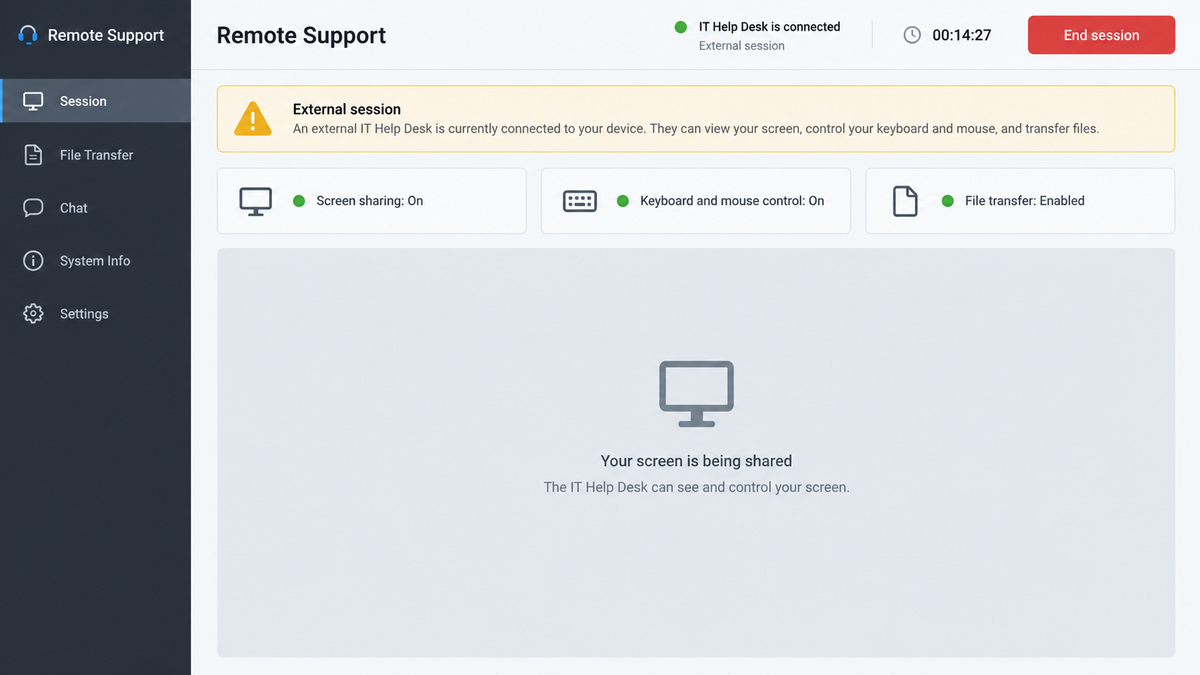
Unit 42’s Spring Ring report documented attempts to make targets install remote monitoring and management software or custom malware. Legitimate IT teams use remote-support tools, which gives the request a plausible surface.
The distinction is who initiated the session and how identity was verified. In this campaign, the request came from an attacker-controlled external account. Once the employee installed the tool or followed the instructions, the supposed technician could interact with the workstation.
Remote access can expose files, browser sessions, company applications, saved credentials, and the internal network. The call is therefore not merely a nuisance or a request for one password. It can become the first foothold in a larger intrusion.
One advanced path targeted Windows authentication
Unit 42 also observed a more advanced variant that moved toward NTLM relay activity aimed at a domain controller. In plain language, the attacker tried to capture or redirect a Windows authentication exchange so it could be used against an important company system.
That escalation shows why the campaign deserves to be treated as a confirmed security incident. The fake help-desk identity, live persuasion, remote software, and authentication abuse form a deliberate chain.
- The first contact arrives from an external Teams account.
- The display name imitates internal IT or a service desk.
- A live caller invents an urgent account or computer problem.
- The employee is asked to install or open remote-support software.
- The attacker gains interactive access to the workstation.
- Custom malware or credential theft may follow.
- An advanced variant attempted to relay Windows authentication toward a domain controller.
- The operation affected multiple companies rather than one isolated complainant.
Why a Teams Call Can Feel Trustworthy
The communication channel is already familiar
Employees expect coworkers, vendors, recruiters, and support staff to appear in Teams. A message inside the application can feel more controlled than a phone call from an unknown number, even when the sender is external.
Microsoft displays indicators for outside participants, but those details are easy to miss during a busy day. Attackers also choose names such as Help Desk, IT Support, or Service Center because the role matters more than a believable personal identity.
Real IT departments use some of the same tools
Remote monitoring and management software is not automatically malicious. Support teams use it to troubleshoot computers, deploy updates, and help remote employees. That legitimate use gives the attacker cover.
The software may even be digitally signed and downloaded from its real vendor. Security warnings are less likely to appear, and the victim believes the tool itself proves the caller is genuine. It does not. A safe tool can create dangerous access when the wrong person controls the session.
A human caller can overcome hesitation
Voice phishing is flexible. If an employee asks why a program is needed, the caller can invent a technical explanation. If a warning appears, the caller can say it is expected. If the target wants to contact a manager, the caller can create urgency about a locked account or missed deadline.
The conversation also consumes attention. Following spoken instructions while reading a screen leaves less time to inspect the external-user label, domain, or remote-access code.
Company and Checkout Checks
The display name is not the support organization
Teams allows communication between organizations when external access is enabled. A name such as “Corporate IT Help Desk” is just profile text. It does not prove that the account belongs to the employer or its contracted support company.
Expand the sender details and inspect the full domain. Then verify the request using a separate channel, such as the help-desk number on the company intranet or a ticket created through the official portal.
The account’s domain reveals the real address
A profile photo and company logo can be copied. The account domain is harder to explain away. An unfamiliar tenant, consumer address, misspelling, or unrelated organization should stop the conversation.
Even a familiar-looking domain deserves independent confirmation if the contact was unexpected. Compromised vendor accounts can also be abused, so identity and authorization are separate checks.
Real support welcomes verification
A legitimate technician should be able to provide a ticket number, identify the affected asset, and wait while the employee calls the approved service desk. Pressure to keep the conversation secret or avoid a callback is inconsistent with safe support.
Do not use a phone number or link supplied by the person whose identity is in doubt. Open the company’s known support portal yourself.
The remote tool is the practical checkout
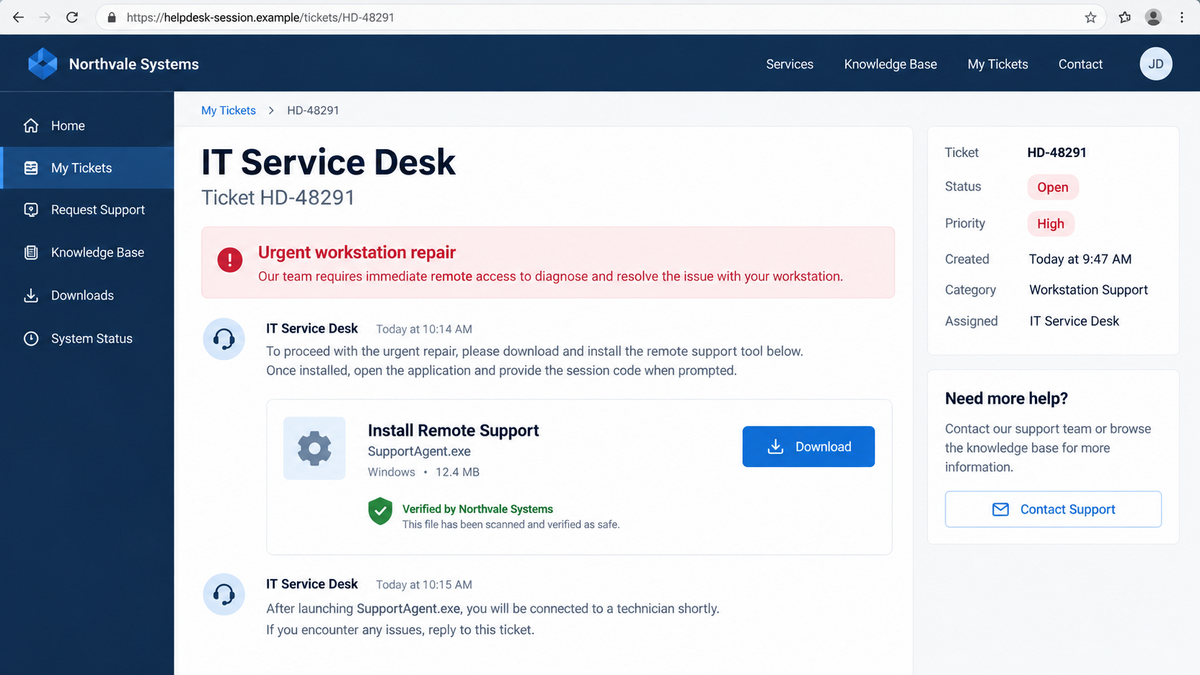
This scam does not need a credit-card form. The valuable item is access to the workstation. A session code, downloaded agent, command window, or approval prompt functions like the final checkout button.
Before allowing access, employees should know the technician’s verified identity, the ticket, the exact tool approved by the company, and what actions will occur. If any part is missing, cancel the session.
How the Fake Teams IT Call Scam Works
Step 1: The attacker prepares an external Teams identity
The operator creates or compromises an account and gives it a convincing support name. Logos, job titles, and status messages make the profile look like a functional help-desk identity rather than a stranger.
The account remains outside the target company. The campaign relies on employees overlooking that fact or assuming the support provider uses a separate Microsoft tenant.
Step 2: A chat or call invents an urgent IT problem
The attacker contacts an employee and says there is an account, security, software, or device issue. The story creates a reason for immediate troubleshooting and makes the interruption feel routine.
The caller may refer to broad workplace details gathered from public sources. Knowing an employee’s name, company, title, or technology stack does not prove internal access.
Step 3: The caller builds trust through live conversation
Instead of sending a single rigid instruction, the caller guides the target step by step. Professional language, patience, and plausible answers imitate a real service-desk interaction.
The victim may be told that the remote tool is necessary to inspect settings or apply a fix. Any delay is framed as a risk to productivity or account access.
Step 4: The employee installs remote-management software
The caller directs the employee to a download site or asks them to run a legitimate tool already available on the machine. The target then shares a session code or accepts a connection.
At that point, the attacker can see or control the desktop within the permissions granted. The software’s legitimate brand does not make the operator legitimate.
Step 5: Credentials and internal access are collected
During the session, the attacker may open browsers, inspect saved sessions, run commands, copy files, or install persistence. A fake login prompt can capture a password while the caller claims to be testing access.
If multifactor authentication appears, the victim may be coached to approve it. The caller treats each security control as another step in the repair.
Step 6: Malware or Windows authentication abuse expands the intrusion
Unit 42 observed custom malware in the campaign and an advanced route involving NTLM relay toward a domain controller. The aim is to move beyond one employee’s screen and obtain access that matters across the organization.
Not every target reaches the same stage, but the potential impact makes early reporting essential. A closed remote window does not prove that installed services, stolen sessions, or relayed credentials are gone.
Step 7: The incident is hidden behind a normal-looking support session
When the caller finishes, the computer may appear to work normally. The employee may even believe the issue was resolved. That quiet ending delays reporting and gives the attacker time to use collected access.
A company can miss the connection if the employee feels embarrassed or assumes the service desk already knows. Prompt, nonjudgmental reporting is one of the strongest defenses.
How Companies Can Interrupt the Attack
The best control is a support process employees can recognize under pressure. Staff should know exactly how IT announces work, which remote tools are approved, and where to verify a technician. That guidance should be short enough to use during a live call.
Microsoft Teams settings can also reduce exposure. Organizations can review external access, federation, guest communication, and policies that let unknown tenants reach users. Security teams should monitor unusual external contacts followed by remote-tool downloads or execution.
- Label external chats clearly and train employees to notice the indicator.
- Require a valid ticket before any unplanned remote session.
- Publish one known callback route for IT verification.
- Allow only approved remote-management tools where practical.
- Alert on new remote agents, unusual command tools, and persistence services.
- Investigate authentication attempts involving unusual NTLM paths.
- Make incident reporting safe, quick, and free from blame.
- Tell employees that genuine support will not object to independent verification.
Employees should not be expected to identify every technical trick. A reliable process turns a difficult judgment about a stranger into a simple rule: unexpected support contacts must be verified through the official desk.
What to Do if You Have Fallen Victim to This Scam
- Disconnect the affected computer. Unplug Ethernet and turn off Wi-Fi, but leave the device powered on unless the security team instructs otherwise. This can preserve useful evidence.
- Call the real security or IT desk. Use the company intranet, badge, or a known number from another device. Explain that an external Teams caller obtained or attempted remote access.
- Provide the exact timeline. Share the Teams account, time of contact, session code, downloaded file, commands you saw, credentials entered, and approvals made.
- Do not remove evidence on a managed computer. Let the incident-response team collect logs and decide whether to isolate, reimage, or preserve the system.
- Terminate remote sessions and tools. With IT guidance, revoke active remote access, disable unauthorized agents, and block the associated accounts and domains.
- Reset credentials from a clean device. Change company passwords, revoke sessions, review multifactor methods, and remove unfamiliar passkeys or devices. Follow the employer’s recovery process.
- Scan personal devices if they were involved. If the caller also directed you to a home computer or phone, use Malwarebytes to check for known remote tools and malware, then consider a clean reset if control was established.
- Review sensitive actions. Security staff should check mailbox rules, cloud logins, file access, new applications, remote-tool activity, and Windows authentication events.
- Reduce repeat contact. AdGuard can block many malicious landing pages if the campaign used web links, but company controls and verified support procedures remain the primary defense.
- Report financial or identity exposure. If personal banking, tax, or identity data was visible, contact the relevant institutions and follow local breach-reporting guidance.
Do not continue speaking with the fake technician to gather more evidence. Once the incident is reported, let trained staff handle the account and infrastructure. The priority is containment, not proving to the caller that the scam was recognized.
Frequently Asked Questions
Is Spring Ring a confirmed Microsoft Teams scam campaign?
Yes. Unit 42 documented the coordinated campaign through telemetry and investigations, including targets, remote-access activity, malware, and an advanced authentication-relay path.
Does an external label always mean the sender is malicious?
No. Many legitimate partners use external Teams accounts. The label means the person is outside the organization and their identity must be verified before granting access.
Are remote monitoring tools themselves malware?
Not necessarily. Real support teams use them. The risk comes from an unauthorized person controlling the session or using the tool to install additional malware.
What if the caller knew my name and job title?
Those details are often available from professional profiles, company websites, prior breaches, and data brokers. They are not sufficient proof of employment or authorization.
Should I shut down the company computer immediately?
Disconnect it from the network and call the real security team. Follow their instructions about power, because a shutdown can remove volatile evidence that responders need.
How should I verify a surprise IT call?
End the interaction and contact the service desk using the number or portal your employer already provided. Quote the ticket number rather than using contact details supplied by the caller.
The Bottom Line
The fake Teams IT calls in Spring Ring were a confirmed, organized intrusion campaign, not a dispute with a real support company. Attackers used trusted workplace routines to persuade employees to open the door themselves.
An unexpected technician should never control a computer until the request has been verified through the employer’s own help desk. A two-minute callback can stop a remote-access incident that would otherwise affect an entire organization.

Join the discussion
0 commentsShare your experience or ask a question about this article.
Discussion
Start the conversation
Have a question or something useful to share? Add the first comment.