


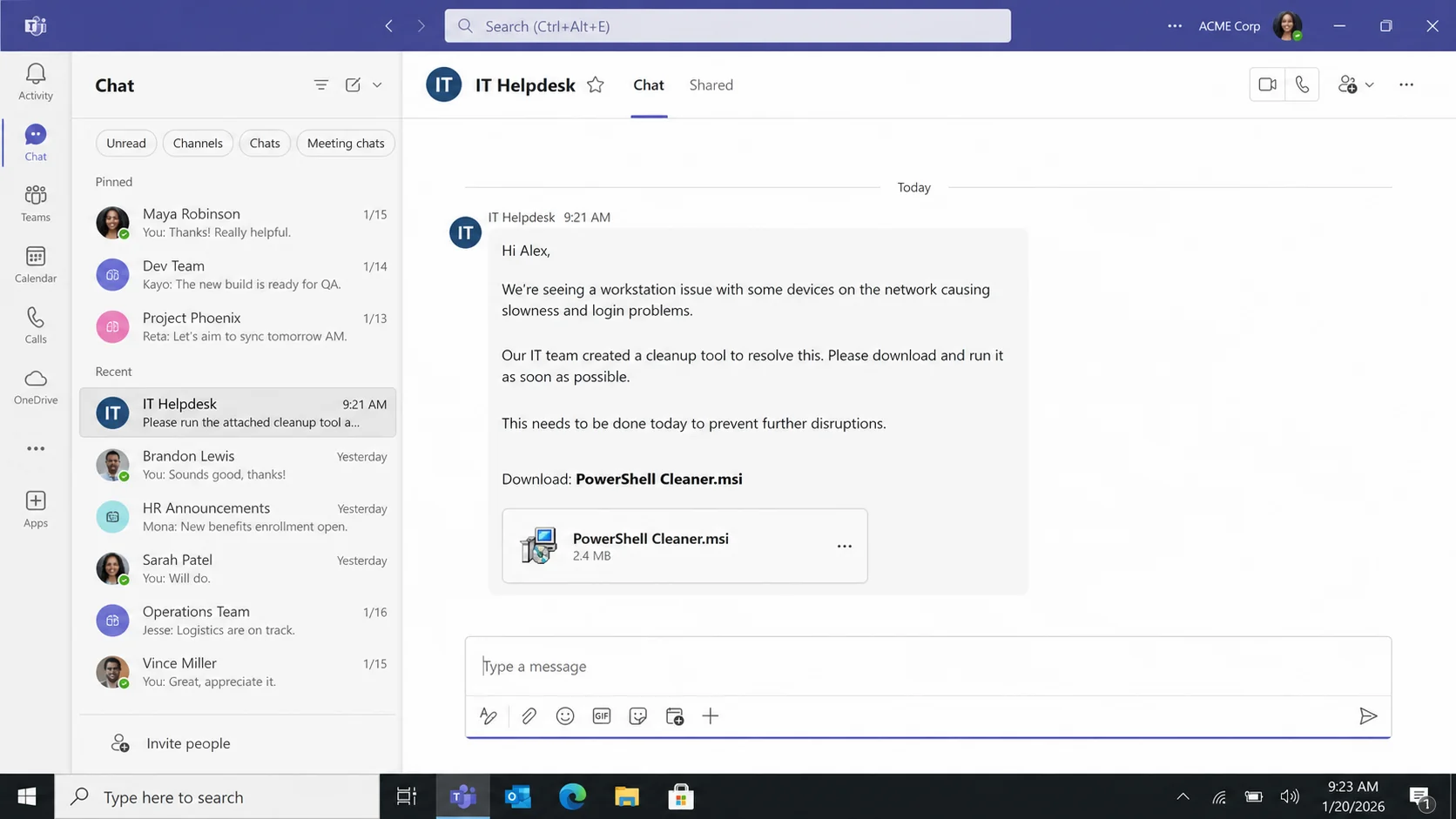
A Teams message from IT says your workstation needs an urgent cleanup. The attached installer has a reassuring name, and the request fits neatly into a busy day.
Everything appears internal until one detail feels wrong. This investigation follows what can happen when that small installer is trusted.
Overview
The approach begins as an ordinary support conversation
SynkLoader campaigns have used Microsoft Teams phishing to impersonate an IT help desk and persuade employees to install a malicious MSI package.
The file may be presented as “PowerShell Cleaner,” a believable name for a utility that supposedly repairs slowness, login problems, or network errors.
This approach is more personal than a random attachment. A live chat lets the attacker answer questions, increase urgency, and guide the target through security warnings.
Teams branding does not guarantee that a sender belongs to the organization. External users, compromised tenants, guest access, or stolen accounts can create convincing contact points.
A legitimate support technician should connect the request with a ticket, asset record, known staff identity, and approved software distribution process.
The campaign replaces those controls with persuasion. Its goal is to make the employee run code before contacting the real help desk.
The installer deploys a modular malware loader
SynkLoader is a loader first observed in 2026. It can install additional components rather than limiting the attack to one fixed capability.
The malware carries its own Python environment and performs much of its work in memory. That design can reduce obvious files left on disk.
Its components can collect the hostname, username, privilege level, active processes, installed services, and Active Directory information.
The tool also supports a reverse PowerShell shell, remote screen control, keyboard and mouse interaction, and a backconnect proxy through the infected computer.
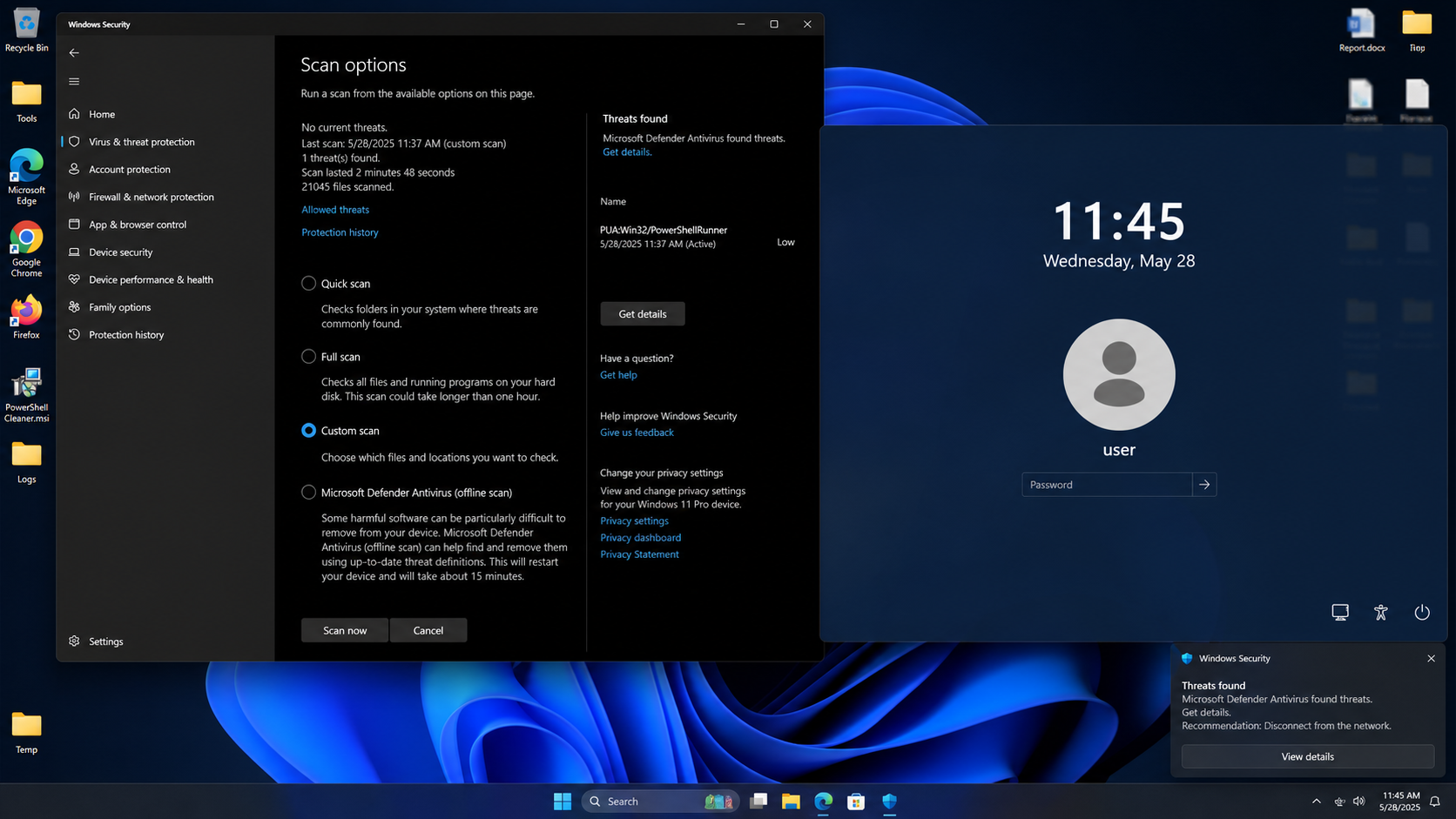
A fake full-screen Windows lock screen can capture the user’s password. It reuses the real username and wallpaper to appear native.
The result is not merely a slow computer. A successful infection can expose credentials, workplace infrastructure, and trusted network access.
The filename is harmless-looking, but the behavior is not
Terms such as cleaner, patch, security update, and diagnostic tool reduce suspicion. They describe a helpful purpose while concealing the package’s actual publisher and origin.
Strong warning signs include:
- An unsolicited IT conversation without a matching ticket.
- A request to install software directly from chat.
- An MSI signed by an unknown or unexpected publisher.
- Instructions to bypass Windows security prompts.
- Pressure to complete the task immediately.
- A technician who refuses independent verification.
- A cleanup utility absent from the approved software catalog.
Opening the chat is not the infection point. Downloading and running the installer gives the campaign its opportunity to execute on Windows.
Employees should stop before installation and contact IT through the usual telephone number or ticket portal. A genuine technician can confirm the package hash and deployment method.
If the MSI already ran, disconnect the machine from networks. Treat the device as potentially controlled until an incident-response review proves otherwise.
How The Scam Works
Step 1: The attacker reaches an employee through Teams
The criminal establishes a chat identity that resembles internal support. It may use an external tenant, compromised account, or deceptively named guest profile.
Display names and profile pictures are easy to copy. Employees often focus on the support label rather than the tenant, email address, or external-user indicator.
The first message can be polite and specific enough to feel routine. It might mention device performance, authentication maintenance, or a required security cleanup.
Some operators begin with conversation instead of immediately attaching a file. That slower approach builds rapport and tests whether the employee is responsive.
The real help desk may have no record of the contact. Checking the ticket number before proceeding breaks the attack at its earliest stage.
Step 2: A believable problem creates urgency
The sender claims monitoring detected a workstation issue affecting logins, network speed, compliance, or upcoming updates.
These symptoms are common enough that many users have experienced them. The story can accidentally match a genuine annoyance on the device.
The supposed technician warns that delay could disrupt work or lock the account. That makes the attachment look like the fastest way to stay productive.
Authority and helpfulness operate together. The target wants to cooperate with IT and avoid appearing responsible for a broader outage.
Real administrators can identify the device, incident, policy, and approved remedy. Vague monitoring claims should not justify an unknown installer.
Step 3: “PowerShell Cleaner” disguises the malicious MSI
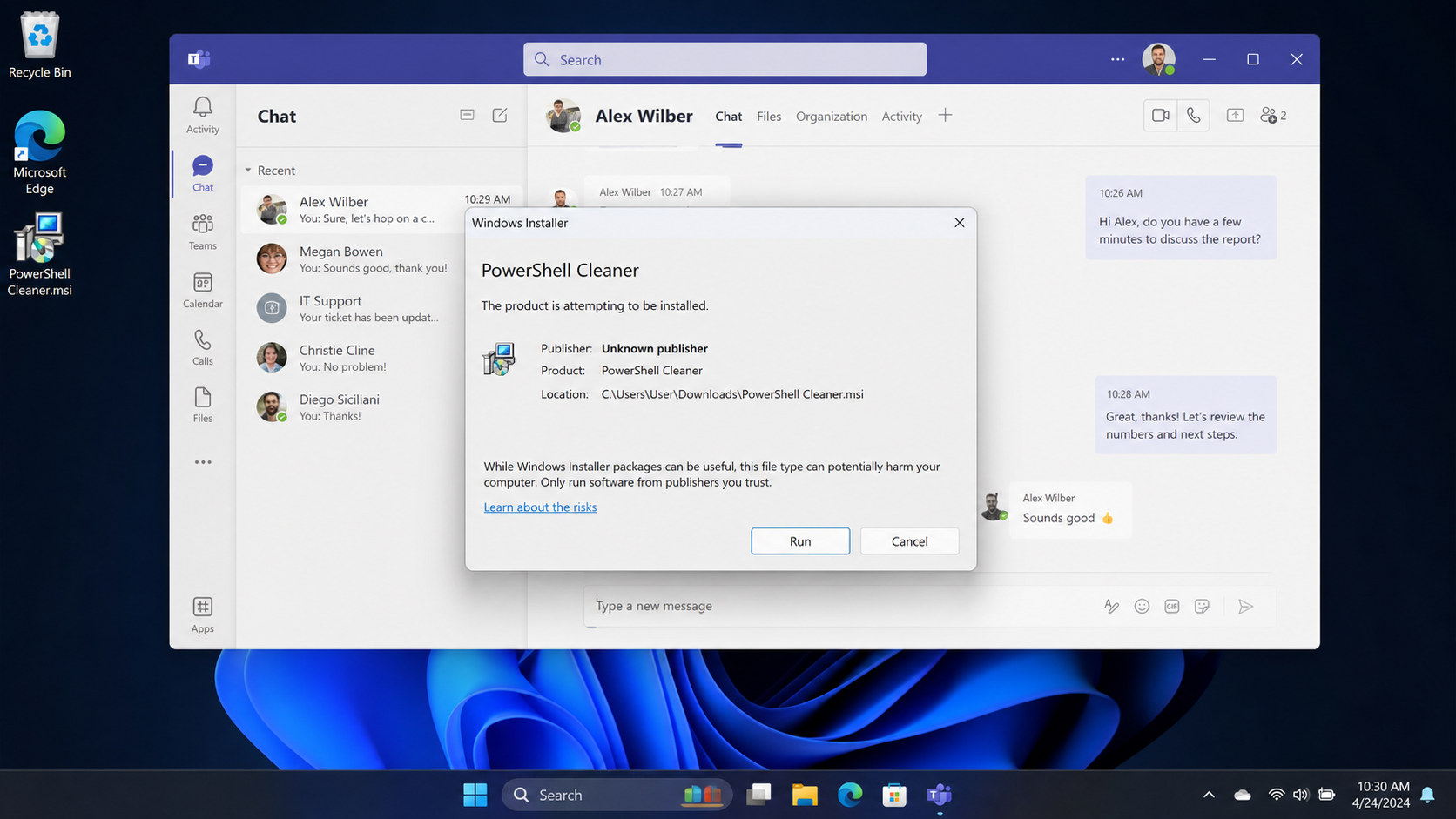
The attachment uses an MSI extension because Windows Installer packages are common in enterprise software deployment.
The phrase PowerShell Cleaner sounds technical without describing a recognized Microsoft product. It suggests maintenance while avoiding a name that employees can verify easily.
The attacker may instruct the target to ignore an unknown-publisher warning or say that internal tools are not digitally signed.
That explanation reverses a valuable safety control. Publisher verification exists precisely because a familiar filename cannot identify who built the package.
Approved corporate software usually arrives through managed deployment, a documented portal, or a technician using established remote-support tooling.
Step 4: Running the package establishes SynkLoader
When the MSI executes, it launches the infection chain and prepares the loader’s runtime. The user may see little or no meaningful cleanup interface.
SynkLoader can use Python, C#, and C++ components. It decrypts and runs modular code received through its command infrastructure.
Communication can rotate among hardcoded command servers. The loader selects a destination and waits for instructions or additional modules.
Much of the activity can occur in memory. Traditional reliance on one suspicious executable file may therefore miss the broader behavior.
Endpoint telemetry, process lineage, network connections, scheduled tasks, and memory analysis become important for a reliable investigation.
Step 5: Reconnaissance maps the victim and organization
The malware gathers the computer name, signed-in user, current privileges, running programs, and installed services.
In a domain environment, Active Directory details can reveal organizational structure, reachable resources, and accounts worth targeting next.
This reconnaissance helps the operator decide whether the device belongs to an ordinary employee, administrator, developer, or valuable business unit.
A low-privilege infection can still expose documents and session data. A privileged account can create a much wider route into the network.
The collection stage may be quiet because immediate disruption would alert the victim. Attackers often value persistent observation over obvious damage.
Step 6: Remote-control modules deepen access
SynkLoader can provide a reverse PowerShell shell, allowing commands to run from outside the organization through the infected endpoint.
A VNC-style component can expose the screen and accept mouse or keyboard input. The operator may interact with applications as if seated at the computer.
The fake Windows lock screen adds credential theft. It uses familiar wallpaper and username information while collecting whatever password the user enters.
Pressing Alt+Tab may reveal that the prompt is only an application, but the malware attempts to bring itself back into focus.
Any password entered after suspicious lock-screen behavior should be considered compromised, even if the desktop later returns normally.
Step 7: Persistence and proxying support longer operations
The malware can create a scheduled task with a random name. It may run at user logon and again at a regular daily time.
Persistence allows access to resume after restarting. Removing the original MSI does not necessarily remove installed components or the scheduled trigger.
A traffic-redirector module can route attacker connections through the victim’s IP address. That helps malicious activity resemble traffic originating inside the trusted environment.
Proxying can bypass location filters and hide the attacker’s own address. It may also implicate the victim’s network in unrelated abuse.
Containment must cover the endpoint, credentials, sessions, nearby systems, and logs. Treating the incident as one unwanted file is insufficient.
What SynkLoader Can Expose
Device reconnaissance reveals what security products are running, which services are installed, and whether valuable administrative tools are available.
User information connects the machine with a real identity. That can support impersonation inside email, Teams, ticketing systems, and business applications.
Active Directory data offers a roadmap for lateral movement. Group membership and reachable systems help attackers prioritize accounts with broader access.
Remote screen control exposes anything displayed, including dashboards, customer records, documents, and authentication prompts.
Keyboard interaction can change settings, open cloud applications, or authorize actions while the endpoint retains a trusted network position.
The lock-screen module targets a particularly valuable secret. A Windows or domain password may unlock email, file shares, VPN services, and remote desktops.
A backconnect proxy turns the machine into infrastructure. Fraudulent logins routed through it may avoid controls that trust the company’s normal address range.
Additional payloads determine the final impact. Data theft, ransomware, credential dumping, or further loaders remain possible after the initial foothold.
Organizations should assume scope is unknown until logs and neighboring systems are reviewed. The visible symptoms rarely show every action taken.
Sender, Installer, Device, and Network Checks
Verify the support identity through another route
Call the known help-desk number or open the official ticket portal. Ask whether the named technician and issue exist.
Inspect the Teams profile for external or guest markers, tenant information, email address, and conversation history. A copied display name proves nothing.
Real support staff should welcome verification. Resistance, urgency, or instructions to avoid coworkers are serious warning signs.
Validate the package before execution
Compare its digital signature, publisher, hash, filename, and download source with the organization’s approved software catalog.
An unknown publisher deserves a stop, especially when the package arrived through chat. Do not accept a screenshot of a hash from the same sender.
Security teams can examine the file in an isolated environment. Employees should never test suspicious installers on production devices.
Look for persistence and credential capture
Investigators should review scheduled tasks, startup locations, services, process trees, PowerShell activity, Python runtimes, and newly created files.
Examine lock-screen anomalies, authentication events, and credential use after the suspected installation. Reset potentially captured secrets from a clean system.
Do not trust a normal-looking desktop after reboot. Persistence may reactivate only at logon or another scheduled time.
Hunt beyond the original computer
Search proxy, DNS, endpoint, identity, and firewall logs for related command servers and unusual connections.
Review neighboring accounts and machines accessed by the affected user. Stolen sessions can move the incident beyond the first endpoint quickly.
Block the attachment hash, sender, domains, and indicators across the environment while preserving evidence for later analysis.
What to Do if You Have Fallen Victim to This Scam
- Disconnect the device from networks. Disable Wi-Fi and unplug Ethernet without shutting down unless your incident team instructs otherwise.
- Contact security from another device. Use a known telephone number, not the suspicious Teams chat, and explain that the MSI executed.
- Preserve volatile evidence. Avoid deleting files, clearing logs, or running random cleanup utilities before responders collect necessary information.
- Reset credentials from a clean system. Change Windows, domain, email, VPN, and privileged passwords that may have been typed after installation.
- Revoke authentication sessions. Terminate cloud tokens, remembered devices, application passwords, VPN sessions, and suspicious OAuth grants.
- Run Malwarebytes during guided cleanup. A complete scan can identify malicious components, but enterprise incidents still require professional scope analysis.
- Use AdGuard on browsers after recovery. It can reduce malicious redirects and known command destinations, while endpoint controls address installed malware.
- Inspect persistence thoroughly. Review scheduled tasks, startup entries, services, scripts, remote-control software, and the attached file’s complete execution chain.
- Review organizational access. Check Active Directory, file shares, email, and administrative systems for activity performed through the affected account.
- Rebuild when confidence is insufficient. A professionally reimaged device is safer than assuming every in-memory module and persistence point was removed.
Is Your Device Infected? Run a Free Malware Scan
Slow performance, constant pop-ups, or strange behavior? These are classic signs of a malware infection. A quick way to check is to scan your device with Malwarebytes Free, one of the most trusted malware removal tools available. If you only visited a scam page and didn’t download or install anything, this scan is optional.
The free version detects and removes the most common threats, including:
- Adware — the cause of those annoying pop-ups
- Browser hijackers — unwanted redirects and changed homepages
- Trojans and spyware — hidden programs stealing your data
- Potentially unwanted programs (PUPs) — software you never asked for
👉 Select your device below — Windows, Mac, or Android — then follow the simple steps to download Malwarebytes, scan your system, and remove any threats it finds. The scan usually takes 5 to 20 minutes.
Run a Malware Scan with Malwarebytes for Windows
Malwarebytes is one of the most popular and trusted anti-malware tools for Windows — and it’s completely free for removing infections. It catches threats that many antivirus programs miss, including adware, browser hijackers, and trojans. Follow the steps below to scan your PC and remove what Malwarebytes finds.
Download Malwarebytes
Click the button below to download the latest version of Malwarebytes for Windows from the official source. The free version is all you need — it will scan your computer and remove adware, browser hijackers, and other malicious software at no cost.
Download MalwarebytesOfficial installer for Windows 11 and 10. Your download starts right away.Want real-time protection? See Malwarebytes Premium Malwarebytes Free for WindowsScans and removes malware at no cost
-
Install Malwarebytes
When the download finishes, open your Downloads folder and double-click the MBSetup file. If Windows shows a User Account Control pop-up, click “Yes” to allow the installation.

Follow the On-Screen Prompts to Install Malwarebytes
The setup wizard will walk you through a few quick screens:
-
Choose where you’re installing the program — “Personal Computer” or “Work Computer” — then click Next.

-
Malwarebytes will now install on your device. This usually takes under a minute.

-
When installation is complete, the “Welcome to Malwarebytes” screen will open automatically.

-
On the final screen, click Open Malwarebytes to launch the program.

-
Optional: Check for rootkits with a Custom Scan
You don’t need to change any settings for a normal scan. The standard Threat Scan in the next step is enough for most problems, so you can go straight to it.
If you also want to check for rootkits, use a Custom Scan. In current versions of Malwarebytes, rootkit scanning is only available there:
- On the Scanner tile, click the three-dot menu and select Advanced Scan.
- Choose Custom Scan. In its options, check Scan for rootkits.
- Select your system drive (usually C:\) as the location to scan, then start the scan. It takes longer than a Threat Scan.
- When it finishes, review and quarantine the results as described in the steps below.
Rootkit scanning isn’t available on Windows devices with ARM processors.
Start the Scan
Click the blue Scan button. Malwarebytes will automatically update its virus database and start checking your computer for malware.

-
Wait for the Scan to Finish
The scan checks your entire system for browser hijackers and other malicious programs, so it can take 5 to 20 minutes depending on your computer. Feel free to do something else — just check back occasionally to see the progress.

-
Quarantine the Detected Threats
When the scan is done, you’ll see a list of everything Malwarebytes found — malware, adware, and potentially unwanted programs. Click the “Quarantine” button to remove all of them at once.

Malwarebytes will now remove the malicious files and registry entries and move them safely into quarantine.

-
Restart Your Computer
Some threats can only be fully removed after a reboot. If Malwarebytes asks you to restart, click Yes. Once you’re logged back in, Malwarebytes has finished removing the threats it found.

When the scan is done, check whether the problems you noticed have stopped. If they continue, see the options below.
If you are still having problems with your computer after completing these instructions, then please follow one of the steps:
- Run a computer scan with ESET Online Scanner
- Ask for help in our Windows Malware Removal Help & Support forum.
Run a Malware Scan with Malwarebytes for Mac
Malwarebytes for Mac is a free on-demand scanner that removes the malware other security software tends to miss — adware, browser hijackers, and unwanted programs included. Cleaning an infected Mac with Malwarebytes has always been completely free, and it’s our go-to recommendation. Follow the steps below to scan your Mac and remove what Malwarebytes finds.
-
Download Malwarebytes for Mac
Click the button below to download the latest version of Malwarebytes for Mac.
Download MalwarebytesOfficial installer for macOS. Your download starts right away.Want real-time protection? See Malwarebytes PremiumMalwarebytes Free for MacScans and removes malware at no cost -
Open the Malwarebytes setup file
When the download finishes, open your Downloads folder and double-click the setup file to begin the installation.

-
Follow the On-Screen Prompts to Install Malwarebytes
The Malwarebytes for Mac Installer will guide you through a few quick screens. Click “Continue” and keep following the prompts until the installation completes.



When the installation is complete, Malwarebytes opens to the Welcome to Malwarebytes screen. Click “Get started“.
Malwarebytes needs Full Disk Access to check your whole Mac. When it asks, open System Settings > Privacy & Security > Full Disk Access, turn on Malwarebytes (it may be listed as Malwarebytes Protection), and confirm with your password or Touch ID. Then return to Malwarebytes. On macOS Monterey and earlier, this setting is in System Preferences > Security & Privacy > Privacy.
-
Select “Personal Computer” or “Work Computer”
Malwarebytes will ask what type of computer you’re installing it on. Click either Personal Computer or Work Computer, whichever applies.

-
Start the Scan
Click the “Scan” button. Malwarebytes will automatically update its detection database and begin checking your Mac for malware.

-
Wait for the Scan to Finish
Malwarebytes will scan your Mac for adware, browser hijackers, and other malicious programs. This can take a few minutes, so feel free to do something else — just check back occasionally to see the progress.

-
Quarantine the Detected Threats
When the scan is done, you’ll see a list of everything Malwarebytes found. Click the “Quarantine” button to remove all the threats at once.

-
Restart Your Mac
Malwarebytes will now remove all the malicious files it found. Some threats can only be fully removed after a reboot — if Malwarebytes asks you to restart, allow it. Once you’re logged back in, check whether the problems you noticed have stopped. If they come back, save the scan report and ask for help in our forum.

If the problems you noticed continue after the scan, see the options below.
If you are still experiencing problems while trying to remove a malicious program from your computer, please ask for help in our Mac Malware Removal Help & Support forum.
Run a Malware Scan with Malwarebytes for Android
Malwarebytes for Android scans your phone or tablet for malware, adware, and potentially unwanted apps. The free version scans only when you start a scan. Real-time protection, which checks apps automatically, is part of the paid Premium version.
-
Download Malwarebytes for Android.
You can download Malwarebytes for Android by clicking the link below.
Get Malwarebytes for AndroidOpens Google Play in a new tab.Want real-time protection? See Malwarebytes Premium for AndroidMalwarebytes for AndroidScans your phone and removes malware at no cost -
Install Malwarebytes for Android on your phone.
In the Google Play Store, tap “Install” to install Malwarebytes for Android on your device.

When the installation process has finished, tap “Open” to begin using Malwarebytes for Android. You can also open Malwarebytes by tapping on its icon in your phone menu or home screen.

-
Follow the on-screen prompts to complete the setup process
When Malwarebytes opens, it walks you through a short setup. Tap Get started and follow the prompts. If you see an offer for a trial or a paid plan, read it before you accept. You can skip it and keep using the free scanner.
Malwarebytes will ask for permission to access the files on your phone so it can scan them. Tap Allow, or turn on the permission in the Android screen that opens, then return to Malwarebytes.
-
Run a scan with Malwarebytes for Android
On the main screen, tap Scan now. In some versions, you open the menu, tap Scanner, and then tap Run a scan.
-
Wait for the Malwarebytes scan to complete.
Malwarebytes will now start scanning your phone for adware and other malicious apps. This process can take a few minutes, so we suggest you do something else and periodically check on the status of the scan to see when it is finished.

-
Remove the detected apps.
When the scan has been completed, you will see a list of the threats that Malwarebytes for Android has detected. Next to each detected item, tap the menu icon (three dots), then choose to uninstall the app or delete the file. Android then asks you to confirm. Tap OK or Uninstall to remove the app.
-
Restart your phone.
When the detected apps are removed, restart your phone if Malwarebytes asks you to. Then check whether the problems you noticed have stopped.
If the problems you noticed continue after the scan, see the options below.
If you are still having problems with your phone after completing these instructions, then please follow one of the steps:
- Ask for help in our Mobile Malware Removal Help & Support forum.
- Only as a last resort, reset your phone to factory settings. Read the warning below first.
- Back up your photos, videos, files, and messages, for example to your Google account or a computer.
- Make sure you know your Google account email and password. The phone asks for them after the reset. If you changed the password recently, Google recommends waiting 24 hours before you reset.
- On a Samsung phone, also make sure you know your Samsung account password.
- If you use an authenticator app for two-step verification, move your accounts to another device or save your backup codes first.
Stay Protected: Block Ads and Malicious Sites
No scan can prove a device is completely clean, so it helps to block threats before they reach you. Most infections start with a malicious ad or a fake download button — so blocking them at the source is your best defense.
We recommend AdGuard, which blocks malicious ads, phishing pages, and dangerous redirects before they can reach you.
👉 Download AdGuard and browse safely
Frequently Asked Questions
What is SynkLoader?
SynkLoader is modular Windows malware that can gather system information, receive additional components, control the screen, capture credentials, and proxy attacker traffic.
Its flexible loader design means the final payload and impact may differ between affected systems.
Is PowerShell Cleaner a real Microsoft utility?
The name used in this campaign does not make the attached MSI an approved Microsoft tool. A filename can be chosen by anyone.
Trust verified publishers and documented company deployment channels, not a helpful-sounding label inside an unsolicited chat.
Can opening the Teams message infect my computer?
Reading the conversation alone is not the described installation path. The serious risk begins when the attached MSI is downloaded and executed.
Report the sender and preserve the chat so administrators can search for other targeted employees.
Why is a fake lock screen dangerous?
It imitates Windows while collecting the password typed into its field. Familiar wallpaper and username details make the imitation convincing.
Treat credentials entered during unusual lock behavior as stolen and reset them from a separate clean device.
Can antivirus removal fully resolve the incident?
Detection is valuable, but it may not reveal stolen credentials, issued tokens, proxy abuse, lateral movement, or every downloaded component.
Organizations need endpoint, identity, and network investigation before declaring the environment clean.
Should the infected computer be turned off?
Disconnect it first and contact responders. Immediate shutdown can remove volatile evidence, while leaving it networked can permit continued attacker activity.
Follow the incident team’s direction because evidence priorities and containment needs vary by organization.
The Bottom Line
The fake Teams IT Helpdesk approach turns employee cooperation into an installation path for SynkLoader. “PowerShell Cleaner” is the disguise, not the function.
Verify every unsolicited support request through established channels. Unknown MSI packages should never be installed because a chat identity sounds authoritative.
If the file ran, isolate the endpoint and involve security immediately. Credentials, cloud sessions, Active Directory access, and nearby systems may all require review.
Thorough recovery is wider than deleting one installer. It must remove persistence, revoke access, examine proxy behavior, and rebuild the computer when trust cannot be restored.

Join the discussion
0 commentsShare your experience or ask a question about this article.
Discussion
Start the conversation
Have a question or something useful to share? Add the first comment.