


A FedEx notice says customs cannot release a shipment without more information. The tracking number looks official, and the enclosed document appears to explain everything.
Unexpected delivery messages often arrive at believable moments. This one deserves inspection before curiosity turns a shipping problem into a computer problem.
Overview
The email imitates a customs brokerage request
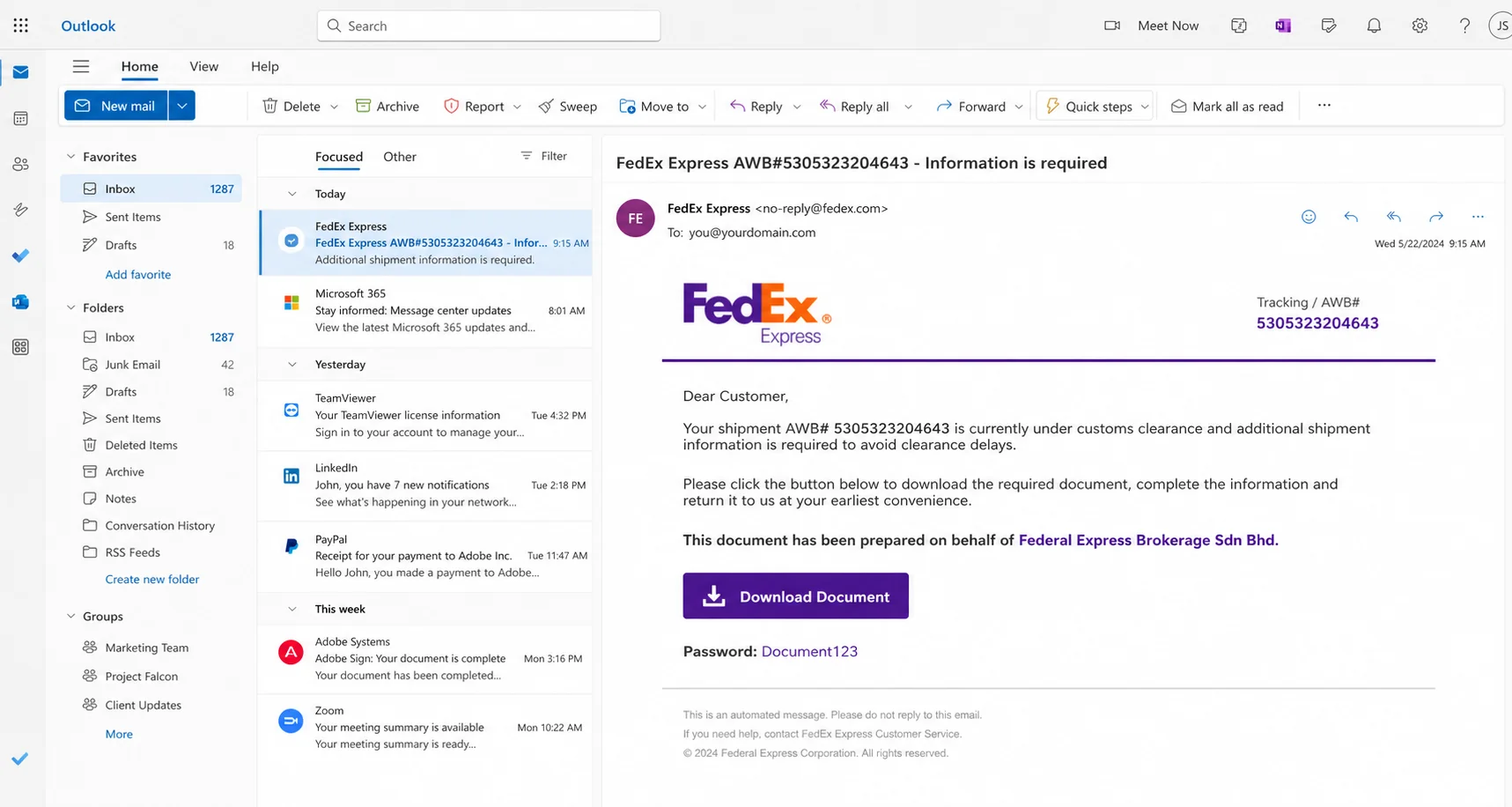
The FedEx shipment tracking number email scam poses as a notice concerning a package allegedly delayed during customs clearance.
An observed subject read “FedEx Express AWB#5305323204643 – Information is required.” AWB refers to an air waybill, a plausible detail in international shipping.
The message says additional information must be supplied to avoid delays. It uses the name Federal Express Brokerage Sdn Bhd, a real FedEx-associated entity in Malaysia.
That real business name is borrowed without authorization. FedEx and its brokerage operation have no connection with the malicious campaign.
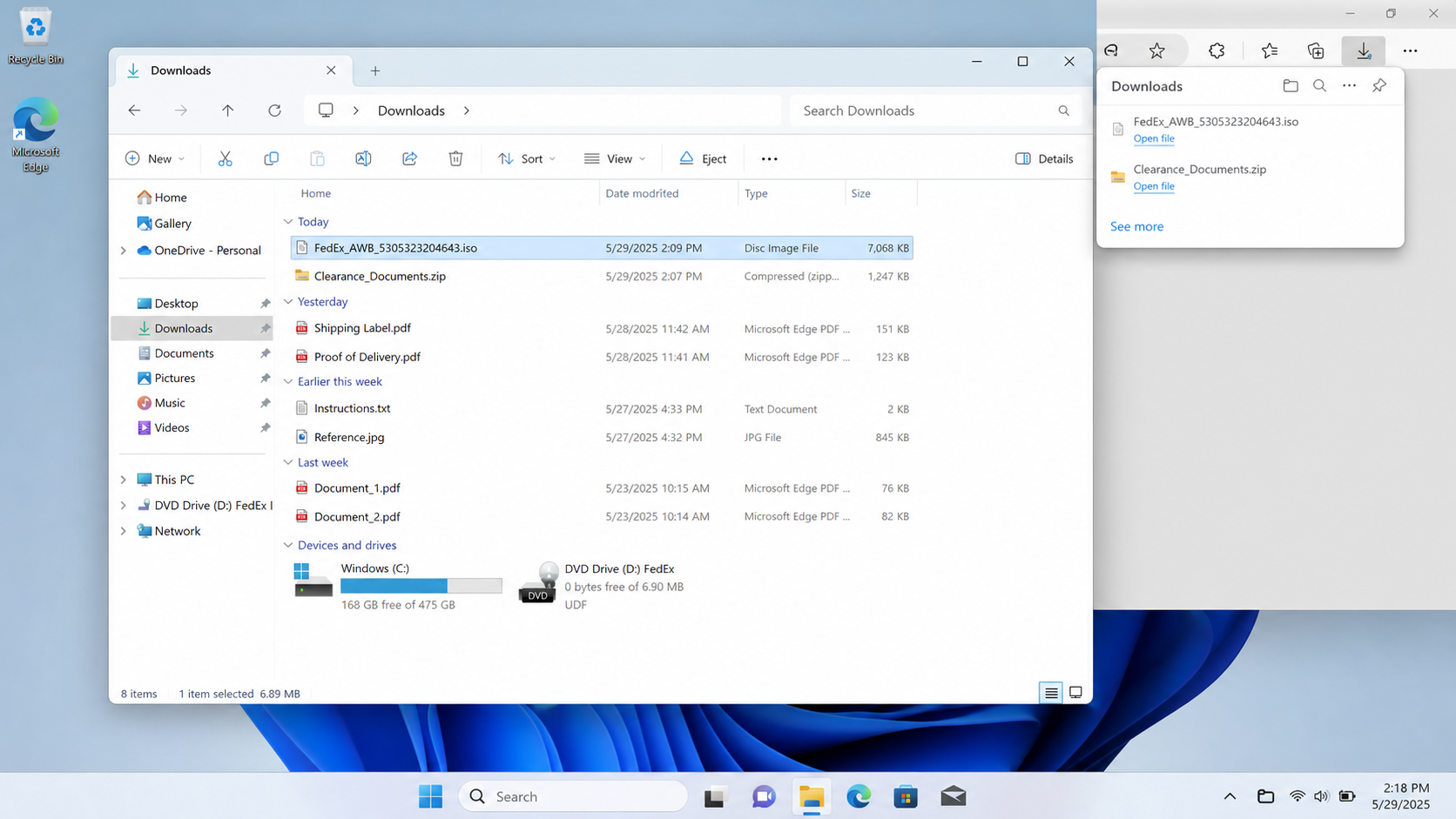
The recipient is directed toward a document download and given the password Document123. The link leads to an ISO disk-image file rather than ordinary customs paperwork.
The exact final malware was not identified in the analyzed campaign. That uncertainty is a reason for caution, not permission to guess a family.
Shipping details make an unfamiliar attachment feel relevant
People order frequently, while companies receive parcels from customers and suppliers. A tracking notice can seem connected with something the recipient forgot or never personally arranged.
Air-waybill numbers are long and difficult to recognize. A random but correctly formatted number often looks more credible than a generic “package pending” message.
Customs also explains why unexpected information might be requested. The criminal uses a real administrative process to justify opening an unusual file.
A password can appear protective, as though the contents are confidential. In malicious mail, password protection may instead hinder automated security scanning.
The safest verification does not begin with the download. It begins by entering the tracking number on the carrier’s known website or contacting the shipper independently.
The file type exposes the message’s real risk
Customs forms commonly arrive as PDFs or through secured carrier portals. An ISO file is a disk image that Windows can mount as a virtual drive.
Mounted images can contain executables, shortcuts, scripts, archives, and decoy documents. Familiar icons may hide dangerous file extensions.
Watch for these warning signs:
- The shipment was not expected or cannot be identified.
- The sender domain differs from official FedEx domains.
- The message supplies an archive password inside the email.
- A customs document downloads as an ISO image.
- The link bypasses the normal tracking portal.
- The email pressures action to prevent an undefined delay.
- The attachment eventually asks to run a program or script.
Reading the message alone does not execute the payload. The danger grows when the ISO is downloaded, mounted, and its contents opened.
A recipient who expected a real package should still verify outside the email. Legitimate timing can make malicious mail more persuasive by coincidence.
If any executable content ran, disconnect the computer and begin incident response. Do not assume deleting the downloaded image reverses completed execution.
How The Scam Works
Step 1: The lure borrows the language of international logistics
The message uses customs, brokerage, clearance, AWB, and shipment terminology. These terms sound specialized and discourage recipients from questioning an unfamiliar process.
A genuine business name increases credibility when searched. Criminals rely on readers finding the company, then overlooking that the sender and download remain unrelated.
The email may include a footer, contact block, confidentiality language, or links copied from legitimate correspondence.
Brand appearance can be stolen in minutes. Authorization must be established through domains, tracking records, and independent contact information.
Some targets are chosen broadly, while business addresses may be selected because shipping documents are routine in purchasing and logistics departments.
Step 2: A tracking number supplies apparent specificity
The subject displays a complete-looking air-waybill number. Specific numbers feel generated by a real system even when they were invented or reused.
Recipients rarely memorize every incoming shipment. An employee may assume a colleague, supplier, or customer arranged the parcel.
The campaign benefits from real deliveries happening every day. Coincidental timing can make the message appear connected with a package currently in transit.
Use the number only through fedex.com or the official application. Never trust a tracking result displayed solely inside the email.
If the official site cannot find the shipment, contact the known sender or procurement team before taking any other action.
Step 3: Customs urgency pushes the document download
The email claims additional information is required to avoid delay. It does not provide enough detail to resolve the issue within the message.
This gap makes the attachment seem necessary. The recipient must supposedly open it to learn which declaration, invoice, or identity record is missing.
The request may appear financially important because storage fees, returned shipments, and missed deliveries are familiar consequences of customs problems.
A real broker can identify the shipper, recipient, origin, contents, case reference, and official contact route without relying on an opaque download.
Call a verified carrier number if necessary. Do not use telephone details added by the suspicious sender.
Step 4: Password protection reduces automated inspection
The message provides “Document123” for opening protected content. Placing the password separately may make the file seem professionally secured.
Email gateways cannot always inspect encrypted archives without the password. Attackers use this limitation to move harmful files past automated filters.
The password is not proof of confidentiality. Anyone receiving the same campaign has the identical key sitting beside the link.
Security staff should receive the original message and password when analyzing the sample. Employees should not unlock it on their workstation.
A protected archive containing an executable is especially suspicious when the claimed purpose is simply viewing shipping information.
Step 5: The browser delivers an ISO disk image
ISO files were designed to represent optical discs. Modern Windows versions can mount them with a double click, creating a new virtual drive.
That behavior makes the contents feel separate from Downloads and sometimes less obviously connected with the email.
Inside, a file may masquerade as a PDF through its icon or filename. Hidden extensions can conceal that it is actually executable or scripted.
Shortcuts can launch commands while opening a decoy document. Archives can add another layer between the initial ISO and the final payload.
Customs paperwork never needs to install software. Stop when a document workflow asks to run, enable, allow, or bypass a warning.
Step 6: Opening the concealed payload starts the infection
The final executable, shortcut, or script runs with the user’s privileges. It may establish persistence, contact remote infrastructure, and retrieve additional malware.
Because the exact payload was undetermined in the analyzed sample, potential consequences should be described broadly and accurately.
Possible outcomes include credential theft, remote access, data collection, ransomware delivery, or use of the device in subsequent attacks.
A decoy shipping document may open simultaneously. Seeing plausible paperwork does not mean nothing else executed behind it.
Endpoint logs and security alerts can reveal process creation, network connections, and new persistence that the user never sees.
Step 7: The compromised device becomes a foothold
Malware can search browsers, email clients, and local files for credentials or sensitive business information.
Business endpoints may expose supplier invoices, customer addresses, shipment schedules, and authentication tokens useful for more convincing fraud.
If remote control is established, the operator can install additional tools or move toward shared network resources.
Attackers may also send new shipping lures from a stolen mailbox. Authentic conversation history makes those follow-up messages more difficult to spot.
Fast reporting lets administrators block indicators and search for other recipients before additional employees open the same package.
Why an ISO Attachment Is Unusual for Shipping Paperwork
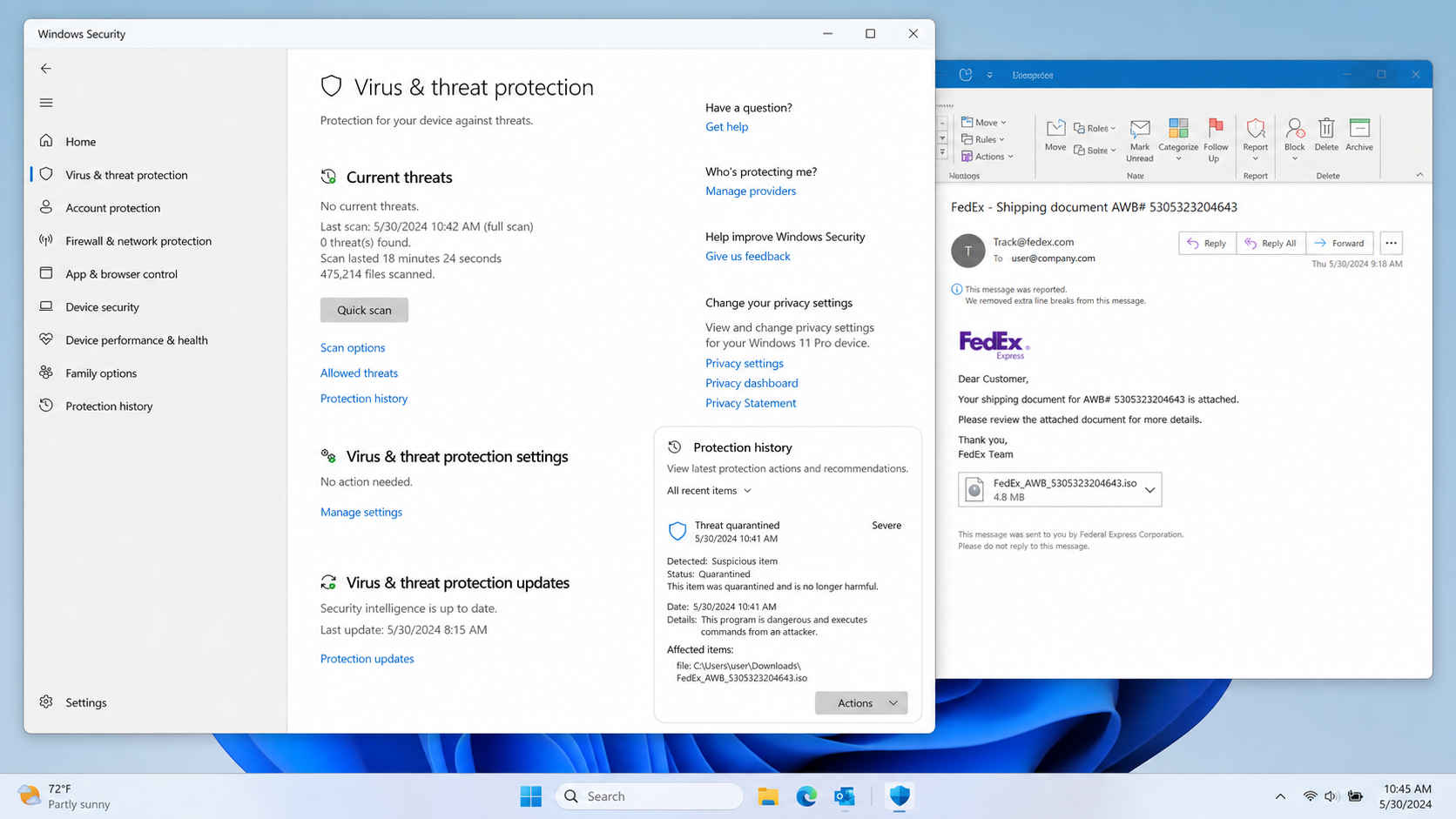
A PDF represents a document. An ISO represents an entire disk, including any combination of programs, scripts, shortcuts, and data files.
That extra capability has no ordinary benefit for a customs declaration, commercial invoice, or airway-bill copy.
Windows may display a mounted image like a DVD drive. The change in location can make users forget that every item came from the untrusted download.
File Explorer sometimes hides known extensions. A file named Invoice.pdf.exe may appear less suspicious when only the first portion is visible.
Enable extension display through File Explorer settings, but do not inspect a dangerous sample by opening it. Security teams should analyze isolated copies.
Archive passwords add another obstacle for scanners. The combination of a password, disk image, and executable content strongly contradicts the stated shipping purpose.
Modern carriers maintain portals where documents can be reviewed after authentication. Begin from the carrier’s known site and locate the shipment there.
When a verified carrier truly needs documentation, its representative can explain the requirement without directing customers through an anonymous file host.
Sender, Shipment, File, and Device Checks
Confirm the sender’s actual infrastructure
Expand the complete From and Reply-To addresses, then compare their domains with official FedEx contact information.
A displayed FedEx label or real brokerage name can be typed by anyone. Authentication results and mail-routing headers provide stronger evidence for administrators.
Do not reply merely to test the sender. Use independently obtained carrier contacts for every question.
Verify the air waybill separately
Type fedex.com yourself or use the official application. Enter the AWB number without following the email’s embedded tracking link.
Confirm the shipper, recipient, origin, destination, and current event. Missing or contradictory records expose the lure quickly.
Businesses should ask purchasing and logistics teams whether anyone expects the parcel before requesting documents from an employee.
Assess the download without opening it
Check the filename, extension, source URL, size, and digital signature. An ISO image is inconsistent with ordinary customs paperwork.
Send the file and provided password to security through the approved reporting channel. Do not upload confidential business samples to public scanners without permission.
If the download never ran, remove it after the security team preserves any needed evidence and block the campaign indicators.
Determine whether execution occurred
Review browser downloads, mounted drives, recent files, process histories, security detections, scheduled tasks, and network connections.
A file can execute even when a decoy PDF appeared normally. Do not rely on visible symptoms as proof that the system is clean.
Credential resets should occur from another trusted device whenever executable content was launched or endpoint trust is uncertain.
What to Do if You Have Fallen Victim to This Scam
- Stop opening the downloaded contents. Close the archive or mounted drive and do not test additional files or passwords.
- Disconnect the computer if anything executed. Remove network access and contact workplace security from a different trusted device.
- Save the original evidence. Preserve the email, headers, link, AWB number, password, filenames, download time, and security alerts.
- Unmout the disk image when instructed. Do not assume unmounting removes malware that already ran or created persistence.
- Run a complete Malwarebytes scan. Use current definitions and follow with the organization’s approved endpoint investigation when the device handles business data.
- Use AdGuard for stronger browsing filters. It may block known malicious hosts, but it cannot neutralize an executable already launched.
- Change potentially exposed credentials. From a clean device, replace passwords used on the affected computer and revoke active sessions.
- Verify the real shipment independently. Contact FedEx or the shipper through official channels to resolve any genuine customs requirement.
- Monitor accounts and payments. Watch email, banking, cloud services, and business systems for unusual logins, rules, resets, or transactions.
- Reimage when full trust cannot be established. Professional rebuilding may be safer than relying on surface cleanup after unknown malware execution.
Is Your Device Infected? Run a Free Malware Scan
Slow performance, constant pop-ups, or strange behavior? These are classic signs of a malware infection. A quick way to check is to scan your device with Malwarebytes Free, one of the most trusted malware removal tools available. If you only visited a scam page and didn’t download or install anything, this scan is optional.
The free version detects and removes the most common threats, including:
- Adware — the cause of those annoying pop-ups
- Browser hijackers — unwanted redirects and changed homepages
- Trojans and spyware — hidden programs stealing your data
- Potentially unwanted programs (PUPs) — software you never asked for
👉 Select your device below — Windows, Mac, or Android — then follow the simple steps to download Malwarebytes, scan your system, and remove any threats it finds. The scan usually takes 5 to 20 minutes.
Run a Malware Scan with Malwarebytes for Windows
Malwarebytes is one of the most popular and trusted anti-malware tools for Windows — and it’s completely free for removing infections. It catches threats that many antivirus programs miss, including adware, browser hijackers, and trojans. Follow the steps below to scan your PC and remove what Malwarebytes finds.
Download Malwarebytes
Click the button below to download the latest version of Malwarebytes for Windows from the official source. The free version is all you need — it will scan your computer and remove adware, browser hijackers, and other malicious software at no cost.
Download MalwarebytesOfficial installer for Windows 11 and 10. Your download starts right away.Want real-time protection? See Malwarebytes Premium Malwarebytes Free for WindowsScans and removes malware at no cost
-
Install Malwarebytes
When the download finishes, open your Downloads folder and double-click the MBSetup file. If Windows shows a User Account Control pop-up, click “Yes” to allow the installation.

Follow the On-Screen Prompts to Install Malwarebytes
The setup wizard will walk you through a few quick screens:
-
Choose where you’re installing the program — “Personal Computer” or “Work Computer” — then click Next.

-
Malwarebytes will now install on your device. This usually takes under a minute.

-
When installation is complete, the “Welcome to Malwarebytes” screen will open automatically.

-
On the final screen, click Open Malwarebytes to launch the program.

-
Optional: Check for rootkits with a Custom Scan
You don’t need to change any settings for a normal scan. The standard Threat Scan in the next step is enough for most problems, so you can go straight to it.
If you also want to check for rootkits, use a Custom Scan. In current versions of Malwarebytes, rootkit scanning is only available there:
- On the Scanner tile, click the three-dot menu and select Advanced Scan.
- Choose Custom Scan. In its options, check Scan for rootkits.
- Select your system drive (usually C:\) as the location to scan, then start the scan. It takes longer than a Threat Scan.
- When it finishes, review and quarantine the results as described in the steps below.
Rootkit scanning isn’t available on Windows devices with ARM processors.
Start the Scan
Click the blue Scan button. Malwarebytes will automatically update its virus database and start checking your computer for malware.

-
Wait for the Scan to Finish
The scan checks your entire system for browser hijackers and other malicious programs, so it can take 5 to 20 minutes depending on your computer. Feel free to do something else — just check back occasionally to see the progress.

-
Quarantine the Detected Threats
When the scan is done, you’ll see a list of everything Malwarebytes found — malware, adware, and potentially unwanted programs. Click the “Quarantine” button to remove all of them at once.

Malwarebytes will now remove the malicious files and registry entries and move them safely into quarantine.

-
Restart Your Computer
Some threats can only be fully removed after a reboot. If Malwarebytes asks you to restart, click Yes. Once you’re logged back in, Malwarebytes has finished removing the threats it found.

When the scan is done, check whether the problems you noticed have stopped. If they continue, see the options below.
If you are still having problems with your computer after completing these instructions, then please follow one of the steps:
- Run a computer scan with ESET Online Scanner
- Ask for help in our Windows Malware Removal Help & Support forum.
Run a Malware Scan with Malwarebytes for Mac
Malwarebytes for Mac is a free on-demand scanner that removes the malware other security software tends to miss — adware, browser hijackers, and unwanted programs included. Cleaning an infected Mac with Malwarebytes has always been completely free, and it’s our go-to recommendation. Follow the steps below to scan your Mac and remove what Malwarebytes finds.
-
Download Malwarebytes for Mac
Click the button below to download the latest version of Malwarebytes for Mac.
Download MalwarebytesOfficial installer for macOS. Your download starts right away.Want real-time protection? See Malwarebytes PremiumMalwarebytes Free for MacScans and removes malware at no cost -
Open the Malwarebytes setup file
When the download finishes, open your Downloads folder and double-click the setup file to begin the installation.

-
Follow the On-Screen Prompts to Install Malwarebytes
The Malwarebytes for Mac Installer will guide you through a few quick screens. Click “Continue” and keep following the prompts until the installation completes.



When the installation is complete, Malwarebytes opens to the Welcome to Malwarebytes screen. Click “Get started“.
Malwarebytes needs Full Disk Access to check your whole Mac. When it asks, open System Settings > Privacy & Security > Full Disk Access, turn on Malwarebytes (it may be listed as Malwarebytes Protection), and confirm with your password or Touch ID. Then return to Malwarebytes. On macOS Monterey and earlier, this setting is in System Preferences > Security & Privacy > Privacy.
-
Select “Personal Computer” or “Work Computer”
Malwarebytes will ask what type of computer you’re installing it on. Click either Personal Computer or Work Computer, whichever applies.

-
Start the Scan
Click the “Scan” button. Malwarebytes will automatically update its detection database and begin checking your Mac for malware.

-
Wait for the Scan to Finish
Malwarebytes will scan your Mac for adware, browser hijackers, and other malicious programs. This can take a few minutes, so feel free to do something else — just check back occasionally to see the progress.

-
Quarantine the Detected Threats
When the scan is done, you’ll see a list of everything Malwarebytes found. Click the “Quarantine” button to remove all the threats at once.

-
Restart Your Mac
Malwarebytes will now remove all the malicious files it found. Some threats can only be fully removed after a reboot — if Malwarebytes asks you to restart, allow it. Once you’re logged back in, check whether the problems you noticed have stopped. If they come back, save the scan report and ask for help in our forum.

If the problems you noticed continue after the scan, see the options below.
If you are still experiencing problems while trying to remove a malicious program from your computer, please ask for help in our Mac Malware Removal Help & Support forum.
Run a Malware Scan with Malwarebytes for Android
Malwarebytes for Android scans your phone or tablet for malware, adware, and potentially unwanted apps. The free version scans only when you start a scan. Real-time protection, which checks apps automatically, is part of the paid Premium version.
-
Download Malwarebytes for Android.
You can download Malwarebytes for Android by clicking the link below.
Get Malwarebytes for AndroidOpens Google Play in a new tab.Want real-time protection? See Malwarebytes Premium for AndroidMalwarebytes for AndroidScans your phone and removes malware at no cost -
Install Malwarebytes for Android on your phone.
In the Google Play Store, tap “Install” to install Malwarebytes for Android on your device.

When the installation process has finished, tap “Open” to begin using Malwarebytes for Android. You can also open Malwarebytes by tapping on its icon in your phone menu or home screen.

-
Follow the on-screen prompts to complete the setup process
When Malwarebytes opens, it walks you through a short setup. Tap Get started and follow the prompts. If you see an offer for a trial or a paid plan, read it before you accept. You can skip it and keep using the free scanner.
Malwarebytes will ask for permission to access the files on your phone so it can scan them. Tap Allow, or turn on the permission in the Android screen that opens, then return to Malwarebytes.
-
Run a scan with Malwarebytes for Android
On the main screen, tap Scan now. In some versions, you open the menu, tap Scanner, and then tap Run a scan.
-
Wait for the Malwarebytes scan to complete.
Malwarebytes will now start scanning your phone for adware and other malicious apps. This process can take a few minutes, so we suggest you do something else and periodically check on the status of the scan to see when it is finished.

-
Remove the detected apps.
When the scan has been completed, you will see a list of the threats that Malwarebytes for Android has detected. Next to each detected item, tap the menu icon (three dots), then choose to uninstall the app or delete the file. Android then asks you to confirm. Tap OK or Uninstall to remove the app.
-
Restart your phone.
When the detected apps are removed, restart your phone if Malwarebytes asks you to. Then check whether the problems you noticed have stopped.
If the problems you noticed continue after the scan, see the options below.
If you are still having problems with your phone after completing these instructions, then please follow one of the steps:
- Ask for help in our Mobile Malware Removal Help & Support forum.
- Only as a last resort, reset your phone to factory settings. Read the warning below first.
- Back up your photos, videos, files, and messages, for example to your Google account or a computer.
- Make sure you know your Google account email and password. The phone asks for them after the reset. If you changed the password recently, Google recommends waiting 24 hours before you reset.
- On a Samsung phone, also make sure you know your Samsung account password.
- If you use an authenticator app for two-step verification, move your accounts to another device or save your backup codes first.
Stay Protected: Block Ads and Malicious Sites
No scan can prove a device is completely clean, so it helps to block threats before they reach you. Most infections start with a malicious ad or a fake download button — so blocking them at the source is your best defense.
We recommend AdGuard, which blocks malicious ads, phishing pages, and dangerous redirects before they can reach you.
👉 Download AdGuard and browse safely
Frequently Asked Questions
Is Federal Express Brokerage Sdn Bhd involved?
No. The campaign misuses the name of a real FedEx-associated organization to make the email sound credible.
Verify all brokerage requests through contact details obtained from official carrier channels.
What does AWB mean in the subject line?
AWB means air waybill, a shipping document and tracking reference used in air freight. The term does not validate the particular email.
Enter the number on the official carrier site and compare the resulting shipment information.
Why does the email include Document123?
The password opens protected content and may prevent some mail scanners from examining the archive automatically.
Sending the key beside the link offers little real confidentiality. It mainly helps the recipient reach the concealed payload.
Is an ISO file itself malware?
An ISO is a legitimate disk-image format, but it can carry malicious executables, scripts, shortcuts, and archives.
Its use for simple customs paperwork is abnormal and should trigger immediate verification.
What if I downloaded the ISO but never opened it?
Do not mount it. Report the message, preserve the file if security requests it, then remove it through the approved process.
Review browser downloads and run a scan if any uncertainty remains about what opened automatically.
Which malware does this email install?
The precise payload in the analyzed campaign was not identified. Naming a family without evidence would create false certainty.
Treat any executed content as potentially serious and let endpoint evidence determine the actual infection chain.
The Bottom Line
The FedEx customs email turns a believable air-waybill problem into a route toward a password-protected ISO image.
Real business names, tracking terminology, and polished branding cannot make an unrelated download safe. Verify the parcel through FedEx’s known services.
Do not mount disk images or run programs to view routine shipping documents. That mismatch is a strong reason to stop.
If content executed, isolate the device, preserve evidence, reset credentials from a clean system, and investigate beyond the original downloaded file.

Join the discussion
0 commentsShare your experience or ask a question about this article.
Discussion
Start the conversation
Have a question or something useful to share? Add the first comment.