

An unexpected customs problem can sound routine when a company regularly receives shipments.
The FedEx e-Order Email Scam abuses that expectation, hiding a potentially dangerous Excel file behind the language of an air waybill, tax receipt, and time-sensitive clearance request.
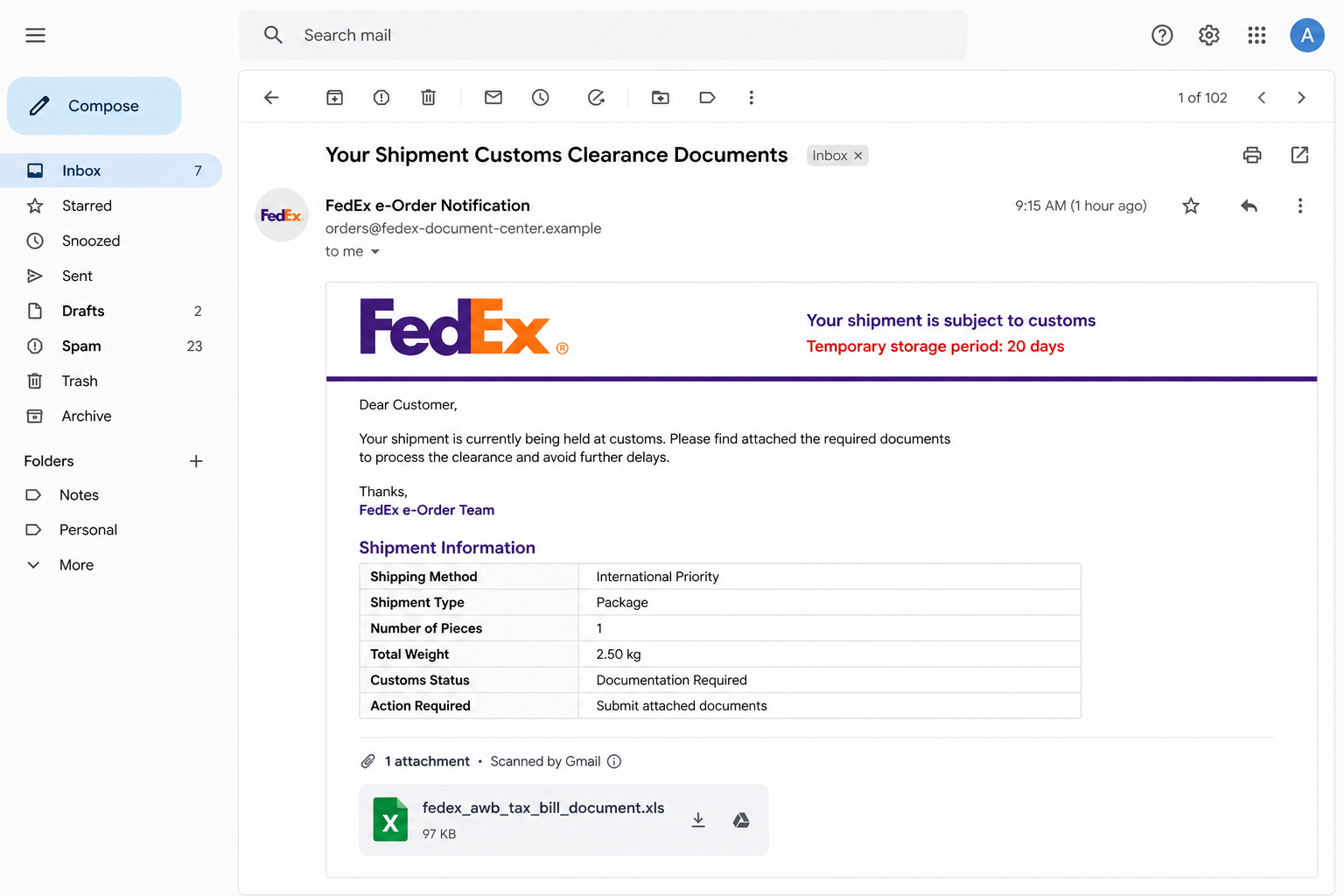
The message says a package needs additional information for customs clearance and may be held in temporary storage for 20 days. It asks the recipient to inspect an attached spreadsheet presented as shipping or payment documentation.
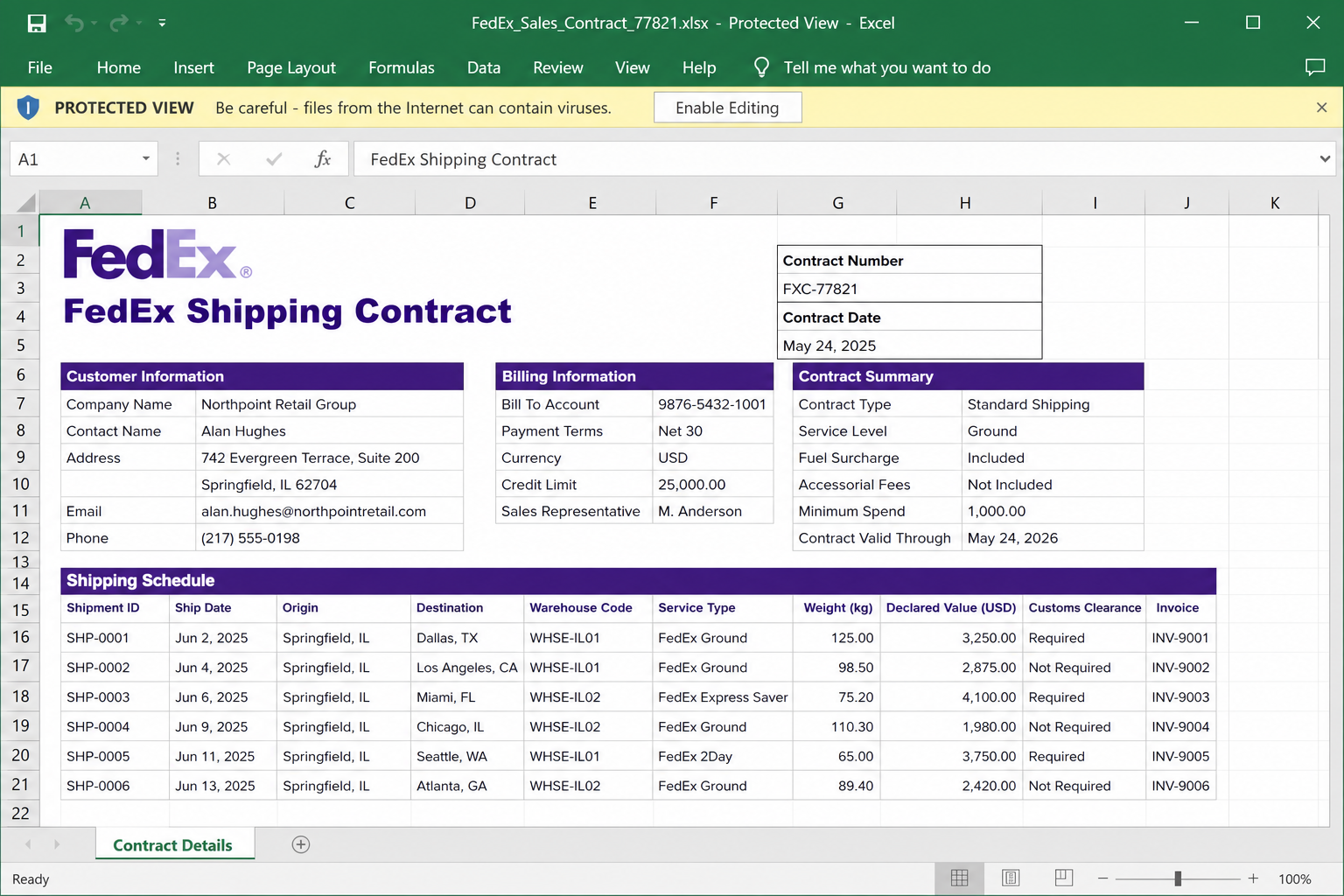
The attachment can open with a realistic contract or logistics document visible behind Microsoft Excel’s Protected View warning.
That polished appearance is bait. The danger begins when the recipient enables editing, enables content, or follows instructions embedded in the workbook.
The exact malware delivered by a campaign can change between messages and was not established from the lure alone.
It could act as a loader for an information stealer, remote-access tool, ransomware, or another payload, so the attachment should be treated as malicious rather than assigned an unsupported family name.
Overview
A Shipping Problem Written for Business Inboxes
The FedEx e-Order Email Scam is crafted to blend into procurement, logistics, accounts-payable, and customer-service mail.
References to an air waybill, bill of lading, tax document, or customs receipt are familiar enough that an employee may open the file before confirming whether the shipment exists.
The message can claim the parcel is waiting for clearance and that information must be supplied within a storage window. This creates operational pressure: the reader imagines delays, fees, missed inventory, or an unhappy customer if the document is ignored.
The Spreadsheet Is the Delivery Mechanism
Unlike a simple credential-phishing link, this campaign uses an attached Excel workbook.
A filename such as fedex_awb_bl_tax_bill_document_receipt_payment_05_25_2026_00000000.xls combines several logistics terms to look like a generated transaction record.
Opening the workbook may not immediately infect the computer because Office can place files from the internet in Protected View.
The scam therefore needs the victim to override that protection, enable active content, interact with an embedded object, or follow another instruction that allows code to run.
One Attachment Can Become a Wider Network Incident
If malicious content executes, the initial program may download additional components, steal browser and email data, capture credentials, establish remote access, or prepare files for encryption.
The final behavior depends on the payload served at that time.
A work computer creates risks beyond one mailbox. Saved passwords, shared drives, cloud sessions, accounting records, and trusted supplier conversations can give an intruder routes to other employees and business partners.
- Impersonated brand: FedEx, with shipping and customs terminology copied into the message.
- False claim: a package requires documentation and can remain in temporary storage for 20 days.
- Dangerous item: an unsolicited legacy .xls workbook disguised as logistics paperwork.
- Activation attempt: instructions to enable editing, enable content, or otherwise leave Protected View.
- Potential impact: credential theft, remote access, follow-on malware, ransomware, and business-email compromise.
Why the FedEx Customs Spreadsheet Should Not Be Trusted
An Unsolicited Attachment Is Not Shipment Verification
A logo, tracking vocabulary, and professional signature can be copied into any email. The message must be matched to a shipment initiated by the recipient or organization before its file is considered relevant.
FedEx warns that fraudulent messages may use attachments and shipping claims. A real tracking number can be checked by opening fedex.com independently, without downloading a document or using contact details supplied by the sender.
Protected View Is a Security Boundary, Not an Error
Microsoft Office uses Protected View to restrict files obtained from potentially unsafe locations. A banner asking the user to remain protected is not preventing normal reading by accident; it is reducing what the workbook can do to the device.
Scam documents often place a blurred page, fake contract, or instruction behind the banner so the victim believes enabling editing is required to reveal the content. That instruction comes from the attacker, not from FedEx or Microsoft.
The Payload Cannot Be Identified From the Brand Alone
Calling every malicious spreadsheet ransomware or a specific stealer would overstate the available evidence.
Campaign operators can replace the downloaded payload, use different attachments for different targets, or shut down one server and activate another.
The correct conclusion is that the file is a malware delivery attempt with an unknown final payload.
Incident response should therefore look for execution, persistence, credential access, network connections, and additional downloads rather than assuming only one behavior.
How the FedEx e-Order Email Scam Works
Step 1: The Attacker Sends a Fake e-Order Notice
The email arrives with a subject related to an e-order, shipment, customs clearance, or missing information. FedEx branding is used because recipients already associate the company with automated delivery messages.
High-volume campaigns send the same template widely, while targeted versions may use a real employee name or public company details. Neither personalization nor a recognizable logo proves that FedEx sent the message.
Step 2: A Customs Delay Creates Business Pressure
The body claims that documents are required before the parcel can clear customs. A 20-day temporary-storage period sounds procedural and gives the warning a deadline without making it look like an obvious last-minute threat.
The reader may be asked to reply, review a tax bill, confirm payment, or provide shipment information. In a busy office, the possibility that another department placed the order can stop the recipient from dismissing it immediately.
Step 3: A Long Filename Makes the Attachment Look Administrative
The attached .xls file combines terms such as AWB, BL, tax bill, document receipt, payment, a date, and a serial number. This resembles the naming style of an exported enterprise record.
A long filename is not evidence of origin. The legacy .xls format can contain active components and is frequently abused because users still expect spreadsheets in finance and logistics workflows.
Step 4: The Workbook Opens in Protected View
Excel may display the file with editing disabled. A realistic shipping agreement, table, stamp, or contract can be visible in the background, reassuring the victim that the attachment contains the promised paperwork.
At this stage, the safest action is to close the workbook. The protective banner should not be bypassed merely because the document claims it cannot display correctly.
Step 5: Social Engineering Asks the User to Enable Content
The workbook can tell the reader to click Enable Editing, Enable Content, update links, or interact with an embedded element. The stated reason may be document compatibility, secure preview, or protected company data.
That click can allow macros, formulas, embedded objects, exploits, or another execution path to run. Exact techniques vary, but the shared objective is to turn a passive attachment into active code.
Step 6: The Initial Code Retrieves or Launches Malware
Once permitted to run, the workbook can start a script, launch a built-in system tool, unpack hidden content, or contact a remote server. An early component may exist only to fingerprint the device and fetch the current payload.
Security products or a disconnected command server can interrupt the chain, but the absence of an immediate pop-up is not proof of safety. Malware often operates quietly and delays visible behavior.
Step 7: The Intruder Expands Access and Monetizes the Infection
A successful payload may steal browser cookies and passwords, capture email sessions, establish remote control, search shared storage, or deliver ransomware later.
Stolen business mail can also be used to replace invoice details or send the same attachment to trusted contacts.
Criminals may sell initial access to another group, so the later incident can look unrelated to the FedEx email. Preserving the message and workbook helps responders connect the first execution event to subsequent activity.
Company, Address, and Fulfillment Checks
FedEx Identity: Start From the Official Site
Open fedex.com manually or use the official app. Do not rely on an email logo, reply address, or embedded tracking button. FedEx states that it does not send unsolicited requests for sensitive information through insecure channels.
Sender and Domain: Inspect More Than the Display Name
Expand the From and Reply-To fields and review the domain. A sender can display FedEx while using an unrelated mailbox.
Authentication results in the full headers can help an administrator assess spoofing, but recipients should still verify the shipment independently.
Shipment Trace: Match a Known Tracking Number
Ask whether anyone in the organization expects the parcel, then enter the tracking number on the official FedEx site. Confirm sender, destination, and status through known records. A vague customs claim with no matching shipment should be isolated.
File Trace: Preserve It Without Opening It Again
If the attachment reached a work environment, send the original message to the security team using the approved reporting method. Do not forward the live file casually. Responders can hash, detonate, and inspect it in controlled systems without exposing another user.
Warning Signs in a FedEx e-Order Email
Shipping malspam works because many legitimate notifications are automated. The differences appear when the attachment and shipment are checked as evidence rather than accepted as routine.
- No employee or household member can identify the shipment described in the message.
- The sender or Reply-To domain is unrelated to FedEx.
- The email attaches a legacy .xls file instead of directing the recipient to a known account.
- The filename combines many shipping, tax, and payment terms to appear system-generated.
- The workbook opens in Protected View and asks the user to enable editing or content.
- The message creates customs pressure but provides no independently verifiable tracking history.
- The attachment tries to run code, open a command prompt, contact a domain, or install software.
- A reply is requested at an unrelated address or with information FedEx should already possess.
The decisive warning is not a spelling mistake. It is the request to turn an unsolicited spreadsheet into active content before the shipment has been verified through FedEx’s real systems.
What to Do if You Have Fallen Victim to This Scam
If the workbook was opened or content was enabled, treat the event as a possible malware incident. Quick isolation and accurate details are more useful than guessing which malware family may be involved.
- Disconnect the affected computer from networks. Turn off Wi-Fi and unplug Ethernet without powering the machine down unless the security team instructs otherwise. Isolation can interrupt data theft and movement to shared systems.
- Tell the organization’s security team immediately. Provide the time the file opened, every button clicked, the filename, and any unusual screen or login prompt. Do not hide that content was enabled; timing directly affects containment.
- Do not reopen, rename, or forward the attachment. Preserve the original email and file in place for trained responders. Sending the live workbook to coworkers can create additional infections.
- Run a full Malwarebytes scan on a personal device. Update Malwarebytes first if it is safe to reconnect under guidance, scan all drives, quarantine detections, and keep the report. Business devices should follow the company’s response tooling and policies.
- Use AdGuard as a preventive web layer. AdGuard may block known command servers, malicious redirects, and scam pages, but it cannot make an already executed attachment safe or replace endpoint investigation.
- Change exposed credentials from a clean device. Prioritize email, VPN, Microsoft 365, Google Workspace, banking, cloud storage, and password managers. Revoke active sessions and tokens, not only the passwords.
- Inspect mailbox and business-account persistence. Remove unknown forwarding rules, delegates, OAuth applications, recovery methods, and newly registered multifactor devices. Review Sent Items for messages the attacker may have distributed.
- Check financial and shipping workflows. Alert accounts payable, procurement, and logistics to verify payment changes, new bank details, customs requests, and unusual FedEx messages through known contacts.
- Monitor the environment after the first cleanup. Look for new programs, scheduled tasks, browser extensions, remote-access tools, encryption, unusual outbound traffic, and sign-ins. Some payloads delay activity or return after a partial removal.
- Report the impersonation through official channels. Suspicious FedEx messages can be forwarded to abuse@fedex.com. Preserve headers and case details, and involve law enforcement or cyber-insurance contacts if data, funds, or business operations were affected.
Frequently Asked Questions
Is the FedEx e-Order email genuine?
The campaign described here is not connected to FedEx. Verify any real shipment by entering its tracking number on fedex.com or by contacting a known FedEx representative.
Does opening the Excel file automatically install malware?
Not in every case. Protected View can restrict active content, but risk increases if editing, macros, links, embedded objects, or other instructions are enabled. Close the file and report it.
What malware does the spreadsheet install?
The final payload was not established from the lure alone and can change. Treat it as an unknown malware-delivery chain and investigate broadly rather than assuming one named family.
Why does the attachment show a realistic contract?
Attackers use a visible document as social proof and as a reason to override Protected View. A professional-looking background does not authenticate the code or sender.
What if I opened it but did not enable anything?
Close it, preserve the email, and scan the device. Tell the security team in a work environment because alternate execution methods and software vulnerabilities must be considered.
Where can I report the fake FedEx message?
Forward suspicious FedEx impersonation email to abuse@fedex.com and use the organization’s internal phishing-reporting process. Avoid forwarding the attachment to ordinary recipients.
The Bottom Line
The FedEx e-Order Email Scam uses a believable customs delay to make a dangerous spreadsheet feel like routine paperwork.
The 20-day storage story, administrative filename, and visible contract are all designed to persuade the recipient to override Excel’s protections.
Verify the shipment through fedex.com and never enable active content in an unsolicited workbook. If the file ran, isolate the device, report it, and secure credentials from a clean system.

Join the discussion
0 commentsShare your experience or ask a question about this article.
Discussion
Start the conversation
Have a question or something useful to share? Add the first comment.