


An email claims a stranger has filmed your most private moments. The subject line sounds ominous, and the countdown begins before you can think.
It is written to trigger shame, secrecy, and panic. Take a breath before deciding whether any part of its frightening story deserves belief.
Overview
The message tells a rehearsed hacking story
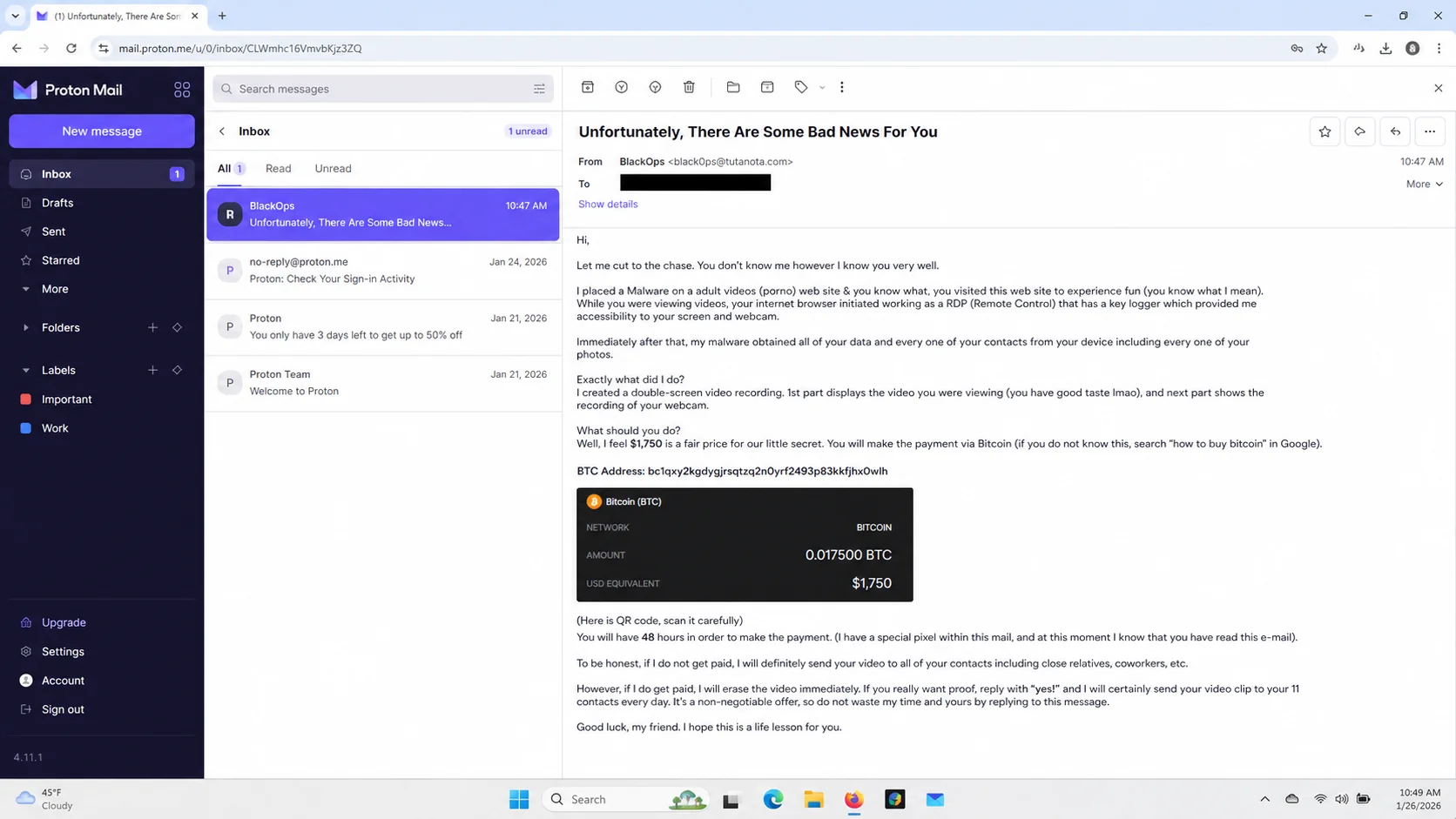
The “Unfortunately, There Are Some Bad News For You” email is a sextortion scam sent to large numbers of unrelated recipients.
Its writer claims malware secretly entered the device after the recipient visited an adult website. The supposed infection allegedly provided camera, screen, and contact access.
The criminal then says two videos were combined. One supposedly shows private browsing, while another supposedly captures the recipient through the webcam.
No recording, screenshot, filename, timestamp, or verifiable sample accompanies the allegation. The sender substitutes an intimidating technical narrative for evidence.
The analyzed version demanded $1,750 in Bitcoin. It allowed two days before the invented recording would supposedly be distributed to relatives, coworkers, and friends.
That payment demand reveals the real purpose. The email is not a security notice, and paying cannot confirm that any promised deletion occurred.
The language is engineered to isolate the recipient
Sextortion messages exploit embarrassment because embarrassed people often act privately. The sender explicitly discourages replies, police reports, and conversations with anyone who might challenge the story.
A short deadline creates a second pressure point. It makes checking the device, asking for advice, or examining email headers feel dangerously slow.
The message may claim a tracking pixel proves it was opened. That statement is intended to make an arbitrary countdown feel personalized and technically enforced.
Some campaigns include an old password gathered from a previous data breach. Seeing a familiar credential can be disturbing, but it does not prove current device access.
A breached password proves only that the value circulated somewhere. It cannot demonstrate webcam control, screen recording, or possession of the recipient’s contacts.
The absence of evidence matters more than the confident tone
Real intruders who possessed a damaging recording could show a safe, verifiable detail. Mass extortion campaigns avoid specifics because the same script targets thousands.
Common warning signs include:
- A vague greeting that never names a real device.
- Claims about spyware without an alert, log, or file.
- A dramatic webcam story supported by no sample.
- A demand for irreversible cryptocurrency.
- A deadline measured from the moment of reading.
- Instructions to keep the message secret.
- Threats against contacts the sender never identifies.
Receiving this email does not establish that the computer is infected. Most recipients were selected because an email address appeared in a list.
Opening plain email text normally does not grant camera access. Risk increases if the recipient downloaded a file, followed a link, or installed software.
The sensible response begins with evidence, not humiliation. Preserve the message, inspect the account independently, and refuse to fund the threat.
How The Scam Works
Step 1: Criminals obtain a list of reachable addresses
The operation begins with email addresses collected from breaches, public websites, marketing databases, scraped profiles, or earlier phishing campaigns.
These lists may include names, employers, telephone numbers, and historical passwords. Each extra field lets the sender make an automated message appear less random.
Nothing requires the attacker to visit the recipient’s computer. Sending the same allegation to millions of addresses is cheap and easily automated.
A tiny response rate can still produce revenue because cryptocurrency transfers are difficult to reverse. The campaign depends on scale rather than technical proof.
Addresses connected with workplaces may receive more aggressive wording. The possibility of professional embarrassment makes coworkers especially useful in the threat.
Step 2: The email invents an invisible compromise
The writer describes malware that supposedly operated for months without detection. That vagueness lets the story cover almost any computer, browser, or operating system.
Technical terms such as remote access, keylogger, webcam control, and stolen contacts create authority. They are assertions, not diagnostic results.
The story often begins with an adult website because the sender expects shame to overpower normal skepticism. No actual browsing history is provided.
By claiming complete access, the criminal also explains away questions. Any security measure can supposedly be defeated by the imaginary all-powerful infection.
Real compromise investigations rely on indicators, affected devices, times, accounts, and artifacts. The email supplies none of those independently checkable details.
Step 3: A fictional video becomes the emotional weapon
The message claims the webcam captured the recipient while the screen displayed adult material. It describes a split-screen recording designed for maximum humiliation.
That precise image is memorable even without proof. The recipient may begin visualizing consequences before asking whether the recording exists.
Contacts are mentioned broadly because family and colleagues represent different fears. The sender rarely names even one person from the alleged stolen address book.
Some versions offer to send proof only after a reply. Responding confirms the mailbox is monitored and invites more targeted manipulation.
Do not request a sample. Preserve distance from the sender and move verification toward trusted people, account portals, and local security tools.
Step 4: A countdown compresses the decision
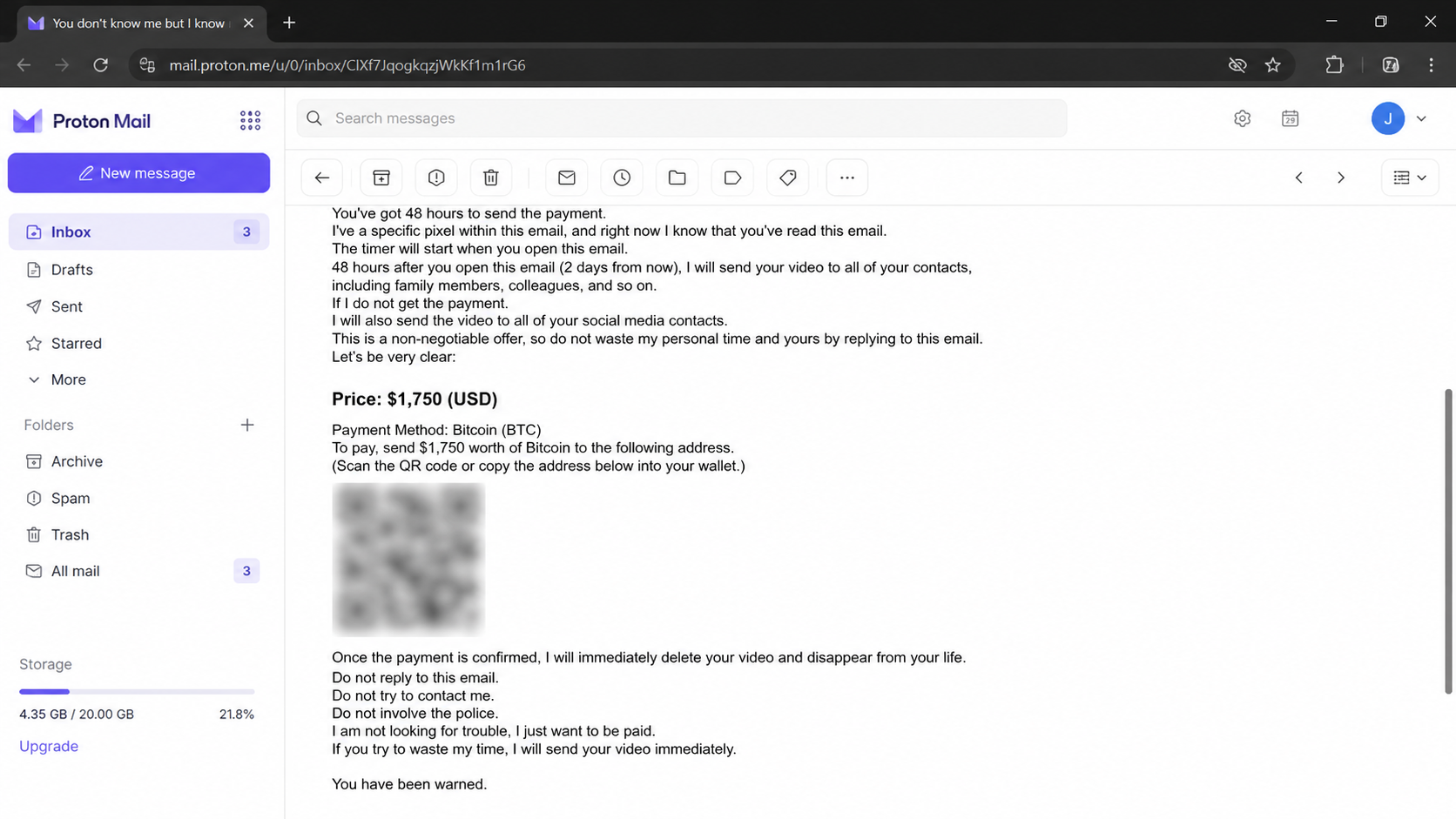
The attacker announces 48 hours or two days, often claiming a pixel started the timer when the message opened.
Email tracking pixels can reveal limited opening information when images load. They cannot create a magical payment deadline or prove control of a device.
The countdown discourages sleep, reflection, and outside advice. It also attempts to prevent the recipient from researching identical messages received by other people.
Urgency is especially effective late at night, when support contacts may be unavailable. The campaign does not need a real timer to exploit that moment.
No consequence automatically occurs when the stated period ends. The deadline exists inside the threat and has no independent enforcement mechanism.
Step 5: Bitcoin is presented as the only escape
The message gives a cryptocurrency amount, wallet destination, and instructions for obtaining Bitcoin. The analyzed lure requested $1,750.
Cryptocurrency suits extortion because transfers usually cannot be canceled through a bank. Wallet movement can be observed, but recovering funds remains difficult.
The sender promises to erase the video after payment. There is no contract, identity, or technical mechanism capable of enforcing that promise.
Paying may identify the victim as responsive. A criminal can demand more money, invent another copy, or sell the target’s details to another extortionist.
Never negotiate from the assumption that payment ends the matter. The safest financial action is to send nothing and contact the exchange if a transfer already occurred.
Step 6: Silence is framed as dangerous
The email orders the recipient not to contact police, security specialists, or other people. Isolation protects the lie from basic scrutiny.
It may also warn against changing passwords or resetting the device. Those instructions imitate an attacker monitoring every response, although no evidence supports that surveillance.
Criminals benefit when victims hide the message. A trusted friend can immediately recognize the familiar template and reduce its emotional power.
Workplace recipients should involve security staff without describing unnecessary personal details. The team needs headers, links, attachments, and account activity, not a defense of private browsing.
There is no shame in receiving a mass email. Responsibility belongs entirely to the person making the threat.
Step 7: The campaign waits for frightened recipients
Most messages receive no response. Operators monitor wallets and mailboxes for the smaller group who reply, ask questions, or make payments.
A reply can produce follow-up pressure tailored to the victim’s wording. The criminal may reduce the amount or extend the deadline to keep engagement alive.
Payments reveal which address produced money when unique wallet instructions are used. That can lead to repeated extortion attempts under different stories.
Meanwhile, identical scripts continue circulating with new sender names and cryptocurrency addresses. Blocking one mailbox does not dismantle the broader operation.
Reporting helps providers recognize the pattern. It also preserves evidence if the threats become persistent or include real personal information.
Does the Sender Really Have a Video?
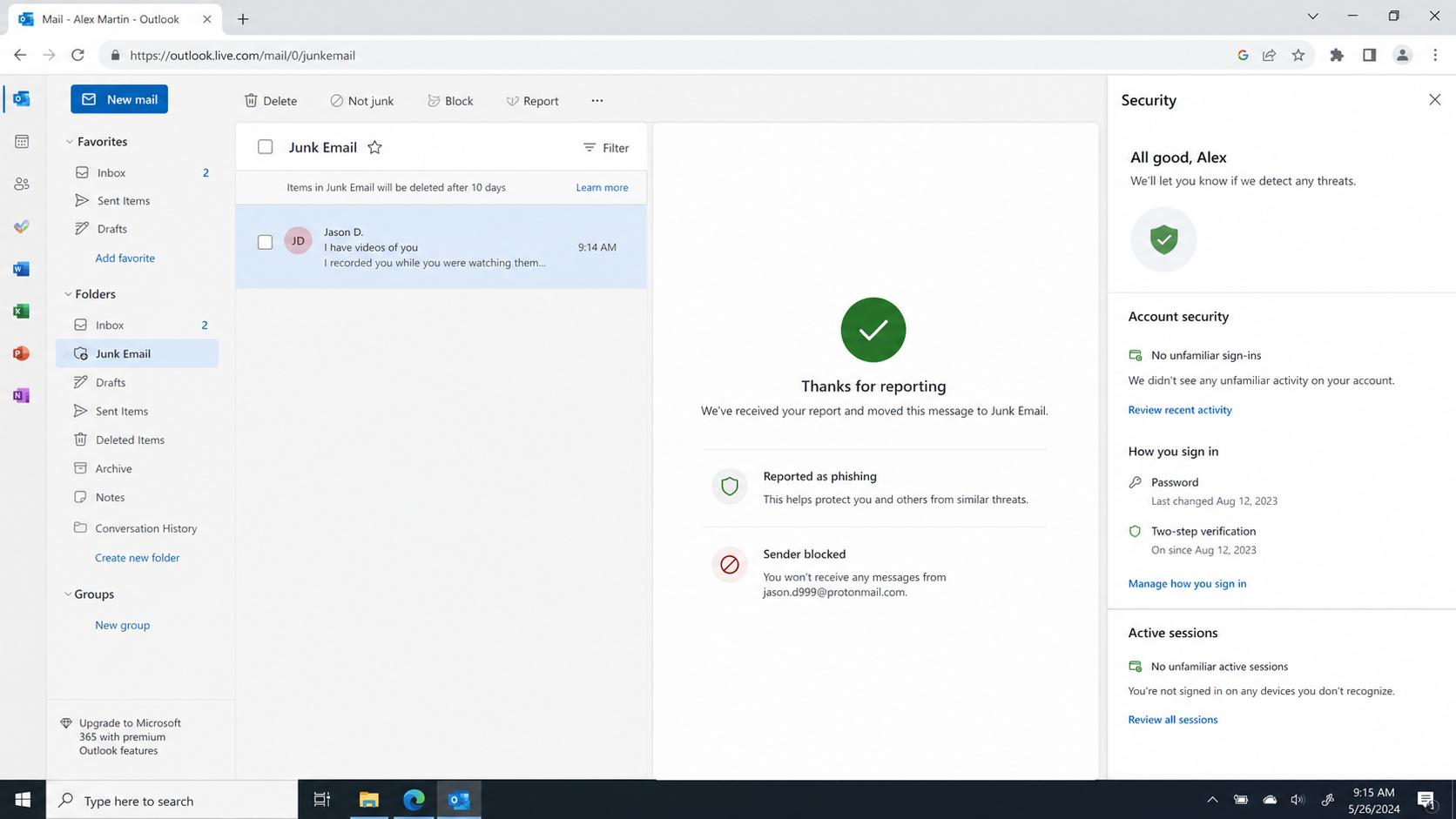
In this campaign, the sender provides no verifiable proof. A confident description cannot substitute for a sample, device identifier, or genuine private detail.
Mass sextortion scripts are deliberately broad. They describe common behavior and rely on recipients connecting the accusation with their own private concerns.
Check whether the message identifies a camera model, recording time, operating system, contact name, or file. Usually it identifies none.
An old password deserves action, but for a different reason. Change it anywhere still used because a historical breach may enable credential stuffing.
Review recent sign-ins and security alerts directly through the email provider. Unfamiliar sessions require account recovery, regardless of whether the video story is false.
If a real image or personal detail appears, treat the incident more seriously. Preserve evidence, avoid negotiation, and contact law enforcement or a qualified local support organization.
Minors should immediately involve a trusted adult. They should never pay, send additional images, or continue a private conversation with the extortionist.
Adults also benefit from support. Panic narrows judgment, while another person can document the message and separate provable facts from scripted pressure.
Sender, Evidence, Device, and Payment Checks
Examine the claim for facts that can be tested
List every concrete assertion in the message. Separate specific evidence from generic statements that could apply to nearly anyone.
A claim that “your contacts” were copied is not specific. A named contact, dated screenshot, or unique device detail would be different evidence.
Do not click links while examining the email. Save full headers and screenshots through the mail provider’s built-in reporting tools.
Review the mailbox through its official portal
Open the provider from a trusted bookmark or typed address. Inspect recent logins, forwarding rules, recovery methods, and connected applications.
Absence of unfamiliar activity supports the mass-mail explanation. Suspicious activity still needs remediation, even when it does not validate the webcam story.
Enable multifactor authentication and replace reused passwords. These actions address genuine account risk without rewarding an unsupported threat.
Check the device without following the sender’s script
Update the operating system, browser, and security software. Run a full scan if any attachment, program, or browser extension was installed recently.
Review camera permissions and installed applications. A hardware camera indicator, unexplained software, or unusual network activity deserves professional investigation.
Do not wipe the computer solely because an email says malware exists. Preserve evidence first if there are actual compromise indicators.
Treat the cryptocurrency demand as financial evidence
Record the wallet string without sending funds. Investigators and exchanges may use it to connect related complaints and follow transaction movement.
A wallet receiving payments does not prove the accompanying story. It only shows that someone created a destination for the extortion campaign.
If money was sent, contact the purchasing exchange immediately. Provide transaction identification, wallet details, timestamps, and the original threat.
What to Do if You Have Fallen Victim to This Scam
- Stop communicating with the sender. Do not bargain, request proof, or reveal which parts of the story frightened you.
- Do not send additional Bitcoin. A payment cannot force deletion and may encourage the operator to increase the demand.
- Preserve the complete message. Save headers, screenshots, sender addresses, wallet details, timestamps, and any replies before blocking the account.
- Report the email through your provider. Use its phishing or abuse control so technical indicators can help protect other recipients.
- Change exposed passwords. Replace any password quoted in the email everywhere it remains active, using unique credentials for each service.
- Review account sessions. Check email, social media, cloud storage, and financial services for unfamiliar logins, forwarding, recovery changes, or connected applications.
- Run a Malwarebytes scan. Scan the device if you opened an attachment, installed software, followed redirects, or noticed unusual behavior.
- Use AdGuard for added web protection. Filtering can block known malicious destinations, although it cannot erase an email or reverse a transfer.
- Contact the payment provider quickly. If Bitcoin was purchased or transferred, give the exchange the transaction record and request an urgent fraud review.
- Seek human support. Tell a trusted person and report credible threats to local law enforcement, especially when real images or personal details appear.
Is Your Device Infected? Run a Free Malware Scan
Slow performance, constant pop-ups, or strange behavior? These are classic signs of a malware infection. A quick way to check is to scan your device with Malwarebytes Free, one of the most trusted malware removal tools available. If you only visited a scam page and didn’t download or install anything, this scan is optional.
The free version detects and removes the most common threats, including:
- Adware — the cause of those annoying pop-ups
- Browser hijackers — unwanted redirects and changed homepages
- Trojans and spyware — hidden programs stealing your data
- Potentially unwanted programs (PUPs) — software you never asked for
👉 Select your device below — Windows, Mac, or Android — then follow the simple steps to download Malwarebytes, scan your system, and remove any threats it finds. The scan usually takes 5 to 20 minutes.
Run a Malware Scan with Malwarebytes for Windows
Malwarebytes is one of the most popular and trusted anti-malware tools for Windows — and it’s completely free for removing infections. It catches threats that many antivirus programs miss, including adware, browser hijackers, and trojans. Follow the steps below to scan your PC and remove what Malwarebytes finds.
Download Malwarebytes
Click the button below to download the latest version of Malwarebytes for Windows from the official source. The free version is all you need — it will scan your computer and remove adware, browser hijackers, and other malicious software at no cost.
Download MalwarebytesOfficial installer for Windows 11 and 10. Your download starts right away.Want real-time protection? See Malwarebytes Premium Malwarebytes Free for WindowsScans and removes malware at no cost
-
Install Malwarebytes
When the download finishes, open your Downloads folder and double-click the MBSetup file. If Windows shows a User Account Control pop-up, click “Yes” to allow the installation.

Follow the On-Screen Prompts to Install Malwarebytes
The setup wizard will walk you through a few quick screens:
-
Choose where you’re installing the program — “Personal Computer” or “Work Computer” — then click Next.

-
Malwarebytes will now install on your device. This usually takes under a minute.

-
When installation is complete, the “Welcome to Malwarebytes” screen will open automatically.

-
On the final screen, click Open Malwarebytes to launch the program.

-
Optional: Check for rootkits with a Custom Scan
You don’t need to change any settings for a normal scan. The standard Threat Scan in the next step is enough for most problems, so you can go straight to it.
If you also want to check for rootkits, use a Custom Scan. In current versions of Malwarebytes, rootkit scanning is only available there:
- On the Scanner tile, click the three-dot menu and select Advanced Scan.
- Choose Custom Scan. In its options, check Scan for rootkits.
- Select your system drive (usually C:\) as the location to scan, then start the scan. It takes longer than a Threat Scan.
- When it finishes, review and quarantine the results as described in the steps below.
Rootkit scanning isn’t available on Windows devices with ARM processors.
Start the Scan
Click the blue Scan button. Malwarebytes will automatically update its virus database and start checking your computer for malware.

-
Wait for the Scan to Finish
The scan checks your entire system for browser hijackers and other malicious programs, so it can take 5 to 20 minutes depending on your computer. Feel free to do something else — just check back occasionally to see the progress.

-
Quarantine the Detected Threats
When the scan is done, you’ll see a list of everything Malwarebytes found — malware, adware, and potentially unwanted programs. Click the “Quarantine” button to remove all of them at once.

Malwarebytes will now remove the malicious files and registry entries and move them safely into quarantine.

-
Restart Your Computer
Some threats can only be fully removed after a reboot. If Malwarebytes asks you to restart, click Yes. Once you’re logged back in, Malwarebytes has finished removing the threats it found.

When the scan is done, check whether the problems you noticed have stopped. If they continue, see the options below.
If you are still having problems with your computer after completing these instructions, then please follow one of the steps:
- Run a computer scan with ESET Online Scanner
- Ask for help in our Windows Malware Removal Help & Support forum.
Run a Malware Scan with Malwarebytes for Mac
Malwarebytes for Mac is a free on-demand scanner that removes the malware other security software tends to miss — adware, browser hijackers, and unwanted programs included. Cleaning an infected Mac with Malwarebytes has always been completely free, and it’s our go-to recommendation. Follow the steps below to scan your Mac and remove what Malwarebytes finds.
-
Download Malwarebytes for Mac
Click the button below to download the latest version of Malwarebytes for Mac.
Download MalwarebytesOfficial installer for macOS. Your download starts right away.Want real-time protection? See Malwarebytes PremiumMalwarebytes Free for MacScans and removes malware at no cost -
Open the Malwarebytes setup file
When the download finishes, open your Downloads folder and double-click the setup file to begin the installation.

-
Follow the On-Screen Prompts to Install Malwarebytes
The Malwarebytes for Mac Installer will guide you through a few quick screens. Click “Continue” and keep following the prompts until the installation completes.



When the installation is complete, Malwarebytes opens to the Welcome to Malwarebytes screen. Click “Get started“.
Malwarebytes needs Full Disk Access to check your whole Mac. When it asks, open System Settings > Privacy & Security > Full Disk Access, turn on Malwarebytes (it may be listed as Malwarebytes Protection), and confirm with your password or Touch ID. Then return to Malwarebytes. On macOS Monterey and earlier, this setting is in System Preferences > Security & Privacy > Privacy.
-
Select “Personal Computer” or “Work Computer”
Malwarebytes will ask what type of computer you’re installing it on. Click either Personal Computer or Work Computer, whichever applies.

-
Start the Scan
Click the “Scan” button. Malwarebytes will automatically update its detection database and begin checking your Mac for malware.

-
Wait for the Scan to Finish
Malwarebytes will scan your Mac for adware, browser hijackers, and other malicious programs. This can take a few minutes, so feel free to do something else — just check back occasionally to see the progress.

-
Quarantine the Detected Threats
When the scan is done, you’ll see a list of everything Malwarebytes found. Click the “Quarantine” button to remove all the threats at once.

-
Restart Your Mac
Malwarebytes will now remove all the malicious files it found. Some threats can only be fully removed after a reboot — if Malwarebytes asks you to restart, allow it. Once you’re logged back in, check whether the problems you noticed have stopped. If they come back, save the scan report and ask for help in our forum.

If the problems you noticed continue after the scan, see the options below.
If you are still experiencing problems while trying to remove a malicious program from your computer, please ask for help in our Mac Malware Removal Help & Support forum.
Run a Malware Scan with Malwarebytes for Android
Malwarebytes for Android scans your phone or tablet for malware, adware, and potentially unwanted apps. The free version scans only when you start a scan. Real-time protection, which checks apps automatically, is part of the paid Premium version.
-
Download Malwarebytes for Android.
You can download Malwarebytes for Android by clicking the link below.
Get Malwarebytes for AndroidOpens Google Play in a new tab.Want real-time protection? See Malwarebytes Premium for AndroidMalwarebytes for AndroidScans your phone and removes malware at no cost -
Install Malwarebytes for Android on your phone.
In the Google Play Store, tap “Install” to install Malwarebytes for Android on your device.

When the installation process has finished, tap “Open” to begin using Malwarebytes for Android. You can also open Malwarebytes by tapping on its icon in your phone menu or home screen.

-
Follow the on-screen prompts to complete the setup process
When Malwarebytes opens, it walks you through a short setup. Tap Get started and follow the prompts. If you see an offer for a trial or a paid plan, read it before you accept. You can skip it and keep using the free scanner.
Malwarebytes will ask for permission to access the files on your phone so it can scan them. Tap Allow, or turn on the permission in the Android screen that opens, then return to Malwarebytes.
-
Run a scan with Malwarebytes for Android
On the main screen, tap Scan now. In some versions, you open the menu, tap Scanner, and then tap Run a scan.
-
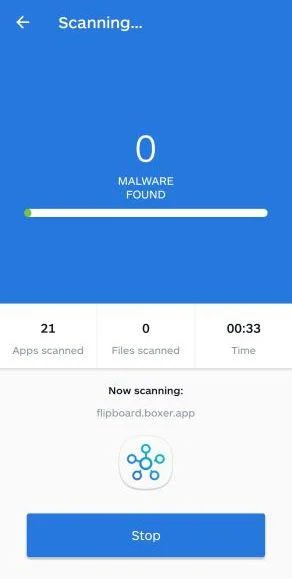
Wait for the Malwarebytes scan to complete.
Malwarebytes will now start scanning your phone for adware and other malicious apps. This process can take a few minutes, so we suggest you do something else and periodically check on the status of the scan to see when it is finished.
-
Remove the detected apps.
When the scan has been completed, you will see a list of the threats that Malwarebytes for Android has detected. Next to each detected item, tap the menu icon (three dots), then choose to uninstall the app or delete the file. Android then asks you to confirm. Tap OK or Uninstall to remove the app.
-
Restart your phone.
When the detected apps are removed, restart your phone if Malwarebytes asks you to. Then check whether the problems you noticed have stopped.
If the problems you noticed continue after the scan, see the options below.
If you are still having problems with your phone after completing these instructions, then please follow one of the steps:
- Ask for help in our Mobile Malware Removal Help & Support forum.
- Only as a last resort, reset your phone to factory settings. Read the warning below first.
- Back up your photos, videos, files, and messages, for example to your Google account or a computer.
- Make sure you know your Google account email and password. The phone asks for them after the reset. If you changed the password recently, Google recommends waiting 24 hours before you reset.
- On a Samsung phone, also make sure you know your Samsung account password.
- If you use an authenticator app for two-step verification, move your accounts to another device or save your backup codes first.
Stay Protected: Block Ads and Malicious Sites
No scan can prove a device is completely clean, so it helps to block threats before they reach you. Most infections start with a malicious ad or a fake download button — so blocking them at the source is your best defense.
We recommend AdGuard, which blocks malicious ads, phishing pages, and dangerous redirects before they can reach you.
👉 Download AdGuard and browse safely
Frequently Asked Questions
Is the “Unfortunately, There Are Some Bad News” email real?
The analyzed message is a mass sextortion scam. It makes unsupported claims about spyware and a webcam recording to obtain Bitcoin.
Judge evidence, not tone. The email does not demonstrate that the sender entered the device or created any video.
Why did the sender know my email address?
Email addresses circulate through public pages, marketing lists, breaches, and previous spam. Knowing where to deliver a message is not proof of deeper access.
If the message includes other data, consider whether those details appeared in an older breach or public profile.
What if the email contains one of my passwords?
Assume that password is compromised and replace it wherever it remains in use. Historical breach data often powers this intimidation tactic.
The password still does not establish camera access. Review account sessions and device security separately.
Can opening the email activate the claimed malware?
Reading ordinary message text generally does not install remote-control software. Attachments, downloads, links, and unpatched vulnerabilities create different levels of risk.
Block remote images if desired, update software, and scan when an attachment or program was opened.
Should I pay to protect my reputation?
No. The sender cannot prove possession or deletion, and payment may lead to renewed demands from the same operation.
Keep the funds, preserve evidence, and involve someone trustworthy. Secrecy is part of the criminal’s leverage.
When should law enforcement be contacted?
Report when money was lost, threats continue, real intimate material appears, personal accounts were accessed, or a minor is targeted.
Local reporting rules vary. Bring the original email, headers, wallet information, transaction records, and a concise timeline.
The Bottom Line
The Bad News sextortion email turns an unsupported webcam story into a $1,750 Bitcoin demand. Its power comes from fear, not proof.
Do not pay and do not answer. Preserve the threat, report it, strengthen reused credentials, and check accounts through their genuine security pages.
If you interacted with a link or file, scan the device and review sessions. If the threat contains real evidence, obtain trusted help promptly.
Most importantly, refuse the imposed secrecy. A calm second person can expose the script, protect your judgment, and help document the incident correctly.

Join the discussion
0 commentsShare your experience or ask a question about this article.
Discussion
Start the conversation
Have a question or something useful to share? Add the first comment.