


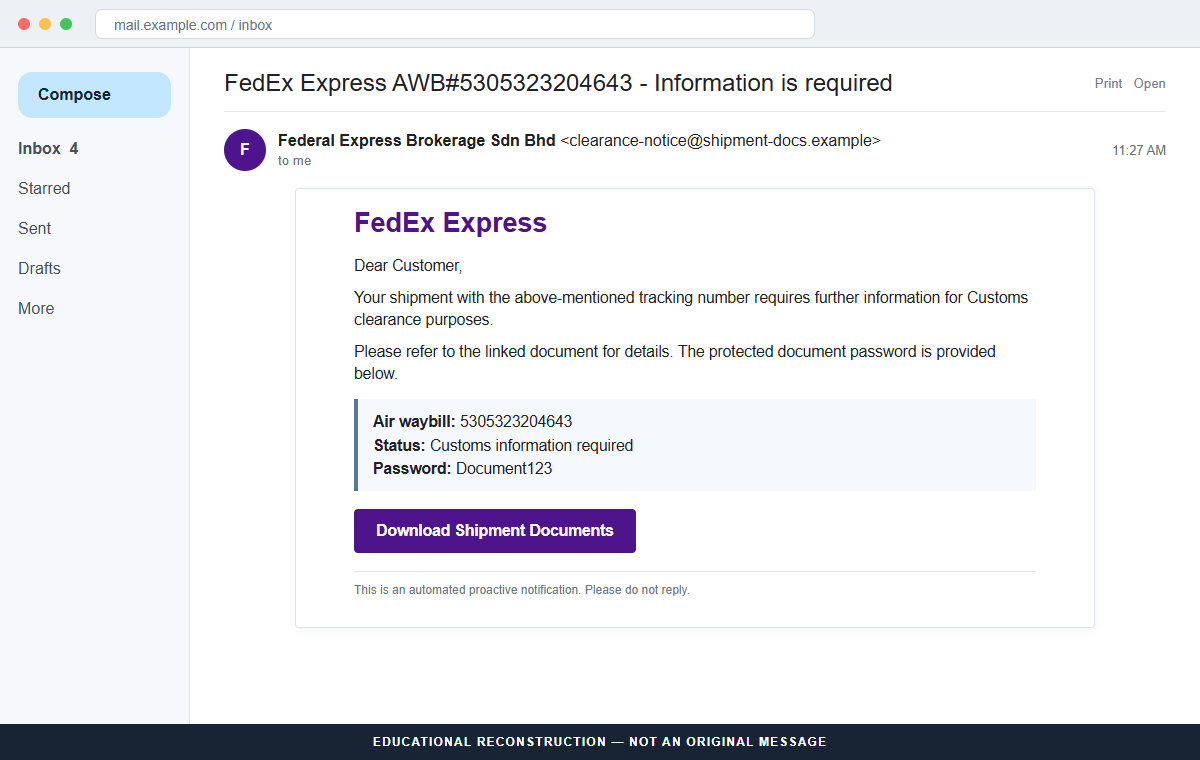
A FedEx email says customs cannot clear a shipment until more information is supplied. It includes a specific air waybill and even provides the password for the protected documents.
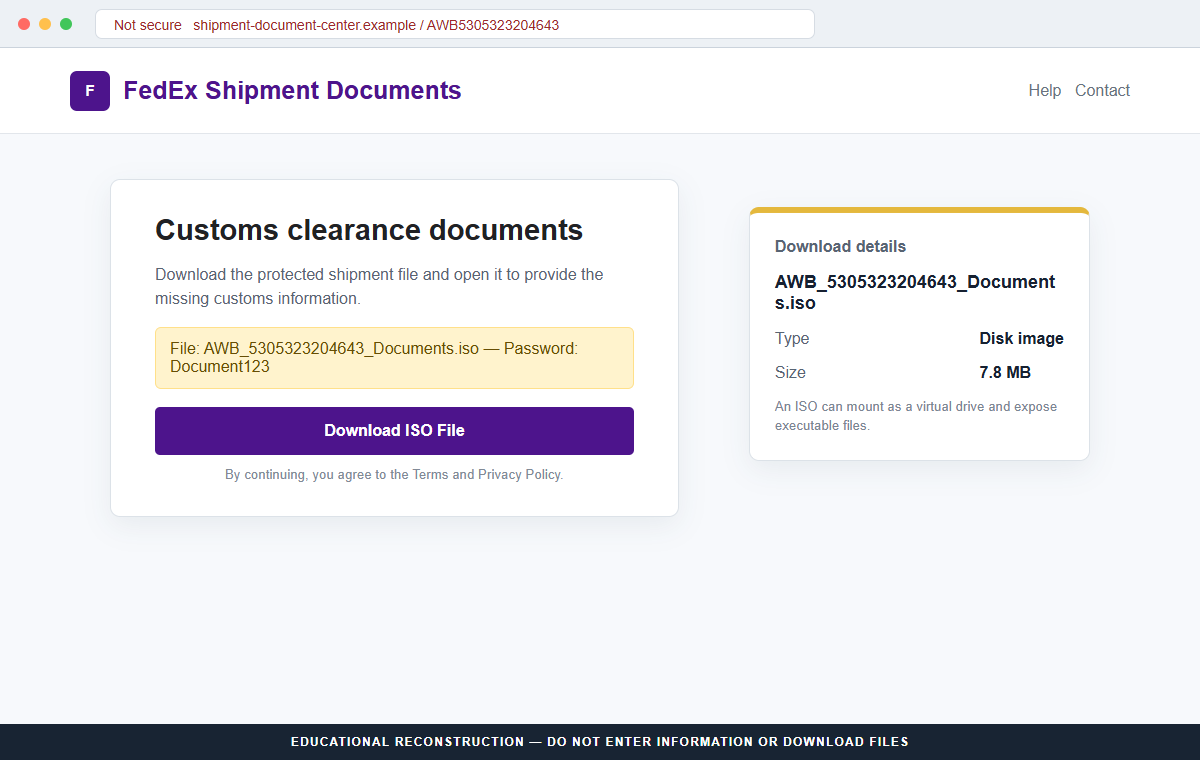
The FedEx Tracking Information email scam uses those professional details to deliver an ISO disk image. The exact malware inside the documented campaign was not identified, which makes running anything from the download a serious unknown-risk event.
Overview
The email poses as a Malaysian FedEx brokerage notice
The sender claims to represent Federal Express Brokerage Sdn Bhd, a real FedEx entity in Malaysia. It says shipment AWB#5305323204643 requires more information for customs clearance.
Using a real corporate name does not prove the message came from that company. The campaign borrows the identity to make an unexpected international shipment and document request sound plausible.
A supplied password makes the download feel protected
The email provides the password Document123 and tells the recipient to review shipment details. Passwords can create the impression that the file is confidential and that only the intended customer can open it.
In malware campaigns, password-protected archives can also prevent mail scanners from examining the inner content. The password helps the victim open what security systems may have been unable to inspect.
The link delivers an ISO with an unknown payload
Rather than attaching an ordinary customs form, the link downloads an ISO disk image. Windows can mount an ISO as a virtual drive, allowing the recipient to browse files inside it.
The exact final malware in this campaign could not be identified. ISO-based malspam can deliver stealers, keyloggers, remote-access trojans, ransomware, or other threats, but no single payload should be claimed without evidence from the actual sample.
- The subject references FedEx Express and a specific air waybill.
- The sender borrows the name Federal Express Brokerage Sdn Bhd.
- The shipment supposedly needs information for customs clearance.
- A password, Document123, is supplied for protected documents.
- The email link downloads an ISO disk image rather than a normal form.
- The exact malware payload in the analyzed campaign remains unknown.
- Running a file from the mounted image can compromise the computer.
Why Customs Documents Make an Effective Malware Lure
International shipping creates real paperwork. Commercial invoices, identity checks, tariff classifications, certificates, and import declarations may be needed before goods are released, so a document request can sound reasonable.
Recipients may also be unsure which carrier a merchant selected. A broad campaign can catch online shoppers, importers, finance teams, and employees who handle deliveries without possessing any real FedEx data.
The air waybill number supplies false specificity. A long number looks system-generated, but it is only useful if it matches an expected order and produces the same shipment on the official FedEx tracking site.
The password adds a second psychological cue. Protected business documents are common, so the user may interpret the extra step as security instead of asking why a carrier sent a disk image.
File type is the practical warning. Customs paperwork is normally viewed through an official portal or common document format. An unexpected ISO asks the recipient to mount a software container, not simply read a form.
What FedEx and Microsoft Guidance Adds to the Analysis
Inspection of the message classified it as malspam with no FedEx connection. The email link downloaded an ISO, while the final malware type remained unknown at the time of analysis.
FedEx's fraud guidance warns that fraudulent delivery emails can include links to compromised sites or attachments that infect computers. The company tells users not to open suspicious links or attachments and accepts reports at abuse@fedex.com.
FedEx also says it does not request payment or personal information through unsolicited messages in return for goods in transit. An independent tracking check should come before any customs response.
Microsoft explains that unexpected links, attachments, Office files, and other downloads can install malware after user interaction. Updated real-time protection and full or offline scans add layers when exposure is suspected.
Opening the email itself is not the same as executing malware. Risk increases across stages: clicking the link, downloading the ISO, mounting it, extracting content, and running a file from inside.
How the FedEx Tracking Information Email Scam Works
Step 1: A customs delay makes the shipment feel urgent
The subject says information is required for a FedEx Express air waybill. Customs clearance implies that the package cannot move until the recipient cooperates.
A recipient who imports goods may worry about storage fees, missed delivery, or a customer waiting. The campaign uses that operational pressure instead of a dramatic threat.
Step 2: A real brokerage name lends authority
The signature cites Federal Express Brokerage Sdn Bhd. Scammers can copy a legitimate entity name, address, privacy language, and corporate footer without controlling its systems.
Verify the sender domain and contact FedEx through its official site. Do not use telephone numbers, unsubscribe links, or contact buttons inside the suspicious email.
Step 3: The air waybill creates a shipment record illusion
AWB#5305323204643 appears in the subject and body. Repetition suggests that the message was generated from a logistics database.
Enter the complete number on FedEx's official tracking page from a new tab. A nonexistent or unrelated record exposes the claim without opening the document link.
Step 4: A password frames the file as confidential
The email supplies Document123, supposedly to unlock the customs material. The step can make the recipient feel specially authorized to see a protected document.
Password protection can hide inner files from automated scanning. A sender who provides the password beside the link is not creating meaningful confidentiality.
Step 5: The link downloads an ISO disk image
The destination serves an ISO rather than showing a FedEx form. On Windows, double-clicking may mount the image and display it as a new drive.
Mounting exposes its contents, but the infection usually requires another action such as running an executable, script, installer, or shortcut inside. Do not explore the image to discover what it contains.
Step 6: The inner file launches an unknown attack chain
Once executed, the content can download or install additional code. The campaign's final payload was not confirmed, so symptoms and damage cannot be predicted from the email alone.
Possible outcomes of comparable campaigns include credential theft, surveillance, remote access, encryption, and more downloads. These are risks, not claims about every copy of this ISO.
Step 7: Silent access can outlast the original email
Malware may run without visible windows while collecting data or waiting for commands. Deleting the message and ISO does not remove code that already executed.
A response must examine the device, accounts, and network activity. Business systems may require isolation and professional incident response even when no obvious symptom appears.
Company and Checkout Checks
A real subsidiary name can be used in a fake email
Federal Express Brokerage Sdn Bhd exists, but that fact does not authenticate the sender. Compare the complete address and domain with contact details published by FedEx.
Report impersonation through FedEx's fraud channel rather than replying to the person using the borrowed identity.
The air waybill must match an expected order
A long tracking number is not secret evidence. It should match a merchant invoice, purchase history, or known sender and return consistent results through official tracking.
If no order matches, do not provide customs documents merely to learn who sent the package. Contact the merchant or FedEx independently.
The ISO format does not fit a simple information request
A disk image can package an entire directory, including executables and scripts. That is unnecessary for a routine request that could be handled through a secure portal or readable form.
File extensions may be hidden on Windows. Confirm the actual type and never rely on a shipping-themed icon or filename.
Unknown payload means broad containment, not speculation
Without the final sample, it is inaccurate to name one trojan or ransomware family. The safe conclusion is that untrusted code may have executed with consequences not yet visible.
Use layered scanning, account review, network monitoring, and professional help where the value of the affected system justifies it.
Warning Signs to Check Before You Act
- You are not expecting an international FedEx shipment.
- The air waybill does not match a merchant or official tracking record.
- A real FedEx entity name appears beside an unrelated sender domain.
- Customs information is requested through an unsolicited download link.
- The email supplies a simple archive password such as Document123.
- The downloaded item is an ISO disk image.
- The mounted image contains executable, script, installer, or shortcut files.
- Instructions ask you to bypass a security warning.
- The message uses an unsubscribe link valid for only one day.
- FedEx cannot confirm the request through its official channel.
The strongest clue is not the grammar or footer. It is the attempt to turn a customs question into an ISO download. Verify the air waybill through FedEx and leave the disk image unopened.
What to Do if You Have Fallen Victim to This Scam
- If you only read the email, do not panic. Simply viewing the message does not normally execute the ISO. Do not click its links, open attachments, use the unsubscribe button, or reply. Report the message and delete it after preserving needed evidence.
- If you downloaded but did not open the ISO, delete it safely. Do not double-click or preview the file. Remove it from Downloads and the recycle bin, then run an updated scan. Check the browser's download history for any additional files.
- If you mounted the ISO, unmount it and stop exploring. Eject the virtual drive, delete the source file, and run a full scan. Risk is lower if nothing inside was executed, but shortcuts and hidden extensions make memory unreliable.
- If you ran an inner file, disconnect the computer. Turn off Wi-Fi or unplug Ethernet. Business users should contact IT immediately. Do not use the system for email, banking, shopping, password changes, or confidential work.
- Run full and offline malware scans. Use Malwarebytes or another trusted security product for a complete scan. Consider Microsoft Defender Offline or professional incident response because the exact payload and persistence method are unknown.
- Change sensitive passwords from a clean device. Prioritize email, banking, password managers, workplace accounts, and credentials used after execution. Enable strong multi-factor authentication and revoke unfamiliar sessions or recovery methods.
- Review financial and identity activity. Check bank and card transactions, new payees, account alerts, credit reports, and password-reset emails. Contact the relevant institution immediately if anything is unfamiliar.
- Add malicious-domain blocking as a secondary control. AdGuard or another reputable DNS and content blocker can prevent some known delivery-scam and download domains from loading. It cannot remove malware that already ran.
- Report the campaign to FedEx and authorities. Forward the suspicious message to abuse@fedex.com according to FedEx's official guidance. Organizations should also report it internally, while financial or identity losses may require police or cybercrime reports.
- Consider a clean rebuild for confirmed compromise. If malware or unauthorized access is found, a qualified professional may recommend reinstalling the operating system from trusted media. Restore only verified data and rotate credentials after the environment is clean.
Is Your Device Infected? Run a Free Malware Scan
Slow performance, constant pop-ups, or strange behavior? These are classic signs of a malware infection. A quick way to check is to scan your device with Malwarebytes Free, one of the most trusted malware removal tools available. If you only visited a scam page and didn’t download or install anything, this scan is optional.
The free version detects and removes the most common threats, including:
- Adware — the cause of those annoying pop-ups
- Browser hijackers — unwanted redirects and changed homepages
- Trojans and spyware — hidden programs stealing your data
- Potentially unwanted programs (PUPs) — software you never asked for
👉 Select your device below — Windows, Mac, or Android — then follow the simple steps to download Malwarebytes, scan your system, and remove any threats it finds. The scan usually takes 5 to 20 minutes.
Run a Malware Scan with Malwarebytes for Windows
Malwarebytes is one of the most popular and trusted anti-malware tools for Windows — and it’s completely free for removing infections. It catches threats that many antivirus programs miss, including adware, browser hijackers, and trojans. Follow the steps below to scan your PC and remove what Malwarebytes finds.
Download Malwarebytes
Click the button below to download the latest version of Malwarebytes for Windows from the official source. The free version is all you need — it will scan your computer and remove adware, browser hijackers, and other malicious software at no cost.
Download MalwarebytesOfficial installer for Windows 11 and 10. Your download starts right away.Want real-time protection? See Malwarebytes Premium Malwarebytes Free for WindowsScans and removes malware at no cost
-
Install Malwarebytes
When the download finishes, open your Downloads folder and double-click the MBSetup file. If Windows shows a User Account Control pop-up, click “Yes” to allow the installation.

Follow the On-Screen Prompts to Install Malwarebytes
The setup wizard will walk you through a few quick screens:
-
Choose where you’re installing the program — “Personal Computer” or “Work Computer” — then click Next.

-
Malwarebytes will now install on your device. This usually takes under a minute.

-
When installation is complete, the “Welcome to Malwarebytes” screen will open automatically.

-
On the final screen, click Open Malwarebytes to launch the program.

-
Optional: Check for rootkits with a Custom Scan
You don’t need to change any settings for a normal scan. The standard Threat Scan in the next step is enough for most problems, so you can go straight to it.
If you also want to check for rootkits, use a Custom Scan. In current versions of Malwarebytes, rootkit scanning is only available there:
- On the Scanner tile, click the three-dot menu and select Advanced Scan.
- Choose Custom Scan. In its options, check Scan for rootkits.
- Select your system drive (usually C:\) as the location to scan, then start the scan. It takes longer than a Threat Scan.
- When it finishes, review and quarantine the results as described in the steps below.
Rootkit scanning isn’t available on Windows devices with ARM processors.
Start the Scan
Click the blue Scan button. Malwarebytes will automatically update its virus database and start checking your computer for malware.

-
Wait for the Scan to Finish
The scan checks your entire system for browser hijackers and other malicious programs, so it can take 5 to 20 minutes depending on your computer. Feel free to do something else — just check back occasionally to see the progress.

-
Quarantine the Detected Threats
When the scan is done, you’ll see a list of everything Malwarebytes found — malware, adware, and potentially unwanted programs. Click the “Quarantine” button to remove all of them at once.

Malwarebytes will now remove the malicious files and registry entries and move them safely into quarantine.

-
Restart Your Computer
Some threats can only be fully removed after a reboot. If Malwarebytes asks you to restart, click Yes. Once you’re logged back in, Malwarebytes has finished removing the threats it found.

When the scan is done, check whether the problems you noticed have stopped. If they continue, see the options below.
If you are still having problems with your computer after completing these instructions, then please follow one of the steps:
- Run a computer scan with ESET Online Scanner
- Ask for help in our Windows Malware Removal Help & Support forum.
Run a Malware Scan with Malwarebytes for Mac
Malwarebytes for Mac is a free on-demand scanner that removes the malware other security software tends to miss — adware, browser hijackers, and unwanted programs included. Cleaning an infected Mac with Malwarebytes has always been completely free, and it’s our go-to recommendation. Follow the steps below to scan your Mac and remove what Malwarebytes finds.
-
Download Malwarebytes for Mac
Click the button below to download the latest version of Malwarebytes for Mac.
Download MalwarebytesOfficial installer for macOS. Your download starts right away.Want real-time protection? See Malwarebytes PremiumMalwarebytes Free for MacScans and removes malware at no cost -
Open the Malwarebytes setup file
When the download finishes, open your Downloads folder and double-click the setup file to begin the installation.

-
Follow the On-Screen Prompts to Install Malwarebytes
The Malwarebytes for Mac Installer will guide you through a few quick screens. Click “Continue” and keep following the prompts until the installation completes.



When the installation is complete, Malwarebytes opens to the Welcome to Malwarebytes screen. Click “Get started“.
Malwarebytes needs Full Disk Access to check your whole Mac. When it asks, open System Settings > Privacy & Security > Full Disk Access, turn on Malwarebytes (it may be listed as Malwarebytes Protection), and confirm with your password or Touch ID. Then return to Malwarebytes. On macOS Monterey and earlier, this setting is in System Preferences > Security & Privacy > Privacy.
-
Select “Personal Computer” or “Work Computer”
Malwarebytes will ask what type of computer you’re installing it on. Click either Personal Computer or Work Computer, whichever applies.

-
Start the Scan
Click the “Scan” button. Malwarebytes will automatically update its detection database and begin checking your Mac for malware.

-
Wait for the Scan to Finish
Malwarebytes will scan your Mac for adware, browser hijackers, and other malicious programs. This can take a few minutes, so feel free to do something else — just check back occasionally to see the progress.

-
Quarantine the Detected Threats
When the scan is done, you’ll see a list of everything Malwarebytes found. Click the “Quarantine” button to remove all the threats at once.

-
Restart Your Mac
Malwarebytes will now remove all the malicious files it found. Some threats can only be fully removed after a reboot — if Malwarebytes asks you to restart, allow it. Once you’re logged back in, check whether the problems you noticed have stopped. If they come back, save the scan report and ask for help in our forum.

If the problems you noticed continue after the scan, see the options below.
If you are still experiencing problems while trying to remove a malicious program from your computer, please ask for help in our Mac Malware Removal Help & Support forum.
Run a Malware Scan with Malwarebytes for Android
Malwarebytes for Android scans your phone or tablet for malware, adware, and potentially unwanted apps. The free version scans only when you start a scan. Real-time protection, which checks apps automatically, is part of the paid Premium version.
-
Download Malwarebytes for Android.
You can download Malwarebytes for Android by clicking the link below.
Get Malwarebytes for AndroidOpens Google Play in a new tab.Want real-time protection? See Malwarebytes Premium for AndroidMalwarebytes for AndroidScans your phone and removes malware at no cost -
Install Malwarebytes for Android on your phone.
In the Google Play Store, tap “Install” to install Malwarebytes for Android on your device.

When the installation process has finished, tap “Open” to begin using Malwarebytes for Android. You can also open Malwarebytes by tapping on its icon in your phone menu or home screen.

-
Follow the on-screen prompts to complete the setup process
When Malwarebytes opens, it walks you through a short setup. Tap Get started and follow the prompts. If you see an offer for a trial or a paid plan, read it before you accept. You can skip it and keep using the free scanner.
Malwarebytes will ask for permission to access the files on your phone so it can scan them. Tap Allow, or turn on the permission in the Android screen that opens, then return to Malwarebytes.
-
Run a scan with Malwarebytes for Android
On the main screen, tap Scan now. In some versions, you open the menu, tap Scanner, and then tap Run a scan.
-
Wait for the Malwarebytes scan to complete.
Malwarebytes will now start scanning your phone for adware and other malicious apps. This process can take a few minutes, so we suggest you do something else and periodically check on the status of the scan to see when it is finished.

-
Remove the detected apps.
When the scan has been completed, you will see a list of the threats that Malwarebytes for Android has detected. Next to each detected item, tap the menu icon (three dots), then choose to uninstall the app or delete the file. Android then asks you to confirm. Tap OK or Uninstall to remove the app.
-
Restart your phone.
When the detected apps are removed, restart your phone if Malwarebytes asks you to. Then check whether the problems you noticed have stopped.
If the problems you noticed continue after the scan, see the options below.
If you are still having problems with your phone after completing these instructions, then please follow one of the steps:
- Ask for help in our Mobile Malware Removal Help & Support forum.
- Only as a last resort, reset your phone to factory settings. Read the warning below first.
- Back up your photos, videos, files, and messages, for example to your Google account or a computer.
- Make sure you know your Google account email and password. The phone asks for them after the reset. If you changed the password recently, Google recommends waiting 24 hours before you reset.
- On a Samsung phone, also make sure you know your Samsung account password.
- If you use an authenticator app for two-step verification, move your accounts to another device or save your backup codes first.
Stay Protected: Block Ads and Malicious Sites
No scan can prove a device is completely clean, so it helps to block threats before they reach you. Most infections start with a malicious ad or a fake download button — so blocking them at the source is your best defense.
We recommend AdGuard, which blocks malicious ads, phishing pages, and dangerous redirects before they can reach you.
👉 Download AdGuard and browse safely
Frequently Asked Questions
Is the FedEx customs information email legitimate?
The documented campaign is not. It impersonates FedEx and delivers an ISO disk image through its document link.
What is an ISO file?
An ISO is a disk image that Windows can mount as a virtual drive. It can contain ordinary data or dangerous executables, scripts, and shortcuts.
Does mounting the ISO automatically infect Windows?
Not necessarily. Infection generally requires executing content inside, but mounting increases exposure and hidden shortcuts can confuse users. Unmount it and scan the system.
What malware does this campaign install?
The exact payload was unknown in the analyzed sample. Comparable ISO campaigns deliver many threat types, so the response should not assume one family.
Why does the email include Document123?
The password makes the document feel confidential and may help inner content evade automated inspection. Providing it beside the link offers little genuine security.
Where can I report a fake FedEx email?
FedEx's official fraud page asks recipients to forward suspicious activity to abuse@fedex.com. Use official customer support separately for real shipment questions.
The Bottom Line
The FedEx Tracking Information email scam disguises a software container as customs paperwork. A real brokerage name, specific air waybill, and supplied password are there to make the ISO download feel like a normal shipping task.
Check the shipment through FedEx without using the email. If the document link downloads a disk image, stop before mounting it or running anything inside.
Anyone who executed content should isolate the device, scan it thoroughly, secure accounts from a clean system, and monitor financial activity. Because the payload is unknown, absence of visible symptoms is not proof that nothing happened.

Join the discussion
0 commentsShare your experience or ask a question about this article.
Discussion
Start the conversation
Have a question or something useful to share? Add the first comment.