

The call sounds like ordinary workplace support. Someone says a passkey or MFA setting needs to be updated before the account is interrupted, and the employee is given a link that appears to belong to the company’s sign-in system.
There is no obvious malware pop-up and no strange attachment. The victim may simply follow an IT-style instruction on a personal phone, complete a familiar sign-in step, and return to work.
Microsoft is tracking an active campaign in which that small act of cooperation can hand an attacker a cloud session, a new authentication method, and access to company data.
Overview
The passkey story is a social-engineering pretext
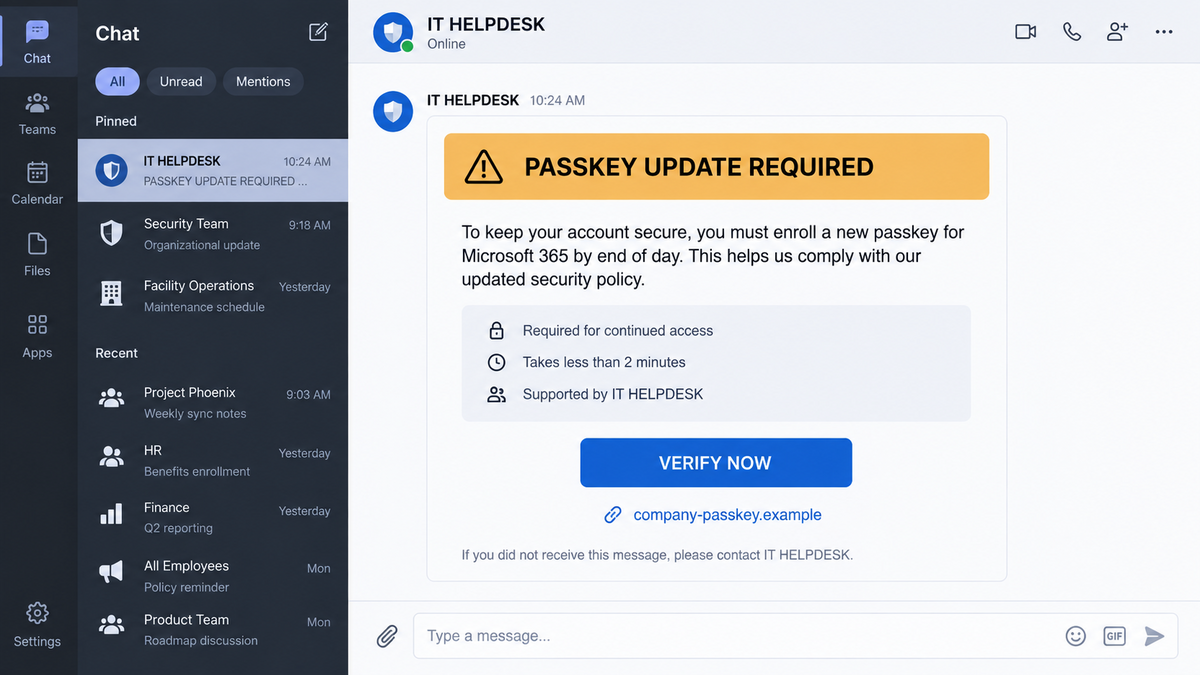
Microsoft Security Research described active intrusions that begin with a call or message to a worker’s personal phone. The caller claims to be from the organization’s IT helpdesk and says a passkey, multifactor authentication, or single sign-on setting must be updated immediately.
The story is believable because passkeys are a real security change. Employees may know that their company is introducing stronger sign-in methods, but they may not know which enrollment page, device, or approval flow is official.
The request does not need to sound criminal. It can sound like a routine deadline, a helpdesk ticket, or a warning that access will stop unless the employee follows the instructions.
The sign-in page can be an attacker-controlled relay
The link may resemble a Microsoft sign-in experience, a company SSO portal, or an account-activation page. In an adversary-in-the-middle flow, the victim sees a convincing page while the attacker relays the authentication ceremony and captures credentials or session tokens.
Another version uses device-code authentication. The victim is told to enter or approve a code, believing it is part of passkey setup. The approval can authorize the attacker’s session instead of the employee’s device.
The compromise continues after the login
Microsoft observed unusual sign-ins followed by attacker-added authentication methods, Microsoft Graph activity, SharePoint and OneDrive downloads, and mailbox collection. The first interaction can leave little endpoint evidence, especially when the employee uses a personal phone.
This is not a flaw in passkeys themselves. The problem is that the victim is tricked into authenticating on behalf of the attacker or into adding an authentication method they do not control.
- The first contact arrives by phone, SMS, email, or a message from a compromised coworker.
- The caller uses an urgent passkey, MFA, SSO, or identity-verification story.
- The link uses a generic or newly registered domain with the organization name in a subdomain.
- The fake page can relay credentials, tokens, or device-code approval to the attacker.
- The attacker may add a new authentication method for persistence.
- Microsoft Graph can be used to map users, roles, mail, SharePoint, and OneDrive data.
- Domains and hosting providers rotate quickly, so a single blocklist entry is not enough.
- The correct response is to revoke sessions, remove unauthorized methods, and investigate cloud activity.
Why the Passkey Helpdesk Scam Works
It turns a real security improvement into a deadline
Passkeys, MFA, and SSO are not imaginary concepts. Many organizations are genuinely changing how employees sign in. The scam borrows that background so the victim does not question why the request arrived by phone or why a personal device is being used.
A deadline adds pressure. When the caller says an account will stop working, employees may focus on restoring access rather than checking the caller’s identity with a known helpdesk number.
Personal phones sit outside normal monitoring
Microsoft noted that activity on a personal mobile device may not appear in endpoint telemetry. That makes the phone call or SMS especially useful to the operator. The victim remembers the conversation, while the security team sees only a later cloud sign-in and unusual activity.
This is why an employee’s report that “someone from IT called” can be important evidence. It may explain how an attacker passed through an otherwise strong authentication setup.
A familiar login screen feels safer than a request for a password
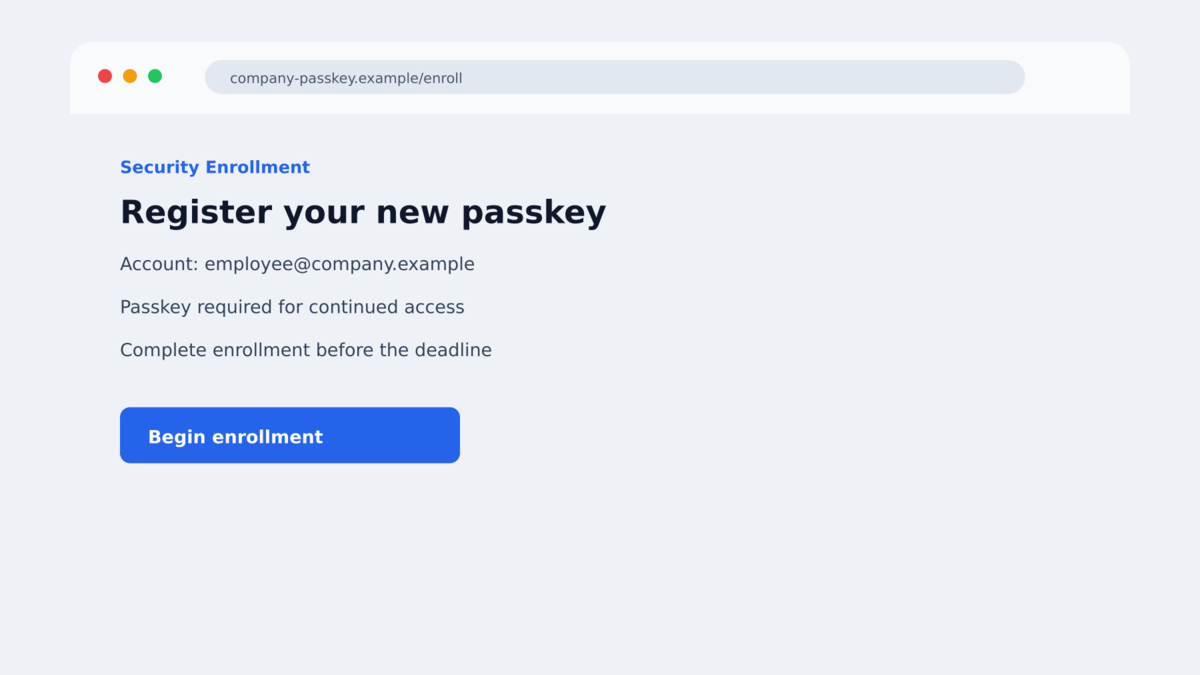
The page may show a company name, a Microsoft-style sign-in, and an account identifier already filled in. Even when the employee notices the address, the page can appear close enough to the real portal that they continue.
Attackers do not need to steal a password in every version. They may only need the employee to complete a sign-in or approve a code while the attacker is waiting in the middle.
Company and Checkout Checks
The caller is not the real helpdesk
A person who knows your name, job title, manager, or company structure may have collected that information from public profiles or a compromised account. Knowledge about the workplace is not authentication.
The domain is not proof of Microsoft affiliation
Microsoft reported generic domains that placed an organization’s name in a subdomain. Employees should check the registered domain and use the sign-in route already bookmarked or published in company documentation. Do not trust a link supplied during an unexpected call.
The support route can be part of the attack
The scammer may offer a number, chat, or remote-support session to complete the enrollment. That channel is controlled by the caller. End the conversation and contact IT through the number in the internal directory or the helpdesk portal.
The lasting risk is unauthorized cloud persistence
After the first sign-in, the attacker may register an authentication method, create mailbox rules, issue tokens, or use Graph to access cloud data. A password reset alone may not remove those footholds.
How the Fake Passkey Helpdesk Scam Works
Step 1: The attacker researches the employee
Before contacting the target, the operator gathers names, job roles, phone numbers, company domains, and public details. A personalized call sounds more credible than a random message and helps the attacker choose a passkey or SSO story that fits the organization.
Compromised accounts can expand the reach. A message sent from a real coworker’s account may bypass the hesitation caused by an unfamiliar number.
Step 2: A call or message creates an IT emergency
The employee is told that a passkey must be refreshed, MFA is being migrated, or SSO will stop working. The operator emphasizes that the update is required now and offers to guide the victim through it.
The caller may remain on the line so the employee cannot pause and ask another person. That live pressure is a key part of the attack.
Step 3: The victim opens a lookalike sign-in page
The link points to a newly registered or rapidly changing domain. The page can use the organization’s name in the address, copy the sign-in layout, and request the email address before showing the next screen.
At this stage, the page may be a relay rather than a simple copy. Information entered by the victim can be forwarded to the real identity service while the attacker watches the session.
Step 4: The victim approves the attacker’s authentication
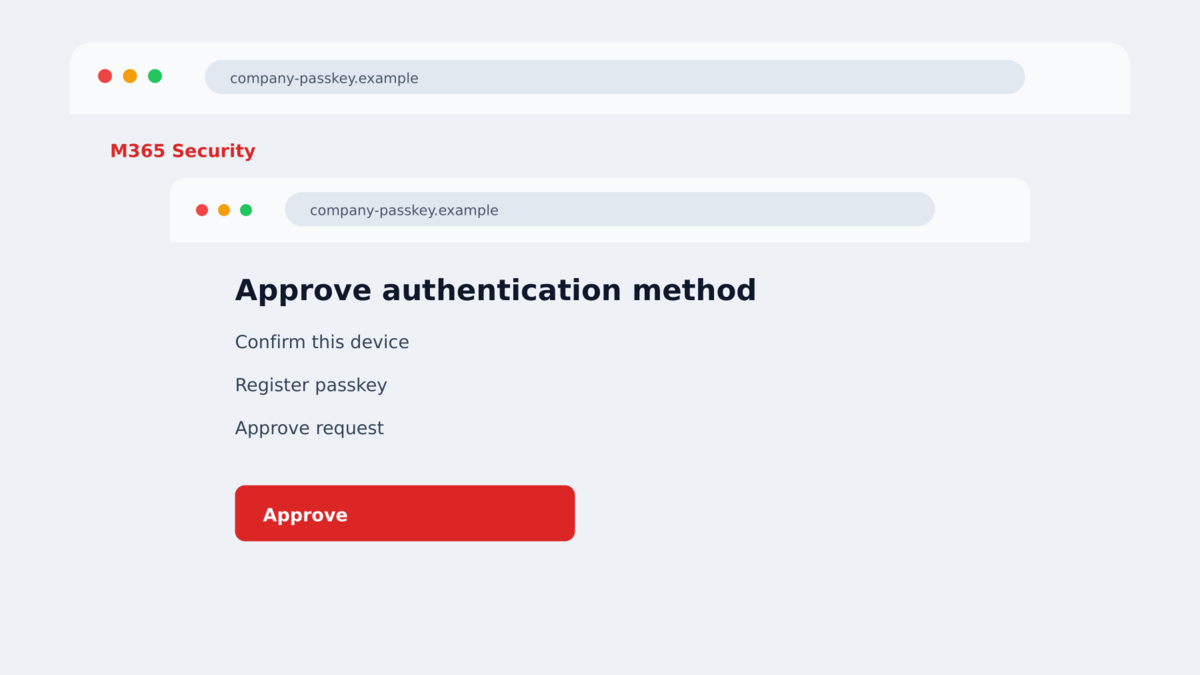
The employee may be asked to scan a QR code, enter a short code, approve a prompt, or register a passkey. The instructions sound like setup, but the authentication can belong to the attacker-controlled session.
Once the approval succeeds, the attacker may have a valid session even if the employee never typed a password into a suspicious-looking box.
Step 5: A new method keeps the attacker inside
The operator can add an authentication method, create a token, or establish another way to return after a password change. This is why defenders must review recently added methods and devices rather than assuming a reset ended the incident.
A new mailbox rule or forwarding address can also hide alerts and copy useful messages to the attacker.
Step 6: Cloud data is mapped and collected
Microsoft observed Graph reconnaissance, directory and role discovery, SharePoint and OneDrive downloads, and mailbox collection after identity compromise. The attacker is no longer trying only to log in. The goal is to understand the environment and collect valuable material.
The cloud evidence also explains why the first call should be treated as an incident rather than an isolated password mistake. A newly registered passkey or authentication method can survive a password reset and provide a quieter route back into the account.
Security teams should compare sign-in history, token activity, authentication-method changes, mailbox rules, and file downloads. Employees should tell the helpdesk exactly what they clicked, what they approved, and when the contact occurred.
The attacker may use the first compromised account to search for invoices, payroll material, identity documents, and internal instructions. That search can lead to follow-up fraud against colleagues or suppliers even after the original user is locked out.
A passkey is not inherently suspicious. The red flag is an unsolicited request that combines urgency, a new enrollment link, and a demand to complete the process while a stranger stays on the phone.
Organizations should publish one clear support route and teach staff to use it. A genuine helpdesk can verify an employee through that route without asking the employee to follow a surprise sign-in link.
Employees who work from home are especially useful targets because a personal phone call can bypass the normal workplace context. The attacker wants the worker to act before contacting a colleague who might recognize the script.
The same approach can be aimed at contractors and administrators. Anyone with a privileged account should treat a passkey enrollment request received outside the documented process as a security event.
Large downloads, unusual applications, unfamiliar IP addresses, and new authentication methods should be investigated as one sequence.
Warning Signs of a Passkey Enrollment Scam
- An unsolicited caller says a passkey or MFA change must happen immediately.
- The employee is told to use a personal phone or an unapproved device.
- The link arrives by SMS, chat, or a caller instead of the internal helpdesk portal.
- The domain places the company name in a subdomain of an unrelated registrar.
- The caller asks for a code, QR scan, approval, or passkey registration they cannot explain.
- The employee is discouraged from calling the helpdesk through a known number.
- A new authentication method appears after a suspicious sign-in.
- Cloud downloads or mailbox activity increase immediately after the request.
What to Do if You Have Fallen Victim to This Scam
- End the call and report it. Do not keep the caller on the line while trying to investigate. Use the internal helpdesk route your organization already trusts.
- Tell the security team exactly what happened. Include the phone number, message, URL, time, device, code, QR scan, and any approval you completed.
- Revoke sessions and tokens. Ask the administrator to sign out active sessions and revoke refresh tokens for the affected identity.
- Remove unauthorized authentication methods. Review passkeys, security keys, phone numbers, authenticator apps, devices, and recovery addresses before re-registering them securely.
- Review mailbox rules and forwarding. Remove rules you did not create and check for copied messages or unusual consent grants.
- Investigate cloud access. The team should review Graph activity, SharePoint and OneDrive downloads, Exchange access, and sign-ins from unfamiliar locations.
- Change credentials through a trusted route. Do not use the link or number supplied by the caller. Use the organization’s known portal and a managed device.
- Scan the device if software was installed. Malwarebytes can check for unwanted files. AdGuard can reduce malicious redirects and phishing ads, but neither replaces cloud-session cleanup.
- Warn coworkers. A short internal alert can stop the same caller from reaching more people while the infrastructure is being blocked.
Frequently Asked Questions
Are passkeys themselves unsafe?
No. Passkeys are designed to resist phishing. The danger in this campaign comes from tricking a user into authenticating on an attacker-controlled flow or registering a method the attacker owns.
Can a helpdesk caller know enough to sound real?
Yes. Public profiles, company pages, compromised accounts, and earlier data theft can supply names, roles, and phone numbers. Verify the caller through an independent internal channel.
What if I approved a device code?
Tell the security team immediately. Revoke sessions and tokens, remove unfamiliar authentication methods, and review cloud activity. Do not wait for a password-change notification.
Does changing my password remove the attacker?
Not always. An attacker may have added a method, issued a token, created a forwarding rule, or kept a session alive. Full identity and cloud review is required.
Why would the attacker use my personal phone?
Personal devices may be less monitored and employees may be more willing to answer them. The phone call also creates live pressure while the attacker guides the victim through the approval.
What should an organization block first?
Start with unauthorized methods, active sessions, device-code flows that are not needed, risky sign-ins, and unapproved devices accessing sensitive cloud workloads. Then investigate the data accessed during the window.
The Bottom Line
The fake passkey helpdesk scam does not defeat strong authentication by force. It convinces an employee to complete a real authentication action for the wrong party.
No legitimate helpdesk should make you register a passkey, approve a code, or sign in through an unexpected link while a stranger is directing the process. End the call and use a verified support route.
If you already approved the request, treat it as an identity compromise. Revoke sessions, remove unauthorized methods, and investigate cloud data access before assuming the account is safe.

Join the discussion
0 commentsShare your experience or ask a question about this article.
Discussion
Start the conversation
Have a question or something useful to share? Add the first comment.