

An email says an old Coinbase account could lose features through inactivity. Perhaps you haven’t checked it recently.
Reviewing your holdings sounds sensible. Before following the invitation, separate the account question from the message asking you to act.
Overview
A quiet account becomes a reason to click
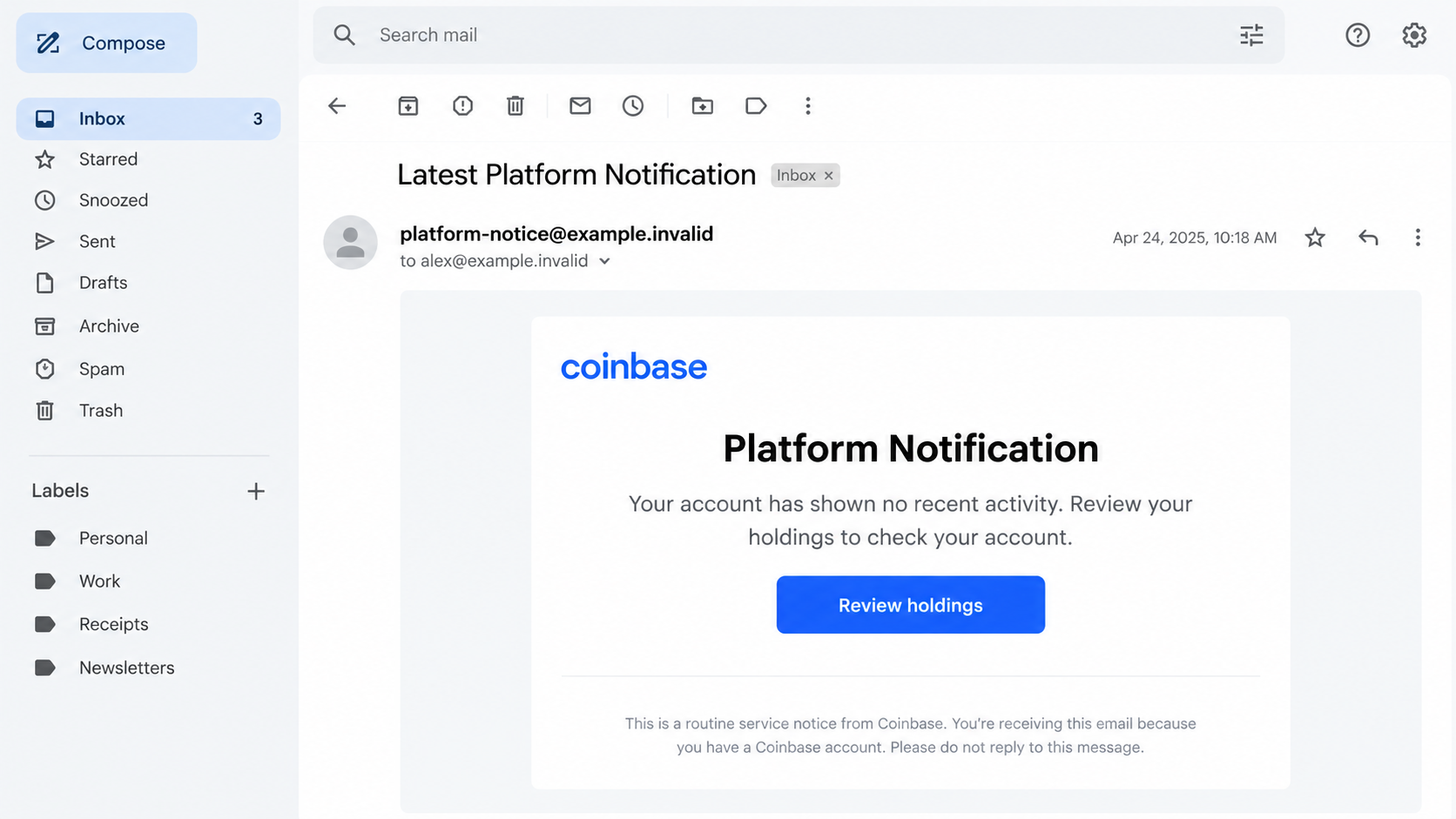
The Coinbase inactive account email scam claims that prolonged inactivity may cause features to be disabled. It presents a holdings-review button as the next step.
The reported message uses routine platform-notification language rather than an extravagant prize. That makes it particularly believable to someone who remembers opening an account years ago.
It is a phishing promotion impersonating Coinbase, not an authenticated instruction from the exchange. Do not use its button to investigate your account.
The exact login destination is not established
The linked endpoint was no longer active when the campaign was analyzed. Its exact form could not be independently recovered.
It might have sought Coinbase credentials or credentials for the recipient’s email provider. Those are possible phishing routes, not confirmed screens every reader would see.
If you entered information, identify the actual account involved. Do not assume an email asking about cryptocurrency must have collected only an exchange password.
Real inactivity procedures do not authenticate this email
Services can have legitimate account restrictions and unclaimed-property processes. Their existence does not make an unsolicited message about inactivity genuine.
- Check your account through the official app or a trusted address you open independently.
- Confirm any restriction inside the real account before changing financial arrangements.
- Keep hosted exchange access separate from self-custody wallet secrets.
- Do not send cryptocurrency to prove that an account remains active.
The lead image is a fictional email illustration. Its sender and date are not an original campaign specimen or a verified account notice.
How the Coinbase Inactive Account Email Scam Works
Step 1: The message sounds like ordinary account housekeeping
The reported subject presents a platform notification about an account being disabled. The body softens that headline by referring to features that may become unavailable.
That difference can draw the reader in. Someone concerned by the subject may keep reading because the requested action appears easy and routine.
The email does not need to demonstrate a real balance. It only needs to remind you that an account might exist and make checking through its link convenient.
Perhaps you previously used Coinbase and stopped. Perhaps you never had an account. Neither situation can be established by a stranger’s assertion in your inbox.
If you are uncertain, investigate through the genuine service. Do not treat curiosity about an old account as permission to try an unfamiliar login destination.
An unexpected service notice deserves verification even when the underlying topic is plausible. Credibility of the topic and authenticity of the sender are separate questions.
Step 2: A holdings-review button gives the concern a simple solution
The button is framed as a way to inspect assets, not hand them over. That makes the first action feel observational rather than financially consequential.
But a button’s label tells you only what the sender wants you to believe. The destination can be unrelated to the genuine exchange.
A link can also change through redirects. The presence of a familiar word in a long address does not prove that Coinbase controls the final page.
Do not test the notice by entering an old password. Even an unsuccessful-looking attempt can disclose the credential to the page receiving it.
Nor should you try several accounts to discover which one the email meant. Each additional submission can expose another password without answering the original question.
Open the app you normally use or navigate to the real exchange separately. A genuine account issue should be handled through an authenticated support process.
Step 3: The next page can change which credentials are being requested
Phishing messages about one service can lead to pages imitating another. A crypto-themed email may therefore become a request for mailbox access.
The campaign’s unavailable destination prevents a precise claim about its login design. Readers should focus on what they actually saw and typed.
If the form requested your email password, protect the mailbox. If it requested Coinbase sign-in details, address the exchange account. If both were supplied, handle both.
A displayed email address or familiar provider logo does not prove the page knows your password. Such presentation can be tailored using information already visible in the link.
Similarly, a code request is a new sensitive action, not a harmless continuation. Do not provide a security code to a page you have not authenticated.
Multifactor protection remains valuable, but it does not make every approval safe. Review the purpose and origin of a prompt rather than accepting it because you recognize the service.
Step 4: Account access can be used beyond the original login
Exchange access may put assets and account settings at risk, depending on the protections in place. Mailbox access can expose correspondence and recovery messages for other services.
These are risks to investigate, not a claim that every recipient lost cryptocurrency. Check genuine account activity before deciding what happened.
If an attacker obtains access, deleting the email does not end their session. Passwords, signed-in devices, recovery details, and authorized access may need review.
A follow-up caller can also exploit the original story, offering to prevent account closure or move assets somewhere safer. That is not a reason to trust new instructions.
Coinbase’s phishing guidance warns against demands for credentials, security codes, remote access, or transfers to an address supplied by supposed support.
Stop the exchange with the impersonator. Real account protection should happen through the service you reach independently, not through someone continuing the same unsolicited approach.
What If Your Coinbase Account Really Has Been Inactive?
You do not need to deny that possibility to reject this email. You can check the account safely without relying on the sender.
Use your established app or a trusted bookmark. If access is unavailable, follow genuine account-recovery guidance rather than a replacement link supplied in a reply.
Read any actual account notice carefully. A verification request, a temporary restriction, and an unclaimed-property process are not the same event.
Coinbase publishes information about escheatment and unclaimed funds. The applicable process depends on the account and circumstances, not the wording of this impersonation email.
Do not invent a universal inactivity deadline from the scam message. If a real notice applies to you, verify its requirements with the genuine provider.
If you cannot find evidence of an account, do not create one just to answer the email. Receiving the message does not establish that assets await you.
Likewise, a stranger offering to locate a forgotten balance should not receive your credentials. An account search is not a reason to disclose recovery secrets.
Exchange Passwords and Wallet Recovery Phrases Are Different
A hosted Coinbase account uses the exchange’s account-access and recovery processes. A self-custody wallet can rely on secret recovery information controlled by its owner.
Those systems may appear under related branding, but their recovery requirements differ. Do not enter a wallet phrase into an email-linked page to reactivate an exchange account.
If you exposed an exchange password, use the exchange’s security process. If you exposed a wallet secret, changing an unrelated website password does not protect that wallet.
The same applies to email. A mailbox password protects your correspondence; it is not a substitute for a wallet’s recovery phrase or a bank’s authorization.
When reporting the incident, name the account type rather than writing only “my crypto login.” That helps trusted support identify the correct action.
Do not paste the secret itself into a support message. Explain that it was disclosed, and use the provider’s instructions without revealing it again.
What to Do If You Clicked Review Holdings
Close the page and refuse additional prompts. Do not confirm a transfer, enter another password, or install a security program to complete the supposed reactivation.
Save the original message and its destination if safely available. Do not return to the page solely to collect a better screenshot.
Assess what happened after the click. Viewing a page is different from submitting credentials, approving an authentication request, downloading software, or sending assets.
Write a brief timeline. Include unsuccessful-looking submissions because they can still disclose information.
If Coinbase credentials or codes were exposed, use the real exchange immediately to protect the account. Review its genuine security controls and contact support about unauthorized activity.
Use the Coinbase security help centre reached separately. Do not let a caller provide a new wallet address supposedly needed to secure your funds.
If mailbox credentials were entered, recover the email account through its actual provider. Change the exposed password, review sessions and recovery contacts, and check forwarding or filtering changes.
Secure reused passwords on other services too. An exchange-themed message can compromise a mailbox even when the exchange itself remains untouched.
If a wallet recovery phrase or private key was supplied, seek urgent wallet-specific guidance from a clean environment. Treat those secrets as compromised.
Do not trust a “safe account” created by the person who contacted you. Any protective destination must be independently controlled and verified.
Investigate device exposure if software was installed or a suspicious file ran. Malwarebytes can help detect unwanted software; AdGuard can reduce some harmful advertising and browsing exposure.
Neither tool locks a Coinbase account or reverses an on-chain payment. Continue the account-specific response even after a scan.
Report the phishing email through Coinbase’s published reporting guidance. Include the original message and relevant transaction records through an appropriate private channel.
If funds moved, contact the genuine provider and relevant authorities promptly. Avoid anyone promising guaranteed recovery in exchange for an upfront fee.
Is Your Device Infected? Run a Free Malware Scan
Slow performance, constant pop-ups, or strange behavior? These are classic signs of a malware infection. The fastest way to find out is to scan your device with Malwarebytes Free — one of the most trusted malware removal tools available.
The free version detects and removes the most common threats, including:
- Adware — the cause of those annoying pop-ups
- Browser hijackers — unwanted redirects and changed homepages
- Trojans and spyware — hidden programs stealing your data
- Potentially unwanted programs (PUPs) — software you never asked for
👉 Select your device below — Windows, Mac, or Android — then follow the simple steps to download Malwarebytes, scan your system, and remove any threats it finds. The scan usually takes 5 to 20 minutes.
Run a Malware Scan with Malwarebytes for Windows
Malwarebytes is one of the most popular and trusted anti-malware tools for Windows — and it’s completely free for removing infections. It catches threats that many antivirus programs miss, including adware, browser hijackers, and trojans. Follow the steps below to scan and clean your PC in just a few minutes.
Download Malwarebytes
Click the button below to download the latest version of Malwarebytes for Windows from the official source. The free version is all you need — it will scan your computer and remove adware, browser hijackers, and other malicious software at no cost.
Download MalwarebytesOfficial installer for Windows 11 and 10. Your download starts right away.Want real-time protection? See Malwarebytes Premium Malwarebytes Free for WindowsScans and removes malware at no cost
-
Install Malwarebytes
When the download finishes, open your Downloads folder and double-click the MBSetup file. If Windows shows a User Account Control pop-up, click “Yes” to allow the installation.

Follow the On-Screen Prompts to Install Malwarebytes
The setup wizard will walk you through a few quick screens:
-
Choose where you’re installing the program — “Personal Computer” or “Work Computer” — then click Next.

-
Malwarebytes will now install on your device. This usually takes under a minute.

-
When installation is complete, the “Welcome to Malwarebytes” screen will open automatically.

-
On the final screen, click Open Malwarebytes to launch the program.

-
Enable “Scan for Rootkits”
Before scanning, turn on rootkit detection so Malwarebytes can find even the most hidden threats. Click the Settings gear icon on the left side of the screen.

In the settings menu, find “Scan for rootkits” and click the toggle so it turns blue.

Done? Click “Dashboard” in the left pane to return to the main screen.
Start the Scan
Click the blue Scan button. Malwarebytes will automatically update its virus database and start checking your computer for malware.

-
Wait for the Scan to Finish
The scan checks your entire system for browser hijackers and other malicious programs, so it can take 5 to 20 minutes depending on your computer. Feel free to do something else — just check back occasionally to see the progress.

-
Quarantine the Detected Threats
When the scan is done, you’ll see a list of everything Malwarebytes found — malware, adware, and potentially unwanted programs. Click the “Quarantine” button to remove all of them at once.

Malwarebytes will now remove the malicious files and registry entries and move them safely into quarantine.

-
Restart Your Computer
Some threats can only be fully removed after a reboot. If Malwarebytes asks you to restart, click Yes. Once you’re logged back in, Malwarebytes has finished removing the threats it found.

That’s it — your Windows PC is now clean of trojans, adware, and other malware, and should be back to running smoothly.
If you are still having problems with your computer after completing these instructions, then please follow one of the steps:
- Run a computer scan with ESET Online Scanner
- Ask for help in our Windows Malware Removal Help & Support forum.
Run a Malware Scan with Malwarebytes for Mac
Malwarebytes for Mac is a free on-demand scanner that removes the malware other security software tends to miss — adware, browser hijackers, and unwanted programs included. Cleaning an infected Mac with Malwarebytes has always been completely free, and it’s our go-to recommendation. Follow the steps below to scan and clean your Mac in just a few minutes.
-
Download Malwarebytes for Mac
Click the button below to download the latest version of Malwarebytes for Mac.
Download MalwarebytesOfficial installer for macOS. Your download starts right away.Want real-time protection? See Malwarebytes PremiumMalwarebytes Free for MacScans and removes malware at no cost -
Open the Malwarebytes setup file
When the download finishes, open your Downloads folder and double-click the setup file to begin the installation.

-
Follow the On-Screen Prompts to Install Malwarebytes
The Malwarebytes for Mac Installer will guide you through a few quick screens. Click “Continue” and keep following the prompts until the installation completes.



When the installation is complete, Malwarebytes opens to the Welcome to Malwarebytes screen. Click “Get started“.
-
Select “Personal Computer” or “Work Computer”
Malwarebytes will ask what type of computer you’re installing it on. Click either Personal Computer or Work Computer, whichever applies.

-
Start the Scan
Click the “Scan” button. Malwarebytes will automatically update its detection database and begin checking your Mac for malware.

-
Wait for the Scan to Finish
Malwarebytes will scan your Mac for adware, browser hijackers, and other malicious programs. This can take a few minutes, so feel free to do something else — just check back occasionally to see the progress.

-
Quarantine the Detected Threats
When the scan is done, you’ll see a list of everything Malwarebytes found. Click the “Quarantine” button to remove all the threats at once.

-
Restart Your Mac
Malwarebytes will now remove all the malicious files it found. Some threats can only be fully removed after a reboot — if Malwarebytes asks you to restart, allow it. Once you’re logged back in, your Mac is clean.

That’s it — your Mac is now free of adware, rogue browser extensions, and other potentially harmful software.
If you are still experiencing problems while trying to remove a malicious program from your computer, please ask for help in our Mac Malware Removal Help & Support forum.
Run a Malware Scan with Malwarebytes for Android
Malwarebytes for Android automatically detects and removes dangerous threats like malware and ransomware so you don’t have to worry about your most-used device being compromised. Aggressive detection of adware and potentially unwanted programs keeps your Android phone or tablet running smooth.
-
Download Malwarebytes for Android.
You can download Malwarebytes for Android by clicking the link below.
Get Malwarebytes for AndroidOpens Google Play in a new tab.Want real-time protection? See Malwarebytes Premium for AndroidMalwarebytes for AndroidScans your phone and removes malware at no cost -
Install Malwarebytes for Android on your phone.
In the Google Play Store, tap “Install” to install Malwarebytes for Android on your device.

When the installation process has finished, tap “Open” to begin using Malwarebytes for Android. You can also open Malwarebytes by tapping on its icon in your phone menu or home screen.

-
Follow the on-screen prompts to complete the setup process
When Malwarebytes will open, you will see the Malwarebytes Setup Wizard which will guide you through a series of permissions and other setup options.
This is the first of two screens that explain the difference between the Premium and Free versions. Swipe this screen to continue.
Tap on “Got it” to proceed to the next step.
Malwarebytes for Android will now ask for a set of permissions that are required to scan your device and protect it from malware. Tap on “Give permission” to continue.
Tap on “Allow” to permit Malwarebytes to access the files on your phone.
-
Update database and run a scan with Malwarebytes for Android
You will now be prompted to update the Malwarebytes database and run a full system scan.

Click on “Update database” to update the Malwarebytes for Android definitions to the latest version, then click on “Run full scan” to perform a system scan.

-
Wait for the Malwarebytes scan to complete.
Malwarebytes will now start scanning your phone for adware and other malicious apps. This process can take a few minutes, so we suggest you do something else and periodically check on the status of the scan to see when it is finished.

-
Click on “Remove Selected”.
When the scan has been completed, you will be presented with a screen showing the malware infections that Malwarebytes for Android has detected. To remove the malicious apps that Malwarebytes has found, tap on the “Remove Selected” button.

-
Restart your phone.
Malwarebytes for Android will now remove all the malicious apps that it has found. To complete the malware removal process, Malwarebytes may ask you to restart your device.
That’s it — your Android phone is now clean — no more malicious apps, adware, or browser redirects.
If you are still having problems with your phone after completing these instructions, then please follow one of the steps:
- Restore your phone to factory settings by going to Settings > General management > Reset > Factory data reset.
- Ask for help in our Mobile Malware Removal Help & Support forum.
Stay Protected: Block Ads and Malicious Sites
Now that your device is clean, keep it that way. Most infections start with a malicious ad or a fake download button — so blocking them at the source is your best defense.
We recommend AdGuard, which blocks malicious ads, phishing pages, and dangerous redirects before they can reach you.
👉 Download AdGuard and browse safely
Three Details That Do Not Authenticate This Notice
The email looks professionally designed
A clean layout, blue button, and familiar wordmark can be reproduced without access to Coinbase’s systems. Presentation is not a sender-verification method.
Do not rely on spelling mistakes either. A future copy may be written carefully while retaining the same deceptive destination.
The notice sounds cautious rather than threatening
Phishing does not always shout about immediate loss. Routine language can lower suspicion precisely because it resembles ordinary service housekeeping.
The relevant issue is the request and its destination, not whether the sender sounds polite.
You really own cryptocurrency
A broadly distributed message can happen to fit your circumstances. That coincidence does not prove the sender has inspected your genuine account.
Check actual holdings privately through the service you use. Do not disclose a balance to an impersonator to establish that the warning applies.
What to Preserve After an Unauthorized Login
Record the unfamiliar session or transaction shown by the genuine service. Keep it separate from claims displayed on the phishing page.
Note the approximate time credentials were entered and any codes approved. That window can help support compare your report with account events.
If the email was forwarded by a colleague or relative, preserve the original where available. A screenshot alone may omit sender and routing information useful for investigation.
Do not post full headers or identity documents publicly. Share sensitive evidence only through the legitimate provider’s designated reporting process.
Keep reporting and recovery expectations separate. Supplying evidence can help an investigation, but no submitted report automatically guarantees return of transferred cryptocurrency.
If more than one person uses an organizational account, coordinate with its actual administrator. Several simultaneous recovery attempts can make it harder to identify which actions were authorized.
Keep copies of genuine support acknowledgments separately from the impersonator’s replies. That prevents a continuing scam conversation from being mistaken for progress on a real report.
Frequently Asked Questions
Is every Coinbase inactivity email fake?
No. This warning concerns the reported impersonation. Genuine account restrictions or unclaimed-property procedures can exist and should be checked through the actual service.
Do not rely on an unsolicited button to determine which applies.
What if I haven’t used Coinbase for years?
Check through the official app or a trusted address. An old account is a reason to verify independently, not a reason to trust this sender.
Follow the real provider’s recovery process if you cannot sign in.
Why might the next page ask for my email password?
A service-themed phishing email can target mailbox credentials instead of the advertised service. The exact destination in this campaign was unavailable during analysis.
Protect the account whose password you actually supplied.
Does clicking the email prove that my crypto was stolen?
No. Check actual activity and the actions you completed. Clicking, entering information, approving access, and transferring funds have different consequences.
Do not accept the phishing page’s account display as a genuine balance record.
Should I transfer funds to support’s safe wallet?
Do not follow unsolicited instructions to move assets to a supplied address. Coinbase warns against this form of support impersonation.
Use genuine account-protection controls and support reached independently.
Can a clean antivirus result close the incident?
Not if credentials, sessions, or funds were exposed. A device scan does not invalidate account access granted elsewhere.
Complete the relevant exchange, mailbox, or wallet response as well as any necessary device assessment.
The Bottom Line
Do not use this Coinbase inactivity email’s holdings-review button. Its plausible account-maintenance story does not authenticate the sender or the login destination.
Check any real restriction through Coinbase directly. If you submitted information, secure the specific account involved and report unauthorized activity through genuine channels.

Join the discussion
0 commentsShare your experience or ask a question about this article.
Community experiences
Did this happen to you?
Your experience could help someone recognize the same scam. Submit a private report for our team to review.
I experienced this tooReports are reviewed before publication. Sharing publicly is always your choice.
Discussion
Start the conversation
Have a question or something useful to share? Add the first comment.