


A returned-payment message lands in the finance inbox. It sounds like a small administrative problem that needs attention.
An attached bank report apparently explains what went wrong. Before continuing, look at the route its instructions ask you to follow.
Overview
A returned-transfer story targets a familiar office task
The diocesan account wire transfer email scam pretends to concern a payment that failed because the recipient supplied incorrect banking details.
It impersonates the Missionary Sisters of St Peter Claver in Rome and references a church project. That organization is being impersonated, not accused of distributing the message.
The request sounds limited: inspect the attached bank report and confirm the account information. Its apparent routine nature makes it easy to handle without stopping to verify.
The PDF is an intermediate step, not the final report
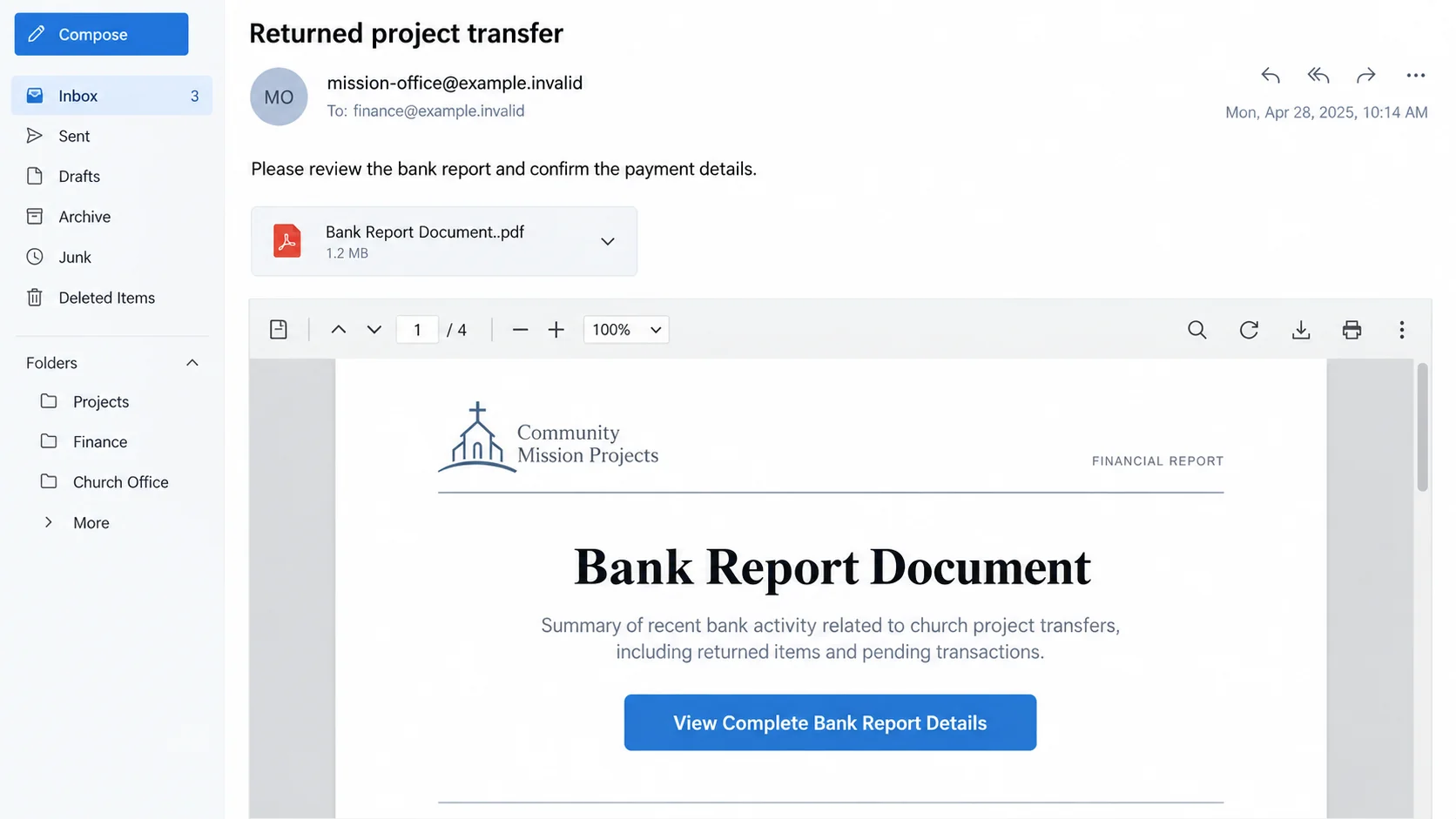
The reported attachment is named Bank Report Document..pdf. Instead of providing the promised transaction details, it directs the reader to another location through a report-view link.
That route was reported to deliver a malicious executable. The payload family was not identified because the download endpoint was inactive during analysis.
Do not label it a particular trojan, stealer, or ransomware without additional evidence. The established warning concerns the deceptive executable-download route.
Your response depends on how far you went
Reading the email, opening a PDF, following its link, downloading a program, and running that program are different exposures. They should not receive the same diagnosis.
- No interaction: preserve or report the message, then keep it out of normal processing.
- Link or download only: stop and establish whether anything executed or permissions changed.
- Program execution: isolate the affected device and seek trusted cleanup assistance.
- Shared banking information: involve the genuine finance contact and your financial institution as appropriate.
The image illustrates the email-to-document arrangement with fictional details. It is not an original message, genuine bank report, or record of an infection we executed.
How the Diocesan Account Wire Transfer Email Scam Works
Step 1: A project reference makes the message feel like existing business
The sender claims a transfer was returned and needs correction. A project number and a payment date make that explanation sound anchored to a real administrative history.
The reported message references project A 288/2026. A reference like that can be persuasive even when the recipient has no matching entry in their records.
Someone in a church office may assume a colleague arranged the grant. Someone outside that setting may still open it to discover whether it concerns their organization.
Neither reaction verifies the sender. Before reviewing an unexpected payment attachment, ask whether the payment and the relationship can be confirmed through an established contact.
Do not use a new reply address in the disputed message as your independent check. A conversation with the same sender simply continues the original claim.
If a familiar person’s signature appears, contact that person using details already held. A real name is useful to an impersonator precisely because it sounds recognizable.
Step 2: The bank-report attachment supplies a reason to continue
A PDF feels like supporting paperwork. For a finance worker, reviewing one may seem safer and more routine than following an unexplained email link.
But a PDF can contain clickable links. The container does not guarantee the destination, and a document-looking button can still start a separate download.
In this case, the supposed report does not satisfy the original request for meaningful transaction information. It asks the reader to leave the attachment for more details.
That change deserves attention. A document claiming to explain a returned transfer should not require an unfamiliar executable just to reveal the explanation.
Adobe-related wording in a document footer does not establish Adobe’s involvement. A creator can type familiar software names into ordinary page content.
Likewise, a PDF icon is not an endorsement by a bank. The relevant questions remain who supplied the document and what its next instruction does.
Step 3: A viewing instruction becomes a program download
The reported embedded link leads toward a malicious executable. That is the critical change from reading financial paperwork to potentially running software on the computer.
A filename can encourage the transition by sounding like a viewer, report, or update. Check the actual file type rather than relying on the beginning of its name.
If a browser warns about a download, do not disable its protections to finish this task. An email’s payment story does not justify bypassing a security warning.
Do not install a special bank-report application offered by the sender. If legitimate software is genuinely needed, obtain it through your organization’s approved process.
The inactive endpoint limits what can be concluded about this campaign. We cannot responsibly supply an exact malware name, encryption behavior, or list of stolen records.
Those unknowns are not reasons to execute the file experimentally. A reader does not need a precise family label to reject an unverified program delivered through fake paperwork.
Step 4: Running the download can create a separate security incident
If a malicious program executes, the problem extends beyond a misleading payment request. What happens next depends on the file and the access it obtains.
That may require device investigation and account protection, but it should be based on actual findings. Do not assume every listed malware capability occurred.
For a workplace computer, responders may need the original email, the PDF, the download location, and the approximate execution time to reconstruct events.
Even if the program appears to do nothing, tell the team it ran. Silence on screen is not a useful test of whether software made changes.
Conversely, opening the message without following its instructions does not prove compromise. Avoid turning an untrusted email’s story into a diagnosis of your own computer.
The safe decision is to stop the chain and report the actual action taken. That gives trusted support a much better starting point than guessing the payload.
Verify the Payment Before Correcting Any Account Details
Match the project to your own records
Look for an existing project agreement, expected transfer, and established finance contact. Do not create a matching explanation simply because the message includes a reference number.
A genuine relationship should have records independent of this email. If none exist, there is no reason to supply banking details to complete the sender’s story.
If the project is real, confirm the specific returned-payment claim anyway. Impersonators can borrow public project information or details taken from earlier correspondence.
Ask your bank about the actual transaction
A payment institution can explain information available about your own account. The stranger’s PDF is not the authority on whether funds arrived, failed, or were returned.
Use your usual banking channel. Do not contact a supposed bank officer introduced inside the disputed document to validate the same document.
For organizational accounts, follow established approval procedures. A request to correct a beneficiary can become a payment-redirection risk even when no malicious software is involved.
Keep the real organization separate from its impersonator
The campaign borrows a missionary organization’s identity to make the request plausible. It does not establish wrongdoing by that institution or the person named in the signature.
Report the misuse through a genuine contact if you have one. Avoid publicly publishing staff details or private banking records as evidence of the impersonation.
The useful warning is about the fraudulent email and download path. Blaming the copied institution can misdirect readers away from the actual risk.
What to Do If You Opened the Email or Bank Report
-
Stop following the document’s instructions. Do not reopen its link, download another viewer, or run the file again to check what it does.
Keep the original message available for your reporting team. If you only read it, avoid escalating the situation into unnecessary computer changes.
-
Reconstruct the sequence honestly. Note whether you opened the PDF, followed a link, saved a download, launched it, or approved an installation prompt.
If you are unsure, say so. Browser download history and security records may help an administrator establish what happened without repeating the risky action.
-
If the program ran or remote access was granted, disconnect the affected device from networks and contact trusted support. Managed workplace devices should go through their incident-response process.
Do not use that device to administer banking or other systems while its condition is uncertain. Use an unaffected device for urgent account-protection work.
-
Arrange a malware assessment appropriate to the system. Malwarebytes can help detect unwanted software; a serious compromise may require additional investigation or rebuilding.
AdGuard can reduce some malicious advertising and site exposure during later browsing. It does not remove every malicious program or guarantee that a downloaded file is safe.
-
Secure any credentials entered or exposed. Review sessions and account changes through the real provider, especially for email, banking, and administrative accounts used during the incident.
For Google account recovery, use the provider’s genuine guidance. A password reset and a device scan address different parts of a compromise.
-
Contact your financial institution if you sent money or supplied information that could affect an account. Explain the exact disclosure rather than assuming every account is already drained.
If beneficiary details changed, involve the organization’s finance lead immediately. Preserve transfer references and ask what recall or dispute options remain available.
-
Report the impersonation with the original email and attachment through a safe channel. Provide the project reference and timing, but keep sensitive documents out of public discussions.
Do not pay someone who promises to recover the payment or clean the computer after contacting you unexpectedly. Use support you reached independently.
Windows Cleanup After Running the Bank-Report Download
These steps apply if a downloaded Windows program ran or credible device findings require investigation. Opening the email or reading a PDF is not the same event.
Step 1: Preserve the incident details before cleanup
Keep the original email, Bank Report Document..pdf filename, and download timeline. Do not reopen the link to discover which inactive payload it might deliver.
Notify IT for workplace equipment before cleanup. Confirm banking information through the real institution from an unaffected device, not through the disputed sender.
Step 2: Install Malwarebytes, scan Windows, and quarantine threats
Use this procedure on a personal Windows PC after preserving the incident details. For a managed computer, let your security team decide when scanning should begin.
Malwarebytes can find and quarantine threats. Its free Custom Scan is separate from paid real-time protection and Threat Scan. Neither edition supplies ransomware decryption keys.
-
Download the Windows installer.
Open the official download page using the button below. Select Free Download there and save the Windows installer.
If the affected PC cannot browse safely, use a trusted computer and arrange an appropriate transfer without exposing clean backup media.
Malwarebytes for WindowsManual scanning and quarantine, with optional paid protection.
Opens the official free-scanner page. Choose its Windows download; paid protection is optional.
-
Open the setup file.
Open Downloads and double-click the MBSetup file. If Windows requests permission, check that the prompt identifies Malwarebytes before allowing the installation.

-
Complete setup without accepting unwanted extras.
Select Install, choose the appropriate Personal or Business device option, and continue. Business-managed computers should be handled through their administrator’s process.

Review any browser extension, trial, or subscription offers. Skip optional features you do not want, then select Open Malwarebytes when setup finishes.

-
Choose a supported scan.
Find the Scanner tile on the dashboard. For a free Custom Scan, open its three-dot menu, select Advanced Scan, and choose Custom Scan.
Expand the file-location selector and select the system drive and relevant locations. Review potentially unwanted program settings, then select Start Custom Scan.
A paid or eligible trial edition may also offer Threat Scan. Use the controls available in your edition; do not disable Windows protections to unlock another option.

-
Let the scan complete and inspect its findings.
Keep the computer powered on while scanning and wait for the results. A large Custom Scan can take longer than a scan limited to common locations.
Review each detection and its location. Leave confirmed threats selected and choose Quarantine. Save the report if a detection is unclear rather than adding it to exclusions.
The results illustration uses sample detections to show the Quarantine control. Those names are not identifiers for the malware discussed in this article.

-
Finish removal and handle a requested restart.
Follow the quarantine prompts. If a restart is requested, save your work and coordinate it with anyone preserving evidence before restarting.

Reopen the application afterward and review the result. Repeated detections, blocked removal, or signs of continuing access need further investigation, not an automatic clean-device conclusion.
The screen design can vary by installed release. Follow the named controls and the vendor’s current scan instructions if your version looks different.
Step 3: Use a second opinion if findings remain unresolved
HitmanPro provides an optional second opinion when a Windows infection or unresolved finding warrants another check. Run scanners sequentially, not at the same time.
Scanning is free. Removal needs an eligible one-time 30-day trial or a paid license. A computer that already used its trial may not qualify again.
-
Obtain HitmanPro from the established download route.
HitmanProOptional second-opinion Windows scanner.
Free scan. Removal requires an eligible trial or paid license.
-
Launch the downloaded program.
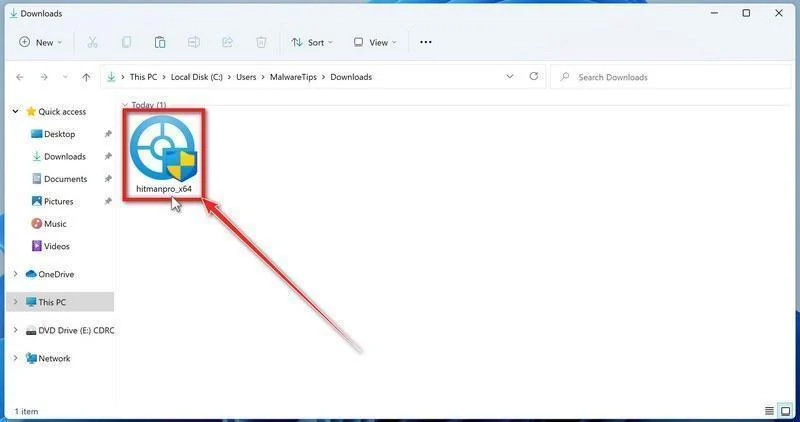
Open Downloads and run the appropriate HitmanPro file for your system. Check the publisher in any Windows permission prompt before allowing it.
-
Start the scan.
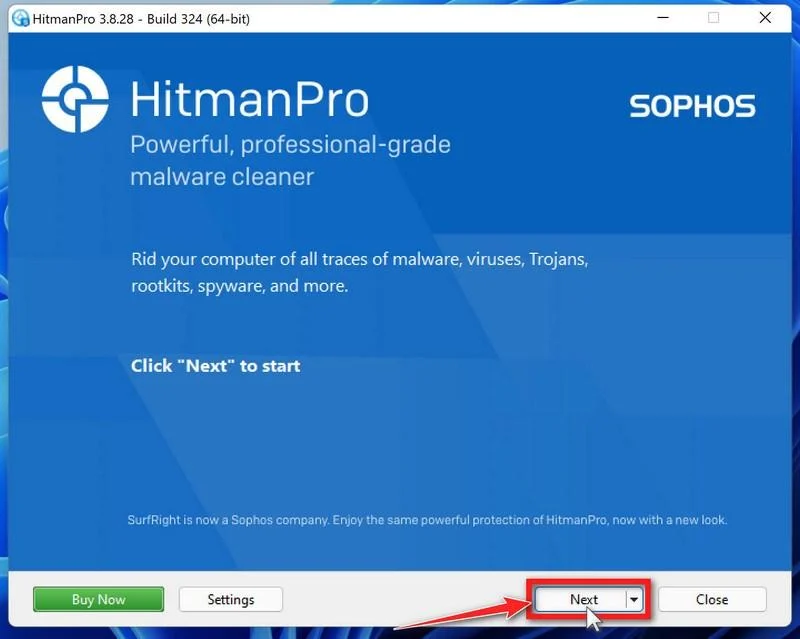
Open HitmanPro, select Next, and follow its license and setup prompts. Its cloud checks require an internet connection; arrange controlled access if the PC was isolated.
-
Review the results before removal.
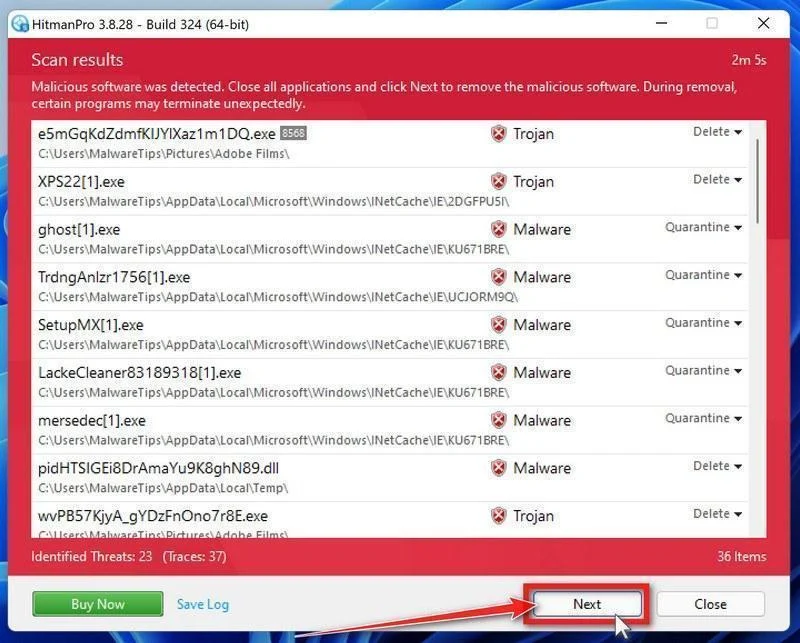
Allow scanning to finish. Inspect the listed objects and proposed actions, then select Next for confirmed unwanted items. Save uncertain findings for qualified assistance.
-
Use an eligible license and complete cleanup.
If available, select Activate free license and follow the trial prompts. Otherwise, use an existing license or retain the report; do not assume purchase is mandatory.
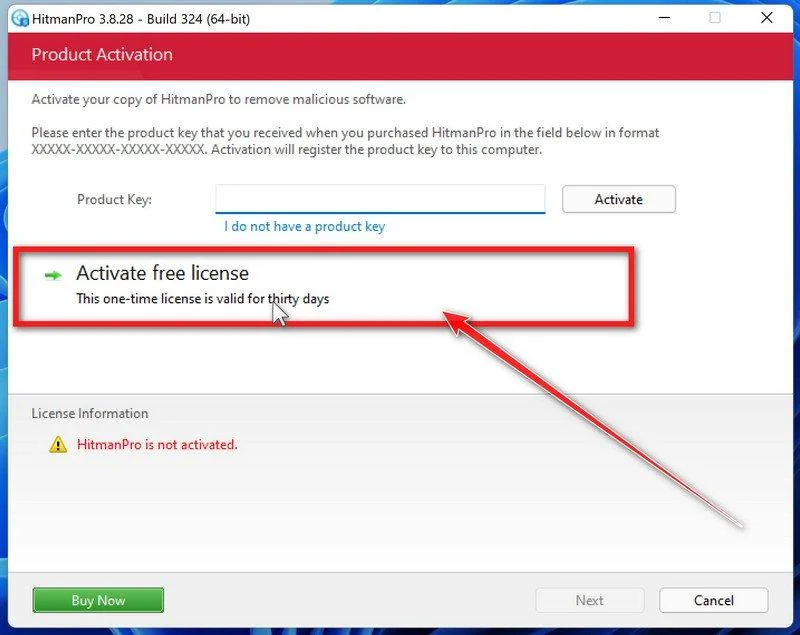
Finish the proposed cleanup and restart if requested. If problems persist, keep both scanners’ reports and seek help rather than repeatedly activating unfamiliar repair tools.
Step 4: Separate a trustworthy computer from a verified payment
Preserve both scan reports. Continuing detections, unexpected remote access, or uncertain execution effects require qualified investigation and may justify a prepared reinstall.
Reinstall needed applications through approved publishers. Device cleanup does not validate the project, correct banking details, or recall money already transferred.
What a Clean-Looking PDF Can and Cannot Tell You
A readable first page only shows that the document can display content. It does not validate the sender, the bank story, or an embedded website.
A scan of the attachment may also answer a narrower question than expected. A link destination can change after a document is delivered or become unavailable later.
That does not make every linked PDF malicious. It means an attachment’s appearance should not replace independent verification of a sensitive request.
Modern document readers and updated systems reduce some technical risks. They cannot decide whether a stranger’s request to install a report viewer is legitimate.
Keep document viewing and software installation as separate decisions. An ordinary bookkeeping task should not quietly become permission to run a new program.
CISA’s phishing guidance explains why unexpected messages and attachments deserve independent checks. The principle applies even when the message uses a charitable or religious context.
A Practical Rule for Church and Nonprofit Finance Teams
Give staff a simple escalation route for unexpected banking attachments. They should not need to identify malware before asking whether a transfer story is genuine.
Separate the person reviewing an account change from the person approving a payment. Existing controls still matter when the request arrives with a reassuring signature.
Use previously verified telephone or portal details for important corrections. Replacing those contacts with details from the disputed message defeats the point of checking separately.
Record whether any downloaded file ran when reporting internally. That single fact can determine whether the response is email handling, account protection, or a broader device incident.
If a colleague received the same attachment, warn them through an internal channel without forwarding the active file. A text description can prevent another accidental execution.
Agree who will contact the real project office and the bank. Coordinating those checks reduces conflicting requests while keeping sensitive payment information within the proper team.
Frequently Asked Questions
Is the real missionary organization sending malware?
The organization’s identity is being borrowed. A familiar mission name and staff-style signature are reasons to check the sender, not evidence that the attachment is genuine.
Verify any real project communication through contacts you already trust.
What is suspicious about Bank Report Document..pdf?
The reported attachment redirects the reader toward an executable instead of supplying the promised banking details. That behavior matters more than punctuation in its filename.
A convincing icon or document footer does not justify installing software.
Does opening the PDF automatically infect my computer?
Do not assume that from this report. The described route involves the document’s embedded link and a downloaded executable.
Tell trusted support which steps you actually took. Software execution, not merely seeing a filename, changes the response.
Which malware does the campaign install?
The payload family was not identified because the download endpoint was inactive during analysis. Calling it a specific ransomware or trojan would overstate the evidence.
Reject the download route regardless, and investigate any file that already ran.
Should I reply with corrected bank details?
No. Confirm the payment and sender separately before supplying financial information. A reply to the disputed email is not independent verification.
Use your organization’s finance procedures and its established banking contacts.
Can antivirus recover money from this email scam?
No. Antimalware helps address malicious software; it cannot recall a bank transfer. Contact the financial institution promptly about payment options.
If both software and money were involved, pursue device response and financial reporting separately.
The Bottom Line
Do not download or run a supposed bank-report viewer from this diocesan transfer email. Its returned-payment story leads away from genuine financial verification.
If you already interacted, establish whether anything executed and involve trusted support. Confirm any real payment with the actual institution, not the sender of the attachment.

Join the discussion
0 commentsShare your experience or ask a question about this article.
Discussion
Start the conversation
Have a question or something useful to share? Add the first comment.