

An internal memo asks everyone to review new instructions. It looks like an ordinary workplace task waiting in your inbox.
But a request to acknowledge a policy deserves the same care as any other unexpected sign-in request.
Overview
A mandatory staff notice borrows management’s authority
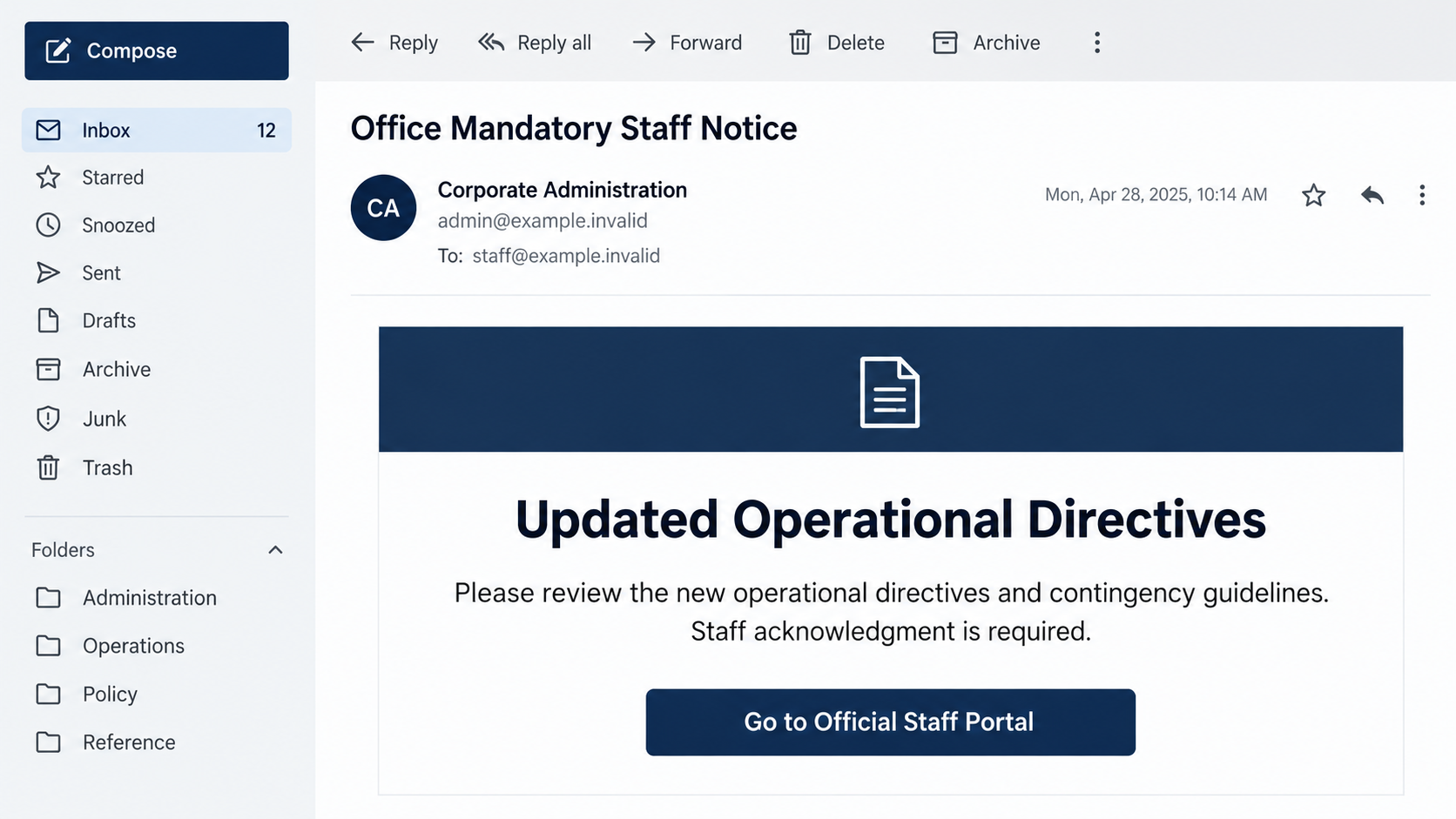
The new operational directives email scam presents itself as an internal management announcement. Its reported subject asks staff to review updated operating instructions.
The body invokes an international conflict as the reason for contingency planning. Employees are directed to a supposed staff portal to read instructions and acknowledge them.
The deceptive message is classified as phishing. Its original destination was unavailable, so the exact login form and any additional requests cannot be confirmed.
Do not read the notice as evidence that your employer changed policy. Equally, do not dismiss a genuine workplace safety announcement merely because this imitation exists.
The request blends security language with a routine task
A staff acknowledgment is familiar in many workplaces. That familiarity makes a portal link feel administrative rather than like a request for sensitive access.
- The sender claims to speak for corporate administration or management.
- The subject describes a mandatory staff notice.
- The explanation concerns operational continuity and contingency instructions.
- The next action is a portal visit and acknowledgment.
The campaign’s geopolitical claims are part of its pitch. This warning does not validate the events or operational assumptions described in the email.
A company can confirm an actual instruction through its existing intranet, manager or security team. That independent channel is the place to start.
What matters if someone already followed the memo
A page visit, a submitted password, an accepted authentication request and an installed program are different events. Report the one that actually happened.
There is no confirmed software payload or named phishing toolkit for this sample. Inventing one would distract from the practical account checks.
The email image is a fictional illustration of the administrative request. Its sender address, date and layout are not an authenticated record from a real employer.
The immediate decision is straightforward: verify the instruction without using the email’s portal. If secrets were disclosed, notify the team responsible for those accounts.
Why This Message Can Catch Careful Employees
The notice appeals to responsibility. It suggests that reading the instructions is part of doing your job, not a personal favor or an unusual transaction.
That can be more convincing than a prize or refund. Nobody wants to be the person who ignored a security or continuity update.
A reference to a major crisis adds background pressure. The reader may accept that procedures need changing before checking who issued the change.
People working across time zones can be particularly uncertain about a late announcement. A generic all-staff memo may arrive before a manager is available to clarify it.
Uncertainty is not a reason to hand over credentials. Keep the message available and use your company’s normal out-of-hours process if the subject appears urgent.
The sender’s preferred route is only one way to check. A known intranet bookmark, established help desk or supervisor can confirm the announcement without this link.
Good security practice should not require ignoring genuine safety instructions. It requires separating the legitimacy of the instruction from the route used to deliver it.
If immediate physical safety is involved, follow established emergency procedures. Do not let an unverified email become the sole source of operational direction.
How the New Operational Directives Email Scam Works
Step 1: Create the Appearance of an All-Staff Management Memo
The reported message uses an office-wide format and an administrative sender identity. Those labels imply that the request has already been approved above the recipient.
They also discourage questions about relevance. If everyone must acknowledge the notice, the reader may feel there is no need to decide whether it applies.
A formal subject and department title are easy to type. They do not establish that the person sending the message holds the position claimed.
Look for a connection to the actual organization: an established announcement location, a recognizable process and a verified administrator who can explain the request.
Do not rely only on a sender display name. An attacker can copy a title, and a compromised account can make a familiar name misleading.
A report to your security team is useful even when you cannot prove the address was forged. You are reporting a suspicious request, not making a forensic conclusion.
Step 2: Tie Compliance to a Larger Crisis
The memo invokes conflict-related disruption to justify new directives. That framing gives a broad reason for changes affecting security, continuity and departmental responsibilities.
It can also explain away an unfamiliar procedure. A reader may assume exceptional circumstances require a new portal or a different sign-in experience.
Real emergencies can change workflows, but that does not authenticate a particular email. An established organization should still identify the responsible team and trusted communication route.
Check whether management has announced the same instruction elsewhere. A notice appearing only behind an unsolicited login link needs independent confirmation.
A genuine manager should not need your account password to confirm whether the memo exists. Ask about the instruction itself, not permission to trust a stranger’s website.
Do not spend time debating the news narrative with the sender. Even a true event would not prove that the linked portal belongs to your employer.
Step 3: Make Acknowledgment Depend on the Linked Portal
The call to action asks employees to visit an official-sounding staff portal or submit an acknowledgment. The wording makes the link part of completing a required task.
That is the point to interrupt the process. Open the intranet through your normal bookmark rather than accepting the route supplied in the message.
If there is a real document, the responsible team can tell you where to find it. If the procedure genuinely changed, ask for confirmation through a trusted channel.
A browser lock icon cannot settle the question. An encrypted connection to an impostor still sends information to the impostor’s server.
The unavailable destination prevents a claim about exactly which form this sample displayed. The reported credential-phishing purpose should not be inflated into an observed live exploit.
If you saw a form, keep your own account of its fields. That detail will matter more to incident response than speculation about the toolkit behind it.
Step 4: Turn a Routine Workplace Action Into Account Exposure
A submitted work password can enable attempted access to email, shared documents or connected services. The account’s protections determine what additional barriers remain.
A later authentication notification should not be accepted automatically. It may represent someone trying to use the credentials you just disclosed.
If you approved a request or supplied a code, tell the security team. Do not reduce the report to a harmless page visit when more occurred.
Successful access may allow observation of internal conversations or messages sent in the employee’s name. Investigators should check actual activity before deciding which data was affected.
The same principle applies to a software download. It becomes a device issue if a program ran, but this email does not establish that software was delivered.
The response must cover the real exposure without assuming every possible consequence. Clear facts let the administrator decide which sessions, credentials or devices require action.
Verify the Policy Without Spreading the Phishing Link
Use the announcement system your company already has
Check the established intranet, staff directory or official communication channel. Search for the claimed document title within that known environment, not through the suspect email.
If there is no matching announcement, ask the team that normally issues policy changes. A colleague’s guess that it looks plausible is not management confirmation.
When a coworker asks about the same notice, describe the concern and share the official verification route. Avoid sending them the active portal button.
Give the help desk a useful report
Keep the original email and note when it arrived. State whether you viewed the page, submitted information, approved a sign-in or launched a file.
Do not include the password itself in a ticket. The team needs to identify the exposed account, not create another place where its secret is stored.
Microsoft’s phishing guidance recommends reporting work or school account exposure to the responsible IT team.
Do not treat a genuine account as a genuine request
A message can come from a compromised coworker. If that happens, the sender address may look correct while the request remains unsafe.
Verify unusual operational changes through a separate relationship or announcement channel. That check protects both the recipient and the employee whose account may be misused.
For organizations, a helpful response explains the false instruction and the real process together. Simply saying ignore all memos can create another problem.
If You Are Responsible for Staff Communications
Make authentic announcements easy to verify outside email. Staff should know which portal or team normally owns policy changes before a suspicious notice appears.
When issuing a genuine update, identify the document, owner and existing access route. Employees should be able to navigate there without relying on a message’s button.
Acknowledge suspicious reports without blaming the person who clicked. Early disclosure gives the organization a better chance to revoke access before it is misused.
Ask factual questions about the interaction rather than whether the employee fell for the scam. People may omit an approval or second password attempt if they feel judged.
Review the actual account and document access involved. A single phishing notice does not automatically mean the entire organization has been breached.
Equally, do not limit investigation to the visible inbox when credentials authorize other systems. Let the account’s role and access scope guide the response.
If you warn coworkers, avoid embedding an active replica of the malicious link. Describe the subject and direct staff toward the known reporting process.
Keep legitimate continuity instructions accessible while handling the impersonation. Security messaging works better when staff are told what to do, not merely what to distrust.
What to Do if You Have Fallen Victim to This Scam
Leave the emailed portal. Do not complete another acknowledgment or retry a rejected sign-in. Preserve the notice for the established reporting process.
If you only read it, report that accurately. Receiving an administrative phishing message alone does not establish device infection or successful account access.
Notify your workplace security contact promptly. Identify the targeted account and the sequence of actions. Include any authentication request accepted afterward.
Use your normal help desk or manager’s verified contact. A new support number supplied by the suspect memo is not an independent check.
Reset exposed access through the real service. Follow your administrator’s password and session-revocation instructions. Use an unaffected device if software was also installed.
Change reused passwords where applicable. Review recovery details and connected applications rather than assuming a visible password change removes every access route.
Check communications and document activity. Ask the responsible team to inspect unusual sign-ins, sent messages, mailbox rules and sensitive file access.
Warn affected colleagues or partners through a trusted alternative if false instructions were sent from your account. Preserve the relevant conversation rather than continuing it.
Address actual device concerns. If a helper application, extension or download was installed, stop sensitive work on that device and involve IT.
Malwarebytes can assist with unwanted software on an appropriate device. AdGuard may reduce malicious advertising, but it cannot retract a disclosed work password.
The scan component is supplementary and conditional. Cloud-account investigation should continue even if a device scan reports no detections.
Confirm the genuine workplace instruction. Ask whether an authentic policy update still requires attention and complete it through the established route.
Keep the incident reference and follow-up tasks together. Do not pay an unsolicited specialist who claims to remove your account from a secret attacker database.
Is Your Device Infected? Run a Free Malware Scan
Slow performance, constant pop-ups, or strange behavior? These are classic signs of a malware infection. The fastest way to find out is to scan your device with Malwarebytes Free — one of the most trusted malware removal tools available.
The free version detects and removes the most common threats, including:
- Adware — the cause of those annoying pop-ups
- Browser hijackers — unwanted redirects and changed homepages
- Trojans and spyware — hidden programs stealing your data
- Potentially unwanted programs (PUPs) — software you never asked for
👉 Select your device below — Windows, Mac, or Android — then follow the simple steps to download Malwarebytes, scan your system, and remove any threats it finds. The scan usually takes 5 to 20 minutes.
Run a Malware Scan with Malwarebytes for Windows
Malwarebytes is one of the most popular and trusted anti-malware tools for Windows — and it’s completely free for removing infections. It catches threats that many antivirus programs miss, including adware, browser hijackers, and trojans. Follow the steps below to scan and clean your PC in just a few minutes.
Download Malwarebytes
Click the button below to download the latest version of Malwarebytes for Windows from the official source. The free version is all you need — it will scan your computer and remove adware, browser hijackers, and other malicious software at no cost.
Download MalwarebytesOfficial installer for Windows 11 and 10. Your download starts right away.Want real-time protection? See Malwarebytes Premium Malwarebytes Free for WindowsScans and removes malware at no cost
-
Install Malwarebytes
When the download finishes, open your Downloads folder and double-click the MBSetup file. If Windows shows a User Account Control pop-up, click “Yes” to allow the installation.

Follow the On-Screen Prompts to Install Malwarebytes
The setup wizard will walk you through a few quick screens:
-
Choose where you’re installing the program — “Personal Computer” or “Work Computer” — then click Next.

-
Malwarebytes will now install on your device. This usually takes under a minute.

-
When installation is complete, the “Welcome to Malwarebytes” screen will open automatically.

-
On the final screen, click Open Malwarebytes to launch the program.

-
Enable “Scan for Rootkits”
Before scanning, turn on rootkit detection so Malwarebytes can find even the most hidden threats. Click the Settings gear icon on the left side of the screen.

In the settings menu, find “Scan for rootkits” and click the toggle so it turns blue.

Done? Click “Dashboard” in the left pane to return to the main screen.
Start the Scan
Click the blue Scan button. Malwarebytes will automatically update its virus database and start checking your computer for malware.

-
Wait for the Scan to Finish
The scan checks your entire system for browser hijackers and other malicious programs, so it can take 5 to 20 minutes depending on your computer. Feel free to do something else — just check back occasionally to see the progress.

-
Quarantine the Detected Threats
When the scan is done, you’ll see a list of everything Malwarebytes found — malware, adware, and potentially unwanted programs. Click the “Quarantine” button to remove all of them at once.

Malwarebytes will now remove the malicious files and registry entries and move them safely into quarantine.

-
Restart Your Computer
Some threats can only be fully removed after a reboot. If Malwarebytes asks you to restart, click Yes. Once you’re logged back in, Malwarebytes has finished removing the threats it found.

That’s it — your Windows PC is now clean of trojans, adware, and other malware, and should be back to running smoothly.
If you are still having problems with your computer after completing these instructions, then please follow one of the steps:
- Run a computer scan with ESET Online Scanner
- Ask for help in our Windows Malware Removal Help & Support forum.
Run a Malware Scan with Malwarebytes for Mac
Malwarebytes for Mac is a free on-demand scanner that removes the malware other security software tends to miss — adware, browser hijackers, and unwanted programs included. Cleaning an infected Mac with Malwarebytes has always been completely free, and it’s our go-to recommendation. Follow the steps below to scan and clean your Mac in just a few minutes.
-
Download Malwarebytes for Mac
Click the button below to download the latest version of Malwarebytes for Mac.
Download MalwarebytesOfficial installer for macOS. Your download starts right away.Want real-time protection? See Malwarebytes PremiumMalwarebytes Free for MacScans and removes malware at no cost -
Open the Malwarebytes setup file
When the download finishes, open your Downloads folder and double-click the setup file to begin the installation.

-
Follow the On-Screen Prompts to Install Malwarebytes
The Malwarebytes for Mac Installer will guide you through a few quick screens. Click “Continue” and keep following the prompts until the installation completes.



When the installation is complete, Malwarebytes opens to the Welcome to Malwarebytes screen. Click “Get started“.
-
Select “Personal Computer” or “Work Computer”
Malwarebytes will ask what type of computer you’re installing it on. Click either Personal Computer or Work Computer, whichever applies.

-
Start the Scan
Click the “Scan” button. Malwarebytes will automatically update its detection database and begin checking your Mac for malware.

-
Wait for the Scan to Finish
Malwarebytes will scan your Mac for adware, browser hijackers, and other malicious programs. This can take a few minutes, so feel free to do something else — just check back occasionally to see the progress.

-
Quarantine the Detected Threats
When the scan is done, you’ll see a list of everything Malwarebytes found. Click the “Quarantine” button to remove all the threats at once.

-
Restart Your Mac
Malwarebytes will now remove all the malicious files it found. Some threats can only be fully removed after a reboot — if Malwarebytes asks you to restart, allow it. Once you’re logged back in, your Mac is clean.

That’s it — your Mac is now free of adware, rogue browser extensions, and other potentially harmful software.
If you are still experiencing problems while trying to remove a malicious program from your computer, please ask for help in our Mac Malware Removal Help & Support forum.
Run a Malware Scan with Malwarebytes for Android
Malwarebytes for Android automatically detects and removes dangerous threats like malware and ransomware so you don’t have to worry about your most-used device being compromised. Aggressive detection of adware and potentially unwanted programs keeps your Android phone or tablet running smooth.
-
Download Malwarebytes for Android.
You can download Malwarebytes for Android by clicking the link below.
Get Malwarebytes for AndroidOpens Google Play in a new tab.Want real-time protection? See Malwarebytes Premium for AndroidMalwarebytes for AndroidScans your phone and removes malware at no cost -
Install Malwarebytes for Android on your phone.
In the Google Play Store, tap “Install” to install Malwarebytes for Android on your device.

When the installation process has finished, tap “Open” to begin using Malwarebytes for Android. You can also open Malwarebytes by tapping on its icon in your phone menu or home screen.

-
Follow the on-screen prompts to complete the setup process
When Malwarebytes will open, you will see the Malwarebytes Setup Wizard which will guide you through a series of permissions and other setup options.
This is the first of two screens that explain the difference between the Premium and Free versions. Swipe this screen to continue.
Tap on “Got it” to proceed to the next step.
Malwarebytes for Android will now ask for a set of permissions that are required to scan your device and protect it from malware. Tap on “Give permission” to continue.
Tap on “Allow” to permit Malwarebytes to access the files on your phone.
-
Update database and run a scan with Malwarebytes for Android
You will now be prompted to update the Malwarebytes database and run a full system scan.

Click on “Update database” to update the Malwarebytes for Android definitions to the latest version, then click on “Run full scan” to perform a system scan.

-
Wait for the Malwarebytes scan to complete.
Malwarebytes will now start scanning your phone for adware and other malicious apps. This process can take a few minutes, so we suggest you do something else and periodically check on the status of the scan to see when it is finished.

-
Click on “Remove Selected”.
When the scan has been completed, you will be presented with a screen showing the malware infections that Malwarebytes for Android has detected. To remove the malicious apps that Malwarebytes has found, tap on the “Remove Selected” button.

-
Restart your phone.
Malwarebytes for Android will now remove all the malicious apps that it has found. To complete the malware removal process, Malwarebytes may ask you to restart your device.
That’s it — your Android phone is now clean — no more malicious apps, adware, or browser redirects.
If you are still having problems with your phone after completing these instructions, then please follow one of the steps:
- Restore your phone to factory settings by going to Settings > General management > Reset > Factory data reset.
- Ask for help in our Mobile Malware Removal Help & Support forum.
Stay Protected: Block Ads and Malicious Sites
Now that your device is clean, keep it that way. Most infections start with a malicious ad or a fake download button — so blocking them at the source is your best defense.
We recommend AdGuard, which blocks malicious ads, phishing pages, and dangerous redirects before they can reach you.
👉 Download AdGuard and browse safely
Frequently Asked Questions
Is the operational directives email really from management?
The described memo is a phishing imitation. Confirm any genuine policy change through your existing workplace portal or a verified management contact.
Does a real international crisis make the link trustworthy?
No. An event can be real while a message exploiting it is false. Verify the sender’s authority and the portal independently.
Should I ignore all requests to acknowledge staff policies?
No. Legitimate organizations use acknowledgments. Complete genuine requirements through the established system instead of relying on an unexpected email’s sign-in route.
What if the email came from a coworker’s real address?
That account could be compromised. Check the unusual request through a second channel and report the message without assuming the coworker intentionally sent it.
Is this a confirmed malware download campaign?
No specific malware payload is established. The documented concern is phishing; a separate download or installation should be reported if it actually occurred.
Do I need to report a password even if I can still sign in?
Yes. Continued access does not rule out another active session. Report the disclosure promptly and follow the administrator’s account-protection process.
The Bottom Line
Do not use this new operational directives email to access a staff portal. Verify the policy through the workplace channels you already trust.
If you submitted credentials or accepted a sign-in, tell your security team now. Protect the exposed account while keeping genuine operational instructions separate from the phishing request.

Join the discussion
0 commentsShare your experience or ask a question about this article.
Discussion
Start the conversation
Have a question or something useful to share? Add the first comment.